www.it-connect.fr


Windows Forensics, Part 6: Analyzing Image Caches
When a file has been deleted from a Windows machine, its thumbnail preview often survives the cleanup. That is the real value of image caches in digital forensics: where the user believes the file is gone, the system has retained usable traces.
Windows actually maintains several local databases to speed up the display of graphical items in File Explorer. Two of them are of direct forensic interest: the icon cache (IconCache), which stores application and shortcut icons, and the thumbnail cache (Thumbnail Cache), which stores previews of images, videos, documents, and PDFs that have been viewed. The first helps establish that an application was present on the machine; the second can sometimes recover the preview of a file that was viewed and then deleted, moved, or hidden.
These two artifacts share the same storage directory, but they do not serve the same purpose and should not be interpreted in the same way. Like most of the traces covered in this series, they are not sufficient on their own: the presence of an icon or thumbnail is not proof of execution and must be correlated with other artifacts already discussed, such as ShimCache, Amcache, Prefetch or SuperFetch.
In this article, I’ll walk you through the role and location of these two caches, then show you how to analyze them with Thumbcache Viewer. We’ll see how to extract cached icons and thumbnails, what this data really reveals about user activity, and which limitations you need to keep in mind before drawing conclusions.
Windows Image Caches
Windows uses several caching mechanisms to speed up the display of graphical items in File Explorer. Instead of recalculating or reloading certain images every time a folder is opened, the system stores them in local databases.
For this article, we will focus on two main artifacts: the icon cache and the thumbnail cache. They are stored in the same directory, but they do not contain the same information and do not serve the same purpose:
C:\Utilisateurs\[Nom d'utilisateur]\AppData\Local\Microsoft\Windows\ExplorerWindows Icon Cache
The icon cache, or IconCache, allows Windows to store icons associated with applications, executables, shortcuts, and libraries. Its purpose is to speed up their display in File Explorer, the Start menu, and some system windows.
However, the presence of an icon should not be interpreted by itself as proof of execution. It must be correlated with other artifacts such as Prefetch, Amcache, UserAssist, LNK shortcuts, or event logs.
Example files:
iconcache_16.db
iconcache_32.db
iconcache_48.db
iconcache_96.db
iconcache_256.db
iconcache_idx.db
Windows Thumbnail Cache
The thumbnail cache, or Thumbnail Cache, allows Windows to store miniature previews of certain files displayed in Explorer. It mainly applies to images, videos, Office documents, PDFs, and other files compatible with thumbnail generation.
When a user opens a folder in large icon or thumbnail view, Windows can generate a preview of the file and save it in a database. This makes those previews display faster the next time the folder is opened.
Example files:
thumbcache_32.db
thumbcache_96.db
thumbcache_256.db
thumbcache_1024.db
thumbcache_1280.db
thumbcache_idx.db
Here is a closer look at the file structure:
| Name | Information |
| thumbcache_idx.db | Information about the thumbnail index |
| thumbcache_32.db | Thumbnails smaller than 32x32 pixels are stored, and all are in BMP format. |
| thumbcache_96.db | Thumbnails from 32x32 to 96x96 pixels are stored in BMP format. |
| thumbcahce_256.db | Thumbnails are stored in JPEG or PNG format, with a size between 96x96 and 256x256 pixels. |
| thumbcache_1024.db | Thumbnails ranging from 256x256 to 1024x1024 pixels are stored, all in JPEG format. |
Analyzing the Icon Cache
Now that we understand the role of the icon cache, let’s move on to its analysis. To do this, we will use the Thumbcache Viewer tool, available at the following address:
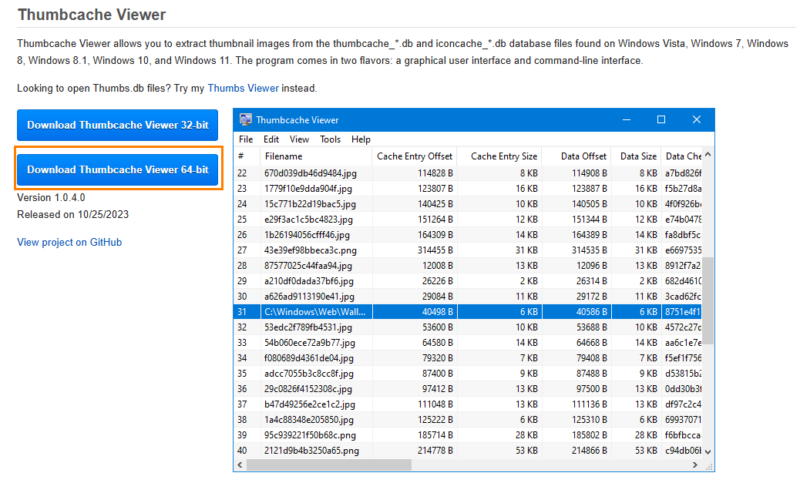
Once downloaded, simply launch the application. The tool can analyze both the icon cache (IconCache) and the thumbnail cache (Thumbnail Cache). Click File then Open, select the type of file to open, and confirm by clicking OK.
For the most complete results, favor the larger files, such as iconcache_256.db, which generally contain higher-quality icons and are used by most recent applications.
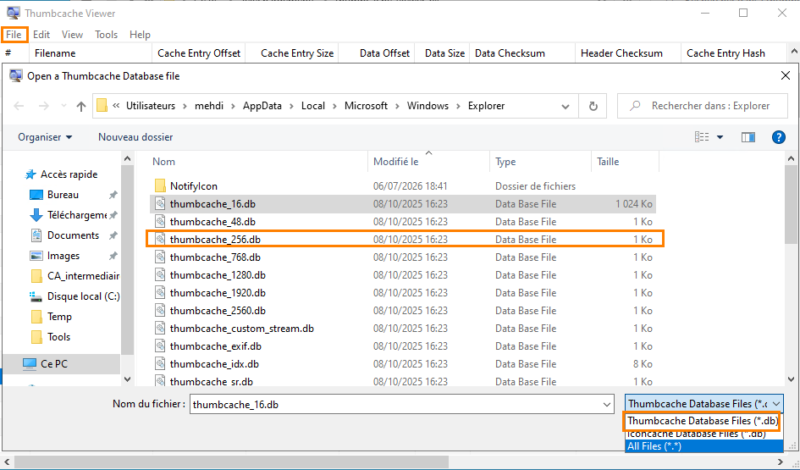
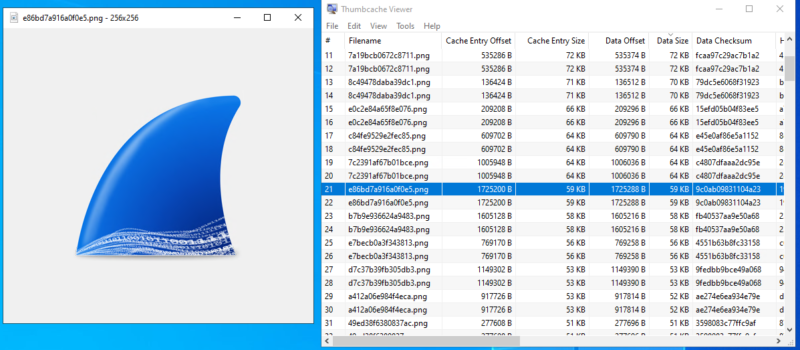
Once the file is open, you can browse the various entries using the keyboard arrow keys and view the stored icons. In our example, we can notably find the Wireshark icon, indicating that it has been cached by Windows.
IconCache and Thumbnail Cache at a Glance
To summarize the differences between the two caches discussed in this article:
| Criteria | Icon Cache | Thumbnail Cache |
|---|---|---|
| Cached content | Icons for applications, executables, shortcuts | Previews of images, videos, documents, PDFs |
| Trigger | Displaying an icon in File Explorer, the Start menu, etc. | Opening a folder in large icon or thumbnail view |
| Files | iconcache_*.db | thumbcache_*.db |
| Investigative value | Presence of an application on the system | Viewing of a file, including after deletion |
| Original filename | Not preserved | Not preserved, can be resolved via Windows.edb |
Conclusion
Although this artifact can help identify applications that were present on the system, it does not provide the execution date of a program by itself. It is therefore recommended to correlate its analysis with other artifacts such as Prefetch, Amcache, UserAssist, or LNK files, in order to confirm the observed activity. Nevertheless, it has the advantage of providing an additional trace and piece of evidence that an application was executed on the local computer.