www.it-connect.fr


Forensic Windows Part 16: Uncovering Web Browser Secrets in Chrome and Edge
A malicious tool downloaded from GitHub, a file uploaded to a sharing platform, a session opened on an online service: the Web browser often keeps a trace of these actions, even when the attacker thinks they have cleaned everything up.
Web browsers are one of the main gateways to the Internet. They provide access to websites and online applications, but they are also used to download or transfer files. During an attack, a cybercriminal can use them to drop a malicious tool or to send data to external services, such as file-sharing platforms or online clipboard services. They can even abuse these services to bypass certain security restrictions.
In this new part of the Windows forensic series, we will explore the main artifacts left behind by Google Chrome and Microsoft Edge: history, downloads, cookies, saved credentials, and bookmarks. We will see where they are stored and how to analyze them with DB Browser for SQLite and ChromeCookiesView. Firefox, which is based on different foundations, is not covered here. If you missed the previous episodes, you can find them on this page.
Web Browser Artifacts in Forensics
Traces That Complement Security Logs
In enterprises, monitoring browser activity generally relies on several security controls:
- EDRs and their browser-integrated extensions
- Firewalls
- Proxies
- Secure Web gateways
- DNS logs
- URL filtering solutions
These tools can record network connections, downloads, or access to suspicious websites. However, the available traces may be incomplete, retained for too short a period, or already deleted. Local analysis of browser data can then provide additional information.
Where Do Chrome and Edge Store Their Data?
Microsoft Edge and Google Chrome are both based on the Chromium project. Their artifacts therefore have the same structure, but each browser stores them in a different directory.
For Google Chrome:
%LOCALAPPDATA%\Google\Chrome\User Data\For Microsoft Edge:
%LOCALAPPDATA%\Microsoft\Edge\User Data\The main profile is located in the Default folder. Other profiles may be present in folders such as Profile 1 or Profile 2: be sure to check them all, because a user may reserve a secondary profile for specific activities.
Here are the main files of interest for a forensic analysis in the Default profile of Google Chrome:
| Item | Location | Format |
|---|---|---|
| History and downloads | %LOCALAPPDATA%\Google\Chrome\User Data\Default\History | SQLite |
| Cookies | %LOCALAPPDATA%\Google\Chrome\User Data\Default\Network\Cookies | SQLite |
| Saved credentials | %LOCALAPPDATA%\Google\Chrome\User Data\Default\Login Data | SQLite |
| Bookmarks | %LOCALAPPDATA%\Google\Chrome\User Data\Default\Bookmarks | JSON |
| Cache | %LOCALAPPDATA%\Google\Chrome\User Data\Default\Cache\Cache_Data\ | Chromium cache |
| Profile encryption key | %LOCALAPPDATA%\Google\Chrome\User Data\Local State | JSON |
For Edge, simply replace Google\Chrome with Microsoft\Edge. These locations may vary depending on the browser version: cookies, for example, used to be stored directly in the profile folder before being moved into the Network subfolder.
Collect Files Without Altering Them
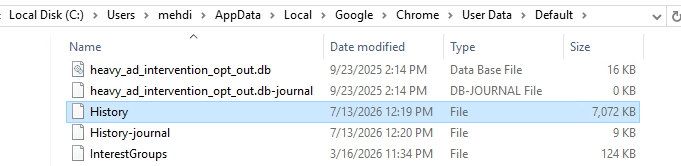
These databases are locked while the browser is open. On a test machine, close the browser, then copy the files to a working directory, such as C:\Temp. Also copy any companion files with the same name (for example History-journal), because they may contain data not yet written to the main database.
Analyzing Browsing History with DB Browser for SQLite
History contains many important traces. It is stored in a SQLite database named History, made up of several tables.
History Analysis
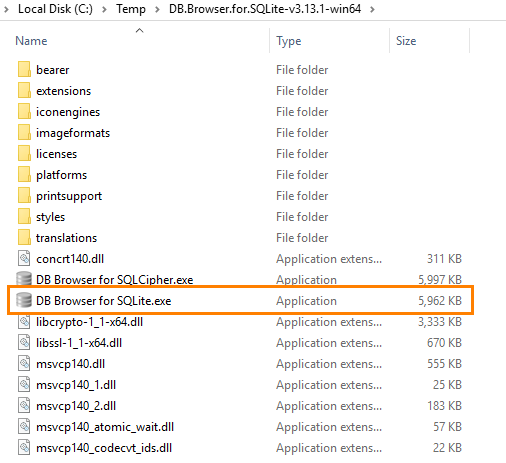
To explore this database, we will use DB Browser for SQLite, a free and open source tool:
- Official website: DB Browser for SQLite
- GitHub repository: sqlitebrowser/sqlitebrowser
Once the tool has been downloaded and installed (or the portable version extracted), launch DB Browser for SQLite.
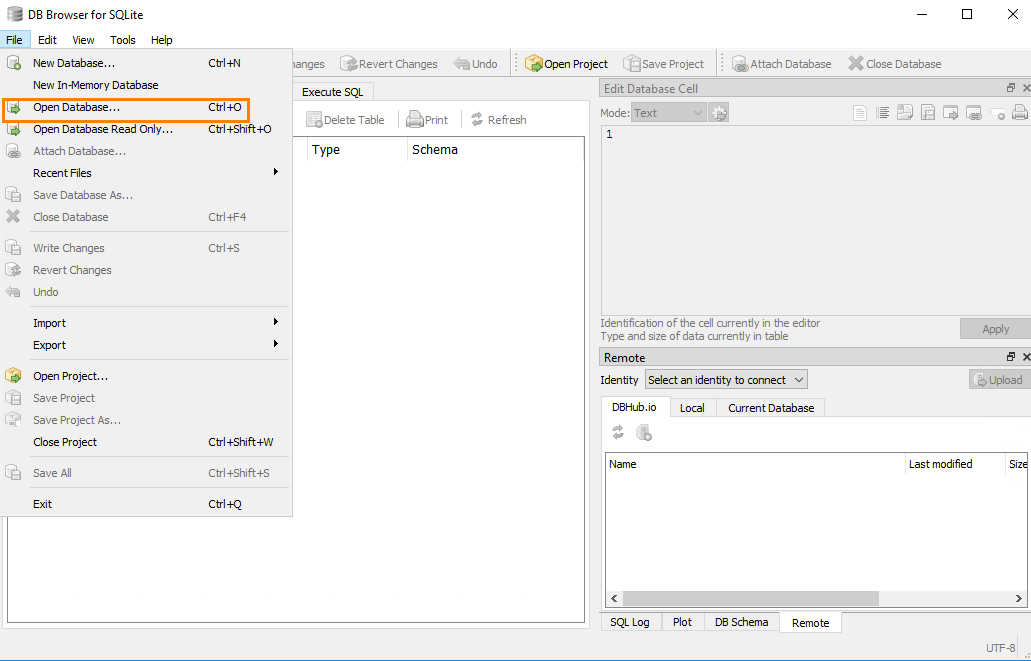
Click File, then Open Database Read Only, and select the copy of the History file. Opening it in read-only mode avoids any accidental modification of the database, even if it is a copy.
Once the database is open, the Database Structure tab displays the various tables and their structure.
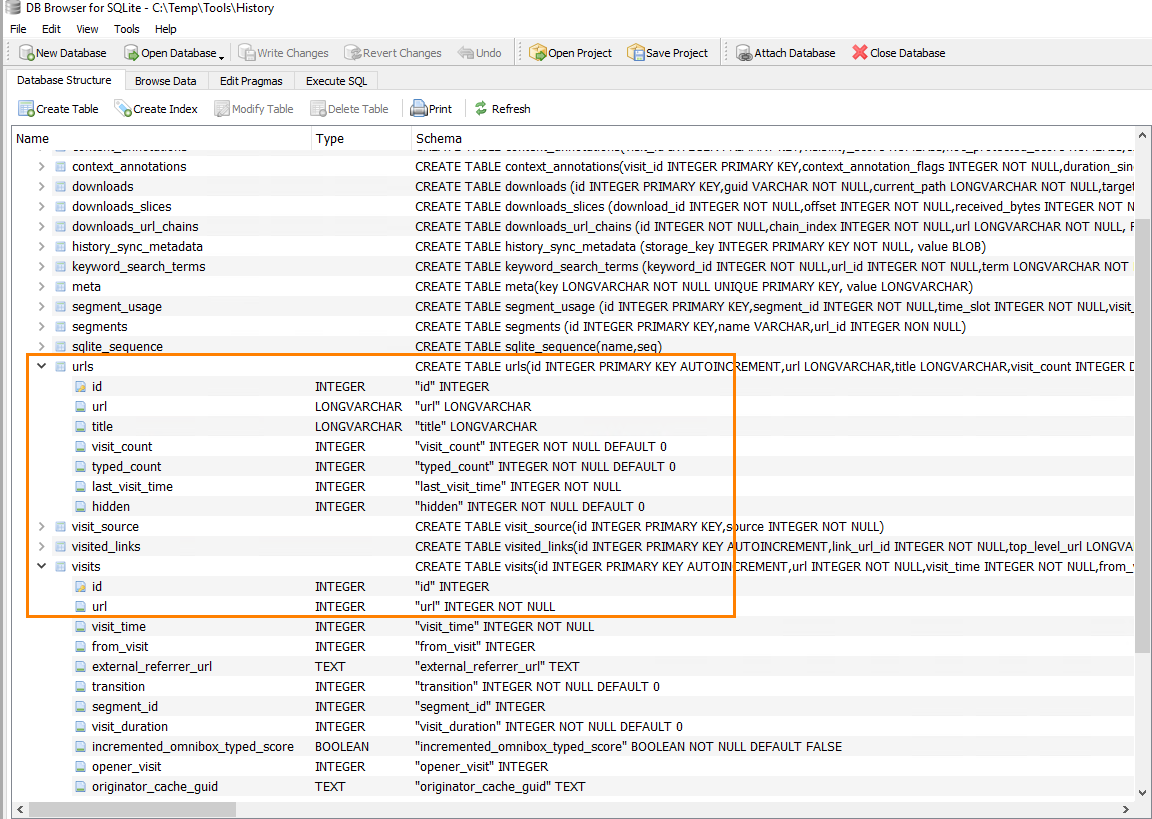
The most interesting tables are in particular:
urls: the addresses and titles of visited pages, along with the number of visits and the date of the last visitvisits: each recorded visit, with its date, source, and durationdownloads: downloaded filesdownloads_url_chains: the URLs associated with each download, including redirects
Converting Chromium Timestamps
Dates stored by Chromium are not directly readable. They correspond to the number of microseconds elapsed since January 1, 1601 UTC (sometimes referred to as the WebKit format). To convert them, simply subtract the offset from the Unix epoch (11,644,473,600 seconds) in an SQL query. Open the Execute SQL tab and use the following expression, for example:
-- Conversion d'un horodatage Chromium en date lisible (UTC)
datetime(last_visit_time / 1000000 - 11644473600, 'unixepoch')
The queries in the following sections rely on this conversion. Keep in mind that the result is in UTC: you will need to account for the workstation’s time zone when correlating it with other artifacts.
Analyzing Downloads
Open the Browse Data tab, then select the downloads table.
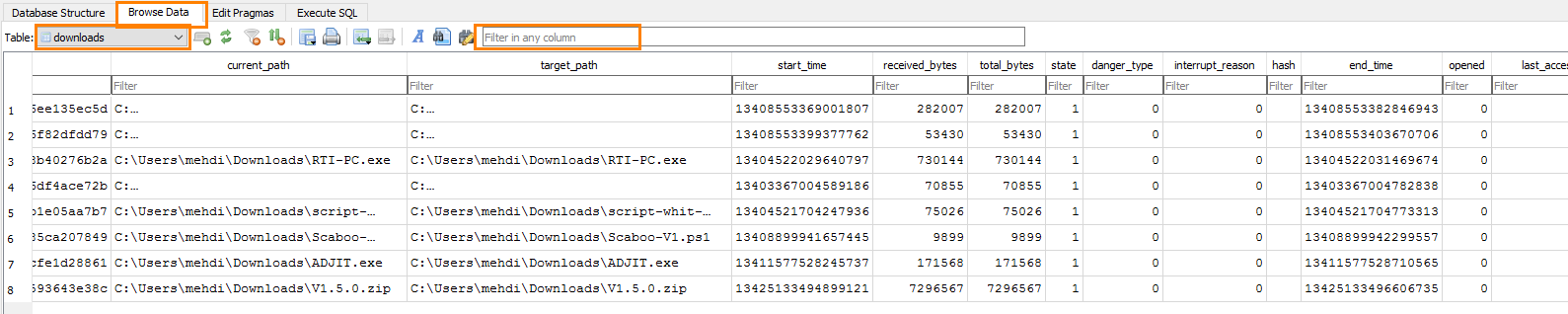
This table makes it possible to recover in particular:
- The file destination path (
target_path) - The download start and end dates (
start_time,end_time) - The download status (
state: 1 for completed, 2 for canceled, 4 for interrupted) - The amount of data received and the total size (
received_bytes,total_bytes) - The danger level assigned by the browser (
danger_type) - Whether the file was opened from the browser (
opened) - The source page and referrer (
tab_url,referrer)
It can be useful to filter the results on extensions such as .ps1, .exe, .zip, .dll, or .lnk, for example by adding WHERE d.target_path LIKE '%.exe' before the ORDER BY clause.
In our example, we find an entry associated with the download of BloodHound.

This entry indicates that a download was recorded by the browser. It does not prove that the file is still present, nor that it was executed (the opened column only indicates that it was opened from the browser interface). This information should be correlated with other artifacts, such as Prefetch, Amcache, the MFT, or the USN journal.
Analyzing Visited Sites
Still in the Browse Data tab, select the urls table. It shows in particular:
- The page address (
url) - Its title (
title) - The number of visits (
visit_count) and the number of manual entries in the address bar (typed_count) - The last visit date (
last_visit_time)
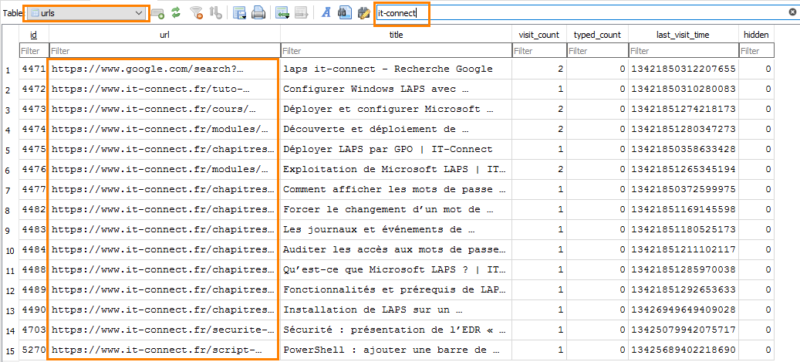
The urls table keeps only one row per address, with the date of the last visit only. To reconstruct the full timeline, you need to use the visits table, which contains one row per visit: its date (visit_time), the visit that preceded it (from_visit), the navigation type (transition), and the duration (visit_duration, in microseconds).
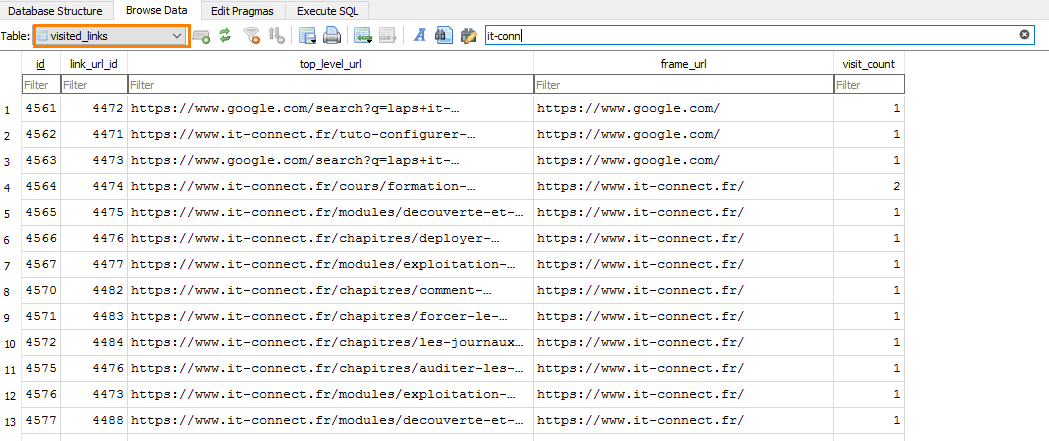
The absence of a URL in the history does not prove that the site was never visited. The user may have deleted their history, used private browsing, or used another profile
Analyzing Cookies
The Cookies Database
Chrome cookies are stored in the following SQLite database:
%LOCALAPPDATA%\Google\Chrome\User Data\Default\Network\Cookies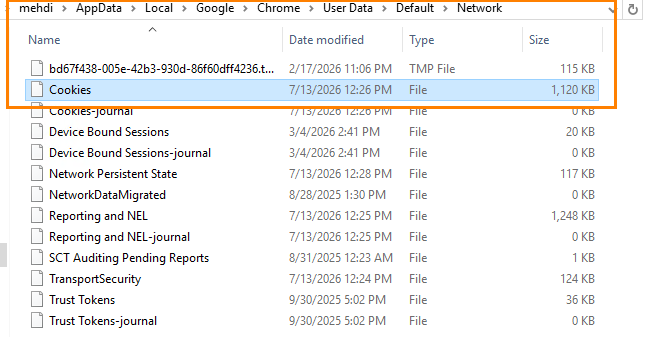
As with history, copy the database to a working directory before analyzing it. The cookies table includes in particular:
- The relevant domain (
host_key) - The cookie name (
name) - Its path (
path) - Its creation and expiration dates (
creation_utc,expires_utc) - Its last access date (
last_access_utc) - Its encrypted value (
encrypted_value)
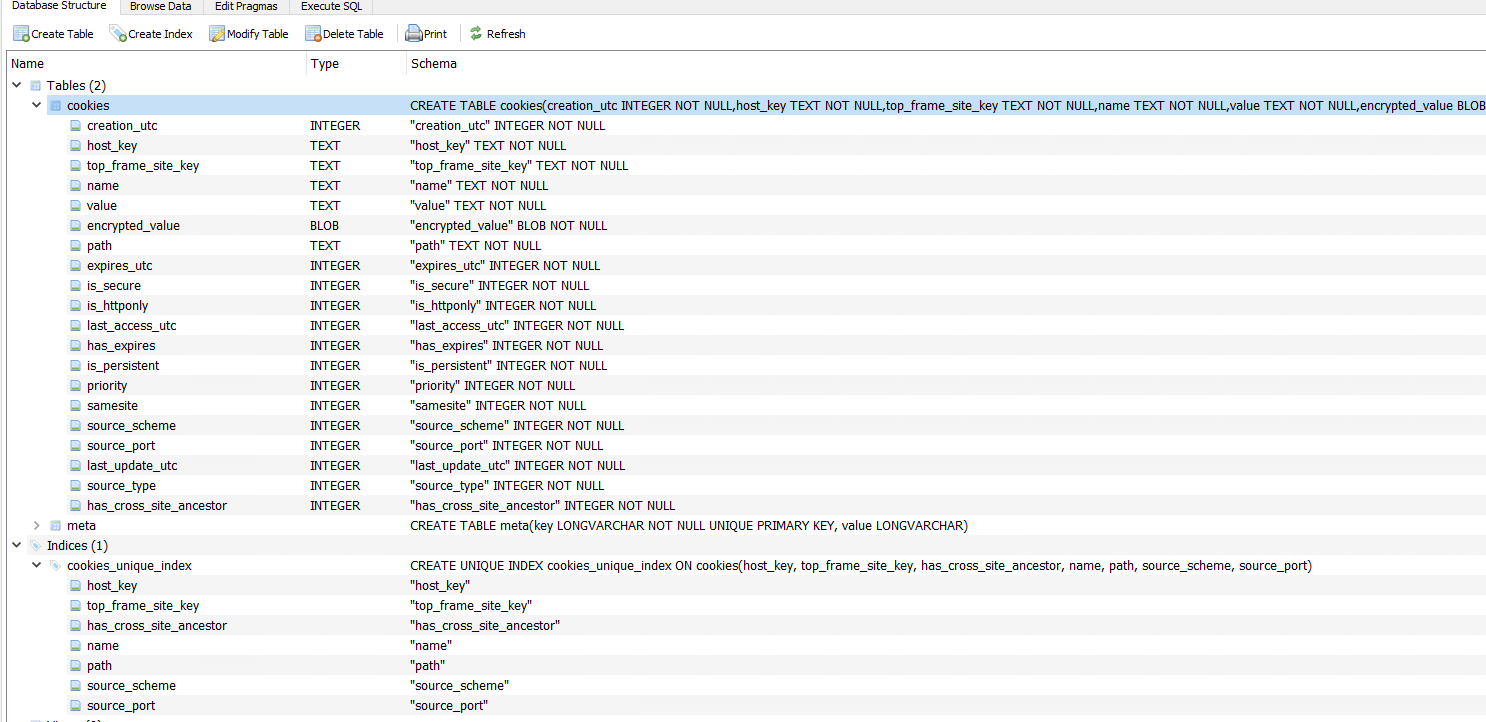
By applying filters, it is possible to search for cookies associated with a specific domain.

The presence of a cookie confirms that the browser interacted with a domain, and its dates make it possible to place that interaction in time. However, it does not allow you to determine the actions performed or the information entered by the user.
Cookie values are encrypted. Since Chrome 127, Google has added App-Bound Encryption on Windows: cookies are encrypted with a key tied to the Chrome application identity, rather than only with DPAPI protection from the Windows session. Their decryption therefore depends on the browser version and the context in which the analysis is performed. We presented this mechanism in this article.
Using Cookies with ChromeCookiesView
To make cookie analysis easier, we can also use ChromeCookiesView, a free NirSoft tool:
- Official website: ChromeCookiesView on nirsoft.net
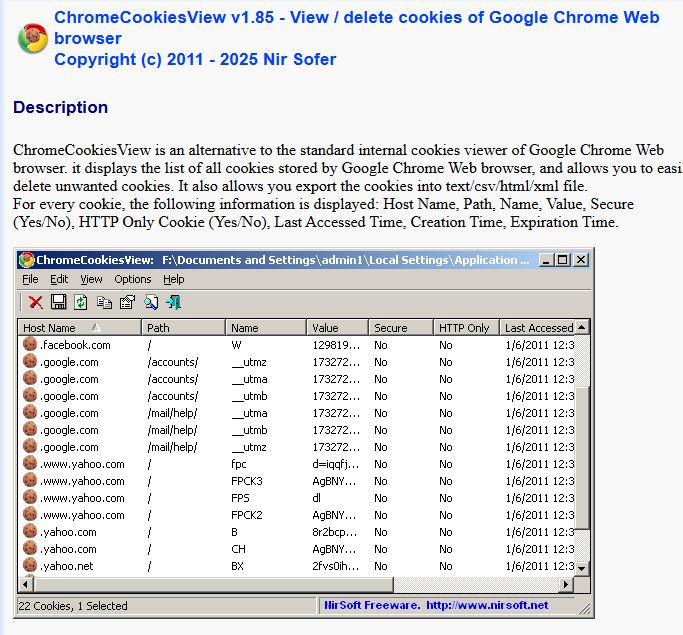
After downloading and extracting the tool, close Google Chrome, then run ChromeCookiesView. It displays the domain, name, path, creation date, last access date, and expiration date of each cookie. Advanced options allow you to load another Cookies file, the one from Edge or another profile, as well as the corresponding Local State file.
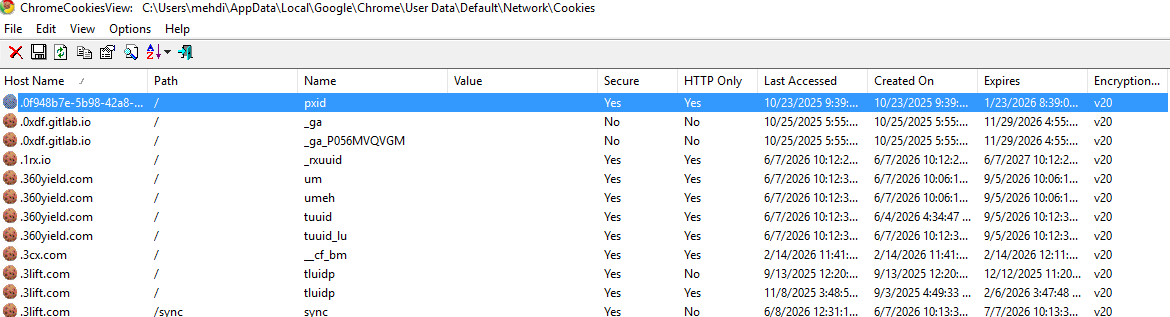
For cookies protected by App-Bound Encryption, NirSoft notes that decryption only works if the tool is run as administrator. Decrypting these cookies from an external drive (an image from another machine) is not supported for the latest version of this mechanism.
Analyzing Saved Credentials
The Login Data file is also a SQLite database. It contains the credentials saved by the browser’s password manager.
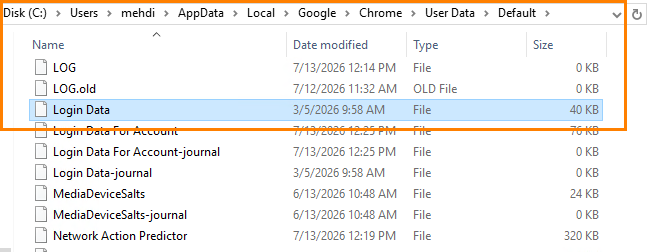
The logins table makes it possible to recover in particular:
- The site address (
origin_url) - The saved username (
username_value) - The entry creation date (
date_created) - Its last use date (
date_last_used) - The password, in encrypted form (
password_value)

Even without decrypting passwords, this table is valuable: it reveals the accounts used on the workstation and the date of their last use.
Analyzing Bookmarks
Bookmarks are stored in the Bookmarks file. Unlike the previous databases, this one uses the JSON format.
It can be opened with a text editor to find:
- The bookmark name (
name) - Its URL (
url) - Its folder location
- Its creation date (
date_added, in the same format as the other Chromium timestamps)

This information makes it possible to identify services and sites deliberately saved by the user, for example an administration console or a file-sharing platform.
Conclusion
Analyzing Web browsers makes it possible to reconstruct a significant part of a user’s activity. History, downloads, cookies, saved credentials, and bookmarks provide additional information about visited sites and retrieved files.
In our example, analyzing the History file made it possible to recover an entry associated with the download of BloodHound. This trace is a useful clue, but it must be correlated with other artifacts to confirm the presence and possible execution of the tool.
Finally, local browser data should be cross-checked with logs from EDRs, proxies, firewalls, DNS servers, and other security devices.