www.it-connect.fr


Forensic Windows Part 2: How to Find Evidence with Amcache
We continue our Windows forensic analysis by focusing on the traces left behind by activity on a system. After studying ShimCache in the previous article, we will now take a closer look at a frequently underestimated artifact that is particularly rich in detail: Amcache.
Where ShimCache helps identify files observed by the system, Amcache goes further by providing detailed information about executables, their origin, and their lifecycle. It is a valuable artifact for highlighting tools used only briefly, even after they have been deleted.
The goal of this article is to understand how it works, explore its contents, and see concretely how it can be used in an investigation workflow.
What Is Amcache?
The Amcache.hve file was introduced starting with Windows 8 to replace the RecentFileCache.bcf file used in Windows 7.
It is associated with the Windows application compatibility mechanism, also known as AppCompat, whose role is to ensure that programs run properly across different versions of the operating system.
Unlike ShimCache, which is mainly limited to the presence of files observed by the system, Amcache goes much further by recording detailed information about executables and their usage.
It notably includes:
- Full paths of executables
- The date and time of first execution and deletion.
- File hash information, including the file’s SHA-1 hash.
- Metadata about executed or analyzed files (file size in bytes)
- Program version, publisher information.
- Information about connected devices (USB, Bluetooth)
Amcache therefore retains persistent traces of files that have been executed, or that interacted with the system, even after deletion.
It is fully part of the AppCompat framework, which records this information to improve compatibility, but from a security standpoint it becomes a valuable source for forensic analysts.
The Amcache file is stored at the following location: C:\Windows\AppCompat\Programs\Amcache.hve.
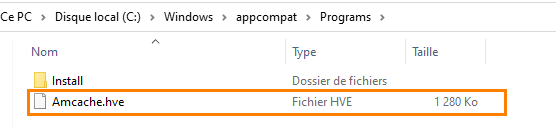
Analyzing the Amcache File
We will now extract the information contained in the Amcache file to better understand its structure and content before moving on to a more advanced analysis. To do this, we will use the tool suite developed by Eric Zimmerman.

Start by downloading the AmcacheParser tool, then extract it into a folder. In our case, the tool was extracted to C:\Temp.
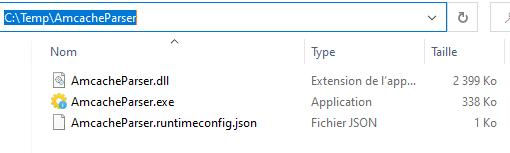
Analysis via command line
From a terminal, we are going to parse the Amcache file from its default location. Note that it is possible to retrieve the Amcache.hve file from another machine and analyze it locally.
Run the following command:
AmcacheParser.exe –f C:\Windows\appcompat\Programs\Amcache.hv –csv Cache1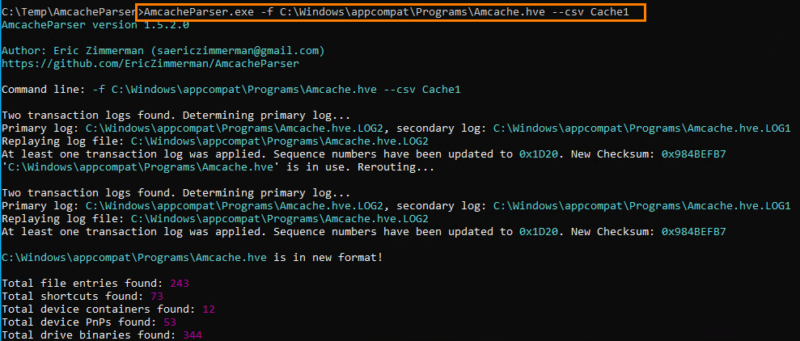
Extraction results
The command generated a folder named Cache1 in the tool’s directory. This folder contains several CSV files, each corresponding to a category of information extracted from Amcache.
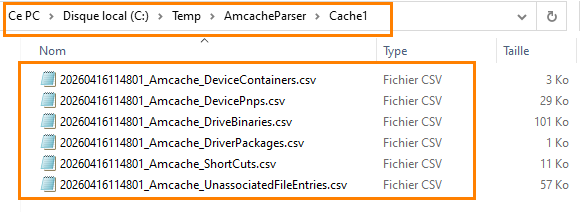
For example, if we open the file related to shortcuts, we find information about .lnk files, such as:
- the shortcut path
- the associated target
- timestamp information

Understanding the content of the extracted files
Below is a description of the content of the generated files.
✅ Amcache_DeviceContainers
This file groups together global information about devices that have been connected to the system.➤➤
It includes elements that help uniquely identify a device, its type, and the way it was discovered (USB, Bluetooth, etc.).
From a forensic perspective, this file is particularly useful for tracing:
- Use of external devices
- The presence of potentially unauthorized hardware
- One-off connections (USB drive, Bluetooth headset, phone...)
Even if the device is no longer present, its trace may still remain here.
✅ Amcache_DevicePnps
This file goes further by detailing devices detected at the system level, together with their driver and configuration.
It helps answer the following questions:
- What type of hardware was used?
- Which driver was installed?
- When did the system take the device into account?
In an investigation, this helps confirm that a device was actually installed and used, not just plugged in.
It is also useful for detecting:
- Unusual devices
- Non-standard drivers
- Or abnormal behavior tied to specific hardware
✅ Amcache_DriveBinaries
This file focuses on the drivers present on the system. It contains information about driver binary files, their origin, and their characteristics.
On the forensic side, it can notably be used to:
- Identify malicious drivers (rootkits, injected drivers)
- Check whether a driver is native to Windows or manually added
- Analyze the origin and publisher of code executed in kernel mode
It is an interesting source in advanced attack scenarios where low-level components are used.
✅ Amcache_ShortCuts
This file contains information about shortcuts (.lnk) present on the system. Although this may seem trivial, it is actually very useful in investigations because:
- Shortcuts can point to deleted executables
- They can reveal unusual paths
- They can help identify user actions (double-click, opening via shortcut)
It is often a useful supplementary clue for reconstructing user activity.
✅ Amcache_DriverPackages
This file helps trace the installation of driver packages on the system. It provides a broader view than simple binaries by including:
- Installation directories
- Vendor information
- Associated hardware identifiers
In forensic analysis, this helps date the installation of a device, identify the origin of a driver, and even detect suspicious or unexpected installations.
✅ Amcache_UnassociatedFileEntries
This is probably one of the most interesting files in our analysis. It contains information about executable files that are not necessarily linked to a traditionally installed application.
Concretely, it can include:
- Manually launched executables
- Tools that were downloaded and then deleted
- Files isolated outside a standard installation
This is typically where traces of offensive tools such as Mimikatz and BloodHound can be found, which you are probably familiar with if you work with Active Directory security.
Even after the file has been deleted, some information such as the path or hash may remain accessible. It is therefore a key source for identifying suspicious activity that leaves no traces elsewhere.
File structure
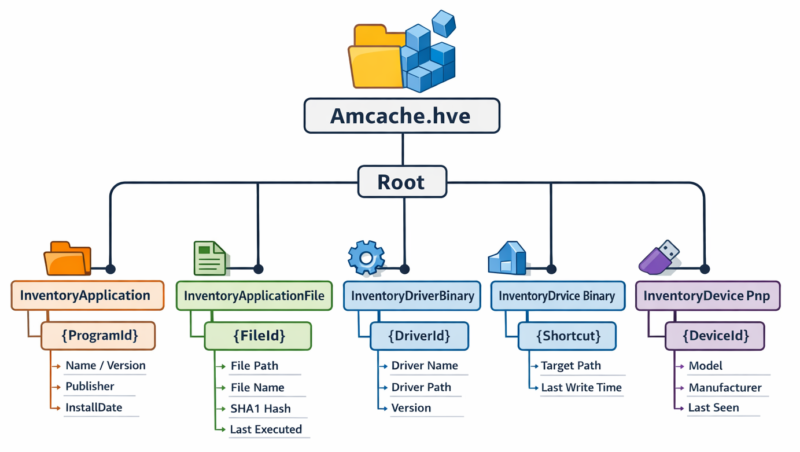
Reading the generated CSV files makes analysis easier. However, to properly understand how Amcache works, it is necessary to examine the hive structure directly. Indeed, the Amcache.hve file is a registry hive containing a set of keys and subkeys organized hierarchically.
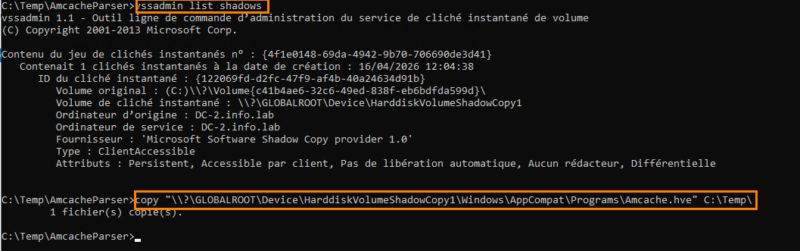
Loading the hive into the registry
To explore its contents, we should load the Amcache.hve file into the registry. Since it is read-only, it is protected by the system and cannot be copied directly. I therefore retrieved the file from a VSS copy by copying it directly into the Temp directory.
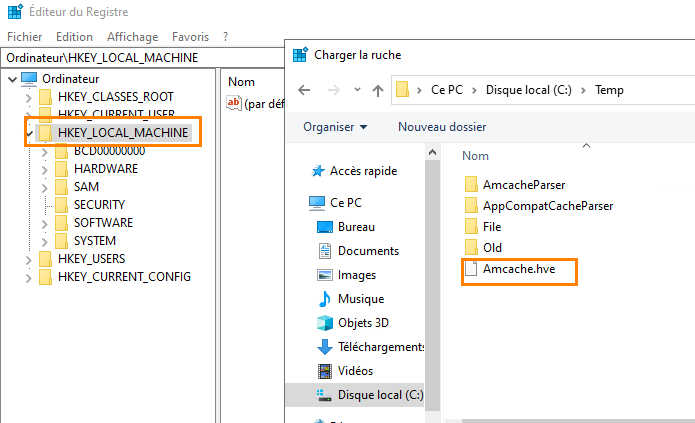
Once copied, we will load the file from the Registry Editor.
From the HKLM key, select "File", then load a hive and give the database a name. We called it AnalyseAM1 here.
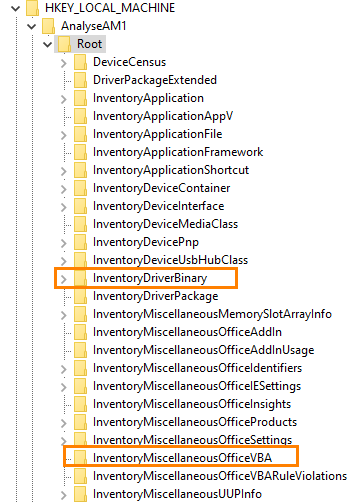
Once loaded, the structure appears clearly with several keys organized under Root.
We can notably find:
- Information about applications
- Data related to executable files
- Information about drivers
- Elements related to system components (for example: AppLocker, Office VBA...)
Altogether, this forms a very rich inventory database.
At the InventoryApplicationFile key level, we find detailed information about executables. As shown in the image below, we have the "Copilot" executable path as well as information about the publisher, version, and more.
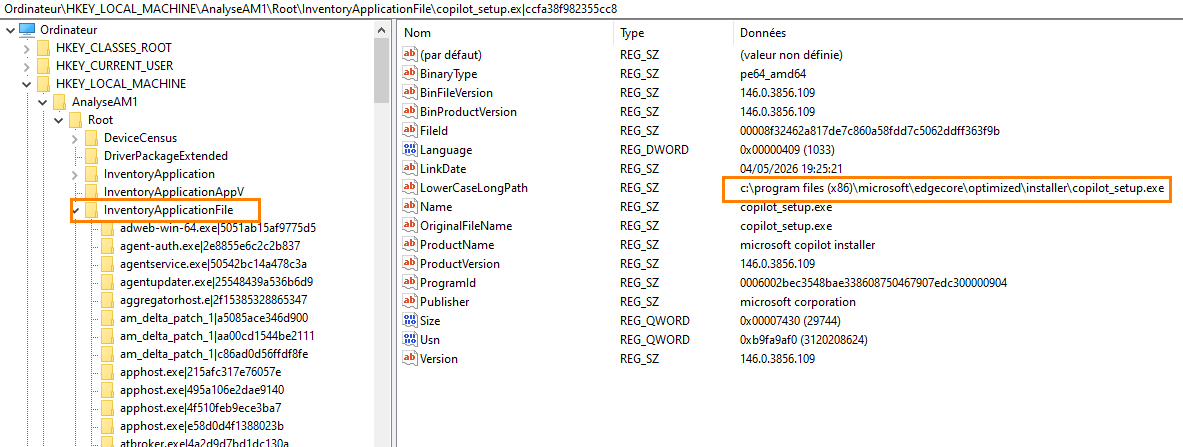
We can conclude that direct exploration of the hive makes it possible to better understand the internal organization of Amcache as well as the richness of the information it contains. It can also provide additional leads when CSV analysis alone is not sufficient.
Analyzing the extracted files
We now return to the CSV files extracted earlier in order to analyze them. To do so, we can open these files with a CSV editor (Excel, Notepad++, etc.) for better readability of the data.
When opening the UnassociatedFileEntries file, we can observe a large amount of interesting information. This file is particularly important because it contains:
- Isolated executables
- Files not tied to a standard installation
- Traces of programs that were executed and then deleted
This is often where you will find tools used only temporarily.

Filtering the data
To make analysis easier, it is recommended that you filter the results. One first approach is to filter on the ProductName column in order to exclude:
- Microsoft tools
- Known software
- System components
This helps quickly surface suspicious items.
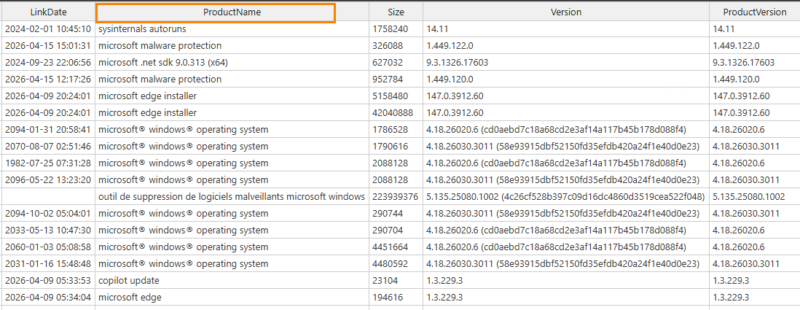
Filtering allowed us to highlight the execution of a tool such as Mimikatz, even though it had been deleted from the system.

Interpreting the data (Defender / SmartScreen)
We can also observe items related to Microsoft Defender, such as certain entries associated with protection mechanisms (SmartScreen, Defender analysis) just before the suspicious file is launched; this may reveal an antivirus bypass. These alerts are important indicators that should be correlated with event logs and other log sources in order to identify the exact progression of the attack.

Overall analysis
We have just explored one of the most relevant extraction files. The others are just as important and should be analyzed using the same approach. The information remains generally readable, but making use of it requires rigor, a strong ability to correlate data, and a solid understanding of how the system works.
If you want to go further, I am providing links to more advanced analysis, including work carried out by ANSSI, which goes deeper into registry hive analysis and provides additional insight.
Important limitation
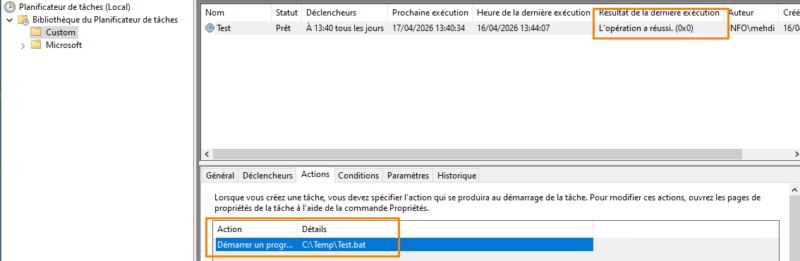
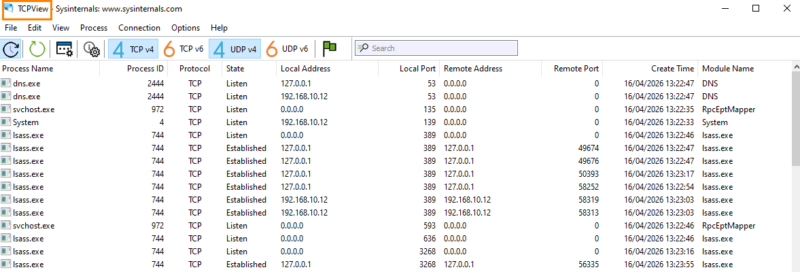
We will now execute two scheduled tasks that launch a Windows program and a .bat script respectively. We will also launch Sysinternals tools such as TCPView.
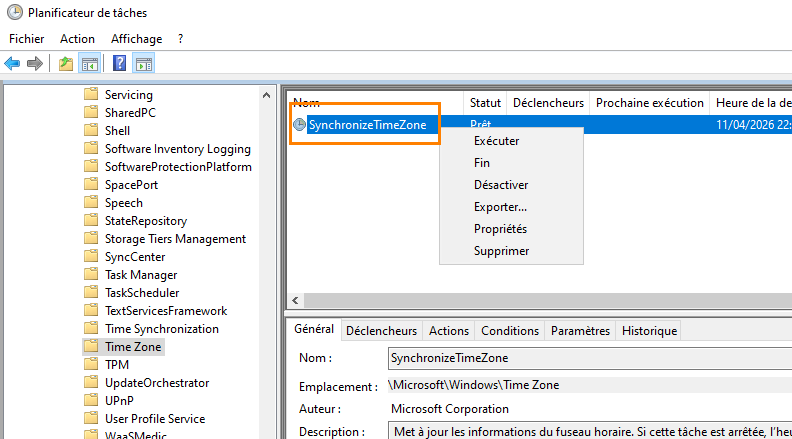
The task was successfully launched.
TCPView is open.
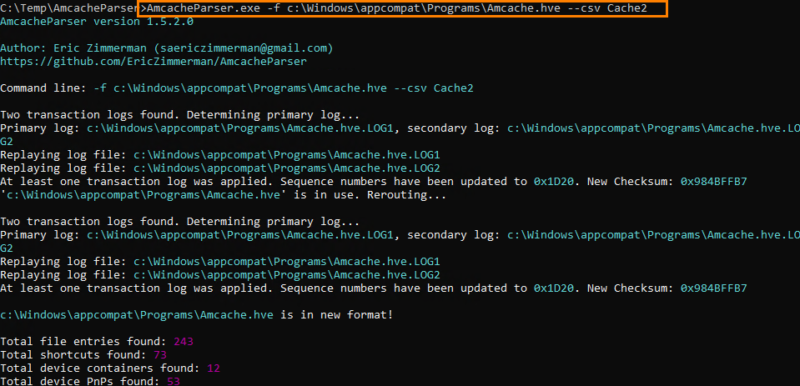
We perform a new Amcache extraction.
After analyzing the UnassociatedFileEntries CSV file, we find that the binary executed via the scheduled task, as well as our .bat script, do not appear in Amcache, unlike the Sysinternals tools, which are properly recorded.

The IsOSComponent column (True) indicates that the file is considered an operating system component. In our case, the scheduled task does not appear because it relies on binaries already known and recognized as legitimate by the system.
If an unknown executable, or one launched for the first time as part of that task, had been used, it would very likely have been recorded in Amcache.
It is also worth noting that .cmd and PowerShell scripts are not directly recorded, whether they are run manually or through a scheduled task. For this type of activity, you will need to complement the analysis with other artifacts such as Prefetch files or system logs.
Conclusion
Once again, we have seen that using Amcache, in addition to ShimCache, makes it possible to uncover concrete evidence of suspicious or abnormal behavior.
This artifact provides a more precise view of executables introduced on a system, especially thanks to hash information and the various associated metadata. For example, it can help recover tools that were executed and then deleted, making it a particularly interesting source in investigations.
However, it should not be considered a complete source. Some activities, such as script execution or the use of binaries already known to the system, may not appear.
To go further, it is therefore necessary to correlate this information with other artifacts, such as Prefetch or system logs, in order to reconstruct a more accurate picture of the machine’s real activity.