www.it-connect.fr

WinBoat: Run Windows Applications on Linux with Ease
Running Windows applications on Linux often relies on Wine, a constantly evolving tool that provides valuable services to Linux users. However, it does not allow every Windows application to run: Microsoft Office is the classic example. This article introduces WinBoat, an open source application designed to solve this issue with what I would call an innovative approach.
A while ago, I introduced Dockur, an open source application capable of running Windows or macOS in a Docker container. If I mention it in this article, it is no coincidence: WinBoat relies on Dockur, and therefore on Docker and virtualization layers, to work. In addition, it also relies on FreeRDP, which allows it to "stream" Windows applications to the Linux machine (the approach reminds me of RemoteApp).
In other words, here is what will happen with WinBoat:
- On your Linux machine, a Windows 11 (or Windows 10) instance will run through Docker and the Dockur project,
- You will be able to install the applications of your choice on this Windows machine,
- You will then be able to launch Windows applications directly from Linux in a - nearly - transparent way.
With this method, you can use Microsoft Office, Adobe tools, or other professional software directly on your Linux system. The downside of this approach is its impact on local resources: the Windows layer running in a container will consume at least 3 to 4 GB, which is normal for Windows, while also using CPU resources. Test this approach on a Linux machine with at least 8 GB of RAM, but not less.
Before getting started, here are two useful links:
Installing WinBoat on Linux
WinBoat is compatible with many Linux distributions. There are packages for Debian, Fedora, and Arch Linux, as well as an AppImage package. Here, I will use a Debian 13 machine with a desktop environment. The WinBoat package in .deb format must therefore be downloaded from the official GitHub repository (or from the shortcut available on the official website).
Prerequisites
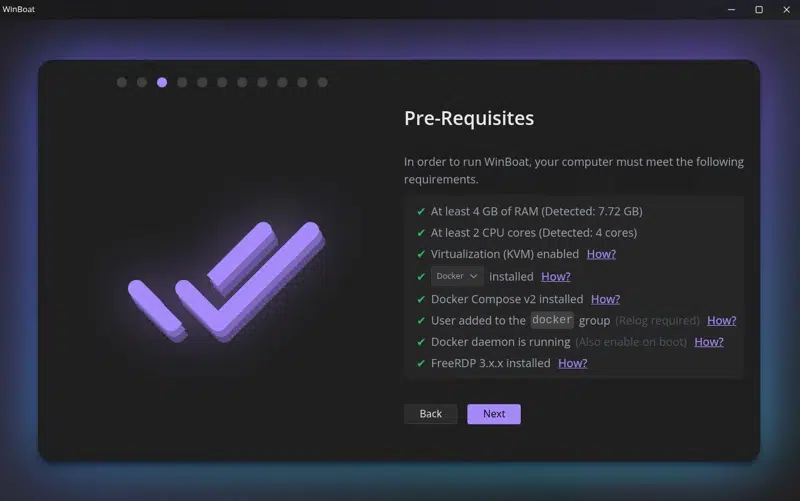
WinBoat's startup wizard makes it accessible to everyone. What is a little less accessible is installing the prerequisites: you need to install Docker components and the package for FreeRDP. Obviously, that means entering command lines.... But after that, it will no longer be necessary.
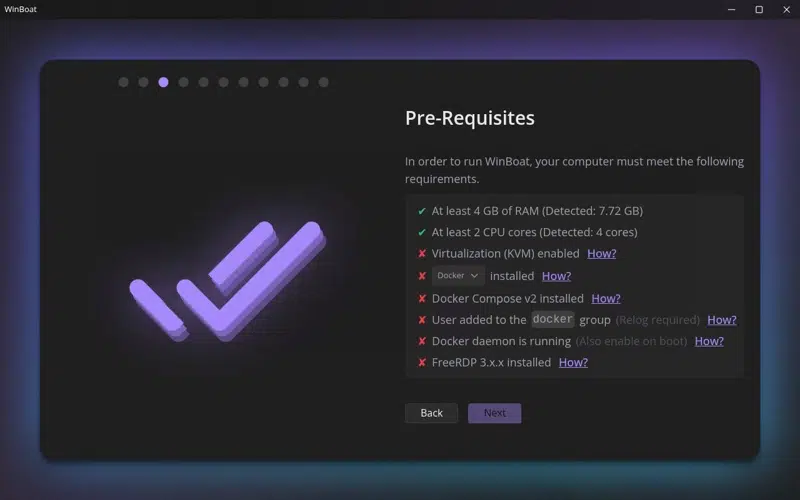
For Docker installation, follow:
- The official Docker documentation adapted to your Linux distribution
- The IT-Connect tutorial for installing Docker on Debian
Beyond installing the packages, you need to perform a few configuration tasks. In fact, you must enable Docker to start automatically:
sudo systemctl enable dockerThen, you need to add your user account (flo, in my case) to the docker group. Here is the command to run to do that:
sudo usermod -aG docker floFinally, while you are in the Terminal, install FreeRDP as required by WinBoat. Run the following command:
sudo apt install freerdp3-x11Once that is done, reboot your Linux machine. All prerequisites should now be met !
Creating the Windows environment
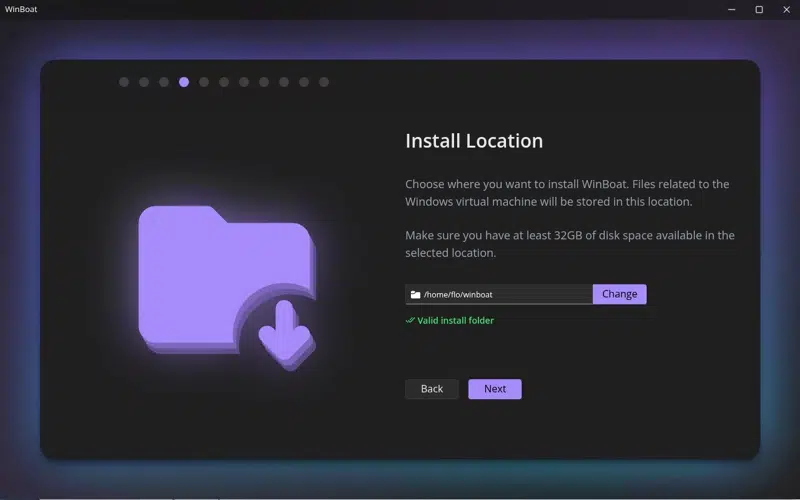
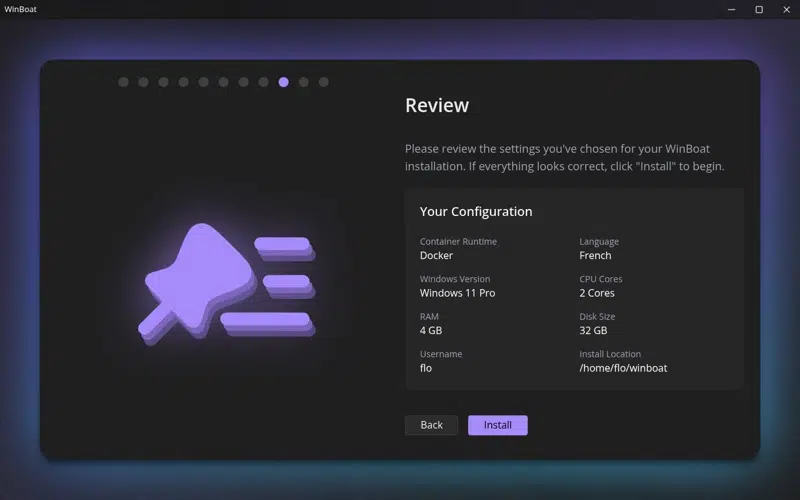
The steps that follow the prerequisite check are dedicated to creating the Windows environment. First, you need to specify the location where WinBoat will be installed. In other words, this is where WinBoat will create the Windows instance. You must have at least 32 GB of free space on the specified storage location.
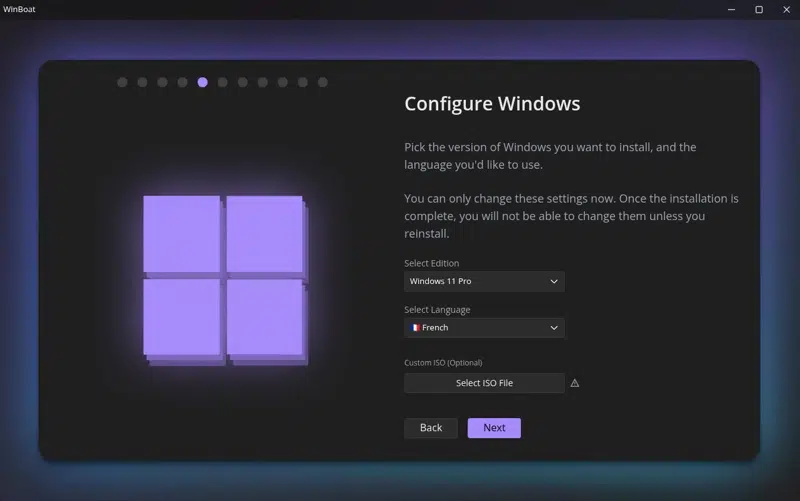
You must then specify the Windows edition to install. You can choose between Windows 11 and Windows 10, including LTSC editions. It is also possible to load a custom ISO image: I have not tested it with Atlas OS, for those wondering. Be sure to select the language that matches your situation.
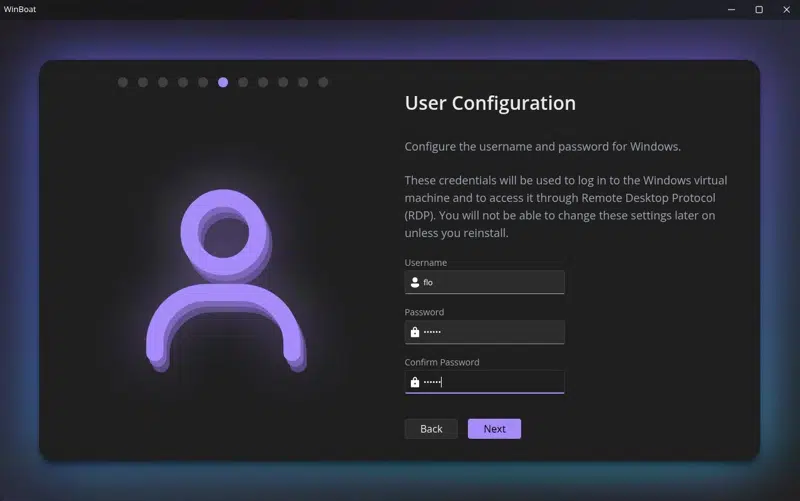
Set the Windows account name and the password to sign in to that account.
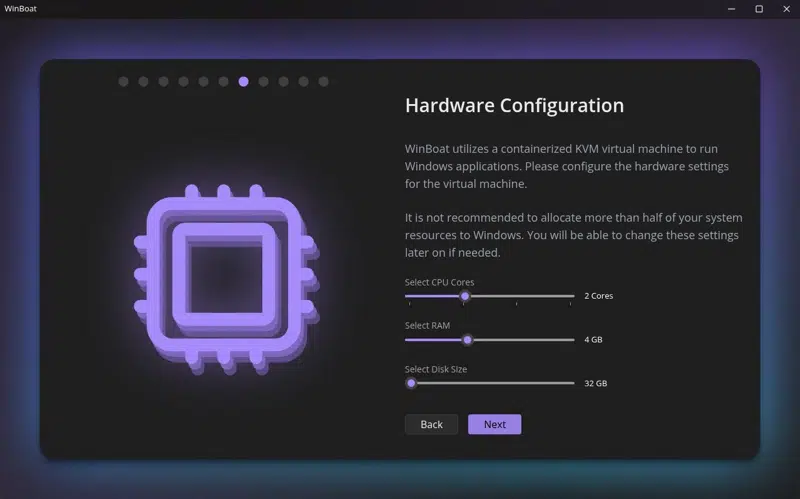
Next, specify the amount of RAM to assign to this Windows instance, as well as the number of CPU cores and the disk size. You will also be able to adjust RAM and CPU later if you want. Do not be too greedy: it is better to fine-tune it later, and above all, it could hurt the performance of your physical machine.
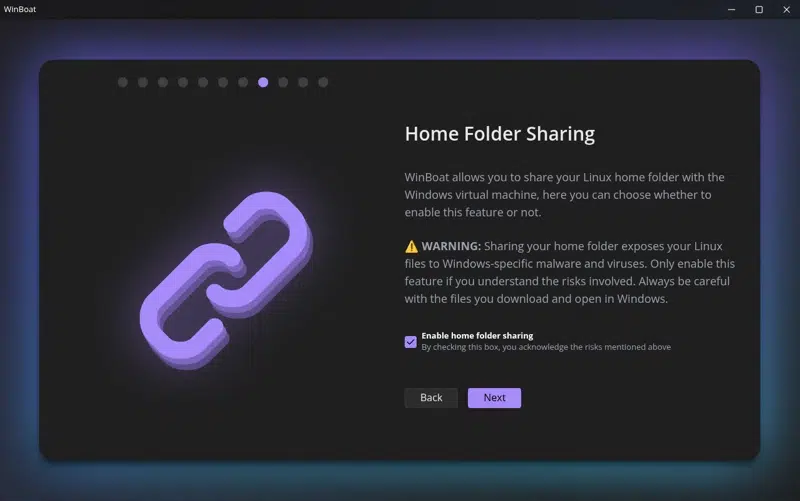
The next step is sharing your Linux Home directory. If you check this option, your Windows instance will have access to your Linux user's Home directory, giving it access to Desktop, Documents, etc....
The advantage is that data is easier to transfer between the two OS hosts and you do not have to do anything since WinBoat will handle the configuration. However, you can use other methods to share data between the two hosts, such as a NAS share, for example. The downside: this share represents an entry point from Windows into your Linux system.
You are now at the final step! Click on "Install" and wait. WinBoat will do the work for you.
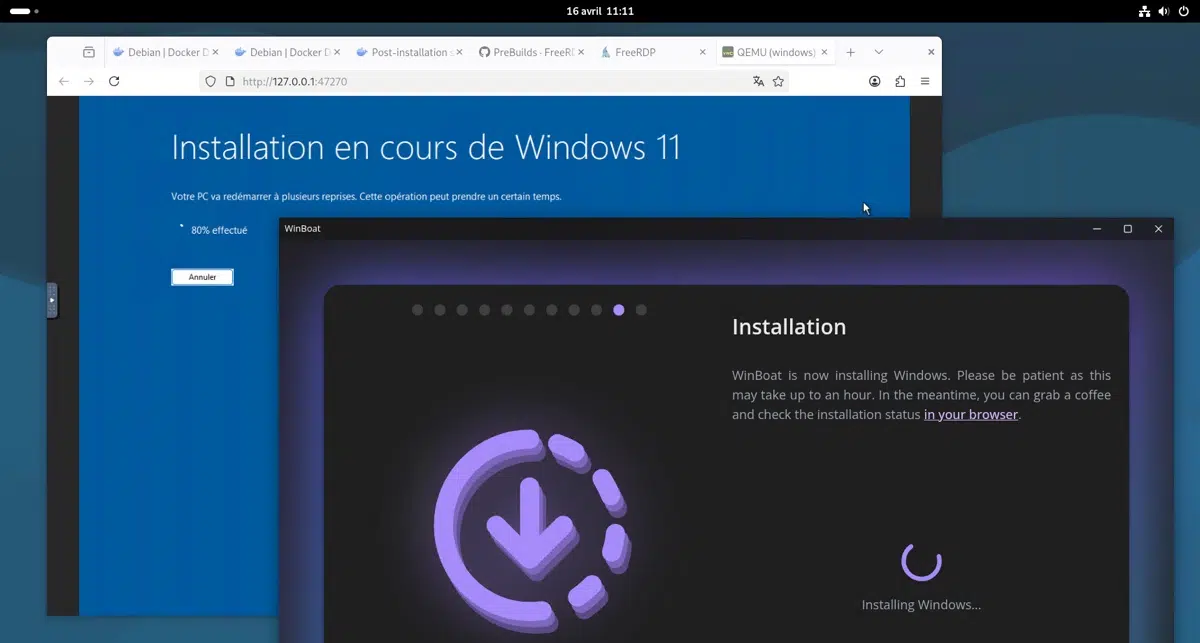
You can click the "in your browser" link to track the installation progress (yes, yes, the Dockur interface). The process takes quite a while, I would say around thirty minutes, since there are several steps: downloading the ISO image, extracting it, installing Windows, and so on. This whole process is automated; you only need to wait.
Getting started with WinBoat
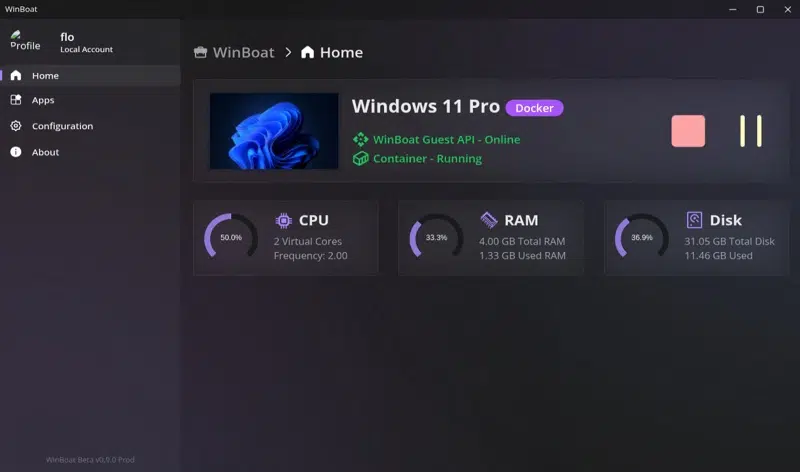
The WinBoat application is your control center for managing the Windows instance and, above all, for accessing the applications installed on the Windows machine. The home page shows the status of your Windows instance, including resource usage. Two buttons let you stop or pause Windows at any time. The "Configuration" section is used to configure your instance; you can notably adjust the resources assigned to it.
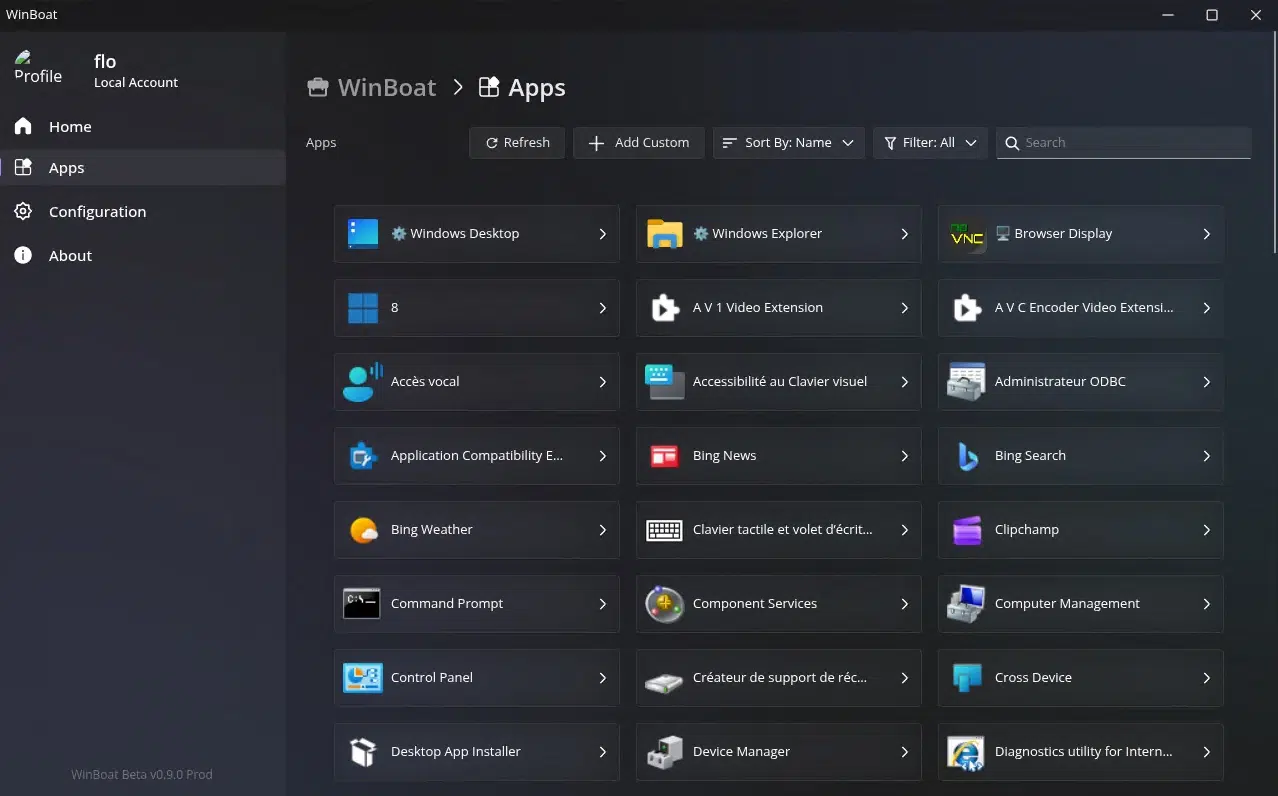
If you switch to the "Apps" tab, you will see all the applications and tools available on the Windows machine. For example, if you click on "Windows Explorer", Windows File Explorer will appear on your Linux system. More importantly, to install your applications, you need to click on "Windows Desktop". This will open an RDP session (via FreeRDP) from your Linux machine to Windows.
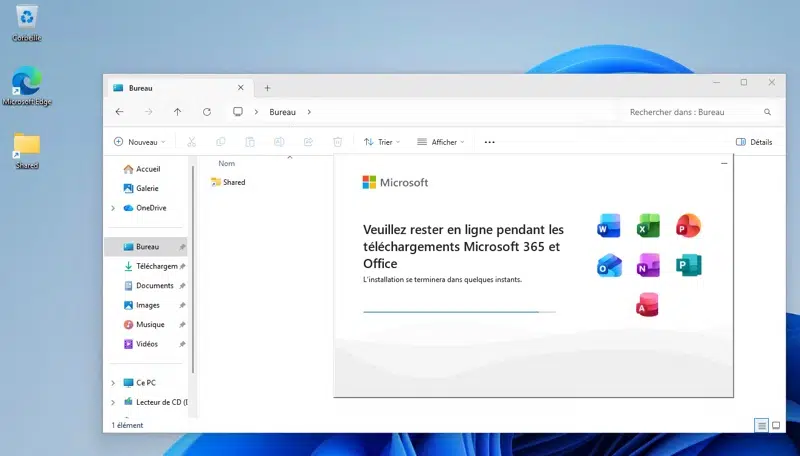
You will then have control of the system and can proceed with installing the software that you cannot install directly on Linux. In the example below, Microsoft Office is installed. The "Shared" shortcut on the desktop provides access to the Linux user's Home directory (if that option was enabled).
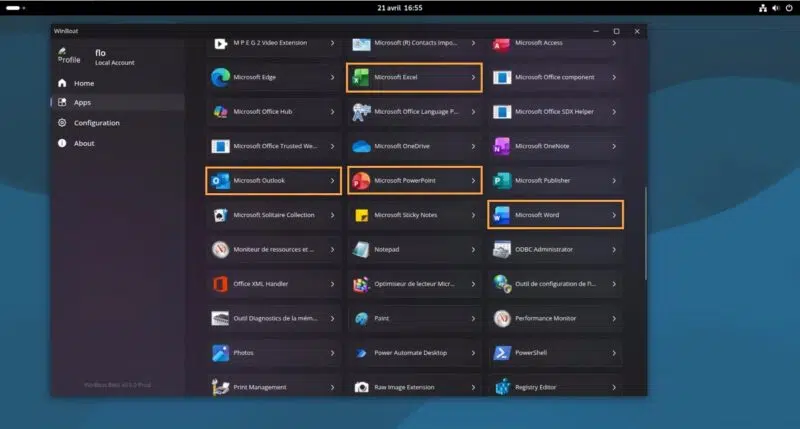
Once the applications are installed, they are added to the WinBoat library. This means they can be launched directly from Linux! Word, PowerPoint, Outlook, Excel, and more... available directly from Debian.
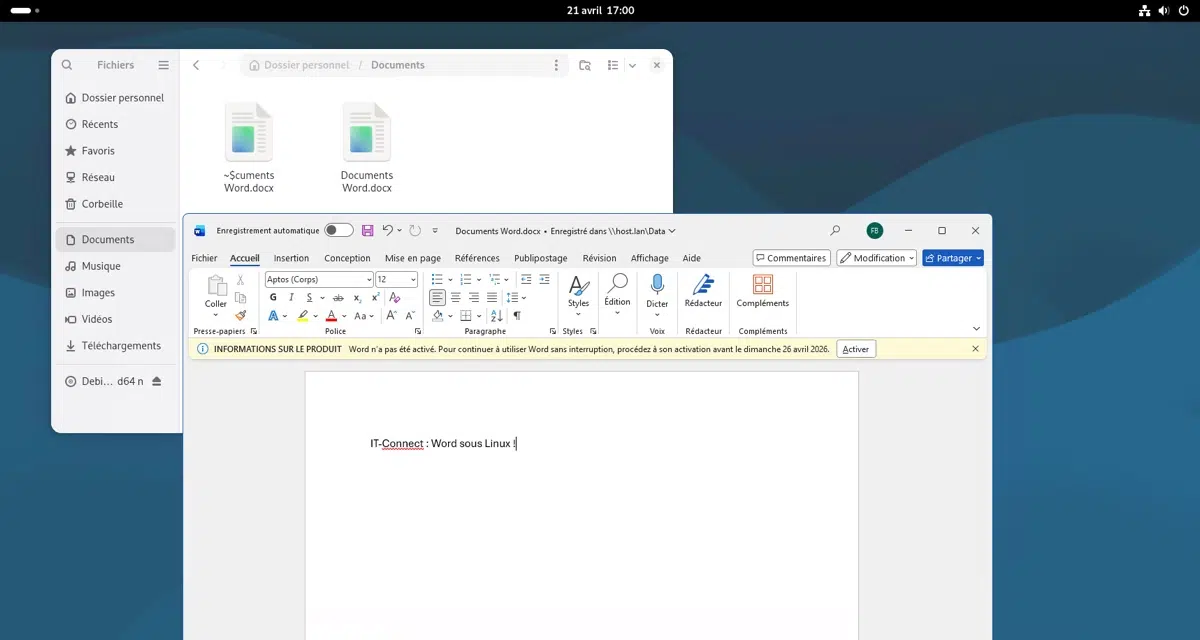
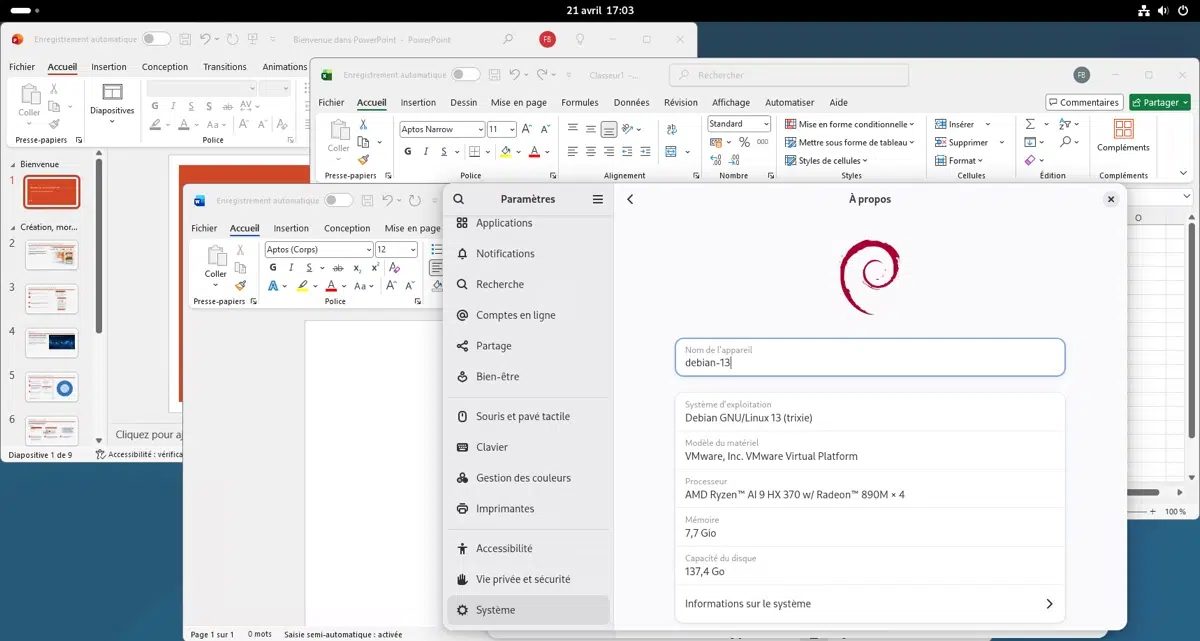
The images below clearly show that the Word window is visible on Linux as if it were a native application. In reality, the application is streamed from Windows (via RDP). It is possible to open several applications at the same time, such as Word, Excel, and PowerPoint, for example.
When saving a file, you can browse the Windows machine's disk. If Home directory sharing has been enabled, you can save the document directly on your Linux machine through this channel.
Conclusion
WinBoat is a relatively young project, considered to be in development, but the approach is interesting and, above all, it works. The integration is done in such a way that it gives the feeling of using the application as if it were native on Linux (which would not be the case with a full virtual machine). The main drawback of this method is the excessive resource usage caused by running a Windows instance. Ultimately, WinBoat addresses a real need, especially for certain software programs that are still impossible to run on Windows at the moment.
I had been wanting to write this article for several months, and it is now done! Have you tried WinBoat? Feel free to comment on this article and share your feedback.