www.it-connect.fr


How to Free Up Space on a Synology NAS and Find Large Files
Your Synology NAS shows a nearly full volume and you don't know which folders have grown? On Windows, I usually use WinDirStat and TreeSize, because they answer that question in a few minutes. But on DSM, how do you do it?
For several years now, I've been accumulating a lot of files on my NAS: photos, videos, backups, and more. Over time, free space shrinks, and the volume ends up containing hundreds of thousands of files. That makes it hard to quickly identify what can be deleted.
In this article, I'll show you how to analyze disk space on a Synology NAS with QDirStat, an open-source tool that provides a directory tree view and a treemap similar to WinDirStat. We'll start by looking at Synology's native solution, Storage Analyzer. Then we'll deploy QDirStat in a Docker container with Container Manager, and finally we'll see how to identify large files and breathe a little easier!
In short: to get a WinDirStat-like view on a Synology NAS, deploy the Docker image jlesage/qdirstat in a Container Manager project. Mount each shared folder under /storage (not the entire /volume1 volume), access the web interface on port 5800, then scan /storage while checking the Cross Filesystems option.
Storage Analyzer, Synology's native solution
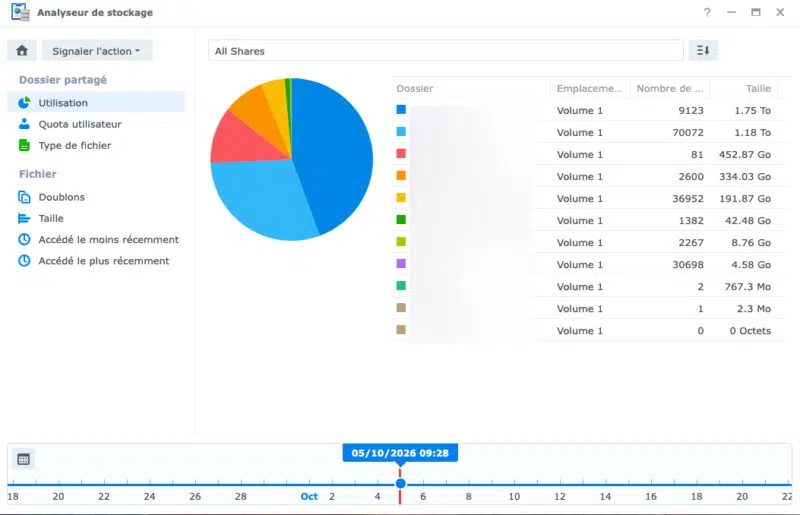
Synology offers an official package called Storage Analyzer, available in DSM Package Center. It generates reports, either immediate or scheduled, on volume usage, shared folder size, large files, duplicate files, as well as the most recently modified and least recently accessed files. Reports can be scheduled or run on demand.
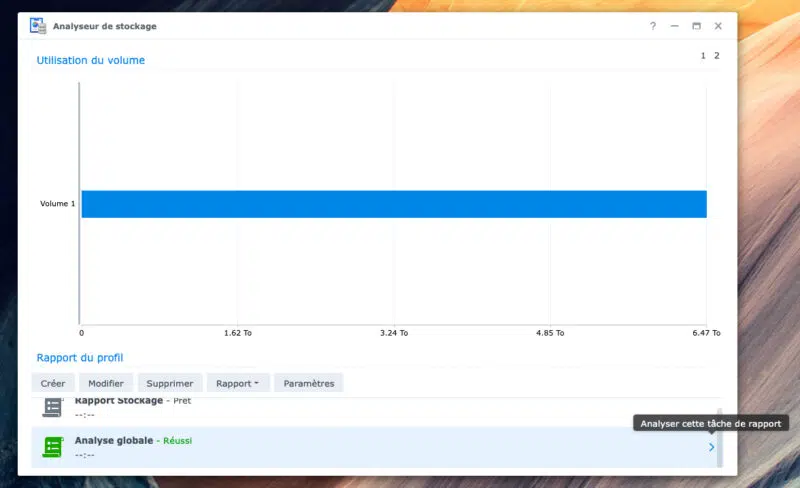
It's a good tool for tracking how a volume's usage evolves over time. However, when the goal is to clean up quickly, it has its limits:
- It works with reports that must be generated, not with interactive deep navigation through the directory tree (the main drawback)
- The large files section is limited to the 200 biggest files
- No deletion action is possible from the report
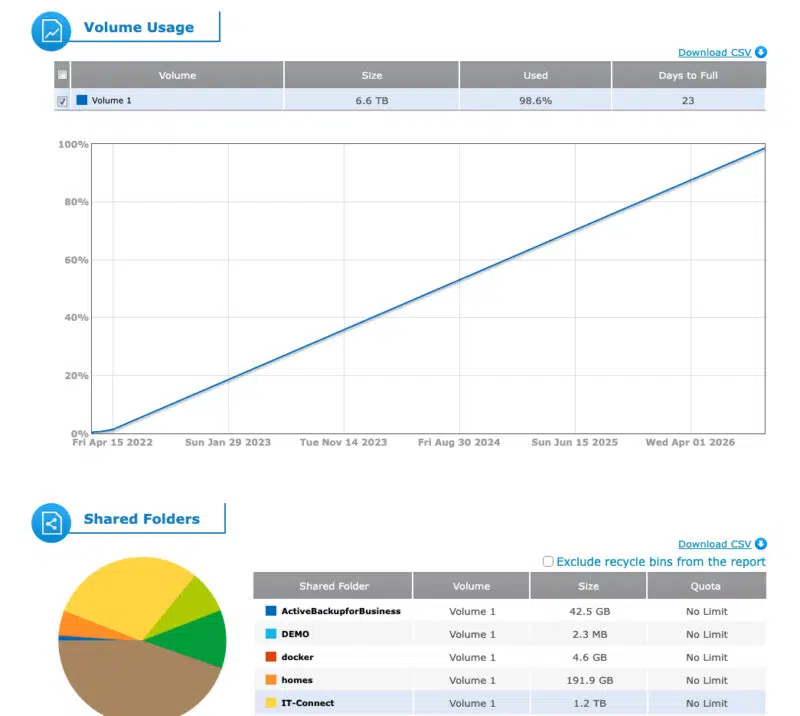
Still, it can help some people just for storage monitoring, so it's worth knowing about. There is reporting directly in the console and reporting through an HTML report (see below).
The HTML report includes the essential information and even a prediction: according to it, in 23 days, my storage space will be completely full. Ouch.
For setup instructions, refer to our tutorial: how to analyze the contents of your Synology NAS with Storage Analyzer.
Another possible approach is to run WinDirStat or TreeSize from a Windows PC against an SMB share on the NAS. That works, but I ruled it out because analysis will be slow across several TB: every file is queried over the network, and you only see the folders accessible to the account being used. On a NAS like mine, with different shared folders, some of which have no reason to be mounted as network drives, I ruled out that option. My goal: run the tool directly on the NAS, as close to the disks as possible.
| Criterion | Storage Analyzer | WinDirStat via SMB | QDirStat (Docker) |
|---|---|---|---|
| Interactive navigation | No | Yes | Yes |
| Treemap | No | Yes | Yes |
| Speed on a large volume | Fast (local) | Slow (network) | Fast (local) |
| Deletion from the tool | No | Yes | Yes (writable mount) |
| Scheduled reports and CSV export | Yes | No | No |
What is QDirStat?
QDirStat is a graphical application that displays disk usage in two complementary ways: a tree view with the cumulative size of each folder, and a treemap where each file is represented by a rectangle proportional to its size. A multi-GB ISO image or video immediately stands out.
The project is developed by Stefan Hundhammer, who is also the author of KDirStat. A quick anecdote: QDirStat is often presented as a Linux port of WinDirStat, whereas it is actually the other way around. WinDirStat was born in 2003 by reusing the concept behind KDirStat. QDirStat is distributed under the GPL v2 license, and version 2.0, released in January 2026, is based on Qt 6.
Since QDirStat is a Linux desktop application, we'll use the Docker image maintained by Jocelyn Le Sage (jlesage/qdirstat). It exposes the graphical interface directly in the browser via VNC. This image is not official, but it is referenced in the QDirStat documentation.
- QDirStat GitHub repository
- jlesage/qdirstat Docker image GitHub repository
- jlesage/qdirstat image on Docker Hub
Install QDirStat on a Synology NAS with Docker
Prerequisites
You need a Synology NAS running DSM with the Container Manager package installed, and an administrator account. SSH access (Control Panel > Terminal & SNMP) is optional, but useful for listing shared folders. If you're new to Container Manager, check out our tutorial learn how to create Docker containers on DSM.
Create the project in Container Manager
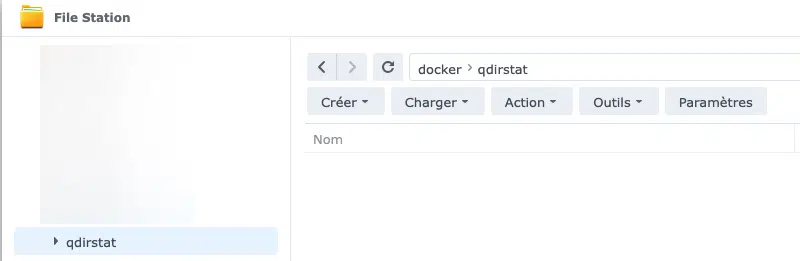
With File Station, create a folder named qdirstat inside the shared folder docker. Container Manager requires the project's folder to already exist before the project is created. It will also store QDirStat's configuration and certificates inside a subfolder called config, which I recommend creating.
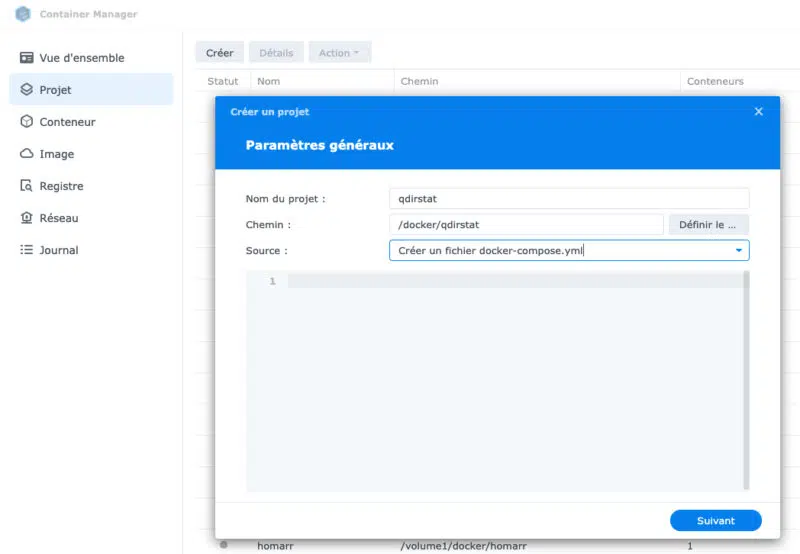
Then open Container Manager, click Project, then Create. Name the project qdirstat, select the path /docker/qdirstat, and choose to create a docker-compose.yml file.
Before writing the Docker Compose file, let's take a moment to decide what we are going to mount in this container. Rather than mounting the entire /volume1 volume, we will mount each shared folder individually. I'll explain why a little later. To generate the lines to insert directly into the Docker Compose file, connect via SSH and run this command:
cd /volume1 && for d in */; do d="${d%/}"; case "$d" in @*|\#*) continue;; esac; echo " - \"/volume1/$d:/storage/$d:ro\""; doneNote: this command lists the folders in /volume1, excluding system folders (@) and trash/snapshots (#).
You get one preformatted line per shared folder. Compare the result with the list visible under Control Panel > Shared Folder and remove anything you don't want to analyze.

The Docker Compose file
Here is the content of the Docker Compose file, to be adapted to your own shared folders:
services:
  qdirstat:
    image: jlesage/qdirstat:latest
    container_name: qdirstat
    restart: "no"
    ports:
      - "5800:5800"
    environment:
      - TZ=Europe/Paris
      - USER_ID=0
      - GROUP_ID=0
      - DARK_MODE=1
      - SECURE_CONNECTION=1
      - WEB_AUTHENTICATION=1
      - WEB_AUTHENTICATION_USERNAME=admin
      - WEB_AUTHENTICATION_PASSWORD=ChangezMoi
    volumes:
      # Configuration and certificates for QDirStat
      - /volume1/docker/qdirstat/config:/config:rw
      # One mount per shared folder, read-only
      - "/volume1/IT-Connect:/storage/IT-Connect:ro"
      - "/volume1/homes:/storage/homes:ro"
      - "/volume1/photo:/storage/photo:ro"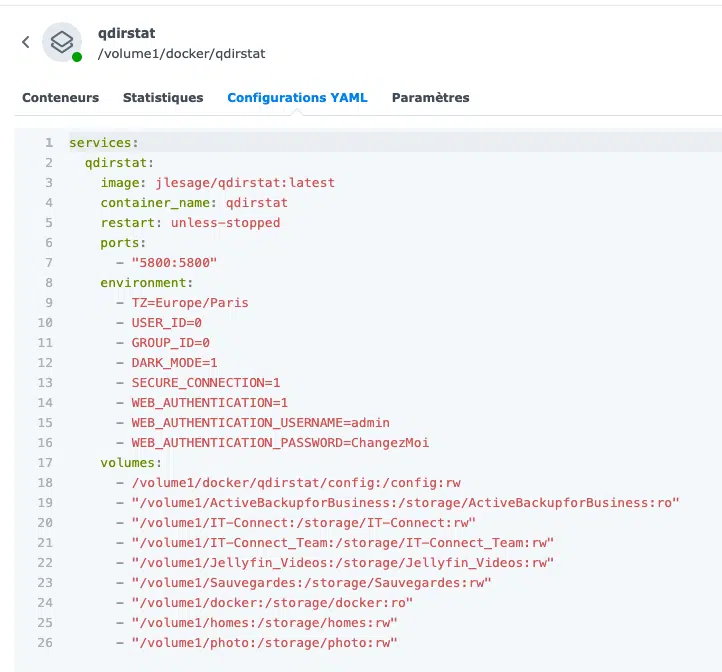
A few explanations about these parameters:
USER_ID=0andGROUP_ID=0: by default, the application runs with UID 1000, which does not have permission to read all shared folders (Synology ACL). Running as root ensures a complete scan, and the read-only mount (:ro) reduces the risk.SECURE_CONNECTION=1: enables HTTPS access, with a self-signed certificate generated at first start.WEB_AUTHENTICATION=1: protects the interface with a login page. This option requiresSECURE_CONNECTION=1; otherwise, the container will restart in a loop.WEB_AUTHENTICATION_USERNAMEandWEB_AUTHENTICATION_PASSWORD: the login credentials, customize them!restart: "no": QDirStat is a one-off tool. Start the project when you need it, then stop it.
If you want to be able to delete data directly from QDirStat, you must use rw instead of ro on the relevant mounts (as shown in the image above). I recommend not using rw for all analyzed shares (Docker containers, for example).
Once that's done, proceed to the end and launch the project build!
Analyze the NAS disk space with QDirStat
Access the web interface
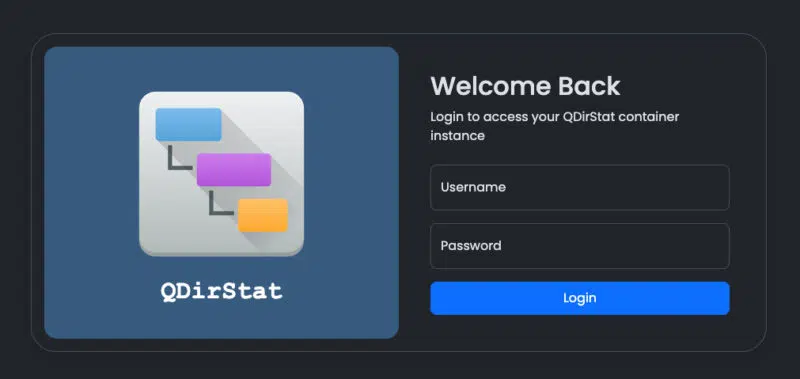
Open your browser at https://<NAS IP>:5800. Accept the warning related to the self-signed certificate, then sign in.
Note: if the DSM firewall is enabled, create a rule allowing port 5800/TCP, limiting the source to your workstation or your admin subnet.
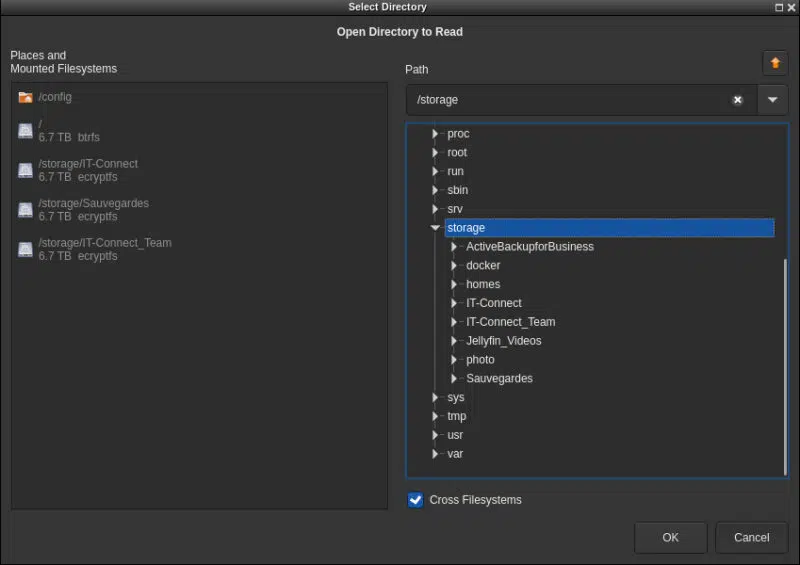
At startup, QDirStat asks which folder to analyze. Select /storage (which should normally be preselected) and check the "Cross Filesystems" option. Since each shared folder is a separate mount point in the container, QDirStat would otherwise stop at the filesystem boundary and return an almost empty result.
Identify large files
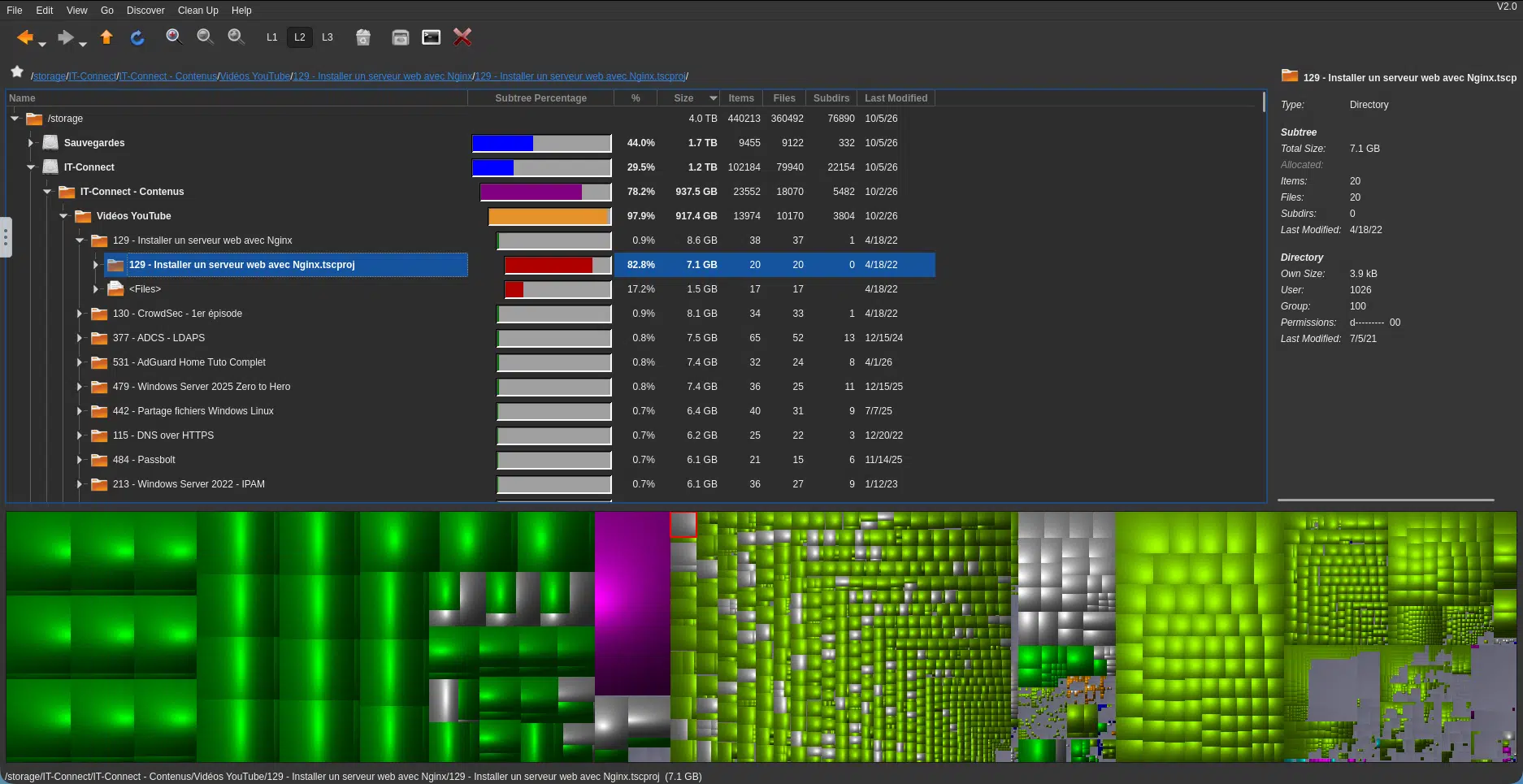
Once the scan is complete, several views help you spot what is taking up space, beyond the fact that you can sort by size:
- The tree view: sorted by size, it shows each folder's cumulative size, percentage, file count, and last modified date
- The treemap: clicking a rectangle selects the corresponding file in the tree view, and vice versa
- The Discover menu: it lists the largest files, the newest, the oldest, or files with multiple hard links
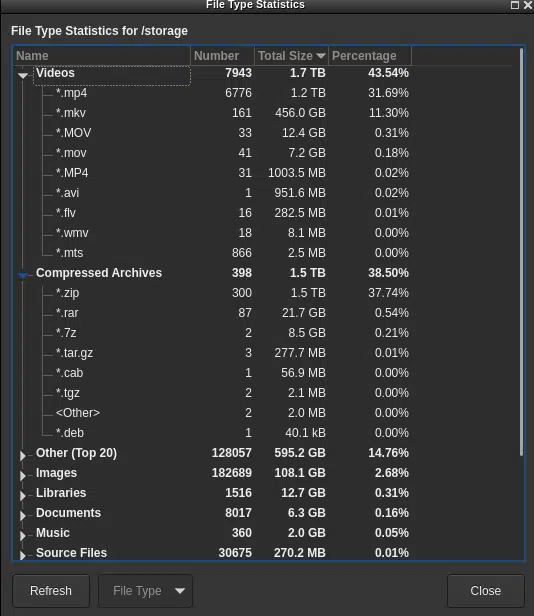
- File type statistics: they group space usage by extension (videos, archives, disk images, and so on)
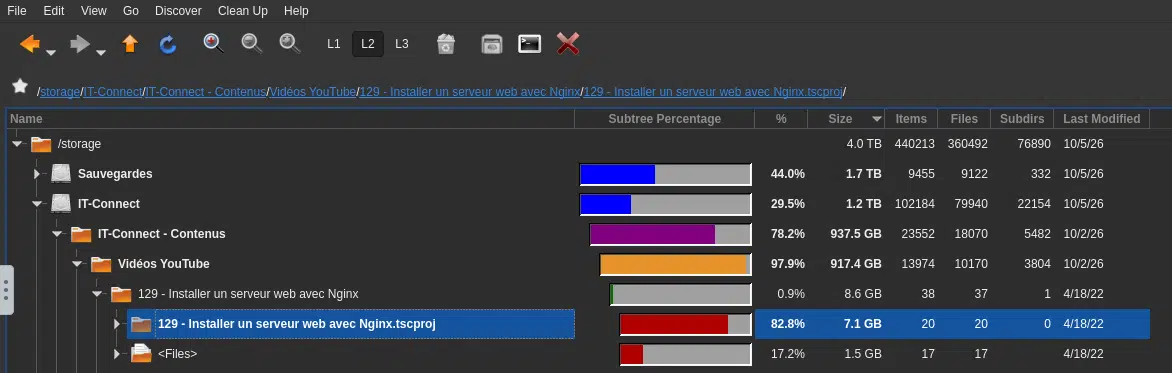
Here's a full overview of what it can look like:
The file type view also lets you see which file types are most common on the analyzed storage space. If you double-click a file type, QDirStat will show you the corresponding files.
Delete files from QDirStat
Warning: the container runs as root. No ACL protects you from a mistake. Handle QDirStat carefully and stop the project after each cleanup session.
QDirStat includes cleanup actions, accessible via right-click or through the Clean up menu. For them to work, the shared folders must be mounted read/write: replace :ro with :rw on the relevant shares (as mentioned earlier), then recreate the container.
I recommend keeping read-only access for folders that should not be modified manually:
ActiveBackupforBusiness: deleting files corrupts backup versions. Cleanup should be done through Active Backup for Business retention policies.docker: deleting a file inside a container's data can break the associated application.
Before deleting anything, keep these points in mind:
- No DSM recycle bin: deletion does not go through the shared folder's
#recyclebin. The "Delete" action is permanent - Snapshots: if the shared folder has snapshots, space will only be truly freed when the snapshots that still contain those files expire
- Synology apps: Synology Photos or Synology Drive do not always immediately detect a deletion performed outside DSM
Why not mount /volume1 as a whole?
During my first test, I mounted /volume1 as a whole. Result: QDirStat reported more than 22 TB... on a 6.7 TB volume! Several DSM-specific mechanisms explain this mismatch:
- Btrfs snapshots: each snapshot of a shared folder appears as a complete tree (the
@sharesnapfolder and, if visibility is enabled,#snapshotinside each share). QDirStat ignores that the blocks are shared thanks to copy-on-write: ten snapshots of a 1 TB share are counted as 11 TB - Container Manager: on a Btrfs volume, Docker image layers stored in
@dockerare also subvolumes, with the same effect - Encrypted shared folders: the encrypted version of each share is stored in
@NomDuPartage@, in addition to the decrypted mount. It is therefore counted twice
Mounting only the shared folders avoids these duplicates. If snapshots are visible in your shares, add a #snapshot exclusion rule in Edit > Configure QDirStat > Exclude.
Going further: cleaning up Docker images
Our analysis with QDirStat only covers shared folders. Docker images managed by Container Manager are stored in @docker at the root of the volume, so they do not appear in the results. Yet they can take up a significant amount of space: every time a container is updated, the previous image version remains on disk, as do the images from projects you deleted.
Start by measuring the reclaimable space (the RECLAIMABLE column).
sudo docker system dfOn a NAS, this command can take several minutes. If the RECLAIMABLE column for images shows a meaningful amount of disk space that can be recovered, you can clean up with this command:
sudo docker image prune -aOnly images that no container is using are removed, including stopped containers. But it's a good opportunity for a thorough cleanup.
If you prefer the graphical interface, open Container Manager and go to the Image section: there you can identify images that are no longer used and delete them one by one. There is also a button called Delete unused images.
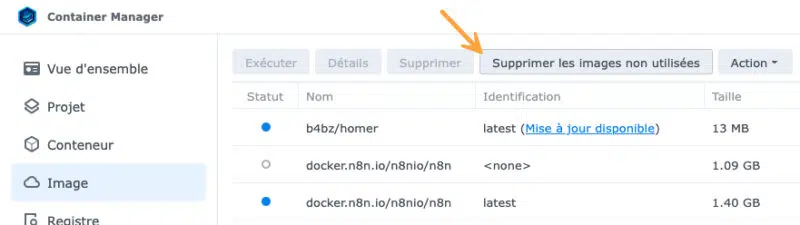
Conclusion
Synology's Storage Analyzer remains useful for scheduled monitoring of NAS usage. But to quickly answer the question "what is filling up my NAS?" and clean things up right away, QDirStat in a Docker container offers a much more WinDirStat-like experience: fast local analysis, treemap, and cleanup actions. It solved my need! Also, don't forget to configure notifications on your NAS so you receive an alert when disk space is almost full, so you can anticipate the problem (unless it is already monitored directly via SNMP).
To go further:
- Synology NAS: protect your data from ransomware with immutable snapshots
- How to analyze the contents of your Synology NAS with Storage Analyzer?
And you, which tool do you use to clean up disk space on your NAS? What do you think?