www.it-connect.fr

Deploying Windows Hello for Business with Intune: The Complete Guide
Passwords remain the weakest link in enterprise authentication, and Windows Hello for Business is Microsoft's native answer to getting rid of them on the desktop.
Phishing, credential stuffing, password spraying attacks: as long as a shared secret travels between the workstation and the directory, it can be intercepted, replayed, or guessed. Windows Hello for Business (WHfB) removes that shared secret by replacing the password with an asymmetric key pair tied to the device hardware, unlocked by a PIN or biometrics.
If you manage Windows through Microsoft Intune, Windows Hello for Business is one of the paths you can take to implement strong, phishing-resistant authentication.
In this article, I will walk you through a complete Windows Hello for Business deployment driven by Intune: understanding deployment models and trust types, validating prerequisites, configuring the tenant, creating the configuration profile, enabling self-service PIN reset, then testing the result on the client side. We'll also look at the most common pitfalls. The practical demo takes place in a cloud-only environment: Microsoft Entra ID joined devices, so without Active Directory.
Note: this article is the result of a collaboration with Aduneo, a French IT services company founded in 2001 and specialized in identity and access management (IAM).
What Is Windows Hello for Business?
Windows Hello for Business is Windows' passwordless authentication mechanism for enterprises. During provisioning, Windows generates on the device an asymmetric key pair whose private key is created and protected by the TPM. This private key never leaves the device and is never sent over the network. The public key is registered with the identity provider (Microsoft Entra ID). To authenticate, the user provides something (PIN, fingerprint, face recognition) that unlocks the private key, which signs the request sent to the authentication server.
This is what makes it a two-factor authentication by nature: something you have (the private key protected by the device's security module) and something you know (the PIN), the latter being replaceable by something you are (biometrics).
Windows Hello, Windows Hello for Business: what's the difference?
If you use Windows, you've probably heard of Windows Hello. Indeed, it can be configured to sign in to your session using the methods mentioned above. But what are the differences between Windows Hello and Windows Hello for Business (Windows Hello Enterprise)? Here are some answers.
| Windows Hello | Windows Hello for Business | |
|---|---|---|
| Audience | Local accounts, personal Microsoft accounts, and Active Directory domain accounts if the policy is enabled | Microsoft Entra ID and Active Directory accounts |
| Nature of the secret | Convenience PIN, which unlocks a stored password | Device-bound asymmetric key pair |
| Authentication to the IdP | No, the password remains the authentication secret | Yes, the key serves as proof of identity |
| SSO to enterprise resources | No | Yes (Entra ID, and Active Directory depending on the trust type) |
| Centralized management | Limited | Intune policies or GPOs, via the PassportForWork CSP |
| Meets Entra ID MFA requirement | No | Yes |
In other words, a convenience PIN unlocks a password that continues to exist and circulate. Windows Hello for Business removes the password from the equation.
What is a "convenience PIN"? It's the PIN offered on unmanaged devices or when WHfB is disabled. It improves sign-in convenience, but it does not provide authentication to Entra ID or SSO to protected resources. Microsoft recommends that organizations that truly want to authenticate to Entra ID deploy Windows Hello for Business.
Choosing Your Deployment Model and Trust Type
Microsoft defines three deployment models and three trust types, and confusing the two is common. The deployment model describes your organization's identity topology. The trust type determines only how WHfB clients authenticate to Active Directory: it has no effect on authentication to Entra ID, which always uses the key, and therefore does not apply to the cloud-only model.
Here are the possible combinations, and what they mean in practice:
| Model | Trust type | Use case | PKI required | Specific prerequisites |
|---|---|---|---|---|
| Cloud-only | n/a | Entra ID Joined devices, 100% cloud resources | No | Entra ID, Intune |
| Hybrid | Cloud Kerberos Trust | Entra ID Joined or Hybrid Entra ID Joined devices, access to on-premises resources | No | Entra ID, AD DS, Entra Connect Sync, AzureADKerberos object in AD |
| Hybrid | Key Trust | Same, without Cloud Kerberos | Yes (DC certificates) | Entra ID, AD DS, Entra Connect Sync, PKI |
| Hybrid | Certificate Trust | Same, with user certificates | Yes (DC + user certificates) | Entra ID, AD DS, Entra Connect Sync, PKI, AD FS |
| On-premises | Key / Certificate | No cloud identities (Red Forest / ESAE) | Yes | AD DS, AD FS |
A few clarifications on this table will help you understand it properly.
The on-premises model targets Red Forest environments (ESAE, Enhanced Security Admin Environment), and migrating it to a hybrid model requires a full redeployment. In Cloud Kerberos Trust, the user requests a TGT from Entra ID via Microsoft Entra Kerberos, while the domain controllers remain responsible for service tickets and authorization. In Key Trust, the user authenticates to Active Directory with a device-bound key, which requires a certificate on the domain controllers. In Certificate Trust, an authentication certificate is issued to the user, via AD FS acting as a registration authority (CRA).
Aduneo recommendation: prefer the Cloud Kerberos Trust model. It removes the need for PKI, eliminates the delay in synchronizing public keys between Entra ID and AD, and relies on the same infrastructure as FIDO2 keys. Models that require AD FS should be avoided, as this technology is now being phased out by Microsoft.
Authentication to Entra ID and device enrollment
The model / trust type combination also determines the authentication mode to Entra ID and the supported join types:
| Model | Trust type | Authentication to Entra ID |
|---|---|---|
| Cloud-only | n/a | Cloud authentication, or non-Microsoft federation |
| Hybrid | Cloud Kerberos | PHS or PTA, or federation (AD FS, non-Microsoft) |
| Hybrid | Key | PHS or PTA, or federation (AD FS, non-Microsoft) |
| Hybrid | Certificate | AD FS required, PHS and PTA are not supported |
PHS, PTA, federation, what are we talking about? These are the three possible authentication methods for a hybrid identity, in other words the three ways Entra ID can validate the password of a user coming from Active Directory.
- PHS: Microsoft Entra Connect synchronizes the hash of the password hash to Entra ID. Entra ID therefore validates the authentication without querying your directory. Passwords are never transmitted or stored in clear text, and Active Directory is only required at synchronization time, not at authentication time.
- PTA, pass-through authentication: Entra ID delegates password validation to a lightweight agent installed on your network, which queries a domain controller. No password, in any form, is stored in the cloud. In return, your agents and domain controllers must be reachable at every sign-in.
- Federation: authentication is delegated to a third-party service, AD FS or an external identity provider, which Entra ID trusts.
The key point is the last line of the table: the Certificate trust type requires AD FS, and therefore federation. That's one more reason to rule it out in favor of Cloud Kerberos Trust. On the device enrollment side, the cloud-only model accepts Entra ID Joined and Entra ID Registered devices, the hybrid model adds Entra ID Hybrid Joined devices, and the on-premises model relies on domain-joined machines with AD FS as the enrollment provider.
If these join concepts are unclear to you, I recommend reading our article on device enrollment methods in Microsoft Entra ID first.
Prerequisites Before Deploying Windows Hello for Business
The licenses you actually need
Windows Hello for Business does not require a Microsoft Entra ID P1 or P2 subscription. All Entra ID Free accounts can use Entra MFA for Windows passwordless features. However, some related features do require one:
| Component | Minimum license | Comment |
|---|---|---|
| Windows Hello for Business | Entra ID Free | WHfB works with all Entra ID tiers |
| Automatic MDM enrollment | Entra ID P1 (M365 E3, Business Premium) | Without P1, users must enroll their device manually in Intune |
| Conditional Access | Entra ID P1 | Required for "Require authentication strength" policies |
| Risk-based Conditional Access | Entra ID P2 | Recommended to pair WHfB with Identity Protection |
| Microsoft Intune | Intune Plan 1 (included in M365 E3/E5, EMS E3/E5, Business Premium) | For configuration via CSP or settings catalog |
| Hybrid Certificate Trust model | Entra ID P1 | Required for Device Writeback needed by AD FS |
Note that the hybrid Cloud Kerberos Trust and Key Trust models do not require any specific cloud license in Microsoft's official matrix. It is automatic enrollment and Conditional Access that push the requirement up to P1.
Aduneo recommendation: even though WHfB works with Entra ID Free, in practice a controlled deployment with automatic enrollment and Conditional Access requires at least Entra ID P1 (M365 E3). Aim for Entra ID P2 if you use Identity Protection.
To learn more about the different licenses and assignment rules, see our dedicated article to understand and manage Entra ID licensing in 2026.
Operating system versions
All supported versions of Windows (desktop) can be used with WHfB. However, Cloud Kerberos Trust imposes minimum versions, both on the client and on the domain controller:
| Model / trust | Windows client | Domain controller |
|---|---|---|
| Cloud-only | All supported versions | n/a |
| Hybrid, Cloud Kerberos | Windows 10 21H2 + KB5010415, Windows 11 21H2 + KB5010414, and later | Server 2016 + KB4534307, Server 2019 + KB4534321, Server 2022, Server 2025 |
| Hybrid, Key | All supported versions | All supported versions |
| Hybrid, Certificate | All supported versions | All supported versions |
| On-premises, Key / Certificate | All supported versions | All supported versions |
A few additional points:
- Pro, Enterprise, and Education editions are supported. Home editions are not.
- The minimum domain and forest functional level is Windows Server 2008 R2, regardless of the deployment model.
- With Cloud Kerberos Trust, you must have a sufficient number of read-write domain controllers in each Active Directory site where users will authenticate.
Aduneo recommendation: target Windows 11 23H2 and later to benefit from the latest security improvements (passkeys, biometric enhancements). If you choose Cloud Kerberos Trust, make sure to verify the required KBs on your DCs and client machines.
Hardware
- TPM 2.0 is strongly recommended. Without TPM, the private key is encrypted and stored in software, which lowers the protection level.
- A Windows Hello-compatible biometric sensor is optional (because there is the PIN): IR camera for face recognition, FIDO-compatible fingerprint reader.
- Enhanced Anti-Spoofing is a Windows policy setting, not a hardware standard. Not all infrared cameras support it, and enabling it on an incompatible fleet will simply disable face recognition. We will come back to this in detail when configuring the Intune profile.
Aduneo recommendation: audit your fleet with an Intune query or a detection script to validate the presence of TPM 2.0 before deployment.
On this point, Microsoft's position has not changed: TPM 2.0 is a non-negotiable requirement for Windows 11.
Preparing the Tenant Before Configuration
For this demo, I'm using my Microsoft 365 tenant whose domain is it-connectlab.fr. I have an administrator account and I will use the associated test user chris.tal@it-connectlab.fr. Later, the user will sign in to the pilot workstation. The policy will be defined to target devices (and therefore apply to all users), but you can target users if you wish (be careful with the settings you configure).
Understand who really enables Windows Hello for Business
While working on Windows Hello for Business, I noticed a Windows-specific behavior that had nothing to do with tenant configuration. Intune does not enable Windows Hello for Business. That's false: Windows does. Intune only writes to a registry location that Windows reads. So there are two questions: what does Windows read, and who writes to it?
What Windows reads. The "Use Windows Hello for Business" setting from the CSP available in Intune. It controls provisioning. It has three states:
- Enabled: the device provisions WHfB with keys or certificates for all users.
- Disabled: the device does not provision WHfB for any user.
- Not configured: users can provision WHfB.
This third state is the default behavior, the one that applies when the admin has not configured anything. And on an Entra ID joined device, "can" translates to "will": Windows Hello for Business is enabled there by default, and provisioning starts after sign-in.
Who writes to the Registry? Several sources, in fact:
- The tenant-level policy, in the Intune enrollment section. It writes at device enrollment time, for the whole fleet, with no targeting possible.
- The configuration profile targeted at a security group, which we will build later in this article. This is the path I recommend: it writes to the same CSP, but continuously and within the scope you choose.
- A GPO, which has the particularity of taking precedence over the CSP. A Group Policy that enabled WHfB would make your Intune configuration ineffective.
- A registry key dropped during OS deployment.
This cascading behavior has one consequence: disabling WHfB requires an explicit action, since doing nothing leaves it enabled. A disabling policy (Intune, GPO, scripts, etc.) will help you achieve that goal, but if you're reading this article, that's probably not your choice.
Neutralize the tenant-level policy
The tenant policy has two problematic characteristics that justify not using it:
- It applies only at enrollment time. Any later change to its configuration is not reflected on devices already enrolled.
- It applies to all devices enrolling in Intune, with no targeting possible.
The best practice is therefore not to use it and to manage WHfB through policies targeted at security groups. This is also required for a phased rollout, starting with a pilot group.
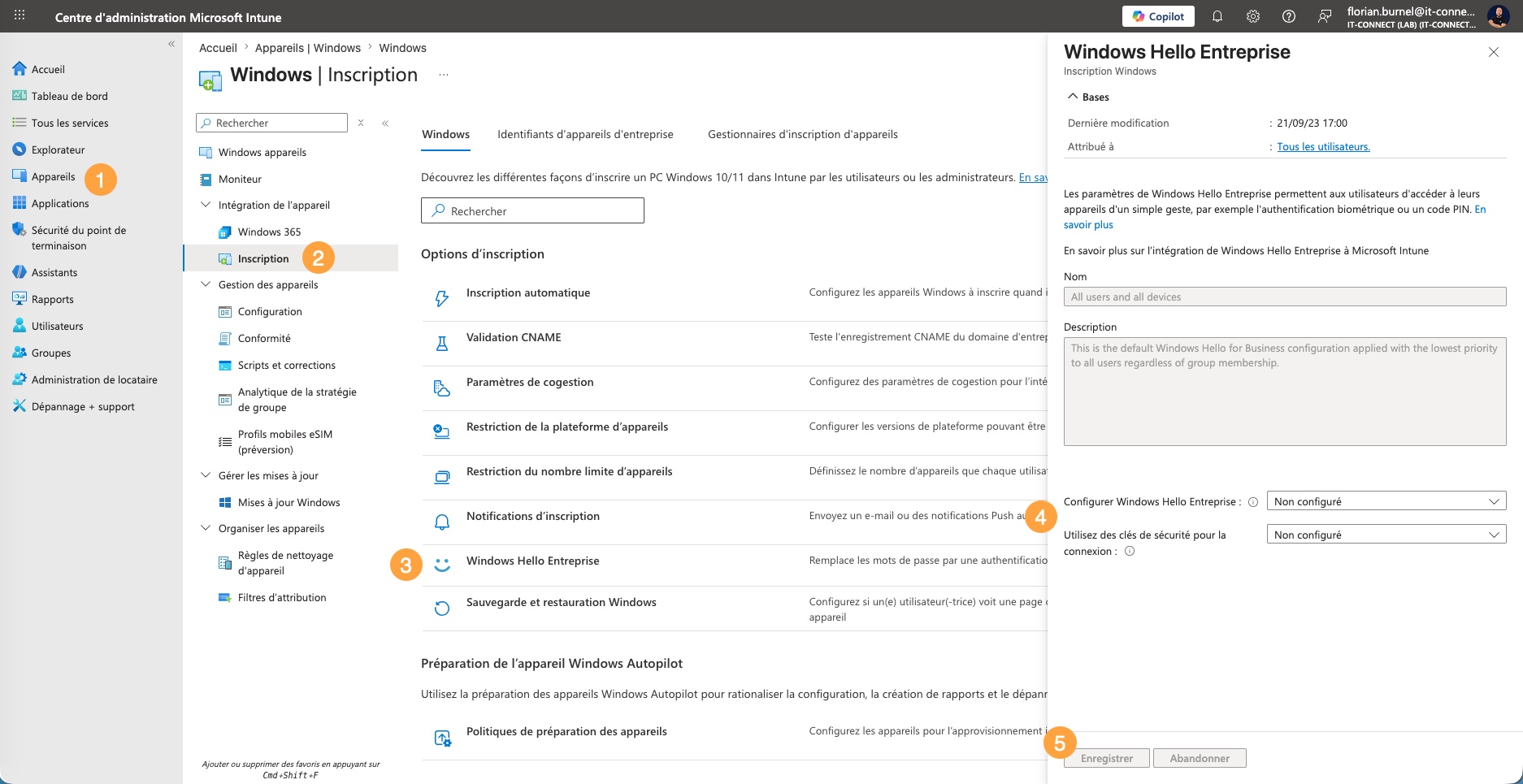
Go to the Microsoft Intune admin center, then navigate to Devices > Windows > Windows enrollment > Windows Hello for Business. Set the Configure Windows Hello for Business setting to Not configured.
Verify that MFA is in place
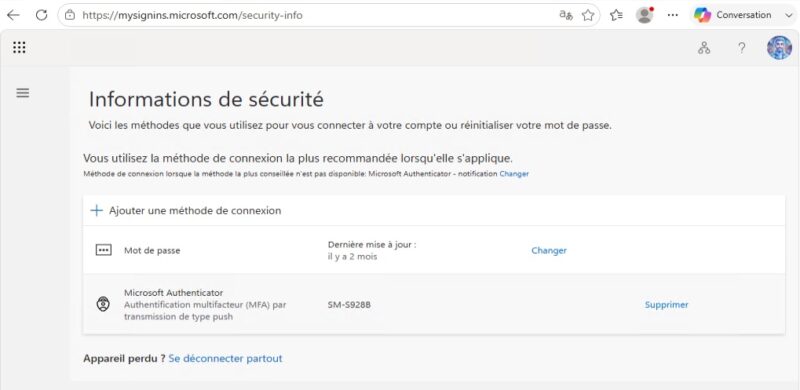
WHfB provisioning requires MFA verification. The built-in experience accepts weak credentials (username and password) as the first factor, but the user must provide a second factor. If no MFA method is registered, provisioning fails or stays silently pending.
Before going further, the user chris.tal@it-connectlab.fr must have registered an MFA method. This can be done through the aka.ms/mysecurityinfo portal.
Plan for a Temporary Access Pass for users without MFA
The MFA requirement during provisioning creates a bootstrapping problem: to create their PIN, the user must complete MFA, but they first need a registered method. This is a real blocker in organizations that do not provide company phones to their employees.
Microsoft's answer is the Temporary Access Pass (TAP): a temporary, time-limited code, configurable for single or multiple use, generated by an administrator for a user. It can bootstrap a first strong authentication method, including Windows Hello for Business, and it also helps troubleshoot a user who lost their usual method.
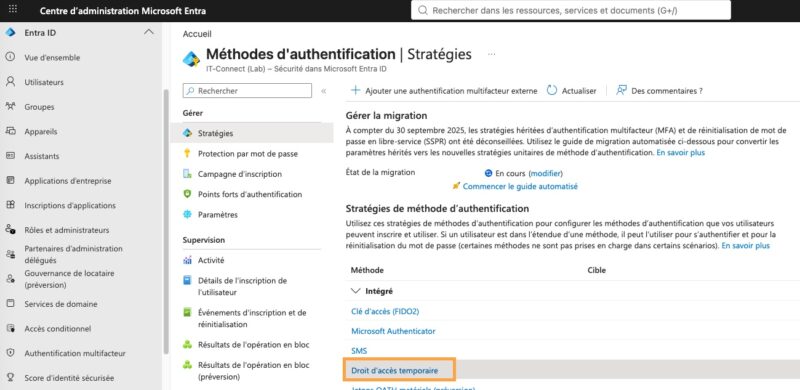
Enable it in the Entra admin center under Authentication methods > Policies > Temporary Access Pass.
Behavior differs depending on the device state:
- Device in the process of joining Entra ID: the user authenticates directly with their TAP, without a password, to join the device, then continues with Windows Hello for Business enrollment.
- Device already joined: the user must first sign in with another method (password, smart card, FIDO2 key). The TAP then takes over to satisfy WHfB provisioning MFA.
- If the Web sign-in feature is enabled on Windows, the TAP can also be used to sign in.
The most interesting scenario is therefore the new employee: device deployed by Autopilot, TAP delivered through a controlled channel, and the user ends up with their PIN without ever typing a password.
Create the pilot security group
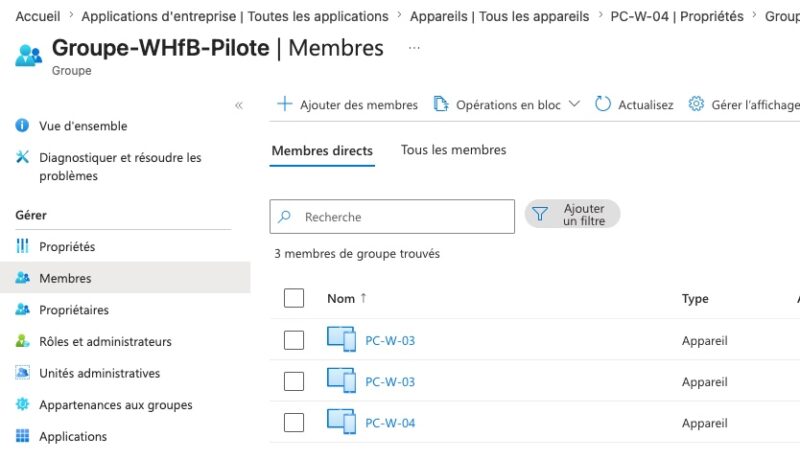
Create an Entra ID security group, for example GRP-WHfB-Pilote, and add the pilot devices to it, here the following workstations: PC-W-03 and PC-W-04. This is the group that will receive the policy, and chris.tal@it-connectlab.fr will sign in to one of them.
With device targeting, all users on the targeted workstations are provisioned in the same way.
Deploy Windows Hello for Business with an Intune Profile
We will use the settings catalog, which exposes the PassportForWork CSP settings directly and offers the most granular control. If this type of profile is unfamiliar to you, our article on Intune device configuration profiles will help. But let's be honest, this is Intune basics.
Note: some documentation still refers to the Identity protection model. It has been deprecated since July 2024 and Intune no longer allows new policies to be created based on it. Its settings are now available through the settings catalog.
Create the configuration profile
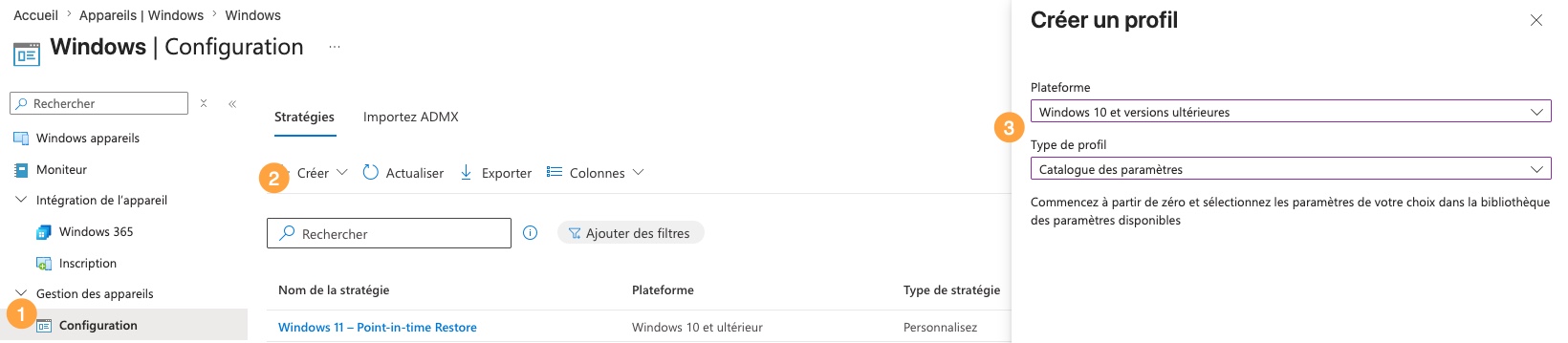
In the Intune admin center, navigate to Devices > Manage devices > Configuration > Create > New policy. Choose:
- Platform: Windows 10 and later
- Profile type: Settings catalog
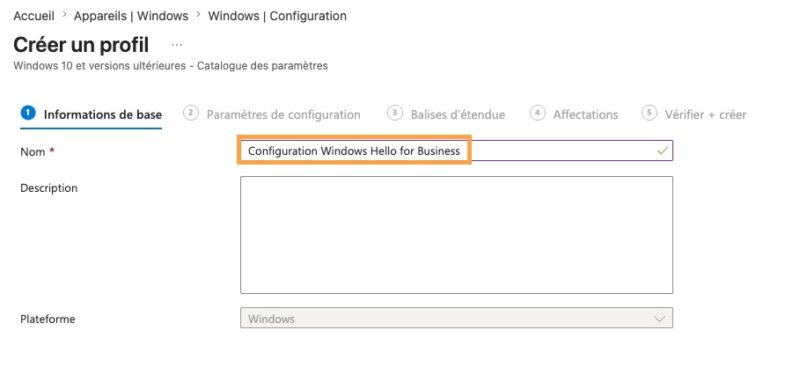
Name the profile, for example: Windows Hello for Business Configuration.
Select the settings
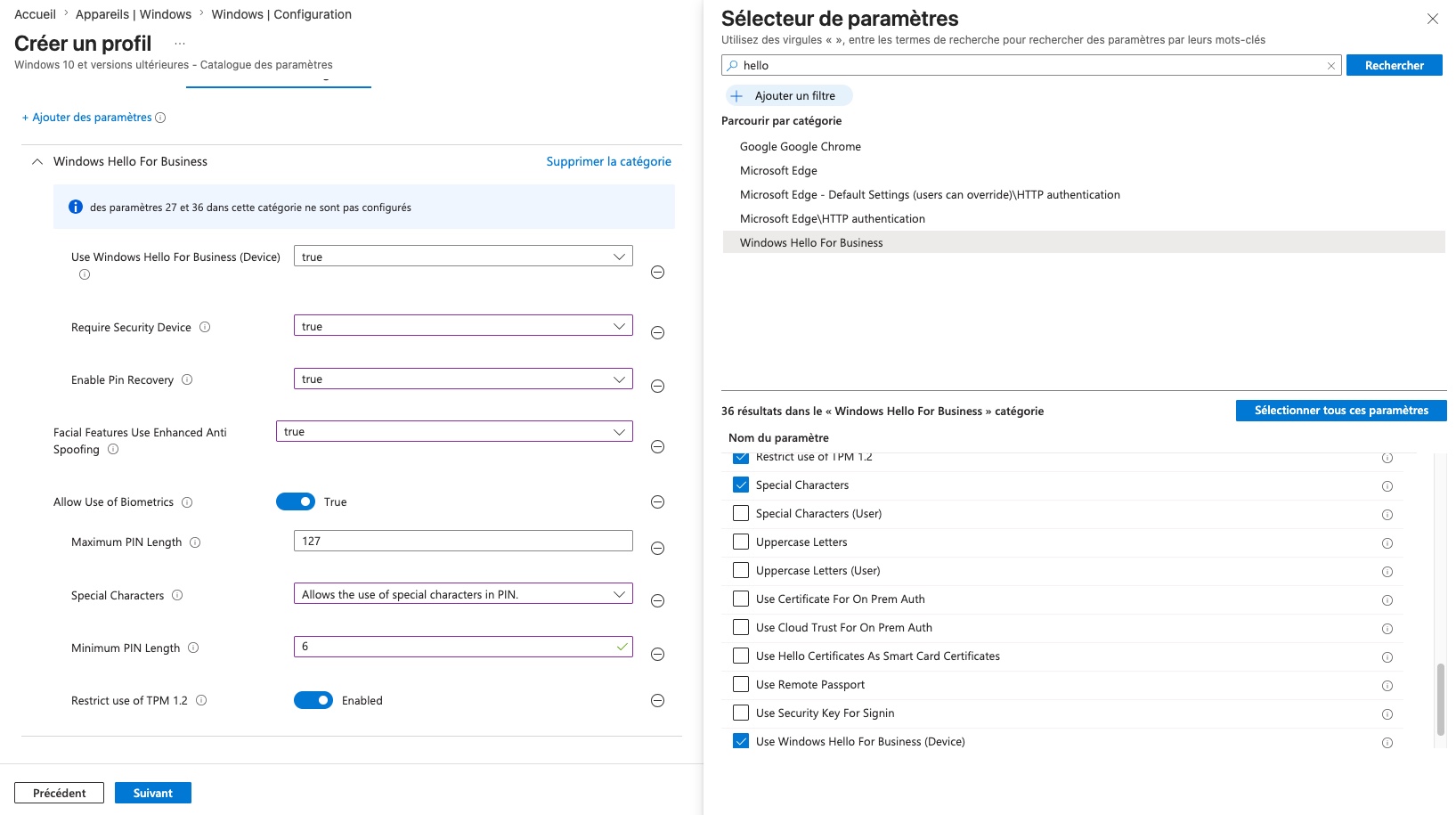
Click Add settings, then search for hello in the search box. In the Windows Hello For Business category, select the settings you want to configure. There are about thirty of them; here are the ones I recommend configuring:
| Setting | Value | Role |
|---|---|---|
| Use Windows Hello For Business (Device) | true | Enables provisioning |
| Require Security Device | true | Requires a usable TPM |
| Restrict use of TPM 1.2 | Enabled | Excludes TPM 1.2 |
| Enable Pin Recovery | true | Enables non-destructive PIN reset. We'll come back to this later. |
| Minimum PIN Length | 6 | Minimum PIN length |
| Maximum PIN Length | 127 | Maximum PIN length |
| Special Characters | Allows the use of special characters in PIN | Allows special characters, without requiring them. You can enforce them if needed by adjusting the value. |
| Allow Use of Biometrics | True | Allows fingerprint and face recognition. The PIN remains mandatory in all cases: Microsoft offers no configuration that lets you do without it, because you need a fallback mechanism that is not a password when biometrics are unavailable. |
| Facial Features Use Enhanced Anti Spoofing | true | Requires enhanced anti-spoofing (use with caution) |
This gives the following configuration:
Should you really enable Facial Features Use Enhanced Anti Spoofing?
This setting improves face recognition capabilities to distinguish a real face from a photo. That risk is not theoretical, since researchers have already managed to fool Windows Hello with an infrared photo (even if that dates back a bit). But do not check it by default: it requires you to validate your hardware. It disables face authentication on devices whose camera does not support it. Test it first on recent machines equipped with infrared cameras. In any case, this setting has no impact on the PIN code.
Device settings and user settings
You may have noticed the (Device) suffix on the previously configured "Use Windows Hello for Business (Device)" setting. As you browse the list of settings, you'll notice that most of them appear twice. For example: Minimum PIN Length and Minimum PIN Length (User).
These are not duplicates. The PassportForWork CSP exposes two nodes, and the catalog presents them side by side. A setting without a suffix writes to the device node, while a setting with the (User) suffix writes to the user node. This affects Windows behavior: at the device level, all users signing in on the targeted workstations attempt enrollment, while at the user level, only targeted users attempt it.
Nearly half of the available settings exist for both scopes. There is clear logic behind this: everything related to the user identity and their PIN exists in both scopes, while everything related to the hardware and trust model is configured only at the device level.
Assign and track the deployment
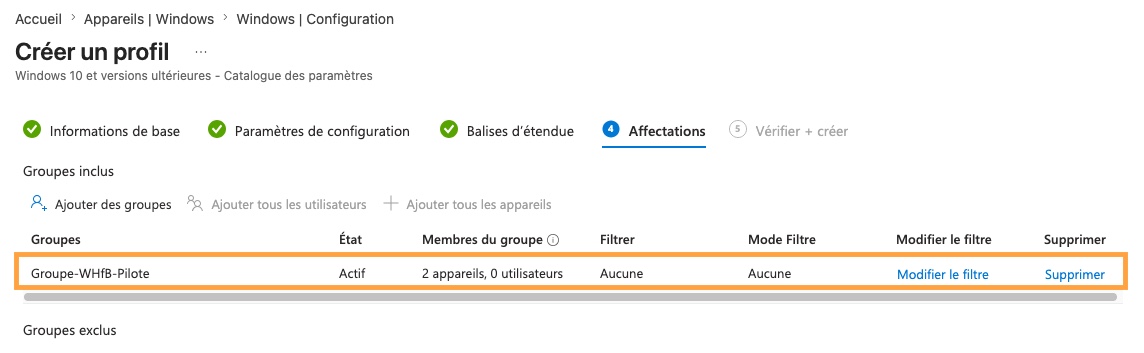
In the Assignments tab, add the device group GRP-WHfB-Pilote, then validate the profile creation. Once the policy is created, you can export it to replay it in another tenant or version it. The method is described in our article on exporting and importing a "Settings catalog" policy.
To speed up testing, you can force Windows device synchronization instead of waiting for the usual refresh cycle.
Allow Windows Hello for Business without forcing enrollment
By default, enabling WHfB through policy triggers the setup wizard at every sign-in until the user has created their PIN. This is annoying when part of the fleet is not yet ready, typically users without a registered MFA method: they end up facing a screen they cannot satisfy (this point was mentioned earlier).
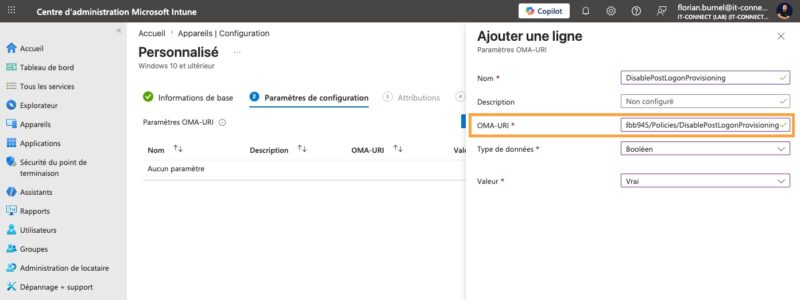
Microsoft has provided a setting for this exact case: DisablePostLogonProvisioning. Set to true, it prevents Windows from launching automatic provisioning after sign-in. Windows Hello for Business remains available, and the user can configure it whenever they want from Settings > Accounts > Sign-in options. You therefore move from an enforced rollout to a self-service rollout.
This setting is not exposed in the settings catalog, so you need to create a custom profile:
- Go to Devices > Configuration > Create > New policy > Windows 10 and later > Templates > Custom.
- OMA-URI:
./Device/Vendor/MSFT/PassportForWork/{TenantId}/Policies/DisablePostLogonProvisioning, replacing{TenantId}with your tenant ID (visible in the overview of the Entra admin center, for example). - Data type: Boolean.
- Value: true.
Client-Side Tests and Validation
We are now on the pilot workstation, a Windows 11 device joined to Entra ID, enrolled in Intune, and a member of the GRP-WHfB-Pilote group. It is chris.tal@it-connectlab.fr who is signing in.
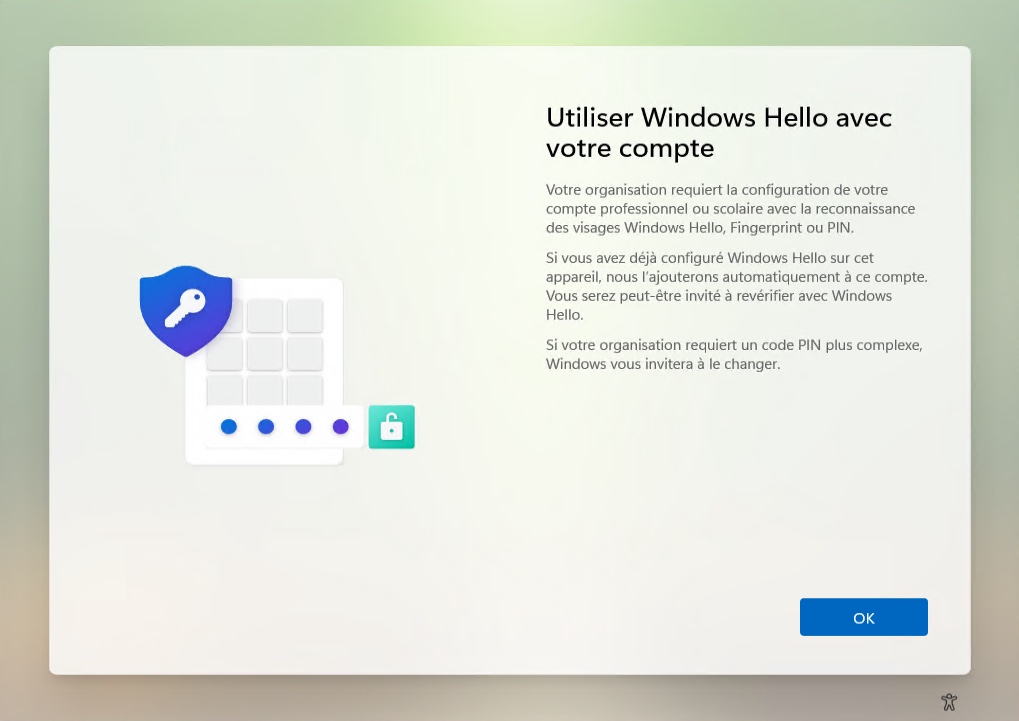
After sign-in, the process starts immediately:
- If the device has a biometric sensor, the user is prompted to enroll a biometric gesture. This step can be skipped.
- Windows offers to use Windows Hello with the organization account.
- The flow switches to the MFA part. Provisioning does not continue until authentication succeeds, fails, or times out.
- After a successful MFA, the user creates and confirms their PIN, respecting the configured complexity rules.
- Windows requests the asymmetric key pair from the TPM, then registers the public key with Entra ID.
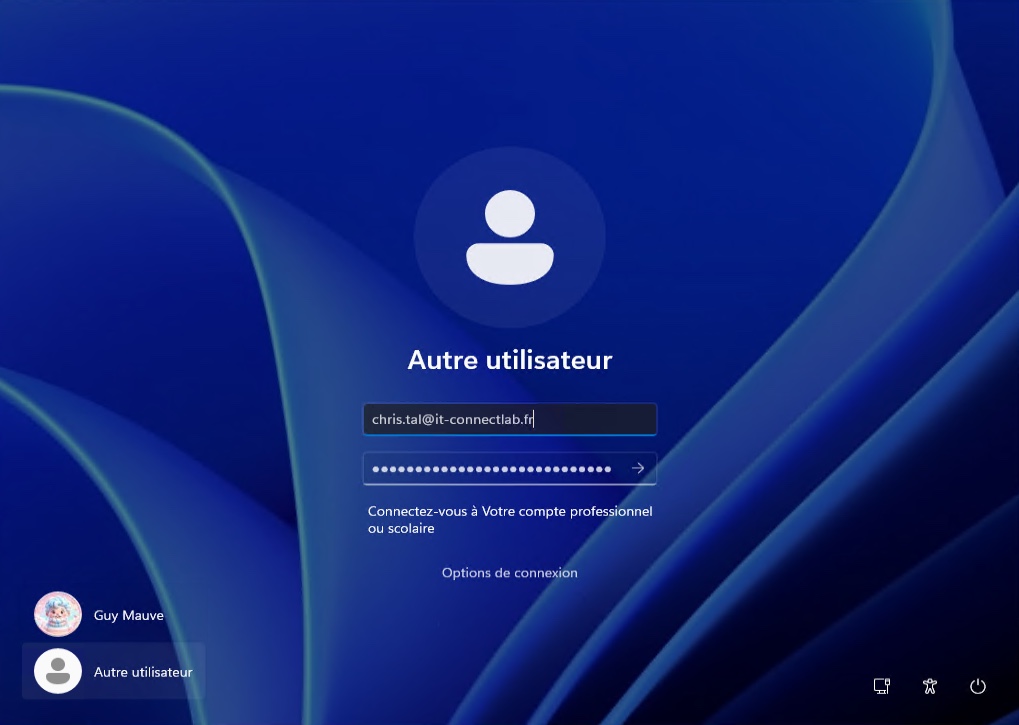
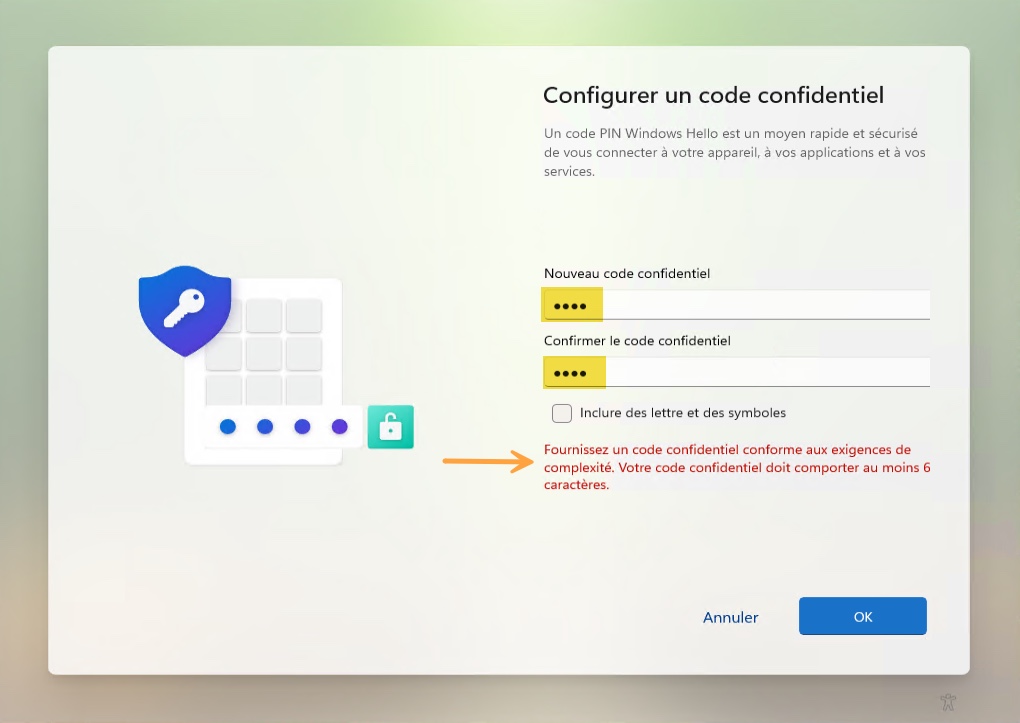
At the next local sign-in on their device, the user will be able to authenticate using Windows Hello for Business.
Check the status with dsregcmd
The reference command to diagnose the state is dsregcmd:
dsregcmd /statusIn the User State section, the lines to watch:
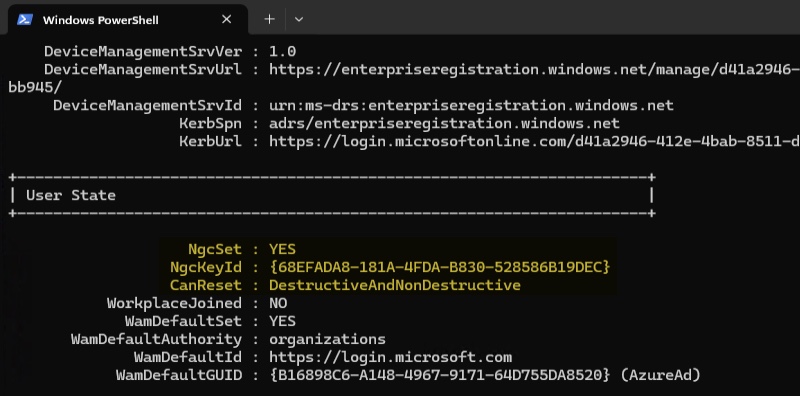
Here are a few clarifications about this information, which will help you understand why it matters.
NgcSet : YESconfirms that Windows Hello for Business is provisioned for the user.NgcKeyIdis the ID of the user's Hello key on this device. We'll refer to this ID several times later in the article.CanResetindicates whether the PIN can be reset on the workstation.DestructiveOnlymeans only destructive reset is available.DestructiveAndNonDestructiveconfirms that theEnable Pin Recoverypolicy has been received and applied. These modes will be explained later.
Warning: CanReset : DestructiveAndNonDestructive reflects only the policy state on the workstation, never the state of your tenant. We'll see later that non-destructive reset also requires additional tenant-side configuration.
Check prerequisite validations
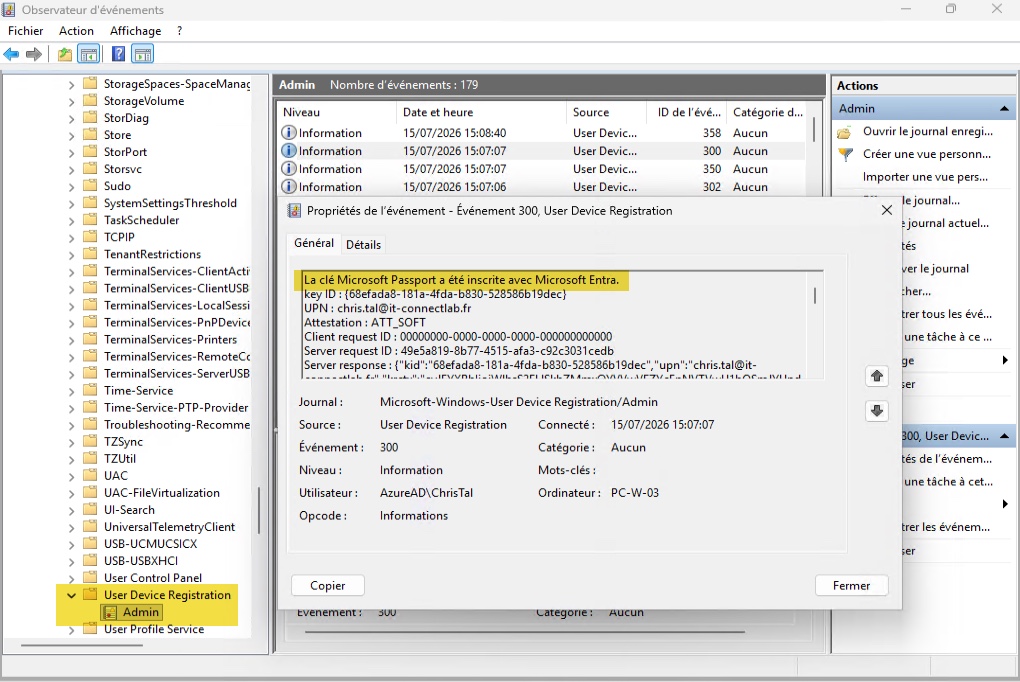
Beyond dsregcmd, I recommend checking the workstation's Event Viewer. Go to: Applications and Services Logs > Microsoft > Windows > User Device Registration > Admin.
This is where Windows logs the provisioning flow and its configuration-related activity. On my machine, I was able to spot Event 300, which indicates that the Microsoft Passport key was registered with Microsoft Entra. This confirms that the public key was successfully sent to Entra ID and associated with the user account. In fact, if you look at the image below, you'll see that the Key ID in Event 300 matches the NgcKeyId reported by dsregcmd /status.
Self-Service PIN Reset
What happens if a user forgets their Windows Hello for Business PIN? An forgotten PIN should not turn into a support ticket. WHfB offers two types of reset.
| Destructive reset | Non-destructive reset | |
|---|---|---|
| Effect | The PIN and the underlying credentials (keys, Hello container certificates) are removed from the client, then a new key and new PIN are provisioned | The container and keys are preserved, only the PIN that authorizes their use is changed |
| Mechanism | Full reprovisioning | An AES 256-bit key, the PIN reset protector, is added to the container and then encrypted with a public key obtained from the Microsoft PIN reset service |
| Configuration required | None, this is the default behavior | Two cumulative conditions: consent to the Microsoft PIN reset service applications in the tenant and activation of the Enable Pin Recovery setting on the client side (this second point is already handled by our policy). |
Without the reset service, the user can still reset their PIN themselves. Destructive reset is available by default and requires no configuration. The difference is whether the WHfB container is destroyed or not, not whether the user has self-service. The advantage of non-destructive reset is that it preserves the other items stored in the container, such as certificates or passkeys.
Register the PIN reset service applications
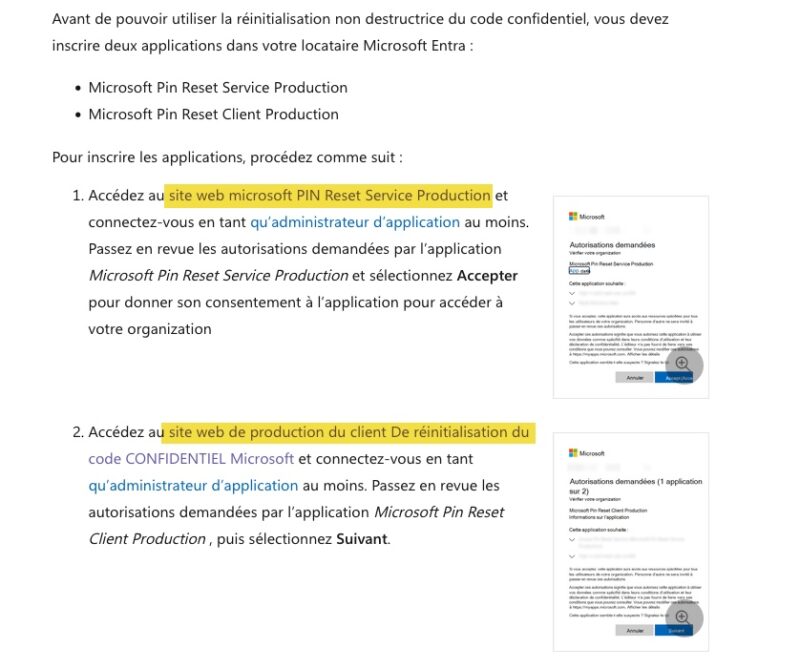
To benefit from non-destructive reset, two applications must be consented in the tenant, with at least the Application Administrator role:
- Microsoft Pin Reset Service Production
- Microsoft Pin Reset Client Production
The consent URLs are provided in Microsoft's documentation on PIN reset. Click the links directly:
Once consent is granted, verify that they are present in Entra ID > Applications > Enterprise applications.
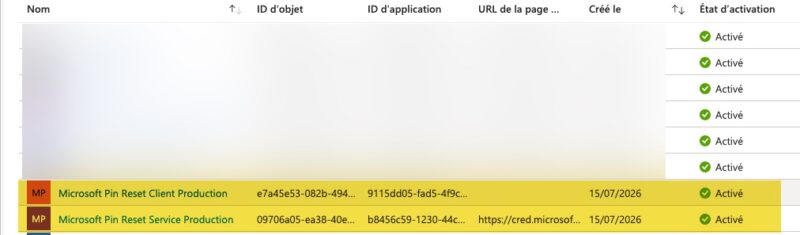
Tip: grant these consents before deploying your configuration profile. Nothing is irrecoverable: if you forget them, already provisioned workstations will benefit once the configuration is in place, but in between, every PIN reset will have destroyed a container without anyone noticing.
In practice: destructive and non-destructive reset
In its documentation, Microsoft states that both scenarios use the same steps to initiate a reset. This is true for the trigger: in both cases, the user goes through "I forgot my PIN" on the Windows sign-in screen, then authenticates with MFA.
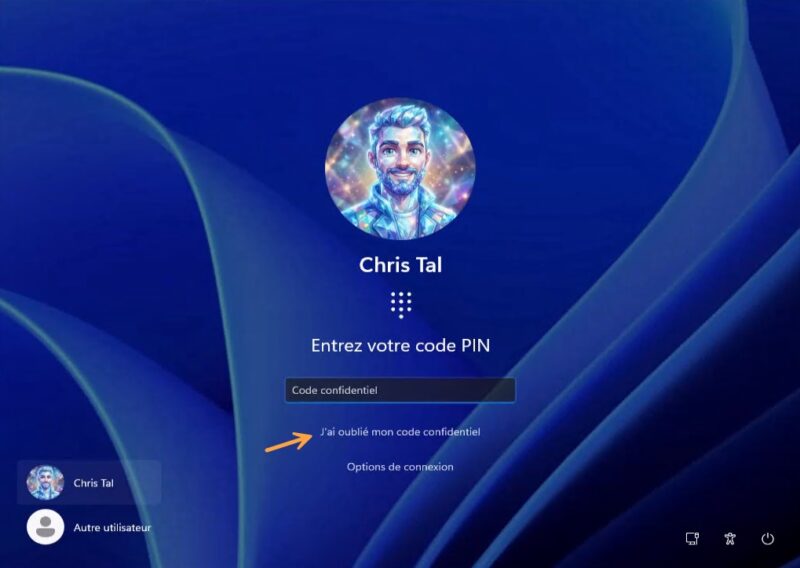
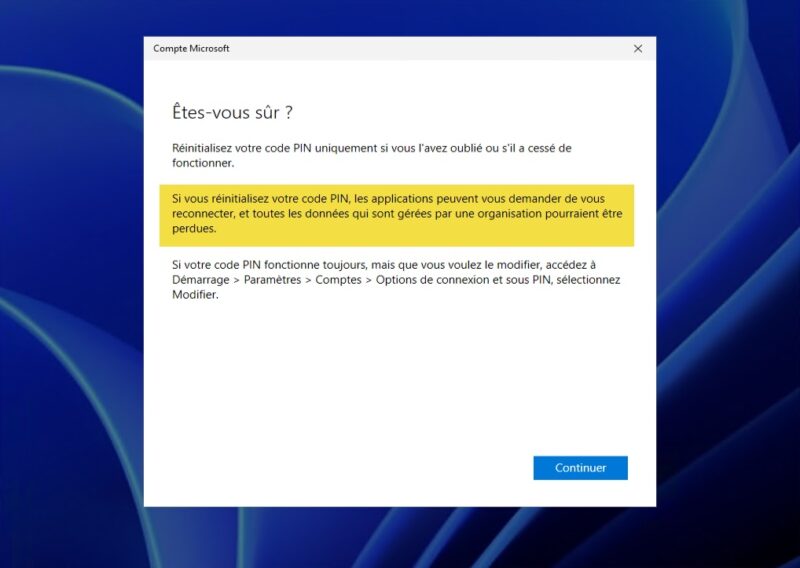
But my tests show that the screens that follow are not exactly the same, and Windows tells you exactly what it is doing, as long as you know where to look. Look closely at the highlighted message on the screen below; it appears before you confirm the PIN reset. It warns that apps may require signing in again and that organization-managed data could be lost. Here, without being very explicit, Microsoft is referring to destructive PIN reset (so without having registered the apps in the tenant and/or without having enabled the policy setting). When it is a non-destructive reset, this message does not appear.
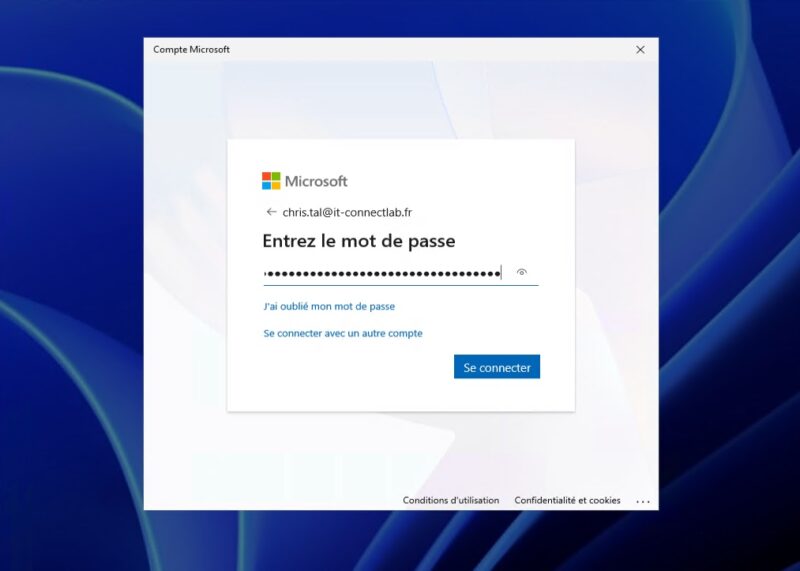
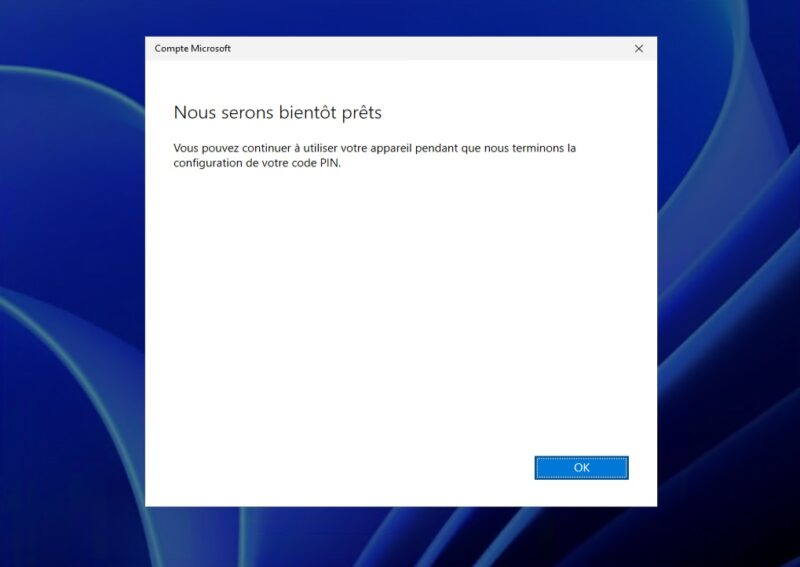
I also noticed another detail. When it is a destructive reset, the button is labeled "Set up a PIN", whereas for a non-destructive reset, it is labeled "Change your PIN". The choice of verbs is not random; it describes the underlying mechanism. "Set up" signals the birth of a new container, therefore the destruction of the previous one. "Change" indicates that the container is still there and only the PIN authorizing its keys is changed.
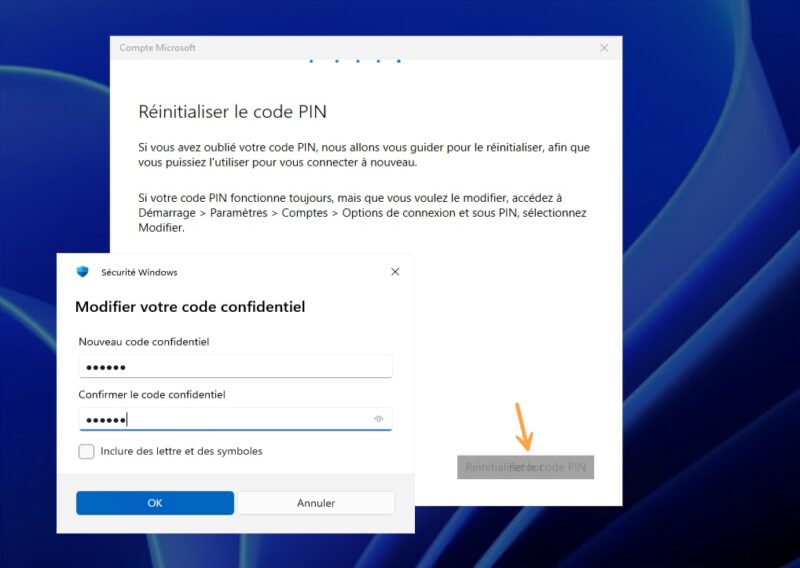
Note: the user never chooses the reset mode, and no option is offered. It is the tenant and workstation configuration that determines what happens. This is why it is so important to validate your full chain before deployment: your users will be subject to your configuration without ever being able to fix it themselves.
But then, once the reset is complete, what happens to the NgcKeyId?
- Destructive reset: different, a new container has been created.
- Non-destructive reset: identical, the container has been preserved.
In one of the tests I ran, the NgcKeyId changed from {68EFADA8-181A-4FDA-B830-528586B19DEC} to {5A633263-13E8-4A5C-BF9D-2D6DB582241C}: the container had indeed been destroyed and recreated. In another case (after the Microsoft apps had been registered), the NgcKeyId value remained unchanged.
Try it yourself, and you'll see.
Aduneo recommendation: enable PIN Recovery in the Intune profile to allow users to reset their PIN without IT support. Also plan for stronger user support during the first few weeks: FAQ, visual guide, provisioning assistance.
What If You Have an On-Premises Active Directory?
This demo covers a cloud-only environment: identities exist only in Entra ID, and devices are joined to Entra ID. In other words, there is no Active Directory. In this case, configuration is complete (the trust type does not apply).
If your organization has an Active Directory whose identities are synchronized to Entra ID, you are missing one component. Let's talk about it briefly.
Your Entra ID Joined workstations will provision WHfB without issue and access cloud resources, but opening a file share or intranet protected by Active Directory will ask for credentials again. SSO to on-premises resources will not work.
The answer is called Cloud Kerberos Trust. The idea: Entra ID issues Kerberos TGTs for your Active Directory domain, via an AzureADKerberos object created in the directory with the AzureADHybridAuthenticationManagement PowerShell module. All that remains is to enable the Use Cloud Trust For On Prem Auth setting in your Intune profile, and your Entra ID Joined devices get SSO to Active Directory without being domain joined and without PKI.
Two more prerequisites are then added to the ones we already covered: Microsoft Entra Connect Sync must be configured and working (or its cloud equivalent), and user and computer objects must be synchronized between Entra ID and Active Directory. Windows Hello for Business links a user to a device, so both must exist on both sides.
One last point is worth mentioning. In Key Trust mode, the user's WHfB public key is created in Entra ID during provisioning, then written to the msDS-KeyCredentialLink attribute of the user object only during the next Entra Connect Sync cycle (the default interval is 30 minutes). There is therefore a window during which the user has created their PIN but cannot use it yet. Cloud Kerberos Trust removes that delay, since it has no public key to sync to Active Directory. It is therefore not only a PKI exemption, but also a constraint that may be visible to the user.
This is a topic in its own right, with its prerequisites (domain controller versions, read-write controllers per site), blind spots (privileged accounts excluded by the password replication policy, unsupported RDP and VDI scenarios), and migration procedures from Key Trust or Certificate Trust. This scenario may be the subject of another article. In the meantime, Microsoft's Cloud Kerberos Trust deployment guide can help you.
Strengthen the Setup with Conditional Access
Provisioning WHfB is good. Requiring its use to access sensitive resources is better. Without that, the user has a strong authentication method but can still authenticate with their password on cloud applications.
The WHfB key satisfies Entra ID's MFA requirement and reduces the number of MFA prompts users see. You can go further with authentication strengths (the translated name is not great, admittedly), which let you require not just basic MFA, but a specific set of methods.
Microsoft offers three choices:
- Multifactor authentication: the most permissive. It is equivalent to the grant control "Require multifactor authentication."
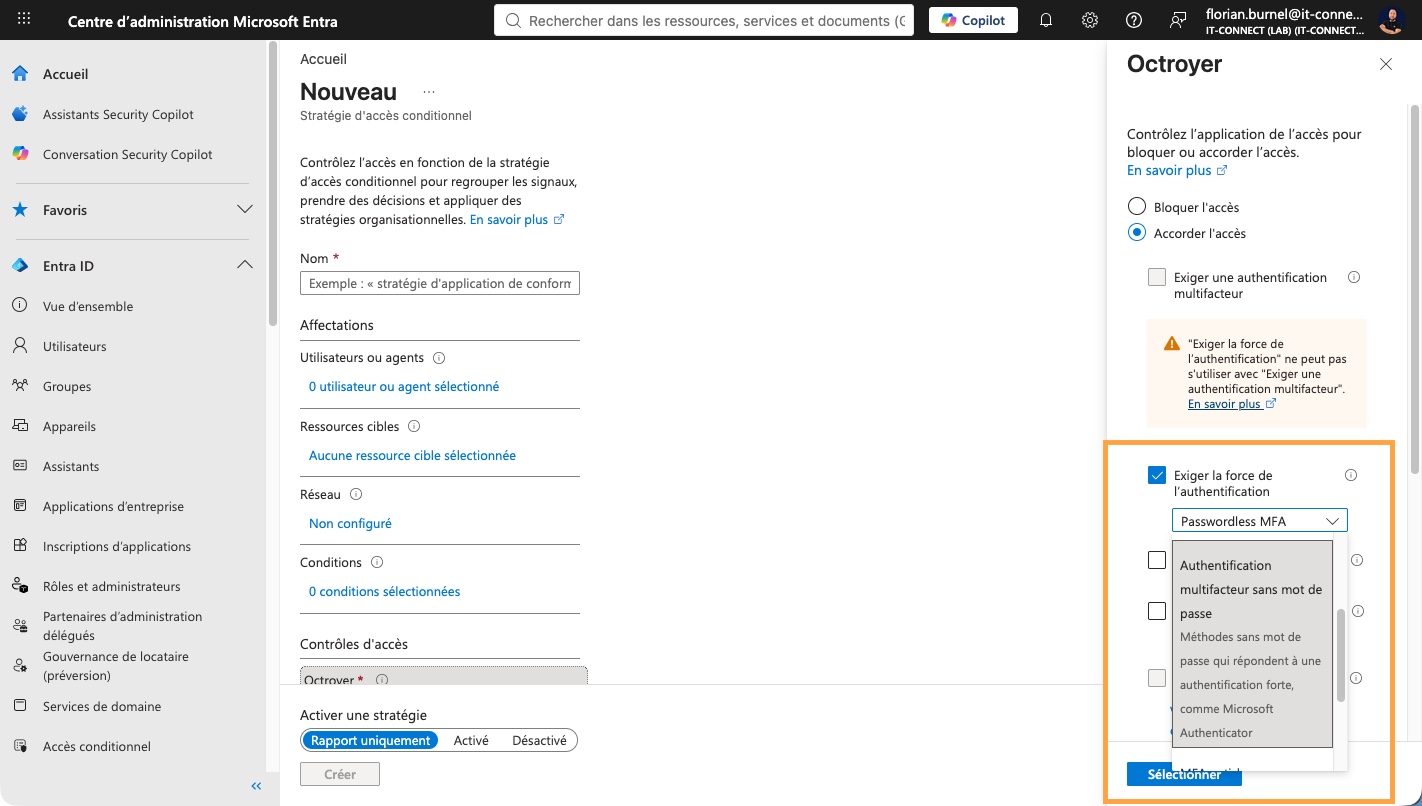
- Passwordless MFA: accepts only passwordless methods, including Windows Hello for Business.
- Phishing-resistant MFA: the strictest, limited to passkeys and FIDO2 keys, Windows Hello for Business and platform credentials, as well as certificate-based authentication (multifactor).
Windows Hello for Business is therefore included in all three. A useful point to know: if the user signs in with WHfB as their primary authentication method, that is enough to satisfy an authentication strength that includes WHfB.
To see what I'm referring to, go to the Entra admin center. Create a Conditional Access policy, then under Access controls > Grant, select Require authentication strength and choose the appropriate method. Be sure to test in Report-only mode before enabling it in production.
Warning: this step requires Entra ID P1 at minimum. Always exclude your break-glass accounts from this type of policy.
Common Pitfalls and Lessons Learned
This section summarizes the most common pitfalls and issues encountered by Aduneo teams in the field.
Provisioning blocked by missing MFA
Symptom: the user is never prompted to set up WHfB after sign-in. Error code 0x801C03ED may appear on the PIN creation screen.
Cause: Windows Hello for Business requires MFA verification during initial provisioning. If the user has no registered MFA method, or if the Conditional Access policy does not trigger MFA, provisioning remains silently pending. Error 0x801C03ED covers exactly this case: "Multi-factor authentication is required for a 'ProvisionKey' operation, but wasn't performed". It also covers other situations such as a token missing from the authorization header, or a user who does not have permission to join devices to Entra ID.
Solution: make sure a Conditional Access policy requires MFA before the WHfB rollout, or that users have already registered an MFA method via aka.ms/mysecurityinfo. Also check the Users may join devices to Microsoft Entra setting in the tenant device settings.
Conflict between the tenant policy and configuration profiles
Symptom: WHfB settings do not apply as expected, or inconsistent behavior appears between users.
Cause: the WHfB configuration at tenant level is set to "Enabled" while a configuration profile has different settings. Since the tenant policy applies only at enrollment, devices enrolled before a change keep the old configuration. The typical symptom is a targeted profile that shows as "applied" in green in Intune, but whose PIN requirements are not the ones observed on the provisioning screen. Windows applies the most restrictive policy among all sources.
Solution: set the tenant-level parameter to "Not configured" and manage the configuration exclusively through Intune configuration profiles, for granular control by group. Also check legacy Identity protection profiles, deprecated since July 2024: Intune no longer allows new configurations based on this mode, but previously created ones remain active and continue to write to the CSP. A legacy profile targeted at "All users" is enough to silently break your new profile.
TPM not provisioned or in an incorrect state
Symptom: PIN creation fails. The error code is 0x80090029 when the TPM is not prepared, and 0x80090035 when the policy requires a TPM but the device does not have one.
Cause: TPM not initialized, outdated firmware, or ownership not assigned.
Solution: run tpm.msc to check the status, then use the Prepare the TPM action in the Actions pane. If the issue persists, an Intune remediation script can reset the TPM. Warning: the Clear TPM operation requires physical intervention, with confirmation at reboot.
Password expiration not being reported
Symptom: users sign in with WHfB and are never told that their Active Directory password has expired, which then causes access failures to some resources.
Cause: this behavior is documented by Microsoft. WHfB uses a key or certificate, not the password. Changing the password therefore does not affect sign-in or unlock, but when the user must change their password, they are not notified when signing in with Windows Hello.
Solution: three options depending on your security policy. Disable password expiration for these accounts, which is now consistent with recommendations around long, non-expiring passwords. Adopt PIN expiration policies instead. Or instruct users to change their password regularly via Ctrl+Alt+Del > Change a password, keeping in mind that this requires communication with a domain controller.
PIN and biometrics: the communication challenge
This is a point of vigilance consistently raised by Aduneo teams. The WHfB PIN is not a simple code: it is cryptographically tied to the device's TPM and is never sent over the network. Many users, and decision-makers, remain stuck on the equation "PIN = weak" by mentally comparing it to a short password.
A stolen password lets an attacker sign in from anywhere in the world. A stolen PIN is useless without the physical device that holds it.
Resetting an existing WHfB credential
During testing, you will need to start over on a workstation. The certutil.exe -deletehellocontainer command, run in the user context, deletes the Windows Hello container. After signing out and signing back in, provisioning starts fresh.
Warning: on recent versions of Windows 11, this command erases not only the Windows Hello for Business credential, but also passkeys stored on the device, because they share the same container. If your users have stored passkeys for other services, prepare an alternative sign-in method before running it. This also ties into the deployment of Entra passkeys on Windows, which makes the Hello container increasingly strategic.
Kerberos failure to on-premises resources
Symptom: WHfB works for cloud resources, but on-premises access (network shares, intranet) fails. A dsregcmd /status run in the user context shows OnPremTgt : NO.
Cause: in Hybrid Cloud Kerberos Trust mode, the AzureADKerberos object is not created in Active Directory. This object appears as an RODC (Read-Only Domain Controller) in the Domain Controllers OU, is not associated with any physical server, and is used only by Entra ID to generate TGTs for the Active Directory domain.
Solution: first install the management module.
# TLS 1.2 is required to access the PowerShell Gallery
[Net.ServicePointManager]::SecurityProtocol = [Net.ServicePointManager]::SecurityProtocol -bor [Net.SecurityProtocolType]::Tls12

# Install the AzureADHybridAuthenticationManagement module
Install-Module -Name AzureADHybridAuthenticationManagement -AllowClobber
Then check whether the Kerberos object is present:
# Local Active Directory domain
$domain = $env:USERDNSDOMAIN

# UPN of an Entra ID hybrid identity administrator
$userPrincipalName = "administrateur@it-connectlab.fr"

# Display the properties of the Entra ID Kerberos server
# Enter the domain account in UPN format, not domain\user
Get-AzureADKerberosServer -Domain $domain -UserPrincipalName $userPrincipalName -DomainCredential (Get-Credential)
If the object is missing, create it. Microsoft documents four variants depending on your authentication constraints. This one is suitable if MFA protects your admin accounts, which should be the case:
# Domain account: member of Domain Admins and Enterprise Admins
$domainCred = Get-Credential -Message "Active Directory account (Domain Admins)"

# Create the Entra ID Kerberos object in AD, then publish it to Entra ID
# An interactive sign-in prompt opens for the Entra ID account
Set-AzureADKerberosServer -Domain $domain -UserPrincipalName $userPrincipalName -DomainCredential $domain
Warning: users who are direct or indirect members of the built-in privileged security groups (Domain Admins, Enterprise Admins, etc.) will not be able to use Cloud Kerberos Trust because of the Password Replication Policy of the AzureADKerberos RODC. Microsoft advises against changing this policy because of the possible attack paths from Entra ID to Active Directory.
Adopt a Phased Deployment Strategy
The last piece of advice is organizational, and it's probably the most important one.
Aduneo recommendation: never deploy in a big bang across the entire fleet. The recommended approach unfolds in four stages.
- IT pilot: 10 to 20 technical users who can provide useful diagnostics rather than just "it doesn't work."
- Early adopters: 50 to 100 volunteer business users who will surface the real friction points in the user experience.
- Wave deployment: by site, by department, or by business unit, with a checkpoint between each wave.
- General rollout: switch the default policy once the waves have been absorbed.
This gradual approach comes naturally with the model we've put in place: the tenant policy is neutralized, and you simply expand the security group targeted by the Intune profile step by step. It also lets you roll back quickly if there is a problem, by removing a group from the assignment.
Conclusion
Windows Hello for Business is not a feature you enable by ticking a box. It's a distributed system that touches identity, the workstation, and sometimes the directory. The good news is that in a cloud-only environment the equation is simple: neutralize the tenant policy, deploy a settings catalog profile to a device group, and your users are provisioned at their next sign-in. No PKI, no certificate, no trust type to arbitrate.
This is a feature you should look at to harden authentication in a Microsoft environment, especially when you use cloud services.
Going Further
Here are some reference documents to help you go deeper into the topic.
- Plan a Windows Hello for Business deployment, Microsoft's reference documentation.
- Cloud Kerberos Trust deployment guide.
- Configure Windows Hello for Business, which details Intune options, policy precedence, and automatic enrollment disablement.
- Windows Hello for Business policy settings, the complete reference for settings, organized by category.
- PassportForWork CSP documentation, for CSP paths and OMA-URI nodes.
- Overview of authentication strengths, for the exact composition of the three built-in strengths.
- Windows Hello errors during PIN creation, the full error code table.
- How to get started with Microsoft Intune?, if you're starting from scratch with Intune.
- Windows 11: configure Personal Data Encryption, a feature that relies on Windows Hello credentials.
FAQ
What is Windows Hello for Business?
Windows Hello for Business (WHfB) is Windows' passwordless authentication mechanism for organizations. It replaces the password with an asymmetric key pair generated on the device and protected by the TPM. The private key never leaves the machine and is never transmitted over the network. It is unlocked by a gesture: PIN, fingerprint, or face recognition. It is two-factor authentication by nature, as it combines something you have (the device-bound key) and something you know (the PIN).
What is the difference between Windows Hello and Windows Hello for Business?
Windows Hello is aimed at local accounts and personal Microsoft accounts and relies on a basic PIN (convenience PIN), which merely unlocks a password that is still present. Windows Hello for Business is aimed at Entra ID and Active Directory accounts, relies on an asymmetric key pair, provides real authentication to the identity provider and SSO to enterprise resources, is managed by Intune or GPO policy, and satisfies Microsoft Entra ID's MFA requirement.
Do you need an Entra ID P1 license to deploy Windows Hello for Business?
No, Windows Hello for Business itself does not require an Entra ID P1 or P2 license and works with Entra ID Free. What requires a license are its dependencies: automatic MDM enrollment in Intune and Conditional Access require Entra ID P1, and risk-based Conditional Access requires Entra ID P2. The hybrid Certificate Trust model also requires P1 for the Device Writeback needed by AD FS. In practice, a controlled rollout with automatic enrollment and Conditional Access requires at least Entra ID P1.
How do you enable Windows Hello for Business with Intune?
Start by setting the tenant-level policy to "Not configured" under Devices > Windows > Windows enrollment > Windows Hello for Business. Then create a configuration profile of type "Settings catalog" for the Windows 10 and later platform. Add the Use Windows Hello For Business (Device) setting to true and Require Security Device to true, then assign the profile to a security group containing your pilot devices. Users will be prompted to create their PIN at the next sign-in, after MFA verification.
Why should the Windows Hello for Business tenant policy be disabled?
The tenant-level policy has two limits. It applies only when a device is enrolled in Intune, so later changes do not affect devices already enrolled. And it applies to all devices with no targeting possible. Setting it to "Not configured" lets you manage Windows Hello for Business through configuration profiles assigned to security groups, which makes phased deployment and quick rollback possible. Be careful with the wording: "Not configured" means Intune does not write to the CSP, not that Windows Hello for Business is disabled.
Why does Windows Hello for Business enable itself even though I configured nothing?
Because Intune is not what enables Windows Hello for Business, Windows is. On a Microsoft Entra ID joined device, WHfB is enabled by default and provisioning starts automatically as soon as the first sign-in occurs, before the desktop is shown. This behavior depends on the device join type, not on your tenant. If the PassportForWork CSP setting is not configured, users can provision WHfB, and on an Entra joined device that means they will. Intune only overrides this behavior when you explicitly tell it to.
What does error 0x801C03ED mean during PIN creation?
According to Microsoft's official documentation, error code 0x801C03ED means that multifactor authentication was required for the ProvisionKey operation but was not performed. It can also indicate a token missing from the authorization header, a failure to read objects, an invalid request, or a user who does not have permission to join a device to Microsoft Entra ID. The fix is to sign out and sign back in, verify that an MFA method is registered, and check device-join authorization in Entra settings. Do not confuse it with TPM-related errors, which are 0x80090029 and 0x80090035.
Can a user reset their Windows Hello PIN themselves?
Yes. Destructive reset is available by default and requires no configuration: the user can trigger it from Settings > Accounts > Sign-in options, or from the lock screen via "I forgot my PIN." It deletes the Windows Hello container and provisions a new key. To preserve the container and its contents, you need to switch to non-destructive reset, which requires two conditions: consent to the Microsoft Pin Reset Service Production and Microsoft Pin Reset Client Production apps in the tenant, and enabling the Enable Pin Recovery setting on the client side. Note that the user journey is identical in both cases and nothing on screen clearly indicates which one applies (the nuances were covered in this article).
Why is my PIN reset destructive even though CanReset shows DestructiveAndNonDestructive?
Because the CanReset field reflects only whether the Enable Pin Recovery policy has been applied on the workstation, not the state of your tenant. If the Microsoft Pin Reset Service Production and Microsoft Pin Reset Client Production applications have not been consented, the client cannot retrieve the public key needed to create the PIN reset protector.
The reset then silently falls back to destructive mode, with no error message. To verify it, compare the NgcKeyId shown by dsregcmd /status before and after a reset: if it changed, the container was destroyed and recreated. Also check that both applications are present in Entra ID, under Enterprise applications, by searching for Microsoft PIN. Good news if they were missing: once consent is granted, already provisioned containers benefit retroactively, without reprovisioning.
How can you verify that Windows Hello for Business is provisioned on a workstation?
Run dsregcmd /status and check the User State section. The NgcSet line set to YES confirms that the Windows Hello for Business credential is provisioned for the user. To diagnose provisioning that does not start, open Event Viewer and go to Applications and Services Logs > Microsoft > Windows > User Device Registration > Admin : Windows logs the detailed result there.