www.it-connect.fr


Forensic Windows Part 15: Tracing USB Device History
An employee on the way out who copies client folders to a personal USB drive, a workstation infected after a thumb drive found in a parking lot is plugged in: in both cases, the investigator’s first question is the same. Which device was connected, when, and by whom?
USB devices are part of everyday life for users: flash drives, external hard drives, smartphones, and memory card readers. They are also vectors for data exfiltration and infection, as shown by the Raspberry Robin worm, which spreads using USB drives. Each time a device is connected, Windows identifies the hardware, loads its drivers, and keeps a lot of information to recognize it faster the next time.
In this new part of the Windows forensic series, we will look at where Windows stores USB device history (Registry, driver installation log, event logs). We will see how to correlate these traces to link a device to a user, then how to save time with NirSoft’s USBDeview and USBDriveLog.
If you missed the previous episodes, you can find them on the dedicated forensic page.
What Windows Keeps About a USB Device
The Information You Can Recover
By cross-referencing the different artifacts presented in this article, it is possible to identify:
- The type of connected device
- Its manufacturer and model
- Its Vendor ID (VID) and Product ID (PID)
- Its hardware serial number
- The assigned drive letter for its volume
- The volume name
- Its first installation date on the system
- Its last connection and removal dates
- The user profile in which the volume was mounted
Limits of USB Analysis
Native Windows USB artifacts mainly show that a device was recognized or mounted by the system. They do not automatically provide the full list of files copied to or from the media.
That gap can be filled by the EDR, which provides more precise visibility into files read, created, or copied when removable media monitoring is enabled. However, the absence of an EDR does not prevent you from reconstructing part of the activity by correlating Windows artifacts.
USB Traces in the Windows Registry
When a USB device is connected, several exchanges occur between the hardware and the system to identify it, load its driver, and, if it is a storage device, mount its volume. Each of these steps leaves a trace in the Registry.
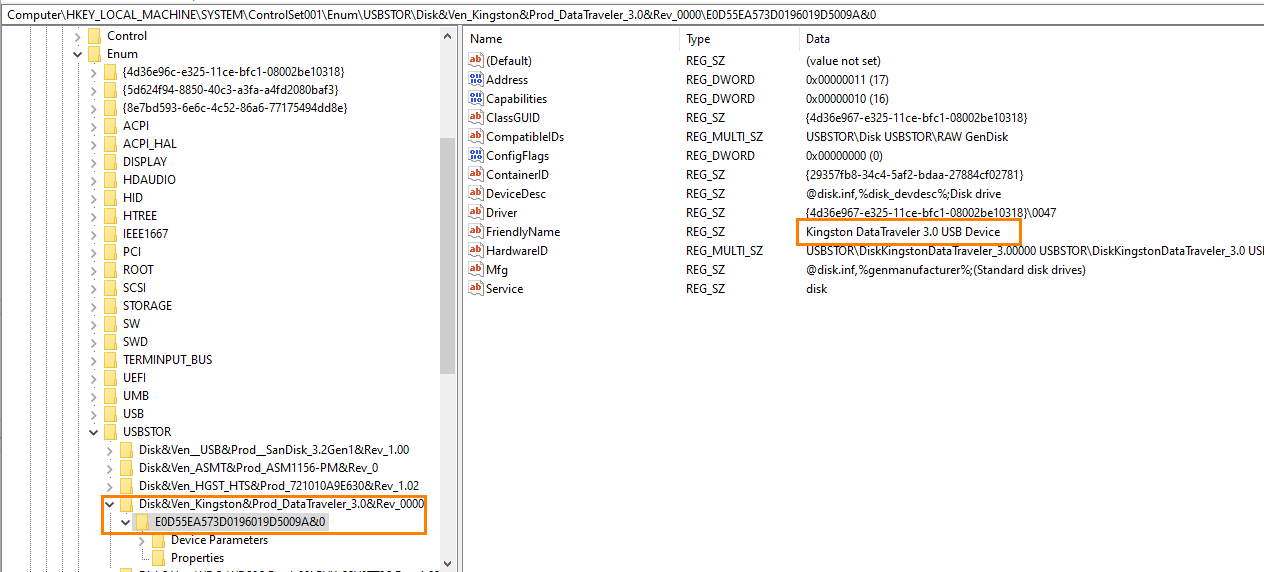
Identifying Storage Devices with USBSTOR
USB storage devices are listed under the following key:
HKLM\SYSTEM\ControlSet00#\Enum\USBSTOR\{ID de classe de périphérique}\{Sous-clés}The first level of subkeys follows the format Disk&Ven_<fabricant>&Prod_<modèle>&Rev_<révision>. It therefore identifies the manufacturer (Ven), the model (Prod), and the firmware revision. The second level corresponds to the instance identifier, built from the device’s serial number. You will also find the friendly name (FriendlyName) and several values related to driver installation.
Identifying the Vendor ID and Product ID
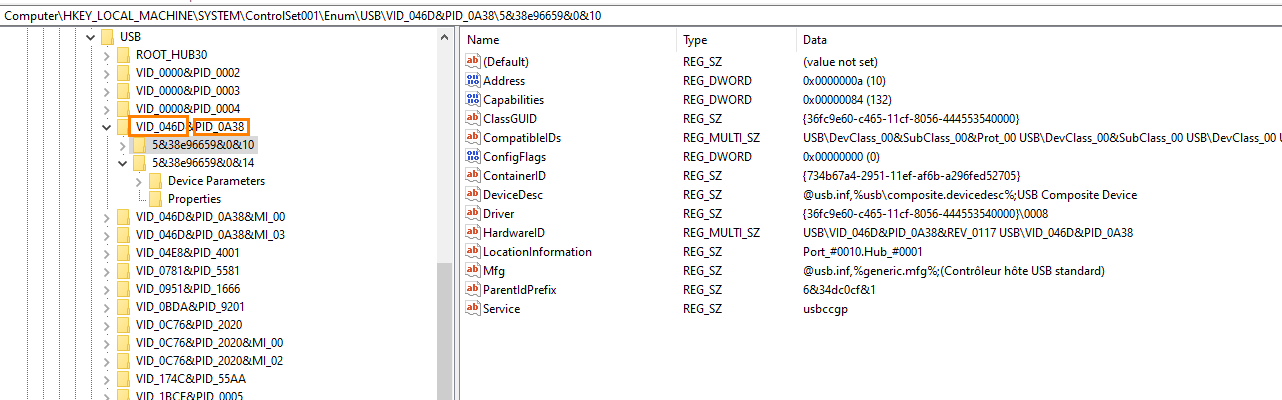
The manufacturer and product USB identifiers are visible under the following key:
HKLM\SYSTEM\ControlSet00#\Enum\USBThe subkeys follow this format:
VID_XXXX&PID_YYYYVIDcorresponds to the Vendor ID, the manufacturer identifier assigned by the USB-IFPIDcorresponds to the Product ID, the product identifier defined by the manufacturer
The instance subkey under VID_XXXX&PID_YYYY reuses the serial number: this is what makes it possible to link a USB entry to the corresponding USBSTOR entry.
Recovering the Volume Name
Additional information about portable devices is stored under the following key:
HKLM\SOFTWARE\Microsoft\Windows Portable Devices\Devices
The name of each subkey reuses the device instance identifier (with its serial number), and the FriendlyName value usually contains the volume name as it appeared in File Explorer.
Linking the Device to a Drive Letter and a Volume
The mapping between volumes and drive letters is stored in:
HKLM\SYSTEM\MountedDevices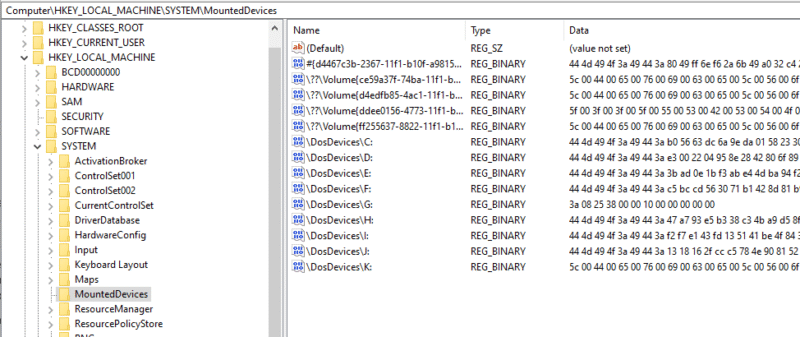
This key contains two types of values:
\DosDevices\E:(and similar): the assigned drive letter\??\Volume{GUID}: the volume GUID
For a removable USB device, the associated binary data usually corresponds to a Unicode string containing the device instance path, for example _??_USBSTOR#Disk&Ven_...&Prod_...#<numéro de série>&0#{...}. When this data is displayed in hexadecimal, the serial number appears in plain text: this is what makes it possible to link a drive letter or volume GUID to the USBSTOR entry.
Determining the First Installation
The following log records device and driver installation operations:
%SystemRoot%\inf\Setupapi.dev.log
By searching for the serial number or device instance identifier, it is possible to find the section corresponding to its installation.
The associated date generally represents the first known installation of the device on that Windows installation. However, it should not be considered absolute proof of the very first connection, because the log may be rotated, truncated, or affected by a device reinstallation.
Warning: the timestamps in setupapi.dev.log are expressed in the system’s local time, whereas Registry properties and event logs are in UTC. Be sure to align time zones when building the timeline.
Linking a Device to a User
When a volume is mounted in a user session, a trace is recorded in that user’s NTUSER.DAT hive at the following location:
HKEY_USERS\{USER}\Software\Microsoft\Windows\CurrentVersion\Explorer\MountPoints2\{GUID du volume}The subkeys can contain a volume GUID or the path to a network share (in the form ##server#share). The presence of a volume GUID in a user hive establishes that the volume was mounted in the context of that user’s profile.
The Full Correlation Chain
No single key can answer the question “which user plugged in which drive?” on its own. It is the sequence of artifacts that provides the answer:
MountPoints2(user hive) provides the volume GUID mounted in the user’s sessionMountedDeviceslinks that GUID to the instance path, and therefore to the device serial numberUSBSTORprovides the manufacturer, model, and timestamps associated with that serial numbersetupapi.dev.logcompletes the picture with the first installation date
USB Traces in Event Logs
Event logs complement the Registry with one advantage: they can retain multiple connections of the same device, whereas the Registry keeps only the latest one.
The DriverFrameworks-UserMode Log
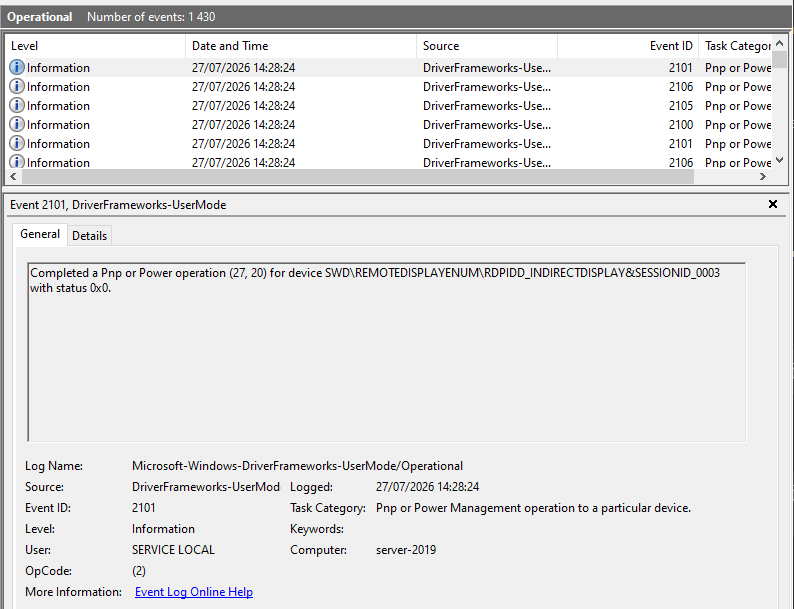
The following log can also provide information, provided it had been enabled beforehand (it is disabled by default):
Microsoft-Windows-DriverFrameworks-UserMode/OperationalThese logs can contain information about volumes, their capacity, model, serial number, as well as connection and disconnection times.
Analyzing USB Devices with USBDeview
Tool Overview
To make it easier to correlate this information, we will use USBDeview, a free portable tool developed by Nir Sofer (NirSoft). It lists currently connected USB devices as well as previously used ones, and works from Windows 2000 to Windows 11, on 32-bit and 64-bit systems. The current version is 3.10.
- Official website: USBDeview on nirsoft.net
Running USBDeview
Once the archive has been downloaded and extracted, launch the tool as administrator. This is essential: the Install Time, First Install Time, Connect Time, and Disconnect Time columns read the properties subkey seen above, which is accessible only with elevation. Without them, you only get the Registry Time 1 and Registry Time 2 columns, derived from the key last-write timestamps, whose meaning NirSoft says varies from one system to another.
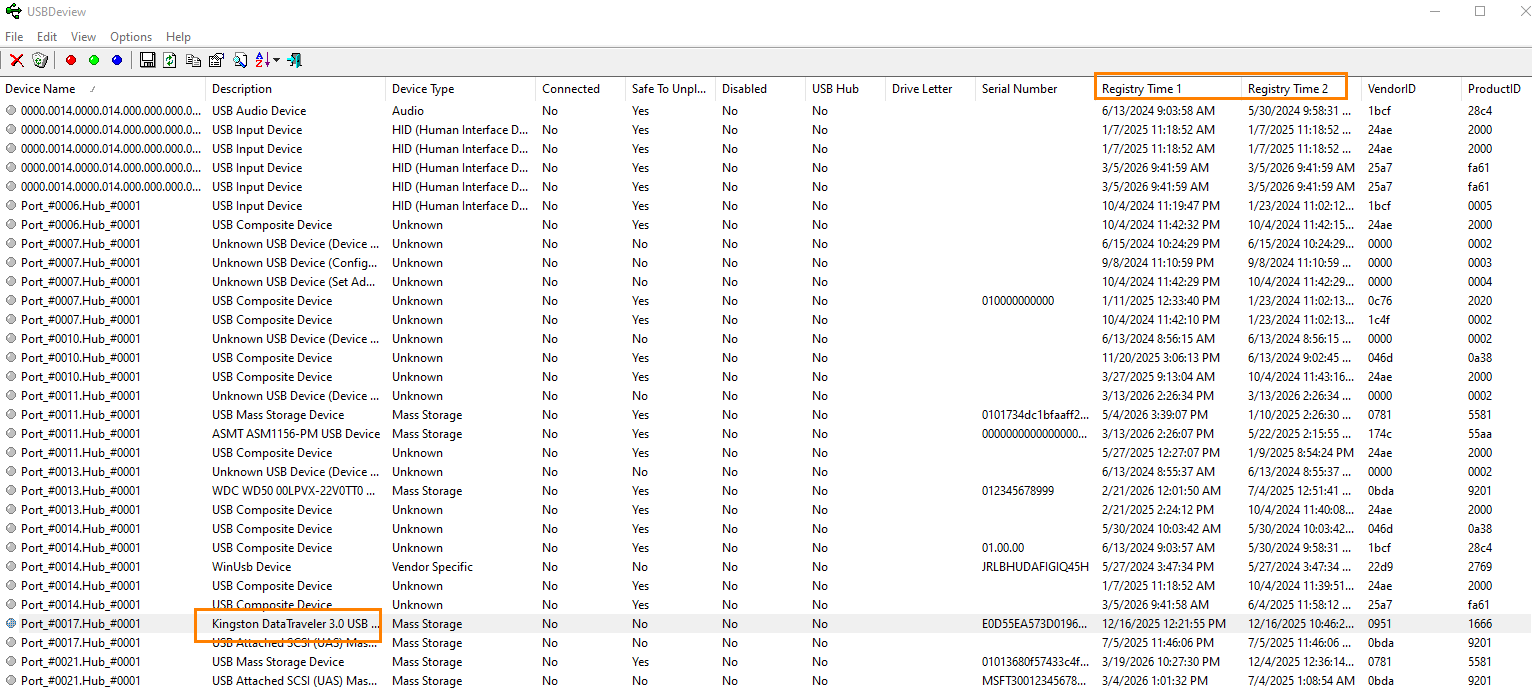
The tool provides, among other things:
- The device name and description
- Its type
- Its serial number (for storage devices)
- Its Vendor ID and Product ID
- Its drive letter, when it can be determined (USBDeview does not detect it for USB hard drives)
- Its installation, first installation, last connection, and last removal dates
- Its connected or disconnected state
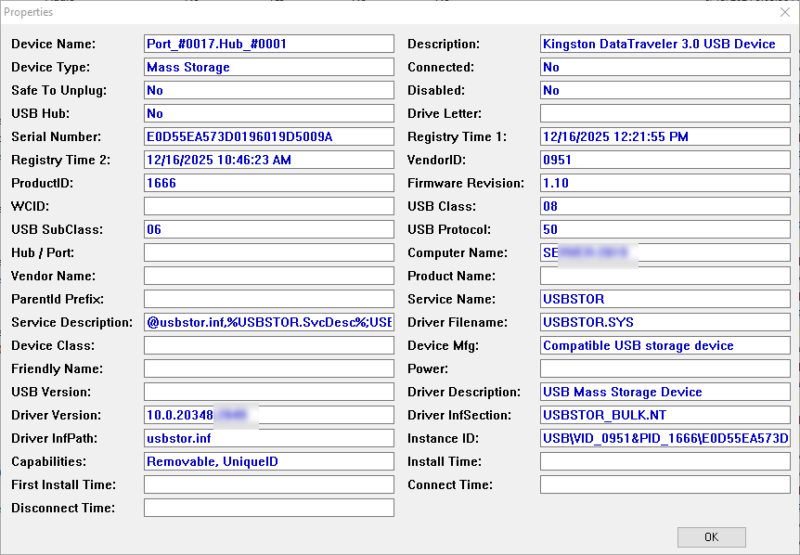
By double-clicking a device, we can view the details of its properties.
Completing the Picture with USBDriveLog
USBDeview makes inventorying easier, but it does not provide the history of all connections. For Windows 10 and Windows 11, USBDriveLog, from the same publisher, uses the Microsoft-Windows-Partition/Diagnostic and Microsoft-Windows-Storsvc/Diagnostic logs to list each connection with the model, serial number, capacity, and connection and removal times.
It can read logs from an external disk through Choose Data Source (F7), by pointing to the Windows\System32\winevt\Logs folder of the analyzed image. You can download it using the following link:
- Official website: USBDriveLog on nirsoft.net
Conclusion
USB device analysis relies on correlating several artifacts: USBSTOR and its properties to identify the device and date its connections, MountedDevices and MountPoints2 to link it to a volume and a user, setupapi.dev.log for the first installation, and event logs for connection history. USBDeview and USBDriveLog speed up this work, as long as you understand where their data comes from and use them on copies.
These traces prove that a device was plugged in, not what was copied. To go further, you need to cross-reference them with LNK files, Jump Lists, and ShellBags, or have removable media auditing in place. In an enterprise environment, a device whose manufacturer or model is not part of the authorized inventory is a good starting point for a deeper investigation.
For further reading:
- GPO: managing USB devices allowed to connect to a Windows PC or server
- How to block USB drives with a GPO
- Forensic Windows - Part 14: Exploring Shadow Copies (VSS)