www.it-connect.fr

Forensic Windows Part 14: Exploring Shadow Copies (VSS)
A deleted file, a modified registry hive, an executable erased after use: on a Windows system, these elements may still exist in a snapshot, also known as a Shadow Copy. You still need to know how to find and extract them.
In this fourteenth part of the series dedicated to Windows forensics, we will look at the snapshots created by the Volume Shadow Copy (VSS) service: how they work, how they are configured in the Registry, how to inventory them with vssadmin, and how to explore their content with mklink and ShadowCopyView. If you missed the previous episodes, you can read part 11 on the MFT, part 12 on SRUM, and part 13 on Jump Lists.
Understanding Volume Shadow Copy
A Shadow Copy is a snapshot of a volume taken at a specific point in time, created by the Windows VSS service. In digital forensics, it makes it possible to access the earlier state of files, including those that have been modified or deleted since then.
From restore points to the VSS service
Restore points appeared with Windows Me, then were carried over into Windows XP. At that time, the mechanism relied on a filter that monitored certain file types and kept a copy before they were modified.
The Volume Shadow Copy Service (VSS) appeared with Windows XP and Windows Server 2003. It makes it possible to create snapshots of a volume, even when files are open and in use. Since Windows Vista, System Restore has relied on VSS: a restore point therefore corresponds to a Shadow Copy of the volume. Other features rely on this service as well, such as previous versions of files, Windows Server Backup, or snapshots of shared folders on a file server.
The copy-on-write principle
Unlike a traditional backup, a VSS snapshot is not a full copy of the disk. The service relies on a copy-on-write mechanism that records only the blocks modified after the snapshot is created. This method greatly reduces the storage space required while preserving the ability to restore the state of a volume to a given date.
This has a direct consequence for the analyst: when the storage area is full, Windows deletes the oldest snapshots. To go further into the service architecture, the Microsoft documentation on VSS details the role of requesters, writers, and providers.
Why Shadow Copies matter to the forensic analyst
These snapshots make it possible to:
- Recover deleted files or earlier versions of documents
- Retrieve earlier versions of registry hives (
SYSTEM,SOFTWARE,NTUSER.DAT, etc.) to compare the system state at different dates - Observe the installation or removal of software
- Highlight traces left by a malicious tool before it was removed
Configuring VSS in the Registry
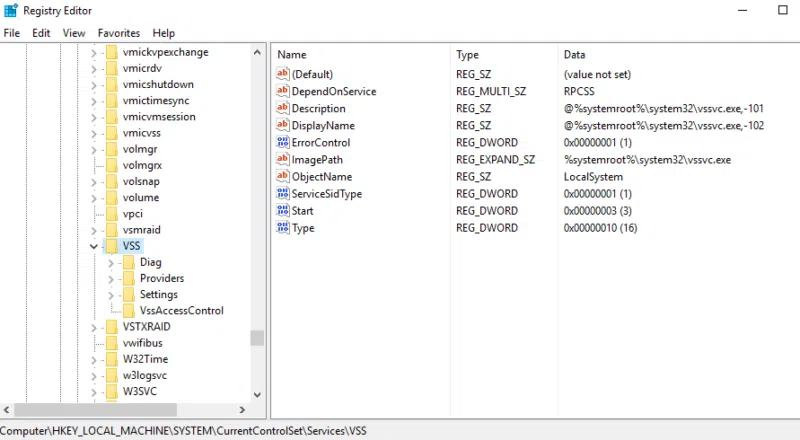
The VSS service configuration is stored in the following key:
HKEY_LOCAL_MACHINE\SYSTEM\CurrentControlSet\Services\VSSIts Settings subkey can contain values such as MaxShadowCopies, which sets the maximum number of snapshots used by the shared folders feature (64 by default), or IdleTimeout, which defines the idle delay before the service stops.
Other parameters related to backup and restore operations are stored in:
HKEY_LOCAL_MACHINE\SYSTEM\CurrentControlSet\Control\BackupRestore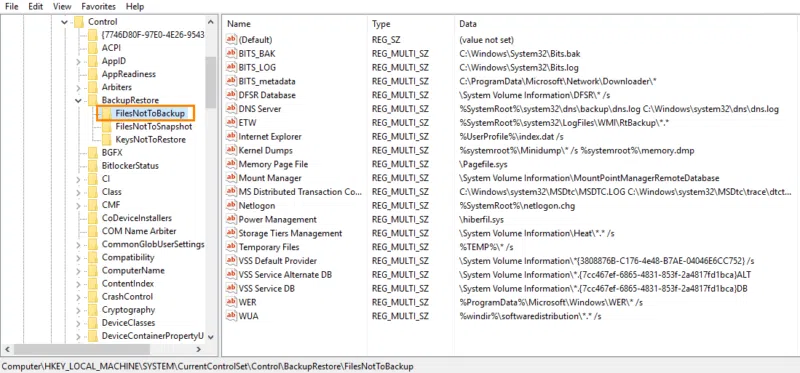
This key contains, among other things, various rules related to files, directories, or registry keys to exclude from certain backup, snapshot creation, or restore operations.
However, it is important to distinguish between the different subkeys. For example, FilesNotToBackup mainly provides instructions to backup applications, but does not directly exclude files from Shadow Copies. The FilesNotToSnapshot subkey is more specifically about files to remove from new snapshots.
Identifying Available Shadow Copies
Before any analysis, you need to inventory the Shadow Copies present on the system.
Using vssadmin
Windows provides the vssadmin utility. From an elevated command prompt, run the following command:
vssadmin list shadowsTo limit the list to snapshots for a specific volume, add the /for= option:
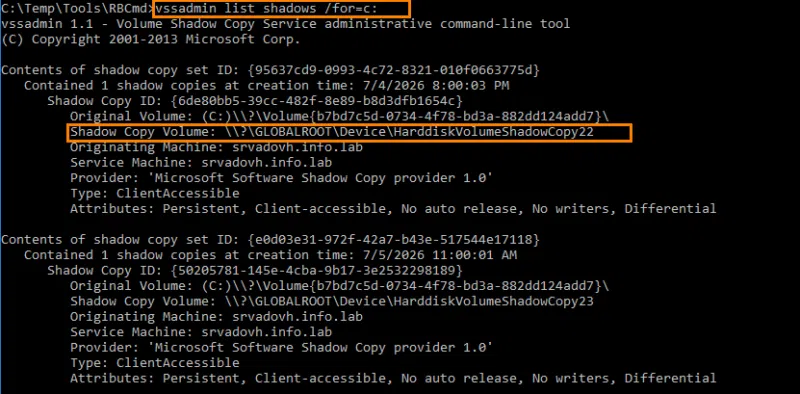
vssadmin list shadows /for=C:This command displays all present snapshots, including:
- The shadow copy set ID and the shadow copy ID
- The original volume
- The creation date and time
- The shadow copy volume path (the
Shadow Copy Volumefield), used to access it - The provider
- The type and attributes of the snapshot
The vssadmin list shadowstorage command shows the space allocated to the snapshot storage area for each volume. It helps explain why a system retains only a small amount of history.
Using PowerShell
Snapshots are also exposed through the CIM class Win32_ShadowCopy:
# List Shadow Copies with their creation date and path
Get-CimInstance -ClassName Win32_ShadowCopy | Select-Object ID, InstallDate, VolumeName, DeviceObject
The DeviceObject property corresponds to the \\?\GLOBALROOT\Device\HarddiskVolumeShadowCopyN path used later in the article.
Once the inventory is complete, select a snapshot from before the suspicious period to look for traces that had not yet been deleted or modified.
Accessing a Shadow Copy with mklink
In the vssadmin output, look for the Shadow Copy Volume field, which contains a path similar to the following:
\\?\GLOBALROOT\Device\HarddiskVolumeShadowCopy42Note the number corresponding to the snapshot you are interested in.
Using the Mklink command, we can create a symbolic link to this version:
REM Replace 42 with the snapshot number shown in the vssadmin output
mklink /d C:\ShadowCopy42 \\?\GLOBALROOT\Device\HarddiskVolumeShadowCopy42\
You can then browse the older version of the volume through the link you created and extract the items needed for the investigation, such as a file deleted since then or a registry hive. In the snapshot, the hives located under Windows\System32\config\ are not locked by the system: they can be copied directly.
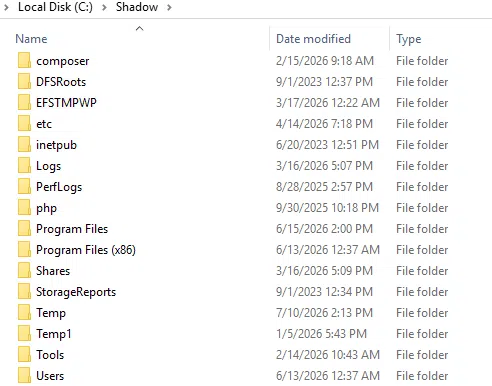
These items can then be analyzed using the tools presented in the previous articles, for example Registry Explorer for hives. Once the analysis is complete, remove the link with the rmdir C:\ShadowCopy42 command: only the link is deleted, the snapshot remains intact.
This technique is not reserved for defenders: attackers use it to read files that are normally locked, such as the NTDS.dit database on a domain controller. It is one of the extraction methods presented in our article on password security in Active Directory. Creating a link to HarddiskVolumeShadowCopy outside an investigation is therefore behavior worth monitoring.
Exploring Snapshots with ShadowCopyView
Another, simpler method is to use ShadowCopyView, a free tool developed by NirSoft. It lists all system snapshots, including those not shown by Windows "Previous Versions", and allows you to extract system files thanks to elevated execution.
- Official site: ShadowCopyView on nirsoft.net
The tool requires no installation. On a 64-bit system, download the 64-bit version, then run ShadowCopyView.exe with administrative privileges. The upper part of the window displays the Shadow Copies present on the system as well as their creation date.
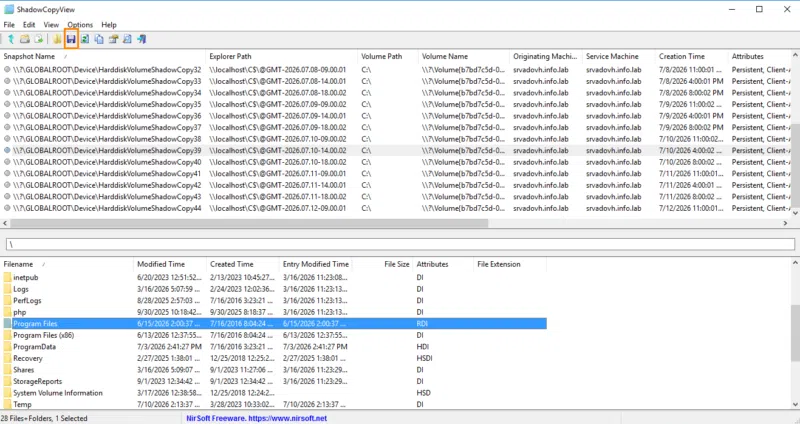
Select the snapshot you are interested in: its content appears in the lower pane. Then select a file or folder, and use the Copy Selected Files To option (the F8 key or the floppy disk icon) to copy it to the directory of your choice.
REM Copy the SOFTWARE hive from snapshot #42 to C:\Temp
ShadowCopyView.exe /CopyFile "42" "Windows\System32\config\SOFTWARE" "C:\Temp\SOFTWARE_vss42"
The Limits of Shadow Copies
Shadow Copies are not a permanent history. Their availability depends in particular on:
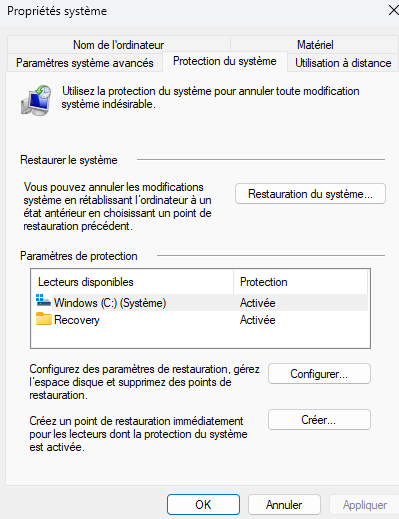
- Whether system protection is enabled, which is not enabled by default on Windows 10 and Windows 11
- The amount of space allocated to the storage area (the oldest snapshots are deleted when it is full)
- The frequency at which snapshots are created
- The exclusions defined in
FilesNotToSnapshot - Their possible deletion by a user or an attacker
A file created and then deleted between two snapshots may never appear in the available versions.
In addition, many ransomware families delete Shadow Copies before encryption to prevent data recovery, for example with vssadmin delete shadows /all /quiet or wmic shadowcopy delete. This technique is tracked by MITRE ATT&CK under the identifier T1490 (Inhibit System Recovery). The absence of snapshots may therefore be normal, especially on a workstation where system protection was never enabled, but it can also be a clue to correlate with execution traces of vssadmin.exe or wmic.exe (Prefetch, Amcache, BAM) and with system logs.
Conclusion
Shadow Copies are an especially valuable source in digital investigation. They make it possible to access earlier states of a volume and recover files, configurations, or artifacts that have since been modified or deleted.
With vssadmin, mklink, or ShadowCopyView, the analyst can inventory available snapshots, explore their content, and extract the items needed for the investigation. Comparing several Shadow Copies also makes it possible to observe how the system evolved over time and to reconstruct a more complete event timeline.
Finally, their absence is never neutral: it either reflects a default configuration or a deliberate deletion, and in the latter case, it becomes a clue in its own right.