www.it-connect.fr


Forensic Windows Part 13: How to Analyze Jump Lists
Jump Lists retain, for each application, the list of files, folders, or destinations recently opened by the user. Introduced with Windows 7 to make it easier to resume work, they are still present in Windows 10 and Windows 11. In digital forensics, they make it possible to link a document to an application and a user profile, even when the document has been moved or deleted. In this article, we will see where Jump Lists are stored, how they are structured, and how to analyze them with JLECmd, a command-line tool from Eric Zimmerman.
This article is the thirteenth part of our series dedicated to Windows forensics. It follows the previous part focused on SRUM analysis.
What Is a Jump List?
When you right-click an application pinned to the taskbar or present in the Start menu, Windows displays a list of documents, folders, or projects associated with that application. This list, called a Jump List ("Shortcut List" in the French Windows interface), lets the user quickly reopen a recent item.
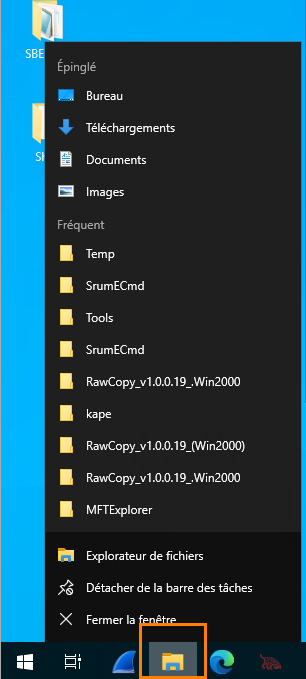
Windows distinguishes two types of Jump Lists:
- Automatic Jump Lists (Automatic Destinations), generated and managed by Windows for compatible applications
- Custom Jump Lists (Custom Destinations), whose content is defined by the applications themselves.
File Location
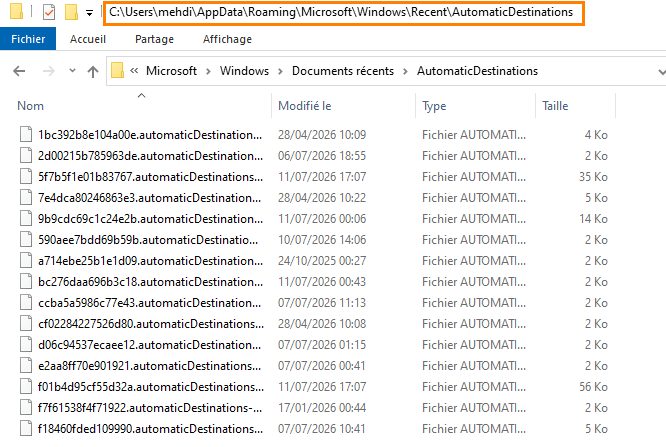
Automatic Jump Lists are stored in the following folder:
%APPDATA%\Microsoft\Windows\Recent\AutomaticDestinations\Custom Jump Lists are stored in:
%APPDATA%\Microsoft\Windows\Recent\CustomDestinations\Because these locations are in the user profile (C:\Users\<utilisateur>\AppData\Roaming\...), each Windows account has its own Jump List files. During an investigation, these folders must therefore be collected for every profile present on the machine.
The files have a name composed of a hexadecimal string followed by one of the following extensions:
.automaticDestinations-ms
.customDestinations-ms
The AppID, the Application Identifier
The hexadecimal string corresponds to an application identifier called AppID (Application User Model ID). It is a hash calculated by Windows from the executable path, unless the application explicitly declares its own identifier. This AppID is what makes it possible to associate a Jump List with the application that generated it.
For example, AppID f01b4d95cf55d32a is referenced as the one used by File Explorer. Other AppIDs are associated with Microsoft Word, Adobe Reader, the Remote Desktop client (mstsc.exe), or any other application installed on the system.
Structure of an Automatic Jump List
Automatic Jump Lists use the Compound File Binary format (the same container as older Office documents). This container includes:
- A stream named
DestList, which references each viewed item with its usage order (MRU), access count, last used date, and the NetBIOS name of the machine. - An LNK-formatted entry per item, identical in structure to the shortcut files covered in part 7 dedicated to LNK files. These entries provide metadata about the target (path, size, timestamps) and the volume (type, serial number, label).
Custom Jump Lists have a simpler structure: they do not contain a DestList stream, only a sequence of LNK structures. As a result, they contain fewer usage-related metadata items (no access count and no MRU order).
Analyzing Jump Lists with JLECmd
To analyze Jump Lists, we will use JLECmd (Jump List Explorer Command line), a command-line tool developed by Eric Zimmerman, like the other tools used in this series. It supports Jump Lists from Windows 7 to Windows 11. A graphical version called JumpList Explorer is also available.
Resources:
- Official website (tool downloads): ericzimmerman.github.io
- GitHub repository: github.com/EricZimmerman/JLECmd
Download the latest version of JLECmd from Eric Zimmerman’s website, then extract all of its contents into a folder.

Generate the CSV Report
Open a command prompt, change to the folder containing the tool, then run the following command, adjusting the paths:
JLECmd.exe -d "chemin_vers_le_dossier_AutomaticDestination" --CSV C:\chemin_de_sortie
Note: by pointing -d directly to the Recent folder, JLECmd processes both automatic and custom Jump Lists in a single pass, because it only keeps files with the .automaticDestinations-ms and .customDestinations-ms extensions.
Once the analysis is complete, JLECmd generates a CSV file containing the extracted information.

Analyzing the Results
Open the report with a spreadsheet program or a CSV editor (Timeline Explorer, from the same author, is a good fit). Several columns can be used, including:
AppIdandAppIdDescription: the application identifier and its description when the AppID is recognized.Path: the original path of the opened file or folder.EntryNumberandMRU: the entry number and its position in the usage order.InteractionCount: the number of times the item was accessed.LastModified: the entry's last used date, taken from theDestListstream. This is the most reliable timestamp for dating when an item was opened.TargetCreated,TargetModified,TargetAccessed: the target timestamps, taken from the LNK entry.DriveType,VolumeSerialNumber,VolumeLabel: the type, serial number, and label of the source volume.HostnameandMacAddress: the NetBIOS name of the machine and the MAC address recorded in theDestListstream.MachineIDandMachineMACAddress: the same information, this time taken from the Tracker Data block of the LNK entry.Arguments: the arguments passed to the application, useful for example formstsc.exeJump Lists.
The custom Jump List report is more concise: without a DestList stream, it contains neither MRU, nor InteractionCount, nor LastModified, nor Hostname.
In our example, we find several files and folders recently opened with different applications.
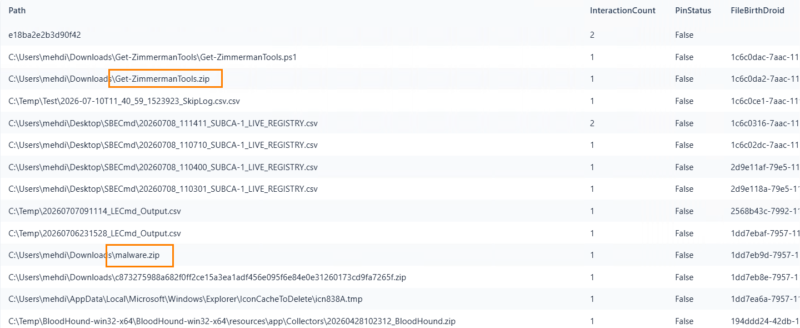
This information makes it possible to associate a document with an application and with the user profile in which the Jump List was collected.
Warning: the presence of a file in a Jump List is strong evidence that it was opened through the associated application. However, it does not make it possible to determine exactly what action was performed on that file, nor to assert that its contents were modified. As with the other artifacts in this series, these results should be correlated with other sources (LNK files, ShellBags, MFT, USN journal).
Information About the Source Machine
We also find information about the machine on which the Jump List was generated, such as its name and MAC address. This data comes from the DestList stream and from the Tracker Data block embedded in the LNK entries.
In our example, the Jump List associated with mstsc.exe (Remote Desktop client) indicates that the artifact was created on machine SUBCA-1, whose MAC address is 00:15:5d:05:0a:86. The prefix 00:15:5d corresponds to Microsoft and is characteristic of a Hyper-V virtual network adapter, which here indicates that the artifact comes from a virtual machine.

This MAC address identifies the machine that created the artifact. It does not correspond to an address observed during network communication.
Conclusion
Jump Lists are a useful artifact for reconstructing user activity on Windows. They make it possible to identify the files associated with an application, their original path, their frequency and date of use, as well as information about the source volumes and machine.
They can also preserve traces of documents that have been moved or deleted, which usefully complements the analysis of the Recycle Bin, LNK files, and ShellBags presented earlier in this series. As always, these results should be correlated with other artifacts in order to obtain a coherent and well-supported timeline.