www.it-connect.fr

Windows Server RDS: How to Automatically Launch a Program at Logon
Have you migrated your RDS server to Windows Server 2022 or 2025, and the program that used to launch automatically at logon has disappeared? This is not a bug: it is a behavior change introduced by Microsoft since... Windows Server 2016. Here is what you can do today to reproduce that behavior.
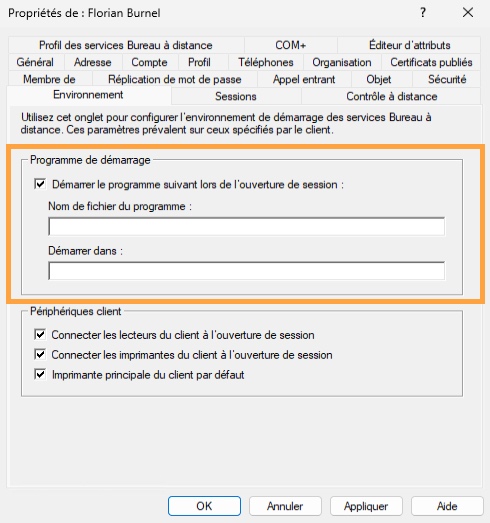
This scenario will probably sound familiar to some of you: a Remote Desktop Services (RDS) server dedicated to business software (ERP, accounting software, point-of-sale application, and so on), where users should only see a single application. For years, it was enough to specify the program in the Environment tab of the Active Directory account properties. Since Windows Server 2016, this setting is simply ignored, even though it still exists in the directory.
In this article, I’ll show you how to launch a program at RDS logon on Windows Server 2016, 2019, 2022, and 2025.
Warning: restricting the session to one application customizes the user experience and reduces the exposed attack surface, but it is not a security boundary. Using a startup program is not as restrictive as kiosk mode.
For those in a hurry
On Windows Server 2016 and later versions, the program defined in the Environment tab of an Active Directory user is no longer applied because the RCM (Remote Connection Manager) service no longer queries the domain controller. To automatically launch a program in an RDS session, you have two options:
- Recommended method: enable the Start a program on connection group policy, located under Administrative Templates > Windows Components > Remote Desktop Services > Remote Desktop Session Host > Remote Session Environment, and make sure the Always show desktop on connection setting is not enabled (Not Configured or Disabled).
- Legacy method: create the
fQueryUserConfigFromDCDWORD value equal to1in the RDS server registry, then restart theTermServiceservice so that the Environment tab is taken into account again.
In both cases, the Windows desktop and Start menu are not displayed, and the session is closed automatically when the user exits the program.
Why no longer use the Environment tab?
On Windows Server 2012 R2 and earlier versions, every time a user logged on to a Remote Desktop Session Host, the Remote Connection Manager (RCM) contacted a domain controller to retrieve the Remote Desktop-specific configuration stored on the user object in Active Directory. This information is what you see in the Environment and Remote Desktop Services Profile tabs in the “Active Directory Users and Computers” console. Technically, it is stored in the userParameters attribute of the user object.
Since Windows Server 2016, RCM no longer queries Active Directory. Microsoft documents this in the article Changes to Re and states that this behavior is by design. For users, it no longer works, without any error message, because this is not an error. But the experience is still affected, since the user gets a full desktop instead of the application.
If you first need to build the infrastructure, check out these tutorials:
- Quick deployment of an RDS server with Windows Server 2016
- Windows Server 2019: Install an RDS server with PowerShell
- The RDP protocol and Remote Desktop: beginner's guide
Launching a program at RDS logon with a GPO
This is the method Microsoft recommends and the one I advise you to use: it is centralized, documented, and does not rely on legacy behavior. Before we begin, here are a few context elements about what I will use for the rest of this tutorial:
- A security group containing the relevant users:
GS-RDS-AppMetier. - A Windows Server 2025 server with the Remote Desktop Session Host role installed. In my example, this is the
SRV-RDS-01server, a member of theit-connect.localdomain. - An Active Directory domain and the Group Policy Management console.
- The application to launch, installed on the RDS server (so, a path to an
.exefile).
User configuration or computer configuration?
The Start a program on connection setting exists in two places in Administrative Templates:
- Computer Configuration: the program applies to all users connecting to the server, including administrators. It is simple, but an administrator who opens an RDP session on this server is also trapped in this setup. Not ideal.
- User Configuration: the program applies to the users targeted by the GPO. It is more granular.
To target only business users, and only on the relevant RDS server, I usually combine user configuration with loopback processing: the GPO is linked to the organizational unit containing the RDS servers, and its user settings apply to users who log on to those servers. Security filtering by group then makes it possible to leave administrators alone.
User-based management
If you want to apply a per-user configuration while linking the GPO to the OU containing the RDS server, you first need to configure the loopback processing setting.
Open the Group Policy Management console and create a new GPO linked to the OU containing your RDS servers. In this example, it is named U_RDS_Fullscreen_App.
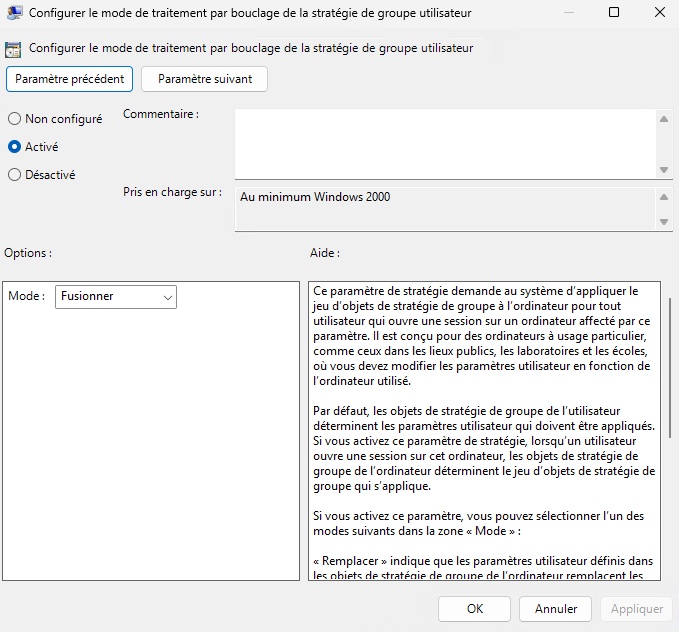
Edit the GPO and navigate to the following path: Computer Configuration > Policies > Administrative Templates > System > Group Policy. Enable Configure user Group Policy loopback processing mode and select Merge. With this mode, the user settings in this GPO are added to those the user normally receives, and they take precedence in case of conflict.
Still in the same GPO, go to the following path: User Configuration > Policies > Administrative Templates > Windows Components > Remote Desktop Services > Remote Desktop Session Host > Remote Session Environment.
Double-click Start a program on connection, select Enabled, and fill in the two fields:
- Program path and file name: the full path to the executable. Here I used Notepad because this is just a test. Namely:
C:\Windows\System32\notepad.exe - Working directory: the program's startup folder. If you leave this field empty, the program will use its default working directory.
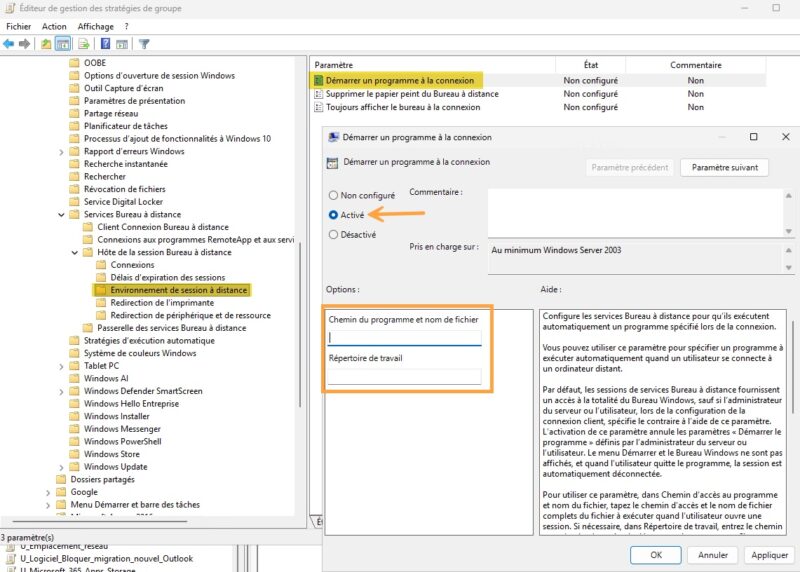
The Group Policy is ready!
To finish, filter the GPO to the right users. In the Scope tab, remove "Authenticated Users" from security filtering and add two entries:
- The user group
GS-RDS-AppMetier, so that the user portion applies only to business users. - The RDS server computer account (
SRV-RDS-01), or a group containing your RDS servers, so that the computer portion of the GPO applies. In my case, I specify theGS-RDS-Serversgroup.
Finally, in the Delegation tab, add Authenticated Users with the Read permission. This is a standard configuration when adjusting security filtering. Here, it is also necessary to include the RDS server because the loopback setting is in computer configuration. If only the user group is included in filtering, the server does not apply this part of the GPO, and the program is never launched.
Computer-based management
If you want to apply the same program to all users who connect to RDS, you can configure the setting directly in the "computer" section: User Configuration > Policies > Administrative Templates > Windows Components > Remote Desktop Services > Remote Desktop Session Host > Remote Session Environment.
The logic is the same for the rest. Double-click Start a program on connection, select Enabled, and fill in the two fields.
Checking the setting: Always show desktop on connection
At the same location in the GPO settings (Remote Session Environment) there is a setting called Always show desktop on connection. When it is enabled, the desktop is displayed and the previously configured setting is ignored.
This setting should therefore be Not Configured or Disabled on your RDS server. I’m mentioning it for reference because it may help you when troubleshooting.
Client-side tests and validation
On the RDS server, force Group Policy update with the usual command.
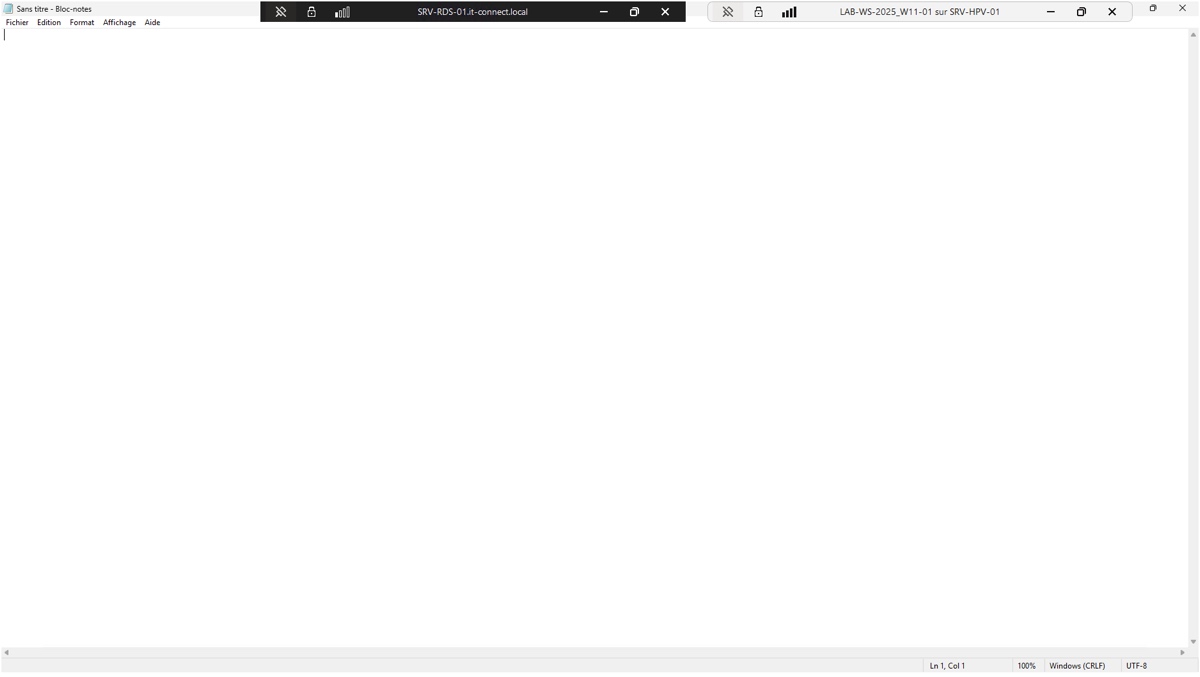
gpupdate /forceThen connect through Remote Desktop with an account that is a member of the GS-RDS-AppMetier group from a client workstation. The application should open directly, without a desktop or taskbar.
Re-enabling the Environment tab with fQueryUserConfigFromDC
If you inherited an environment where each user has a different startup program defined in their Active Directory account, rebuilding everything with GPOs can be a lot of work. In that case, you can consider restoring the old RCM behavior by changing the Windows Server Registry.
Create the registry value on the RDS server
The value is called fQueryUserConfigFromDC, of type REG_DWORD, with data 1. The goal is to create this value in these two locations:
HKLM\SOFTWARE\Policies\Microsoft\Windows NT\Terminal ServicesHKLM\SYSTEM\CurrentControlSet\Control\Terminal Server\WinStations\RDP-Tcp
At each logon, RCM first reads the policy key. If the value is present there and set to 1, it queries the domain controller. Open an elevated command prompt on the RDS server and run these two commands:
reg add "HKLM\SOFTWARE\Policies\Microsoft\Windows NT\Terminal Services" /v fQueryUserConfigFromDC /t REG_DWORD /d 1 /f

reg add "HKLM\SYSTEM\CurrentControlSet\Control\Terminal Server\WinStations\RDP-Tcp" /v fQueryUserConfigFromDC /t REG_DWORD /d 1 /f
Then restart the Remote Desktop Services service (TermService) or the server. Be careful: restarting the service disconnects all active sessions, so schedule it outside business hours unless you enjoy the pressure.
Restart-Service -Name TermService -ForceIf you have several RDS servers, you can absolutely deploy this configuration through Group Policy Preferences to save time. In that case, do this: Computer Configuration > Preferences > Windows Settings > Registry and create a new Registry item with the following properties:
- Action: Update
- Hive: HKEY_LOCAL_MACHINE
- Key path:
SOFTWARE\Policies\Microsoft\Windows NT\Terminal Services - Value name:
fQueryUserConfigFromDC - Value type: REG_DWORD
- Value data:
1
Once the legacy behavior is restored using this Registry tweak, the program specified in the Environment tab will be executed. This corresponds to the field named Start the following program at logon, where you specify the program file name and the startup folder.
Environment tab: configuring multiple users
To process a group of users in one go, you can use PowerShell. This is the most practical approach, especially if you want to target all members of a group (who may not all be in the same OU), as in the example below.
# Retrieve the user accounts that are members of the targeted group
$Users = Get-ADGroupMember -Identity "GS-RDS-AppMetier" | Where-Object { $_.objectClass -eq "user" }

foreach ($User in $Users) {
    # Load the user object via ADSI
    $AdsiUser = [ADSI]"LDAP://$($User.distinguishedName)"

    # Set the startup program and its working directory
    $AdsiUser.InvokeSet("TerminalServicesInitialProgram", "C:\Windows\System32\notepad.exe")
    $AdsiUser.InvokeSet("TerminalServicesWorkDirectory", "C:\Windows\System32\")

    # Save changes to Active Directory
    $AdsiUser.SetInfo()
}
RemoteApp, GPO, or AD attribute: which method should you choose?
There is a third approach, often more relevant for an “one application, nothing else” requirement: publishing the application as a RemoteApp. The application then appears in a window on the user’s workstation, as if it were installed locally, without a visible remote desktop session. This method requires a full RDS deployment (Remote Desktop Connection Broker service, session collection), which we detailed in the tutorial Windows Server 2025 - RDS: How to Publish an Application as a RemoteApp?.
There are therefore three ways to launch a single application through RDS, even if two methods are identical (only the configuration method differs). Here is a summary table.
| Criterion | GPO "Start a program on connection" | fQueryUserConfigFromDC + Environment tab in AD | RemoteApp |
|---|---|---|---|
| Recommended by Microsoft | Yes | Documented workaround | Yes |
| Granularity | Per server or per group (loopback processing) | Per user | Per collection and per user or group |
| Number of programs | One only / one per user | One per user | Multiple published applications |
| User experience | Full-screen RDP session limited to the application | Full-screen RDP session limited to the application | Window embedded in the client workstation, so the local environment is directly available. |
| Side effects | None | Re-enables all RDS account attributes | None |
My opinion: for a new project, RemoteApp offers the best experience.
Conclusion
As you will have understood from reading this article, the startup program defined in the Environment tab of an Active Directory account has not been taken into account by RDS servers for a long time now. But as we have seen, there are solutions, whether through Group Policy or by directly modifying the Registry manually (the fQueryUserConfigFromDC value).
It is a shame Microsoft never displayed a warning in the Active Directory console: the Environment tab is still there, and nothing indicates that it no longer has any effect on recent versions of Windows Server.