www.it-connect.fr

How to Manage Windows Apps from the Command Line with WinGet
WinGet is the name of the command-line package manager available on Windows since 2021. How can you use it to install, uninstall, update, and manage applications on a Windows machine? That’s what we’ll cover in this tutorial.
Available in stable release since May 2021, WinGet (or Windows Package Manager) was developed by Microsoft to fill a long-standing gap on the Windows operating system. Before WinGet was added, Windows did not include a built-in package manager, even though third-party solutions such as Chocolatey and Scoop existed. By contrast, Linux distributions have had package managers for several decades, such as the apt command (used on Debian/Ubuntu) and dnf (on Fedora).
Note : WinGet is available on Windows 10, Windows 11 and even Windows Server.
Getting Started with WinGet
One of WinGet’s main strengths is its ability to search for and install software without opening a web browser, finding the official website, downloading an .exe or .msi installer, and then clicking "Next" repeatedly. One command is enough to install an application as long as you know the package ID.
Searching for a package
Before installing software, you need to know its exact name or its ID in the public repository. The search command queries the available sources, namely the WinGet repository and Microsoft Store, by default.
Here is how to search for all packages whose name matches firefox.
winget search firefoxThis command returns a table listing the application name, its unique identifier (ID), the available version, and the repository source. As shown in the image below, there are dozens of results: Firefox (stable), Firefox (Dev), Firefox ESR, etc. And each one is available in multiple languages.
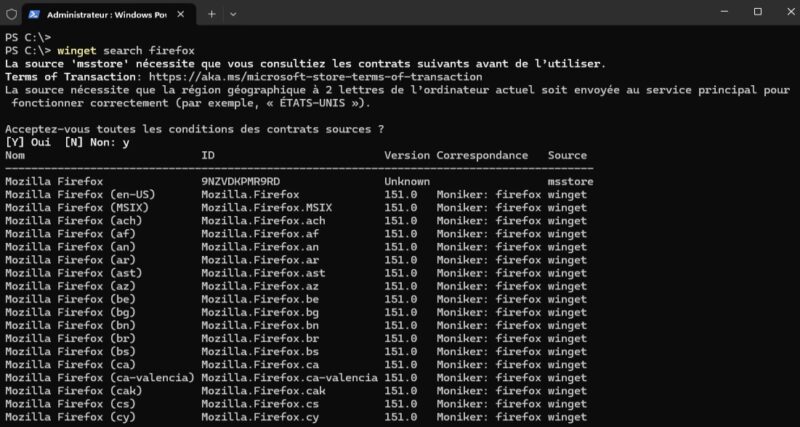
Here, we are going to install the French-language ESR version. The ID will be: Mozilla.Firefox.ESR.fr.
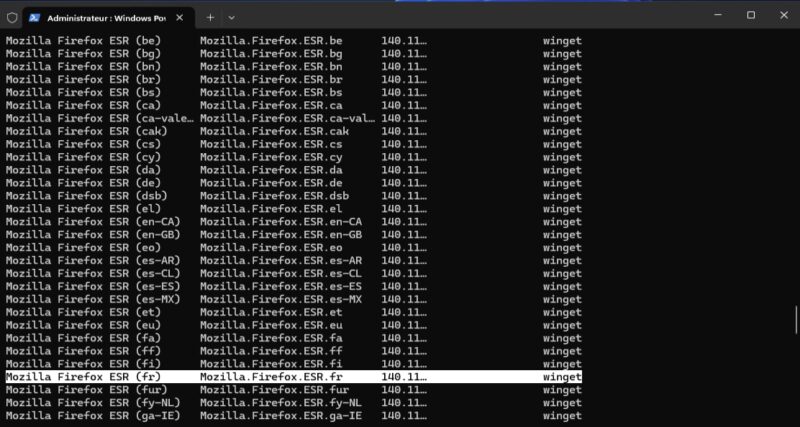
Installing an application using its ID
It is strongly recommended to use the unique identifier rather than the application name alone to avoid ambiguity or accidentally installing a similarly named application. Once you have identified the ID in the previous step, start the installation like this:
winget install --id Mozilla.Firefox.ESR.fr
You can remove the --id parameter to specify the package name directly; that will work. I included the full command here to highlight the syntax with the appropriate option.
Checking whether a package is installed
To make sure the application is properly registered by the system or to audit the software present on the machine, the list command combined with a keyword is ideal:
winget list firefoxIf the software appears in the list, that confirms the installation process completed successfully.
Uninstalling an application cleanly
WinGet provides the ability to remove software from the console. In theory, using silent switches makes it possible to uninstall without human intervention:
winget uninstall Mozilla.Firefox.ESR.fr -h --disable-interactivity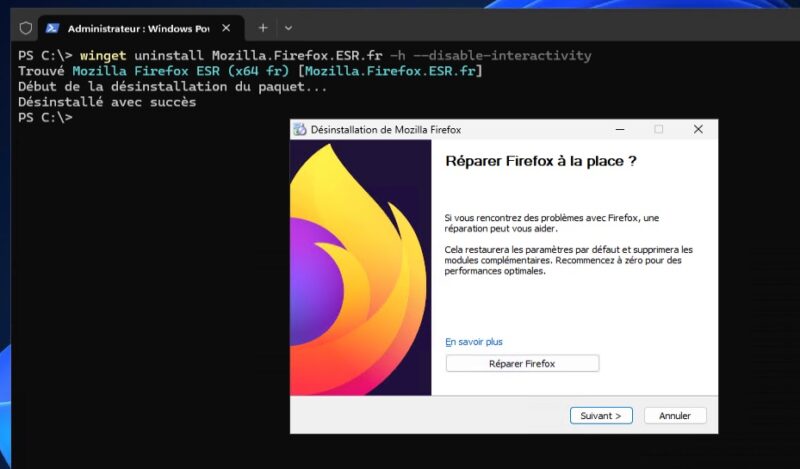
Although the -h (silent) and --disable-interactivity parameters are intended to hide the uninstall UI and automate the process silently, Firefox is one of the exceptions. A click confirmation is required. If that is a problem, an alternative would be to use a PowerShell-based uninstall script instead.
With other applications, the syntax mentioned above allows you to uninstall the package without any interaction.
Installing a specific version
In some scenarios, you may need to pin a specific software version in place (for compatibility reasons, for example). To do that, first display the list of available versions in the repository using the -q option (or --query):
winget show -q Mozilla.Firefox.ESR.fr --versionsAs shown in the image below, many versions are available for this package. You are free to pick from this version history however you like, depending on your needs.
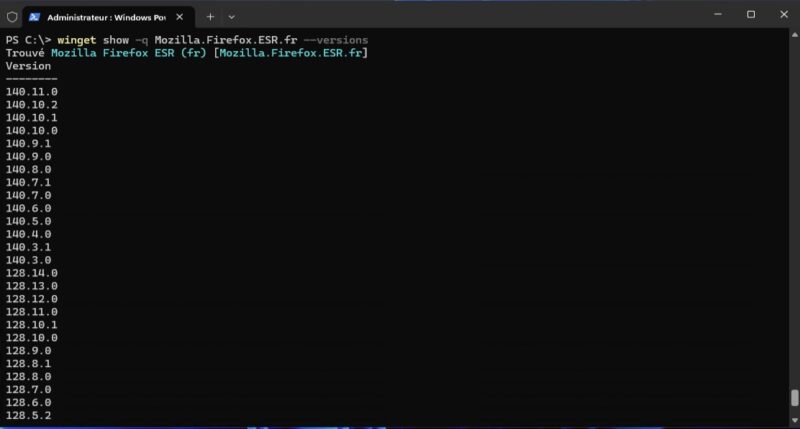
Once you have identified the version, you can force its installation by specifying the desired version number with -v:
winget install Mozilla.Firefox.ESR.fr -v 140.11.0 -h -eThis example also includes two other options: -e (for --exact) to search for the package whose name exactly matches the one specified in the command, and -h (for --silent) to perform a silent installation.
Installation scopes
WinGet can install software using two distinct scopes:
- Machine scope: accessible to all users of the device, requires elevated privileges,
- User scope: limited to the current Windows session, no administrator rights required.
The --scope option lets you explicitly choose between them. Here is an example:
winget install 7zip.7zip --scope machineSpecifying the repository source
By default, WinGet queries multiple data sources, including its own Microsoft-validated community repository as well as the Microsoft Store. If a software package exists on several platforms and you want to prioritize a specific source, use the -s or --source switch:
winget install DeepL.DeepL --source wingetUnattended installation
To integrate application installation such as Visual Studio Code into automated deployment workflows (via MDT, SCCM, or logon scripts), you may sometimes need to add extra options. In other words, the -h option will not always be enough to bypass the acceptance of license agreements (both from the source and from the package).
The following syntax accepts everything on your behalf and performs a silent installation of VS Code with WinGet:
winget install Microsoft.VisualStudioCode -h --accept-source-agreements --accept-package-agreementsPreparing for a Reinstall with WinGet
When changing workstations or performing a full operating system reinstall, inventorying and manually reinstalling each tool takes a significant amount of time. And frankly, it’s not exactly enjoyable... To make things easier, you can use a tool like Ninite, or use WinGet’s export/import configuration mechanism to clone a software environment.
The steps to migrate your software are as follows:
1. Check the list of installed applications
Run the winget list command to see all software installed on the local machine (we previously used it with a filter). This is also a good opportunity to see which ones are available in the WinGet / Microsoft Store repositories.
2. Export the configuration to a JSON file
Generate a configuration file containing all of the IDs of the applications installed on the local machine. The command below stores this information in a JSON file (C:/temp/winget.json):
winget export -o C:/temp/winget.jsonThis JSON file can be stored on a USB drive or in cloud storage so it can be set aside before the reinstall. You can also transfer it to another machine if you want to install your software elsewhere.
Note : some software present on the machine will not be included in the export if it does not exist in the sources.
3. Import the WinGet configuration
On the freshly installed new Windows system, open a console and feed in the JSON file to launch the cascading installation of all your applications through WinGet:
winget import -i C:/temp/winget.jsonWinGet will then begin installing the packages on the local machine. It will install any missing ones and update those already present, if needed.
Easily Updating Applications with WinGet
WinGet simplifies Windows maintenance and application updates thanks to the winget upgrade command.
To analyze your system and list only the applications for which a newer version is available, use the following syntax:
winget list --upgrade-available --include-unknown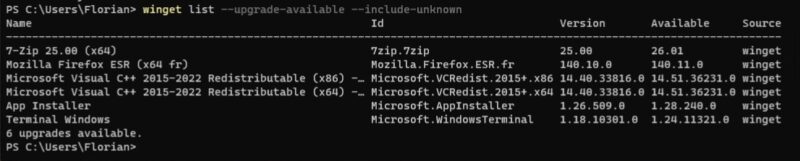
The --include-unknown argument includes software whose current version is not perfectly identified by the system, maximizing detection chances.
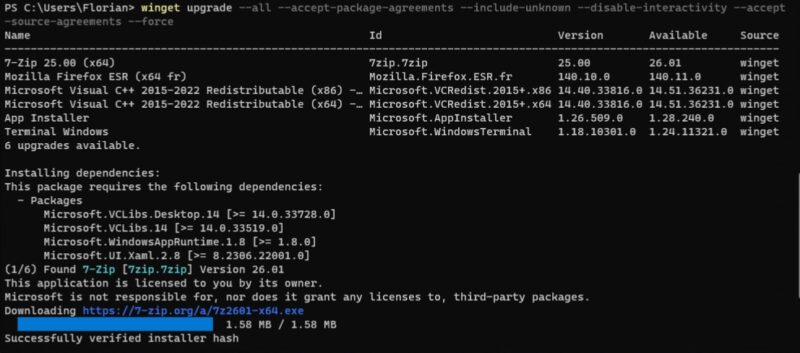
To update all eligible applications at once, completely silently and non-interactively, enter this global command:
winget upgrade --all --accept-package-agreements --include-unknown --disable-interactivity --accept-source-agreements --forceThe --force switch tells WinGet to continue even if some minor signature or version checks raise non-blocking warnings. You could run only winget upgrade --all, but it would not be as automated.
If you want to exclude an application from this update process, you can pin it. Here is an example with 7-Zip:
winget pin add --id 7zip.7Zip

Found 7-Zip [7zip.7zip]
Pin added successfully
Then you can verify this configuration:
winget pin list

Name              Id        Version Source Pin type
---------------------------------------------------
7-Zip 26.01 (x64) 7zip.7zip 26.01   winget Pinning
Tip: if you want to validate that this command works correctly in a test or staging environment, you can intentionally install outdated versions of common software using the commands below, then run the global update command to observe WinGet’s behavior:
winget install Mozilla.Firefox.ESR.fr -v 140.10.0 -h -e
winget install 7zip.7zip -v 25.00 -h -e
WinGet Installation Script
To standardize the preparation of a new workstation within a company or simply for your personal PC, creating a WinGet deployment script in Batch (.bat) or PowerShell format is a good solution.
By chaining winget install commands, you can easily install a set of applications. Once your script is ready, remember to run it with administrator privileges.
The example below is used to automate the installation of 6 different applications.
winget install --id DeepL.DeepL -e -h --scope "machine"
winget install --id Telegram.TelegramDesktop -e -h --scope "machine"
winget install --id Notepad++.Notepad++ -e -h --scope "machine"
winget install --id Mozilla.Firefox.ESR.fr -e -h --scope "machine"
winget install --id Microsoft.VisualStudioCode -e -h --scope "machine"
winget install --id 7Zip.7Zip -e -h --scope "machine"
Feel free to go further, whether in Batch or PowerShell, to automate application installation while adding extra steps. With a good old Batch script, it works well.
@echo off
rem -------------------------------------------------------------------------
rem Initial deployment script for base applications via WinGet
rem -------------------------------------------------------------------------

echo Installation de DeepL...
winget install --id DeepL.DeepL -e -h --scope "machine"

echo Installation de Telegram Desktop...
winget install --id Telegram.TelegramDesktop -e -h --scope "machine"

echo Installation de Notepad++...
winget install --id Notepad++.Notepad++ -e -h --scope "machine"

echo Installation de Mozilla Firefox ESR...
winget install --id Mozilla.Firefox.ESR.fr -e -h --scope "machine"

echo Installation de Microsoft Visual Studio Code...
winget install --id Microsoft.VisualStudioCode -e -h --scope "machine"

echo Installation de 7-Zip...
winget install --id 7Zip.7Zip -e -h --scope "machine"

echo Déploiement terminé avec succès !
pause
Conclusion
WinGet is a command-line tool worth knowing because it offers useful features for managing applications on Windows. For bulk application updates alone, using a single command already makes the job much easier.
If you prefer a graphical interface, there are tools that act as a visual layer on top. One example is the open source UniGetUI (formerly known as WingetUI), which brings together the WinGet, Chocolatey, and Scoop catalogs in a unified interface.
In addition, if you want to automate application updates on your PC, you can install the open source tool Winget-AutoUpdate. Once in place, it will update your applications according to the schedule you define, and you can also set exclusions. Another option is to run an update script through a Windows scheduled task.
Finally, if you want to go deeper into WinGet and discover other options, feel free to check the built-in help by entering the command winget --help in your console. To go even further, I recommend looking into WinGet DSC to also configure Windows.
FAQ - WinGet Windows
What is WinGet?
WinGet is Microsoft’s official package manager for Windows 10 and Windows 11. It lets you install, update, and remove software from the command line. It uses the WinGet repository and Microsoft Store as sources.
How can I check whether WinGet is already installed on my computer?
Open a Command Prompt or PowerShell console and simply type winget. If the tool is present, it will display the general help.
What is the main difference between WinGet and Chocolatey?
Chocolatey is a long-standing third-party solution that manages its own repositories and installation scripts. It is not installed by default on Windows. WinGet, on the other hand, is Microsoft’s native solution, relying mainly on configuration files (YAML manifests) to download installers directly from the publishers’ servers (like a pointer system).
Do you need administrator rights to use WinGet?
No. If you install an application with the --scope user parameter, WinGet will place the files in the current user’s profile (for example in AppData), removing the need for elevated privileges. The --scope machine scope, however, requires administrator rights.
Is it possible to install apps from the Microsoft Store with this tool?
Yes, Microsoft Store is one of the default sources configured in WinGet. You can target this source during a search or installation by using the --source msstore argument.
How do you uninstall software that was not originally installed with WinGet?
WinGet can list and uninstall the vast majority of standard software installed on the machine, even if it was deployed with a traditional installer. Use winget list to find its name or ID, then run winget uninstall.
How can I prevent WinGet from updating a specific application during an "upgrade --all"?
If you need to freeze a specific software version for stability reasons, you can configure WinGet with the command winget pin add --id <package_ID>. The application will then be skipped during global update operations. Check your configuration with winget pin list.
How do I get help for a specific WinGet command?
To understand the syntax and discover all the options for a particular command, simply add the help parameter after it, such as: winget install --help.
How do I manually clear the download cache to free up disk space?
You can clean up leftover installation files by using Windows Disk Cleanup or by running the tool’s dedicated command: winget clean.
How do I inspect a package before installing it?
By running the winget show <package_ID> command, you can display the package details page. It shows the version, publisher, description, project page, license, and more. It’s quite comprehensive.
How do I clean and reset WinGet sources?
If WinGet becomes slow or no longer finds updates, the local database may be corrupted. Reset everything related to the sources with this command: winget source reset --force.