www.it-connect.fr

Specops Device Trust: Secure Access Beyond MFA with Device Validation
No stolen password, no MFA bypass, and yet the attacker still accessed the user's account: this is one of the most common compromise scenarios today. The culprit is session theft, a technique that bypasses MFA without ever needing the password or the second factor. In this article, I’ll explain why identity alone is no longer enough to protect access, then we’ll see how Specops Device Trust closes this blind spot by tying every access request to a trusted device. This way, an attacker cannot sign in to a user's account from an unapproved machine.
This article includes sponsored content for Specops Software.
Why MFA and Intune compliance are not enough
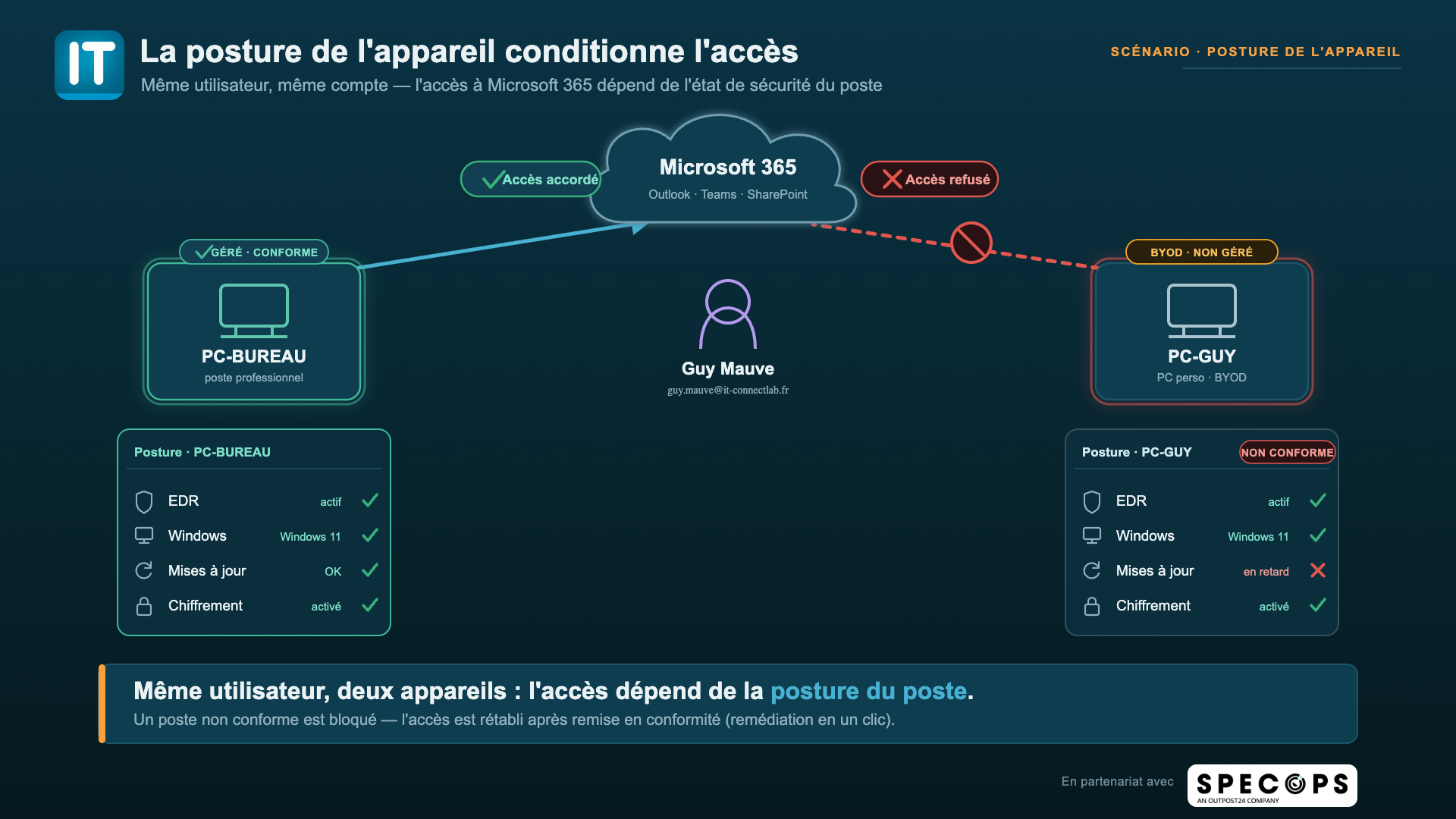
The usual response to these risks is to require a compliant device via Microsoft Intune and Conditional Access. That is a good practice, and it works well… on devices enrolled in Intune. The problem is that this approach leaves two blind spots: unmanaged devices (BYOD, contractors) and compliance drift during the session. Let me explain.
The first blind spot is devices you do not manage, the ones you do not control. Personal devices cannot be forcibly enrolled in an MDM. As a result, either you block their access outright (which is what some companies do), or you let them through and accept the risk.
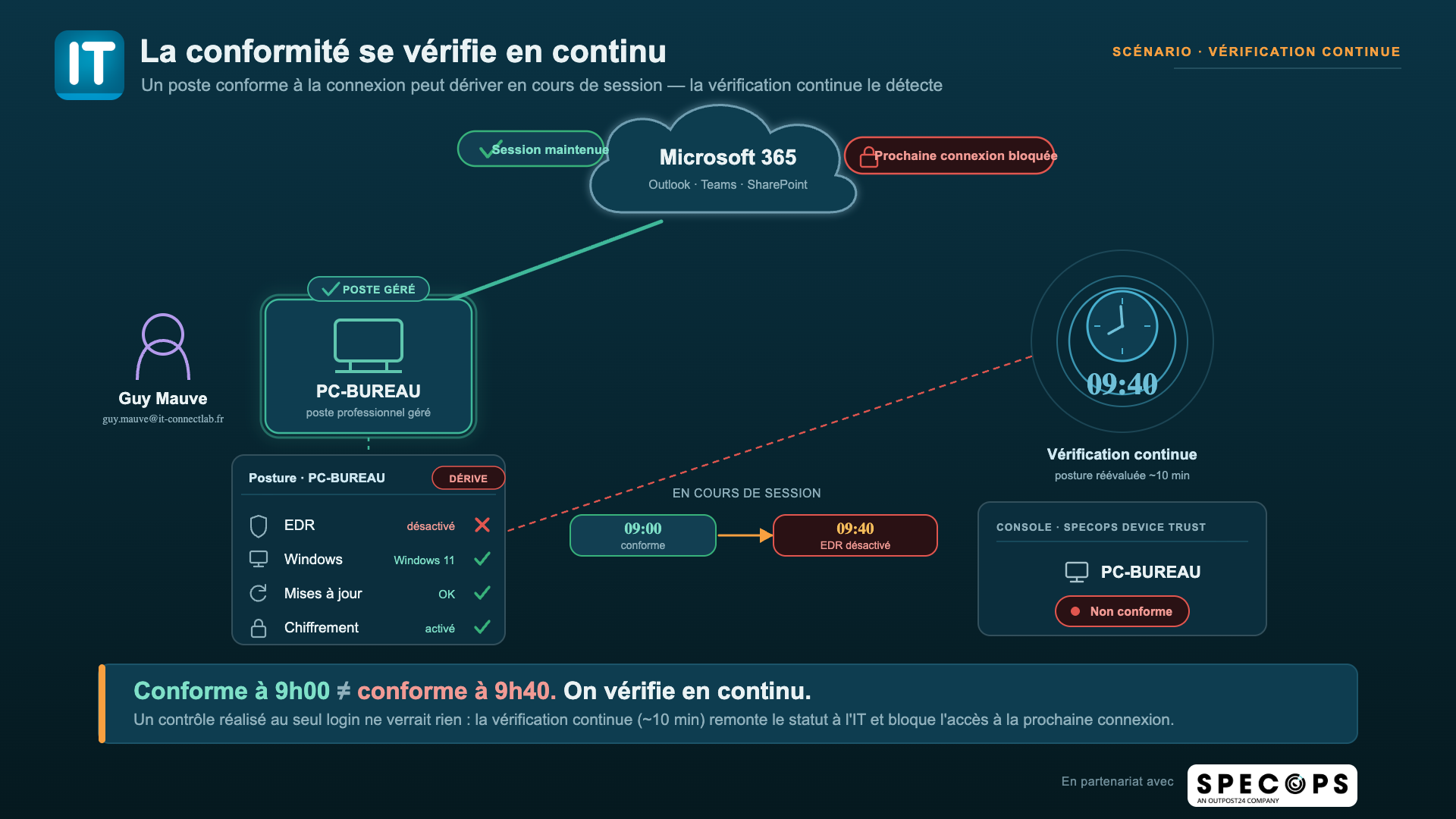
The second blind spot is timing. Intune compliance is a precomputed state: the device checks in periodically, and that status is then consumed by Conditional Access when the token is issued. Between two evaluations, drift goes unnoticed. A workstation that was healthy at 9:00 AM may no longer be healthy at 9:40 AM without anything detecting it before the next token request.
A Device Trust layer addresses these issues: productivity and BYOD are preserved, while the security posture remains intact.
What is Specops Device Trust?
Specops Device Trust is a Zero Trust solution based on Infinipoint technology, from an Israeli vendor acquired by Outpost24 in late 2025. It is worth noting that Outpost24 is a company founded in 2001, headquartered in Sweden, with teams in several countries, including France.
Specops Device Trust is delivered as a SaaS service that fits into the authentication flow to verify not only the user, but also the device they are signing in from. That second point is especially important.
The solution is built around several principles:
- Identity-to-trusted-device binding: each user is pinned to their approved devices. Access can succeed only from a recognized machine.
- Device posture verification and continuous checks: device compliance (encryption, up-to-date system, active antivirus, system configuration, firewall, etc.) is assessed at sign-in and then re-evaluated throughout the session (continuous verification).
- User-led remediation: instead of hard blocking, the solution offers one-click remediation (for example, to update the system) with grace periods so the user can fix the issue themselves. Most importantly, they can bring their machine into compliance and sign in without opening a support ticket.
- Coverage for managed and unmanaged devices: Windows, macOS, Linux, and mobile devices, including BYOD and contractor workstations, without requiring MDM enrollment.
- Direct integration with an identity provider: the solution connects to the IdP (Microsoft Entra ID in our case) to add device verification to the authentication journey. Other IdPs are supported, such as Okta, Google, Citrix, PingOne, and Keycloak (and OpenID Connect in general).
Three scenarios where Specops Device Trust changes the game
Let’s take the time to look at three real-world use cases.
Blocking replay of a stolen session
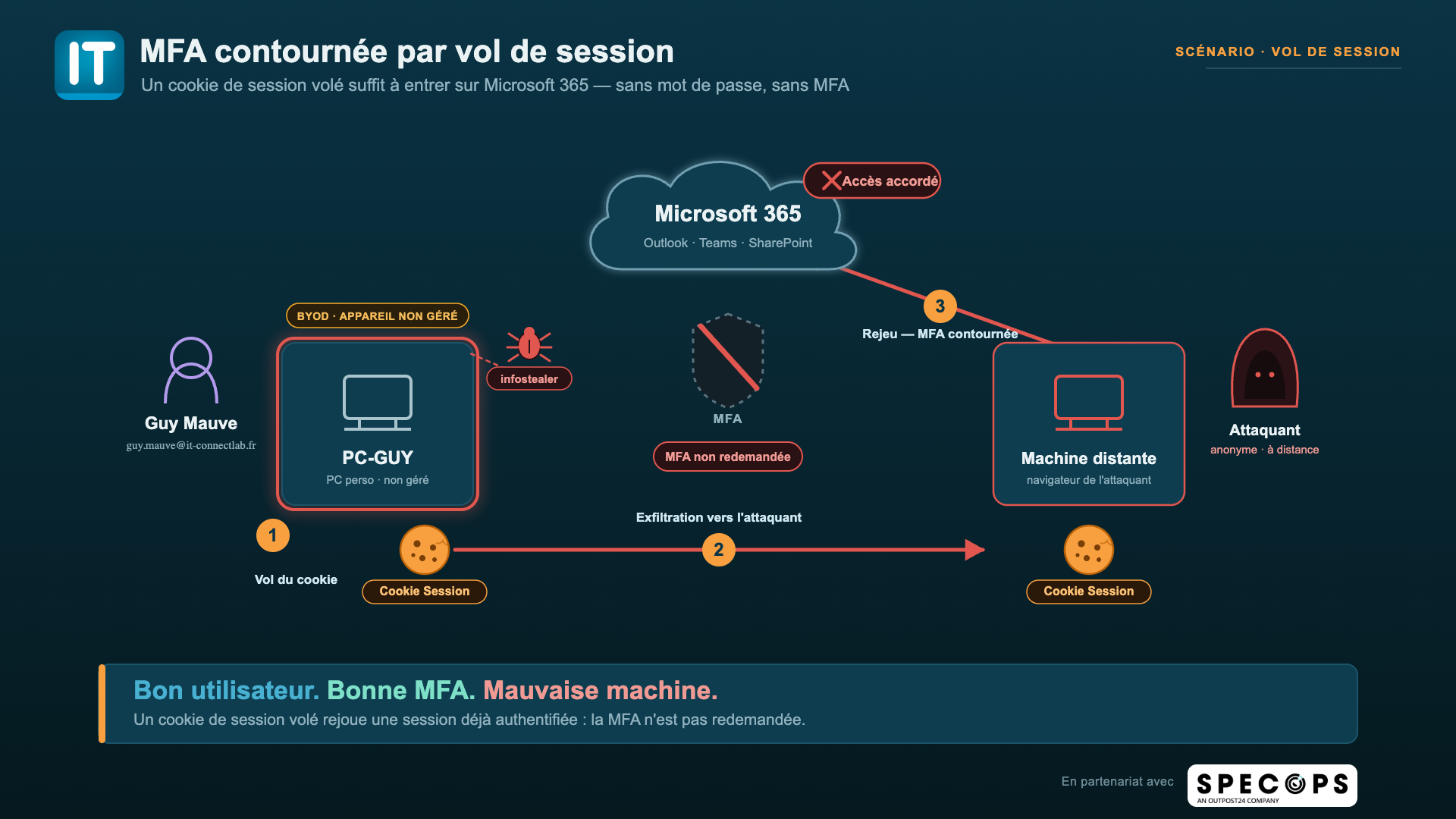
Let’s take a concrete case. Guy Mauve (guy.mauve@it-connectlab.fr) sometimes works from his personal computer, PC-GUY, a machine not managed by the IT department. That is the very essence of BYOD. He signs in to Microsoft 365, completes MFA, checks his email: nothing unusual. Except that the PC-GUY machine was infected by an infostealer a few hours earlier. On a family computer, it is often hard to know who is doing what in many households.
A few minutes later, an attacker injects that cookie into their own browser, on their own machine, and accesses Guy’s Outlook mailbox. They did not need his password. They did not need his phone. The session was already authenticated: Microsoft Entra ID still considers it legitimate.
This is what we call cookie theft, associated with the pass-the-cookie technique. It is a session hijacking technique (listed as T1539 in the MITRE ATT&CK framework) that consists of stealing an authentication cookie and then replaying it in another browser to impersonate the victim’s session. Since MFA was already satisfied when the cookie was issued, it is not prompted again.
When Specops Device Trust is in place, a cookie exfiltrated by an infostealer becomes useless as soon as access requires an approved device. The attacker may have a valid token, but from the wrong machine: at re-evaluation, access will be denied. Session theft, the main vector used to bypass MFA, is no longer exploitable.
Access from an unauthorized device can have dramatic consequences. This is a good time to revisit this news story: How attackers wiped 80,000 PCs at Stryker by hijacking Intune.
Securing contractor access and BYOD
An external contractor, or an employee using a personal device, can be required to meet a security baseline (encryption, active antivirus, up-to-date system) without being enrolled in an MDM. If a check fails, the user is denied access. They can also choose to fix the issue themselves through the remediation prompt offered by Specops Device Trust. If the different conditions are met, access is granted.
In this way, the expected security posture for accessing the information system is extended to devices you do not manage, without adding extra burden on the help desk.
Responding to compliance drift during a session
A device that was compliant at sign-in can stop being compliant during the session: antivirus disabled, critical update missing, a new vulnerability, and so on. Where a control performed only at login would miss it, continuous verification reassesses posture while the user is working and restricts access if drift is detected, again with a remediation option.
Let’s take a common example. In the middle of the day, a user disables their antivirus because it slows down an application, or a newly installed program pauses it. This raises questions about privilege management on the workstation, but that is not the focus of this article. This action has a consequence for the device: it was compliant at sign-in, but it is no longer compliant an hour later.
With a control performed only at authentication, that drift would go unnoticed until the next login. Continuous verification reassesses posture at regular intervals, around every ten minutes: it detects the antivirus being disabled on the next pass and alerts the IT team (or better yet: a signal is sent to another solution).
This scenario is also a reminder that disabling protections is an action frequently observed during a PC compromise or before a ransomware detonation. Reassessing posture while the user is working, not just at sign-in, makes it possible to react quickly.
Exploring the Specops Device Trust console
Integrating with your existing environment
The first configuration step is to connect Specops Device Trust to your corporate environment. Several connections are possible:
- Identity providers (IdPs): connect the solution to the platform your users authenticate through. To plug the solution into Microsoft 365, you would choose Microsoft Azure. Specops Device Trust will then act as an external authentication method (External MFA).
- Integrations: the solution can also connect to other tools such as Intune, Jamf, Chef, or CrowdStrike. This creates interactions between Specops Device Trust and your other tools. For example, it is useful to retrieve information about devices registered in Intune.
- API: a third-party solution can connect to Specops Device Trust via an API.
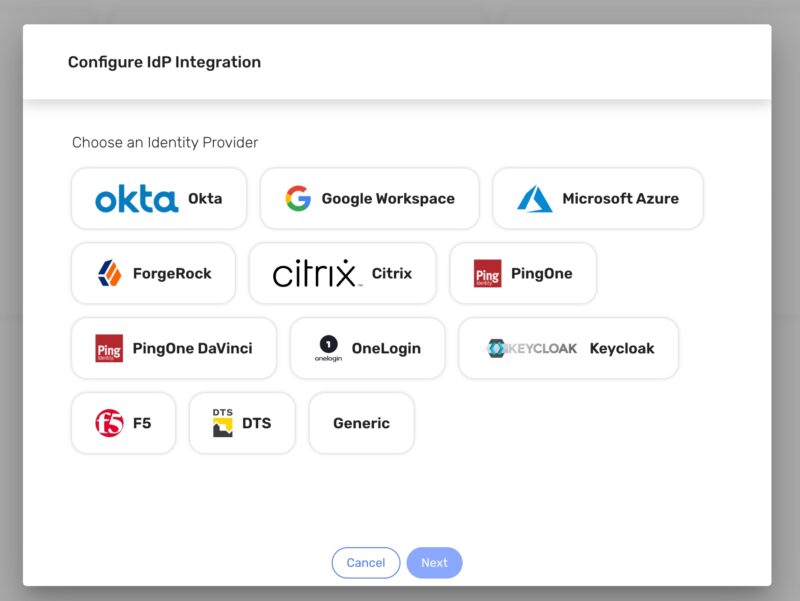
This initial setup synchronizes your identities to the Specops Device Trust database, including users and groups. That does not prevent you from creating users and groups, or even dynamic groups, directly in the tool.
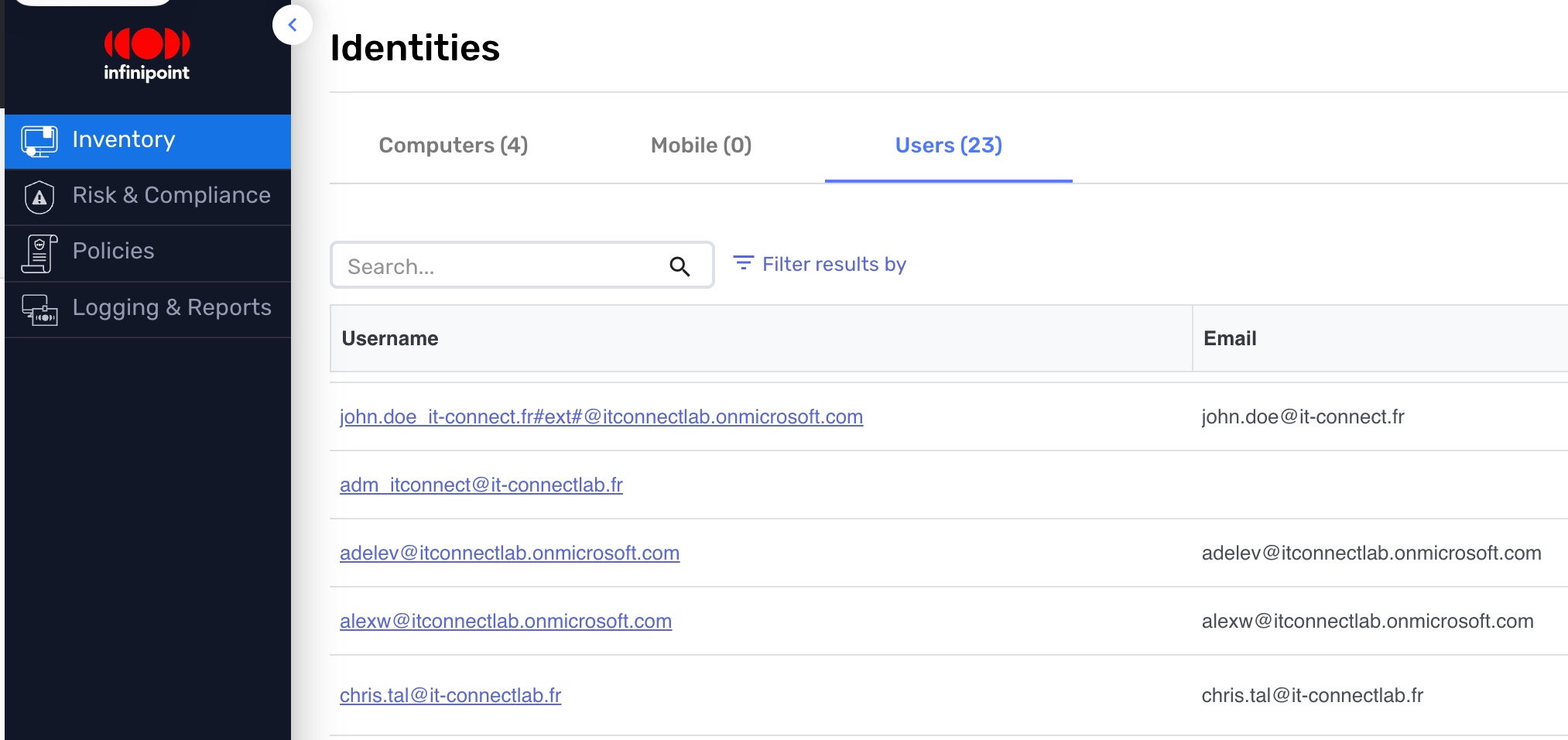
Authentication and compliance policies
Policies are configured from the Policies menu, which separates several building blocks: user authentication, device authentication, computer and mobile posture, and automated compliance. The added value of the solution comes from putting these policies in place.
- User authentication
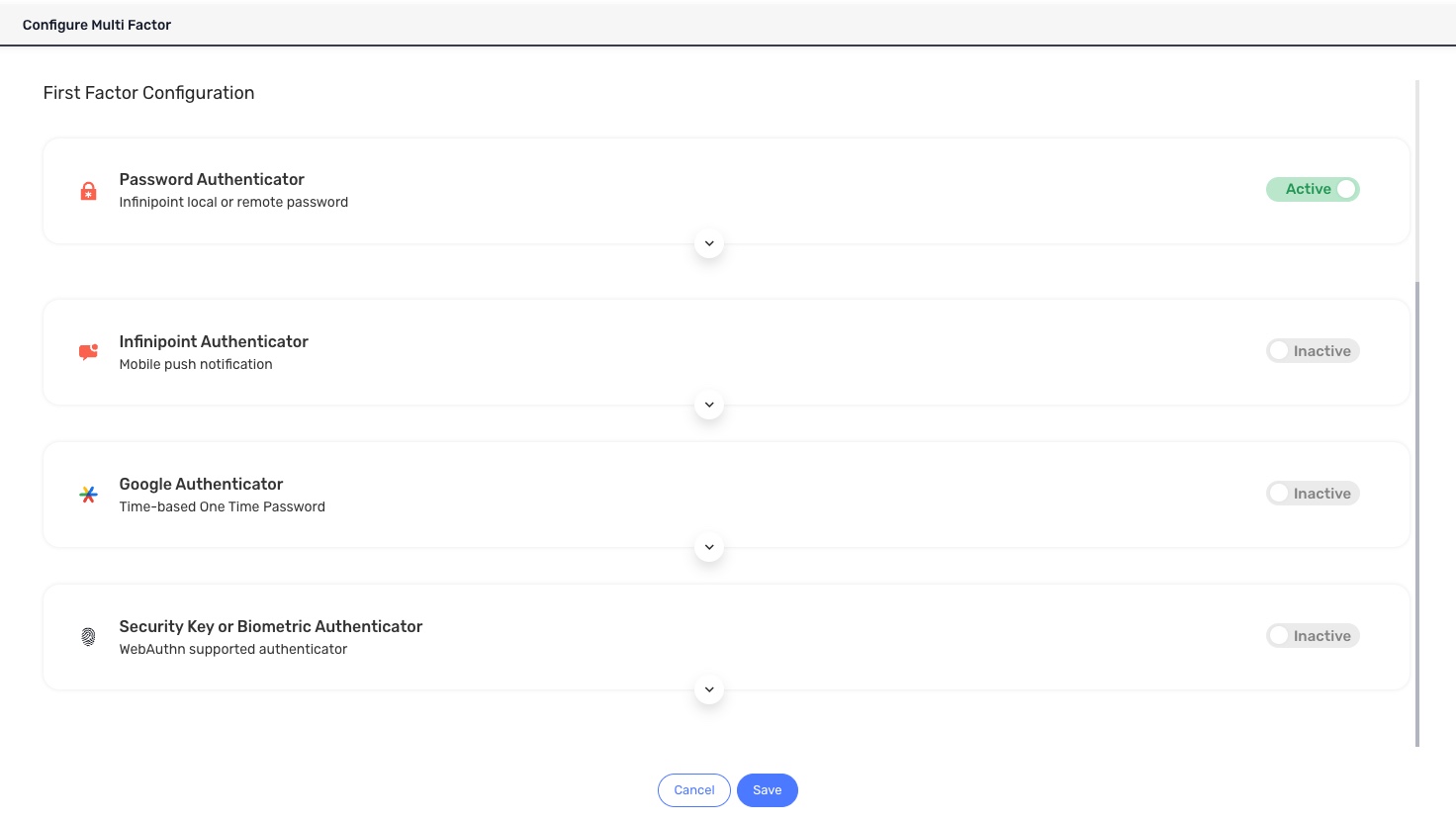
When a user authenticates to a resource using their Microsoft 365 account, they must go through Specops Device Trust. As an external authentication method, several authentication factors are available: password, the Infinipoint app for Push notifications, a TOTP code with an Authenticator app, or a security key.
This is the first step in the Specops Device Trust authentication process, followed by the steps described below.
- Device authentication
The device authentication policy conditions access on trust in the machine itself. Before even considering the user, it checks that the device is known, recognized, and, if required, equipped with the Specops Device Trust client (still called Infinipoint at the time of writing). This is what makes it possible to say: this access can succeed only from an approved workstation.
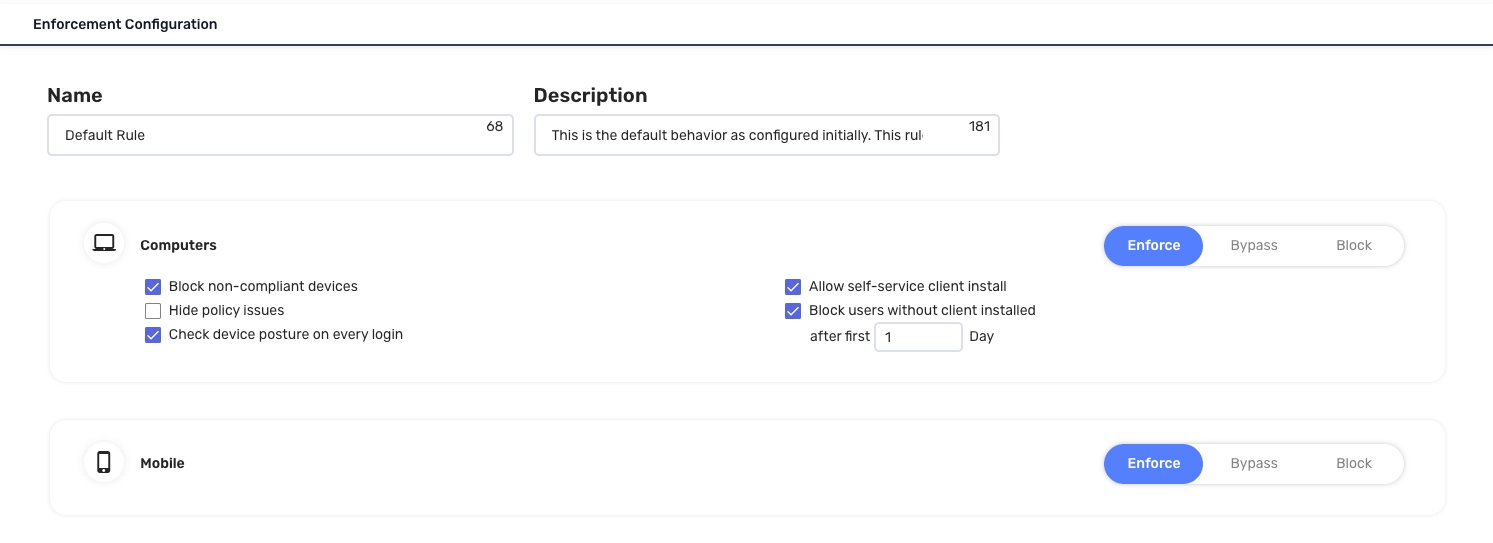
It is configured separately for computers and mobile devices, which makes it possible to apply different requirements depending on the device type. For each platform, you decide the overall posture: reject connections outright, let them through without checks, or allow only authenticated devices.
In addition, the policy can condition access on workstation health: a device deemed non-compliant can be denied access even if the user's credentials are valid. You can choose to re-run all security checks in real time at every sign-in for the most sensitive resources. With this mechanism, the decision to accept the connection depends not only on device identity, but also on its compliance at a given moment.
Finally, each policy applies to a scope you define, whether by users, groups, geographic zone, IP range, or identity provider.
- Ownership and pinning concepts
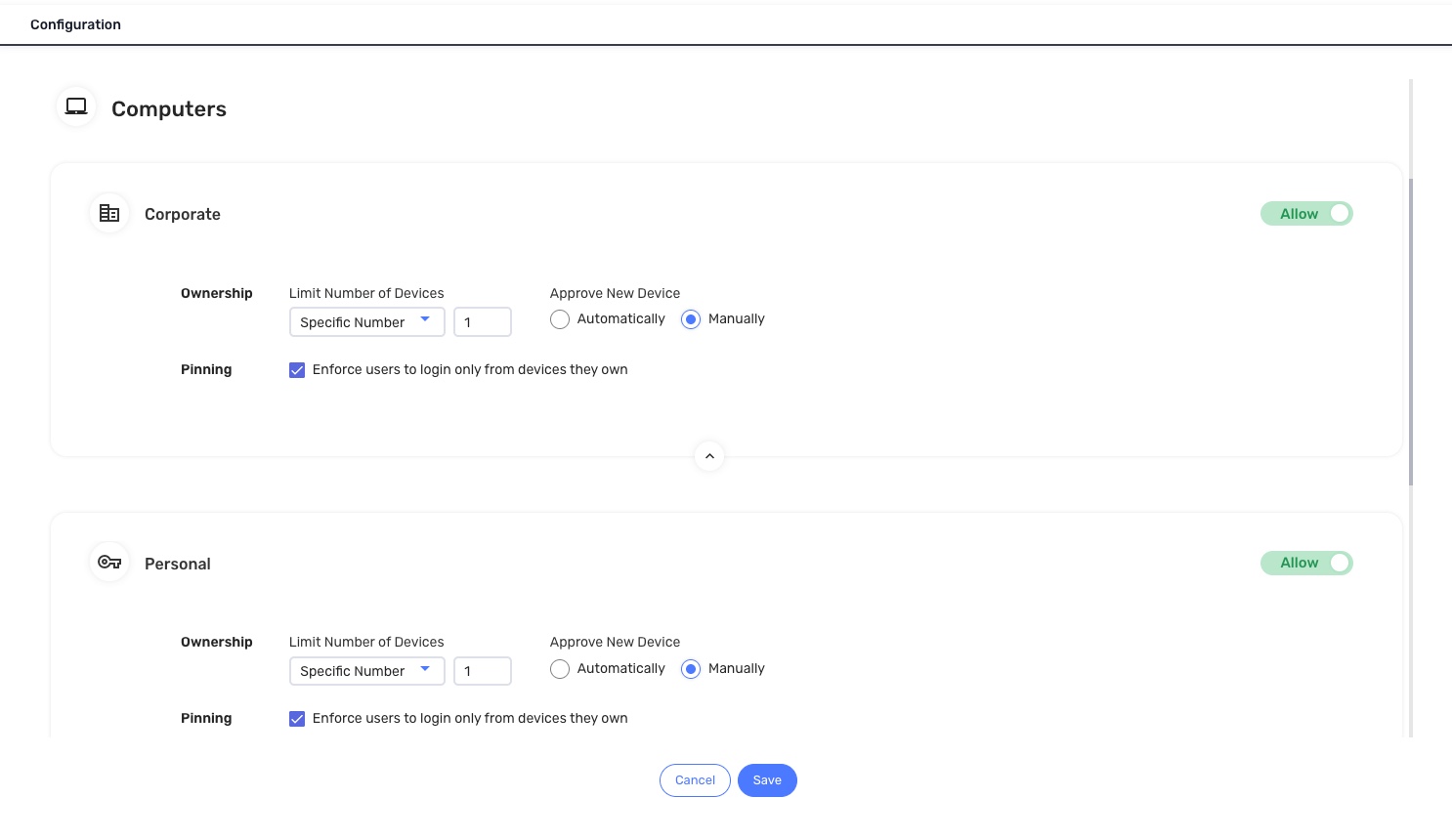
This policy strengthens the link between a user and their hardware by controlling which devices belong to them and from which devices they can sign in. The goal is to keep track of workstation inventory and limit the lateral movement of an attacker who has gotten hold of an account.
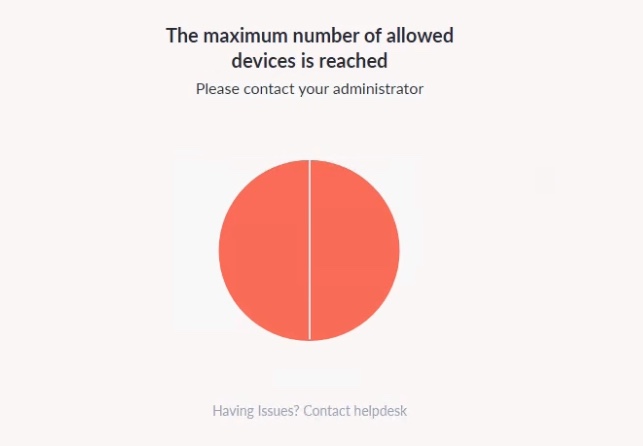
Specops Device Trust lets you adopt the following logic: the first user to authenticate on a machine becomes its owner. From there, you can put guardrails in place by limiting the number of devices a person is allowed to own. The benefit is reducing the risk of sign-in from unwanted devices through a quota concept. If the quota is reached, a user trying to sign in from a new workstation is denied access! You can also move from automatic acceptance of new devices to manual approval, where an administrator must explicitly validate each machine before it can access the environment.
Beyond ownership, there is pinning. When a user is pinned to their devices, they can sign in only from hardware that belongs to them, and nothing else. The value is immediate against credential theft: even if an attacker gets a user's password and MFA, they cannot do anything with it unless they physically possess that person's computer (which rules out infostealers).
These restrictions apply independently to device categories (corporate-managed workstations, personal BYOD devices, corporate mobile devices, or personal mobile devices), with the ability to define different rules depending on the device type.
If an attacker tries to authenticate using a user's session information from their own workstation, they will be blocked by the policy. In addition, before they even get that far, you can also prompt them to install the Specops Device Trust client on their machine (which may discourage some attackers).
- Device security posture
This policy defines the security requirements a workstation must meet at sign-in. This is where compliance comes in: encryption level, up-to-date system, active protection, and so on. The approach is modular, because you can create independent posture profiles and then attach them to rules, which apply to devices.
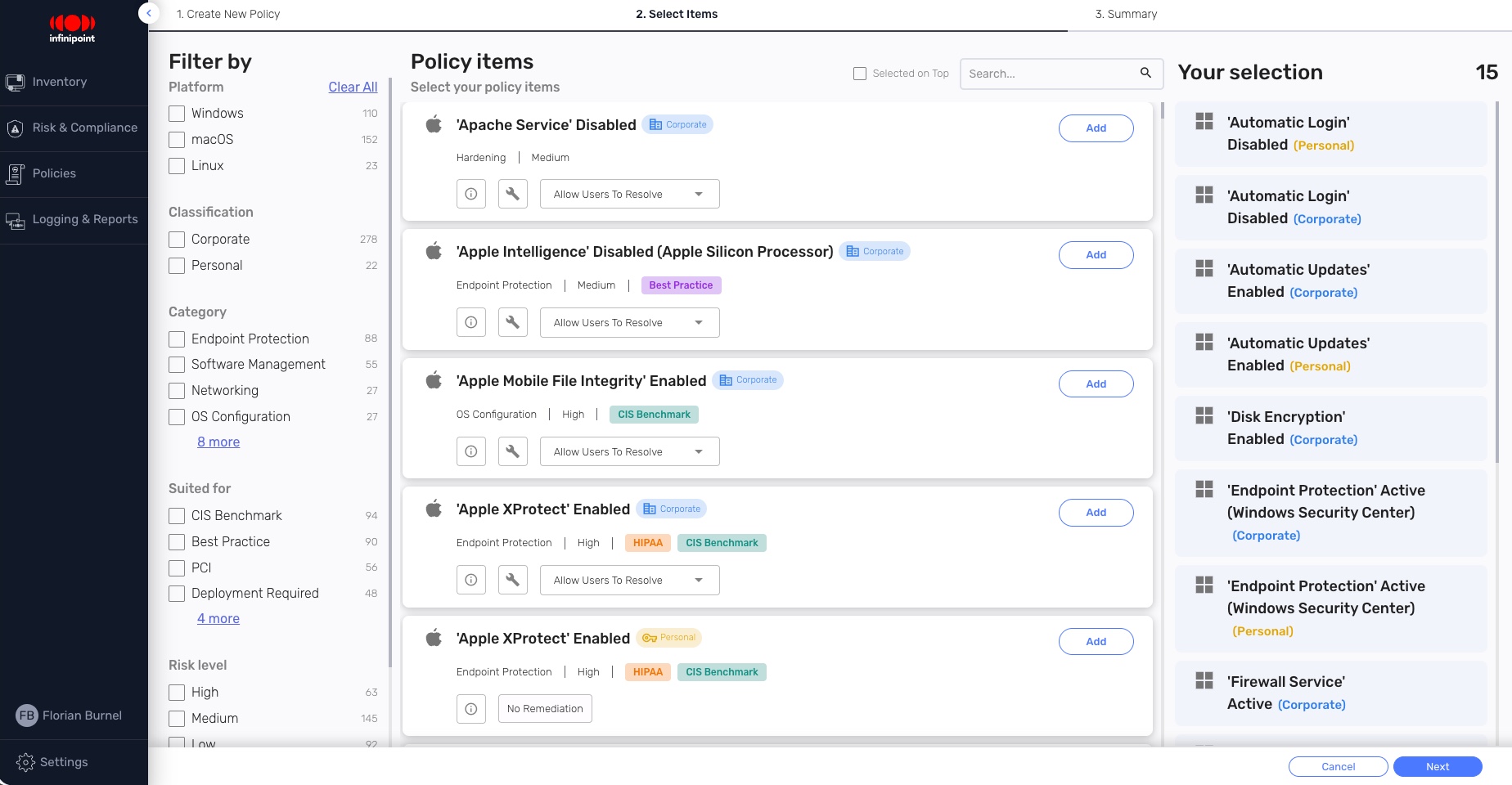
This define once, apply everywhere approach ensures consistency across the fleet and simplifies long-term maintenance: adjust one profile, and all rules that reference it benefit from the change. For security rule creation, the platform provides preconfigured templates (rule catalog) ready to use, as well as the option to build custom rules (the administrator defines the queries).
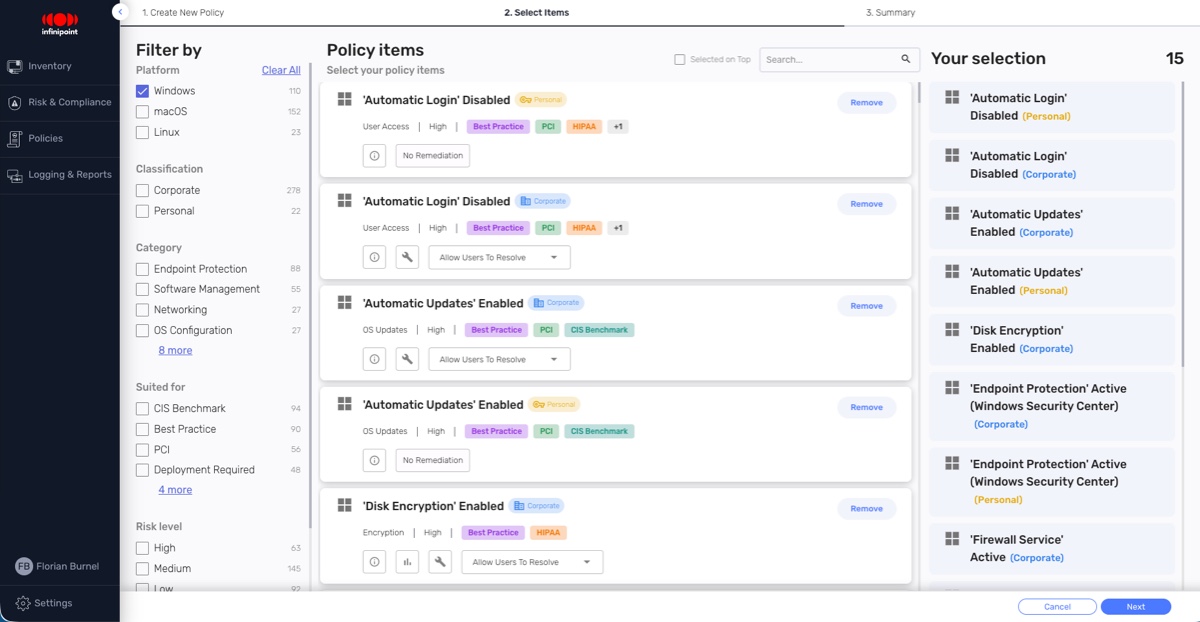
There are rules for the three main platforms used by workstations: Windows, macOS, and Linux. Some rules apply only to enterprise-owned devices, while others can apply to personal devices (BYOD).
One configuration element is worth highlighting because it changes the user experience a lot: the grace period. When a compliance policy is not met, you can decide how long the user has to fix the issue before access is restricted. You can require immediate correction with no tolerance, grant a deadline up to a fixed date, or open a rolling window of a few days from the moment the device is detected as non-compliant. It is the slider between strict security and operational flexibility, to be adjusted according to how sensitive the resources are.
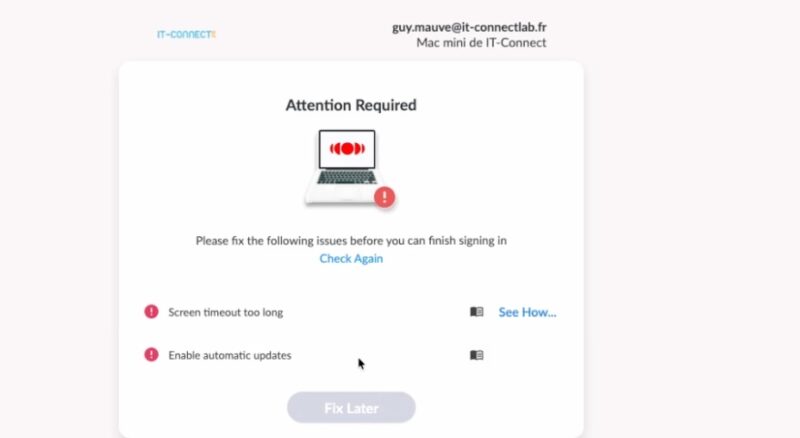
When a user signs in on a non-compliant device, they have two options if they want to continue their session (availability may vary depending on policy configuration and device type):
- They must reconfigure the device so it becomes compliant. This may mean adjusting a setting, installing a system update, and so on.
- They can allow automatic remediation: the agent installed on the device then takes care of fixing the configuration so the machine becomes compliant.
- Mobile device security posture
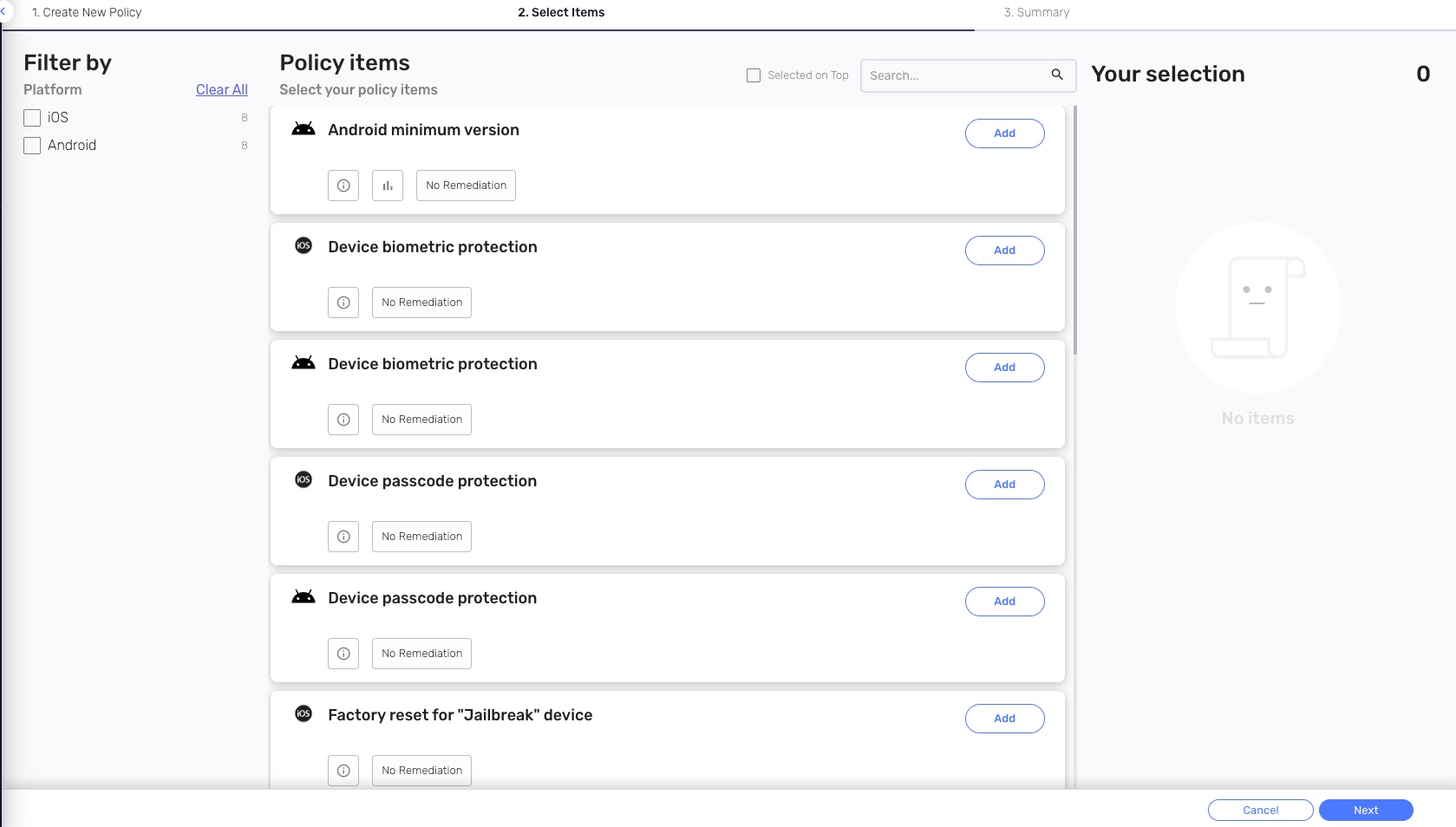
The same principle as the previous section, but applied to Android and iOS devices. Settings are available for both platforms and can be checked through a policy.
- Automation and device compliance
This policy focuses on the devices themselves, independently of the signed-in user. Whereas the other policies intervene at sign-in, this one runs locally on the workstation according to a defined schedule. From an administrator's perspective, this policy makes it possible to continuously verify device state and get updates in the Specops Device Trust console. That is what allows you to monitor machine health over time without waiting for a user to sign in.
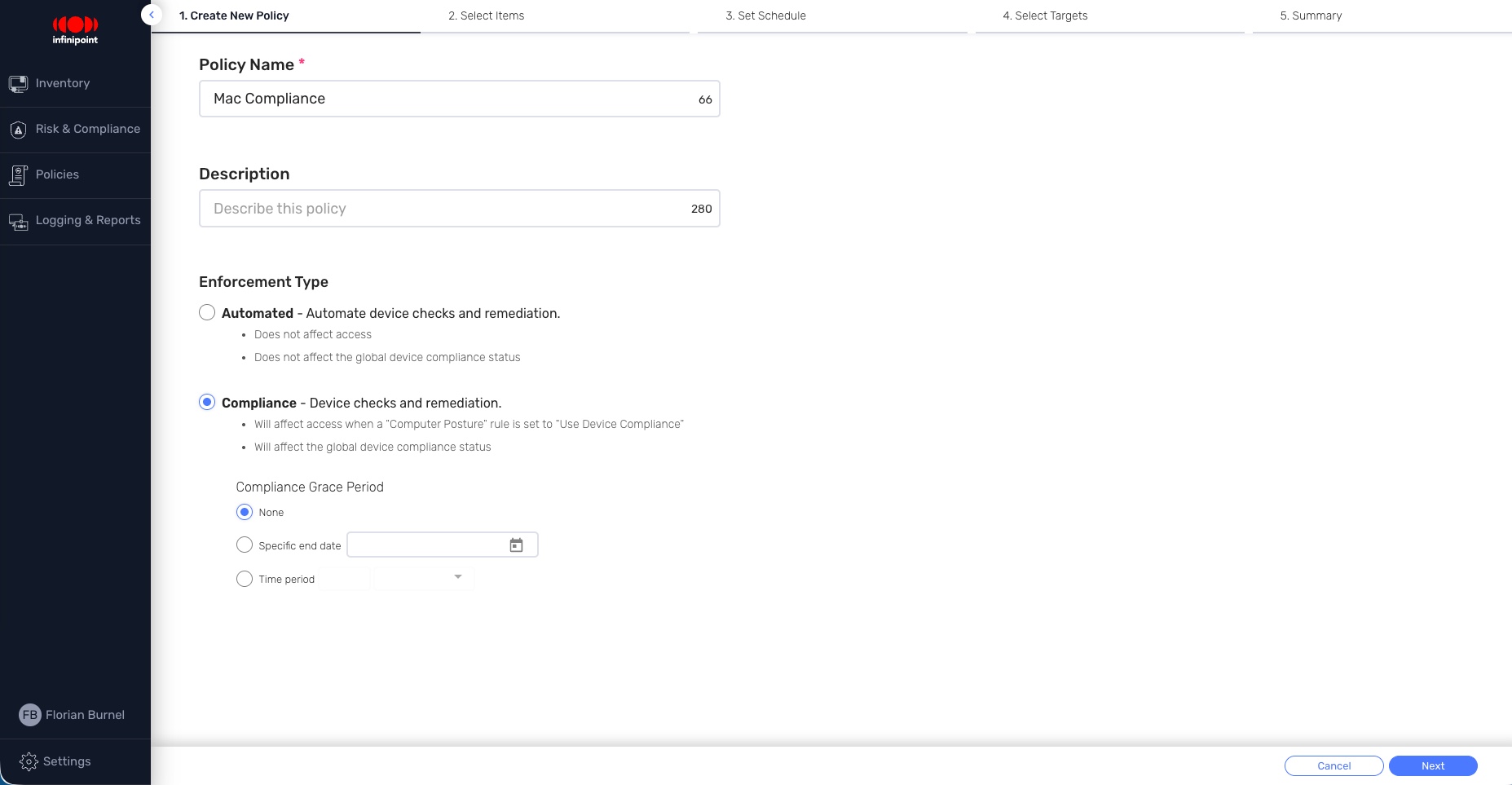
Several operating modes are available. In automated mode, the policy simply observes and reports information: detected discrepancies do not affect access or the device's overall compliance status. This mode is suitable for data collection, auditing, or non-blocking monitoring. In compliance mode, by contrast, the results directly affect access decisions, and a detected issue switches the device to a "non-compliant" state on the platform. This is the mode used to enforce a required state before allowing a device to access a resource.
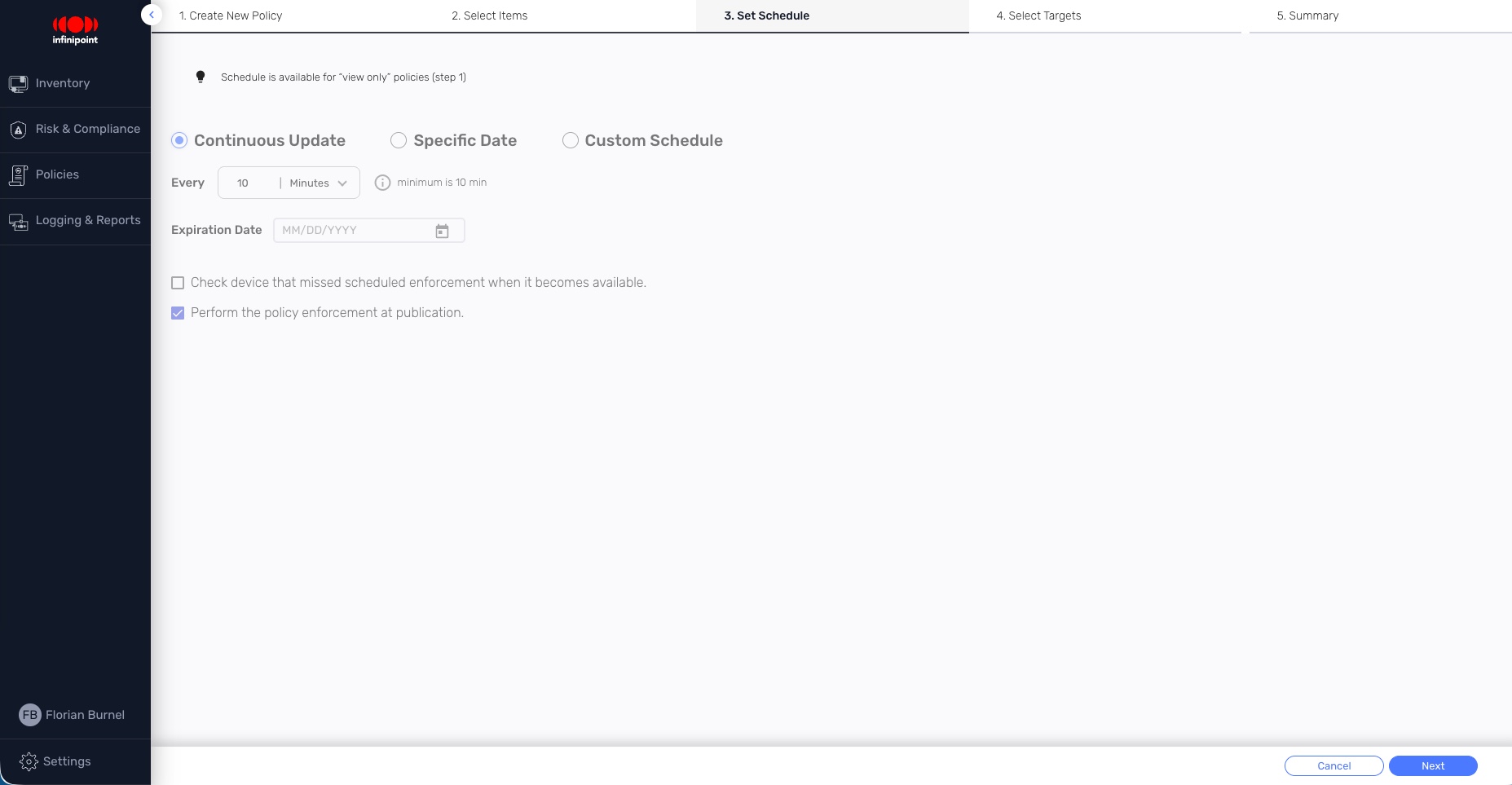
As an administrator, you can also decide how often the checks should run, although you may not always have full control depending on the chosen mode. They can run at regular intervals, with the ability to catch up on a missed check as soon as the machine comes back online. They can also be scheduled for specific dates or run in continuous verification mode, where the state is checked every 10 minutes.
Vulnerability management
Beyond access policies, the solution includes a vulnerability management component that gives an overall view of fleet risk. The dashboard aggregates weaknesses detected on devices and ranks them: average risk score, number of vulnerabilities by severity, and identification of the most exposed machines.
Known flaws are reported by CVE reference along with their score, and grouped by weakness type using CWE taxonomy, which helps you understand not only how many vulnerabilities were detected, but also what kind they are. Filters by platform and operating system, along with PDF export, complete the feature set for targeted analysis or reporting.
The value is that device posture is tied to a concrete reality: a machine is not just "compliant" or "non-compliant" in policy terms, it also carries a measurable risk linked to vulnerabilities present in its system and software. In the example below, an old version of Mozilla Firefox is driving the numbers up.
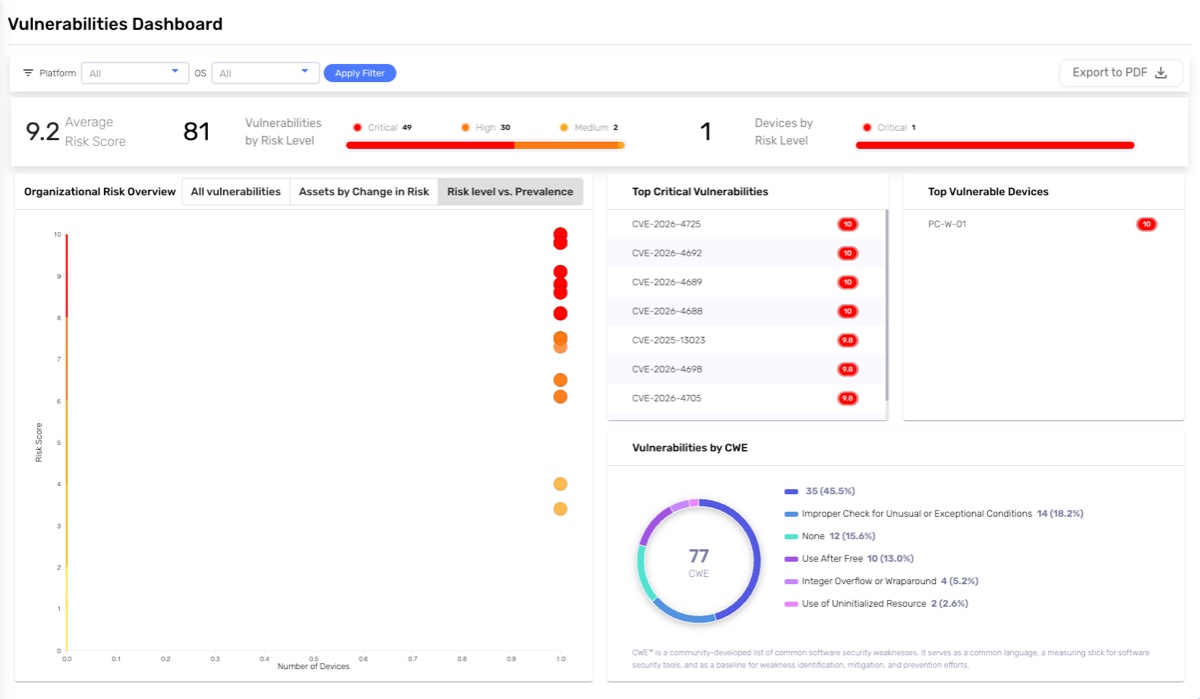
Using policies, you can block access to devices with a vulnerable specific application or to devices vulnerable to a specific CVE.
Access logs
Access logs track every sign-in attempt evaluated by Specops Device Trust. This makes it possible to trace every login attempt, whether it is a legitimate access or an intrusion attempt.
For each event, you get the date, IP address, user, affected application, device and platform, classification (company or personal workstation), compliance status, and the posture rule applied. The status column is the most telling: it shows whether access was granted, denied because of a posture issue, blocked because the device limit was reached, and so on. The key takeaway is that every decision is logged here.
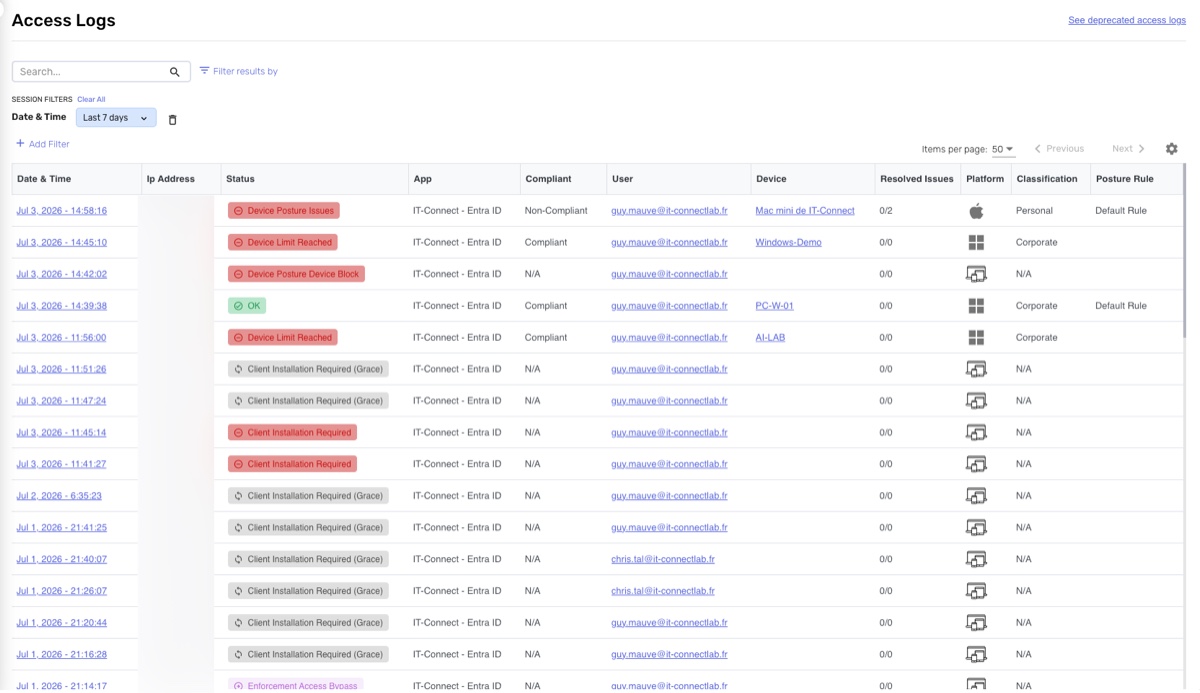
Device Trust vs. Intune compliance
It would be dishonest to present Device Trust as a replacement for Intune: the two are not in the same category. Intune is a complete device management tool (app deployment, configuration profiles, encryption, updates, remediation scripts), whereas Device Trust is an access decision layer.
The table below summarizes how they differ when it comes to access control:
| Criterion | Intune Compliance | Specops Device Trust |
|---|---|---|
| Evaluation time | Precomputed state published in Entra ID | On the endpoint, in real time (at sign-in) |
| Remediation | Often asynchronous / blocking | One-click self-service, grace periods |
| Unmanaged devices / BYOD | Requires MDM enrollment | Supported without enrollment, although the agent must be installed to get all features. |
| Scope | Full device management | Device-based access decision |
This article is also an opportunity to remind readers that Microsoft offers its own native defenses against token theft: Token Protection, which aims to make a token usable only from the intended device, and Continuous Access Evaluation (CAE), which enables access revocation. These mechanisms are relevant and useful, but they remain more restrictive. For example, Token Protection requires an Entra ID-joined device. The specific value of Device Trust is that it extends this identity-to-device binding logic to unmanaged devices, while adding continuous posture verification, which covers BYOD.
Conclusion
Specops Device Trust provides a concrete answer to several situations IT leaders face. The key takeaway is that access is evaluated based on both the user and the device, not just one or the other, which allows for a more granular access model. The main limitation is getting the Specops Device Trust client installed if you want to take advantage of the solution’s full feature set.
To learn more or request a demo, follow this link: