www.it-connect.fr

Arcane: A Powerful Open-Source Solution for Managing Docker Containers
Arcane is the name of an open-source solution designed to simplify the administration of Docker environments from a modern web interface. It therefore goes head-to-head with existing tools, and if I’m talking about it today, it’s because it is truly gaining momentum.
When you manage a homelab or an infrastructure with containers, Docker Compose files and the command line are enough at first. Then the stacks pile up, image updates get missed, and you lose track of what is actually running on your server. That is where Arcane comes in, with an open-source web interface built to manage your Docker Compose projects, containers, images, and more... from your browser.
In this article, I’ll give you an overview of the Arcane solution. But first, we’ll look at what this project is and how it differs from Portainer, Dockge, and Dockhand. Some of these tools have already been covered in an article on IT-Connect, but I think it’s important to talk about them.
How do you install Arcane with Docker?
For those in a hurry, here are the steps in five parts:
- Create a project folder, for example
/opt/docker-compose/arcane, as well as aarcane-datasubfolder for persistent data. - Generate two 32-byte secrets with the
openssl rand -hex 32command. - Create the
docker-compose.ymlfile from theghcr.io/getarcaneapp/manager:v2image, exposing port3552and mounting the Docker socket. - Populate the
.envfile, especially theAPP_URLvariable, which must match exactly the URL used in the browser. - Run
docker compose up -d, then connect tohttp://<SERVER_IP>:3552with thearcaneaccount and thearcane-adminpassword.
That’s the summary. All the details are provided in the rest of this article.
What is Arcane?
Arcane is an open-source Docker management interface (BSD 3-Clause license). It runs in a single container, connects to your host’s Docker API, and gives you control over all resources: Docker Compose projects, containers, images, networks, volumes, and even a Docker Swarm cluster. Technically, Arcane relies on a backend written in Go, and the official image is relatively lightweight: about 124 MB, with a container that uses very little resources when idle.
- Official website and documentation: getarcane.app
- GitHub repository: getarcaneapp/arcane
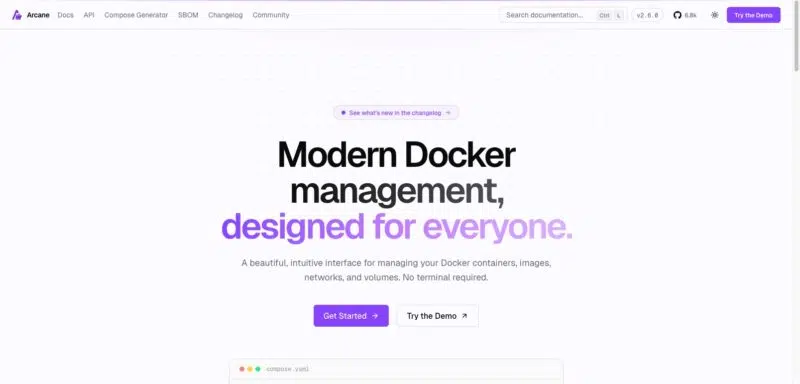
With Arcane, there is no paid edition and no feature reserved for an enterprise version. Everything we will see in this article, including role-based access control and OIDC authentication, is available in the free version. Even if that may change in the future, this is a key differentiator compared with other tools such as Portainer and Dockhand.
Most of all, I think Arcane is evolving fast, very fast. There are several new releases every month, and this project, launched in 2025, is clearly moving in the right direction, with a community that is gradually taking shape.
Arcane, Portainer CE, Dockge, and Dockhand: what are the differences?
Arcane arrives in a space already occupied by other solutions, including some already mentioned on IT-Connect. Here is a quick comparison.
| Criterion | Arcane | Portainer CE | Portainer BE | Dockge | Dockhand |
|---|---|---|---|---|---|
| License | BSD 3-Clause | zlib | Proprietary, license key | MIT | BSL 1.1, switches to Apache 2.0 in 2029 |
| Business model | No paid edition | Free | Free up to 3 nodes, paid beyond that | Free | Free for personal use, paid for enterprise |
| Taking over existing stacks | Automatic directory discovery | Limited import | Limited import | Dedicated stacks directory | Adoption by scanning a directory |
| Editing Docker Compose files | Multi-file, schema validation | Built-in editor | Built-in editor | Built-in editor, conversion from docker run | Online editor, visual mode, graph view (Arcane does not offer this) |
| Docker Swarm support | Yes | Yes | Yes | Missing | Missing |
| Update detection | By digest, schedulable, exclusions | Manual | New version indicator | Image updates on demand | Schedulable, automatic application |
| Vulnerability scanning | Built-in Trivy | No built-in scanner | No built-in scanner | Absent | Trivy and Grype, either one or both |
| Role-based access control | Six built-in roles, custom roles | Only two roles (admin and user) | Role hierarchy by environment and team | Absent | Reserved for the paid version |
| OIDC authentication | Built in | Generic OAuth provider | OAuth with templates, LDAP, Active Directory, group mapping | Absent | Built in (LDAP and AD reserved for the paid version) |
| Audit log | Event log | Absent | Authentication and activity logs, Syslog export | Absent | Activity history |
| Multi-host | Remote agents | Multiple environments | Multiple environments and governance | Agents since version 1.4 | Hawser agent and TLS |
| Release cadence | High release cadence (likely the most active in the category) | Regular | Regular | Last release in March 2025 | Regular |
Arcane and Dockhand are really the two tools that stand out for Docker administration in a homelab. Portainer remains a safe choice, and it deserves to be considered for a homelab (because you often have only a few nodes), while Dockge seems rather stagnant (by the way, it is a project by Louis Lam, the author of Uptime Kuma). There is another solution I should mention to be complete, although I have not tested it yet: Komodo.
Prerequisites
To follow this tutorial, you need:
- A Linux machine (if you want the same environment as mine) with Docker and Docker Compose installed. If that is not yet the case, our chapter on installing Docker on Linux will guide you.
- Command-line access with
sudoprivileges. - Optional, but recommended for the second part: a Traefik reverse proxy already in place, with a shared external Docker network.
Arcane relies on the host’s Docker API. That means it needs write access to the Docker socket, which is not trivial from a security standpoint. We will see later how to reduce this exposure, using a technique already mentioned several times.
Install Arcane with Docker Compose
Let’s start with the simplest deployment, with the listening port published directly on the host. This is the ideal setup to test the tool quickly (without a reverse proxy).
Prepare the directory structure
I usually store all my stacks under /opt/docker-compose, with one subfolder per project. We will therefore create the Arcane folder and the subfolder intended to hold its data:
# Create the project folder and the persistent data folder
sudo mkdir -p /opt/docker-compose/arcane/arcane-data
cd /opt/docker-compose/arcane

# Assign the data folder to your user (here UID/GID 1000)
sudo chown -R 1000:1000 arcane-data
Since version 2.0, the Arcane container starts as root to prepare its runtime environment, then switches to an unprivileged user. If the data folder belongs to root while the process runs under another account, the application will not be able to write its database. By assigning the folder to your own user (usually UID 1000 on Debian and Ubuntu), you solve the problem and keep the ability to work with the files over SSH without using sudo.
Generate the secrets
Arcane needs two 32-byte secrets: an encryption key for sensitive data stored in the database and a signing key for session tokens. I suggest using the openssl command to generate them:
# Generate the ENCRYPTION_KEY value
openssl rand -hex 32
30bfabc62ff88fc89a07a3b4162ec6f0b22d55d41f3264733ec5b1bab3714339

# Generate the JWT_SECRET value
openssl rand -hex 32
73557fccb25aac9330571204bdb23098366c871f9dc4897f84933488b6327d65Warning: the two values above are only there to illustrate the expected format. You must generate your own values.
We will use these values in the .env file next.
The docker-compose.yml file
Here is the /opt/docker-compose/arcane/docker-compose.yml file you need to create in the project directory:
services:
  arcane:
    image: ghcr.io/getarcaneapp/manager:v2
    container_name: arcane
    restart: unless-stopped
    ports:
      - "3552:3552"
    environment:
      - APP_URL=${APP_URL}
      - ENCRYPTION_KEY=${ENCRYPTION_KEY}
      - JWT_SECRET=${JWT_SECRET}
      - PROJECTS_DIRECTORY=${PROJECTS_DIRECTORY}
      - PUID=${PUID}
      - PGID=${PGID}
      - TZ=${TZ}
    volumes:
      - /var/run/docker.sock:/var/run/docker.sock
      - ./arcane-data:/app/data
      - /opt/docker-compose:/opt/docker-compose
    cgroup: host
    healthcheck:
      test: ["CMD", "/app/arcane", "health", "--timeout", "2s"]
      interval: 30s
      timeout: 5s
      retries: 3
      start_period: 15s
You have the configuration in front of you, but here are a few explanations to help you understand what was declared above:
- Mounting
/opt/docker-compose. This is the most important mechanism to understand. Arcane manages your Docker Compose stacks by calling the host’s Docker API, and the relative paths in your files (./config,./data) are resolved by the Docker daemon on the host, not inside the Arcane container. cgroup: host. This option improves Arcane’s ability to detect its own container, which determines whether it can update itself. You can remove it if you prefer not to share the host’s cgroup namespace.- The Docker socket. It cannot be mounted read-only. Arcane creates, starts, stops, and removes containers, so it needs write access to the API. We will see shortly how to restrict this access.
The .env file
The file containing environment variables holds information that may change from one installation to another. Create the file here: /opt/docker-compose/arcane/.env, alongside the Docker Compose file. Here is the code to insert (and adapt!).
# EXACT URL used in the browser to reach Arcane (scheme + host + port)
APP_URL=http://192.168.100.10:3552

# Secrets generated in the previous step
ENCRYPTION_KEY=30bfabc62ff88fc89a07a3b4162ec6f0b22d55d41f3264733ec5b1bab3714339
JWT_SECRET=73557fccb25aac9330571204bdb23098366c871f9dc4897f84933488b6327d65

# Folder containing your Docker Compose stacks
PROJECTS_DIRECTORY=/opt/docker-compose

# UID/GID of the user owning /opt/docker-compose
PUID=1000
PGID=1000

TZ=Europe/Paris
To find the values to use for PUID and PGID, simply query your user account:
id -u
1000

id -g
1000
On Debian and Ubuntu, the first account created during installation has UID and GID 1000, which is the case here.
Start Arcane and log in
All that remains is to start the stack. Well, this part is straightforward:
docker compose up -dOn the first start, Arcane creates a local administrator account and displays it in its logs. You should see something like this:
docker compose logs arcane | grep -i "Username\|Password"

arcane  | Jul 27 17:50:46.827 INF 🔑 Username: arcane
arcane  | Jul 27 17:50:46.827 INF 🔑 Password: arcane-admin
arcane  | Jul 27 17:50:46.827 INF ⚠️  User will be prompted to change password on first login
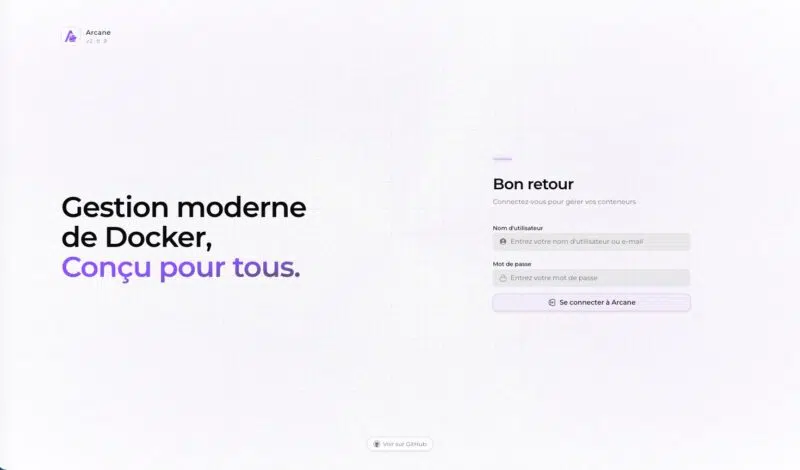
The default credentials are therefore the user arcane and the password arcane-admin. The last line confirms it: changing the password is mandatory at the first login. Then go to http://<SERVER_IP>:3552 and sign in.
Once the new password has been set, the logs record it, which makes it easy to verify that the operation succeeded:
arcane | Jul 27 17:52:54.704 INF Incoming request request.method=POST request.host=192.168.100.10 request.path=/api/auth/password response.latency=295.971778ms response.status=200By the way, you’ll notice that Arcane’s logs are structured and detail each request received with its method, route, and response code. For troubleshooting, that’s always welcome!
Expose Arcane over HTTPS behind Traefik
Publishing port 3552 in cleartext on the network is fine for a test, but not for daily use. Let’s look at the production version, with Arcane placed behind Traefik and reachable over HTTPS. The port is no longer published on the host; everything goes through the reverse proxy. The address used is: https://arcane.it-connectlab.fr.
The adapted Docker Compose file
To publish Arcane with Traefik, a few Docker labels are enough! Here is the adapted Docker Compose file.
services:
  arcane:
    image: ghcr.io/getarcaneapp/manager:v2
    container_name: arcane
    restart: unless-stopped
    environment:
      - APP_URL=${APP_URL}
      - TRUSTED_PROXIES=${TRUSTED_PROXIES}
      - ENCRYPTION_KEY=${ENCRYPTION_KEY}
      - JWT_SECRET=${JWT_SECRET}
      - PROJECTS_DIRECTORY=${PROJECTS_DIRECTORY}
      - PUID=${PUID}
      - PGID=${PGID}
      - TZ=${TZ}
    volumes:
      - /var/run/docker.sock:/var/run/docker.sock
      - ./arcane-data:/app/data
      - /opt/docker-compose:/opt/docker-compose
    cgroup: host
    healthcheck:
      test: ["CMD", "/app/arcane", "health", "--timeout", "2s"]
      interval: 30s
      timeout: 5s
      retries: 3
      start_period: 15s
    networks:
      - frontend
    labels:
      - traefik.enable=true
      - traefik.docker.network=frontend
      - traefik.http.routers.arcane-https.rule=Host(`arcane.it-connectlab.fr`)
      - traefik.http.routers.arcane-https.entrypoints=websecure
      - traefik.http.routers.arcane-https.tls=true
      - traefik.http.routers.arcane-https.tls.certresolver=ovhcloud
      - traefik.http.services.arcane-https.loadbalancer.server.port=3552

networks:
  frontend:
    external: true
And here is the corresponding .env file. You will notice that I adapted the value of the APP_URL variable. The TRUSTED_PROXIES variable has been added as well.
# Public URL, WITHOUT the internal 3552 port
APP_URL=https://arcane.it-connectlab.fr

# Docker network subnet shared with Traefik
TRUSTED_PROXIES=10.200.1.0/24

ENCRYPTION_KEY=30bfabc62ff88fc89a07a3b4162ec6f0b22d55d41f3264733ec5b1bab3714339
JWT_SECRET=73557fccb25aac9330571204bdb23098366c871f9dc4897f84933488b6327d65

PROJECTS_DIRECTORY=/opt/docker-compose
PUID=1000
PGID=1000
TZ=Europe/Paris
A few words about TRUSTED_PROXIES: Arcane rate-limits its authentication endpoints (login, token refresh, OIDC callback) based on the client IP address. Behind a reverse proxy, without this variable, all requests appear to come from the same address: brute-force protection loses its value, and a legitimate user may be blocked because of traffic generated by others. This value allows Arcane to trust the X-Forwarded-For header sent by Traefik.
Another point, still about this same variable: do not randomly copy the address range. Here, I entered the Docker network address corresponding to my frontend network (which is a custom subnet). So query Docker directly:
docker network inspect frontend --format '{{range .IPAM.Config}}{{.Subnet}}{{end}}'
10.200.1.0/24
Limit access to the Docker socket
Mounting /var/run/docker.sock into a container is equivalent to giving it the keys to the host. To reduce the attack surface, you can place a Docker Socket Proxy in between to filter the allowed calls. Arcane documents this setup on a dedicated page, and here is the set of permissions it recommends:
services:
  arcane-socket-proxy:
    image: ghcr.io/tecnativa/docker-socket-proxy:latest
    container_name: arcane-socket-proxy
    restart: unless-stopped
    environment:
      # Required for Arcane to work
      - CONTAINERS=1
      - IMAGES=1
      - NETWORKS=1
      - VOLUMES=1
      - INFO=1
      - EVENTS=1
      - VERSION=1
      - PING=1
      - EXEC=1
      - POST=1
      # Essential to keep update detection working (see below)
      - DISTRIBUTION=1
      # Explicitly denied
      - AUTH=0
      - SECRETS=0
      - BUILD=0
      - COMMIT=0
      - CONFIGS=0
      - SWARM=0
      - SERVICES=0
      - TASKS=0
      - NODES=0
      - PLUGINS=0
      - SESSION=0
      - SYSTEM=0
    volumes:
      - /var/run/docker.sock:/var/run/docker.sock:ro
    networks:
      - arcane-socketproxy
    security_opt:
      - no-new-privileges:true
On the Arcane service side, remove the socket mount and add the DOCKER_HOST=tcp://arcane-socket-proxy:2375 variable, then attach the container to the proxy’s internal network.
Warning: the example in the official documentation sets DISTRIBUTION=0. However, that permission is exactly what allows Arcane to inspect images and check for updates. If you leave it at zero, you keep container management but lose new-version detection, which is one of the most interesting features of the tool. That is why I set it to 1 in the configuration above.
In practice, you need to adjust the configuration according to the features you want to use in Arcane. A few details to guide you:
BUILD=0blocks the endpoint used to build images.SWARM,SERVICES,NODESandTASKSset to zero make the Cluster section unusable (so no Docker Swarm).POST=1remains mandatory. Without it, Arcane cannot start, stop, or create anything.EXEC=1is required for the built-in web terminal. Remove it if you do not need it; afterPOST, this is the most sensitive permission in the set.
Discover the Arcane interface
Once connected, the interface appears with a sidebar organized into four blocks: Management (dashboard, projects, environments, customization), Resources (containers, images, updates, networks, volumes), Swarm (Swarm cluster), and Administration (event log, settings).
The dashboard
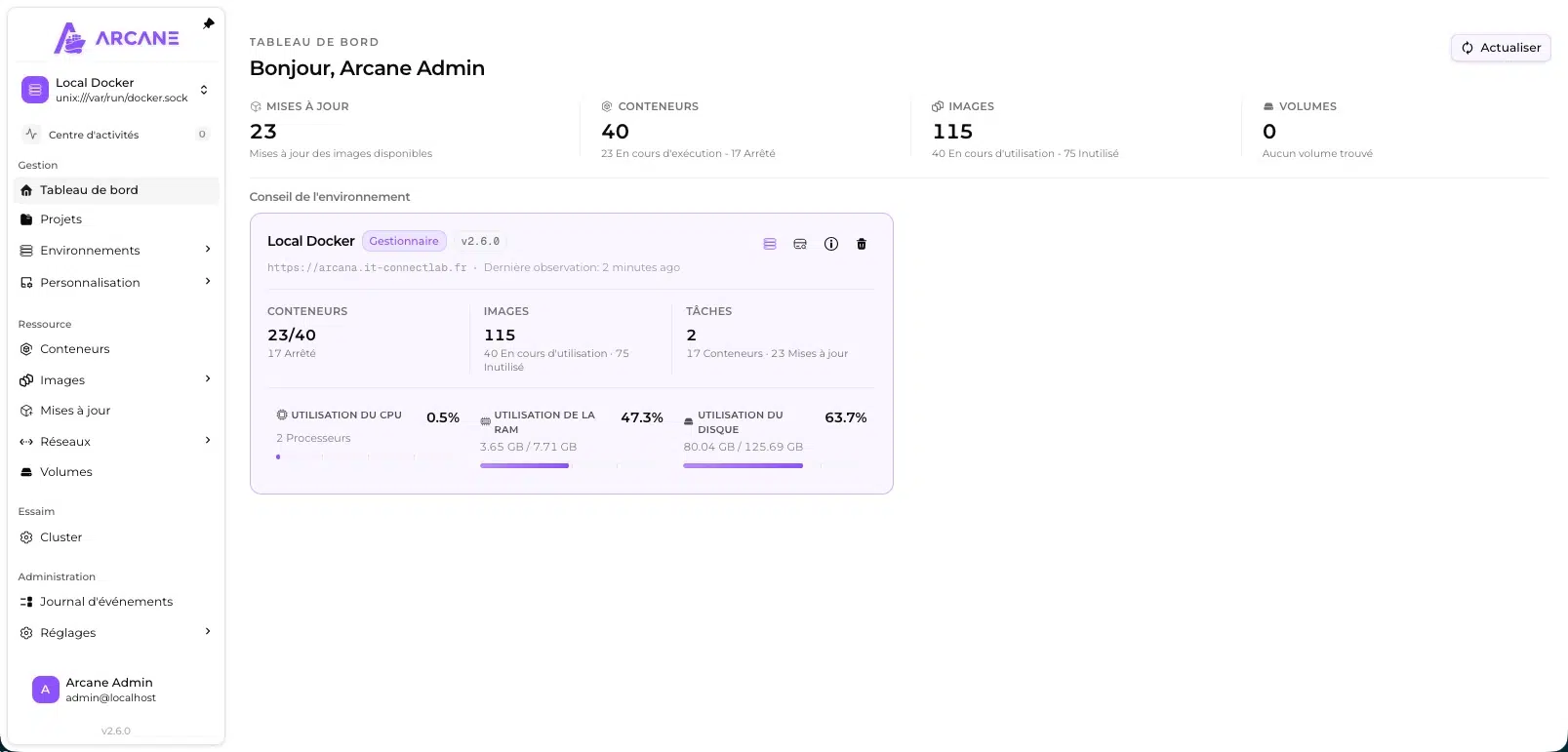
The dashboard shows the host’s health at a glance: number of available updates, running and stopped containers, used and unused images, volumes, then CPU, memory, and disk usage. On my test machine, Arcane immediately reported 23 image updates pending across 40 containers, and 75 unused images out of 115 for a total of 41.48 GB. There is some cleanup to do!
Environments
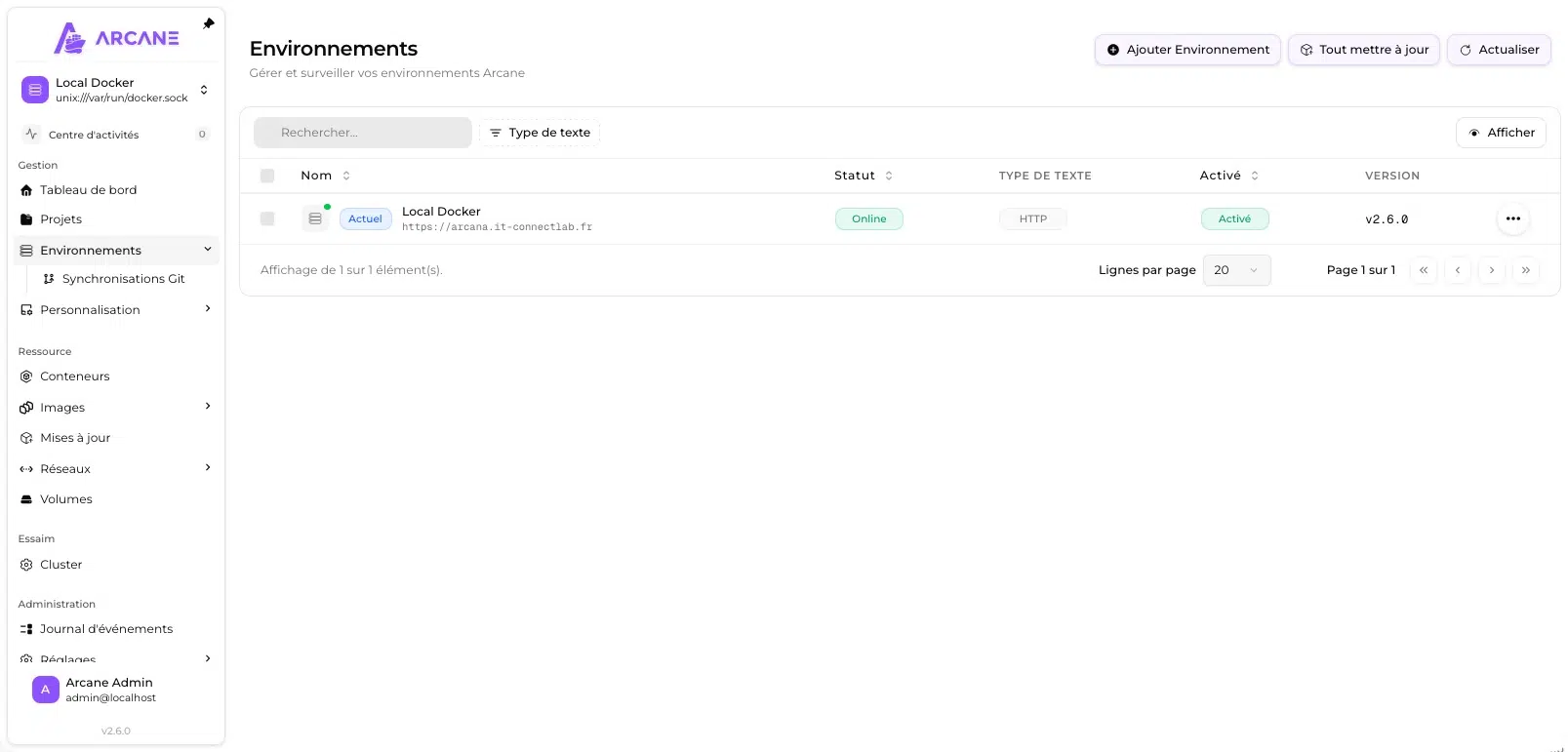
Arcane connects to one or more environments where containers are running. The default one, named “Local Docker,” corresponds to the socket mounted in the container: that is your local host. You can declare others to manage remote Docker hosts, via an agent to be installed on the target machine. This makes it possible to centralize multiple servers in a single interface, without exposing the Docker API to the network.
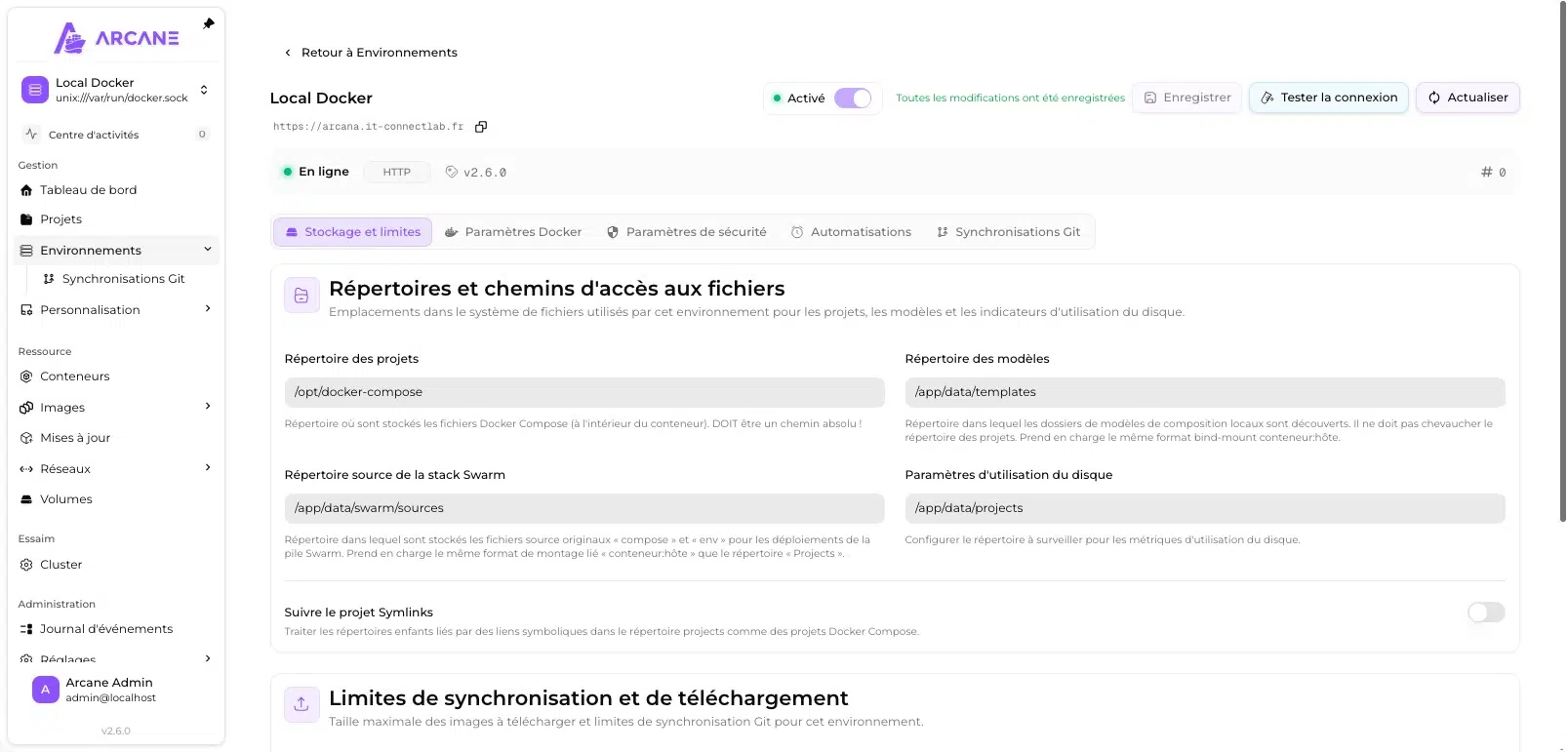
Each environment has its own configuration, divided across five tabs: storage and limits, Docker settings, security settings, automations, and Git synchronizations. The first one contains the project directory declared through PROJECTS_DIRECTORY. It is really comprehensive.
Managing Docker Compose projects
Automatic discovery of existing stacks
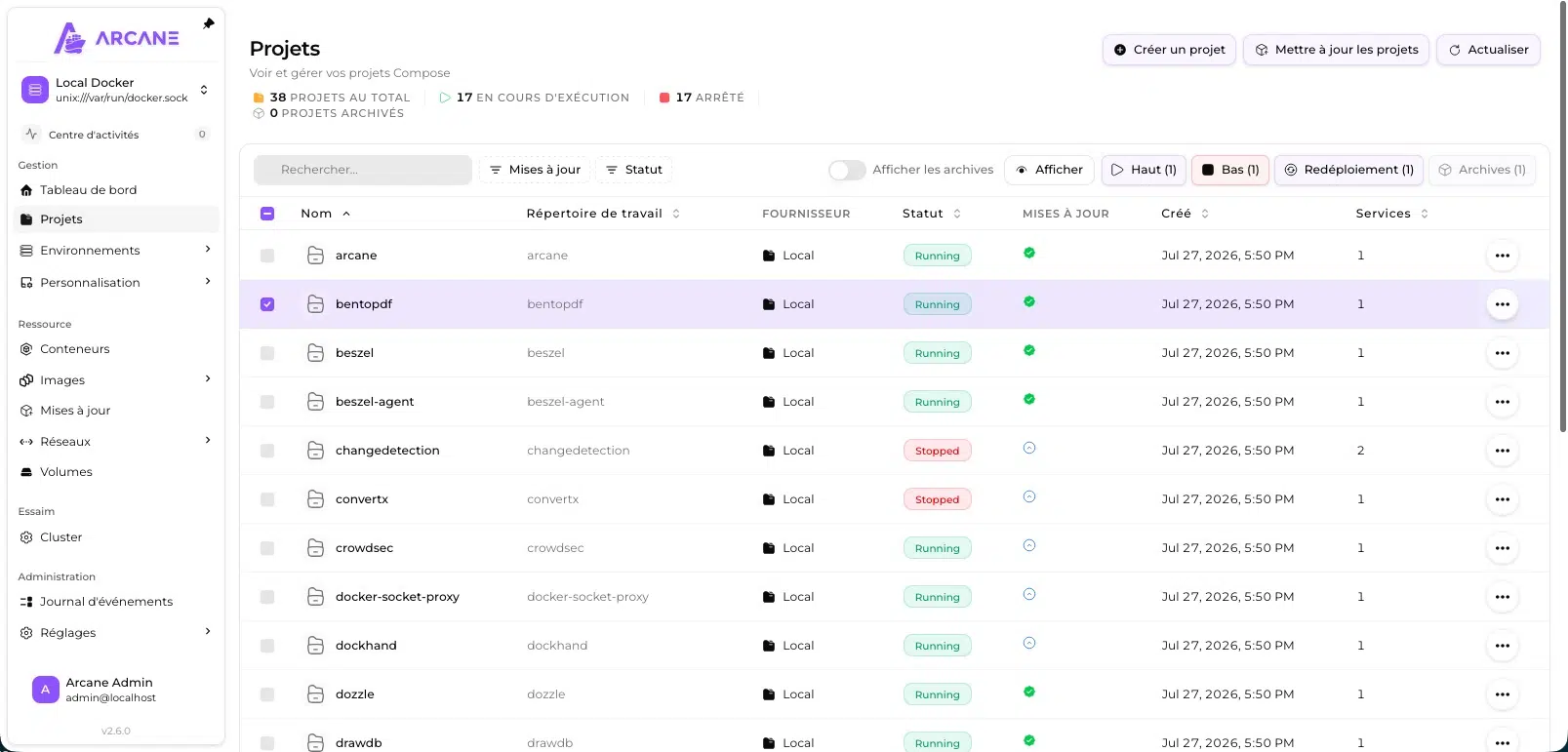
At startup, Arcane scans the directory declared in PROJECTS_DIRECTORY and lists each subfolder containing a Compose file as a project. As a result, your stacks appear automatically. On my server, it found about thirty projects without any intervention on my part. What you need to understand is that you do not need to import or recreate anything: your existing stacks are brought in as they are, with their working directory, status, and number of services. That is not always the case; for example, with Dockhand, there is a concept of adopting projects that are outside the tool.
Create a new project
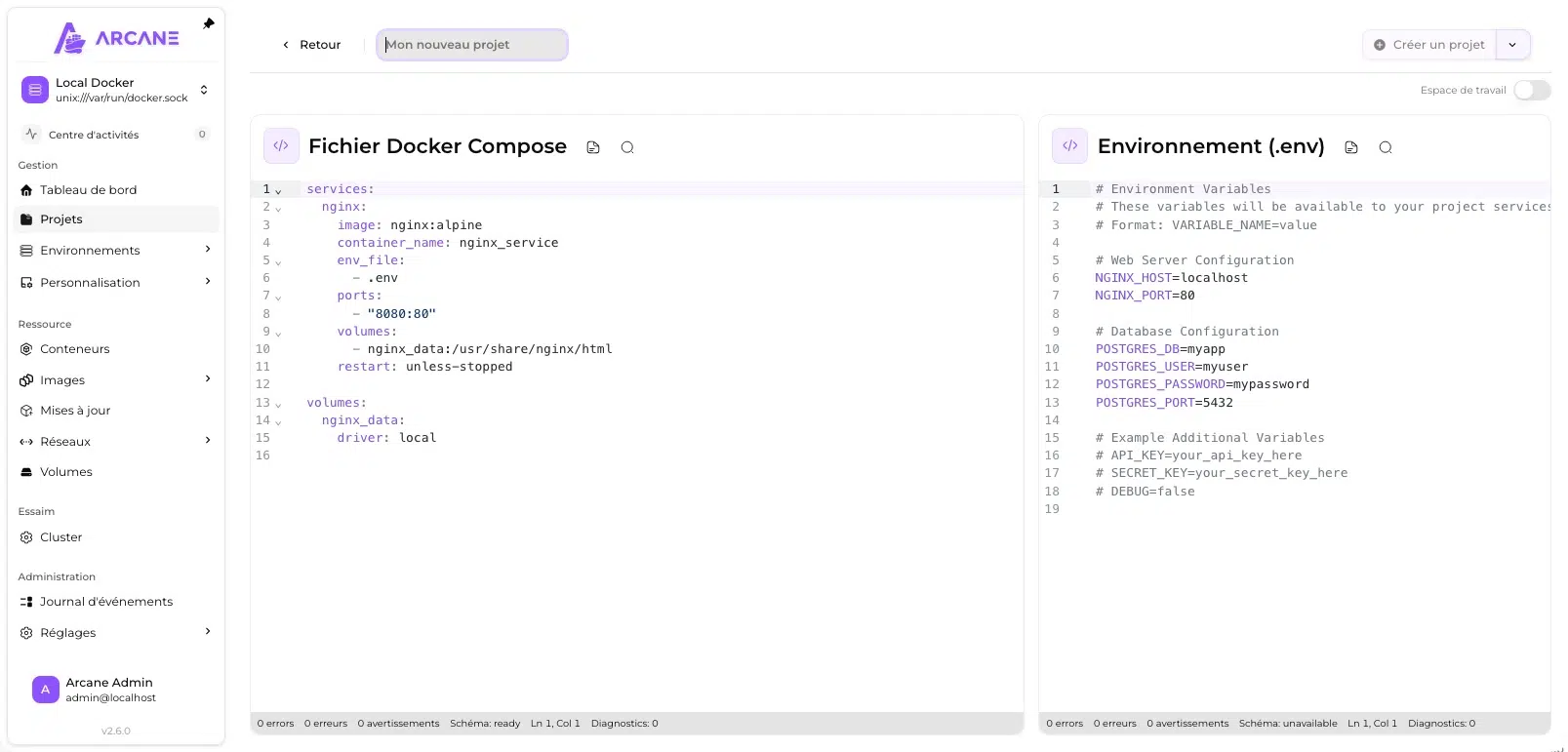
Creating a project opens two side-by-side editors: the Docker Compose file on the left, the .env file on the right. Unless you switch to “Workspace” mode, where you get the editor on the right and the file tree on the left (you have an example later in the article).
The online editor validates the syntax live, especially to check whether it matches the Docker Compose schema, and shows the number of errors and warnings at the bottom of the page. That matters because it gets close to a VS Code editing experience (even if it does not go that far). The example below is offered by default by Arcane so you do not start from scratch, but you can also create Docker Compose templates. That can be handy if you always use Traefik to preconfigure labels.
Edit an existing project
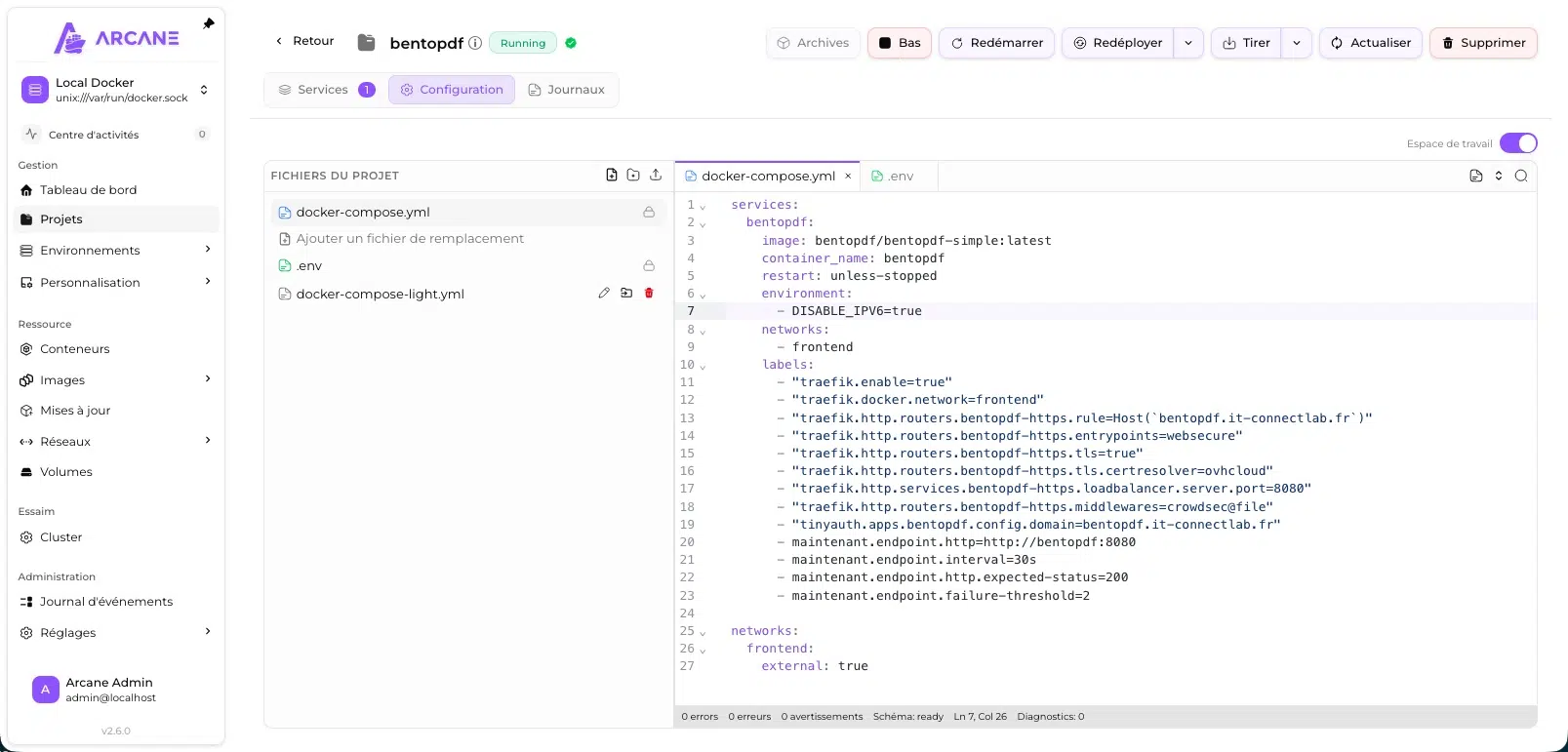
Editing an existing project goes beyond the simple docker-compose.yml and .env pair. The left panel lists all the project files, lets you add a file, and allows you to upload additional configuration files. The main files are marked with a lock to prevent accidental deletion. You can stop a stack, restart it, redeploy it, and even pull the image again (via the “Pull” button — a translation we could have done without).
View logs in real time
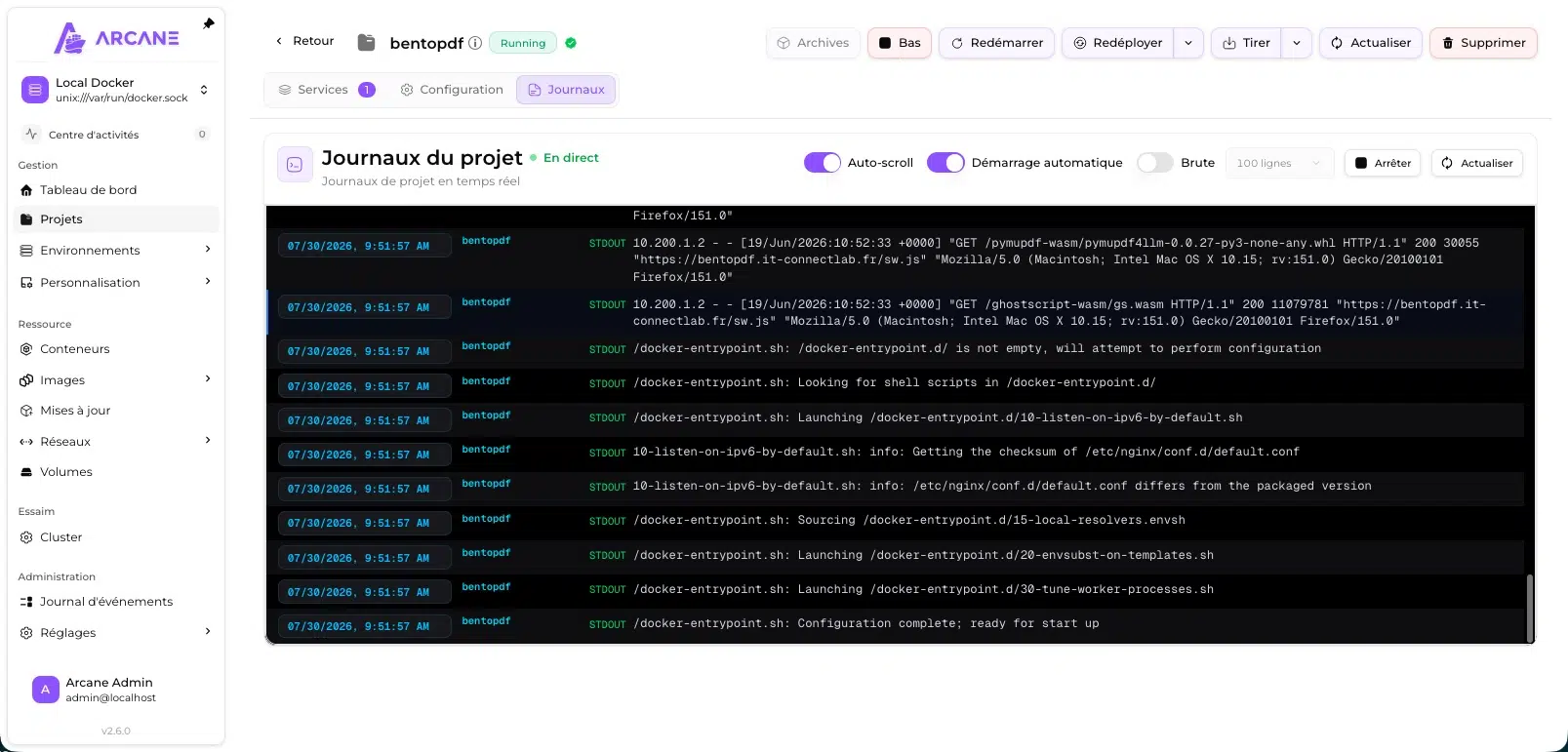
Logs are aggregated at the project level, with the service name as a prefix, a timestamp, and a distinction between STDOUT and STDERR. It is clean and sufficient for everyday troubleshooting. If you are looking for high-performance full-text search across history and pattern-based alerts, a dedicated tool like Dozzle is still a better fit. In fact, the two work very well together. As it stands, Arcane (in its current version) does not let you display logs from multiple containers / stacks at the same time.
Managing containers and images
The containers view
The container list shows each container’s image, status, whether an update is pending, and CPU usage. By clicking the update indicator, a window details the nature of the detected update. On that note, a container running on latest can still be weeks behind without any tag change making that obvious. Arcane compares the local digest with the one from the registry and tells you whether security or bug fixes are available, displaying the reference digest so updates can be detected reliably.
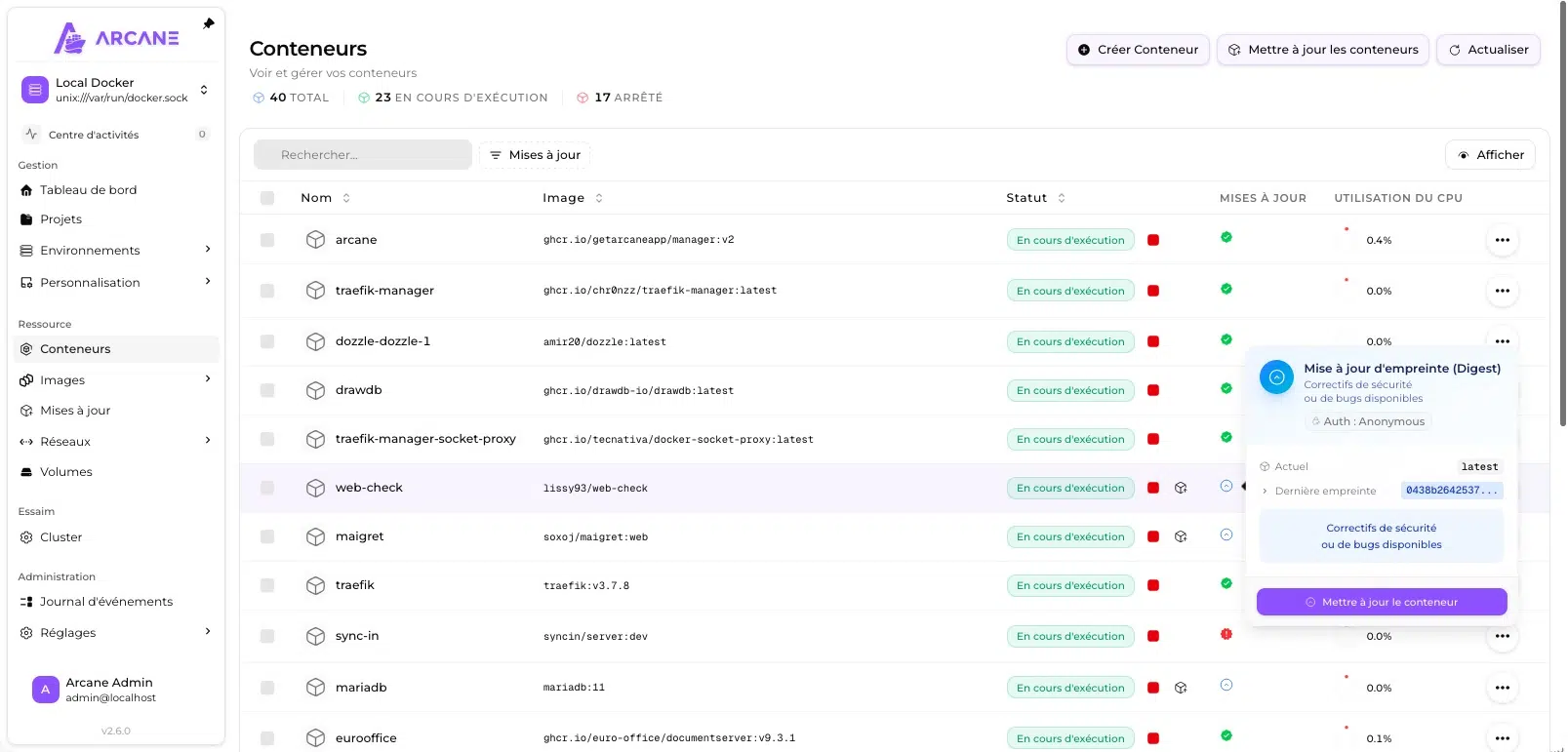
The display is customizable, both in terms of visible columns and grouping containers by Docker Compose stack.
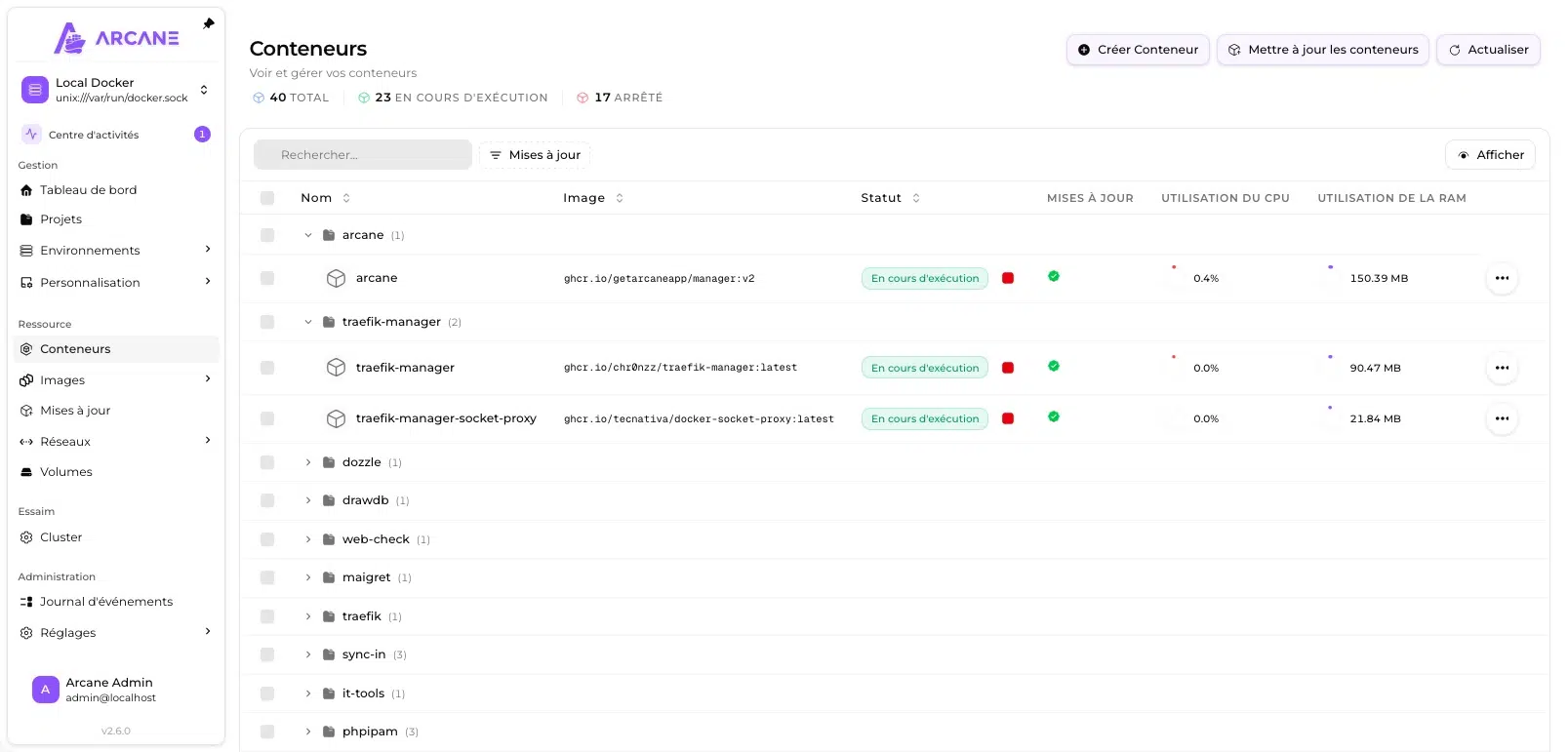
Image management
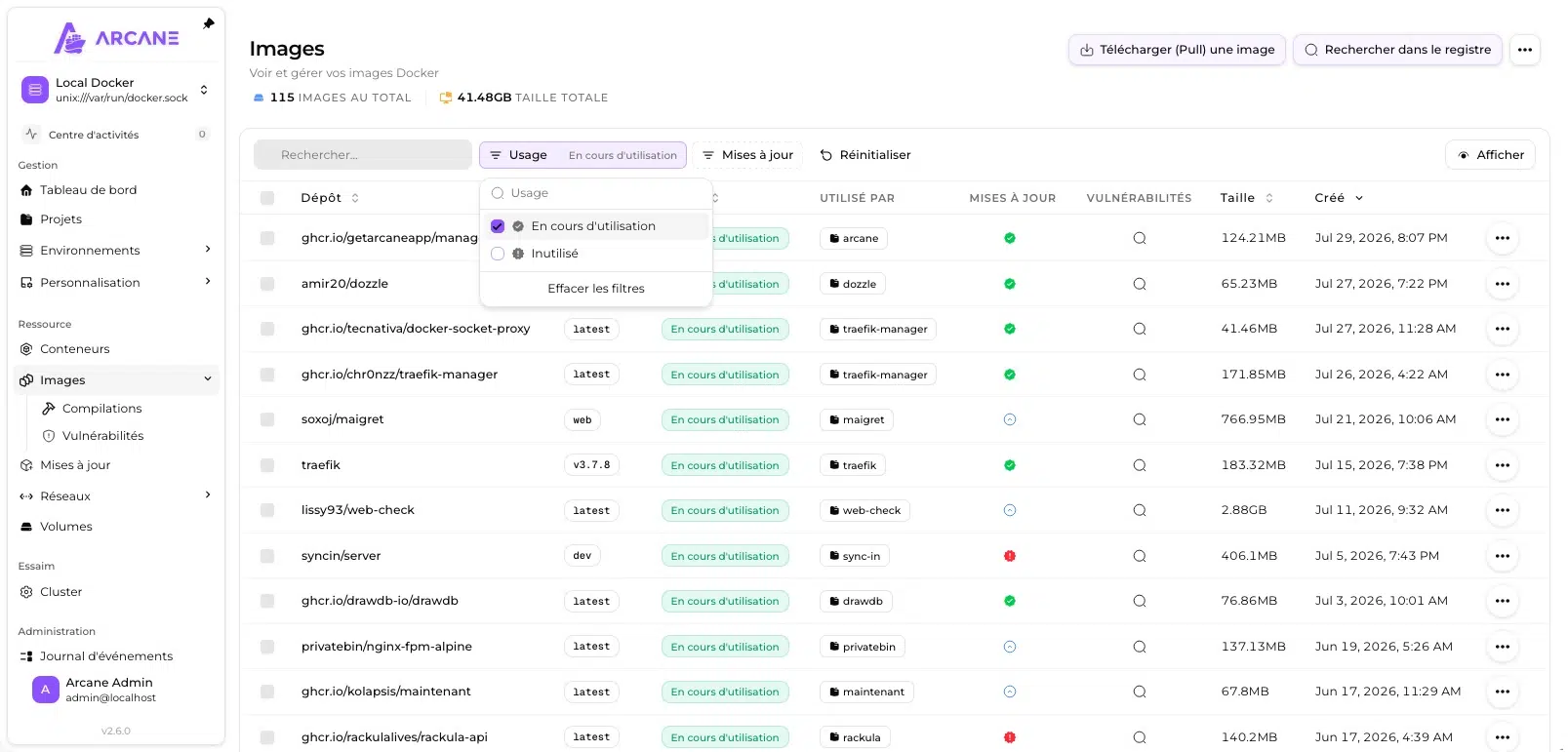
The Images view lists your images with a set of information including repository, tag, the container using them, the update indicator, and vulnerability scan results. You can also filter the list to show only used images, or conversely only unused ones. On my test machine, it identified dozens of unused images, which means plenty of disk space to reclaim.
Search and download an image
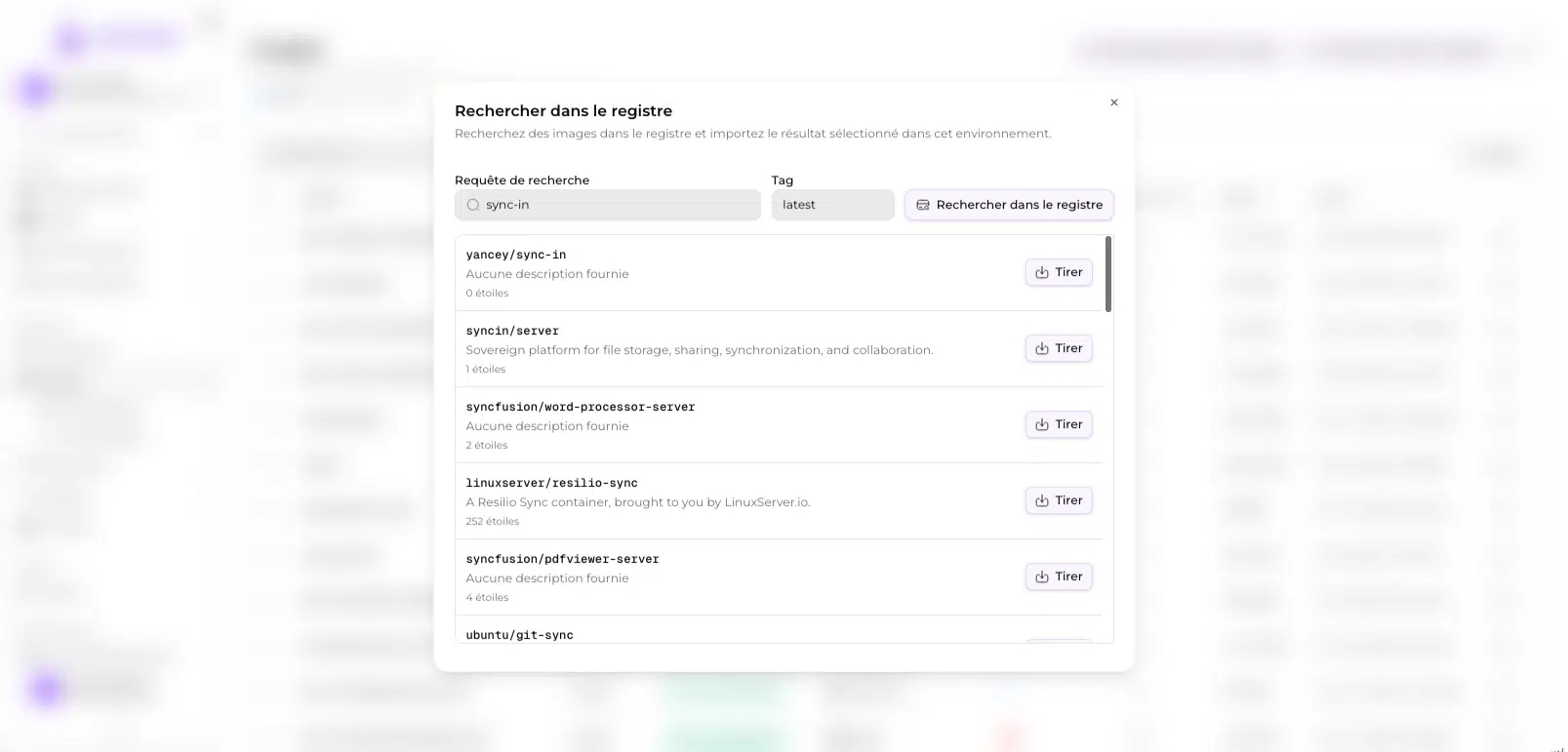
Arcane can download a Docker image when launching a container or a Docker Compose stack for the first time, but that is not all. It also includes a registry search feature to download the image locally. Even though the search is basic compared with the Docker Hub interface, it is practical if you know exactly what you want to download.
Build an image
A more unexpected feature for this type of interface: Arcane can build images. The workspace offers a file explorer where you drop your Dockerfile and its context, or point to a remote Git repository. You then choose whether the image should be loaded locally or pushed to a registry, and you launch the build.
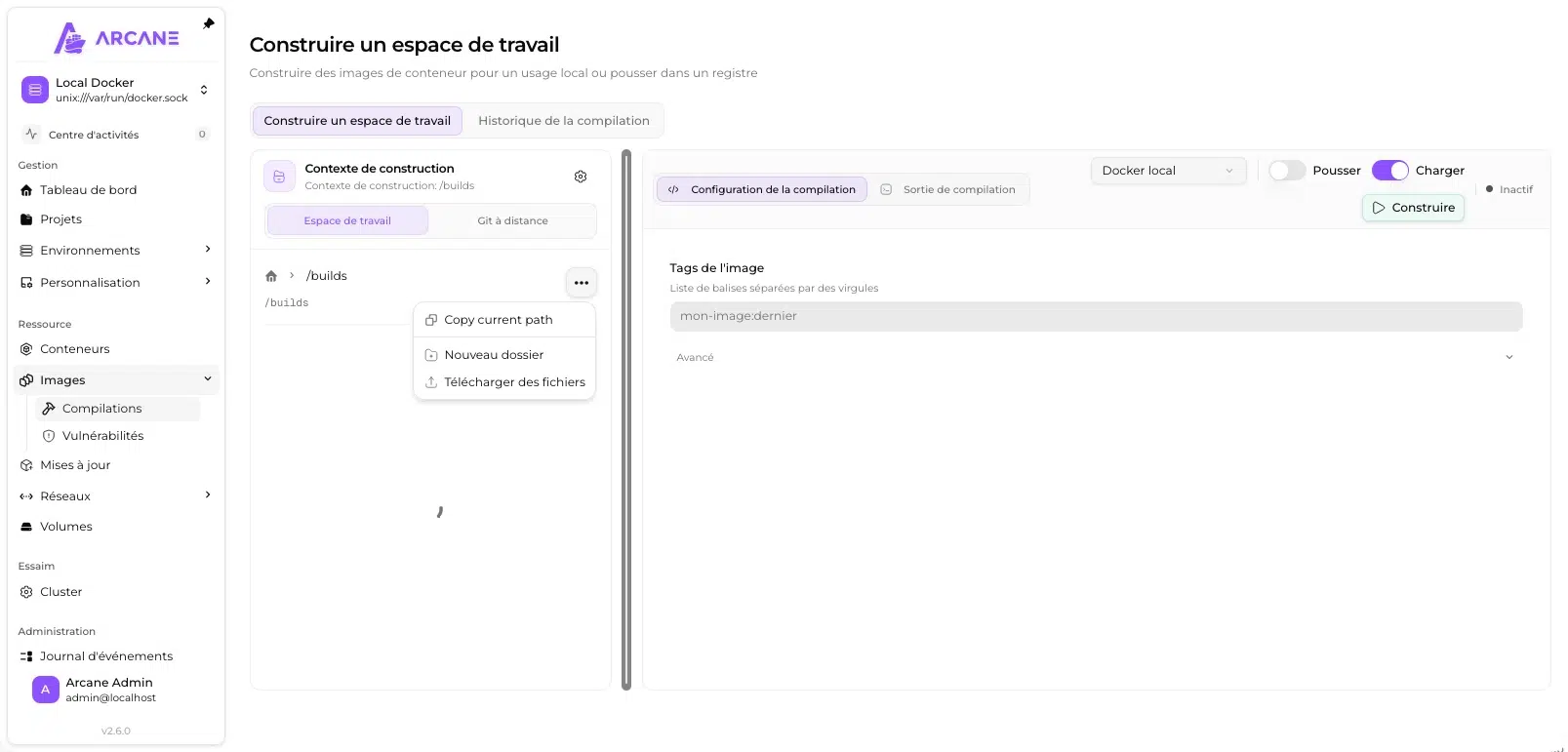
But be careful: for this feature, you need to add the folder mount to the Docker Compose file:
      # Image build workspace
      - ./builds:/builds
Track and automate updates
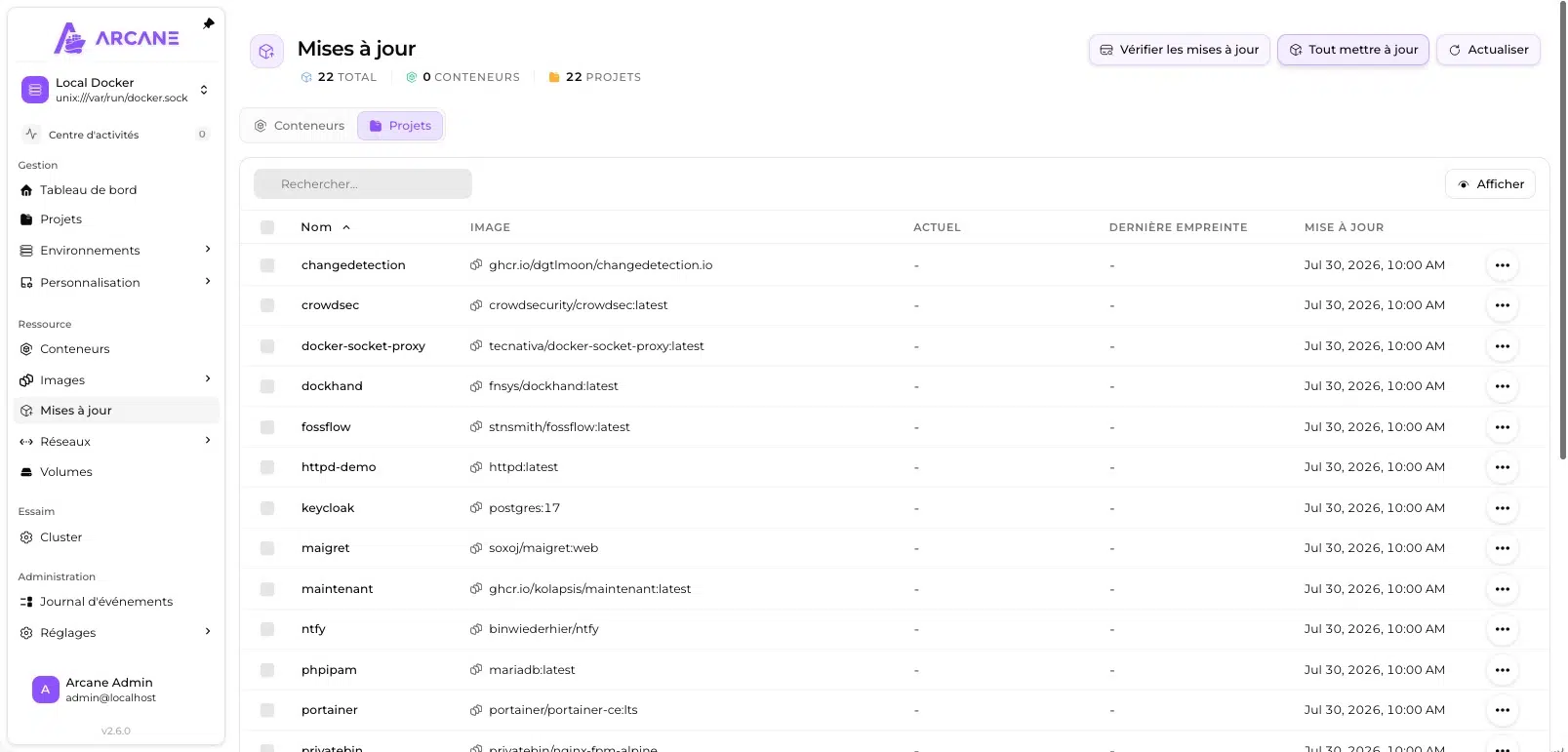
Update management and automation are part of the expected features when you adopt an administration tool for Docker. The good news is that Arcane includes a dedicated view that centralizes all available updates, with the option to display them at either container level or project level. You can trigger updates individually, in batches, or update everything at once (watch out for side effects). Each entry shows the image involved, the current digest, the latest published digest, and the verification date. Arcane has a preconfigured routine that regularly checks whether an update is available.
Schedule checks and updates
The update topic is a good opportunity to switch to the Automations tab. In fact, there are two distinct mechanisms for automating Docker image updates, and it is useful to clearly distinguish them:
- Auto Update applies updates according to a schedule expressed in cron syntax. An exclusion list lets you designate containers to leave alone (you can do this with Docker labels as well).
- Image Update Watcher only checks registries, without applying anything.
So you have options, and you can still keep control over sensitive projects.
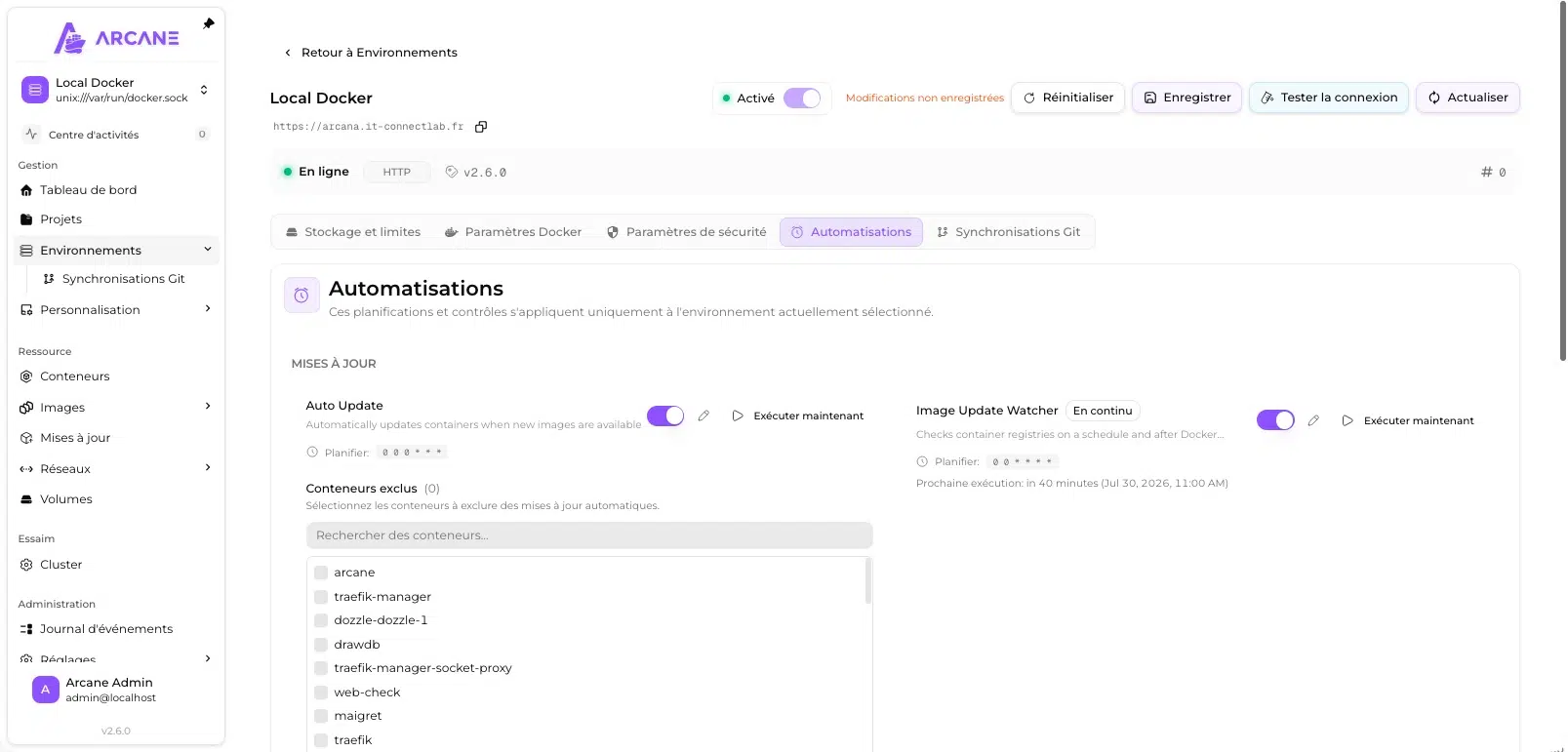
In practice, Arcane is therefore encroaching on the territory of Watchtower and What's Up Docker.
Labels supported for updates via Arcane
Three labels are documented on the Arcane side (getarcane.app/docs/guides/updates), all under the com.getarcaneapp.arcane.* namespace. Here is how to use them in your Docker Compose projects:
    labels:
      # Excludes the container from automatic updates
      # Enable: true, 1, yes, on / Disable: false, 0, no, off
      - com.getarcaneapp.arcane.updater=false
      # Restart order: comma-separated list of container names
      - com.getarcaneapp.arcane.depends-on=db,redis
      # Custom stop signal instead of SIGTERM
      - com.getarcaneapp.arcane.stop-signal=SIGINT
Keep in mind that the label takes precedence over the interface. A container with an explicit updater label will be clearly marked in the web interface. I think the depends-on label is particularly useful for an application + database pair, so that restarts happen in the right order after an update.
Receive notifications
Arcane’s Notifications section is really comprehensive, because it supports many communication channels. This ranges from the most basic one, email, to more modern methods: Discord, Gotify, Matrix, Ntfy, Pushover, Signal, Slack, and Telegram. It also provides the ability to trigger a webhook.
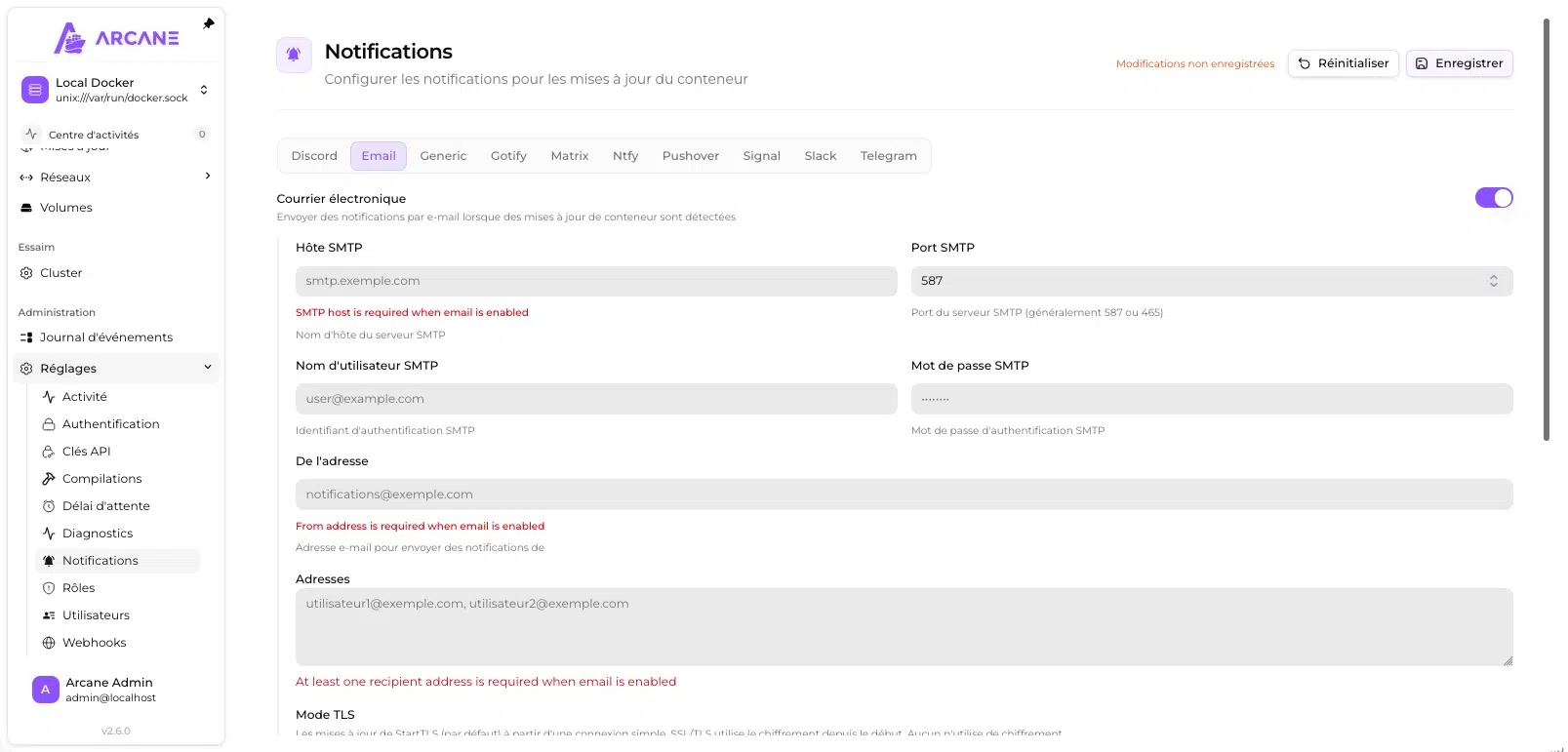
Now, the question is: in which cases are notifications sent? Currently, you can enable or disable notifications (per channel) for the following events:
- Detected image update
- Container updated
- System pruning report
- Vulnerability found with a patch available
- Container automatically restarted after an unhealthy state
Analyze image vulnerabilities with Trivy
Here is a feature that, in my opinion, puts Arcane in a class of its own: integration with Trivy, Aqua Security’s vulnerability scanner. This makes it possible to scan Docker images and aggregate the results inside Arcane for the images you use. Note that this feature is also available with Dockhand (which even offers two different analysis engines).
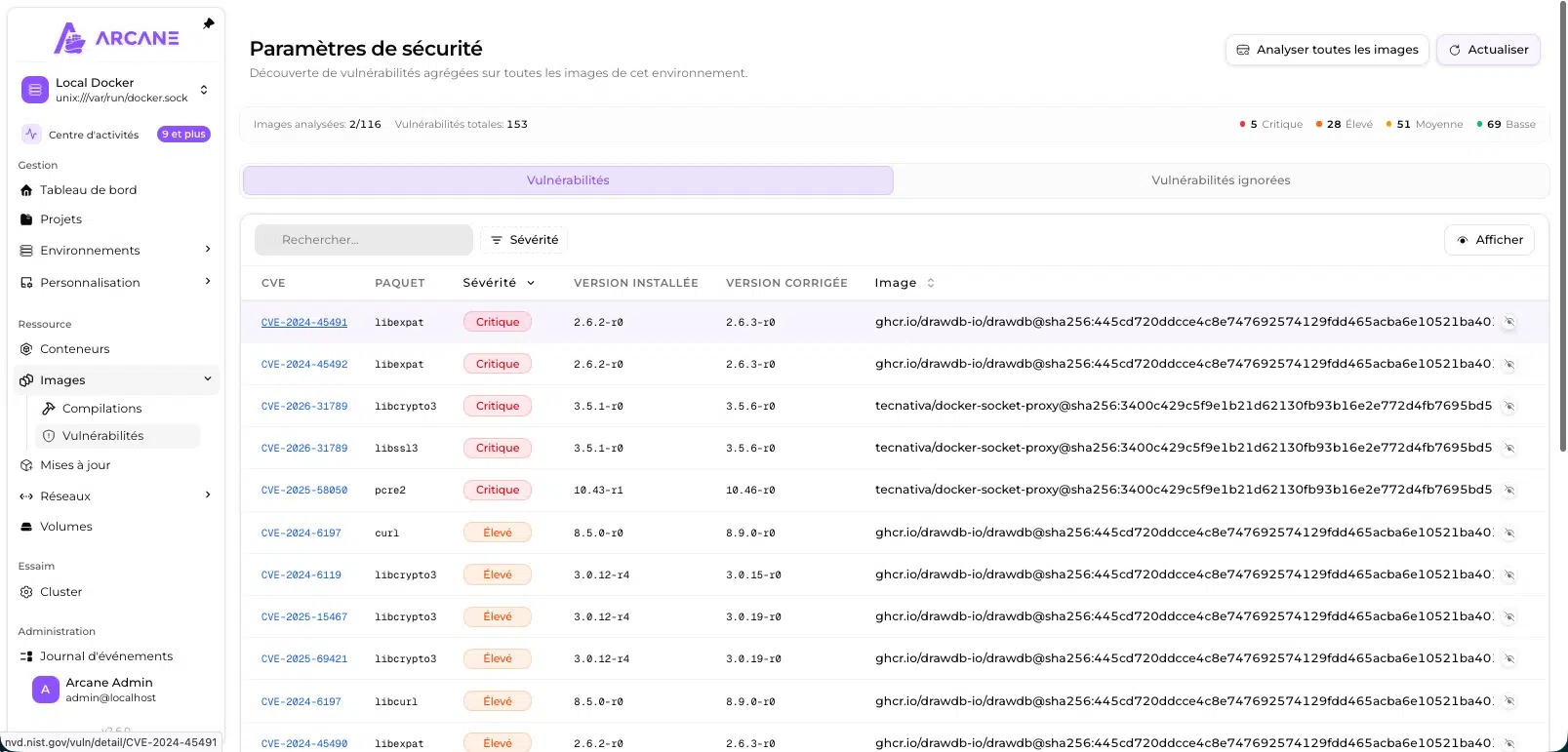
The table lists each vulnerability with its CVE identifier (with a clickable link to the NIST database), the affected package, severity, installed version, the version that fixes the issue, and the affected image, identified by its digest. The first time, you need to start a scan yourself. There is an “Analyze all images” button for this, which launches an image-by-image scan in the background. After that, the presence of a critical CVE in an image does not necessarily mean your service is at risk; it all depends on the package concerned and its actual use.
Note: Trivy itself was the target of a supply-chain attack in March 2026, with the publication of malicious versions (a big deal at the time!). This incident, which I covered in a dedicated article, is a reminder that a security tool is part of your attack surface, even when it is bundled inside another application.
Networks, ports, and topology
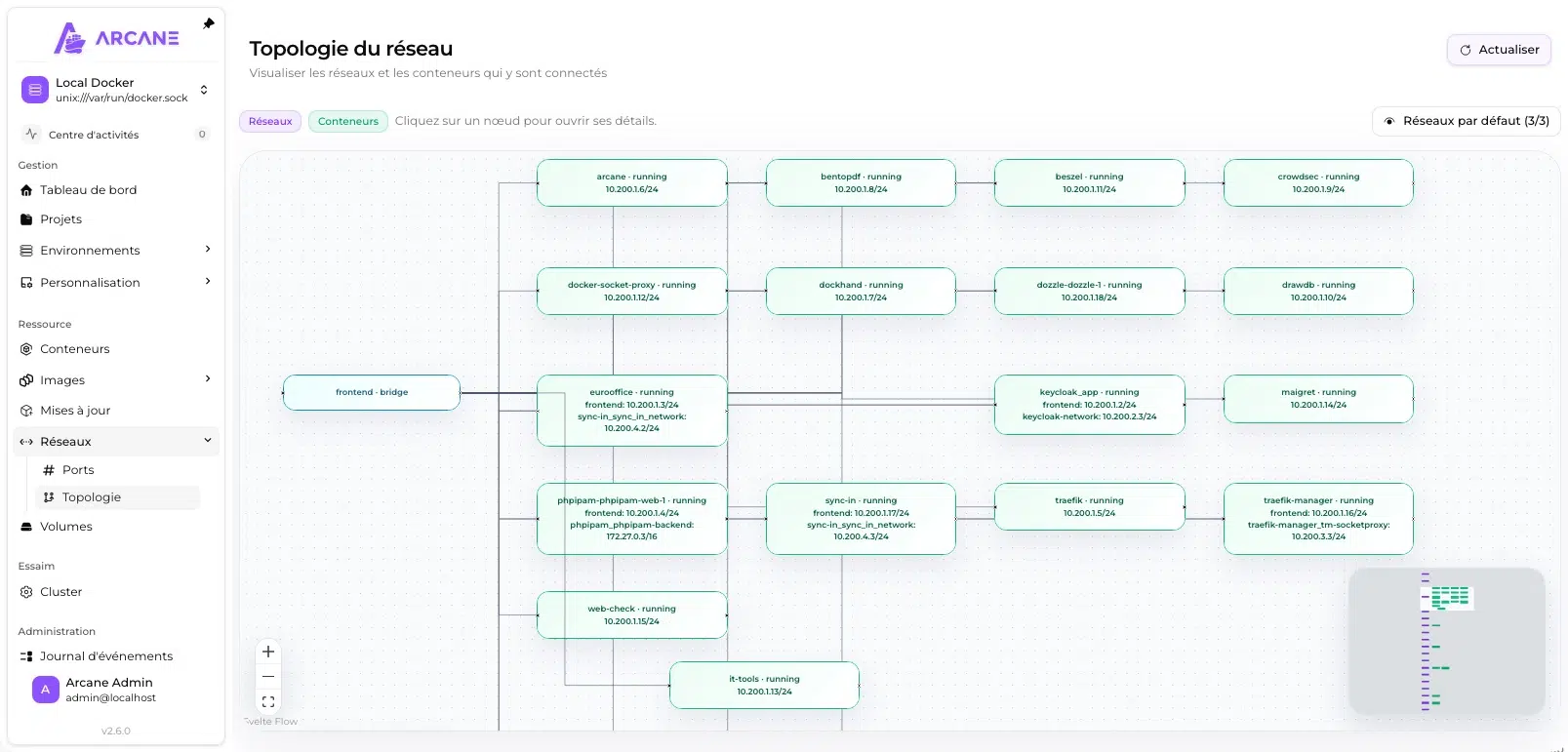
The Topology view represents Docker networks and the containers attached to them in graph form, with their IP addresses. A container connected to multiple networks displays its different addresses, which makes a shared front-end network and isolated internal networks immediately readable. Each node is clickable to jump directly to the resource details on its dedicated page.
This is the kind of view you do not actively look for, but it becomes invaluable when you need to understand why two containers cannot communicate with each other. It updates dynamically too, which makes it even better!
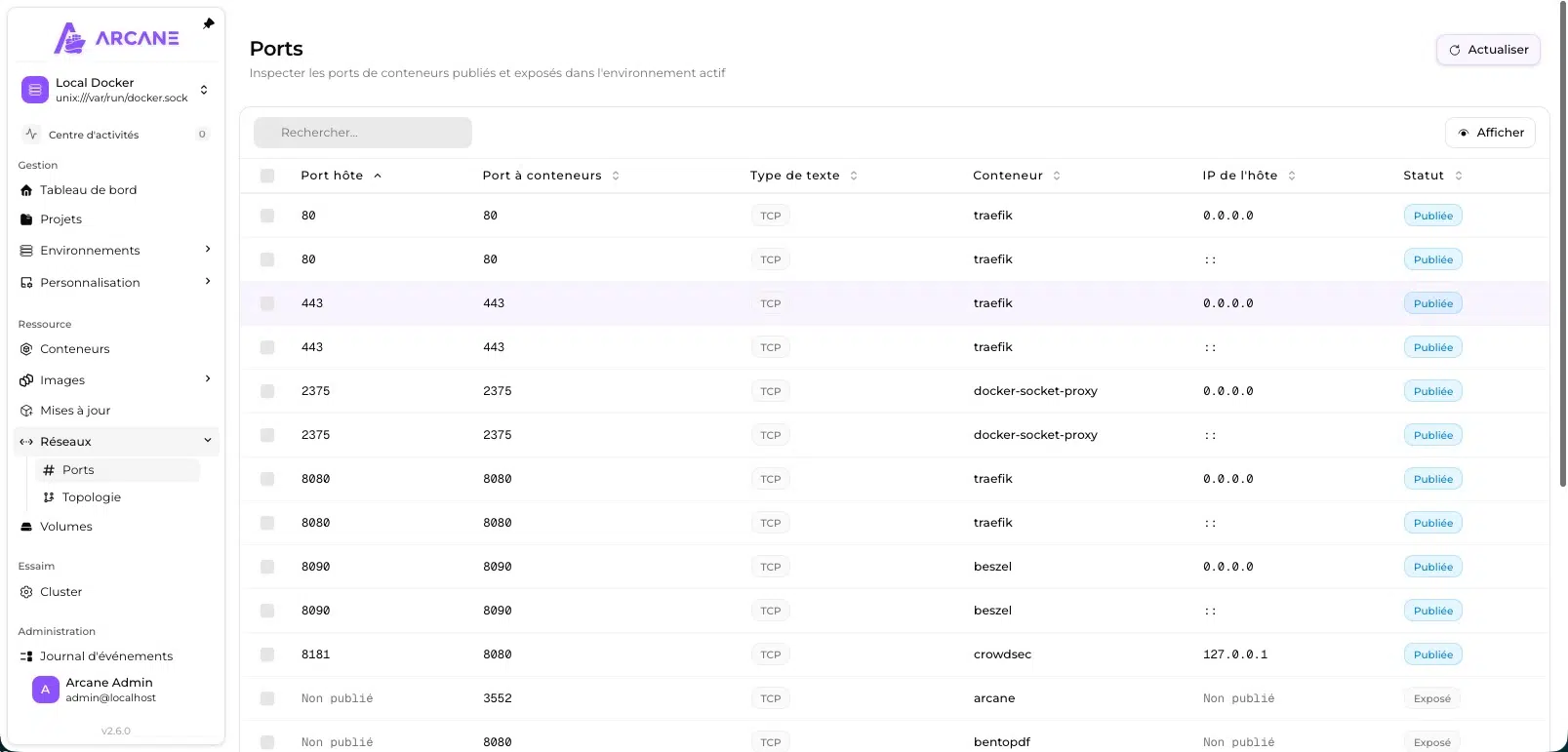
Just as useful is the Ports view. It inventories all the ports in the environment while distinguishing two states:
- Published: for a port that is actually reachable from the host,
- Exposed: for a port declared by the image but not published. It also shows the listening address, which makes it possible to spot at a glance a service bound to
0.0.0.0when it should remain on127.0.0.1.
For a quick audit of what your machine is really exposing, this view is better than docker ps or inspecting Docker networks....
Enterprise features in Arcane
Built-in roles (RBAC)
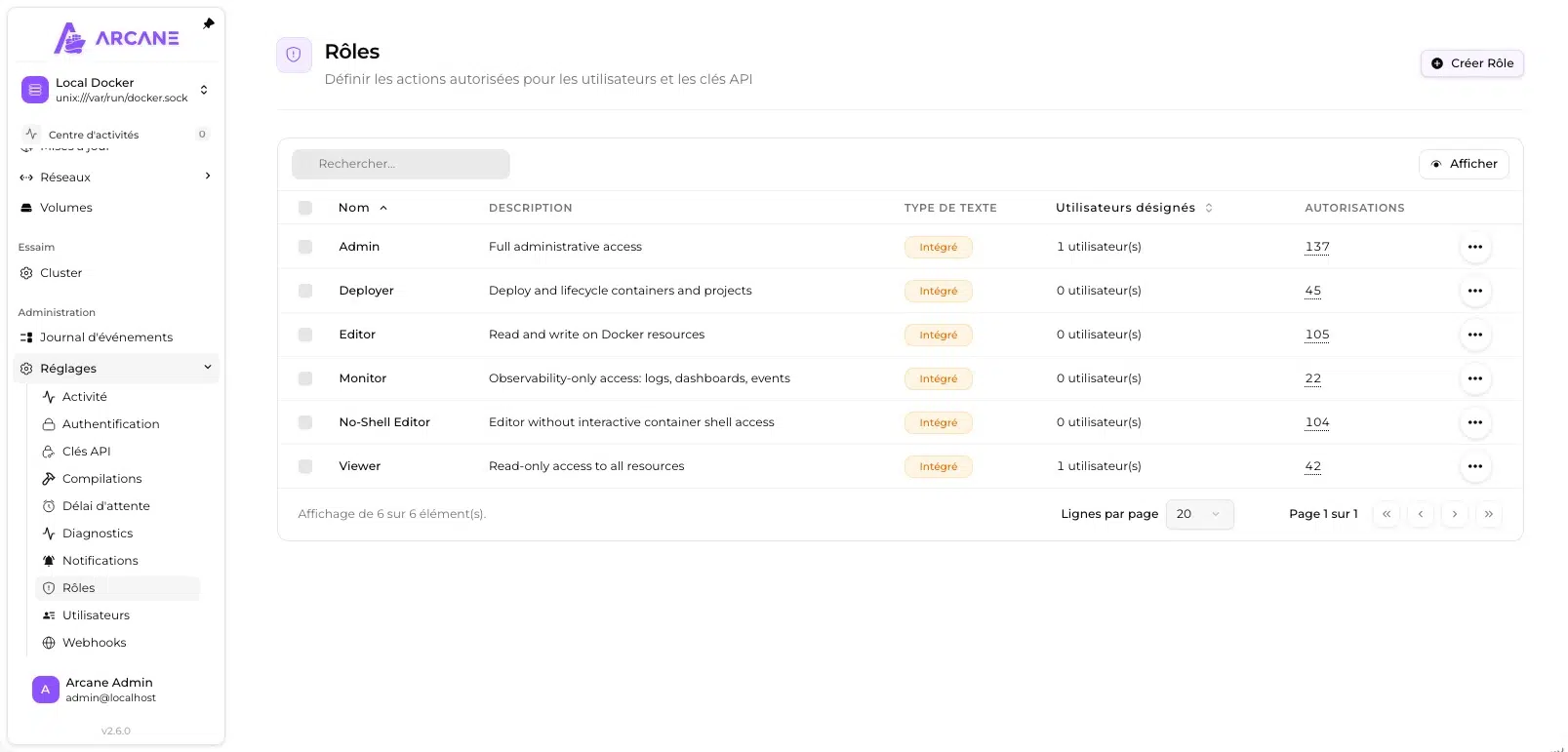
Role-based access control is native in Arcane. Native, free RBAC is really rare! Often, that is what makes the difference between a free tool and a paid tool... Arcane offers six predefined roles, with a count of associated permissions that gives you an idea of their granularity:
| Role | Scope | Permissions |
|---|---|---|
| Admin | Full admin access | 137 |
| Editor | Read and write access to Docker resources | 105 |
| No-Shell Editor | Editor without access to the interactive container shell | 104 |
| Deployer | Deployment and lifecycle management of containers and projects | 45 |
| Viewer | Read-only access to all resources | 42 |
| Monitor | Observability only: logs, dashboards, events | 22 |
Here is an overview of the default state.
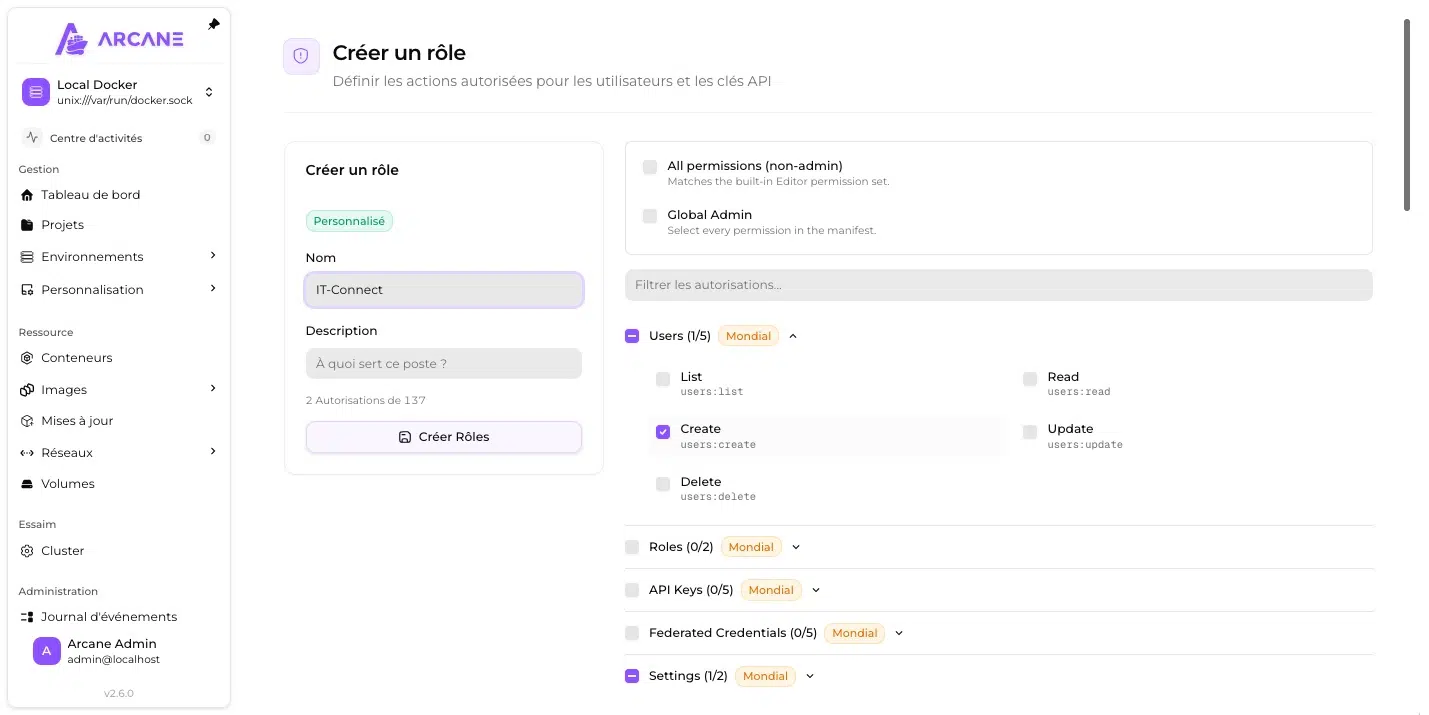
Even though these predefined roles exist, you can create custom roles. For each role, you can define the name and the associated permissions. Some permissions are global to the platform, while others work per Docker environment.
OIDC authentication
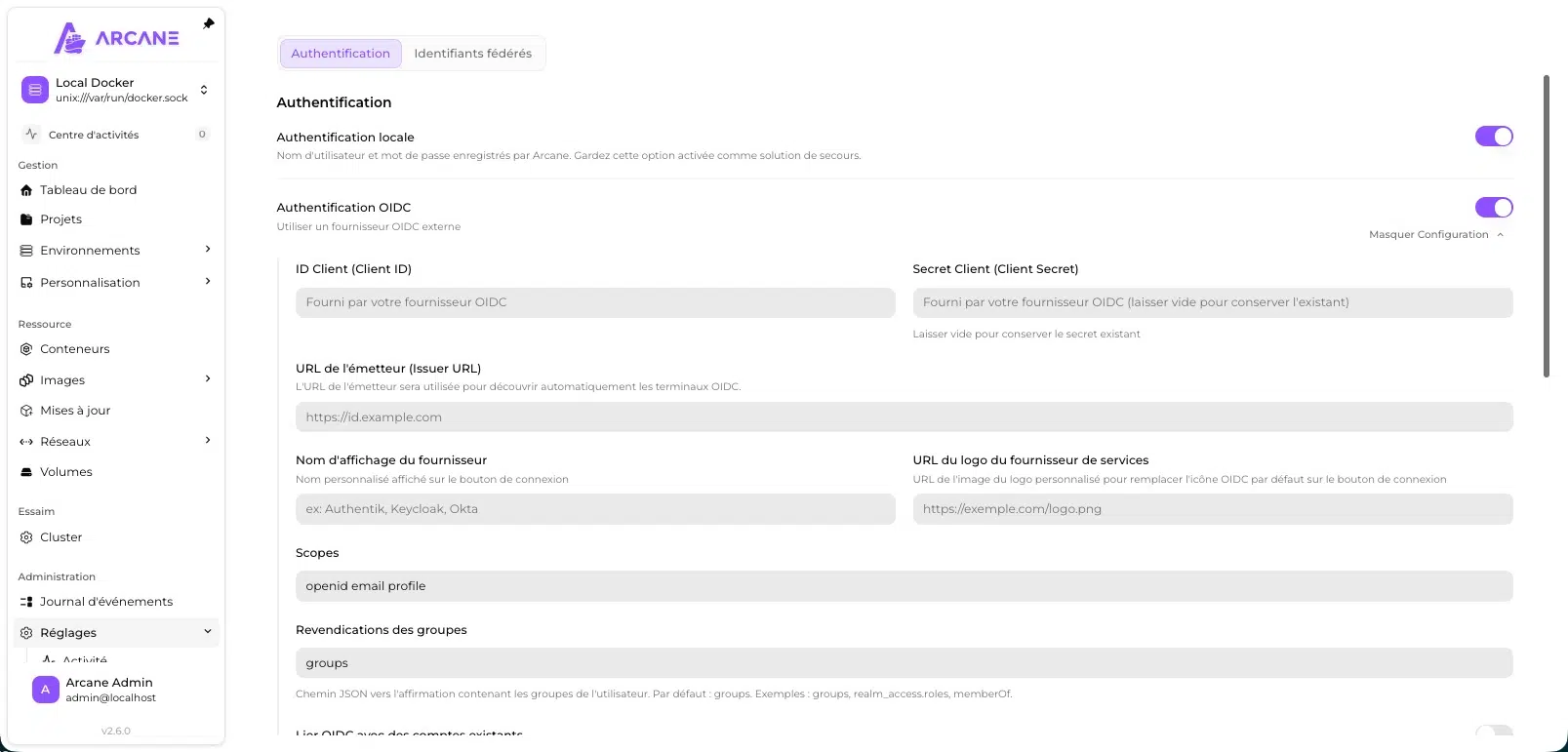
To top it all off, Arcane can delegate authentication to an external OIDC provider, whether that is Keycloak, Authentik, Okta, or another one. The configuration is complete and relies on the usual mechanisms for this type of authentication (Client ID, client secret, etc.). You can also customize claims, which makes it possible, for example, to map your existing groups to Arcane roles.
One option allows OIDC identities to be linked to existing local accounts. In addition, it is recommended to keep local authentication enabled as a fallback, which is a good practice: if your OIDC provider goes down, you still have a way into Arcane (especially if it is running on Docker too...).
API keys
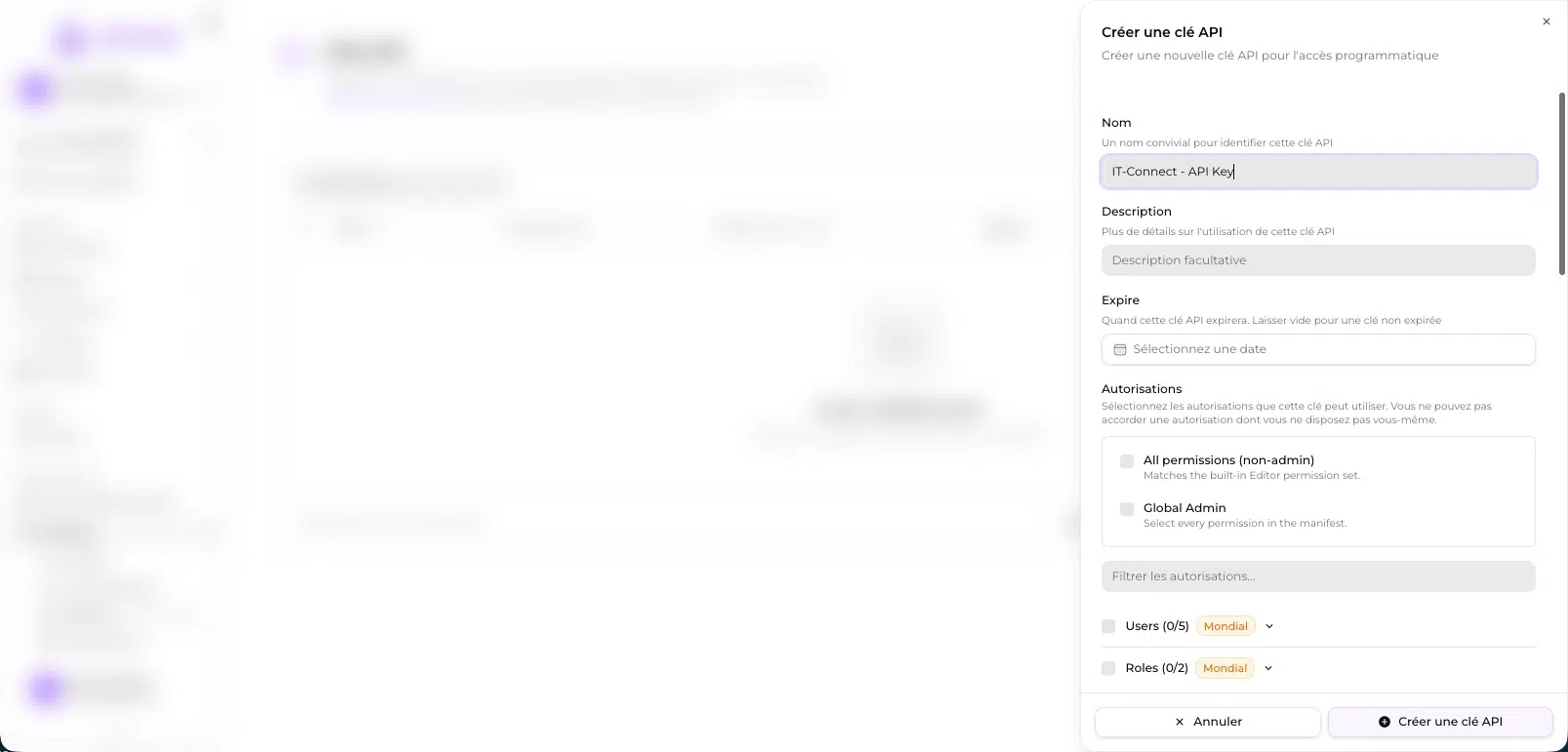
To control Arcane from a script or an external CI/CD integration pipeline, you can create API keys with a custom set of permissions. One interesting detail: you cannot grant a key a permission that you do not have yourself. That is an essential protection against privilege escalation.
Global variables and customization
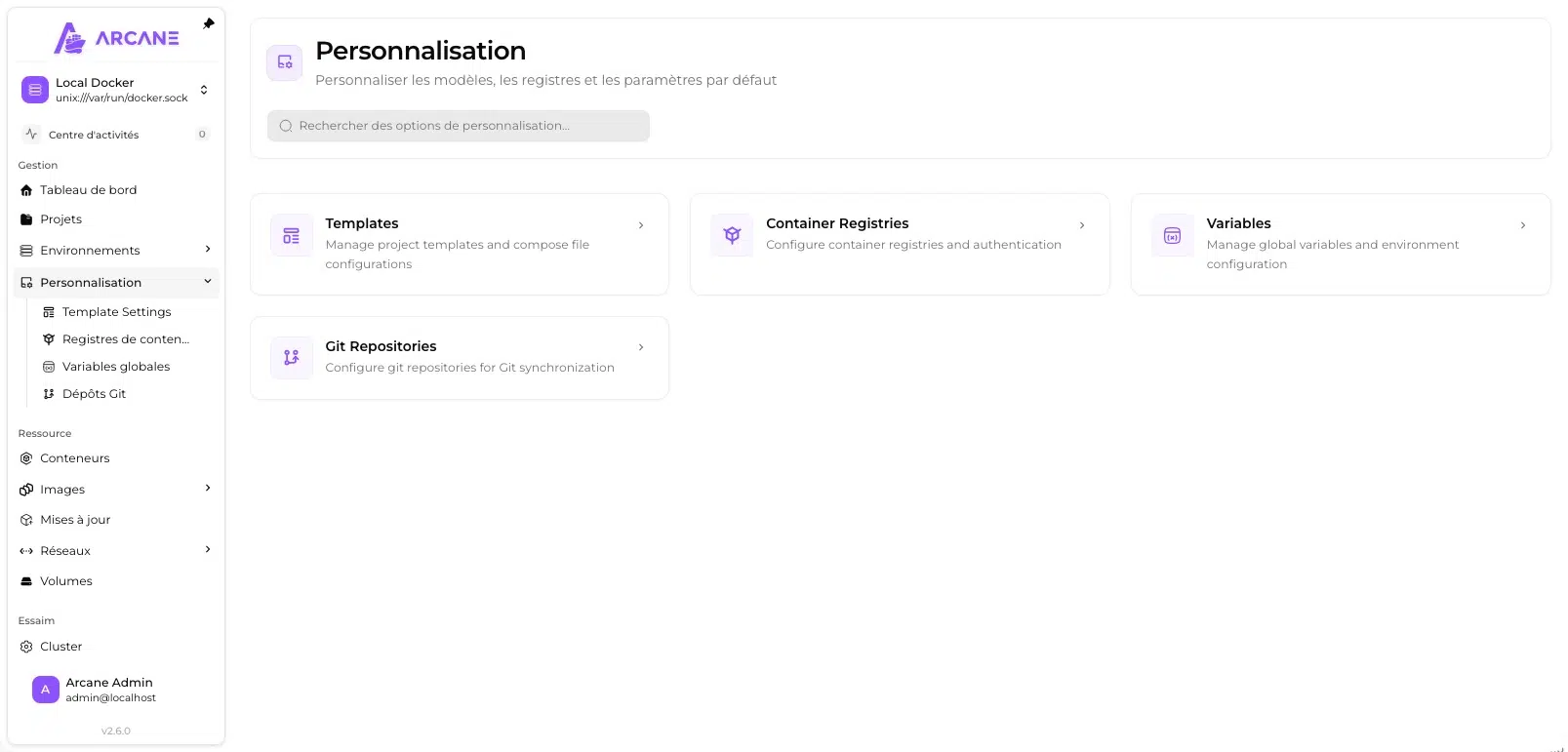
The Customization section groups four components: project templates, container registries with authentication, global variables, and Git repositories used for synchronization. This is where you can declare an additional registry from which to pull Docker images. You can also create Docker Compose file templates that you then call in your projects.
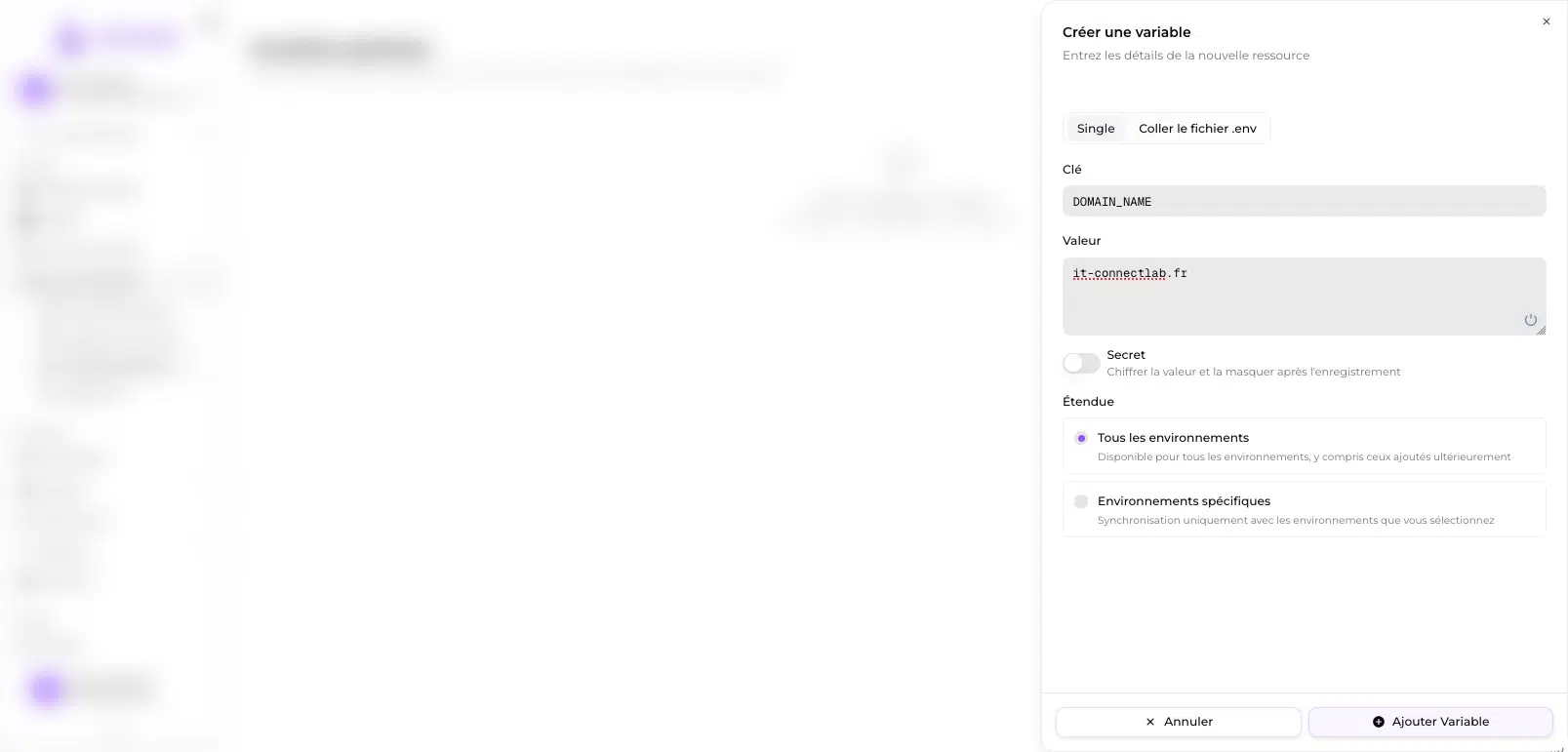
Global variables save time in day-to-day work. The idea is simple: you define a key and a value once, and they become available to your projects. A typical example: your domain name, which you repeat today in every .env file. You can limit the scope to certain environments or open it to all of them, including ones you add later, and paste an entire .env file instead of entering items one by one.
The “Secret” button encrypts the value in the database and hides it after saving. That is exactly what the ENCRYPTION_KEY variable generated during installation is for. This section is useful if you are used to sharing certain information across X projects.
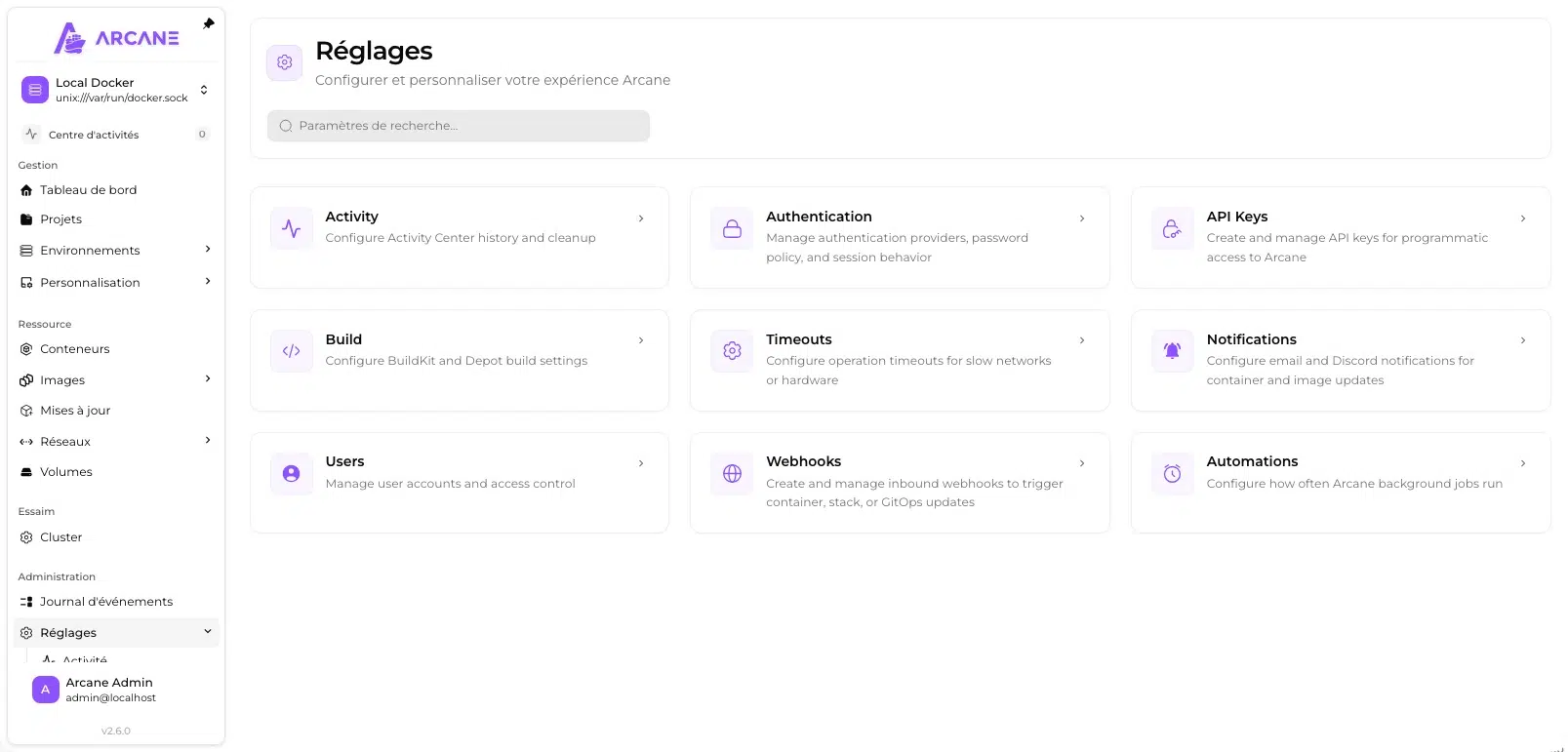
The rest of the settings covers the activity center history (the button in the top-left opens a side panel with the status of the latest tasks), authentication providers, API keys, build settings, timeouts, notifications, users, incoming webhooks, and the frequency of scheduled tasks. We have already looked at some of these sections in more detail.
Conclusion
In early 2026, I introduced the Dockhand solution for Docker administration. I was impressed by it. But today, I have to admit that between Dockhand and Arcane, I’m torn. Arcane is evolving quickly and continuously, with many native features already built in, going as far as OIDC and RBAC. All of that is open source. It is definitely a tool to watch and test! I’ll talk about it soon in a full video.
What do you think?