www.it-connect.fr


How to Verify the Authenticity of Microsoft and Linux Installation ISOs with CheckISO
Is the ISO image used to install an operating system really the one published by the vendor? Verifying the authenticity of installation sources remains a basic security measure, recommended by major security frameworks, but still rarely applied.
In the enterprise, this verification directly contributes to software supply chain security: a workstation, server, or virtual machine deployed from a tampered image can silently spread a threat across the entire environment. Whatever the scenario, the risk is the same when you download a Linux distribution or a Windows ISO from an unofficial repository or an outdated archive.
In this article, we will review the risks related to the integrity of installation sources, the verification methods, and their limitations. We will then introduce CheckISO, an open source tool that provides an independent and complementary verification source for Microsoft and Linux images.
How do you verify the authenticity of an ISO image?
Verifying the authenticity of an ISO image means ensuring that it really comes from a trusted source and that it has not been modified. In practice, this relies on three checks, from the simplest to the most robust:
- Compare the fingerprint (hash) of the downloaded ISO with the one published by the vendor. This is the basic method: if the two
SHA256fingerprints are identical, the file has not been altered. - Verify the cryptographic signature (GPG/PGP) when the vendor provides one, as most Linux distributions do. This is the most reliable check, because it also proves who produced the fingerprint.
- Cross-check with an independent third-party source (a separate fingerprint database) so you do not rely on a single trust anchor, especially for Microsoft products and older versions.
These three approaches are complementary: a simple fingerprint comparison ensures integrity, a GPG signature additionally guarantees provenance, and a third-party source adds an independent check.
Why verify the integrity of installation sources?
Verifying the origin and integrity of an ISO image is a direct part of the trust chain in an information system.
A compromised installation image can propagate a modification, a vulnerability, or malicious code to every system deployed from it, with a potentially significant impact that is difficult to detect.
Risk scenarios
A modification, whether intentional (malicious) or accidental (handling error, download corruption), can have far-reaching consequences. Here are the main scenarios:
- Silent compromise : the addition of a simple DLL, script, non-official tool, or antivirus exclusion in the ISO goes unnoticed.
- Persistent vulnerability: a weakness embedded in the image is automatically replicated on all deployed systems, making detection and remediation harder.
- Break in the chain of trust : most of the time, the same person has both pieces of information (the hash and the source image), and verification is done manually and sporadically.
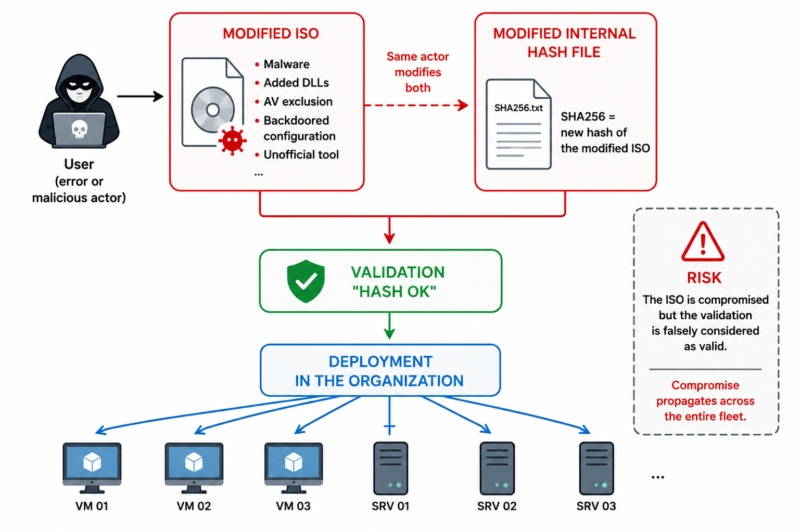
The diagram below illustrates this threat: an ISO image and its “official” hash have been modified by an attacker. The standard verification procedure then validates the ISO as “compliant”, while the system is already compromised even before installation.
What GRC frameworks say about it
This issue falls directly under governance, risk, and compliance (GRC). Several measures in ISO/IEC 27001:2022 address it, especially in relation to supply chain security:
- A.5.19 - Supplier relationships
- A.5.21 - Managing information security in the ICT supply chain
- A.8.19 - Installation of software on operational systems
Beyond ISO 27001, verifying the integrity of installation media is part of the broader logic of software supply chain security. This has become a central topic today, given the multitude of attacks targeting vendors’ distribution and build processes.
Understanding the hash (digital fingerprint)
A hash is the result of a mathematical calculation applied to all the bytes in a file. The resulting fingerprint depends directly on the binary content, the order of the data, and their position. Any change, even a tiny one, produces a completely different fingerprint: this property makes it possible to verify with a high level of confidence that two files are strictly identical.
On the other hand, a hash does not tell you who created the file or where it came from. It can verify that a file has not been modified between publication and use, but it does not authenticate the vendor: that is precisely the role of the cryptographic signature, which we will cover later.
Note: a file hash is identical between two copies with strictly identical content, even if their names differ. Conversely, as soon as a single bit changes, the fingerprint changes. Today, SHA256 (or SHA512) is preferred; MD5 and SHA1, considered cryptographically weak, should now only be used to detect accidental corruption.
For the practical calculation of the fingerprint, IT-Connect already offers dedicated tutorials: calculate a hash with Get-FileHash on Windows and verify a file’s integrity with sha256sum on Linux.
Verification methods and their limitations
Before introducing CheckISO, it is useful to discuss verification methods, because they are not equal and they complement each other.
Compare the fingerprint with the official value
This is the reference method for Microsoft: compute the hash of the downloaded ISO, then compare it to the value published by the vendor. On Windows, the Get-FileHash command is enough:
# Calculate the SHA256 fingerprint of a Windows ISO image
Get-FileHash -Path "D:\ISO\Windows11_25H2.iso" -Algorithm SHA256
On Linux, use sha256sum, ideally with the -c option, which automatically compares the ISO against the fingerprint file provided by the vendor:
# Automatic verification based on the SHA256SUMS file published by the vendor
sha256sum -c SHA256SUMS 2>/dev/null | grep ": OK"
On the Microsoft side, the reference fingerprint is found on the official download page (for example for Windows 11, where Microsoft recommends verifying the hash once the download is complete) or, in enterprise environments, in the Volume Licensing Service Center (VLSC). However, the Microsoft Download Center only provides the latest supported versions: for a version removed from these portals, a third-party fingerprint database takes over (we will come back to this when discussing CheckISO).
GPG signatures: the reference cryptographic check
Fingerprint comparison guarantees integrity, but not provenance: if an attacker replaces both the ISO and the published hash, the comparison still looks “compliant”. To address this limitation, most Linux and BSD distributions sign their fingerprint file with a GPG key. This is the reference cryptographic mechanism for independently verifying the authenticity of a source.
The principle is simple: the vendor publishes a SHA256SUMS file accompanied by a detached signature SHA256SUMS.gpg (or .sign). You import the vendor’s official public key, whose fingerprint is distributed through multiple channels, then verify the signature:
# Import the vendor's official public key (generic example)
gpg --import cle-officielle.asc

# Verify the fingerprint file signature
gpg --verify SHA256SUMS.gpg SHA256SUMS

# If the signature is valid, compare the ISO fingerprint
sha256sum -c SHA256SUMS
If the signature is valid, you can be sure that the fingerprint file really comes from the vendor and has not been tampered with. The fingerprint comparison that follows then genuinely authenticates the image. On IT-Connect, we already discussed this in the chapter Installing Kali Linux from an ISO image in one of our courses.
Note: GPG signatures are more robust than a simple fingerprint comparison, but they require the vendor to provide one and for you to have validated the fingerprint of the public key through a trusted channel.
The Microsoft-specific case
Unlike Linux distributions, Microsoft does not publish a GPG-signed fingerprint file for its consumer images. There is no single public signature chain that makes everything easy to verify.
It is precisely in this ecosystem, and for historical versions removed from official portals, that a third-party, independent fingerprint source becomes especially valuable as a complementary control.
Common limitations of all these methods
Whatever the method, some limitations remain:
- a compromised official site can distribute a falsified hash
- the same person may manage both the source and the reference
- end-of-life versions disappear from official sites.
Cross-checking with an independent source helps reduce these blind spots, without providing an absolute guarantee: part of the trust is then shifted to that third-party source, which must also be evaluated.
CheckISO: an independent and complementary verification source
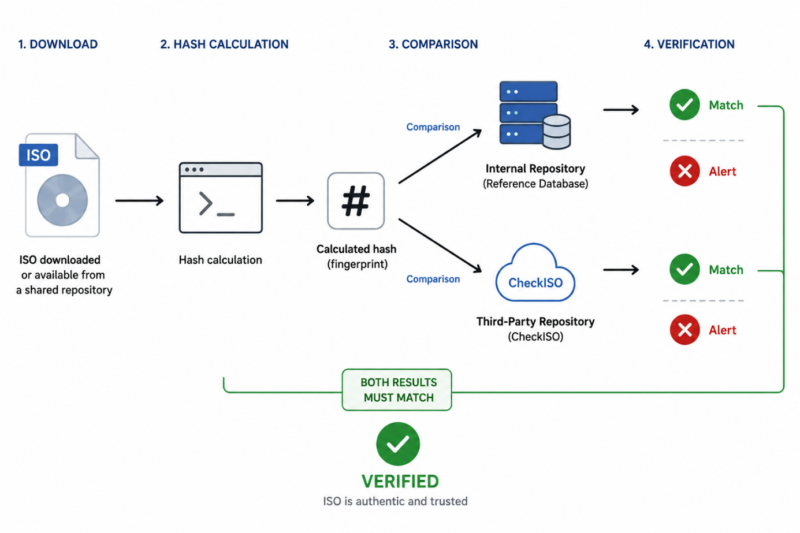
To address these limitations, we decided to offer a complementary approach based on a simple principle: introduce an independent third-party verification source and compare the results obtained.
Whether a hash is computed in SHA256 or SHA512 is one thing, but having a separate source capable of confirming or disproving the result adds another level of confidence. This is the idea behind the CheckISO project, whose goal is to provide a complementary and independent check, without intervening in the download or deployment process.
Tool overview
CheckISO is an open source project developed to address this issue by members of the Itconnect community. The project is free and comes in several formats to fit different use cases:
- A PowerShell script
- a Windows application published on the Microsoft Store
- A signed portable executable (.exe)
- An online database accessible from a web browser.
Initially focused on Microsoft images (Windows 10/11, Windows Server, SQL Server, Office), the project has evolved to include a dedicated database for Linux distributions. It calculates the fingerprint of an ISO image (SHA256 by default, up to SHA512) and compares it against a reference database, avoiding the need to manually look up the hash on the official website.
Project resources:
- GitHub repository: github.com/dakhama-mehdi/Check-ISO-Authenticity
- Online fingerprint database: checkiso.logonit.fr (which is simply a shortcut to the database domain name present in GitHub)
Using the script or application
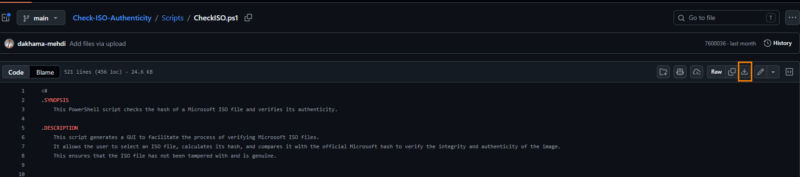
The PowerShell script can be downloaded from the project repository and runs without special privileges.
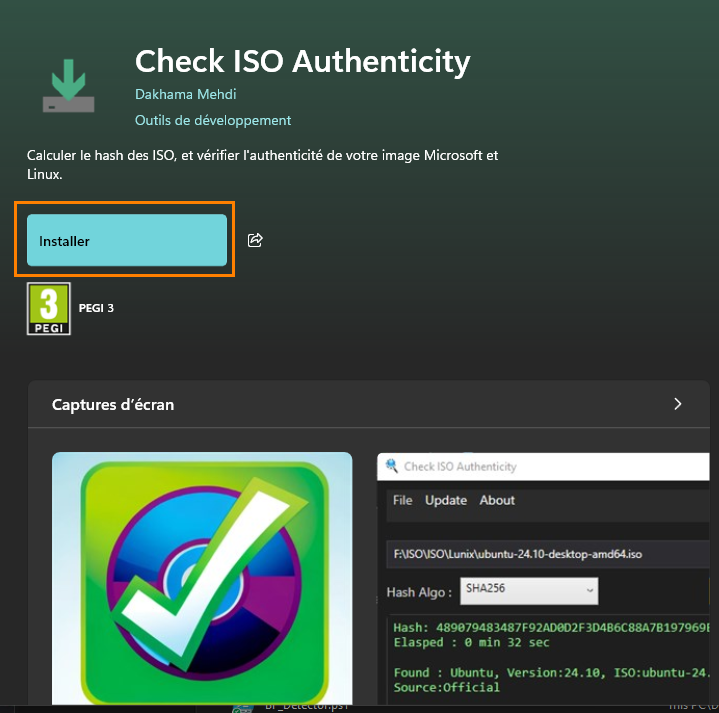
From the Microsoft Store, search for “CheckISO”, click Install, then Open. This method does not require administrator rights.
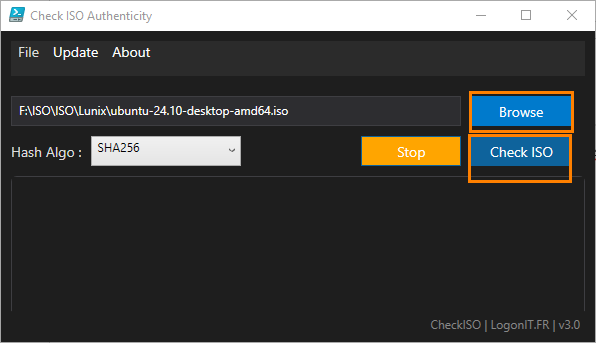
Once launched, the tool is easy to use: select the ISO image to analyze, then click CheckISO to start the verification.
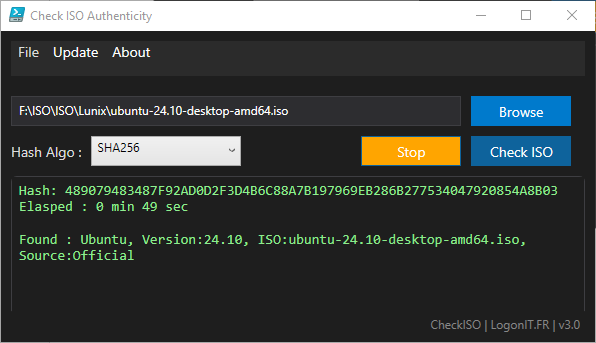
After the analysis, the calculated hash and the corresponding version are displayed. If no match is found in the database, a red warning message appears.
The online fingerprint database
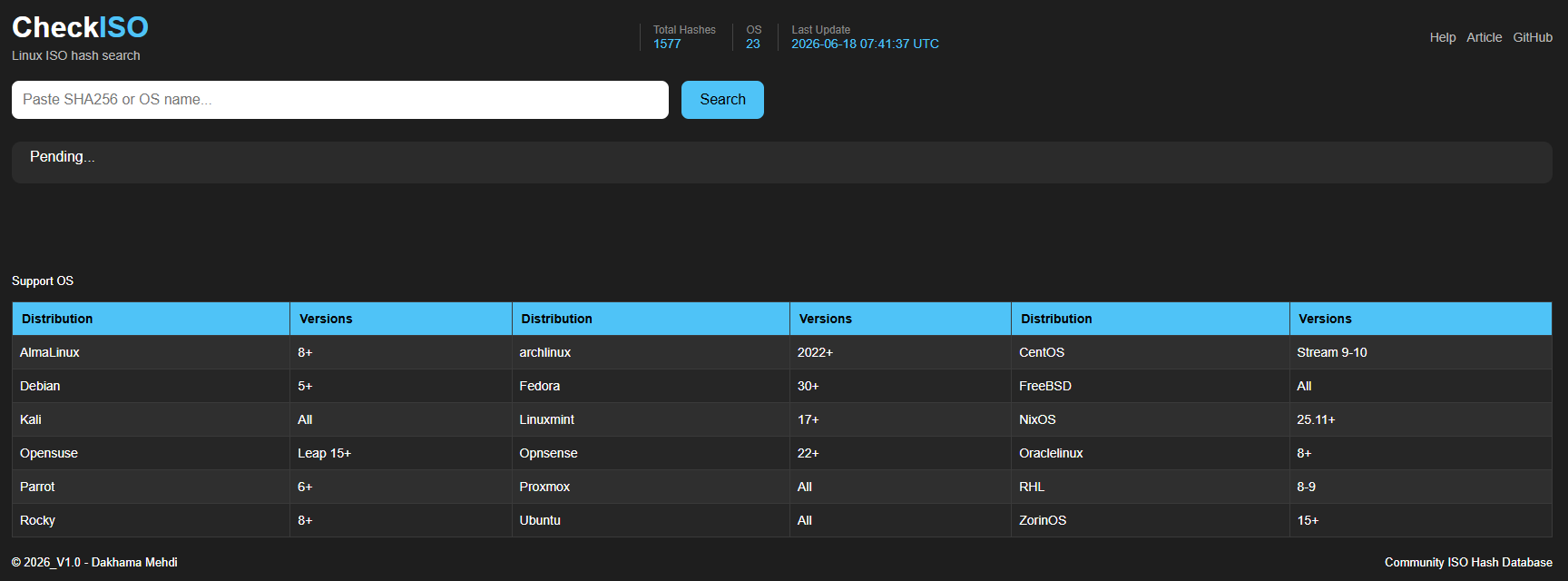
In addition to the application, an online database is available at checkiso.logonit.fr. Automated collection mechanisms (in the form of workflows) feed it from various official repositories and identify new versions as well as their associated fingerprints; all of this is hosted on GitHub (workflow and site).
The goal is to provide a complementary verification source covering the main Linux distributions as well as various historical versions, when they remain available.
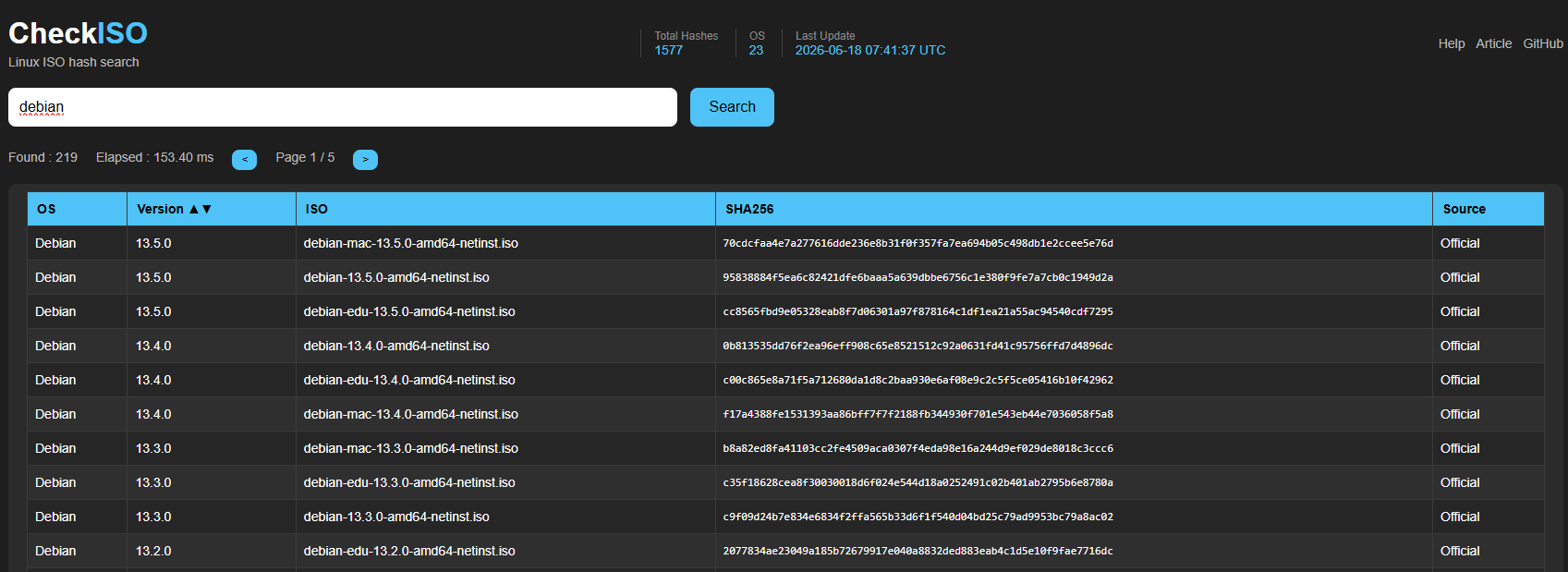
You can search for an image using its hash or directly by the distribution name.
Practical example: cross-checking an unofficial source
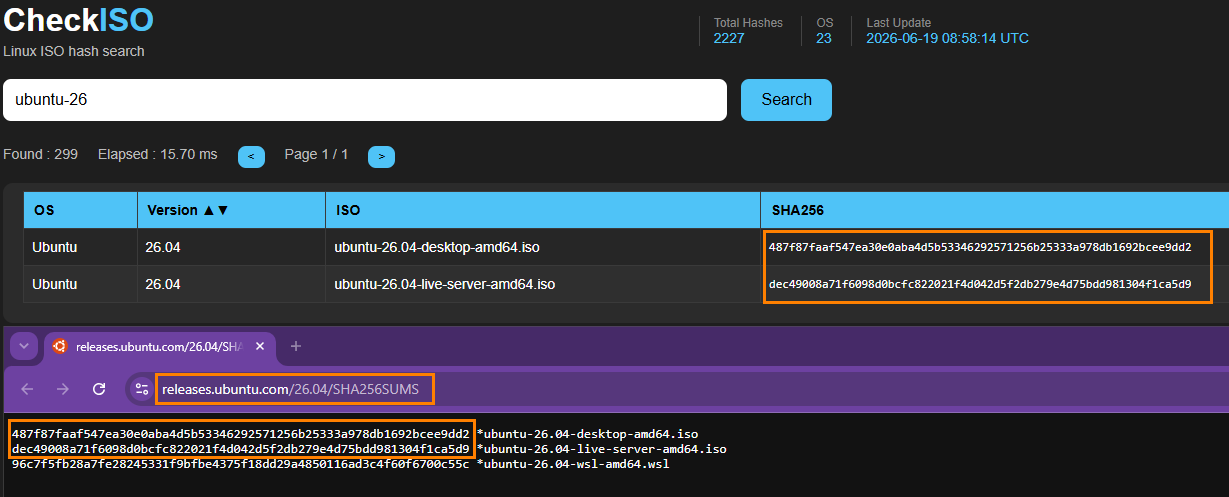
The value of a third-party source becomes especially clear when verifying archives or unofficial repositories. During testing, several cases were identified where the information published by some popular download sites differed from the fingerprints available on official sites.
In the example below, the result returned by CheckISO matches the one published by the vendor, while a difference was observed on the third-party site used for the download.

Positioning CheckISO correctly
To stay honest about the scope of the tool, a few points should be highlighted. CheckISO is a complementary control, not a substitute for GPG signatures: when a Linux vendor provides a SHA256SUMS.gpg file, signature verification remains the most reliable check, because it cryptographically authenticates provenance. CheckISO is especially valuable where that mechanism does not exist (Microsoft images) or is no longer accessible (versions removed from official sites).
In addition, relying on a third-party database means trusting that database and its collection mechanisms to some extent: it is a diversification of the trust anchor, not an absolute truth. The right practice is therefore to cross-check controls rather than rely on only one.
Best practices to make installation sources more trustworthy
When it comes to verifying the integrity of sources, a few simple principles are enough to significantly increase the level of confidence:
- Download from the official source (vendor or trusted mirror) rather than from a third-party sharing site.
- Prefer GPG signatures when the vendor provides them: this is the most robust check on Linux and BSD.
- Cross-check with an independent source (a third-party fingerprint database such as CheckISO) when a signature is not available, especially for Microsoft products.
- Maintain an internal repository of validated fingerprints so you can keep a reference even when the version is no longer online. The ISOMan tool can help centralize and organize an ISO library.
- Separate roles: avoid having the same person manage both the source and the verification, in order to preserve the chain of trust.
- Monitor integrity over time on production systems with a solution such as AIDE.
Conclusion
Verifying the authenticity of installation sources is neither complex nor expensive: it is above all a matter of method and discipline. Cybersecurity does not rely only on tools or budgets, but on appropriate controls applied consistently.
No single method is sufficient on its own. Fingerprint comparison guarantees integrity, GPG signatures add proof of provenance, and a third-party source such as CheckISO provides an independent check, especially useful for Microsoft images and historical versions. It is by combining these approaches that the risk linked to installation sources is truly reduced.
FAQ
What should I do if the hash does not match?
Do not use the image. A different fingerprint means the file is not identical to the reference: it may be download corruption (most common), a different version, or a deliberate modification. Re-download the ISO from the official source and verify it again.
How do I verify an older version that is no longer officially available?
This is one of the cases where a third-party fingerprint database is most useful: vendors often remove older versions from their sites, which eliminates the comparison point. A database like CheckISO preserves fingerprints for historical versions, when they are still available, and allows you to cross-check the authenticity of an archived image.
Which hash algorithm should I use: MD5, SHA1, or SHA256?
Prefer SHA256, or even SHA512. MD5 and SHA1 are considered cryptographically weak. Most vendors now publish SHA256 fingerprints.
Should integrity also be checked in a personal environment?
Yes. The risk depends on the source, not the context: downloading a Windows ISO or a Linux distribution from an unofficial repository or archive exposes you to the same tampering risks as in the enterprise. Verifying a fingerprint only takes a few seconds and remains a good habit, both in a homelab and in production. On a personal level, this is even more true since you may end up exploring less trustworthy sources...
How can an organization keep track of validated fingerprints?
Maintain an internal repository of validated images and their fingerprints. ISO centralization tools such as ISOMan make this organization easier, and an integrity monitoring solution such as AIDE helps track files over time.
Does CheckISO replace GPG signature verification?
No. GPG signatures remain the most reliable cryptographic check when they are available, because they authenticate the provenance of the fingerprint file. CheckISO is a complementary control, especially useful for Microsoft images (which do not have a public GPG chain) and for historical versions removed from official sites. The best practice is to cross-check both.