www.it-connect.fr

Is Your PC Really Using Its NPU? Windows 11 Can Now Tell You
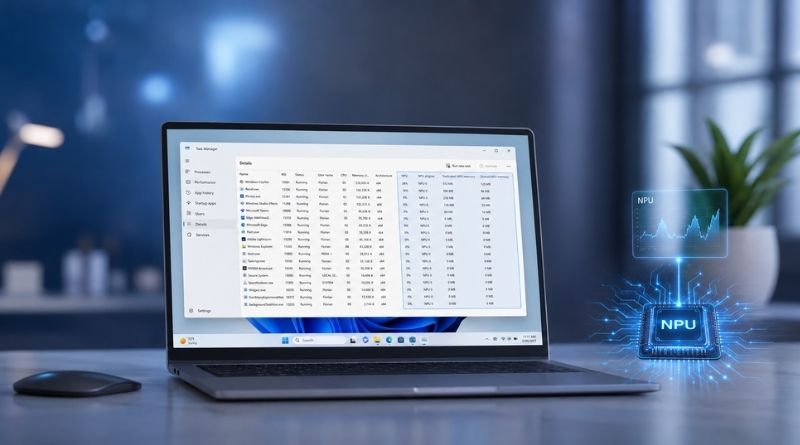
Is your machine actually using its NPU? Task Manager now includes dedicated columns for AI workloads, and more importantly, it can tell you whether apps are using the NPU or the CPU.
In a new blog post, Microsoft announced the addition of several columns to Windows 11 Task Manager. These columns did not appear out of nowhere, though. They were first tested on Dev build versions available through the Windows Insider program in spring 2026. They then arrived in preview with the optional KB5089573 update on May 26, 2026, and were later rolled out broadly with the KB5094126 update on June 9, 2026.
I’m mentioning it now because Microsoft has published an article explaining how to read these new indicators. And, frankly, I hadn’t covered it yet, so now is a good time!
Four tabs, five new columns
Task Manager already tracked the CPU, memory, disk, network, and GPU. It now adds a dedicated view for AI-specific hardware, of course only if the machine includes it. I’m referring here to the NPU, which is commonly found on Copilot+ PCs.
Microsoft’s new layout is as follows:
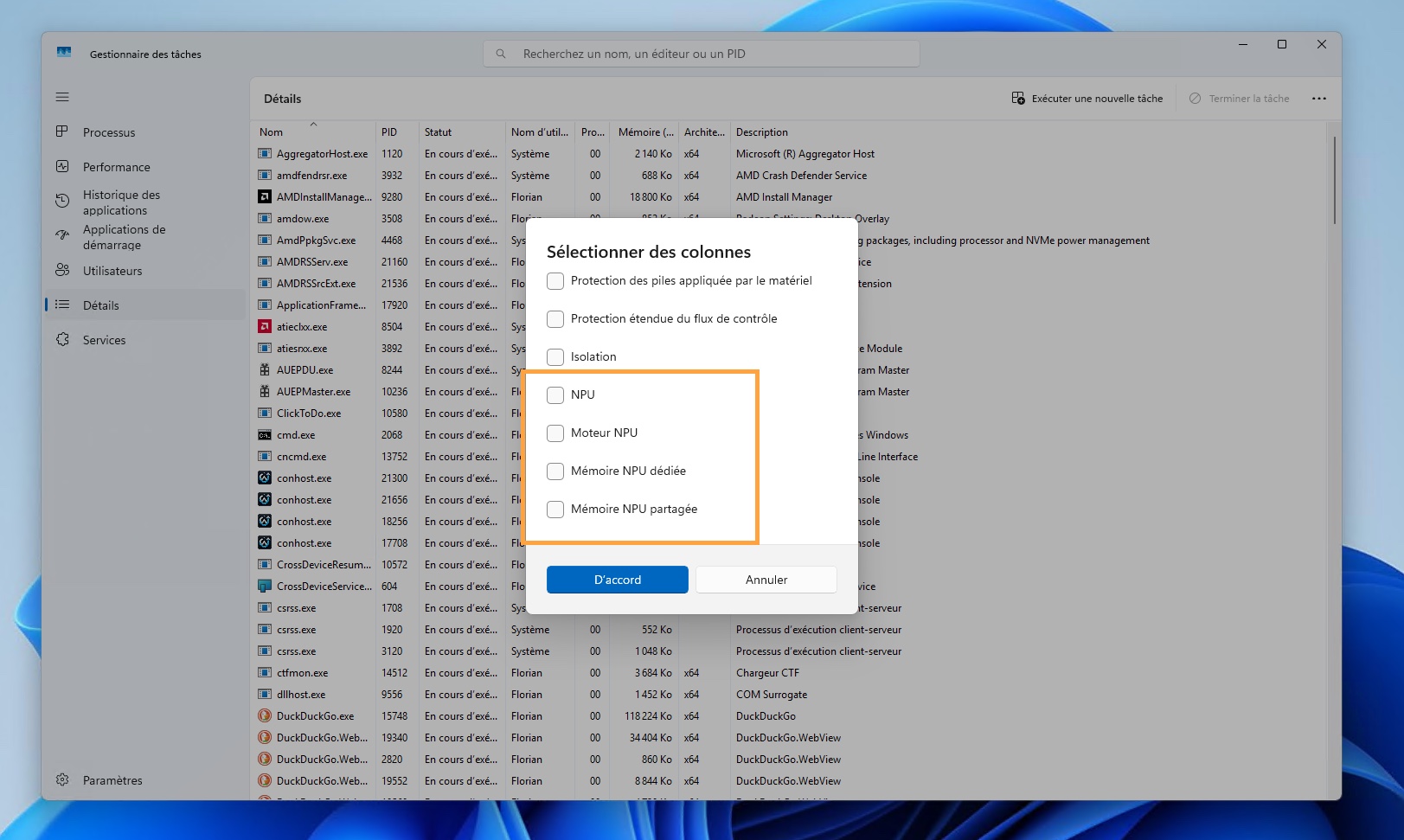
- "NPU" and "NPU engine" columns in the Processes, Users, and Details tabs, to identify which process is using the neural processing unit.
- "Dedicated NPU memory" and "Shared NPU memory" columns in the Details tab, to measure the memory used by these workloads.
- Display of the NPU and neural engines integrated into a GPU in the Performance tab, to cover systems where AI acceleration does not go through a separate NPU.
- "Isolation" column in the Processes and Details tabs, which indicates applications running in an AppContainer.
The tabs themselves are not new, but the columns are recent additions. All of these columns are hidden by default, so you need to right-click to select them. If you use an application like Lemonade Server, you will see the indicators move when the NPU is being used. In some apps, however, the activity is very brief.
Spotting an app that ignores dedicated hardware
Microsoft begins by explaining why the problem exists. When an application is built with ONNX Runtime or DirectML, the code targets a specific execution provider: CPU, NPU, or GPU. If an unsupported data type or a driver incompatibility is encountered, "the framework may silently fall back to a more expensive compute pipeline" to avoid a crash, writes Larry Hu. The app keeps running, more slowly, but nobody is notified.
Two main causes are highlighted:
- The first is a missing driver on the machine.
- The second is a data type mismatch, with Microsoft citing the example of an
FP32model being run on an NPU optimized forINT8. It may also simply be a model operation that the neural engine does not support.
Microsoft rightly points out that an application may be optimized to use both the NPU and the GPU, but it may also use neither. Ultimately, routing depends on the device, the driver, and the application configuration. Not to mention that some apps have no real reason to use the NPU at all.
According to Microsoft’s explanation, the "NPU engine" column can show two different values for an application: "NPU - Compute" or "NPU - Neural," depending on the processor and driver version. In both cases, the AI workload is still running locally on the NPU. Likewise, an application relying on AI hardware integrated into the GPU will show another value: "GPU - Neural" in the dedicated graphics engine column.
If CPU usage spikes while an AI task is running, the NPU remains idle, and no "GPU - Neural" entry appears, the app is likely not using the dedicated hardware. It is then falling back to slower software acceleration, which may explain an overall slowdown of the machine. There may also be a hybrid split between the NPU and the iGPU. By the way, I discussed this in my review of the Geekom A9 Max 2026 Edition mini PC, where local inference split the workload between the NPU and the iGPU.
To learn more about the topic, I recommend reading Microsoft’s article.