www.it-connect.fr


How to Install and Use Claude Code: A Beginner’s Guide
Claude Code is Anthropic's official interface for accessing Claude locally on your system. Unlike the well-known web interface for the LLM, Claude Code provides direct integration with your system. In this article, we'll look at how to install and use it on Windows and Linux, both from the command line and in the GUI.
For many use cases, integrating Claude Code opens up new possibilities. You can use Claude to read, create, and modify documents, code, or scripts, as well as execute commands. This goes far beyond the simple conversation you typically have with an LLM. We'll also look at the risks associated with this new usage.
This article covers the graphical installation (Windows and Linux), the CLI (Linux), basic configuration, and real-world use cases. By the end, you'll know how to install Claude Code and use it for your first real projects.
What Is Claude Code?
Claude Code is a local access tool for Claude, Anthropic's AI model. It comes in two forms: a graphical desktop application and a command-line interface (CLI).
The graphical application provides a rich interface for complex projects. You get chat history, file editing, and project management, somewhat like the web version. It's the perfect choice for exploring Claude or working on long tasks.
The CLI, on the other hand, is designed for automation. You can call it from Bash scripts, integrate it into CI/CD pipelines, or even combine it with other command-line tools. It's the ideal tool if you want to automate recurring tasks without manual interaction, or take advantage of the simplicity and speed of the command line.
Both can coexist on the same machine. Installing one or the other depends on your needs and preferences.
So, in short, it comes in several forms built on the same engine:
- The desktop app (Windows, macOS, and Linux beta), which integrates Claude Code into a dedicated tab with a graphical interface.
- The CLI, usable in a terminal on Linux, macOS, and Windows.
- Extensions for IDEs, notably VS Code and JetBrains.
- The web version, at
claude.ai/code, which runs in the cloud.
Claude or Claude Code: What's the Difference?
Claude refers to the family of AI models (LLMs) developed by Anthropic: Fable 5.1, Opus 5.5, Sonnet 5.5, Haiku 4.5, and so on. You usually access them through the web interface claude.ai or the app.
Claude Code is a tool that gives you local access to Claude. There are two ways to use it: through a desktop application (local thick client) or through your command line. This local tool notably allows the LLM to read and write code or execute commands locally on your system.
Keep in mind that you'll still need Internet access while using it, since Claude Code acts as the interface between the remote model and your system. In short: Claude is the engine. Claude Code is the local vehicle used to control it, it connects your prompts, your system, and the LLM that remains hosted by Anthropic.
The easiest way to understand Claude Code and its original purpose is with a simple script creation example:
- Using an LLM through its web interface (Claude.ai, ChatGPT, etc.): you give the model instructions so it generates and modifies the script according to your needs. You then copy and paste the script locally to test it and provide feedback or report errors.
- Using Claude Code, the LLM will create the script itself in the desired local folder, run it to test and validate its behavior, identify errors on its own, and write the related documentation in a separate file. It can even configure your scheduled tasks for regular script execution if you ask it to, and so on.
Claude Code can be used with other LLMs besides Anthropic's own (list here: https://code.claude.com/docs/fr/third-party-integrations#proxy-d-entreprise). Not all are compatible (I'm thinking especially of Mistral at the time of writing), but using an LLM proxy/gateway can extend compatibility.
Let's now move on to setting up Claude Code, both in CLI and GUI form.
Prerequisites
Before you start, check the following points:
- A paid subscription: Claude Code requires a Pro, Max, Team, or Enterprise subscription, or an Anthropic Console account (API billed by usage). The free claude.ai plan does not include Claude Code.
- A compatible system: macOS 13 or later, Windows 10 1809 or later, Windows Server 2019 or later, Ubuntu 20.04 or later, Debian 10 or later, Alpine Linux 3.19 or later.
- A modest machine is enough: minimum 4 GB of RAM, x64 or ARM64 processor. Computation is handled on Anthropic's side.
- An Internet connection, otherwise it won't work.
Install Claude Code on Windows (desktop app)
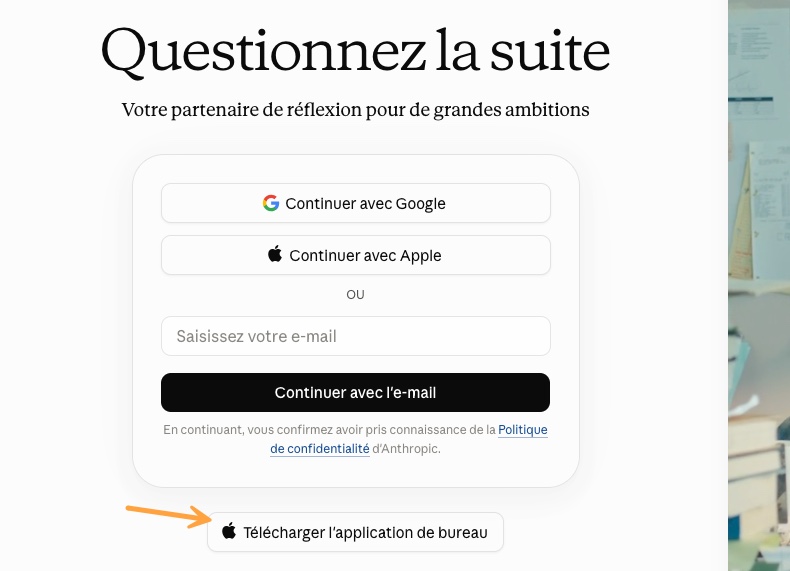
We're going to install the graphical version of Claude Code on Windows. Visit claude.ai/code and click "Download desktop app" to get the Claude Setup.exe file for Windows.
Installation takes 2-3 minutes. At the end, check "Launch Claude Code" and close the installer. The application starts automatically, and you'll need to authenticate with your Anthropic account. This will allow Claude Desktop to retrieve your API keys.
Note: on Windows, if SmartScreen warns you that the publisher is unrecognized, click "More info" and then "Run anyway". This disappears after the first launch.
Claude Desktop is now installed. Note that you now have two tabs in the top-left corner: Home and Code. The first is the equivalent of the web interface, but local, so you can benefit from the local thick client. The second is the one we're interested in, where we'll tell Claude to interact with our system.
Using Claude Code on Windows requires git; a pop-up should guide you through the installation the first time you interact with it. Git is a versioning tool that lets you save the state of code at different stages of its evolution. It's especially useful when something goes wrong.
Finally, you'll notice during the first interaction with Claude Code that it asks to be placed in a directory. This will be its project directory, where it can create files such as scripts. This is a major difference from "classic" Claude, which does not interact with your system.
Here's an example of using Claude Code through the Windows GUI:
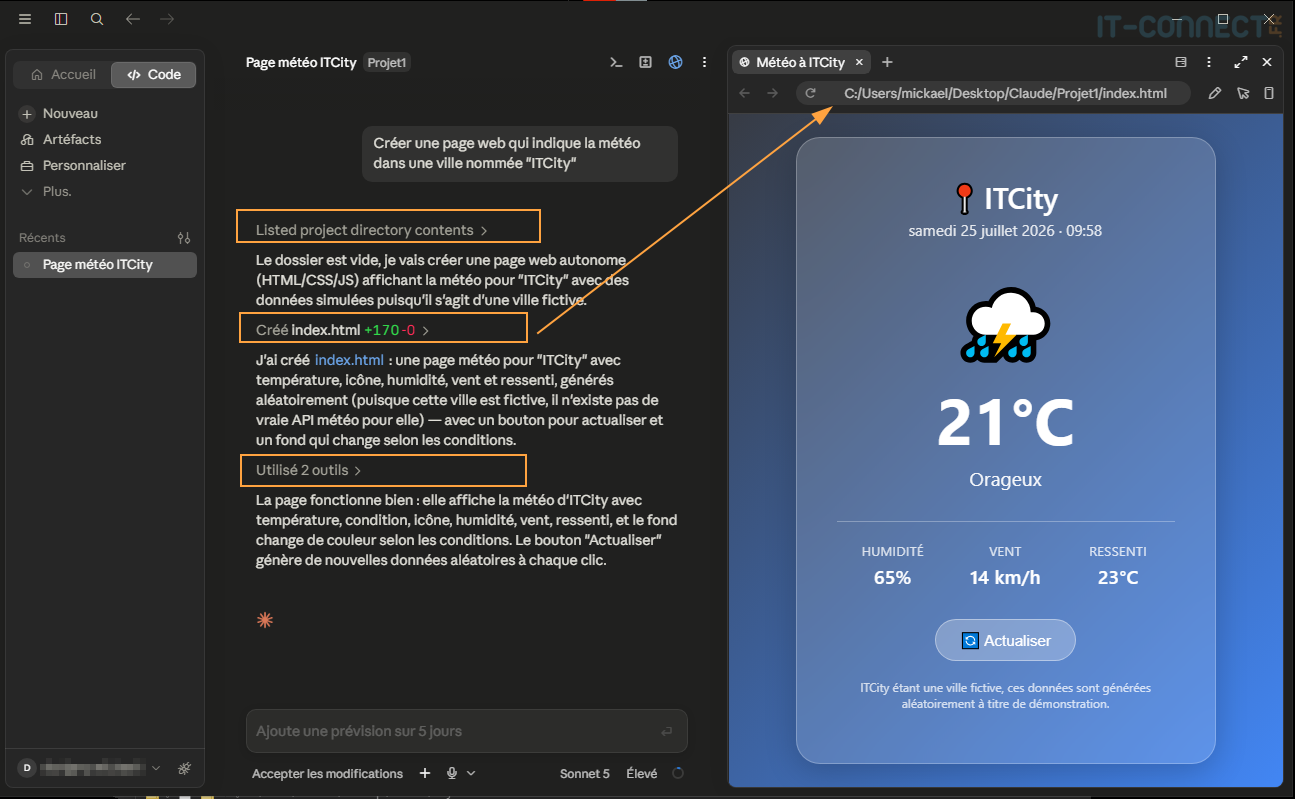
Here, I asked Claude Code to create a simple web page. It analyzed the project directory, identified that it was empty, created a web page with the requested code, and even displayed the web page in an additional view. No more copy-pasting into the chat: Claude interacts directly with my system.
Note: the CLI is also natively available on Windows. From PowerShell, you can install it with irm https://claude.ai/install.ps1 | iex, or with WinGet using winget install Anthropic.ClaudeCode. Its use is then identical to the Linux procedure described below.
Install Claude Code CLI on Linux
The Claude Code CLI lets you use Claude from the terminal. To install it, Anthropic provides a script that you simply download and run:
curl -fsSL https://claude.ai/install.sh | bashHere's the result displayed by the installation:
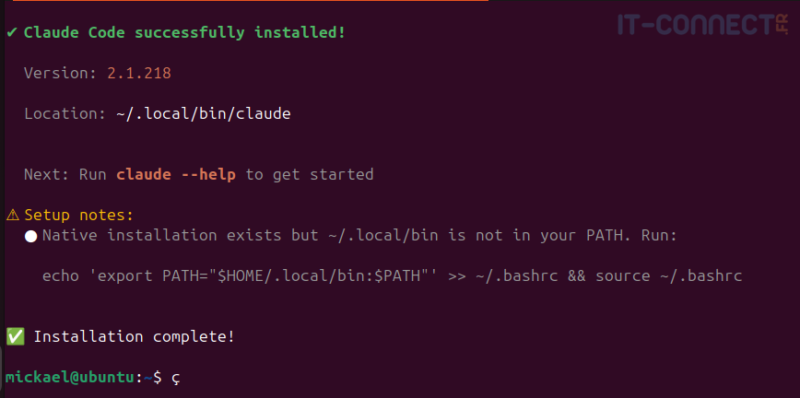
As indicated, you may need to add the tool's path to your PATH (remember to adapt this if you don't use Bash):
echo 'export PATH="$HOME/.local/bin:$PATH"' >> ~/.bashrc && source ~/.bashrcWe can now start Claude Code CLI with the following command:
claudeOn first launch, it asks you to choose your preferred theme:
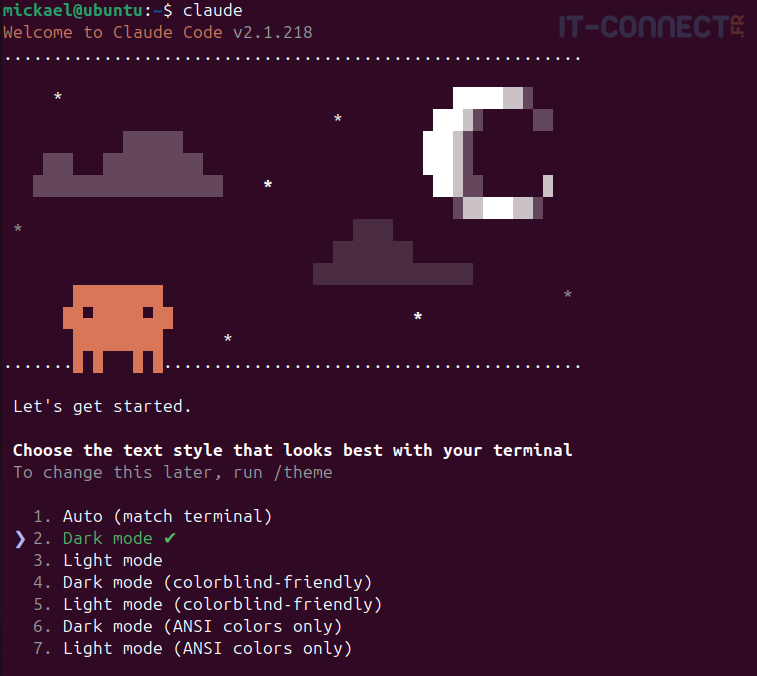
Then it asks you to authenticate. If, like me, you have a Claude Pro account, which is the most common case, select method 1:

Claude Code CLI will then open your browser for authentication, or offer you a URL if you don't have a GUI. You'll just need to sign in. Then you'll see Logged in as <mail>, Login successful. Press Enter to continue.
Finally, as on Windows, you'll be asked to confirm Claude Code CLI's current working directory. This allows Claude Code to read, edit, and execute files in that directory. You should not launch Claude Code CLI from just anywhere on your system; make sure to choose a dedicated project directory (empty or not):
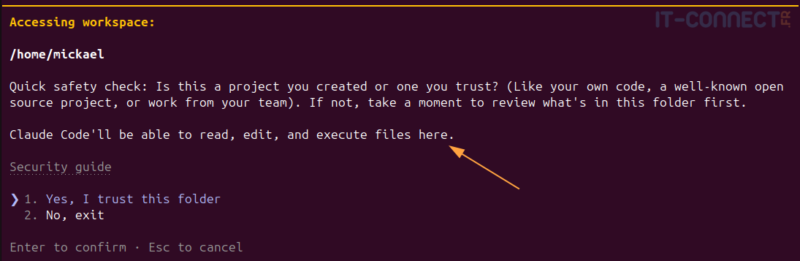
Finally, here's an example of using Claude Code CLI that takes advantage of direct interaction with my system:
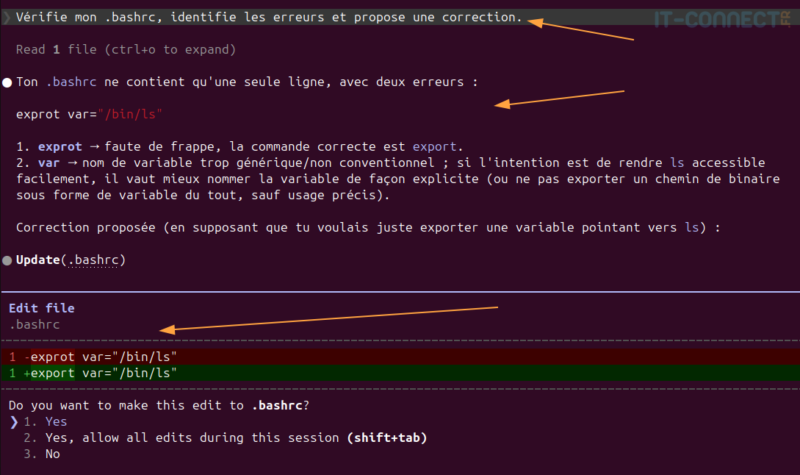
Here, I asked Claude Code to review my ~/.bashrc file and suggest any corrections. Note that I launched Claude Code CLI from my home directory, which is not very safe. In any case, it identifies an error, explains it to me, and suggests a fix. I only need to approve its correction so it can apply it.
Three Ways to Use Claude Code
To really understand what Claude Code changes, nothing beats three concrete cases rather than a feature list. I'm suggesting the ones that come up most often in practice, and that together cover a large part of what you'll do every day: create something from scratch, fix an existing file, automate a repetitive task.
Before starting work on a new topic, it's recommended to create a project and move into it. For example:
cd ~/projets/claude-code-app-1
claude
Create a Tool from Scratch
This is the most immediate use case, and probably the one everyone starts with. You ask, Claude Code creates the file, runs it, and fixes it if needed.
Crée un script Python qui scanne le répertoire courant et liste tous les fichiers de plus de 100 Mo, triés par taille décroissante. Teste-le sur ce répertoire et affiche le résultat.For this kind of request, Claude Code will typically create the .py file, run it directly in your terminal (or in the integrated view on the GUI), and show you the real output (not an output it imagines, but the one produced by your system). If the script fails on the first attempt (missing import, syntax error), it fixes it and reruns it on its own. That's the key difference from copy-pasting from a classic web interface: the write-test-fix loop happens without you having to go back and forth.
Fix an Existing File
Second case, already hinted at above with the .bashrc example: you're not starting from scratch, you're asking for a review or targeted fix.
Relis mon fichier config.yaml et signale toute incohérence de syntaxe ou de valeur, sans rien modifier tant que je n'ai pas validé.Note the last part of the prompt "sans rien modifier tant que je n'ai pas validé". This is a habit worth adopting: Claude Code can act directly on your files, which is precisely its value, but nothing forces you to let it take the wheel right away. For a sensitive configuration file, it's better to get a diagnosis first, read what it suggests, and then authorize writing.
Automate a Recurrent Task
This is where the CLI really makes sense, as mentioned above. The idea is no longer to interact live, but to delegate a task that will come back regularly.
Écris un script qui vérifie chaque matin si mes dépendances npm ont des vulnérabilités connues, et écris le résultat dans un fichier log daté. Propose ensuite comment le planifier en tâche cron.This last point deserves some attention: Claude Code doesn't just write the script, it can also configure the scheduled task that will run it (cron on Linux, Task Scheduler on Windows). That's useful. It's also, mechanically, a broader delegation: you're no longer asking for a one-time execution validated each time, but for recurring, unsupervised execution. The time saved comes at the cost of granting more trust.
Update Claude Code and Choose the Model
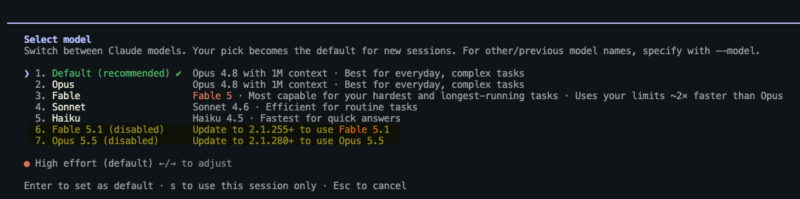
Claude Code evolves very regularly, and each new Anthropic model requires a minimum version of the tool. If your installation is outdated, you won't be able to switch to the newest models: they'll be grayed out in the selector. Before choosing a model, you need to know how Claude Code was installed, because the update method depends on it.
Update Claude Code
If you installed the CLI with the official script, as in this tutorial, Claude Code updates automatically in the background. The new version will apply at the next launch. You can also force an update:
claude updateOn the desktop app side, Claude Code is integrated into the application: you just need to keep the app up to date.
If in doubt, the claude doctor command displays the installed version, the installation method, and the status of automatic updates. Run it in a regular terminal, not from a Claude Code session.
claude doctor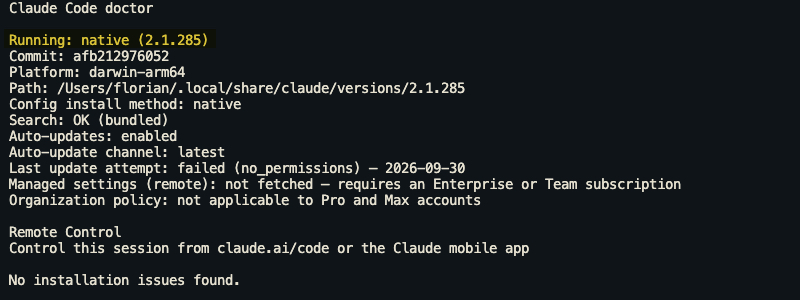
Note: if you installed Claude Code with npm, automatic updates may fail because of write permissions on the global npm folder. claude doctor will warn you about this. In that case, run claude install to switch to the native installer, which installs into your home directory without sudo.
Choose the Model
In a Claude Code session (after running claude), the /model command opens the model selector:
- Enter: selects the model and saves it as the default for future sessions.
- s: selects the model for the current session only.
- Left and right arrows: adjust the effort level, meaning the amount of reasoning given to the model. The higher the effort, the more tokens are consumed.
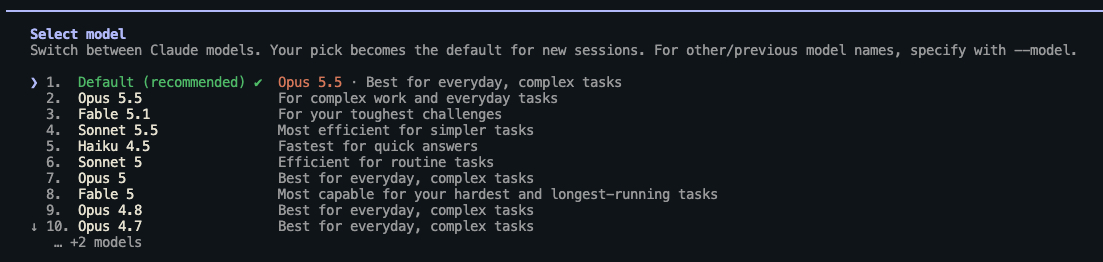
You can also choose the model at launch, using an alias that always points to the latest version: opus for complex tasks, sonnet for everyday work, haiku for simple tasks, and fable for the longest and hardest tasks.
claude --model opusIn the desktop app, you choose the model from the dropdown list next to the send button.
Control Claude Code Permissions
A tool capable of modifying files and executing commands can also make mistakes or misunderstand a request. An LLM can hallucinate, and the consequences are different when it acts on your system. Claude Code therefore includes permission modes, which determine what Claude can do without asking for your approval.
Permission Modes
The modes shown below indirectly determine Claude Code's level of autonomy while it works. The goal is to find the right balance depending on the type of tasks.
| Mode | What runs without confirmation | Recommended use |
|---|---|---|
Manual (default) | Read-only actions | Sensitive work, code you don't know |
acceptEdits | Reads, file modifications, and common commands (mkdir, mv, cp, etc.) in the working directory | Iterating on code you review afterward |
plan | Reads only, with no modification until you approve the proposed plan | Exploring a project before changing it |
auto | Everything, with background safety checks | Long tasks, reducing confirmation prompts |
dontAsk | Reads and explicitly pre-authorized tools, everything else is denied | Locked-down scripts and CI |
bypassPermissions | Everything, with no checks | Isolated containers and virtual machines only |
In the CLI, the Shift+Tab combination lets you switch from one mode to another during a session, and the status bar shows the active mode. In the desktop app, you choose the mode from the selector next to the send button.

One important point: since version 2.1.283, interactive terminal sessions start in auto mode by default. In this mode, a second model (a classifier) reviews actions before execution and blocks those that go beyond your request or present a risk (mass deletion, git push --force, running a downloaded script, etc.). Anthropic itself states that this mode reduces confirmation prompts but does not guarantee safety. To keep control over every action, launch Claude Code in Manual mode:
claude --permission-mode manualConclusion
Claude Code is a powerful tool for system administrators and developers. The graphical installation is simple and immediate. The CLI provides direct integration with your system to automate command-line tasks or manage code and files. At this stage, we've simply installed Claude Code on Windows or Linux and launched our first calls. This will let you discover the tool and its many opportunities, but keep in mind that an AI can hallucinate, and that can be dangerous when it interacts with your system.
We'll cover all kinds of tips and practical use cases for Claude Code in other tutorials, so let us know in the comments if you'd like to learn more!
Official resources: