www.it-connect.fr

6 Months After Switching from Windows to macOS: My Honest Take
After more than, let’s say, 20 years on Windows, I moved my main work machine over to macOS. That was six months ago. In this article, I look back at the reasons behind that choice: why leave Windows? Why choose macOS over Linux? I’ll also cover the various issues I ran into, while answering the question you’re probably asking yourself: do I regret my decision?
This article is a personal experience report and opinion about the transition from Windows to macOS, especially when working in IT. I encourage you to comment and share your own experience as well.
Why I gave up Windows on my main machine
Windows and I go way back, for 20 years or maybe even a bit more. It has always been my main operating system: Windows 98, Windows XP, Windows 7, Windows 8.1, then Windows 10 and finally Windows 11. During all that time, I also used Linux a lot in parallel, especially three distributions: Debian, Ubuntu, and CentOS. But macOS remained mostly a mystery, since I had only handled it a few times.
Before getting into the decision, let’s start with the starting point. Why did the idea of leaving Windows even cross my mind? I had grown tired of Windows 11. Between Microsoft’s decisions that I understood less and less, recurring update issues, and frankly annoying slowdowns, I ended up asking myself some questions. If you follow IT-Connect news, you know this already: over the last few years, we’ve seen plenty of broken updates. We even had some fine examples in September 2026, so no need to overthink it.
At first, I thought I would switch to Linux. But...
My first instinct was to look at Linux, which seemed logical for two reasons: I like the Linux world, and more importantly, I already know Linux well. At first, it seemed obvious: I’m going from Windows to Linux. Whether it would be Debian, Linux Mint, or Fedora, I was going for it. But I didn’t want to make that choice too quickly, so I started thinking about application compatibility.
My needs are the same as anyone working in IT: a browser, a terminal (and I’d even say a connection manager), an email client, and so on. In short, the basics. None of that worried me too much. I was more concerned about the other applications I use for writing articles and producing videos. I can mention OBS Studio, PicPick, and utilities for configuring Elgato peripherals (microphone, lighting, etc.). The first one exists, the second one does not, but it’s easy to find an alternative, while Elgato doesn’t offer anything official for Linux. On top of that, there’s no Microsoft Office, but that wasn’t a deal-breaker because I could do without it.
Why did I even consider macOS? And more importantly, why did I end up choosing it? I’ve never owned a Mac, never owned an iPhone. Only an iPod Touch a long time ago. The truth is, I was influenced. Several friends and contacts, from cybersecurity as well as development, from proprietary environments and the open source world alike, advised me to get a Mac. By the way, Microsoft experts who work on a Mac every day are now very common. So I’m clearly not the only one feeling a certain level of fatigue.
I was told more than once: "Mac just works. You won’t be bothered." — I was also sold on the benefits of Apple Silicon chips. Is that really true? We’ll come back to that. As you’ve probably guessed, I went with macOS, which also meant changing machines.
My setup
So I moved from a custom-built tower to a MacBook Pro M5 paired with a docking station. A recent model with an Apple M5 chip, 32 GB of unified memory, and 1 TB of local storage. 14-inch format, black finish. A nice machine. Stylish and solid on paper. To be fully transparent with you, I should mention that this machine was provided by TopAchat, but that does not influence this article in any way (otherwise it would be pointless).
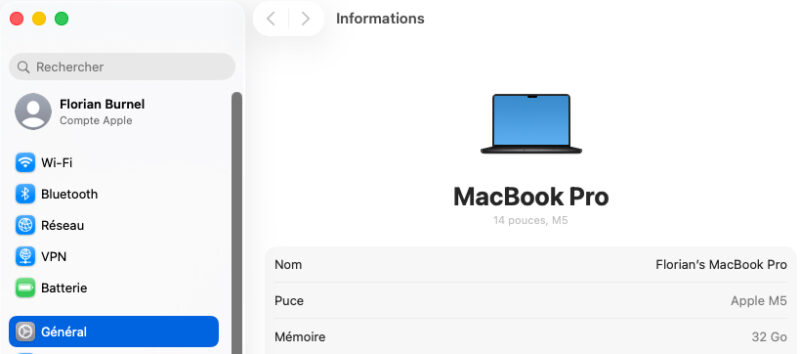
I use this machine at least 10 hours a day, whether I’m writing articles, recording videos, or handling IT administration tasks. AI as well, of course, especially with Claude Code. No virtualization, because I use other machines for that.
What convinced me about macOS
A native Unix terminal
This is the first real benefit for an admin. macOS is built on a Unix foundation: the ssh, scp, rsync, curl, dig, and openssl clients are included out of the box, and the default shell is zsh. No need for WSL or PuTTY to connect to a Linux server, SSH key management happens in ~/.ssh just like on any distribution. I almost want to say it: there’s a real terminal here (and you can install PowerShell on Mac). And that’s great.
On Windows, WSL 2 does the job very well, I won’t say otherwise. The difference is that here the terminal is not a subsystem: it is the system.
Apple Silicon: quiet and fast
Do you remember the phrase I quoted earlier: "Mac just works. You won’t be bothered." — I can confirm at least the first part, although we’ll see there are a few hiccups. Honestly, it’s ultra-smooth, it doesn’t lag, it just works. I no longer ask myself questions; I know it will work the way it’s supposed to, and tomorrow it will work the same way it does today. I’ve regained a level of peace of mind I no longer had with Windows, and when this is your main work tool, that’s essential.
I do the same things on this workstation as I did on my Windows setup, with the same applications except for one or two. The difference is that it’s more pleasant. The platform is also very well optimized, which makes it possible to work quietly and enjoy excellent battery life.
Well done, Apple.
Spotlight is insane
On Windows, the Start menu is useless. Yes, I’m saying it. Personally, I never used it except to shut down or restart the PC. I only relied on two things: the search box (Windows key > first letters of the app > Enter > boom, the app opens) and PowerToys Run (command palette).
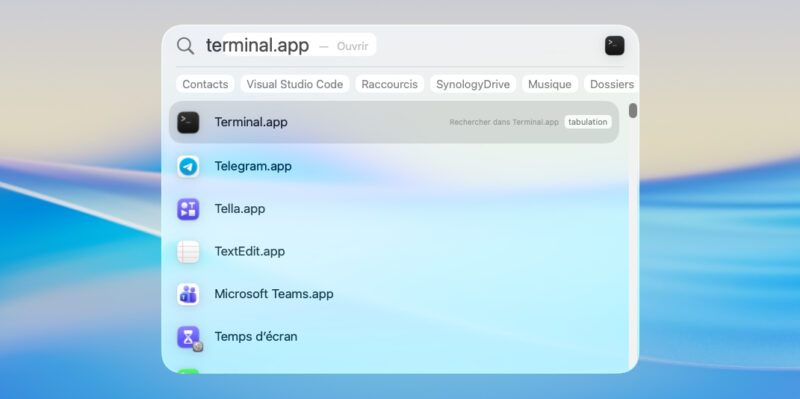
On macOS, there is Spotlight: a brilliant launcher that can pull up applications, settings, files, and more. Very efficiently. So when you want to access something, you just open it, type, and hit Enter. It’s activated with the Cmd + Space shortcut. By the way, Microsoft didn’t invent anything with PowerToys Run, it’s basically just Spotlight for Windows.
Homebrew, the package manager you should install first
Homebrew plays the same role on macOS that WinGet plays on Windows, with a richer catalog on the command-line tools side. It’s really convenient for installing certain packages.
# Installer quelques outils réseau et système utiles au quotidien
brew install nmap wget htop mtr iperf3

# Générer un fichier Brewfile listant tout ce qui est installé (pratique pour réinstaller une machine)
brew bundle dump
The Brewfile generated by brew bundle dump lets you rebuild your environment on another Mac with brew bundle. It’s the equivalent of a WinGet export, just so you know.
Is it easy to move from Windows to macOS?
I would be lying if I said it’s easy to switch from Windows to macOS. I’m not talking about data or applications when I say this. That’s not the issue. The transition is difficult at first because Windows and macOS are different operating systems. Configuration settings are not the same, installing an application is not done in the same way, there is no Start menu, and File Explorer is replaced by Finder.
When it comes to changing habits, it’s never easy at first. But I think the worst part by far is that damn keyboard. A nightmare. I have to admit I even considered giving up on macOS because of it.
Let’s get into the details.
The Mac AZERTY keyboard: a nightmare during the first weeks
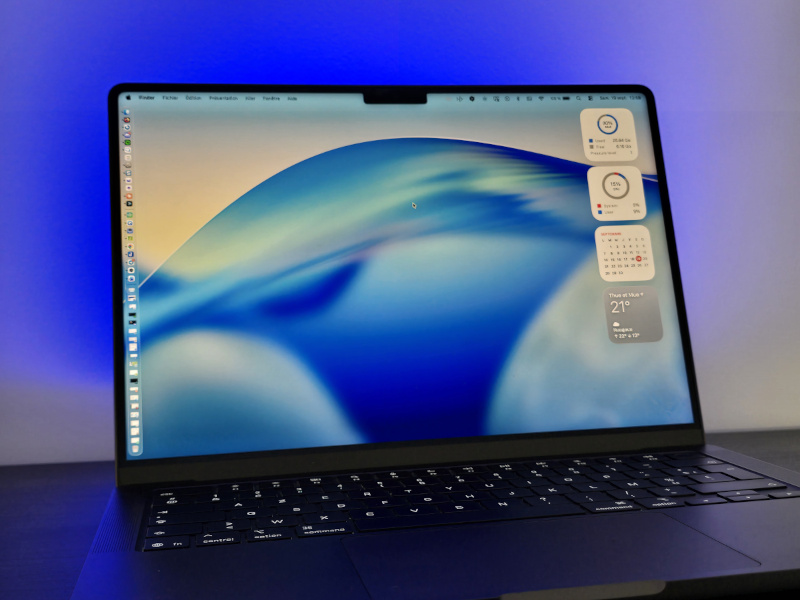
On Windows, we use the Ctrl key heavily and, to a lesser extent, the Windows key. On Mac, there are several differences: the Alt Gr key does not exist, mainly because everything goes through the Option key. I work a lot with shortcuts, so I had to rethink everything. All my reflexes, both the associative ones (Ctrl + V to paste) and the physical finger movements. It was truly awful at first.
I’m lucky enough to have an ergonomic Logitech Ergo K860 keyboard with keys labeled for both Windows and macOS. That helped me through the transition, but more importantly, I still rely on it today when I need to work on a Windows workstation or remote Windows server. In that context too, it’s about being able to switch between two different keyboard workflows.
Thankfully I have this keyboard, but the built-in MacBook keyboard is full macOS. So when I’m not at my desk, I have to use it. And then you have to deal with a constraint: the characters you type a hundred times a day in a terminal are not printed on Apple’s AZERTY keyboard. Want examples? Here you go.
| Character | Combination on a Mac AZERTY keyboard |
|---|---|
| (pipe) | Option + Maj + L |
\ (backslash) | Option + Maj + / |
{ and } | Option + ( and Option + ) |
[ and ] | Option + Maj + ( and Option + Maj + ) |
~ (tilde) | Option + N, then Space |
€ | Option + $ |
Copy and paste is no longer Ctrl + C / V, it becomes Cmd + C / V, or sometimes Ctrl + C / V, depending on the context. I don’t know if there are applications that give you a Windows keyboard layout on Mac. Maybe there are, but that’s not really the point; it would just be a workaround.
Finder
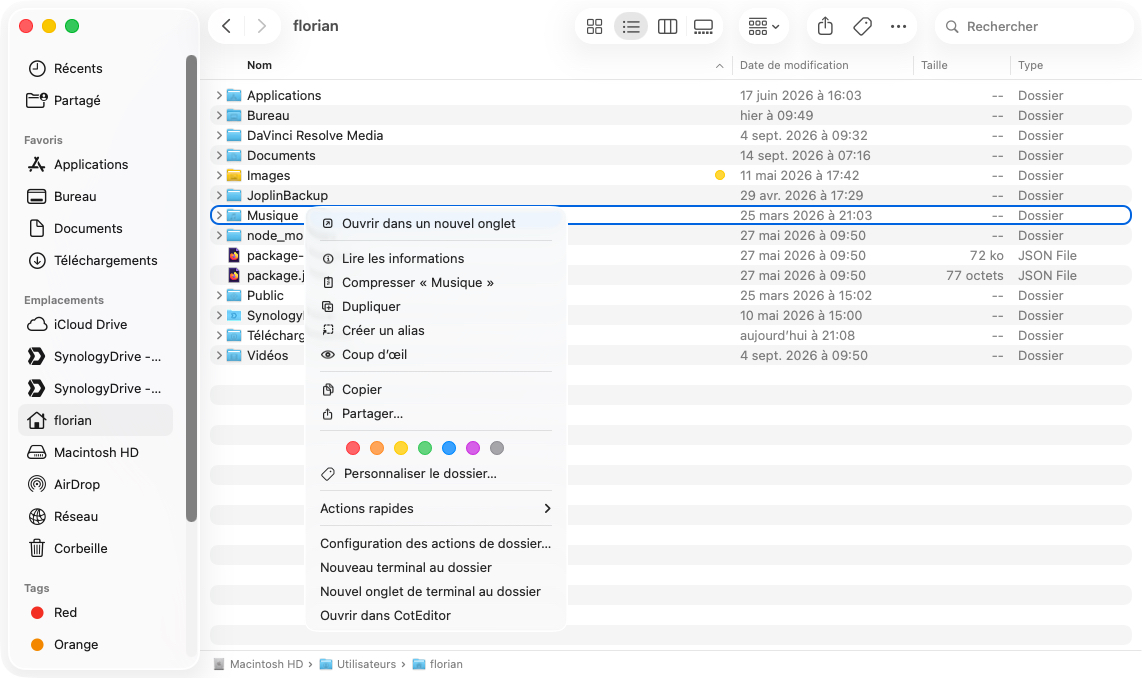
Finder is not File Explorer, even if it follows the same basic principles. Some native functions are missing: no tabs, no “Cut” function, no editable address bar with a single click, and so on. Yes, some behaviors can be surprising at first. I can keep going if you want:
- The
Enterkey renames the file instead of opening it (Cmd + OorCmd + down arrowto open) - Show hidden files:
Cmd + Maj + . - Manually enter a path:
Cmd + Maj + G - Connect to a share:
Cmd + K, then an address such assmb://srv-fichiers-01.it-connect.local/Partage(and not a UNC path with backslashes)
On top of that, there are some nice features, such as tags, the preview feature called “Quick Look,” and the overall smoothness, including when searching.
No RSAT, no MMC consoles
RSAT tools do not exist on macOS: no Active Directory Users and Computers console, no gpmc.msc for Group Policy, no DNS or DHCP console, no Hyper-V Manager. I mention this mainly for information, because personally it’s not a problem for me. There is also no native Remote Desktop client, which bothers me a bit more. So how do you use macOS to administer Windows infrastructures?
For Remote Desktop, on macOS the official client is Windows App, the app that replaced Microsoft’s old Remote Desktop app. Let’s just say it does the job. I was able to install my connection manager on Mac (RDP, SSH, etc.) and therefore keep my habits at that level. Even so, there is still the keyboard issue: inside an RDP session, shortcuts remain the Windows ones. You copy with Ctrl + C, not Cmd + C, and the Mac Cmd key corresponds to the Windows key. During the first few weeks, you make that mistake ten times a day.
Virtualization: Arm architecture changes the game
As I mentioned earlier, I don’t use my Mac for virtualization. That could change in the future, but it’s not the case today. If you’re reading this article with the same mindset I had before leaving Windows, keep this in mind: an Apple Silicon Mac is an Arm machine. It therefore virtualizes Arm systems, not x86 systems.
So, in practical terms:
- Windows 11: it runs as an Arm version inside a virtual machine. Parallels Desktop is a Microsoft-approved solution for this use case, and Windows 11 Arm runs most x86 and x64 applications through emulation. VMware Fusion is another option.
- Windows Server and x86 systems: since version 20.2, Parallels has offered an x86_64 emulator capable of booting Windows 10, Windows 11, Windows Server 2019 and 2022, or certain Linux distributions. This is emulation, not virtualization. I have not tested it.
- Network appliances and GNS3 or EVE-NG labs: most images are x86, so the same issue applies
If you were used to building a full lab in VMware Workstation or Hyper-V on your laptop, you need to think carefully about this. You might choose a dedicated x86 machine for the lab by building a custom PC configuration to meet your needs.
BSD command-line tools, not GNU
macOS looks like Linux in the terminal, but it is not Linux. The base tools are BSD variants, and some options differ from the GNU variants found on Debian or Ubuntu. Your usual Linux commands may therefore fail on Mac.
# GNU (Linux) : date d'hier
date -d "yesterday" +%F

# BSD (macOS) : la même chose, avec une syntaxe différente
date -v-1d +%F

# GNU : édition en place avec sed
sed -i 's/ancien/nouveau/' fichier.conf

# BSD : l'option -i attend un suffixe de sauvegarde (chaîne vide ici)
sed -i '' 's/ancien/nouveau/' fichier.conf
An awkward situation
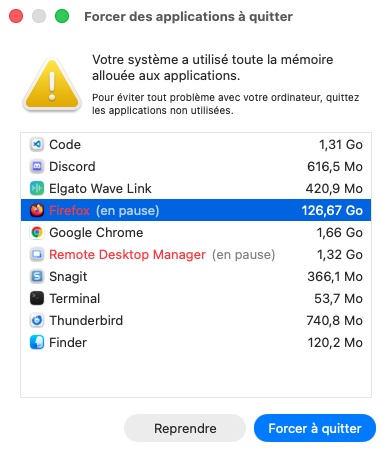
About 1 month after I started working on Mac, I ran into a problem. To this day, it’s the only issue I’ve encountered that was genuinely painful to deal with. The machine started to saturate and almost freeze. What gives? That old Windows demon again? Oh no, I’m on macOS.
When I saw Mozilla Firefox using more than 120 GB of memory, I understood that it was not a macOS problem. In reality, one of the extensions I use would occasionally go haywire during the day. The machine didn’t completely crash, but it became unusable for several minutes. All of this is to say that macOS can have problems too, but probably fewer than Windows. In any case, this was the only painful situation I’ve encountered so far.
Security: I like the macOS approach
Switching to a Mac does not remove the need for security hygiene. Infostealers are increasingly targeting macOS, along with other malware. That said, I like the default macOS approach compared with Windows. There are several default behaviors that, in my opinion, improve overall security.
Proof of identity, not just a click
On macOS, whenever an action affects the system (installing a .pkg package, changing a sensitive setting, adding a background tool), you must authenticate with your session password or Touch ID. That said, this is not true for every action: dragging a .app application into the Applications folder from an administrator account will not prompt for anything.
You might say Windows has UAC, and you’d be right. But the user experience is not exactly the same. When you use your Windows PC while signed in with an administrator account, UAC usually just requires a click on Yes to unlock the action by default. By contrast, macOS asks you to prove who you are: you must enter your password or place your finger on the fingerprint reader. It’s a small detail, but it makes you think and question what you’re about to do, instead of blindly clicking Yes.
Permissions granted application by application
When an application wants to access certain locations or a device for the first time, you must allow or deny it. On macOS, this mechanism has a name: TCC, for Transparency, Consent and Control.
What is TCC? It is the macOS component that makes an application’s access to sensitive resources depend on the user’s explicit consent.
TCC controls access to a precise list of resources, and I think it covers the user space very well:
- Desktop, Documents, and Downloads folders
- Removable volumes and network folders
- The camera, microphone, and screen recording
- Accessibility features (keyboard and mouse control)
- Local network
- Full disk access, to grant for example to Terminal
For some of these permissions, such as screen recording or full disk access, the application must be restarted for the change to take effect. At first, that’s a bit restrictive, but I appreciate this approach. By contrast, on Windows, a classic Win32 program can read your entire user profile without asking you anything (Microsoft is only just starting to test camera, microphone, and location permissions per app, including for Win32 software).
What I mean is that, by default, macOS is a more locked-down system than Windows, in the good sense of the term. That said, there are similarities with Windows. For example, the first account created on the machine, and the one you’ll be logged in with after setup, is an Admin account.
My verdict after six months
You’ve probably understood by now after reading this article that I do not regret my choice. Sure, it wasn’t easy at first, especially because of the keyboard, but once you really get macOS in hand, it’s pleasant to use every day. You can debate the ergonomics, the lack of certain tools, and so on... But what I remember is that the whole package — hardware and operating system — works perfectly together. I no longer lose productivity because a machine slows down or suddenly becomes unstable. Not everything is perfect, but most of it comes down to changing habits. The operating system works the way it should. Some would say that’s normal. Yes, but with Windows we had almost forgotten that.
And you, have you already decided to switch from Windows to macOS? Feel free to share your opinion and ask your questions.