www.it-connect.fr


How to Deploy and Secure Claude for Intune on iPhone and iPad
Since October 5, 2026, Anthropic has offered Claude for Intune, an iOS app designed for organizations that manage their mobile devices with Microsoft Intune. It supports Intune app protection policies and Microsoft Entra Conditional Access. Organizations can now govern the deployment and use of Claude just like any other business app. In this article, we will cover the prerequisites, deployment in Intune, and app protection.
What is Claude for Intune?
Claude for Intune is a managed version of the Claude app for iOS. This app is separate from the standard Claude app, and both are available on the Apple App Store (see this page). As a managed app, it provides a unified experience for users:
- Sign in with a Microsoft 365 account only
- Support for Intune App Protection Policies (APP) on corporate and personal (BYOD) iPhone and iPad devices
- Support for Entra ID Conditional Access
When an organization wants to use one of the features above, it must have a Claude Enterprise plan and users must use Claude for Intune, not the standard app. This provides management capabilities suited for enterprises.
Prerequisites
To get started, you need the following five elements, some on the Microsoft 365 side and others on Anthropic's side:
- A Claude Enterprise plan
- Microsoft Intune, with access to the admin center
- The Apple devices on which you want to manage Claude must run iOS and iPadOS 18.0 or later
- Ask Anthropic Support to enable Microsoft sign-in for your email domains
- Register the app in Entra, with admin consent granted
Prepare the Microsoft 365 & Claude environments
Enable Microsoft sign-in on your Claude Enterprise plan
First, you need to enable Microsoft sign-in on your Claude Enterprise plan. To do this, you must go through the vendor's support team and submit the request, providing the relevant email domain(s). This is the UPN suffix of your user (clement.haurogne@it-connect.cloud).
Grant admin consent to the Claude app
An Entra tenant administrator must open the URL below, replacing {organization} with the tenant ID or domain. The specified client ID corresponds to the "Claude for Intune" app.
https://login.microsoftonline.com/{organization}/adminconsent?client_id=bb747f0e-002b-4882-9960-916fe00a2b90This consent approves the permissions the app needs to communicate with Intune app protection. It also registers the app in the tenant so it can be used in Conditional Access.
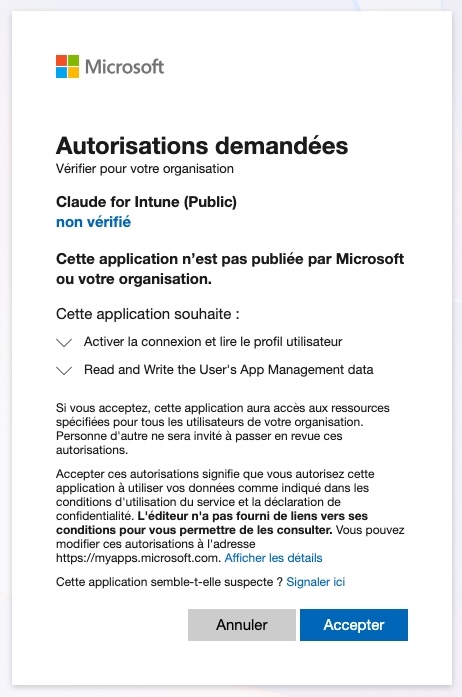
To verify this, open the Entra admin center, then go to Enterprise applications. Open "Claude for Intune (Public) " and the Permissions tab. The Microsoft Mobile Application Management entry should appear in the admin consent tab. If not, select "Grant admin consent".
A pitfall to know about: signing in to claude.ai with "Continue with Microsoft" does not grant this consent.
If users are signed out a few seconds after logging in, this step is often missing.
After consent is granted, they must remove the app, reinstall it, and sign in again.
Deploy the app in Intune
Claude for Intune is deployed like any iOS App Store app. It can also be made available to personal devices (BYOD).
- In the Intune admin center, open Apps, then the iOS/iPadOS platform.
- Click Create and choose the "iOS store app" type.
- Search for "Claude for Intune" and select the app.
- In the app information, set the minimum operating system to iOS 18.
- Under Assignments, add the user group for which you want to make the app required or available. In the second case, the app appears in their Company Portal without being installed automatically.
- Review and create the app.
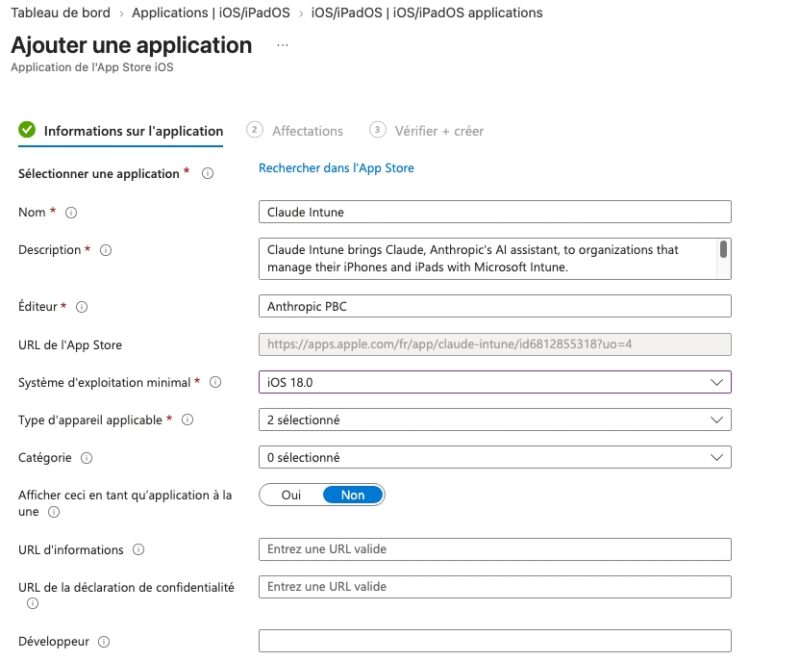
Users assigned as required will automatically receive the app on their device.
For users for whom the app is available, they must install it from the Company Portal. They must not install the standard Claude app. The app becomes truly "managed" once the user signs in with their work account. A restart of the app may be required.
Protect the app: APP and Conditional Access
App protection policy
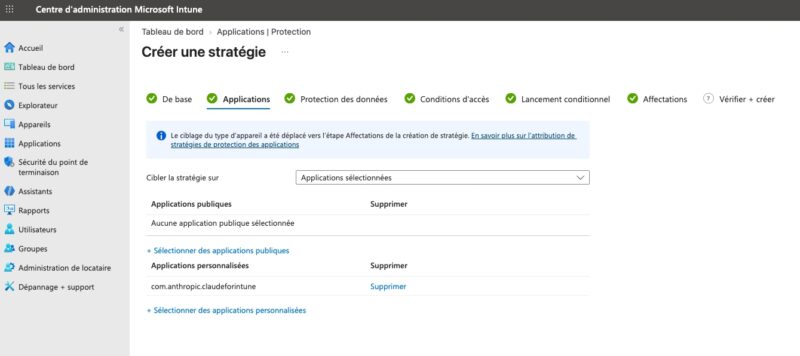
Microsoft does not yet list Claude for Intune among protected apps. You therefore cannot search for it in the policy. You must target it by its bundle ID.
- In Intune, open Apps, then Protection.
- Click Create and choose iOS/iPadOS.
- Name the policy. In the Apps tab, set "Target policy to " to "Selected apps", then click "Select custom apps".
- Enter the bundle ID
com.anthropic.claudeforintuneand select it. - Configure data protection, access requirements, and conditional launch.
- Assign a user group, then create the policy.
When Microsoft adds the app to its list, you will be able to select it from the public apps.
Conditional Access
To require an APP policy at sign-in, target a Conditional Access rule for the "Claude for Intune" app. Choose "Require app protection policy" as the grant control. A rule that targets only Office 365 or Claude SSO does not cover Claude for Intune.
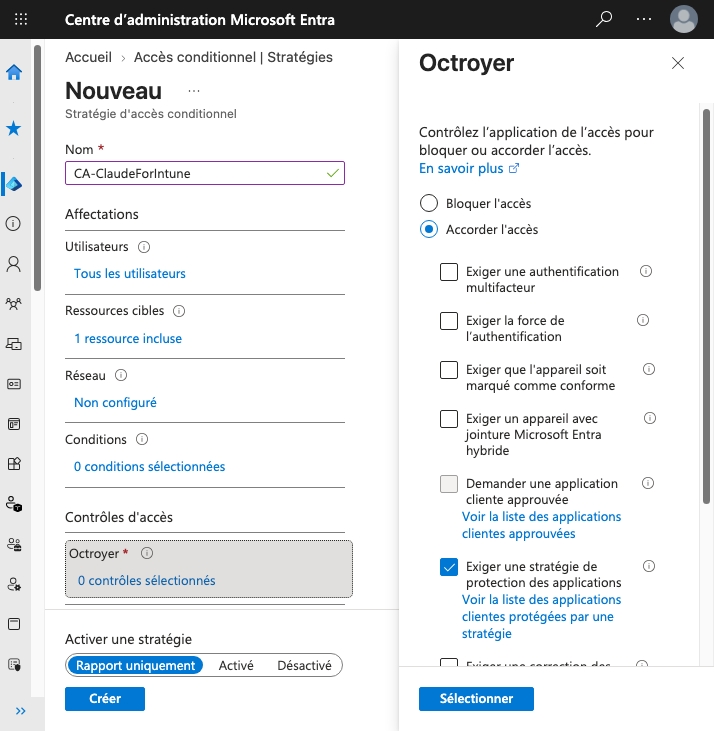
Microsoft Authenticator must be installed on the device. On iOS, Microsoft uses it as a broker app for this grant control.
Conclusion
Claude for Intune makes it possible to integrate Claude into an existing Intune mobile governance setup: Microsoft 365 sign-in, app protection, and Conditional Access. Deployment is still straightforward. Two steps require special attention: admin consent in Entra and targeting by bundle ID in the APP policy.
On desktops, Claude Desktop follows a separate path, with its own packages and configuration.