www.it-connect.fr

SafeLine: A WAF Built to Protect Web Apps from Malicious Bots
Vulnerability scanners, injection attempts, credential stuffing on your login page... All of this malicious traffic can land on any Internet-exposed web service, regardless of what you have put online. That is where a WAF like SafeLine comes in to help protect your Web services, going as far as protecting you from bots.
In this article, I’m going to give you an overview of SafeLine: what it is, how it works, what its key features are, how to install it, and above all, we’ll try to test how effective it is. This tutorial will therefore be an opportunity to deploy it with Docker Compose and see how to protect a first application.
If you don’t know what a WAF is, start by reading this article: What Is a WAF? Principles and Hands-On Use.
This article was sponsored by the SafeLine WAF vendor.
SafeLine in a Nutshell
SafeLine is a web application firewall (WAF) developed by the Chinese company Chaitin Tech. This solution is partially open source: the semantic analysis engine is open source, unlike the solution’s UI, which is not. So this is not a fully open source solution, which I wanted to point out right away.
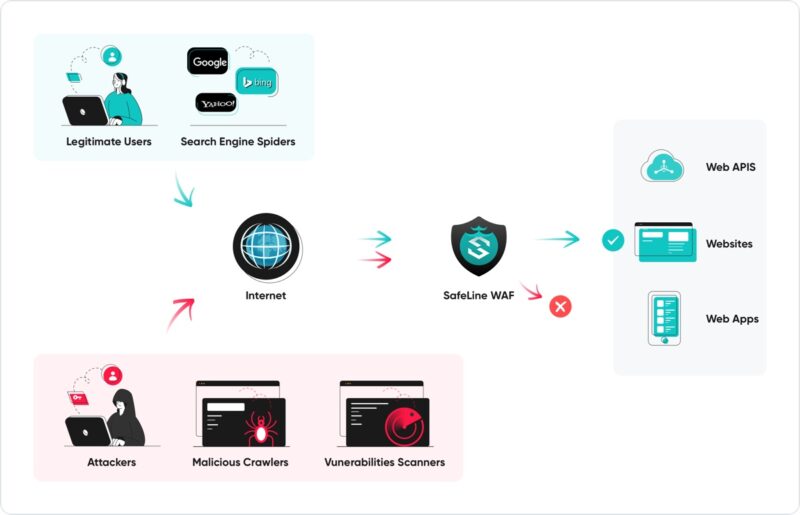
The SafeLine WAF sits in front of your applications as a reverse proxy and inspects each HTTP request before it reaches your application. Its main distinguishing feature is its semantic analysis engine, which tries to understand the intent of a request rather than matching signatures. It is installed with Docker Compose, managed through a web interface, and comes in a full free edition as well as a paid Pro edition.
What Is SafeLine?
A WAF Built Around Semantic Analysis
Most web application firewalls rely on rules and signatures. That is the model used by ModSecurity together with the OWASP CRS ruleset, which we already covered in our article on WAF principles and hands-on implementation. This model works, but it forces a constant trade-off: the stricter the rules, the higher the false positive rate.
SafeLine takes a different path. Its engine analyzes the structure of the request, decodes encoded payloads, and tries to determine whether a string is a syntactically valid expression in a given language (SQL, JavaScript, system commands, and so on). The underlying idea is simple: an SQL injection remains an SQL injection, no matter how obfuscated it is, because it still has to be interpretable by the target database.
SafeLine is designed to cover the major web attack families: SQL injection, XSS, code injection, OS command injection, CRLF injection, LDAP and XPath injection, XXE, SSRF, directory traversal, remote code execution, backdoors, brute force, HTTP flood, and bot activity.
Who Develops SafeLine, and Under What License
Here are a few facts about SafeLine:
- Vendor: Chaitin Tech, a Chinese cybersecurity company.
- License: GPL-3.0
- Business model: a free edition with no time limit, and a paid Pro edition with additional features (a seven-day trial is available).
- Resources: the official SafeLine website and the chaitin/SafeLine GitHub repository.
The repository highlights more than 400,000 installations worldwide, more than one million protected sites, and over 30 billion HTTP requests processed every day. I can’t verify those figures myself, but the project’s popularity on GitHub is real: it is one of the WAFs with the highest number of stars.
The Solution Architecture
SafeLine is not a single container but a set of components, so deploying it involves several building blocks. It relies on:
- tengine: the proxy that actually processes traffic. It is a derivative of Nginx maintained by Alibaba. It runs in
network_mode: host, so it uses the server’s network stack. - detector: the detection engine, written in Rust. This is what analyzes the requests submitted by Tengine.
- mgt: the administration console, written in Go, which exposes the web interface.
- postgres: the database, which stores configuration and logs.
- luigi, fvm and chaos: supporting services, respectively for log processing, version management, and dynamic protection of the front-end code.
The choice of network_mode: host for Tengine is not trivial. This mode allows the proxy to see the client’s real IP address without depending on an X-Forwarded-For header being passed to it or not. In the case of a WAF, that is critical for making blocking decisions based on the source IP: at least, it is reliable. On the downside, Tengine does not belong to any Docker network and therefore cannot resolve other containers by name. That is why the components communicate through static IP addresses defined in the Docker Compose file. We will come back to this.
Key Features of SafeLine
Blocking Web Attacks
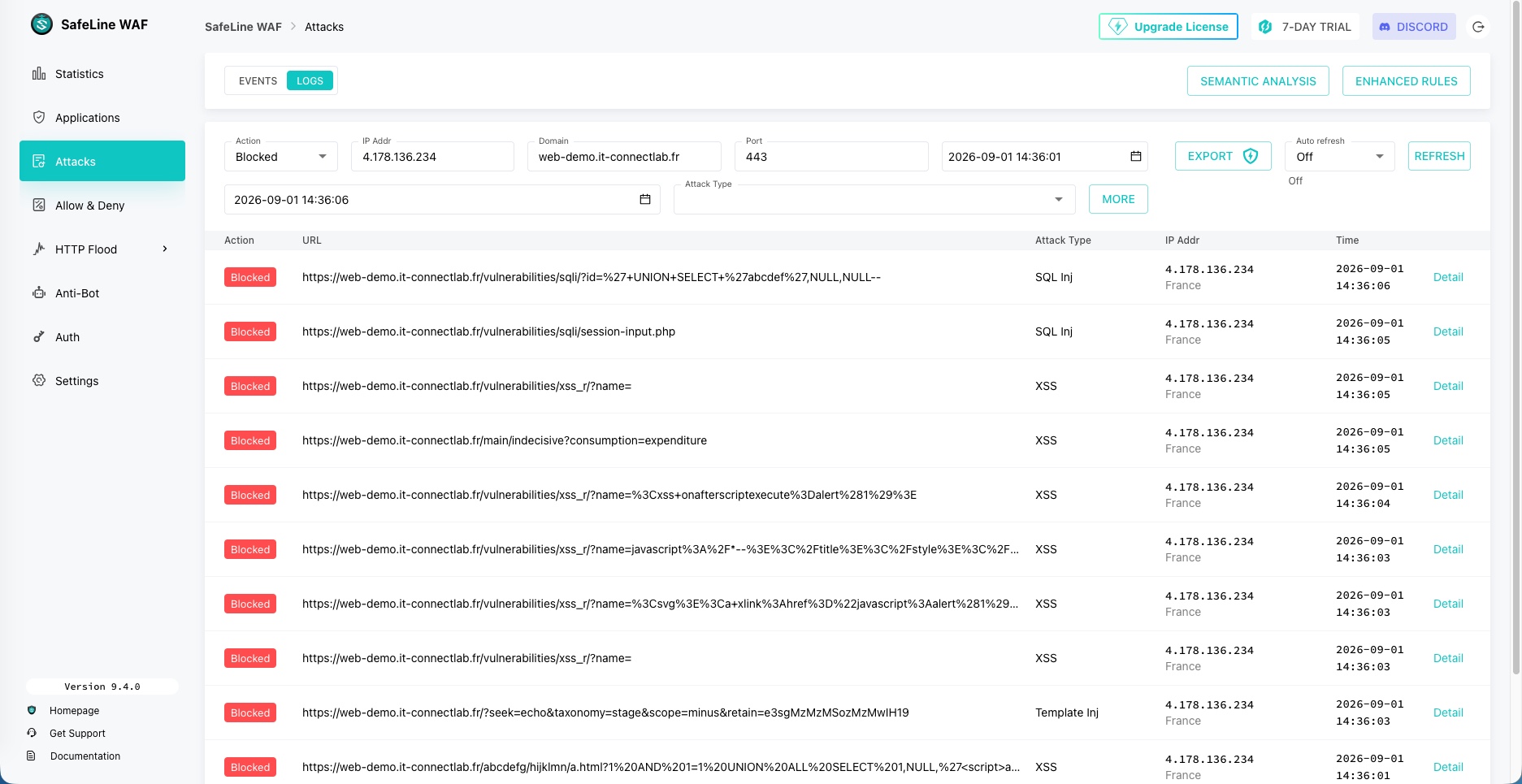
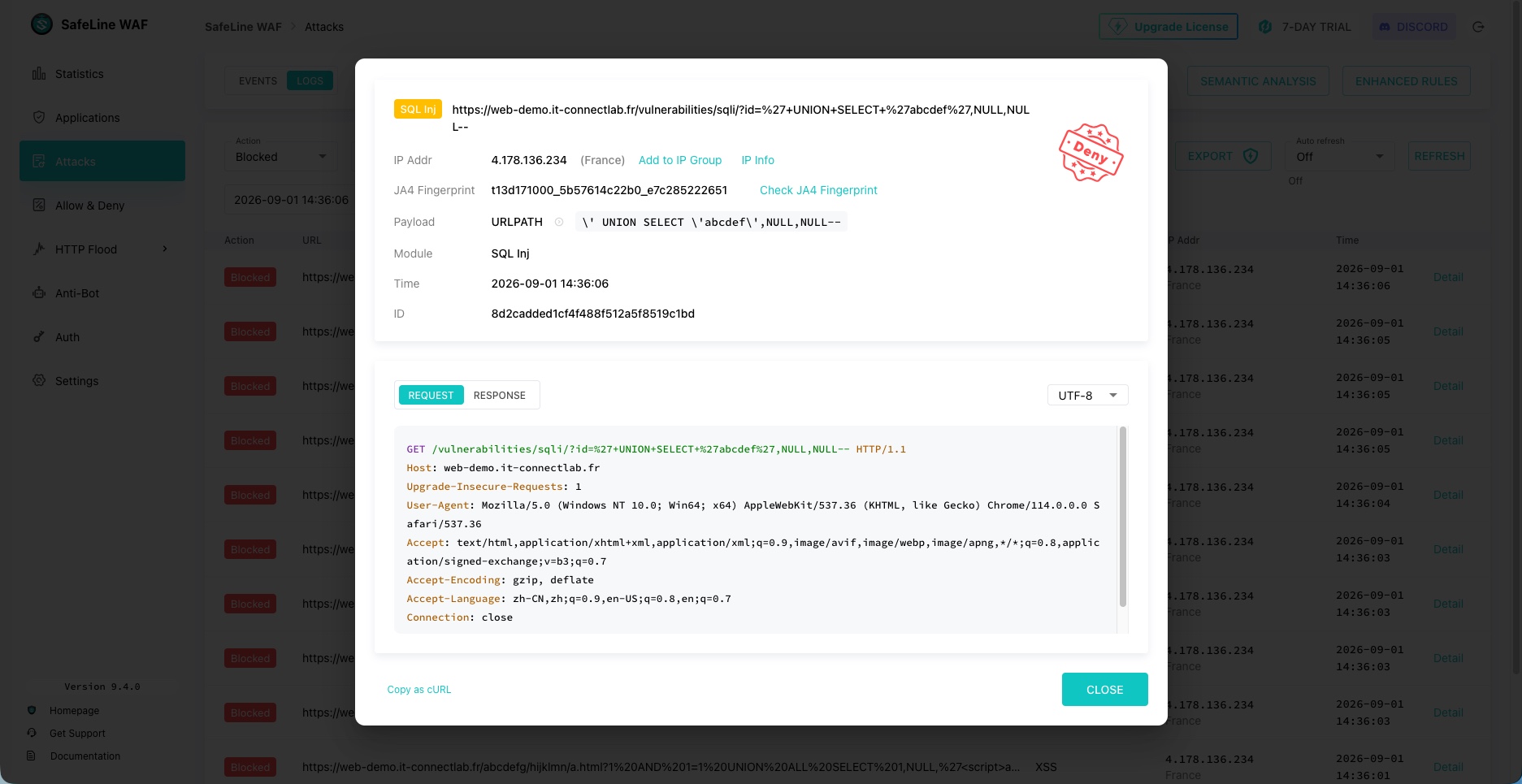
This is the core function, enabled as soon as an application is declared. When a request is deemed malicious, SafeLine returns a block page to the client and logs an event in the console, along with the request details, the source IP address, the identified attack type, and the detected payload.
The value for the operator lies in visibility as much as in blocking. You get the full context needed to understand why a request was denied. It is also possible to add the IP address behind the attacks to an IP Group in order to block it.
Anti-Bot Protection
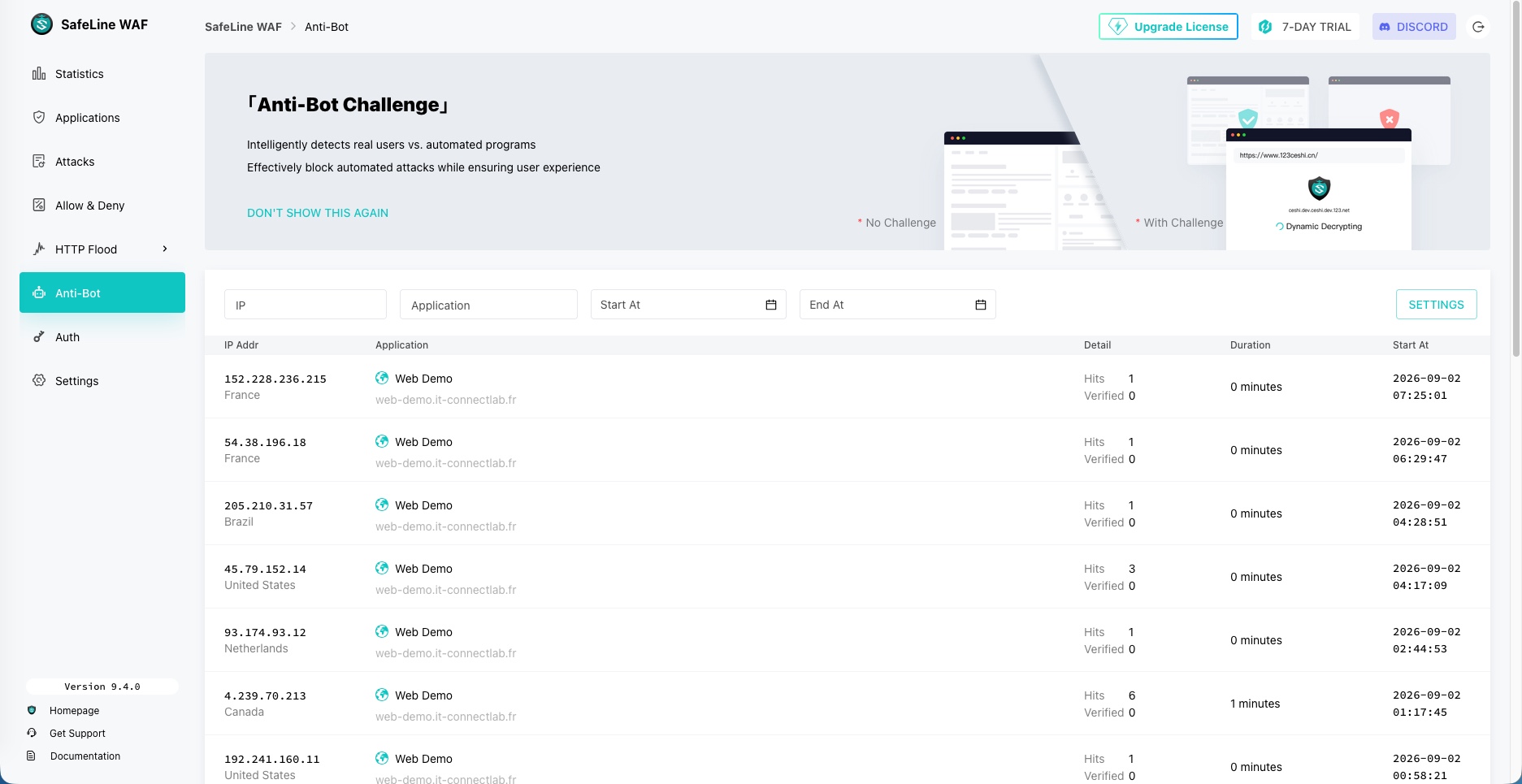
Some requests are perfectly valid at the HTTP level but come from a script. Whether for brute force attacks against login pages or content scraping, bot traffic is becoming more and more important on the Web... Yet no signature can distinguish them: there is nothing malicious in their syntax. Even so, there are several issues, including how frequently they generate requests.
The Anti-Bot module then challenges the client in a way that only a browser can solve, notably because it requires JavaScript execution. A legitimate visitor only experiences a very short loading time, while a scripted client remains blocked. What I observed is that when a challenge is presented, SafeLine responds with HTTP code 468: the vendor chose this to prevent CDNs from caching a verification page as if it were a normal response.
Rate Limiting
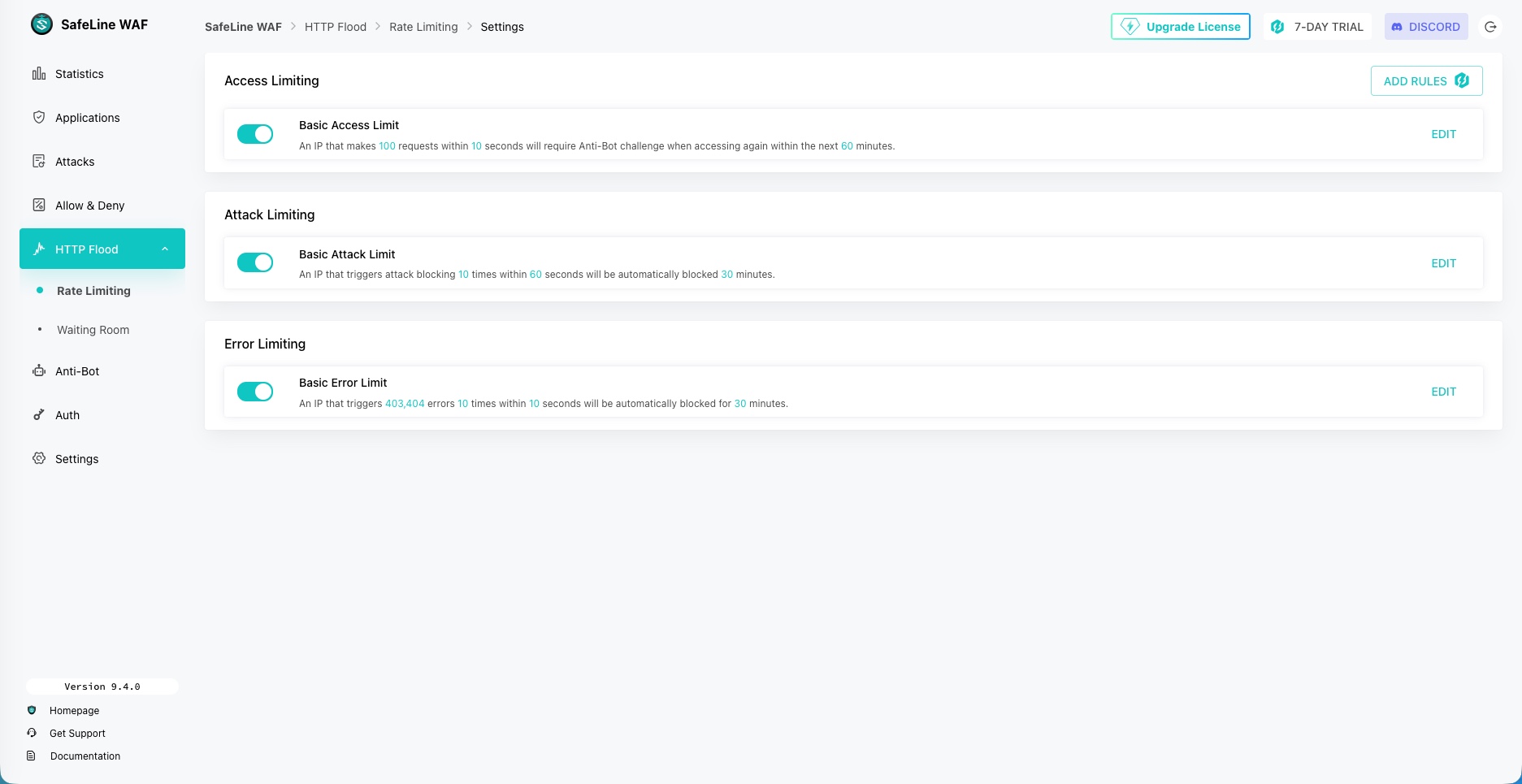
Grouped under the HTTP Flood section, three complementary rules are available and can be enabled independently. They are also customizable (below, the default configuration is shown).
- Access Limiting: beyond a certain number of requests within a time window, the IP address is subjected to an anti-bot challenge for a defined period. The default rule keeps 100 requests in 10 seconds, then applies a challenge for 60 minutes.
- Attack Limiting: when the same IP address triggers multiple attack blocks, it is temporarily banned. By default, 10 triggers in 60 seconds result in 30 minutes of blocking.
- Error Limiting: an IP address that generates a large number of 403 or 404 errors is banned. By default, 10 errors in 10 seconds result in 30 minutes of blocking. This rule is aimed at scanners that enumerate paths.
This last rule is effective, but in a way it is a double-edged sword: a site undergoing a redesign, with broken links, may cause legitimate visitors to be banned. On the other hand, that will not be the case on an application protected by the WAF.
Authentication in Front of the Application
SafeLine can require authentication before the request even reaches your application. This is an easy way to hide an admin interface, a staging environment, or simply access to an application.
Two modes are available:
- Simple Auth: authentication specific to the application in question.
- SSO: single sign-on shared across multiple applications, with a portal listing the applications the user can access. MFA via TOTP can be enforced.
The module also includes access approval management, where a new user must be approved by an administrator before gaining access, as well as authentication conditions. These conditions can, for example, avoid asking for a password from visitors coming from the local network while still requiring one from the Internet. This is somewhat reminiscent of what tools such as TinyAuth, Authentik, or Keycloak can offer, but directly through an authentication layer integrated into the WAF. In fact, you can use a local user database (on the WAF) or rely on an external service: it can be a Keycloak instance queried via OpenID Connect.
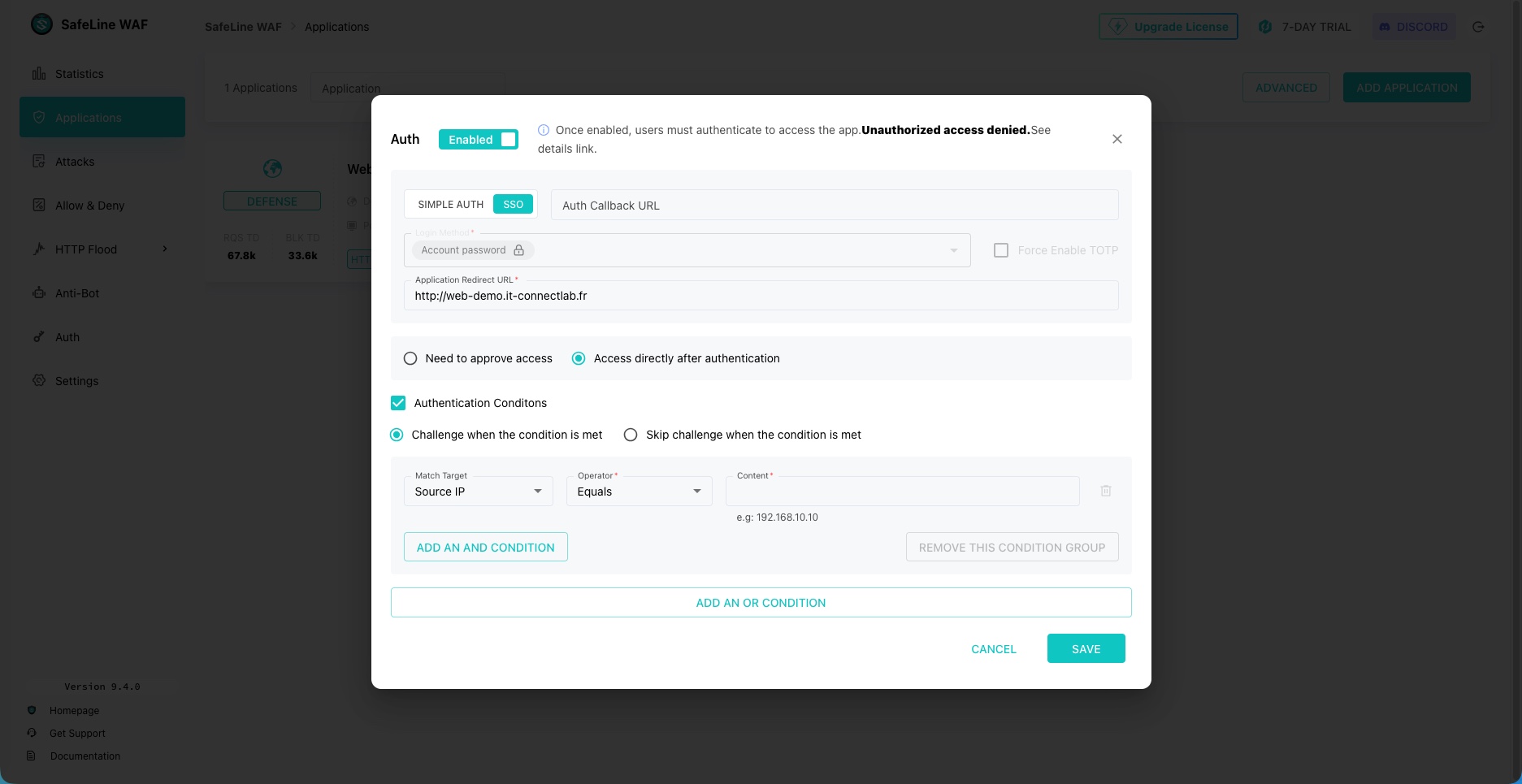
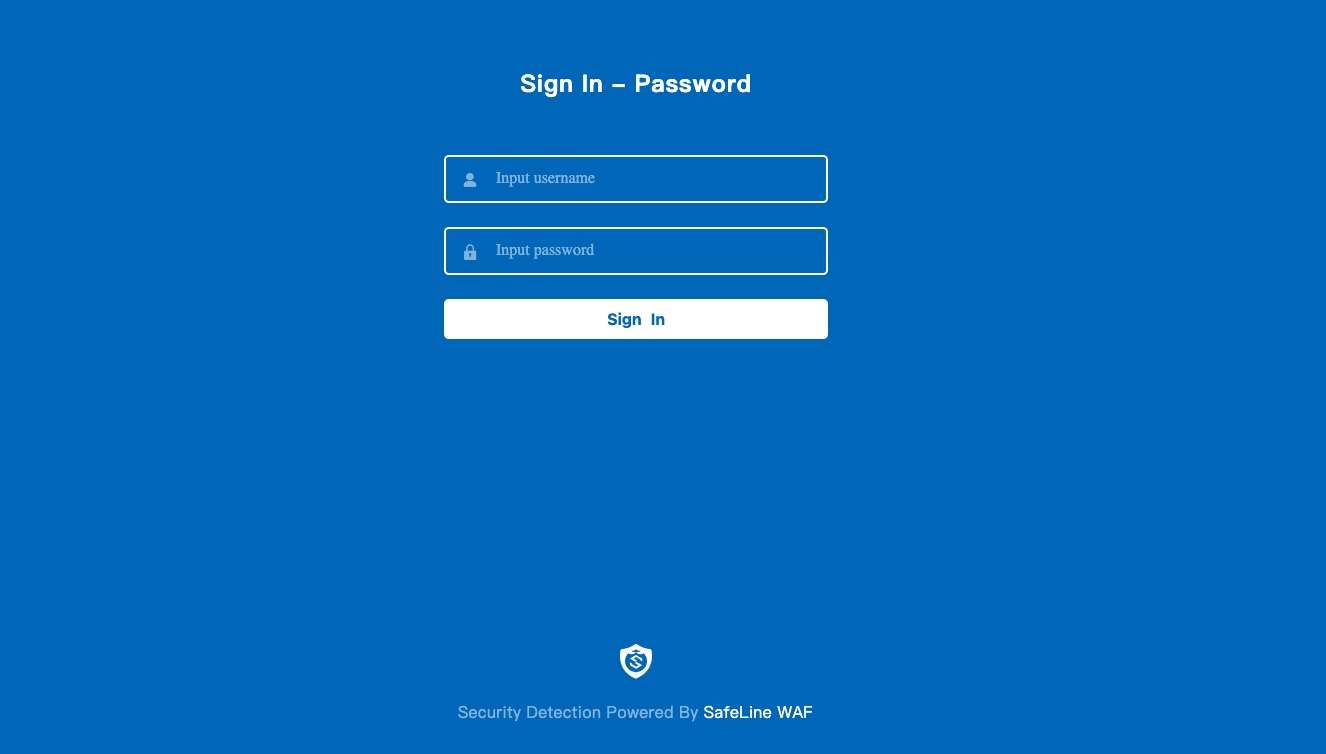
If you want to pass the authenticated user’s identity to your application protected by the WAF, that is also possible. After authentication, the WAF redirects to a callback URL with a specific parameter that your application exchanges for user information by querying an endpoint on the SafeLine API. This field is optional: if your application does not need to know the visitor’s identity, leave it empty. That does not prevent you from protecting access to your application.
Integrations
Connectors for other solutions are also available, including some community-driven ones, which extends its scope beyond a single server: a plugin for Ingress-NGINX to protect inbound traffic in a Kubernetes cluster, a plugin for the Kong gateway, a connector for Traefik (middleware), and an MCP server to control the solution from an AI assistant.
How Effective Is the WAF? What the Numbers Say
If you search for SafeLine, you will repeatedly come across one number: 99.45%. But what does it actually mean?
This figure comes from BlazeHTTP, the measurement tool published by Chaitin on its blazehttp GitHub repository. This tool runs a corpus of more than 33,000 samples, mixing malicious requests and normal traffic, and produces three indicators: a detection rate, a false positive rate, and an overall accuracy. The figure mentioned earlier corresponds to overall accuracy.
Out of about 33,900 samples, fewer than 700 are malicious, with the rest being legitimate traffic. Overall accuracy, calculated as the ratio of correct decisions to the total, is therefore mechanically pushed up by the mass of normal requests that are correctly allowed through. It does not measure attack detection capability.
I reran the test on my instance by running BlazeHTTP from a remote machine (with HTTP Flood protections disabled so that only the analysis engine was being tested).

Here is the result I obtained.
| Metric | Measured value |
|---|---|
| Samples processed | 33,877, without error |
| Detection rate | 70.67% (658 malicious requests, 465 intercepted, 193 passed) |
| False positive rate | 0.05% (33,219 normal requests, 17 wrongly blocked) |
| Overall accuracy | 99.38% |
| Average time per request | 56.64 ms |
The values are very close to those published by the vendor, which is rather reassuring in terms of benchmark honesty. That said, the announced detection rate of 70.67% raises questions: it means that 193 malicious requests out of 658 were not intercepted. Before drawing any conclusions, we need to look at what this test corpus actually contains.
Why Does the Detection Rate Top Out at 70%?
I retrieved the BlazeHTTP corpus and analyzed its 658 malicious samples (with the help of AI, to be honest). After decoding the URLs, the distribution by attack family is as follows.
| Attack family | Samples | Share |
|---|---|---|
| Obfuscated variants that cannot be classified by a simple pattern | 289 | 43.9% |
| XSS | 165 | 25.1% |
| SQL injection | 110 | 16.7% |
| Directory traversal and file inclusion | 39 | 5.9% |
| Command injection | 30 | 4.6% |
| Targeted application exploit | 13 | 2.0% |
| XXE, webshell, and SSRF | 12 | 1.8% |
More importantly, the targets are highly concentrated. DVWA’s reflected XSS page alone accounts for 36.8% of the samples, and three URLs from that same application make up more than 57% of the corpus.
What is DVWA? Damn Vulnerable Web Application is a deliberately vulnerable PHP application used to practice application security. Chaitin clearly built its corpus by replaying attacks launched against a DVWA instance on its own network.
So this is not a representative sample of the traffic received by a production website, but rather an evasion corpus designed to test the limits of a detection engine. Here are three payloads from the corpus, once decoded.
parent[/al/.source+/ert/.source](/XSS/.source);//
frames['ale'+'rt'](frames['doc'+'ument']['dom'+'ain']);//
frames['\x61\x6c\x65\x72\x74'](...)
None of them contains the string alert. The word is reconstructed through concatenation, hexadecimal escaping, or via the .source property of a regular expression. It is valid JavaScript, but it would have to be interpreted to be recognized as malicious.
The 193 undetected samples therefore very likely correspond to the most obfuscated layer of these variants. In other words, the 70% figure does not mean that SafeLine lets three attacks out of ten through in the real world. It means that it catches seven evasion variants out of ten among the hardest to detect, which is very different.
The table published by the vendor confirms this reading. ModSecurity at paranoia level 1 tops out at 69.74% detection, but with 17.58% false positives. To reach 94.61%, you have to move to level 4 and accept 52.46% false positives, in other words, block one legitimate request out of two. Nobody significantly beats 70% on this corpus without exploding the false positives. That is where SafeLine is interesting: it has a detection rate comparable to ModSecurity, but with very, very few false positives.
Two caveats, however:
- The measurement tool is published by Chaitin Tech, which is also the vendor behind the SafeLine WAF. The upside is that the sample set is public and can be replayed at any time, as I was able to do while preparing this article.
- The corpus is heavily focused on a single vulnerable demonstration application (DVWA here), which limits its representativeness. A detection engine could rank well without necessarily performing strongly against other attack families.
Requirements to Install SafeLine
To follow this tutorial, you need the following:
- A Linux server with
sudoaccess. Here, I am using Debian. - Docker and Docker Compose installed.
- Ports 80 and 443 free on the server, as Tengine must use them.
- A domain name pointing to the server’s public IP address.
- A web application to protect, which we will deploy together (a fake page can be enough for testing).
Note: SafeLine’s Tengine component occupies ports 80 and 443 in host mode, so it cannot coexist with an existing reverse proxy already sitting in front on the same machine. In this tutorial, SafeLine is the only entry point (no Traefik or anything else).
There is an alternative for those who want to keep their reverse proxy. Chaitin publishes connectors for Traefik, Ingress-NGINX, and Kong that talk directly to the detection engine, without going through Tengine. The reverse proxy remains the front end and queries the engine on each request. This approach gives you semantic analysis, but not the Tengine-backed modules such as the anti-bot challenge or rate limiting. This makes it possible, for example, to keep Traefik as the reverse proxy and use SafeLine as middleware.
Install SafeLine with Docker Compose
SafeLine can be installed easily thanks to an installation script that lets you do it in one command. Personally, I prefer a manual deployment with Docker Compose so I have full control over my setup.
Preparing the Directory Structure
We will follow my convention and use a dedicated project directory.
sudo mkdir -p /opt/docker-compose/safeline
cd /opt/docker-compose/safeline
Next, prepare the Docker Compose and .env files. I used the compose.yml file provided by the vendor as the base, without making any modifications to it. In fact, everything will be handled in the .env file for customization.
Preparing the .env File
The file contains about ten variables, shown below through comments. You can use this base and adapt it, mainly for the Postgres password, the data location, and possibly the management port.
# Persistent data location, as an absolute path
SAFELINE_DIR=/opt/docker-compose/safeline/data

# Image tag to deploy
IMAGE_TAG=latest

# Administration console listening port
MGT_PORT=9443

# PostgreSQL password, to be generated randomly
POSTGRES_PASSWORD=4d7ee91387f4c67d39b65fb034e196ebb8d6e83ba1a3288242c2338715a169b1

# First three octets of the internal subnet
SUBNET_PREFIX=10.100.1

# Prefix and suffixes used to build image names
IMAGE_PREFIX=chaitin
ARCH_SUFFIX=
RELEASE=
REGION=-g

# Use an outbound proxy
MGT_PROXY=0
A few explanations about the variables:
- SAFELINE_DIR defines the root of the bind mounts. All persistent data, including the PostgreSQL database, will be created under this path.
- SUBNET_PREFIX corresponds to the first three octets of a dedicated /24 network for containers. Docker Compose derives the gateway, subnet, and static IP addresses for each service from it (remember what I mentioned earlier about network connectivity).
- REGION is a suffix added to the image name. The
-gvalue corresponds to the international images available on Docker Hub. - MGT_PROXY allows the administration console to go out through a proxy if your server does not have direct Internet access.
Another important point is the PostgreSQL password, used by several services. Avoid special characters, and the braces in the template provided in the documentation must be removed. Here is a command to generate a random, strong password:
openssl rand -hex 32Take the time to generate it correctly, because this variable is read only at the very first startup, when PostgreSQL is initialized. Changing it afterward does not affect the database server, but it does change the string sent by the other containers. That can trigger an error on the mgt and luigi containers, like this one (been there, haha):
panic: failed to init pg: failed to connect to `host=safeline-pg user=safeline-ce database=safeline-ce`:
failed SASL auth (FATAL: password authentication failed for user "safeline-ce" (SQLSTATE 28P01))
If you see this message, you need to destroy the existing instance before starting again, which means losing the configuration and history. So it is better to generate the right password from the start.
Starting the Stack
All that remains is to start the Docker Compose stack and check the container status:
docker compose up -d
docker compose ps
Here is an example:

If everything is OK, you will be able to connect to the SafeLine web interface. OK, but what credentials do we use? The answer is in the rest of this article.
Retrieving Console Credentials
The default credentials are not in the documentation, and they are not displayed in the logs either. You have to retrieve them with the following command:
docker exec safeline-mgt resetadmin

[INFO] Initial username:admin
[INFO] Initial password:bFGkGtP
[INFO] Done
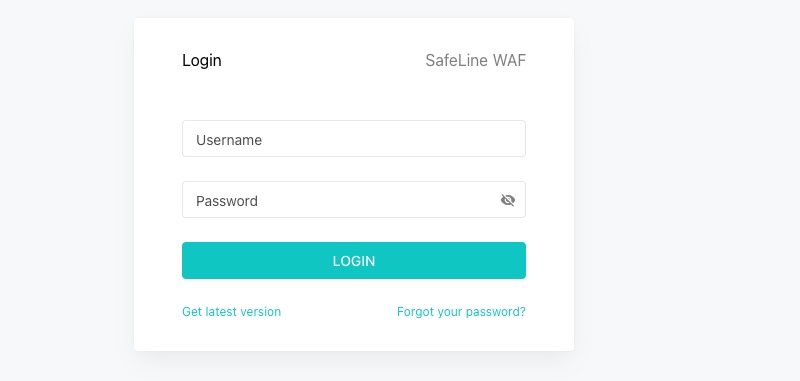
The command returns the username admin and a randomly generated password. Then connect to https://<server-address>:9443, accept the self-signed certificate, and authenticate. It is of course better to change this password afterward.
Deploying a Demo Application
To properly test the WAF, we need a target. We are going to deploy a small PHP application (deliberately vulnerable, but that does not really matter).
The important point is to publish it only on the loopback interface. Since Tengine runs in host mode, it can reach 127.0.0.1 directly. The application is therefore accessible only through the WAF, even from the local network, which ensures the demonstration makes sense.
If you want to run the same tests, create the /opt/docker-compose/web-demo project. Add a docker-compose.yml file with this content:
services:
  web-demo:
    image: php:8.4-apache
    container_name: web-demo
    restart: unless-stopped
    # Listening on loopback: only SafeLine can reach the application
    ports:
      - "127.0.0.1:8080:80"
    volumes:
      - ./site:/var/www/html:ro
    security_opt:
      - no-new-privileges:true
    tmpfs:
      - /tmp
      - /var/run/apache2
Note: this architecture differs from the one you may know with Traefik. Where Traefik reaches your containers by name on a shared Docker network, SafeLine cannot do that because Tengine does not belong to any Docker network. Loopback publishing, or assigning a static IP on a dedicated application network, replaces name resolution.
Also create the /opt/docker-compose/web-demo/site directory and add the code for your application inside it. It can be a simple page.
Declaring the Application in SafeLine
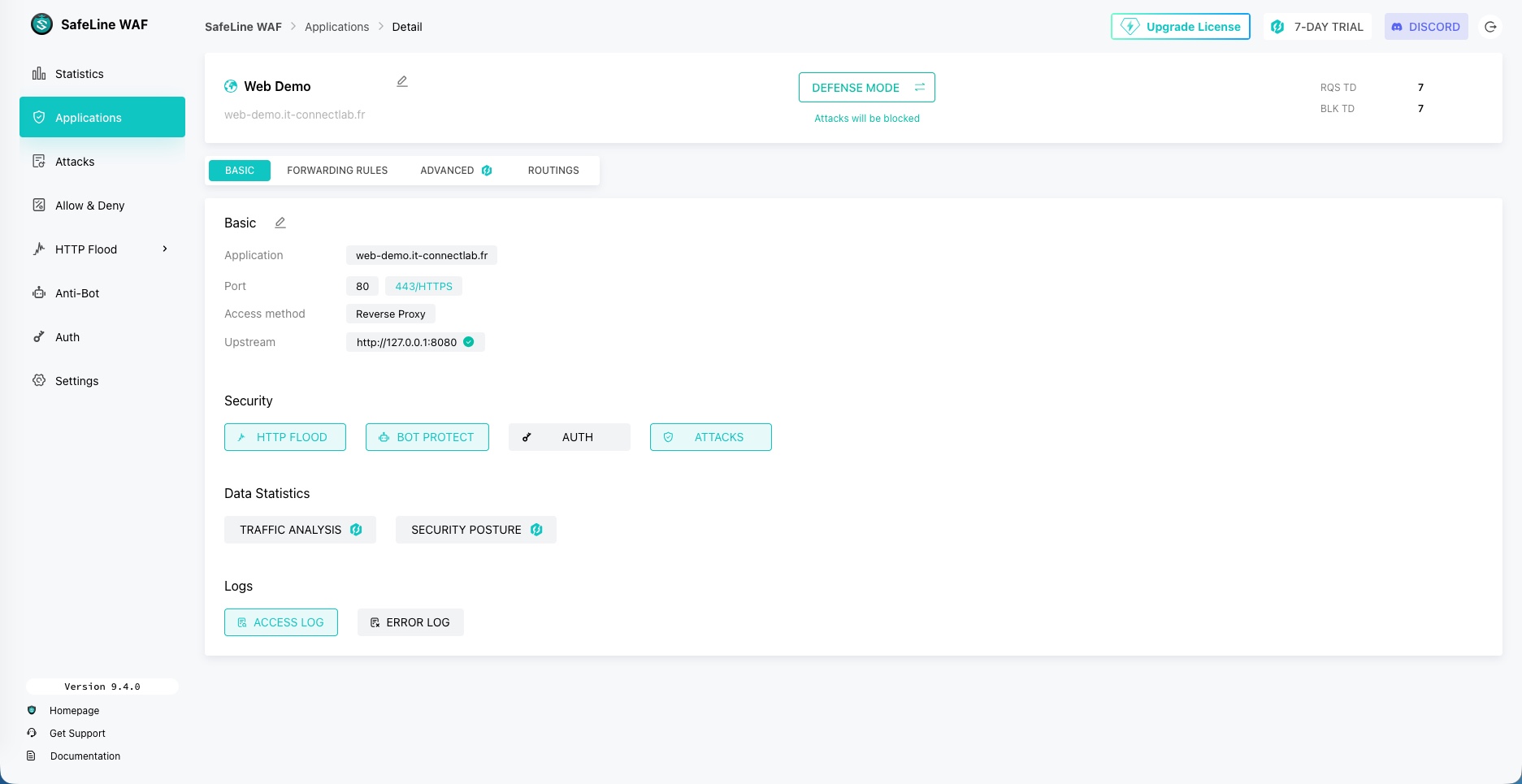
In the console, go to Applications and add an application with the following settings.
- Domain: the public domain name of your application. Here, I am using:
web-demo.it-connectlab.fr. - Listening port: 80, then 443 once the certificate is in place.
- Upstream:
http://127.0.0.1:8080, the address of your application.
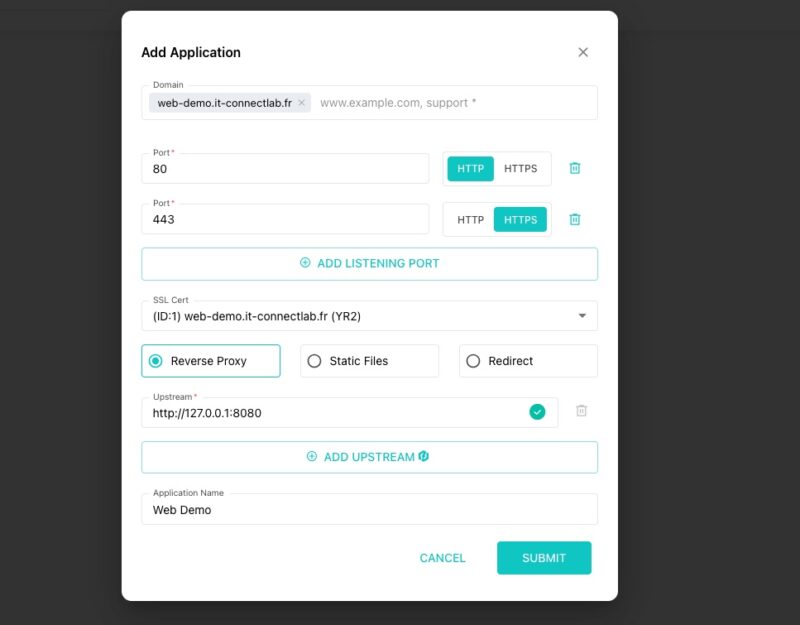
For certificates, SafeLine has a dedicated section for importing and managing them. The good news is that Let's Encrypt is supported natively: you only need to specify one or more domain names to obtain a certificate. However, the verification method is HTTP.
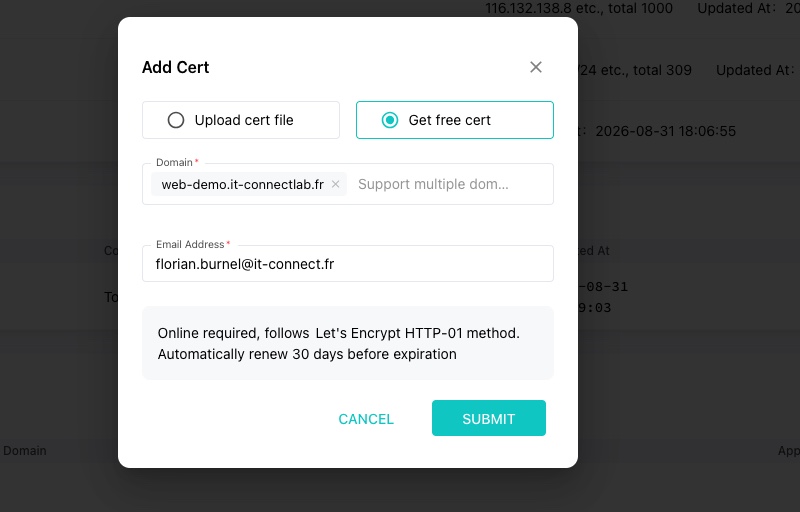
Later on, you can return to the configuration at any time. There are actually three possible modes: defense to block attacks, audit to log events without blocking, and offline to prevent access to an application (useful for maintenance). You can also create specific routing rules based on a URL, and so on.
Testing WAF Protection
Checking Web Attack Detection
To test the behavior on the application created earlier and protected by the WAF, here are a few requests to run from a remote machine.
# The request should be intercepted
curl -sk -o /dev/null -w "%{http_code}\n" \
  "https://votre-domaine.fr/?q=<script>alert(1)</script>"

# SQL injection
curl -sk -o /dev/null -w "%{http_code}\n" \
  "https://web-demo.it-connectlab.fr/?q=1'%20UNION%20SELECT%20NULL,NULL--"

# Directory traversal
curl -sk -o /dev/null -w "%{http_code}\n" \
  "https://web-demo.it-connectlab.fr/?q=../../../../etc/passwd"

# Payload in a POST body, to validate inspection beyond the URL
curl -sk -o /dev/null -w "%{http_code}\n" \
  -X POST -d "user=admin' OR '1'='1&password=x" \
  https://web-demo.it-connectlab.fr/login.php
All of the previous requests should be blocked (HTTP 403). On the other hand, a legitimate request should pass through the WAF (HTTP 200). Test with this one:
curl -sk -o /dev/null -w "%{http_code}\n" "https://demo-web.it-connectlab.fr/?q=serveur"Here is an example:

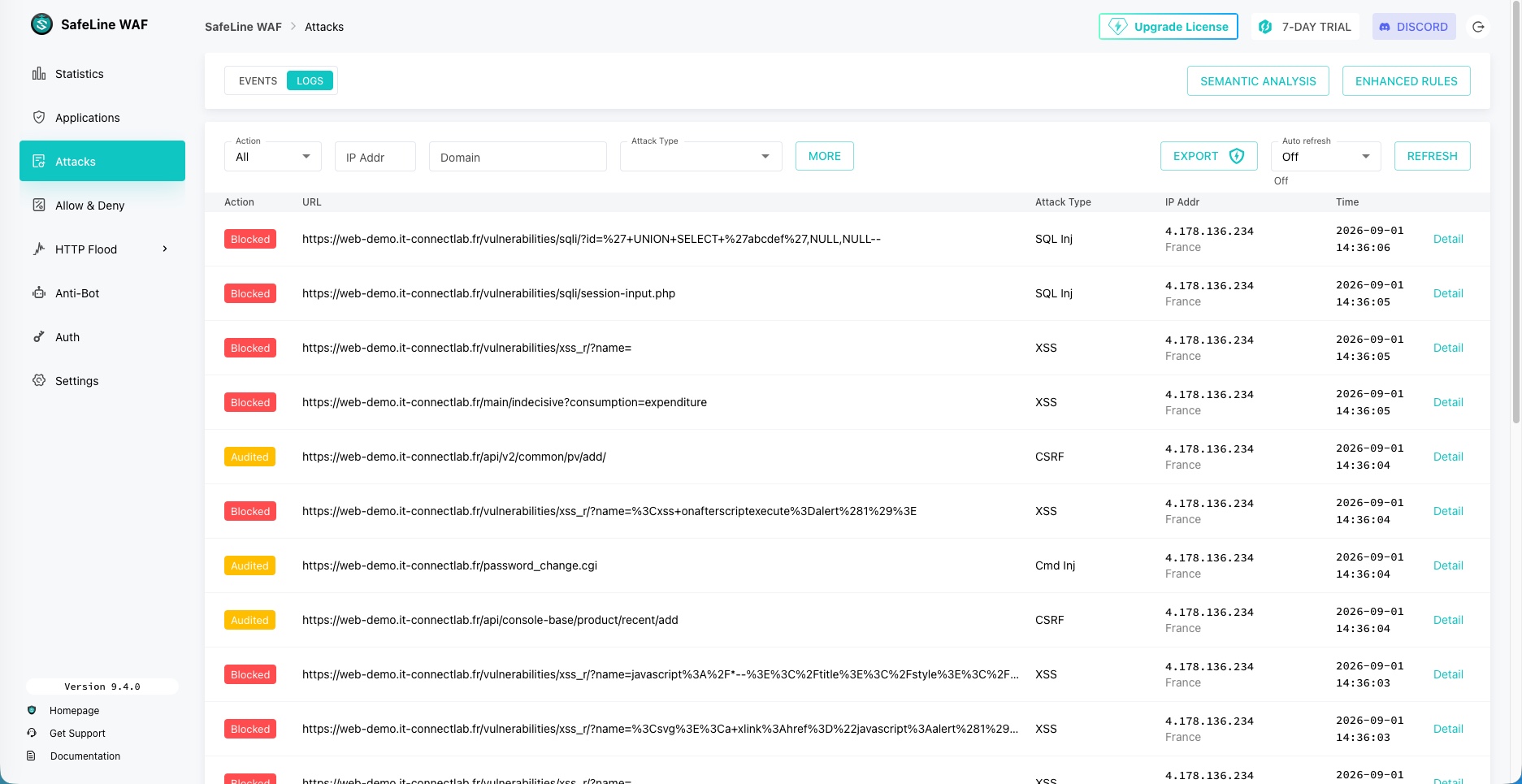
Each interception should appear in the Attacks section of the console, with the request details and the identified attack type.
Managing Whitelists and Blacklists
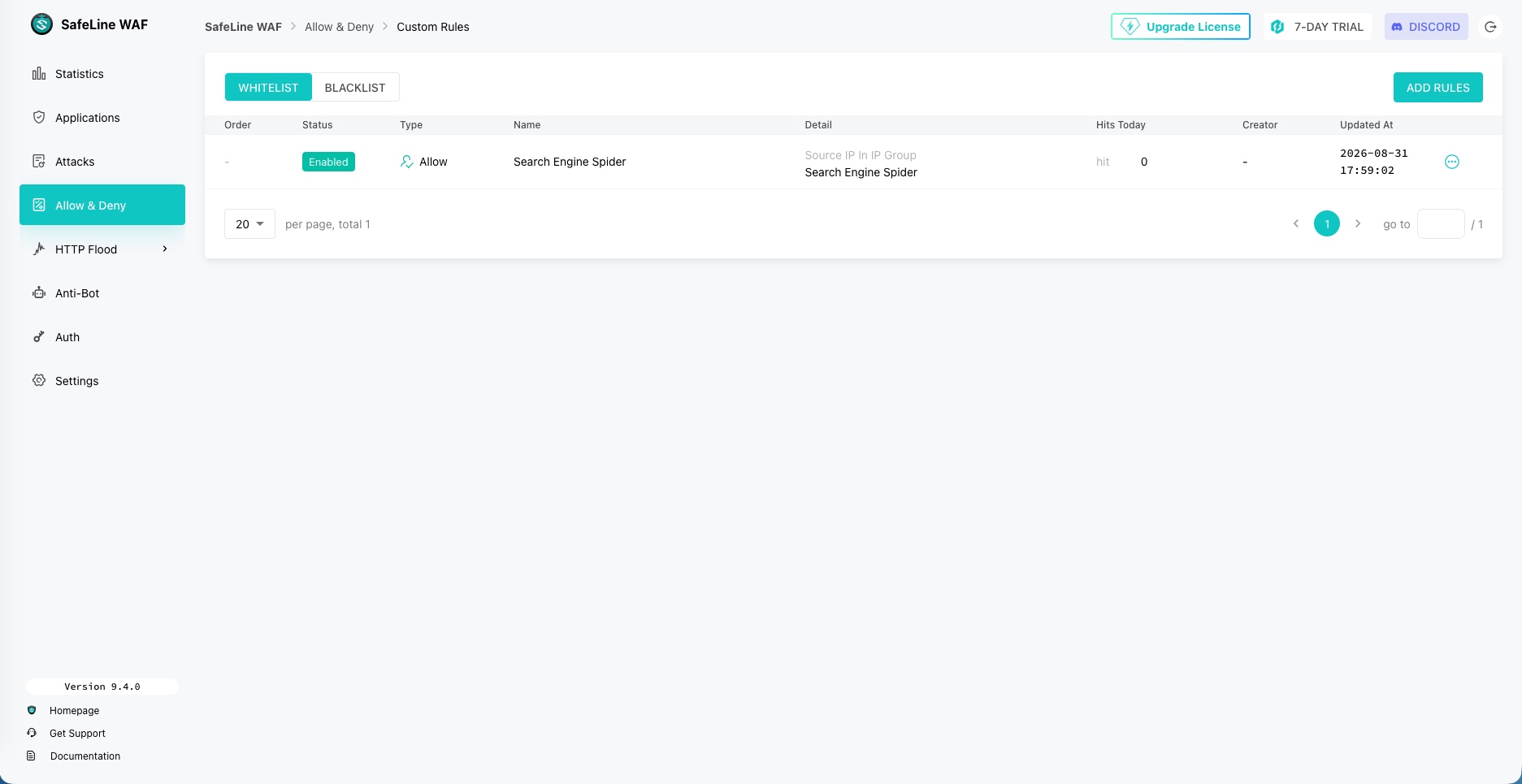
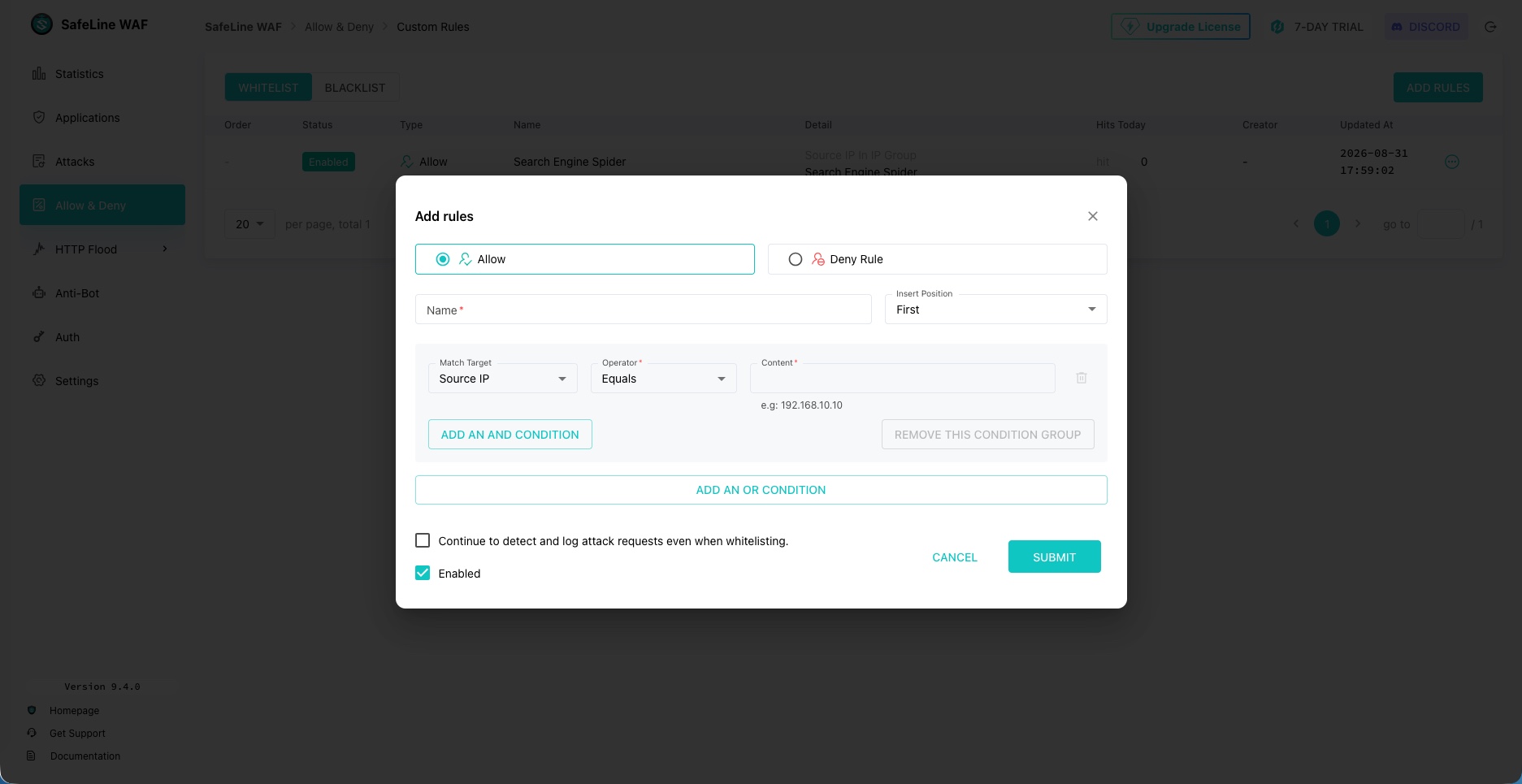
SafeLine can block certain IP addresses by default, or on the contrary, consider some IPs as trusted. This refers to blacklist and whitelist concepts. As the images below show, there are default lists and they are updated automatically. They do not contain many IP addresses, but you can add your own malicious IPs. In practice, I get the feeling that the main list called "Malicious IP Group" is limited to 1,000 IPs in the free version of SafeLine.
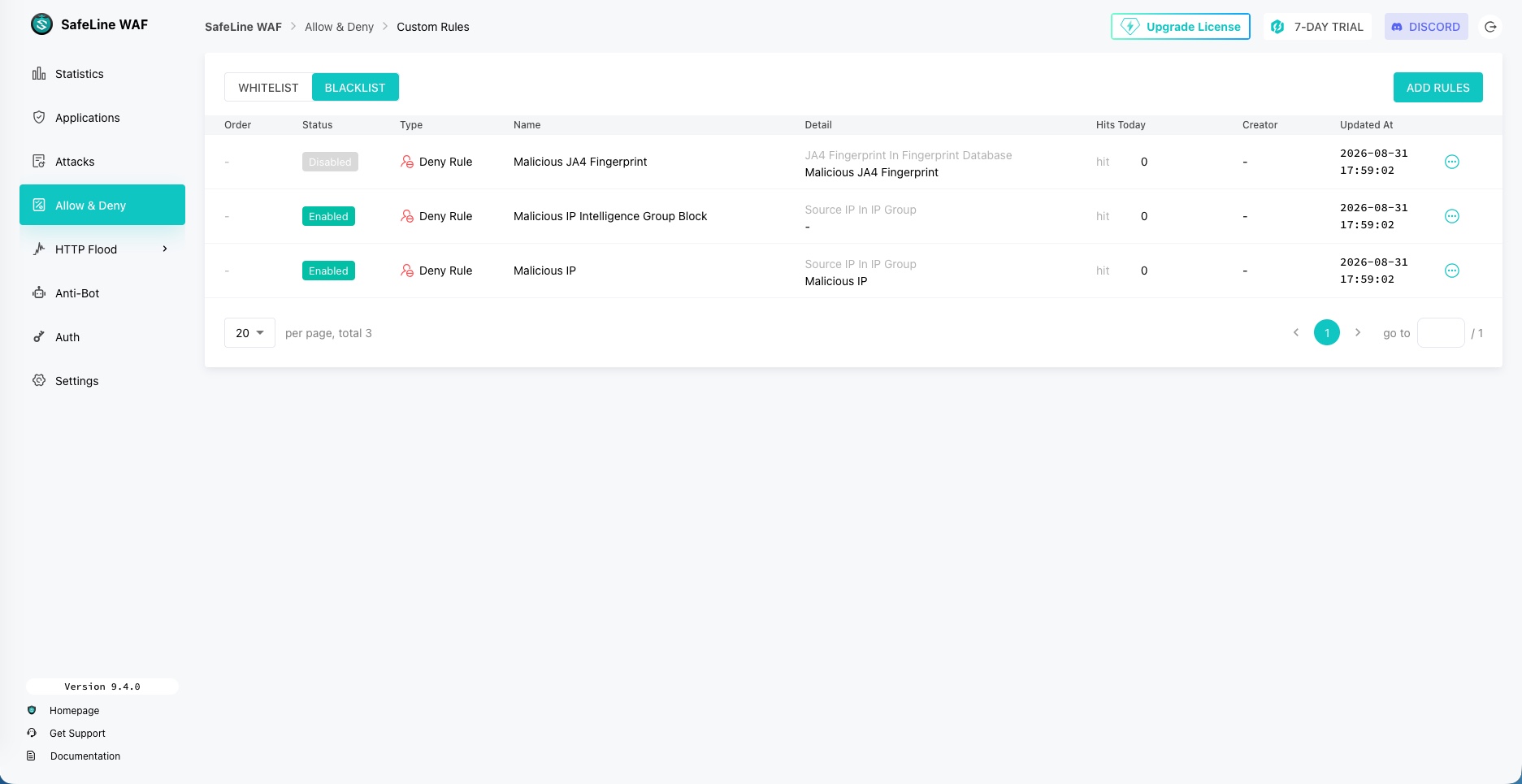
Beyond IP addresses, there is also a more specific list: Malicious JA4 Fingerprint. This list of known JA4 fingerprints may contain fingerprints belonging to automated tools: HTTP libraries (curl, python-requests, Go), scanners and exploitation frameworks (sqlmap, Nmap, Metasploit), scraping bots, and so on. In practice, SafeLine computes the JA4 fingerprint of each connection’s ClientHello and compares it to this list. If there is a match, the request can be blocked.
Conclusion
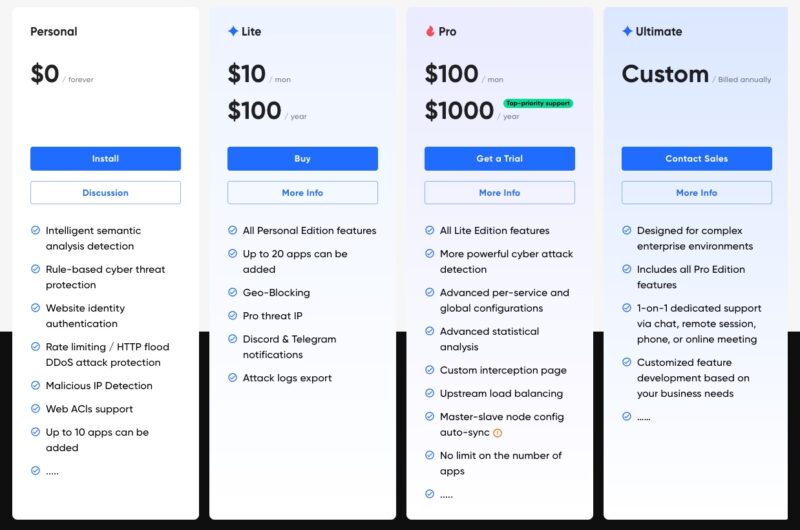
SafeLine WAF is worth considering when choosing a WAF to protect your Web services, whether for a business network or a homelab. The free version is the one presented in this article: all sections and options reserved for paid versions are identifiable by a turquoise blue icon or associated with an "Upgrade" button. By the way, here are the pricing details for the paid versions (the free personal version may be enough for some use cases): starting at 10 dollars per month or 100 dollars per year.
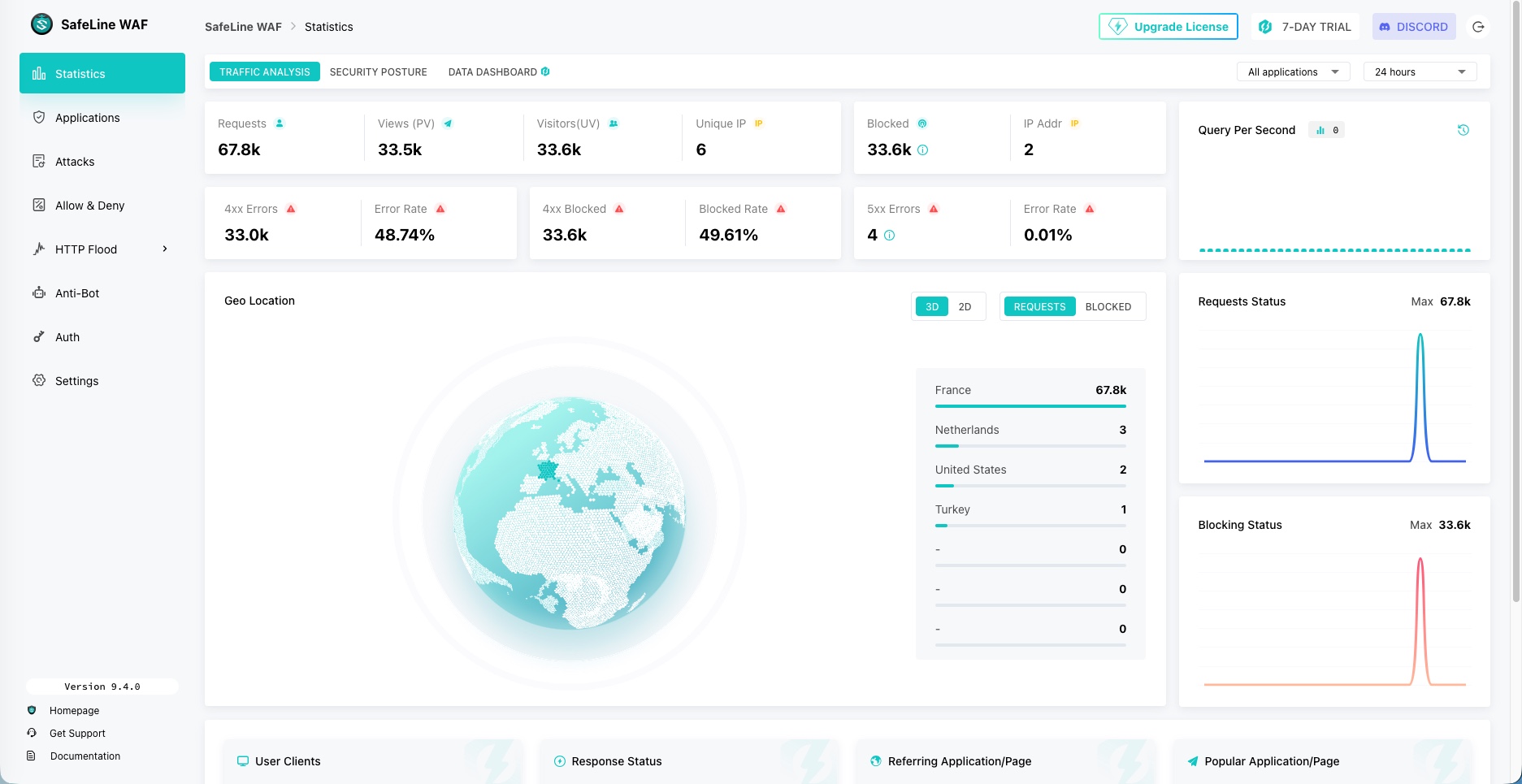
Honestly, SafeLine WAF has a lot of interesting features, which makes it an all-in-one solution, both reverse proxy and WAF, with authentication capabilities. Beyond its features, the solution is pleasant to use, with a modern and rather attractive interface. I especially appreciated the dashboard and the ability to get detailed information (requests / responses) for each detected attack, all through the web browser.
The anti-bot feature is also essential today: Internet traffic generated by bots (of all kinds) is higher than traffic generated by humans. It is therefore essential to have a suitable protection system against this constantly evolving type of traffic.
Feel free to try it on your side and let me know what you think.
To go further:
- What Is a WAF? Principles and Hands-On Use for the conceptual part and an implementation with ModSecurity.
- wafw00f, a WAF detection tool to see what an attacker can learn about your protection.
- Web-Check, the OSINT tool for analyzing a website to audit your application’s exposed surface.
- The official SafeLine documentation and the online demo, which lets you test the different modules without installing anything.