www.it-connect.fr

Windows Forensics Part 8: Exploring ShellBags
A folder opened in Windows Explorer leaves behind a trace that survives it, even after it has been renamed or deleted.
In digital forensics, reconstructing a user's path through a machine's directory tree often makes the difference between a mere suspicion and usable evidence. When an analyst needs to show that an attacker actually navigated to a folder containing exfiltration tools, or that a user opened a network share they claim to have never accessed, ShellBags are among the first artifacts to examine.
In this article, I'll walk you through what ShellBags are, where they are stored in the Registry, and how they are structured. We will then see how to analyze them with two tools by Eric Zimmerman, SBECmd from the command line and ShellBags Explorer with a graphical interface, using a real-world example. This installment extends the previous entries in our Windows forensics series, alongside artifacts such as Amcache and ShimCache.
Introduction to ShellBags
ShellBags are Windows Registry artifacts used by File Explorer to remember the display preferences for folders a user has visited. They record details such as the view mode (icons, details, list, and so on), window size, and folder position so those settings can be restored automatically the next time the folder is opened.
Created automatically by Windows when browsing in File Explorer, ShellBags are populated by user actions. As such, they are a valuable source of information in digital forensics because they can identify folders that were accessed, even if they were later deleted or came from removable media or a network share.
Unlike some other artifacts, ShellBags do not prove that a file was opened, but they generally show that a folder was browsed through Windows Explorer, making them an excellent complement to LNK files, Prefetch, and Amcache.
In the Registry, a ShellBag is made up of two main keys: Bags and BagMRU. The BagMRU key stores folder names and paths, while the Bags key stores information such as window size, position, and display settings.
Registry path
From the Windows Registry Editor (regedit.exe), you can locate this information here:
HKEY_CURRENT_USER\Software\Classes\Local Settings\Software\Microsoft\Windows\Shell\Bags
HKEY_CURRENT_USER\Software\Classes\Local Settings\Software\Microsoft\Windows\Shell\BagMRU
HKEY_CURRENT_USER\Software\Microsoft\Windows\Shell\Bags
HKEY_CURRENT_USER\Software\Microsoft\Windows\Shell\BagMRU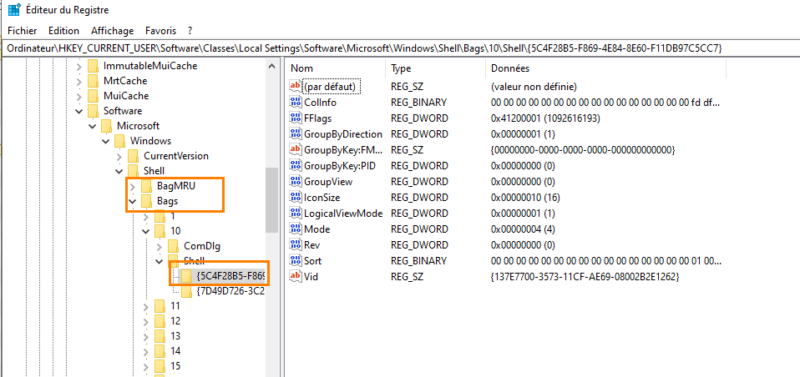
Block structure
Each folder stored in ShellBags is recorded as a binary block called a shell item. This block follows a specific layout: a first set of fixed-size fields (block size, item type, modification date, attributes), followed by a variable-length portion containing the folder's short name, and then, on newer versions of Windows, one or more extension blocks.
These extension blocks contain the long name, additional timestamps (creation and last access), as well as the folder's MFT reference, in other words the information we will use later to confirm that a renamed folder is indeed the same item. Decoding these bytes by hand is tedious, and that is precisely the work automated by SBECmd and ShellBags Explorer. Understanding the structure still helps explain the information these tools extract and interpret an entry when in doubt.
The table below details the layout of a block corresponding to a folder.
| Range (Hex) | Size (byte) | Name | Explanation |
|---|---|---|---|
| 0x00 - 0x01 | 2 | Size | Block size |
| 0x02 - 0x03 | 2 | Type | 0x31 (Directory), 0x32 (File) |
| 0x04 - 0x07 | 4 | File size | File size |
| 0x08 - 0x0B | 4 | Time attributes | Creation time, last access |
| 0x0C - 0x0D | 2 | Extension | 0x10 (Directory), 0x20 (Archive) |
| 0x0E - 0x | Variable | Short name | File/folder names are shortened |
File analysis
Given the binary format of ShellBags, it is best to use specialized tools to decode them. In this example, we will use two tools developed by Eric Zimmerman: SBECmd (command line) and ShellBags Explorer (graphical interface).
Usual download link for Eric Zimmerman's tools: ericzimmerman.github.io/

Once the tools have been downloaded, place them in a folder. Before analyzing them, we will generate a few traces to better understand how ShellBags work.
To do so, I created a folder ITCon on the Desktop containing a file inside it, then renamed the folder to Shell, before deleting it.
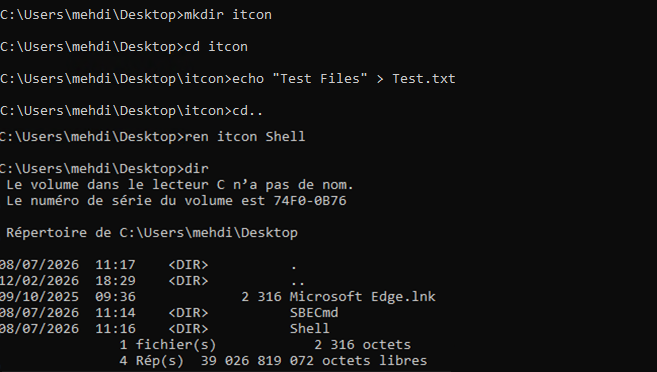
Using a CMD terminal opened as administrator, go to the folder containing SBECmd and run the following command.
SBECmd.exe --l -csv ./The ./ option indicates that the output files will be generated in the current directory.
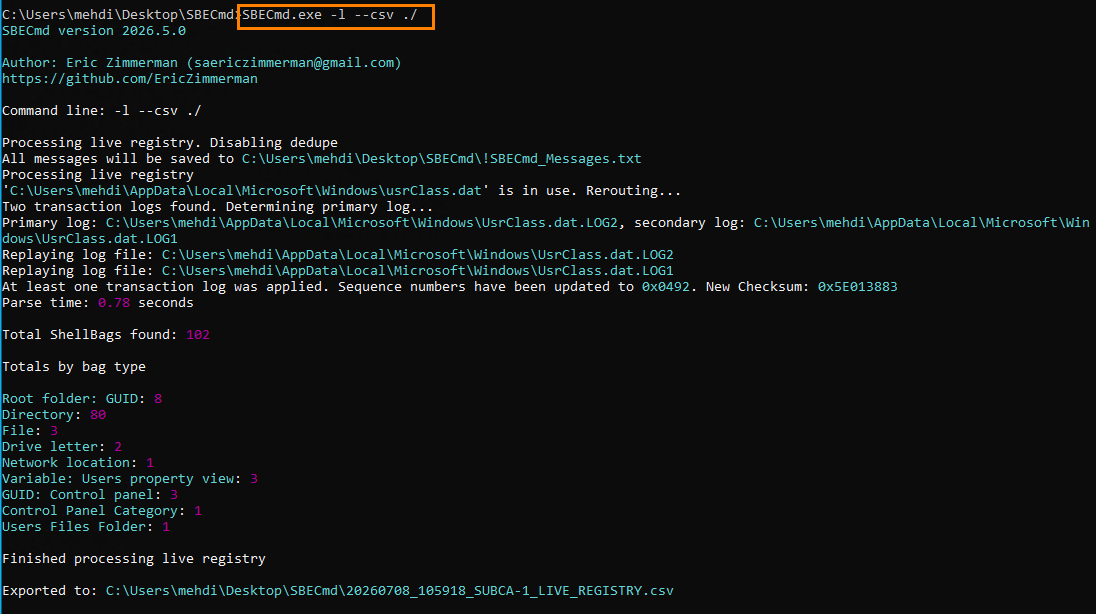
Once the CSV file has been generated, open it in an editor or spreadsheet application to analyze it.
Here we find the history of the folders visited. In our example, we can see the folder's original name as well as its new name after being renamed. The two entries have the same MFT identifier, confirming that they are the same folder that was simply renamed.
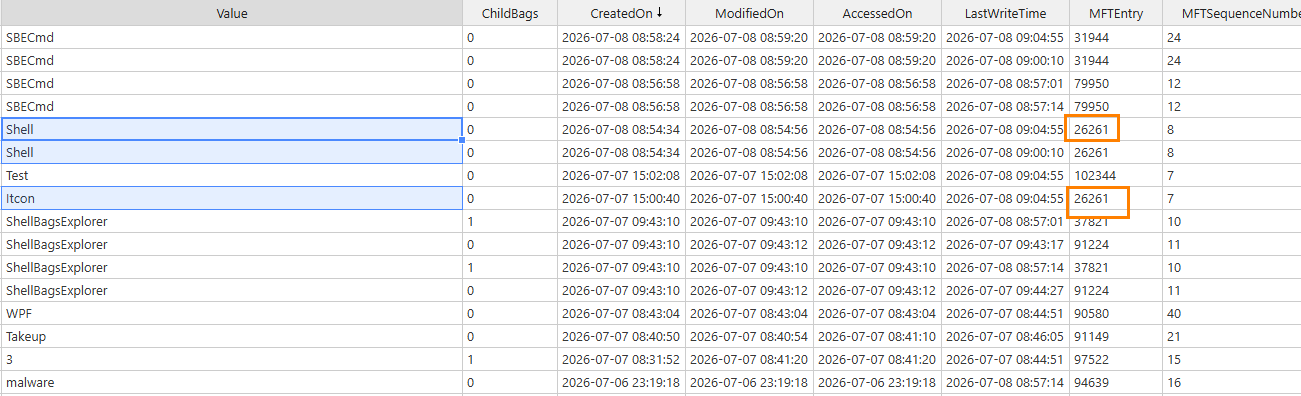
The CSV format is particularly useful in digital forensics. It contains a great deal of information, such as full paths, MFT identifiers, and, in some cases, network access details (machine name, UNC path, or MAC address when that information is available).
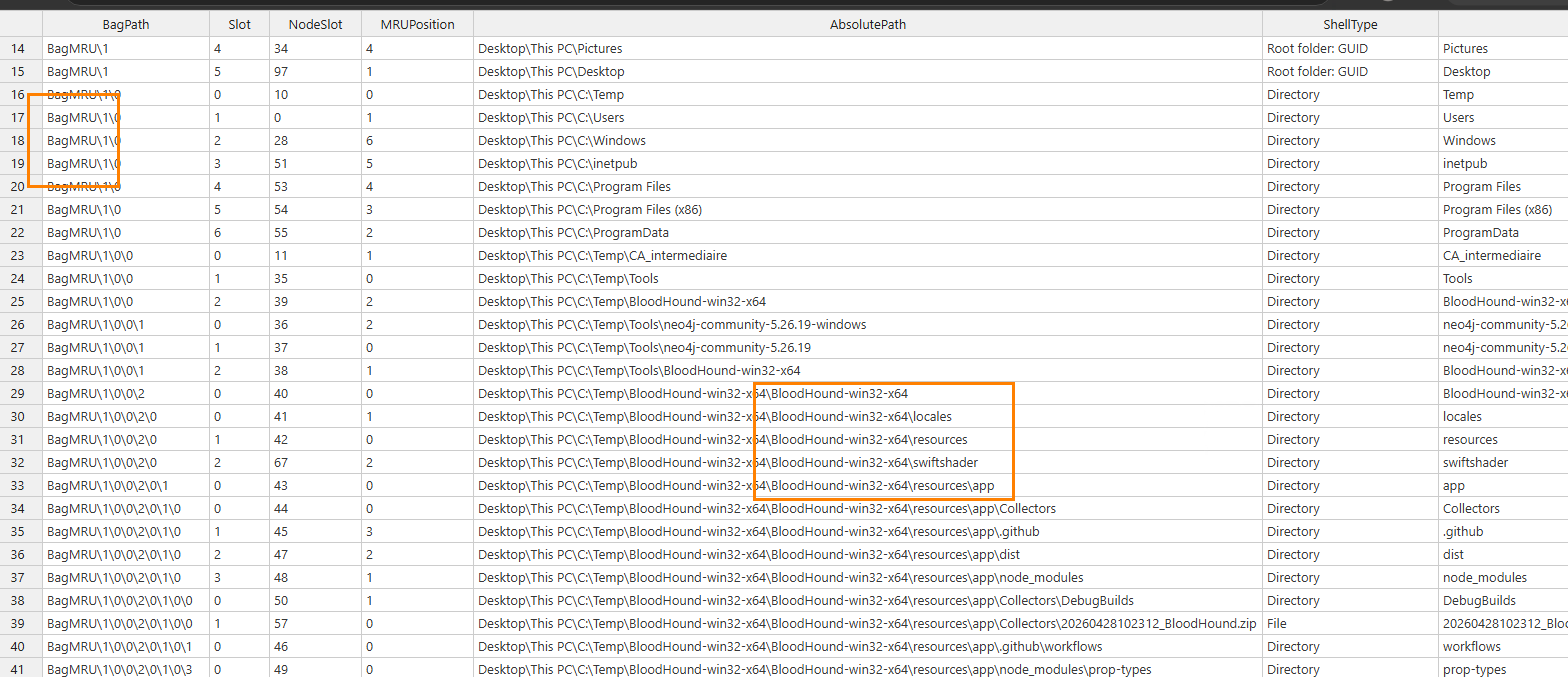
Note: ShellBags mainly record folders browsed in Windows Explorer. Some information about compressed files (ZIP), which Windows treats as compressed folders, may also appear. In contrast, classic files (TXT, EXE, PDF, DOCX, and so on) are generally not recorded individually.

Analysis with ShellBags Explorer
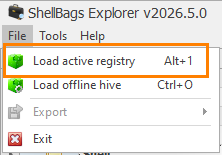
Analyzing ShellBags Explorer is even simpler. Just launch the application and select Load Active Registry to automatically load the logged-on user's Registry hives.
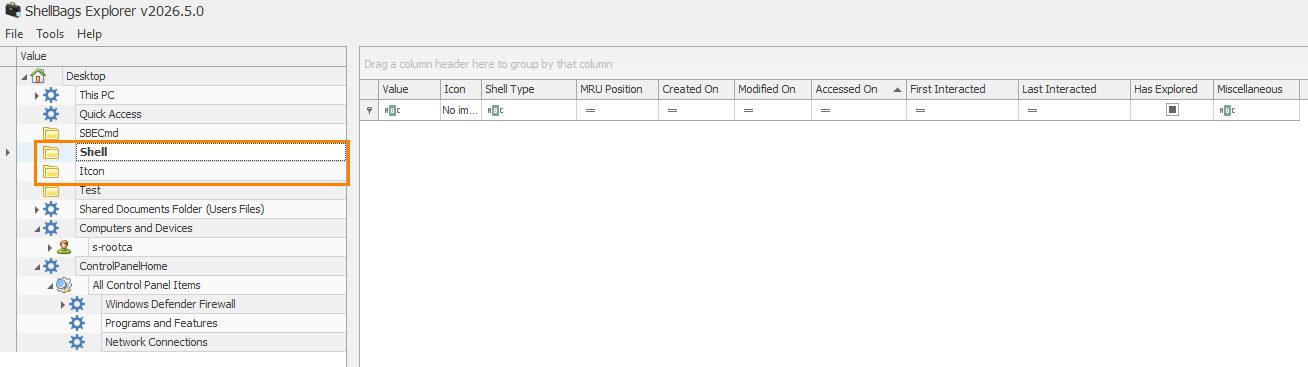
The tool then analyzes the BagMRU and Bags keys in order to display all the folders that were found. We get the same information as with SBECmd, but in a more readable form. You can then browse the different folders and inspect the recorded information. The tool is read-only and does not modify the Registry.
Conclusion
ShellBags are a particularly useful artifact for recovering traces of browsing activity in Windows Explorer. For example, they can reveal the presence of a folder containing administrative or attack tools, such as Mimikatz, even if it was later renamed or deleted.
Like any artifact, however, ShellBags have some limitations. They do not preserve every action carried out by the user, and older entries may be overwritten over time. In addition, analysis should be performed from the relevant user's UsrClass.dat hive or directly on their session while it is loaded; otherwise, the latest changes may not be visible.