www.it-connect.fr

Claude Code Permission Modes: How to Choose the Right One
In this article, we’ll look at how Claude Code’s permission modes work, when to use each one, what the associated benefits and risks are, and how to control or change the active mode in your session.
When you start using Claude Code, you quickly run into the same recurring question: "Can Claude run this command?", "Can Claude modify this file?". These prompts are a valuable safeguard, but they can also become a source of slowdown when you’re working through a large task. Fortunately, Claude Code offers several permission modes that let you choose the exact level of autonomy granted to the agent.
We’ll cover what a permission mode actually is, the five available modes with their use cases and risks, and how to switch between modes or configure the default one for your sessions.
What is a permission mode?
The dilemma: full control or constant approval
A code agent like Claude Code can do a lot on your machine: read files, edit them, delete them, run shell commands, push code to a remote repository, query servers… Giving a Large Language Model (LLM) free rein over these actions would be highly unwise, because the model can make mistakes, misread an instruction, or be misled by the contents of a file it has just read (this is known as a prompt injection). That creates a potential security issue.
On the other hand, manually approving every action is exhausting. If you ask Claude to refactor ten files and a pop-up appears for every write operation, you’ll quickly give up. The permission mode is the slider that lets you strike a balance between those two extremes depending on the context.
How Claude Code decides when to prompt
Each time Claude wants to use a tool (read a file, run a shell command, write code…), Claude Code follows a small authorization logic:
- Is the action explicitly denied by a rule (a deny rule)? If so, it is blocked.
- Is the action explicitly allowed by a rule (an allow rule)? If so, it goes through without asking.
- Otherwise, the active permission mode decides: it must ask, allow it, or pass through a secondary check.
Permission modes therefore do not replace the fine-grained rules you can define in your settings.json file, but they do control the default behavior when no specific rule applies.
The classifier trick
Two of these modes (plan and especially auto) rely on an interesting mechanism you should understand before going further: the classifier. This is a second, smaller and faster model that plays the role you normally play in manual mode: reviewing each proposed action and deciding whether it is reasonable.
In practice, when Claude Code wants to run a dangerous command in auto mode, the classifier examines it in the background. If it considers the action acceptable (reading a file, running a test, creating a folder), it goes through without bothering you. If it spots something suspicious (a rm -rf, a command touching protected paths, an attempt to bypass safeguards), it hands control back to you with an authorization prompt.
However, keep in mind that the classifier is still a model and can make mistakes too. It provides a useful safety net, but not a foolproof one. That is why autonomous modes are still discouraged on sensitive data or on a machine where a mistake would be hard to recover from.
The five available modes
Let’s now move to the core of the topic: the five modes Claude Code gives you. For each one, we’ll look at the principle behind it, its use cases, and the risks to keep in mind.
default (Manual): you approve everything
The default mode, also called Manual in the interface, is the strictest mode. In this mode, Claude does not perform any action without asking you, except for file reads, which remain unrestricted.
Every file change, every command, every MCP (Model Context Protocol) tool call triggers a small pop-up where you can approve the action once, approve it and create a rule to always allow it, or رفض it.
When to use it: this is the ideal mode when you are working on a sensitive codebase, in a production environment, or simply when you want to keep a close eye on what Claude is doing. I also always enable it on projects I don’t know yet, until I become familiar with the way the agent reasons.
Risks: none from a security standpoint. On the other hand, popup fatigue is very real in long sessions, and it can be tempting to approve things mechanically without reading, which defeats the point of the mode.
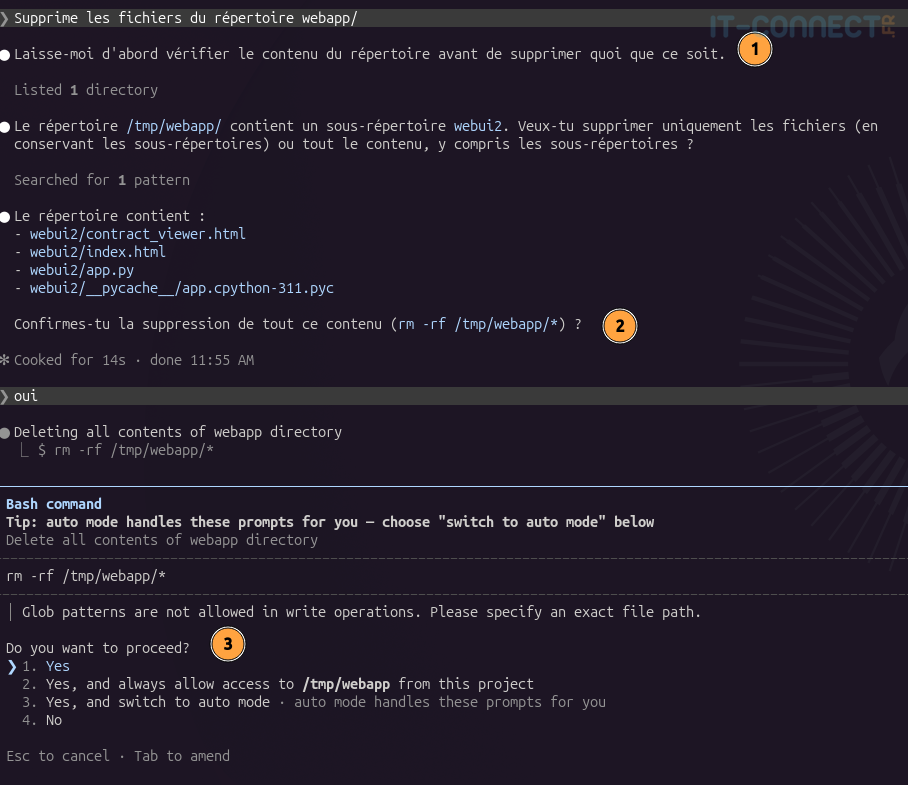
Interesting example above. I ask Claude to delete a directory; it does not need my permission to read its contents (1), lists it, and asks me if I’m sure I want to delete it (2). This confirmation requested in the conversation is not enough and may not even exist; you really need to go through validation of the command itself to allow execution (3).
acceptEdits: let file edits go through
The acceptEdits mode is a step more permissive. It automatically allows file modifications as well as common shell commands for filesystem operations (mkdir, touch, mv, cp, etc.). Reads remain unrestricted. For everything else (more sensitive shell commands, network calls, MCP tools), an authorization prompt is displayed.
When to use it: this is the mode to choose for a session where you are reviewing and guiding an editing task. You let Claude write code without interrupting you, but you take back control as soon as it wants to run a command that affects something other than your files.
Risks: if Claude makes a mistake in an edit, the file is modified. Make sure you work with a version control system (Git) and commit regularly.
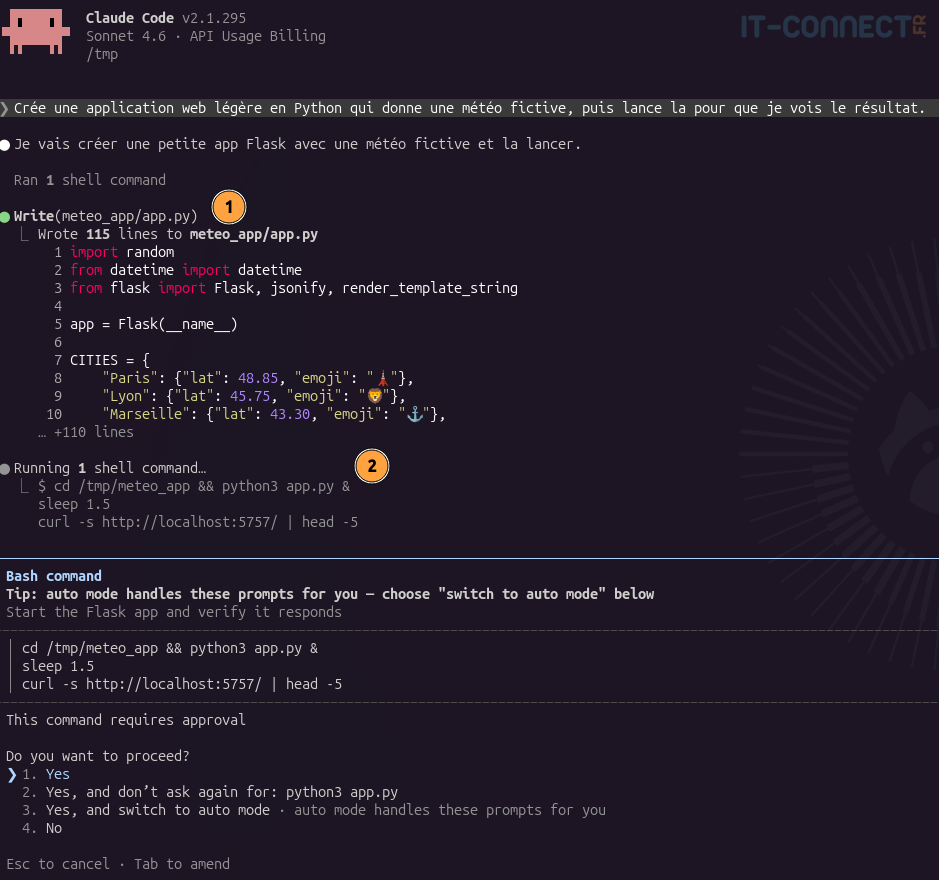
For example, when working on a web application, Claude will be able to create, edit, and read files (1), but it will not be able to launch the web app without asking me for permission (2), because that requires running a command that is not limited to the filesystem:
plan: explore before acting
The plan mode is a bit special. In this mode, Claude can neither modify files nor run destructive commands; it can only read. Its goal is not to produce code, but to present you with a detailed action plan that you will validate before anything is executed.
In short, it lets you think before acting.
In practice, you describe what you need, Claude explores your repository, analyzes the existing code, and then suggests a course of action. You review it, adjust it, and when it looks good, you switch to another mode for execution.
When to use it: before a major refactor, a dependency migration, or adding a new feature that touches several modules. In short, whenever a bad first direction would cost you a lot in tokens and frustration.
Here is a useful example:
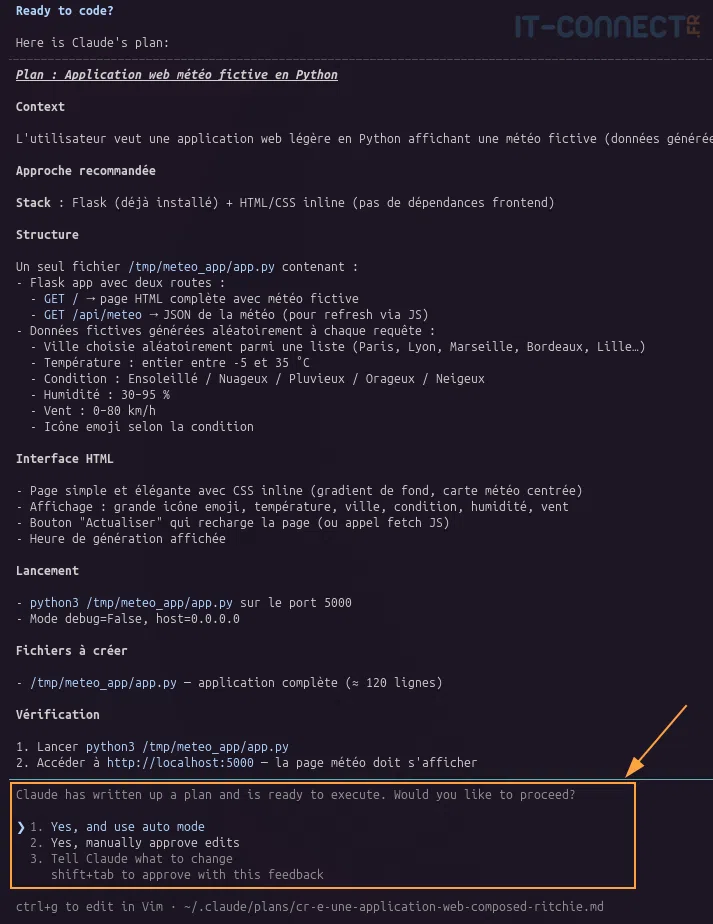
The plan is clear, and you can see exactly how Claude will respond to my request, but it still hasn’t done anything yet. It asks me whether I want to switch to manual or auto mode to take action. But I can also ask it to revise its plan if I think that’s necessary.
auto: supervised autonomy
The auto mode has been the default mode since Claude Code version 2.1.283 (on Pro, Max, and Team plans in earlier versions). In this mode, Claude can perform most actions without asking you, but every action is first checked by the classifier we mentioned above.
In practice, reads, writes, folder creation, test runs, and ordinary shell commands happen without confirmation. However, as soon as the classifier detects an action that looks risky (a destructive command, an unusual outbound network call, writing to a protected path…), control is handed back to you with a standard pop-up.
When to use it: this is the best everyday compromise for most development tasks. It lets Claude work smoothly while still keeping a safety net. This is the mode I recommend by default once you know the tool, can give clear instructions, and are working in a non-production or non-sensitive environment.
Risks: the classifier is not perfect. It may let an action through that is problematic in your specific context (for example, a change in a folder you care about a lot). Two good practices to reduce that risk: work under Git, and define explicit rules (allow/deny) in your settings.json for sensitive cases.
bypassPermissions: the no-safety-net mode
Finally, the bypassPermissions mode is the most permissive of all: all actions go through with no checks at all, neither user prompts nor classifier checks. Claude can do anything, immediately.
When should you use it? Honestly, in very few cases on your work machine. This mode is intended for isolated, non-interactive environments: a disposable Docker container, a dedicated virtual machine, a CI (Continuous Integration) environment. In short, a place where a Claude mistake has no lasting consequences.
Warning: this mode must be used with extreme caution. On a standard work machine, there are no safeguards. One unfortunate command can delete files, push unwanted code, exfiltrate data, or trigger just about any action your user account is allowed to perform. Never enable it on a production environment or on your main workstation unless you know exactly what you are doing.
To avoid accidental activation, Claude Code does not include this mode in the default Shift+Tab cycling. You must explicitly request it at startup (via --permission-mode bypassPermissions or --dangerously-skip-permissions). These options are also forbidden when running as root (on Linux):
# claude  --dangerously-skip-permissions
--dangerously-skip-permissions cannot be used with root/sudo privileges for security reasons
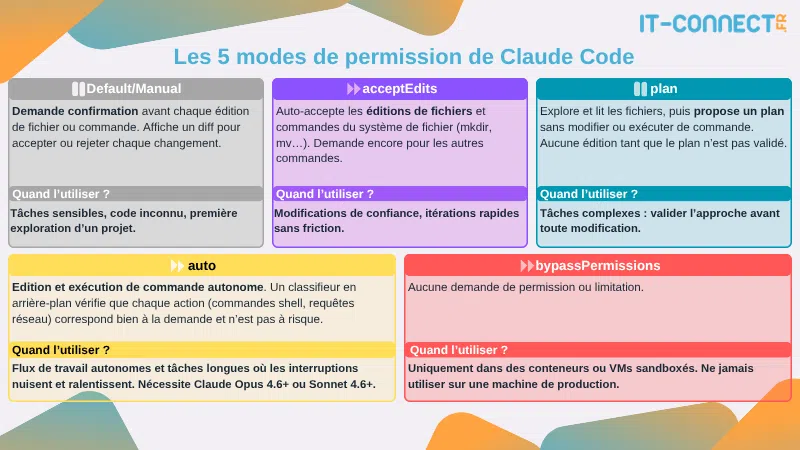
Here is a small visual summary of what we’ve just covered:
In practice: controlling and changing modes
Now that we’ve gone through the five modes, let’s see how to manage them when you are inside Claude Code.
Identifying the active mode
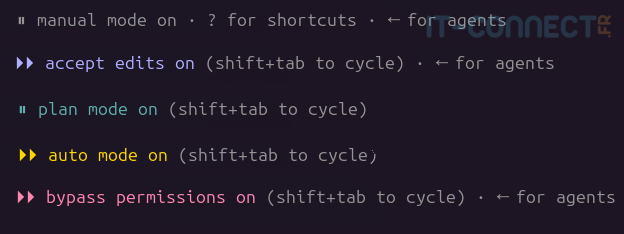
The active mode is permanently displayed in the status bar under the Claude Code prompt, as you can see at the bottom of each of the previous images. Each mode has its own symbol and color, so you can tell at a glance where you are.
Switching modes during a session with Shift+Tab
The fastest way to change modes during a session is the Shift+Tab shortcut. Each press cycles through:
auto → default → acceptEdits → plan → auto …You will see the label at the bottom of the screen change each time you press it. This is handy when you started in auto and reach a sensitive step where you’d rather approve everything manually: one or two Shift+Tab presses and you’re in default.
Note that bypassPermissions is not part of the default cycle to avoid switching to it by mistake. You must explicitly enable it at startup.
Starting in a specific mode
If you already know which mode you want to work in, you can specify it at launch with the --permission-mode option:
# Start in plan mode to analyze an unfamiliar codebase
claude --permission-mode plan

# Start in manual mode for sensitive work
claude --permission-mode default

# Start in auto mode (if it is not already the default)
claude --permission-mode auto
For non-interactive runs (the -p option), this is also where you choose the mode. For example, for a CI task in an isolated container:
# Single run in a container, with no pop-ups possible
claude -p "Run the test suite" --dangerously-skip-permissions
Setting the default mode in settings.json
If you want a mode to be enabled automatically at startup, the cleanest approach is to use the configuration file. The key to set is permissions.defaultMode in the settings.json file.
There are three possible locations, in order of priority:
| File | Scope |
|---|---|
.claude/settings.json (in the project) | All sessions opened in this project |
~/.claude/settings.json (user) | All your sessions on the machine |
| Managed settings | Your entire organization (deployed by the admin) |
A user-level settings.json that forces manual mode would look like this, for example:
# File ~/.claude/settings.json
{
  "permissions": {
    "defaultMode": "default"
  }
}
The accepted values are the mode names seen above: default, acceptEdits, plan, auto, bypassPermissions. Note that there are a few subtleties: auto and bypassPermissions are not accepted in a project-level .claude/settings.json (to prevent a shared repository from imposing a permissive mode on the whole team); they must be set in your user file or in the managed settings.
If you work with several people in the same repository, it is often better to leave
defaultas the default for everyone and not set it in the project’ssettings.json. Each team member can then tune their own level of strictness according to their comfort level.
Conclusion
In this article, we covered Claude Code’s five permission modes, their respective use cases, their risks, and how to switch between them both live and through configuration.
As always in security, the right mode is the one that matches both the criticality of the environment and the trust you place in the agent for the task at hand. Those two sliders change over the course of a session, so don’t hesitate to switch between them with Shift+Tab instead of keeping a single mode for your entire workday.
There is still a lot more to say about fine-grained permission rules (allow and deny rules), sandbox isolation, and integrating Claude Code into CI, but we’ll come back to those topics in future articles.
Feel free to share in the comments which mode you use every day, or join the discussion on our Discord server!