www.it-connect.fr


How to Secure Chrome, Edge, and Firefox in the Enterprise Against Infostealers
The web browser is probably the application your users rely on the most every day. It does not matter whether it is Chrome, Edge, or Firefox. All browsers include features that prompt users to save passwords, sign in with a personal account, and sync everything to the cloud. In a company, this means that work credentials entered at the office can end up that very same evening on an employee’s personal PC. If that PC is infected by an infostealer (because the employee is looking for the latest trendy game in a cracked version), those credentials are very likely to end up for sale on a Dark Web marketplace or on Telegram.
In this article, I will address this issue by looking at web browser hardening in the enterprise using Group Policy Objects (GPOs). We will see how to reduce the risk of credential leaks in Google Chrome, Microsoft Edge, and Mozilla Firefox by applying a few settings.
Credential leaks through the web browser: the typical scenario
The scenario described below is not theoretical. It is realistic and can happen in any company where browsers are not properly managed by IT.
- An employee signs in to Google Chrome with a personal Google account on their work computer. Data synchronization is enabled right away.
- Every password they save from their work device (mail, intranet, CRM, etc.) is synced to their personal Google account.
- In the evening, they open Chrome on their personal PC, signed in to the same account. Their work credentials are available there, likely mixed in with personal credentials.
- That personal PC is not managed by the company. One day, it gets infected by an infostealer through pirated software, a fake update, or a ClickFix-style campaign.
- The infostealer empties the browser: passwords, session cookies, autofill data. Everything is exfiltrated and then reused or sold on a marketplace.
- A buyer then gets their hands on credentials that provide access to this user’s work accounts: mail, CRM, admin console, and so on.
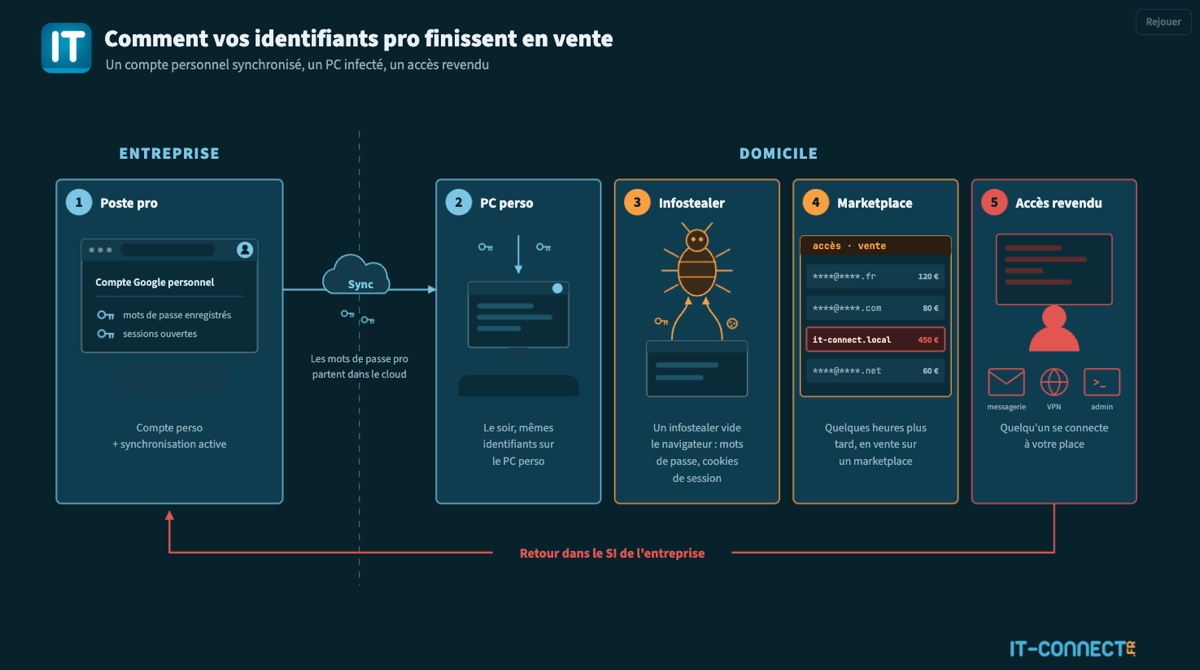
You can harden the work computer as much as you like: if the browser is not locked down, it remains a discreet but dangerous exit path. Without the user realizing it, credentials are exported to a device you do not control, outside your perimeter. Here I used Google Chrome as the example, but the same reasoning applies to Edge (Microsoft account) and Firefox (Mozilla account), as well as other browsers.
In response to this issue, I decided to propose a web browser hardening approach based on Group Policy.
Reminder: what is an infostealer?
An infostealer is malware specialized in stealing data stored on a computer. Unlike ransomware, it does not try to encrypt your data. It aims to collect sensitive data, all within a few seconds: it gathers and exfiltrates whatever interests it. In practice, browsers are its main target because they concentrate most of the data it values:
- Saved passwords,
- Session cookies, which make it possible to reuse an authenticated session without knowing the password and, very often, without triggering MFA,
- Autofill data (addresses, bank cards),
- Installed extensions, including cryptocurrency wallets
The most active families in recent years include Lumma, RedLine, Vidar, and StealC, and the business model is Malware-as-a-Service.
Ways to manage a browser in the enterprise
This article focuses on the three most popular web browsers, and they are probably also the ones you will most often find in the enterprise: Chrome, Edge, and Firefox. We will also look at Windows for the same reasons. Based on that, you should know that all browser configuration policies modify the Windows Registry. Several methods can be used to deploy them.
| Method | Context | Advantages | Limitations |
|---|---|---|---|
| GPO (Active Directory) | Domain-joined AD computers | Free, centralized, official ADMX templates for all three browsers | Does not cover non-domain computers |
| Intune (settings catalog) | Entra ID-joined or hybrid computers | Same policies as GPOs, cloud management | Requires M365 licenses |
| Vendor cloud consoles | Chrome Enterprise Core, Edge Management Service | Extension inventory, management without infrastructure | User policies tied to the signed-in profile |
| Script and registry | Isolated computers, troubleshooting | No prerequisites | No compliance control, should be reserved for testing or isolated endpoints |
In this tutorial, we will use the GPO method with Active Directory, on the it-connect.local domain.
Prerequisites
To follow this tutorial, you need:
- An Active Directory domain with a domain controller, here
SRV-ADDS-01 - A central store to hold the administrative templates, that is the
\\it-connect.local\SYSVOL\it-connect.local\Policies\PolicyDefinitions\folder - A Windows 10 or Windows 11 client joined to the domain, with Chrome, Edge, and Firefox installed for testing
- A test organizational unit to link the GPO before a broader deployment
If your central store does not already exist, creating it means creating the PolicyDefinitions folder in the Policies directory located in SYSVOL (see above). The tutorial on Windows 11 ADMX templates covers this step in detail.
Configure Google Chrome through GPO
We will start with Google Chrome simply because it is the most widely used browser. The logic is the same for the other browsers. First I will explain how to make Chrome manageable through GPO, before moving on to the settings to configure in the next part.
Download and import Chrome ADMX templates
Google provides administrators with an archive containing the ADMX templates for Windows, while maintaining compatibility with the latest stable version of Chrome:
- Direct link to the ADMX archive: policy_templates.zip
- Link to the browser MSI package (if needed): chromeenterprise.google/browser/download
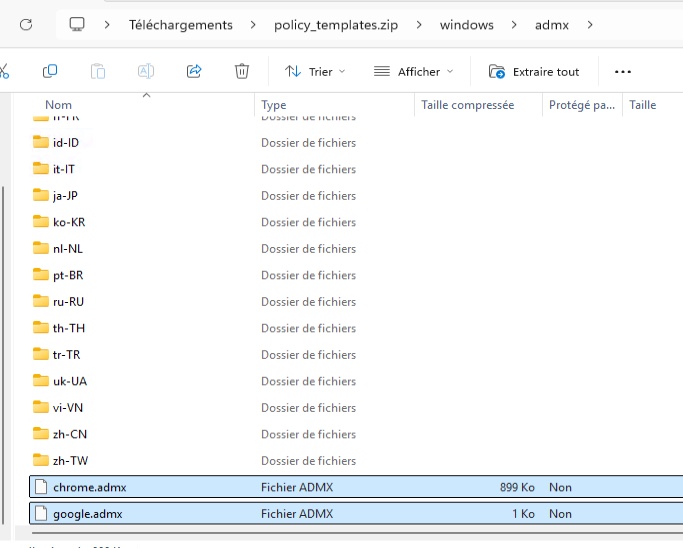
This archive contains several files. What interests us here are the two files windows\admx\chrome.admx and windows\admx\google.admx, which you must copy to the root of the central store. In addition, you need to copy the language files (ADML), namely windows\admx\fr-FR\chrome.adml and google.adml, into the fr-FR subfolder of your central store. If you need additional details about importing ADMX files, everything is explained in my tutorial how to configure Google Chrome through GPO.
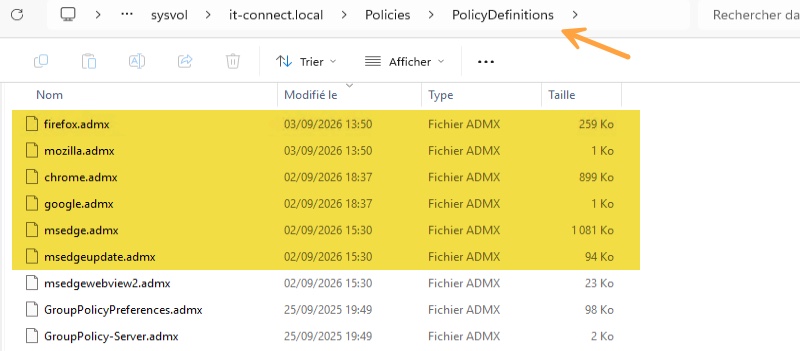
The image above also highlights the presence of ADMX templates for Edge and Firefox. The import logic is the same. Links to the ADMX files for those two browsers will be provided later.
Create the GPO
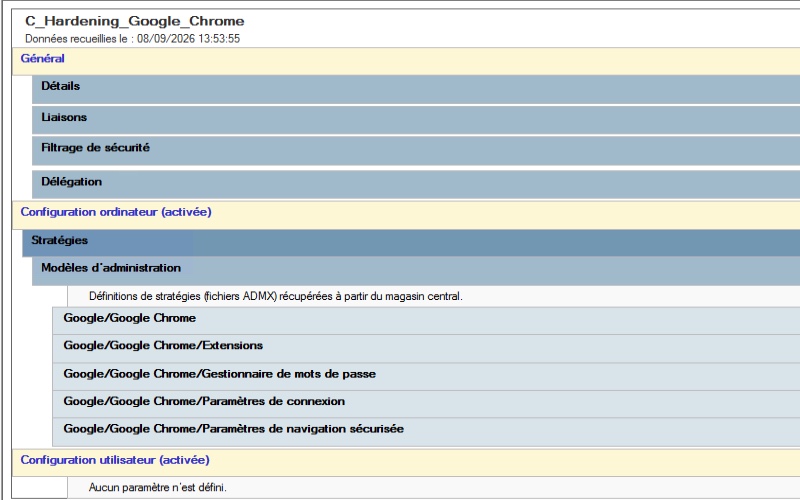
In the Group Policy Management Console, create a new GPO named for example: C_Hardening_Google_Chrome (the C_ prefix indicates a Computer Configuration policy) and link it to your test OU. In my case, it will simply be the PC-Test OU.
All the policies we will configure for Google Chrome are located here:
- Computer Configuration > Policies > Administrative Templates > Google > Google Chrome.
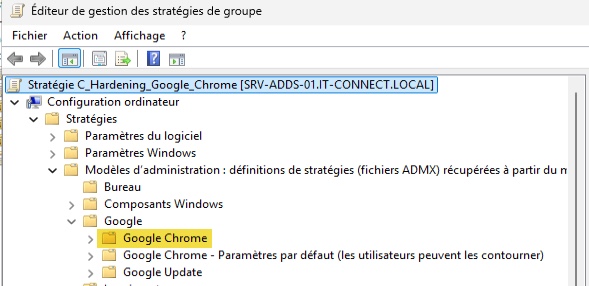
You will also notice another folder named Google Chrome - Default settings (users can override). It contains policies that users are allowed to change. Here, we want to restrict the user without leaving the choice to them, so we will not configure those settings.
Configure Chrome to prevent credential leaks
Our goal, as a reminder, is to make sure that no work password is stored in the browser, nor synced to a personal or unmanaged Google account. We need to configure a set of settings. In reality, there are sometimes several possible choices depending on your environment. Let me explain. A company relying on Google Workspace will not necessarily make the same choices as a company that does not use it. The same goes for a company that wants to use Google accounts for bookmark backup while preventing use of the password manager and credit card saving. You need to set the right balance based on your actual needs.
Note: in the rest of this article, the path to each policy is given from the root. I consider the Google Chrome settings folder mentioned earlier to be the root.
If you do not use Active Directory GPOs, take a look at Chrome Enterprise Core. It is Google’s free cloud management console. It pushes the same policies from the Google Admin console and provides an inventory of installed extensions across the fleet, which GPOs do not provide. One of my earlier tutorials explains how to customize the Chrome Web Store with Chrome Enterprise Core.
Disable Chrome’s password manager
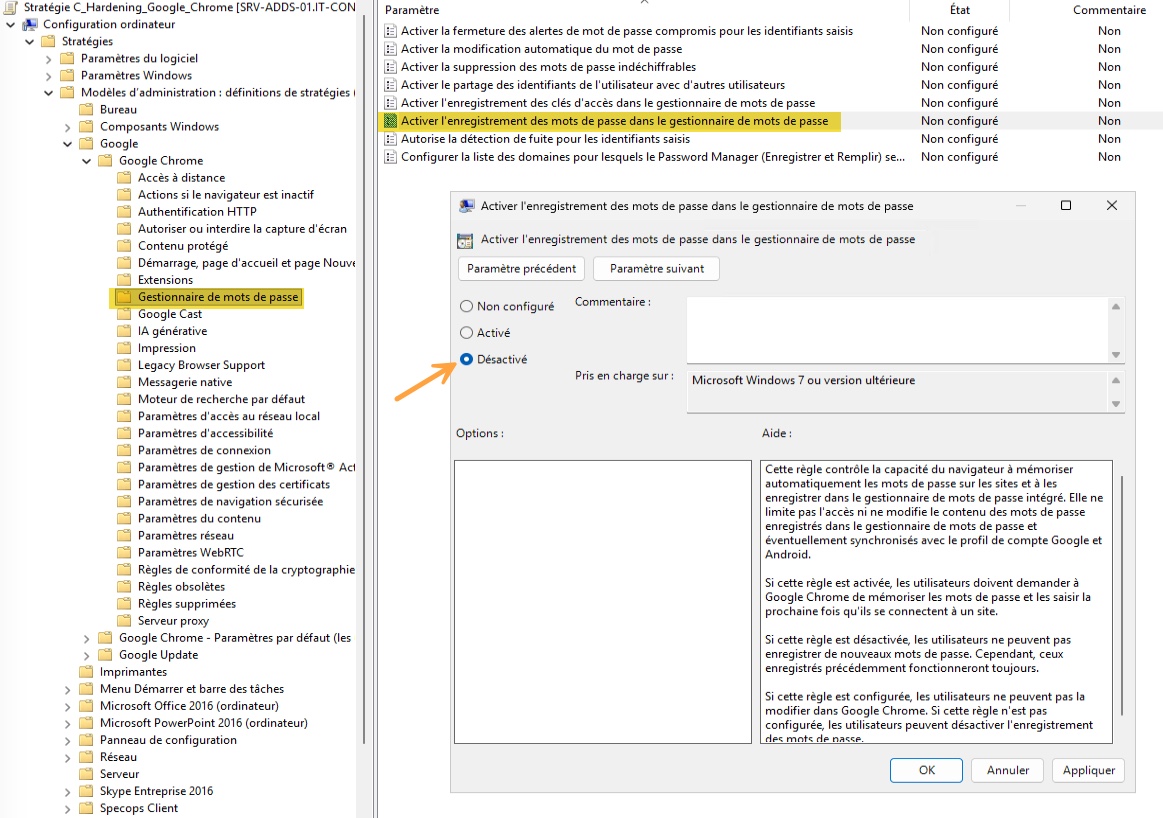
Let’s start strong: disable the Google Chrome password manager. Here is the setting to disable:
- Password Manager > Enable saving passwords to the password manager
Disable browser sign-in
Preventing password saving is not enough, because users can still sign Chrome in with their personal Google account. We will therefore block that sign-in with another setting located at the root of the Google Chrome folder. Enable the policy and choose the value Disable browser sign-in.
- Browser sign-in settings
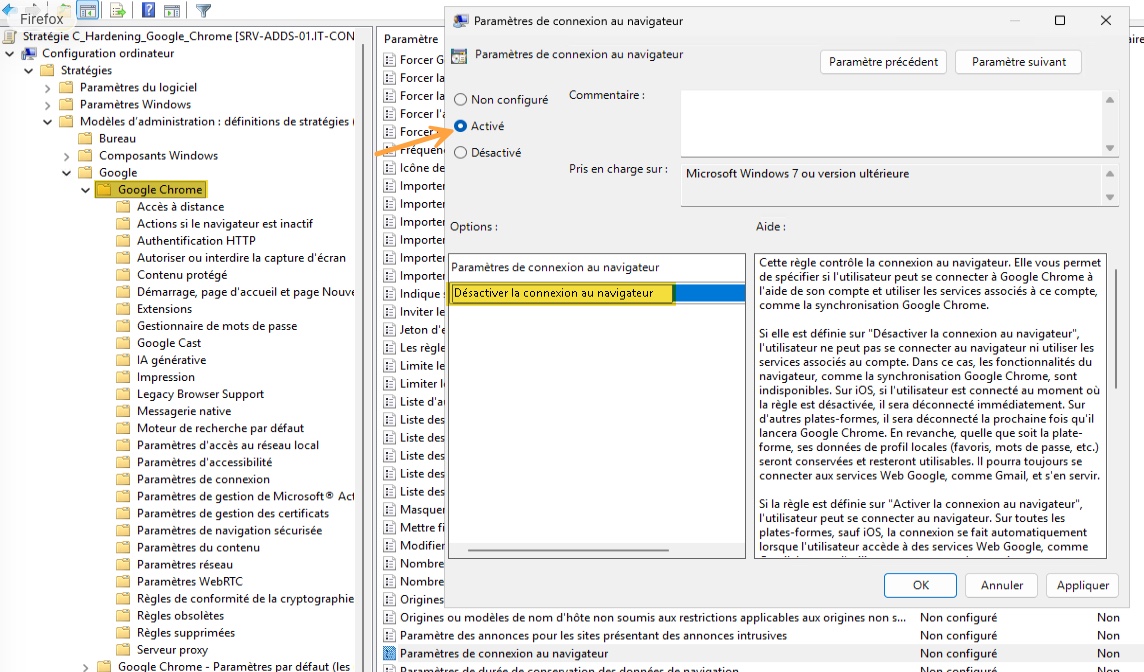
With this configuration, users can no longer sign in to a Google account in the browser. This is suitable for a company that does not use Google Workspace. On the other hand, if your users need a work Google account, this value is too drastic and may cause problems.
In that case, instead of forbidding all sign-ins, we will only allow accounts from your organization to sign in. It expects a regular expression applied to the account email address. For example, .*@it-connect\.fr allows only accounts in that domain and rejects any personal Gmail account.
- Restrict the Google accounts allowed to be set as primary browsing accounts in Google Chrome
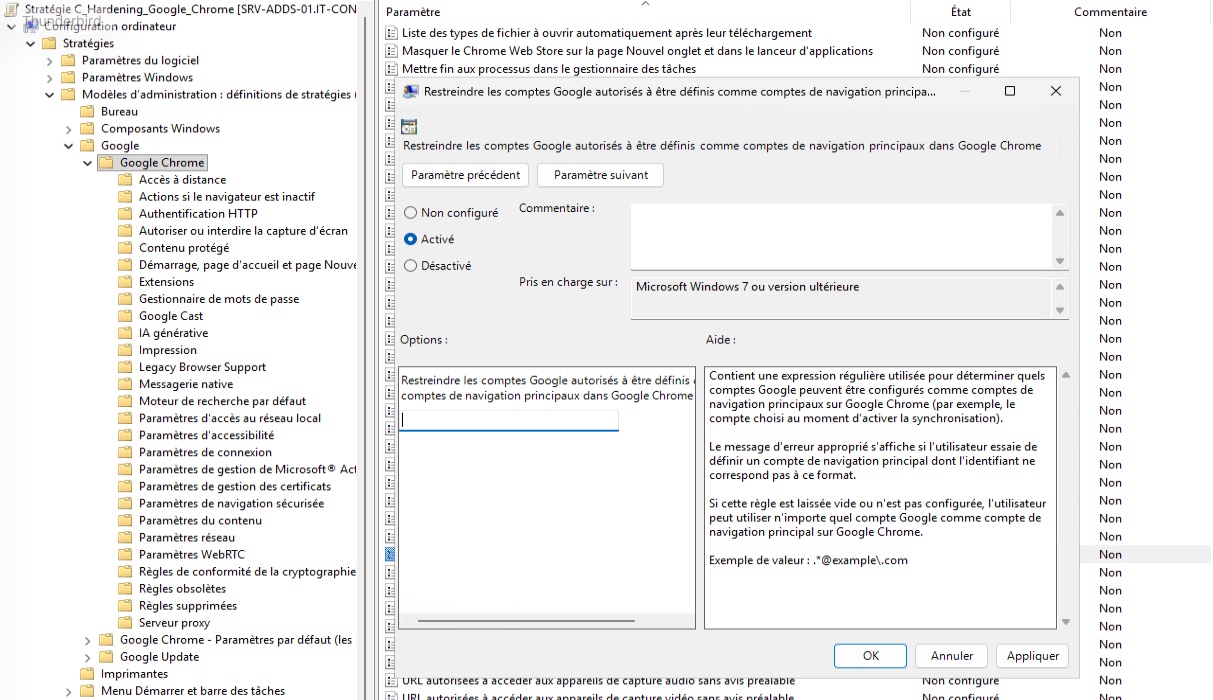
Note: in practice, these two settings are mutually exclusive. Choose one or the other depending on whether your company uses Google accounts or not. If you are on Microsoft 365, be aware that SSO to Entra ID does not depend on this setting in Chrome, unlike Edge.
Disable data synchronization
Even without browser sign-in, synchronization should still be explicitly blocked, if only to cover computers that were already signed in before the GPO was applied. Here is the setting to enable to stop synchronization with Google’s servers.
- Disable data synchronization with Google
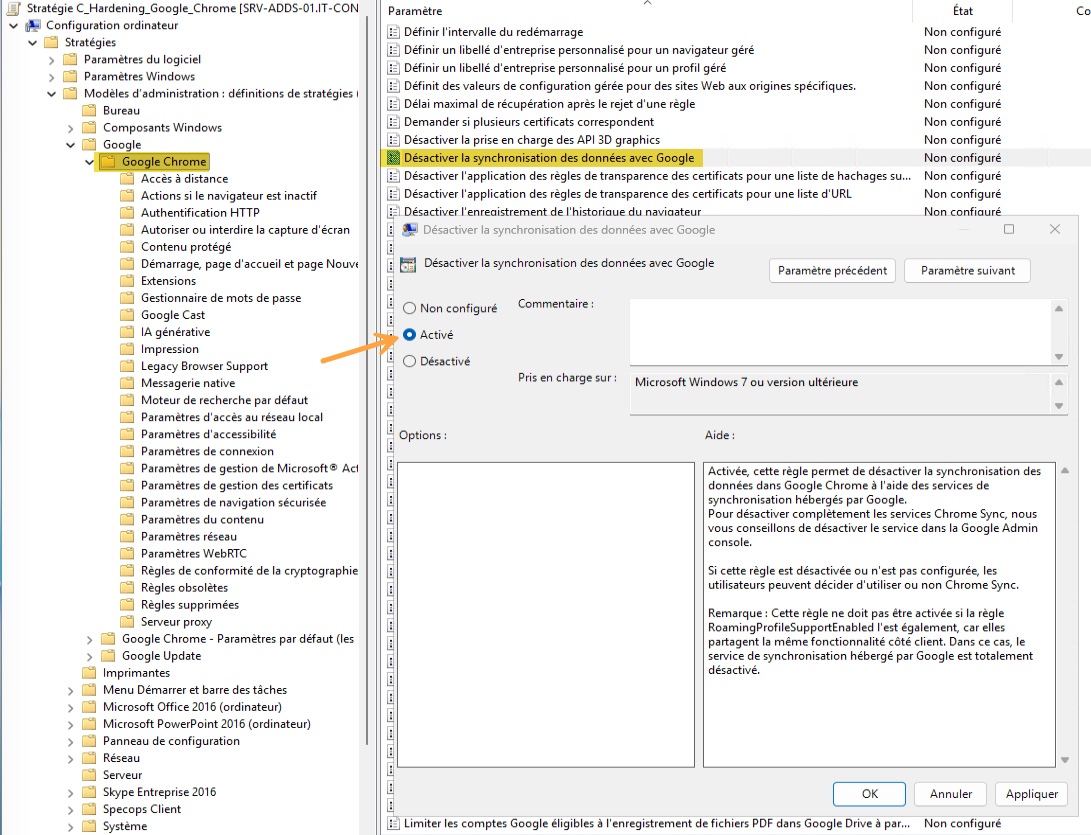
This approach is also radical: it blocks synchronization of bookmarks, preferences, and open tabs. That may frustrate your users. If you prefer a finer-grained, more flexible setting, there is a second policy that can help.
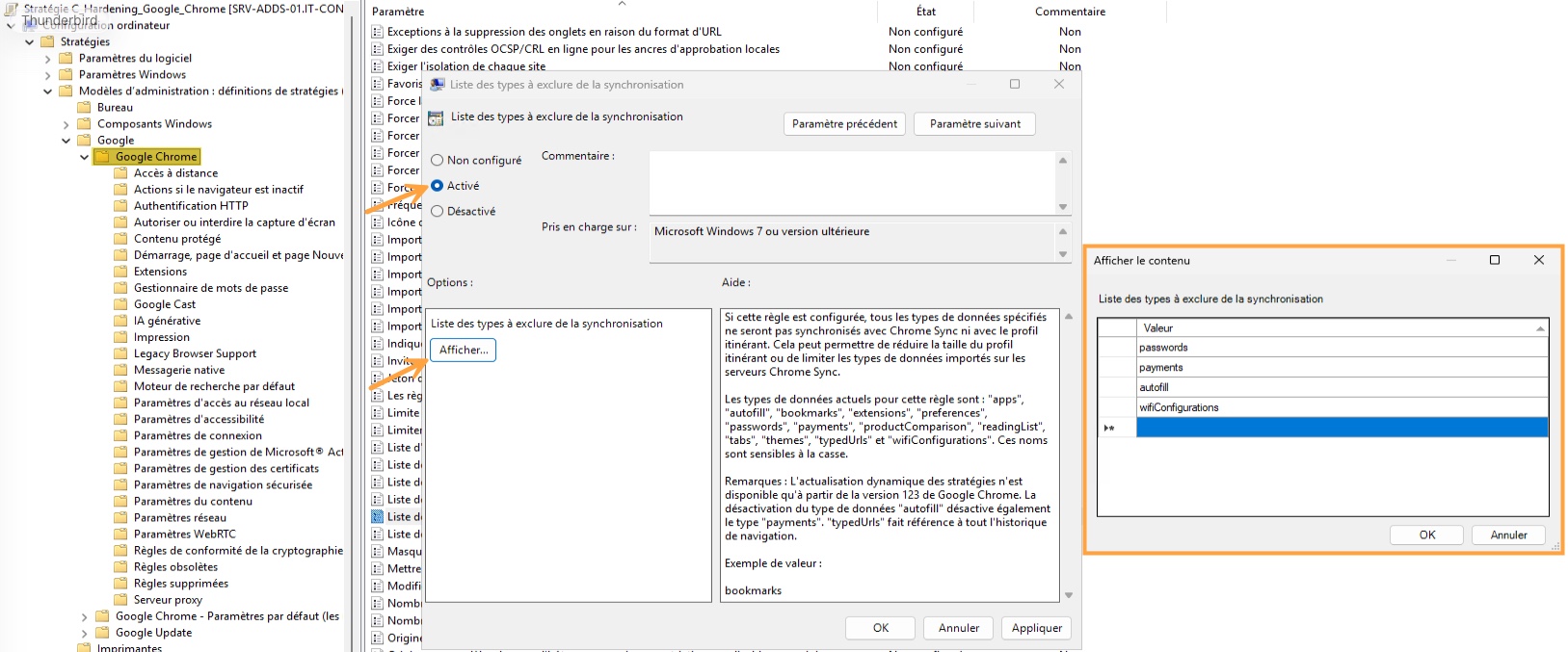
It expects a list of data types to exclude from synchronization, one value per line. The most useful values here are passwords for passwords and autofill for autofill data. Other types also exist, including bookmarks, preferences, extensions, and tabs. In other words, you can block synchronization of sensitive information while leaving the rest enabled.
- List of types to exclude from synchronization
Disable password import
At first launch, Chrome offers to import data from the computer’s default browser, which also allows passwords to be imported. That is the beginning of the end: a user whose credentials are stored in Firefox copies them into Chrome without thinking about it. Block this behavior by setting the policy below to Disabled.
- Import saved passwords from the default browser at first run.
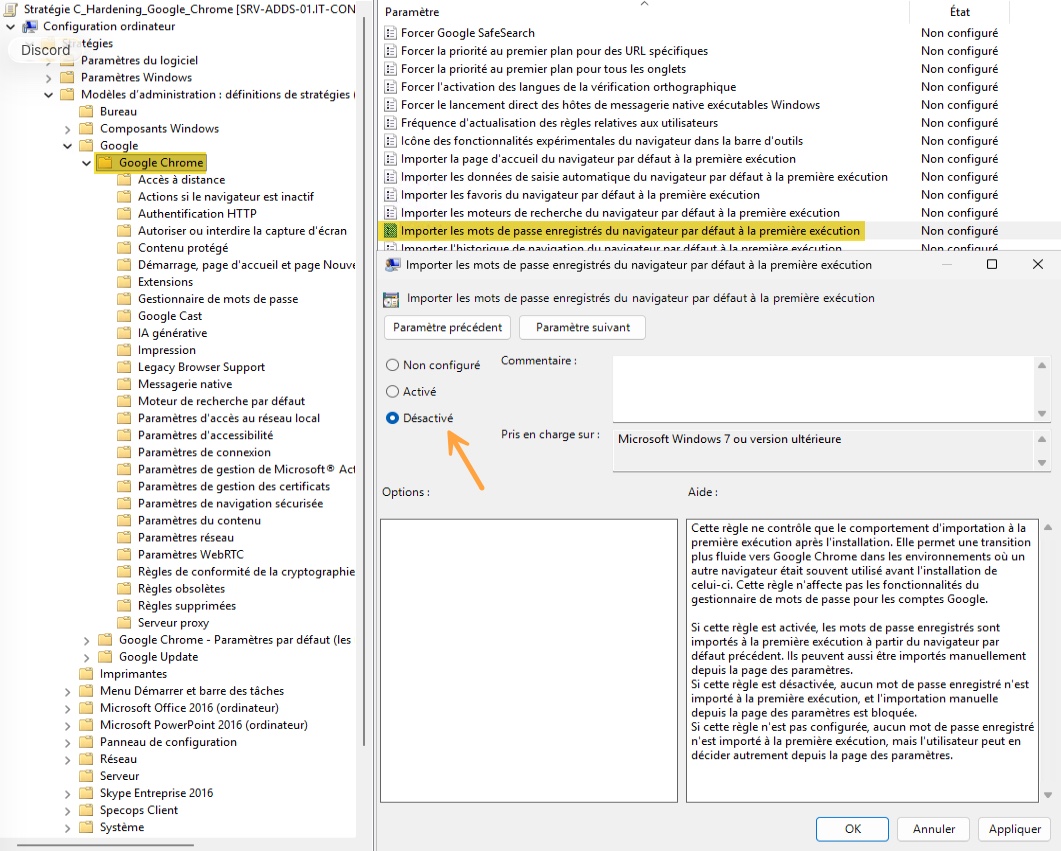
Similar policies exist for other importable data types, such as bookmarks or browsing history. They do not directly concern credential leakage, but they are useful if you want to fully control browser behavior.
Disable address autofill
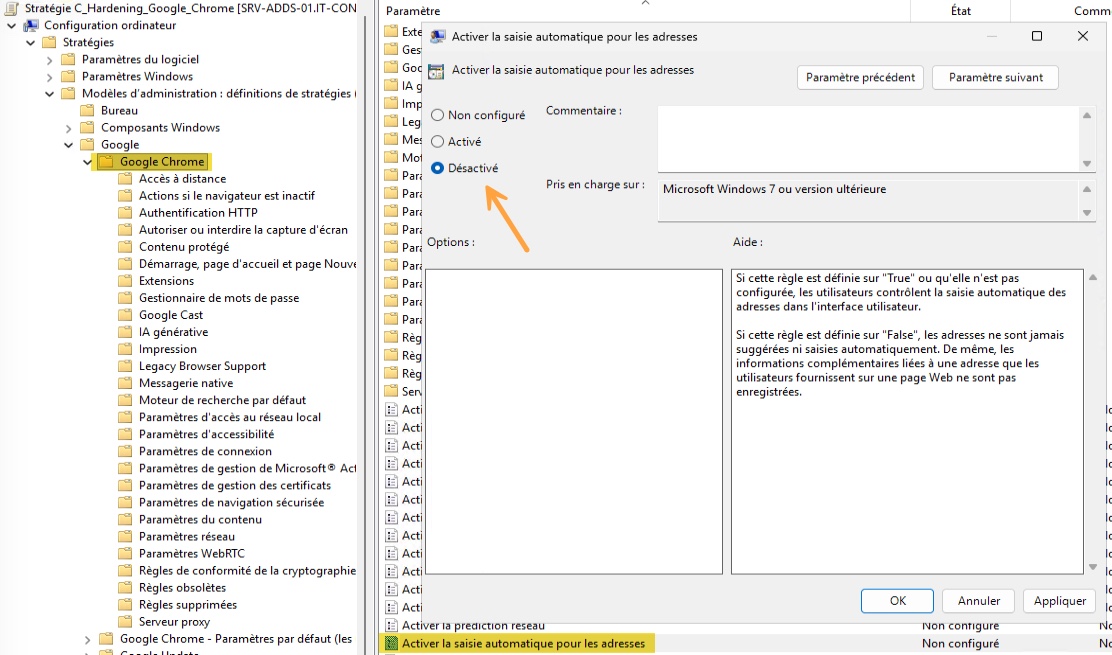
Autofill data is one of the things infostealers systematically collect. It contains postal addresses, phone numbers, and sometimes bank cards (the worst-case scenario). Two policy settings need to be disabled, especially for addresses and credit cards.
- Enable autofill for addresses
- Enable autofill for credit cards
Disable adding a person in the user manager
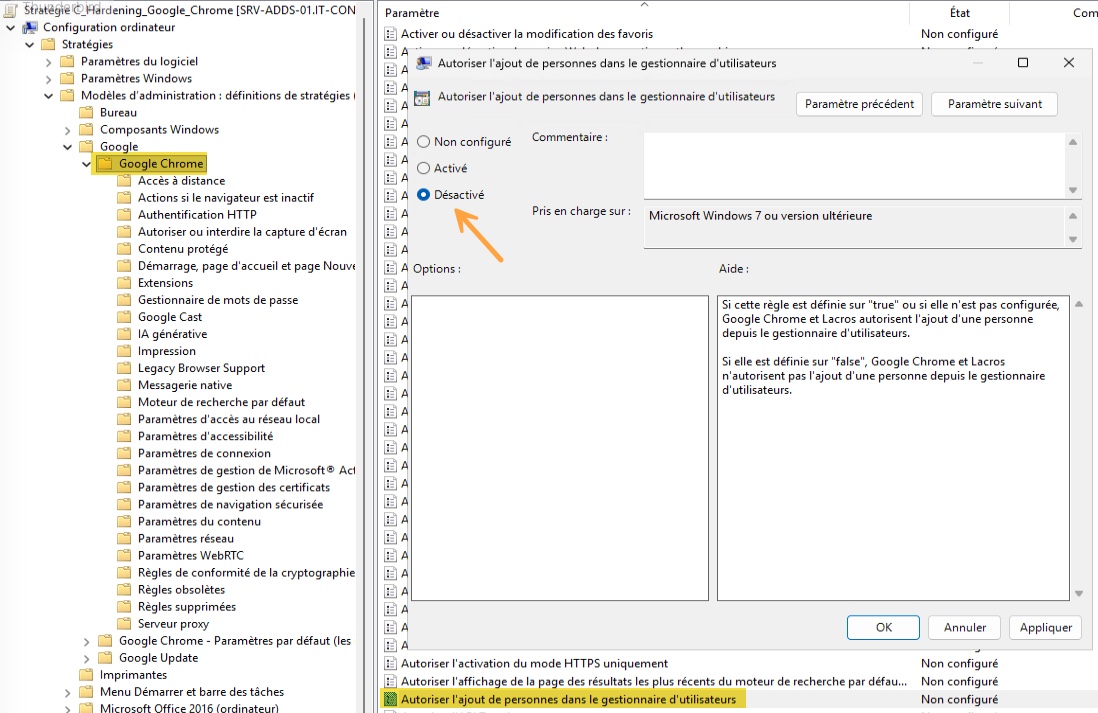
I also recommend blocking the creation of a second profile. Otherwise, by clicking their avatar, a user can add a new “person,” meaning a separate profile with its own passwords, cookies, and signed-in account. We are going to remove that option by setting this policy to Disabled.
- Allow adding people in the user manager
Restrict browser extensions
Extensions have become a distribution vector for infostealer malware. Some are malicious from the start but still manage to trick users (because they do perform a real function), while others are harmless before becoming malicious a few years later. You can therefore block extension installation by default, then allow only what has been approved. The reverse is also true, but harder to control.
I want to draw your attention to these policies that you can enable and configure:
- Extensions > Configure the extension installation blocklist, with a single entry:
* - Extensions > Configure the extension installation allowlist, with the IDs of the extensions you allow
- Extensions > Configure the list of apps and extensions to force install, to deploy certain extensions automatically (for example, your company’s password manager extension).
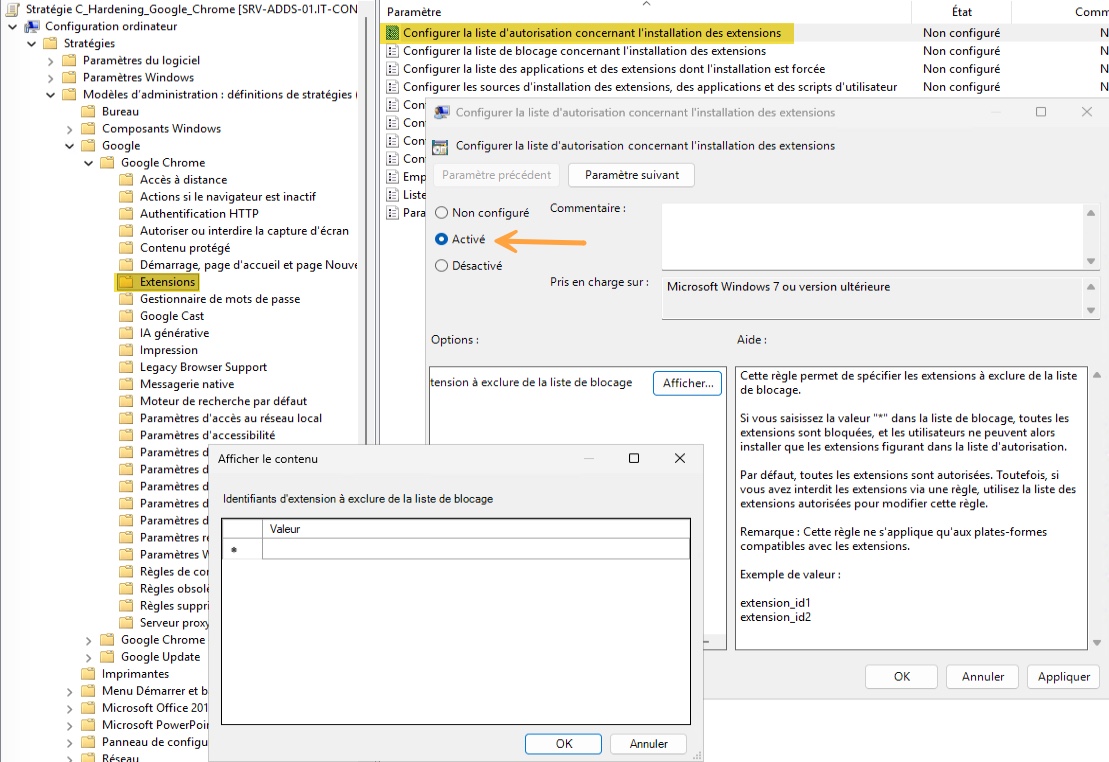
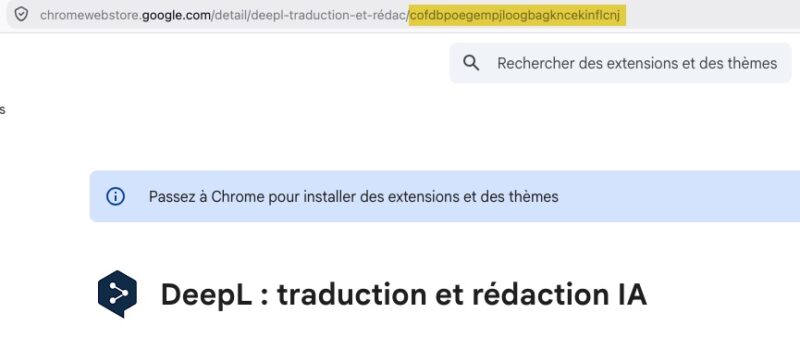
You may ask: what value (identifier) should we use to specify a particular extension we want to allow or install?
An extension ID is a 32-character string. You can find it at the end of the Chrome Web Store listing URL, or in chrome://extensions after enabling Developer mode. For example:
Strengthen Safe Browsing
Chrome Safe Browsing compares the URLs visited and files downloaded against Google’s reputation database. In standard mode, this check relies on a local list that is periodically refreshed. In enhanced mode, checks are performed in real time and also cover extensions and the reuse of a work password on a phishing site. This is a way to block access to certain malicious websites, but it is also a type of filtering you can implement another way (with a proxy, for example).
Here is the setting to enable:
- Safe Browsing settings > Safe Browsing protection level.
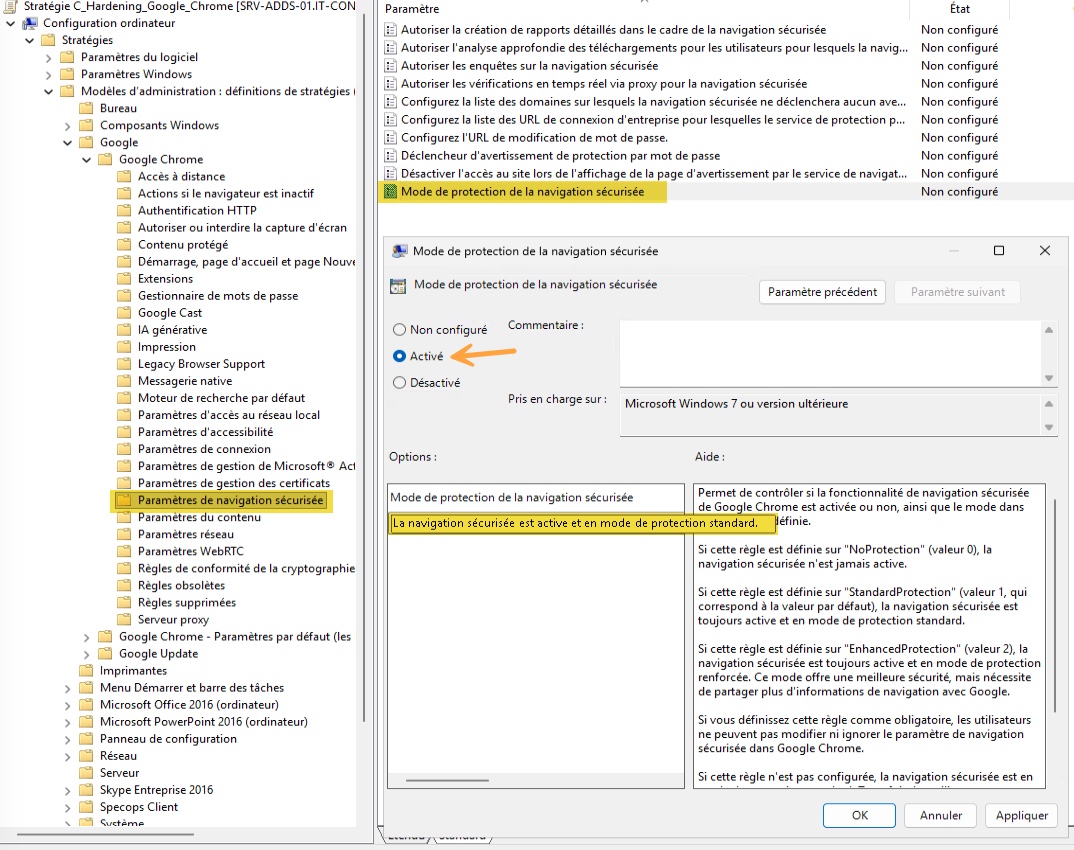
Be careful with the mode you choose. Enhanced mode sends more browsing activity information to Google, including URLs and page snippets. That may not be what you want.
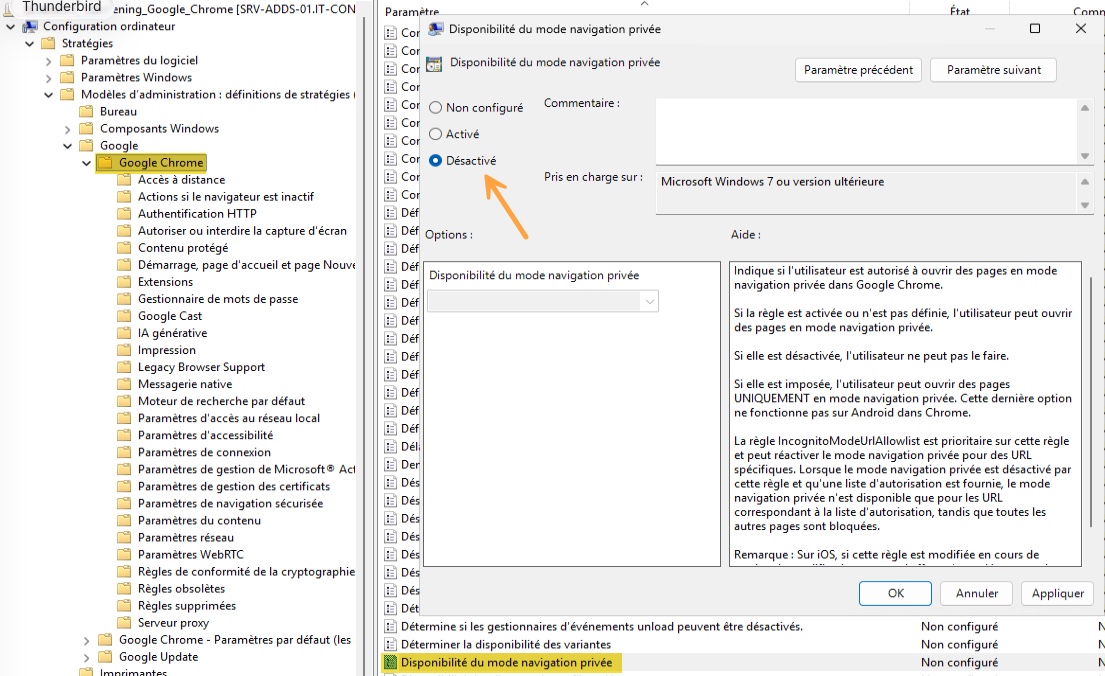
Disable incognito mode
Incognito mode does not write history or passwords in the session, but it can be used to hide certain browsing actions. You are free to leave it available or not, but know that there is a policy to block it.
- Incognito mode availability.
Block developer tools
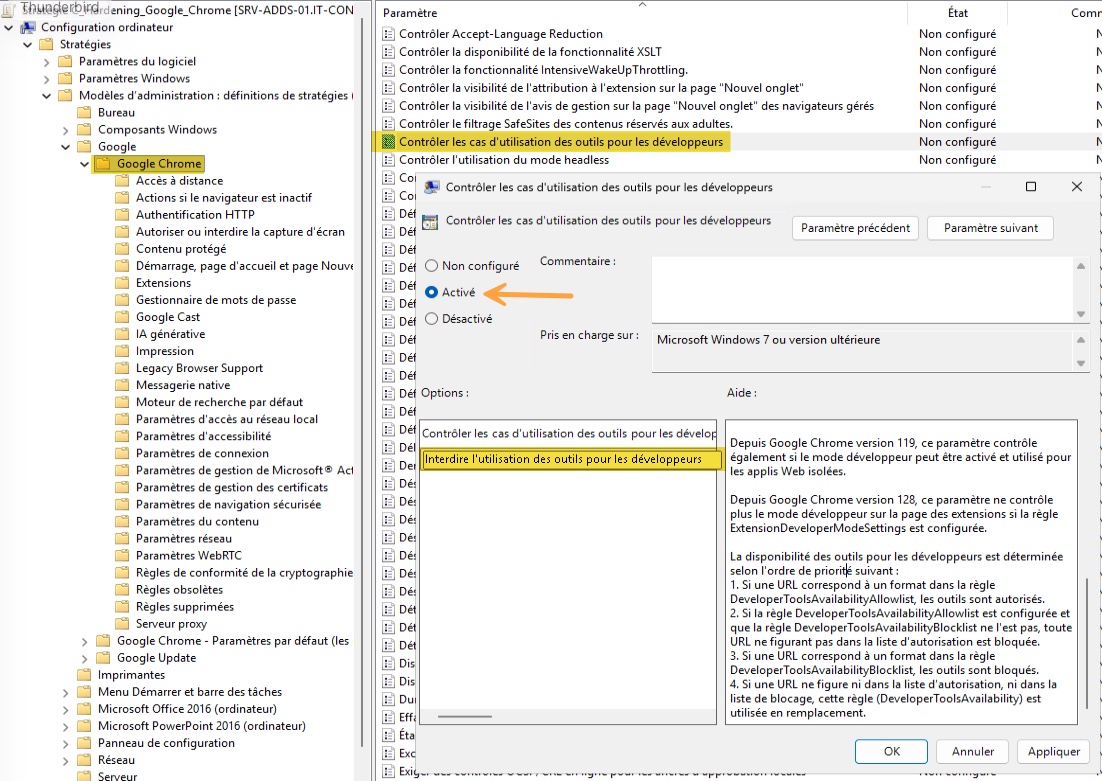
Developer tools provide access to browser memory content, cookies, local storage, and network requests. A regular user does not need access to these tools, unlike developers and admins (watch your GPO targeting). Here is the policy to enable and configure.
- Control use of developer tools
Chrome configuration summary
Here is a summary table with all the settings presented above. I have also included, in the first column, the technical name of each policy as shown in Google’s documentation.
| Policy | Path (under Google Chrome) | Label | Value |
|---|---|---|---|
PasswordManagerEnabled | Password Manager | Enable saving passwords to the password manager | Disabled |
BrowserSignin | Root | Browser sign-in settings | Enabled, value "Disable browser sign-in" |
RestrictSigninToPattern | Root | Restrict the Google accounts allowed to be set as primary browsing accounts in Google Chrome | Alternative to BrowserSignin for companies using Google Workspace |
SyncDisabled | Root | Disable data synchronization with Google | Enabled |
SyncTypesListDisabled | Root | List of types to exclude from synchronization | Finer-grained alternative: passwords and autofill |
ImportSavedPasswords | Root | Import saved passwords from the default browser at first run | Disabled |
AutofillAddressEnabled | Root | Enable autofill for addresses | Disabled |
AutofillCreditCardEnabled | Root | Enable autofill for credit cards | Disabled |
BrowserAddPersonEnabled | Root | Allow adding people in the user manager | Disabled |
ExtensionInstallBlocklist | Extensions | Configure the extension installation blocklist | Enabled, one * entry |
ExtensionInstallAllowlist | Extensions | Configure the extension installation allowlist | Enabled, the IDs of allowed extensions |
ExtensionInstallForcelist | Extensions | Configure the list of apps and extensions to force install | Enabled, the IDs of extensions to deploy automatically |
SafeBrowsingProtectionLevel | Safe Browsing settings | Safe Browsing protection level | Enabled, enhanced mode |
IncognitoModeAvailability | Root | Incognito mode availability | Enabled, incognito mode disabled |
DeveloperToolsAvailability | Root | Control use of developer tools | Enabled, block developer tools |
The Group Policy is ready, with several useful settings already configured. But is it enough? In reality, there are many policies for configuring almost every Google Chrome feature. I strongly encourage you to keep exploring the available settings and configure more of them.
If you are not sure which policies to enable, check the Google Chrome best practices guide published by the CIS Benchmark. It is a good reference to help you secure Google Chrome by broadening your thinking beyond infostealers. On my side, I will show you a few bonus settings.
Purge passwords already saved
Disabling Google Chrome’s password manager is one thing. Purging it is another. Regarding the policy configured earlier, Google’s documentation is explicit:
- Users can no longer save new passwords, but those already saved remain there.
- The policy does not restrict access to those passwords.
In other words, the existing password database remains usable, both for the user and for an infostealer. In addition, you should know that credentials that have already been sent to a personal account are beyond your reach (which does not mean you should not act).
To clean up what already exists properly, there is a policy that can help, if you consider it necessary:
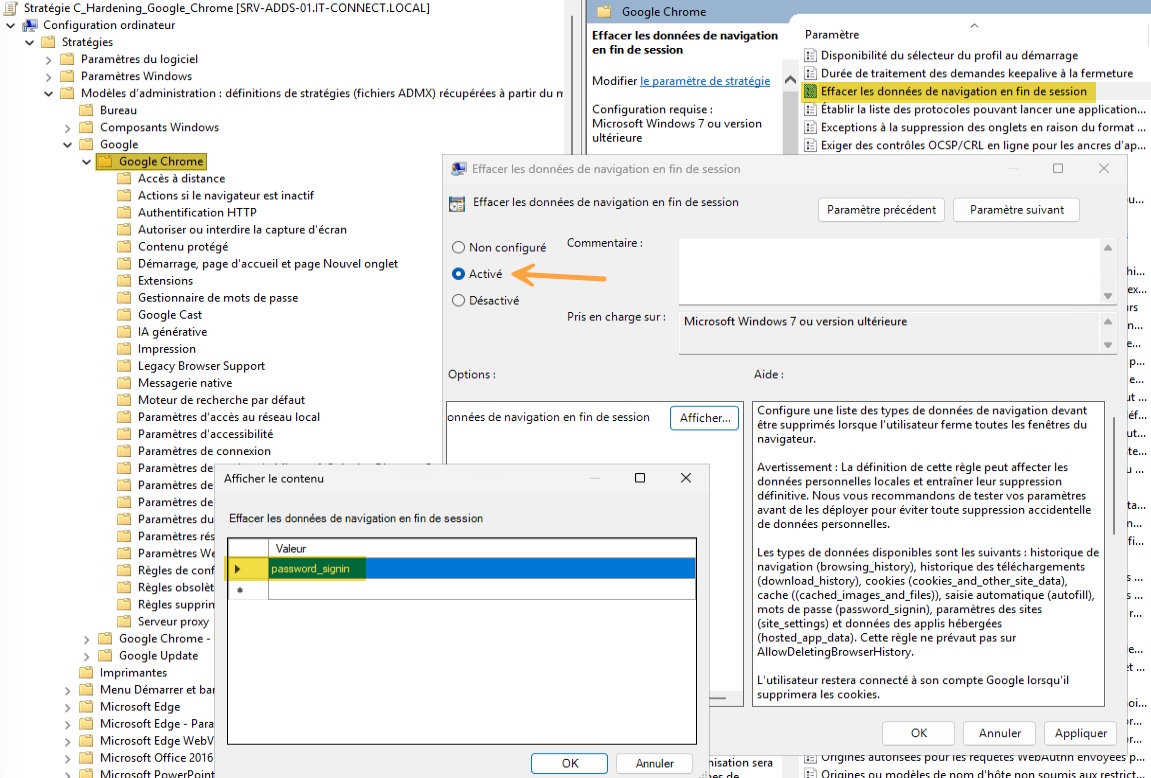
- Clear browsing data on exit
What is great about this policy is that it accepts a list of data types to clear each time Chrome closes:
password_signin: saved passwords (essential here).cookies_and_other_site_data: cookies and site data, meaning open sessions (your users will hate you).browsing_history,download_history,cached_images_and_files,autofill,site_settings,hosted_app_data: the other available types, not needed here.
Add at least password_signin. Here is an example:
Limit the value of a stolen session
Even with the password manager disabled, an infostealer can steal session cookies and replay them from another machine, often without triggering MFA. If you also want to address this problem, there is a set of policies you can configure in your GPO.
| Policy | Path (under Google Chrome) | Label | Value |
|---|---|---|---|
BoundSessionCredentialsEnabled | Sign-in settings | Bind Google credentials to a device | Enabled (refers to DBSC). |
ApplicationBoundEncryptionEnabled | Root | Enable application-bound encryption | Enabled (refers to Application Bound Encryption). |
DownloadRestrictions | Root | Allow download restrictions | Enabled, choose the value to block more or fewer items. At minimum, malicious downloads. |
The Device Bound Session Credentials (DBSC) feature has been available since Chrome 146 on Windows, a version released in April 2026. It is one of the newer defenses against session theft, binding the cookie to the device. However, it is not operational on every site or every machine (notably because a TPM chip is required). As for App-Bound Encryption, it is older and has been available since Chrome 127. With it, cookies and passwords are encrypted with a key tied to the Chrome application identity, rather than only with DPAPI. Infostealers bypassed this protection within months, but it eliminates the simplest tools.
Verify the result on a client machine
On the test machine, update Group Policy with the gpupdate /force command in a Command Prompt. Restart the PC, then open Google Chrome. You can open the chrome://policy page. It lists all applied policies, with their source, scope, and value. It is like gpresult, but directly in the browser context.
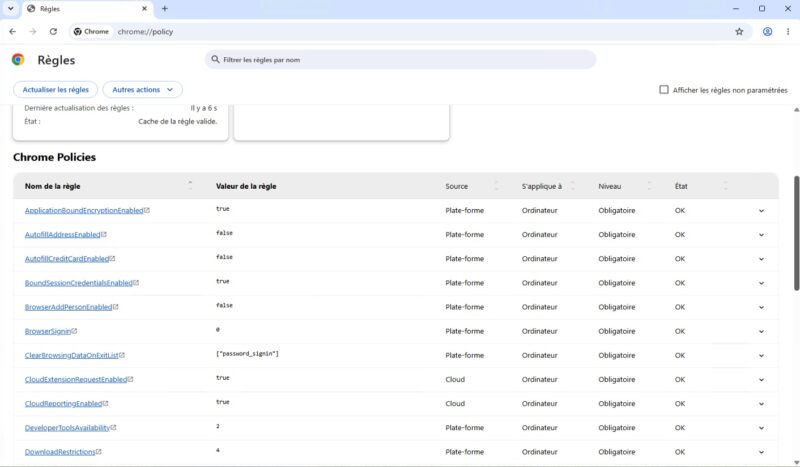
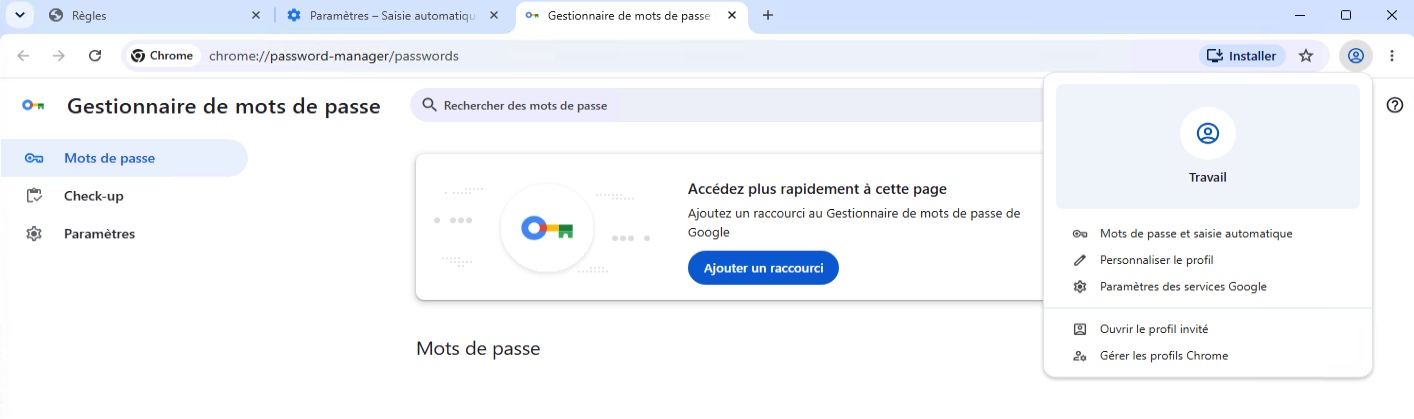
There are also visible effects for users, which is exactly the expected result. It is no longer possible to save passwords, sign in to a Google account in the browser, and so on. Everything is working as intended.
Secure Microsoft Edge through GPO
Microsoft Edge is based on Chromium, and the logic is broadly the same as for Google Chrome. There are, however, a few subtleties to know.
Download Edge ADMX templates
Microsoft Edge ADMX templates are not included by default. That may seem surprising since Microsoft’s browser is native to Windows. But in reality, they are downloaded from the Microsoft Edge for Business page: select the Edge version, then Download Windows 64-bit policy file. You will get a MicrosoftEdgePolicyTemplates.cab file, which itself contains a ZIP archive. So you need to extract it twice.
Under windows\admx, copy msedge.admx to the root of the central store and msedge.adml into the fr-FR subfolder. The msedgeupdate.admx (updates) and msedgewebview2.admx (WebView2 component) files are not required here. But you can absolutely deploy them if you want the full set of Edge settings.
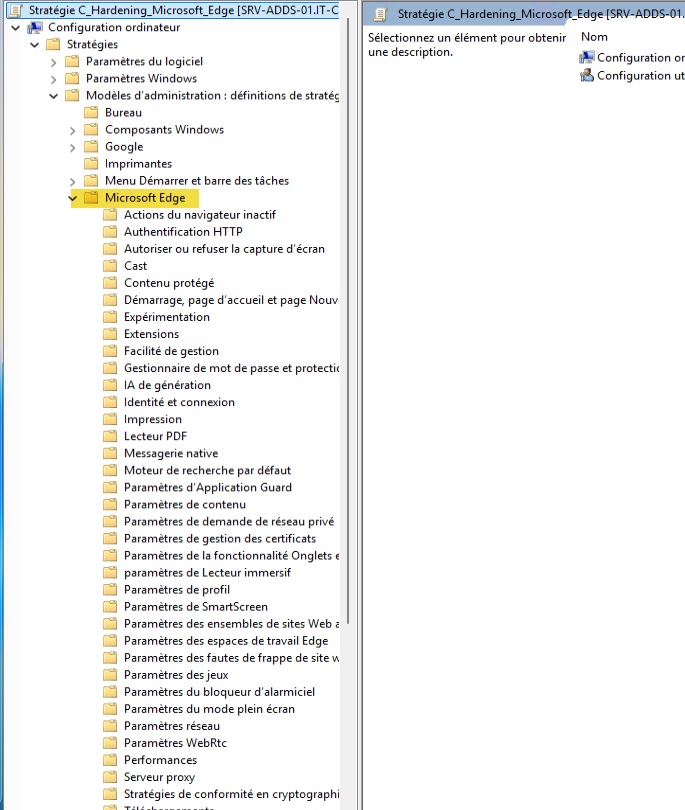
When editing the GPO (I encourage you to create one GPO per browser), the settings appear under this root:
- Computer Configuration > Policies > Administrative Templates > Microsoft Edge.
The Entra ID SSO trap
The main difference between Google Chrome and Microsoft Edge is that one is deeply tied to the Google ecosystem, while the other is tied to the Microsoft / Microsoft 365 ecosystem. In the enterprise, it is very common to find the trio Windows + Edge + Microsoft 365. In Edge, SSO to Entra ID (Microsoft 365, SharePoint, federated applications) relies on the signed-in profile with the work account.
So if you are in that situation, do not fully disable sign-in, or you will break all the mechanisms that depend on it. If the user has to reauthenticate manually every time when it used to be automatic through SSO, they will not like it. That is counterproductive.
If you use Microsoft 365, the right configuration is not to block sign-in, but to force the work account and block any other account:
| Policy | Path (under Microsoft Edge) | Label | Value |
|---|---|---|---|
BrowserSignin | Root | Browser sign-in settings | Enabled, value 2 (Force users to sign in to use the browser (all profiles)) |
NonRemovableProfileEnabled | Root | Configure whether a user always has a default profile automatically signed in with their work or school account | Enabled |
RestrictSigninToPattern | Root | Restrict the accounts that can be used to sign in to Microsoft Edge. | Limit it to your domain, for example *@it-connect.fr |
BrowserAddProfileEnabled | Root | Enable profile creation from the Identity flyout or the Settings page | Disabled |
BrowserGuestModeEnabled | Root | Enable guest mode | Disabled |
Configure the settings the same way as for Chrome; it is still GPO.
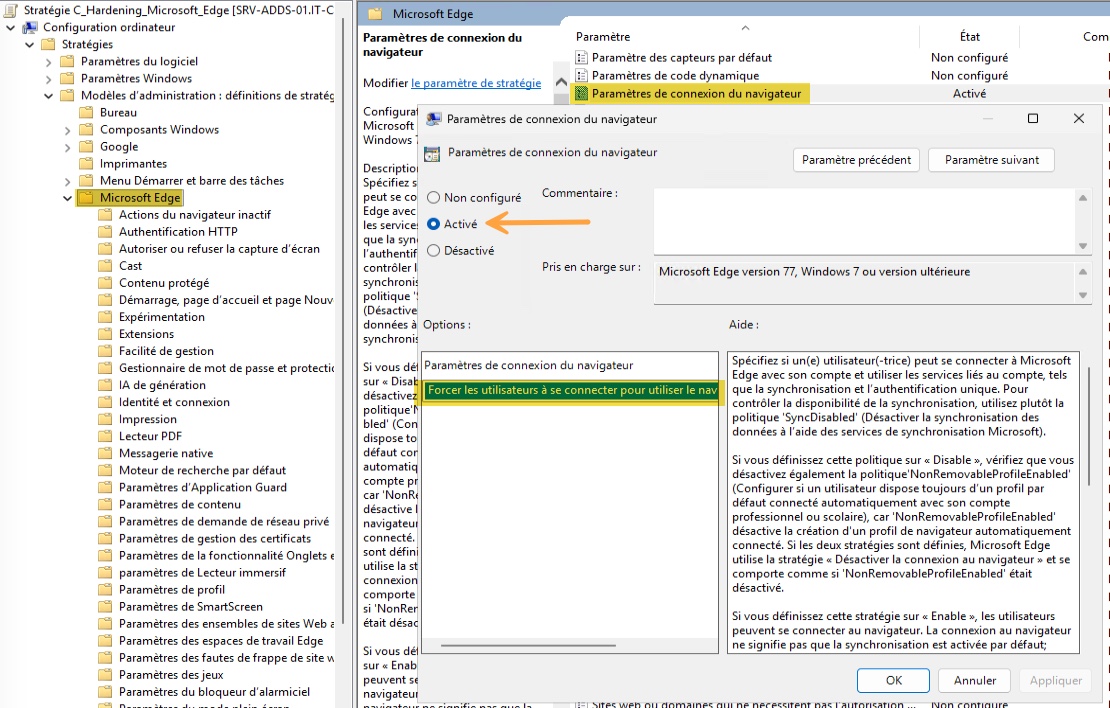
You can absolutely block sign-in to an account (the first setting in the list). This makes perfect sense on a fleet without Entra ID (for example, local Active Directory without Microsoft 365), where the profile account brings no value and only serves to connect a personal Microsoft account.
Edge policies by category
The paths below start from the Microsoft Edge category as the root. The goal is to give you a typical configuration example, just like for Google Chrome. In addition, be aware that Microsoft includes an Edge Security Baseline in its Security Compliance Toolkit. It provides Microsoft’s best practices for hardening the browser as a whole. Not everything will necessarily be applicable, but it will help you, just as the CIS Benchmark guides and this article will help you as well.
Prevent credential leakage:
| Policy | Path (under Microsoft Edge) | Label | Value |
|---|---|---|---|
PasswordManagerEnabled | Password Manager and protection | Enable saving passwords to the password manager | Disabled |
SyncDisabled or SyncTypesListDisabled | Root | Disable data synchronization using Microsoft sync services / OR Configure the list of types included for synchronization | Enabled, or list of allowed items (do not include passwords and autofill) |
ImportSavedPasswords | Root | Allow importing saved passwords | Disabled |
ImportOnEachLaunch | Root | Allow importing data from other browsers at each launch of Microsoft Edge | Disabled |
AutofillAddressEnabled and AutofillCreditCardEnabled | Root | Enable autofill for addresses / Enable autofill for payment instruments (yes, the translation is terrible) | Disabled |
ClearBrowsingDataOnExit | Root | Clear browsing data when Microsoft Edge closes | Note that, to my knowledge, you cannot select specific items like with Chrome. It is therefore restrictive if everything is cleared, but it is possible. |
Limit features and extensions:
| Policy | Path (under Microsoft Edge) | Label | Value |
|---|---|---|---|
InPrivateModeAvailability | Root | Configure the availability of InPrivate mode | Enabled, value InPrivate mode disabled. |
DeveloperToolsAvailability | Root | Control where developer tools can be used. | Enabled, value 3 |
ExtensionInstallBlocklist | Extensions | Control extensions that cannot be installed. | Enabled, one * entry |
ExtensionInstallAllowlist | Extensions | Allow installation of specific extensions | IDs of the allowed extensions |
ExtensionInstallForcelist | Extensions | Control extensions that are installed silently. | IDs of the extensions you want to deploy to your endpoints. |
Be careful with extension IDs: the same extension does not necessarily have the same ID on the Microsoft Edge Add-ons Store and on the Chrome Web Store.
Limit the value of a stolen session:
| Policy | Path (under Microsoft Edge) | Label | Value |
|---|---|---|---|
ProcessIsolationEnabled | Root | Enable process isolation | Enabled |
StartupBoostEnabled | Performance | Enable fast startup | Disabled |
DownloadRestrictions | Root | Allow download restrictions | Enabled, choose the value to block more or fewer items. At minimum, malicious downloads. |
SmartScreenEnabled and SmartScreenPuaEnabled | SmartScreen settings | Configure Microsoft Defender Smart Screen | Enabled |
PreventSmartScreenPromptOverride and PreventSmartScreenPromptOverrideForFiles | SmartScreen settings | Prevent users from bypassing Microsoft Defender SmartScreen warnings for downloads / websites | Enabled |
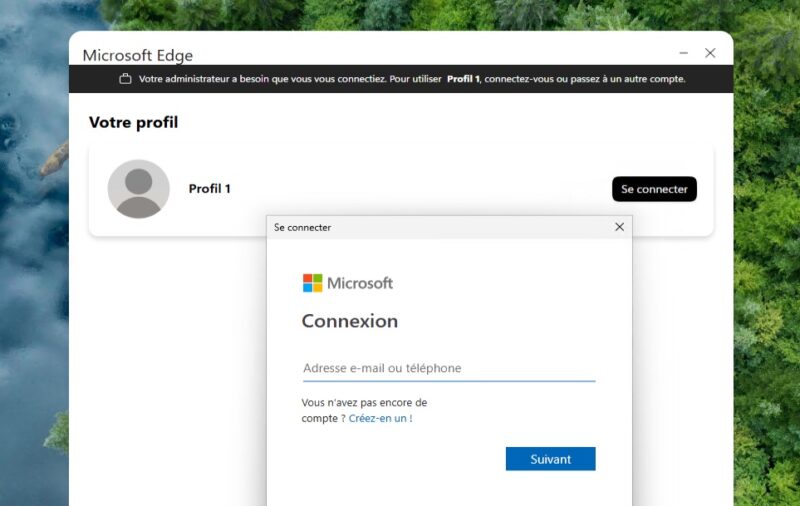
As with Chrome, you can test on a workstation. The method is the same: gpupdate /force and a PC restart before launching Microsoft Edge. Then display the policy with edge://policy. Be careful though: if you chose forced Microsoft profile sign-in (the M365 scenario), you will already be prompted to sign in to your account first, before doing anything else.
Secure Mozilla Firefox through GPO
Firefox follows a different logic from Chromium, with its own policy names and a different organization.
Download Firefox ADMX templates
Mozilla publishes the templates on GitHub: mozilla/policy-templates. Download the latest release archive from the Releases tab (policy_templates_v8.2.zip at the time of writing). The following content is what we need:
windows\firefox.admxandwindows\mozilla.admx, both required (mozilla.admxis the parent)windows\fr-FR\firefox.admlandmozilla.adml, the French translation
Once the files are imported into your domain, the policy settings appear under:
- Computer Configuration > Policies > Administrative Templates > Mozilla > Firefox
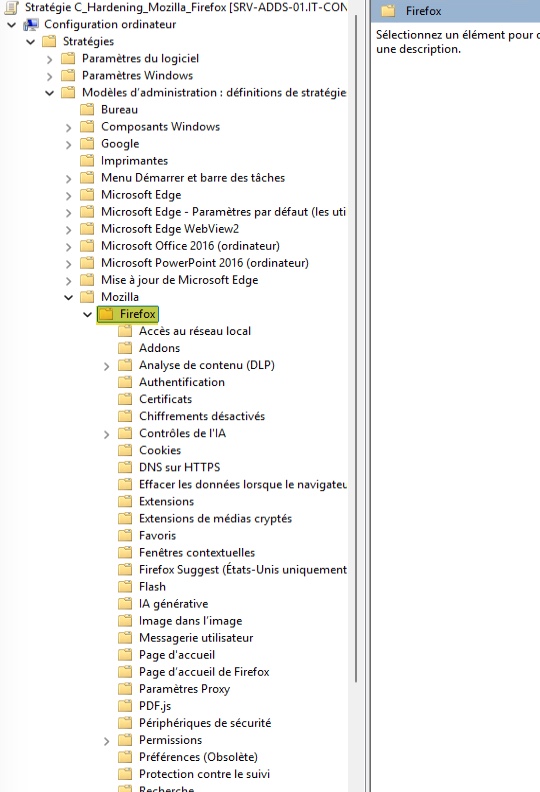
Note 1: the ESR version is not required to apply policies. They are supported by all Firefox versions, except for a few policies reserved for ESR such as disabling updates.
Note 2: Firefox also accepts a policies.json file placed in a distribution subfolder of the installation directory (C:\Program Files\Mozilla Firefox\distribution\policies.json). It supports exactly the same policies, in JSON format. This is the method used on Linux and macOS, or on a non-domain computer. If both exist, GPOs take precedence.
Firefox policies
As with Microsoft Edge, here is a summary of the settings to configure to harden Mozilla Firefox. You will notice that the names are less verbose.
Prevent credential leakage:
| Policy | Path (under Firefox) | French label | Value |
|---|---|---|---|
PasswordManagerEnabled | Root | Password manager | Disabled |
OfferToSaveLogins | Root | Offer to save logins | Disabled |
PrimaryPassword | Root | Primary password | Only enable it if Firefox’s password manager remains allowed. |
DisableFirefoxAccounts | Root | Disable Firefox Accounts | Enabled |
DisableProfileImport | Root | Disable profile import | Enabled |
DisableFormHistory | Root | Disable form history | Enabled |
AutofillAddressEnabled | Root | Enable autofill for addresses | Disabled |
AutofillCreditCardEnabled | Root | Enable autofill for payment methods | Disabled |
Limit features and extensions:
| Policy | Path (under Firefox) | French label | Value |
|---|---|---|---|
DisablePrivateBrowsing | Root | Disable private browsing | Enabled |
DisableDeveloperTools | Root | Disable developer tools | Enabled |
BlockAboutConfig | Root | Block about:config | Enabled |
BlockAboutProfiles | Root | Block about:profiles | Enabled |
ExtensionSettings | Extensions | Extension management | JSON format, which can be used to block everything and allow only specific items. The syntax is described on this page. |
Limit the value of a stolen session:
| Policy | Path (under Firefox) | French label | Value |
|---|---|---|---|
SanitizeOnShutdown | Clear data when the browser is closed | Your choice! | Useful if you want automatic cleanup when the browser closes. Test it to measure the impact on the services your users rely on every day. |
EnableTrackingProtection | Tracking protection | Enabled | Enabled |
Cookies | Cookies | Cookie behavior | Depending on your needs, optional |
WindowsSSO | Root | Windows SSO | Enabled for Entra ID SSO. Good to know. |
On the client side, when you are ready to test, open about:policies: it displays the active policies.
Prevent bypassing the controls with another browser
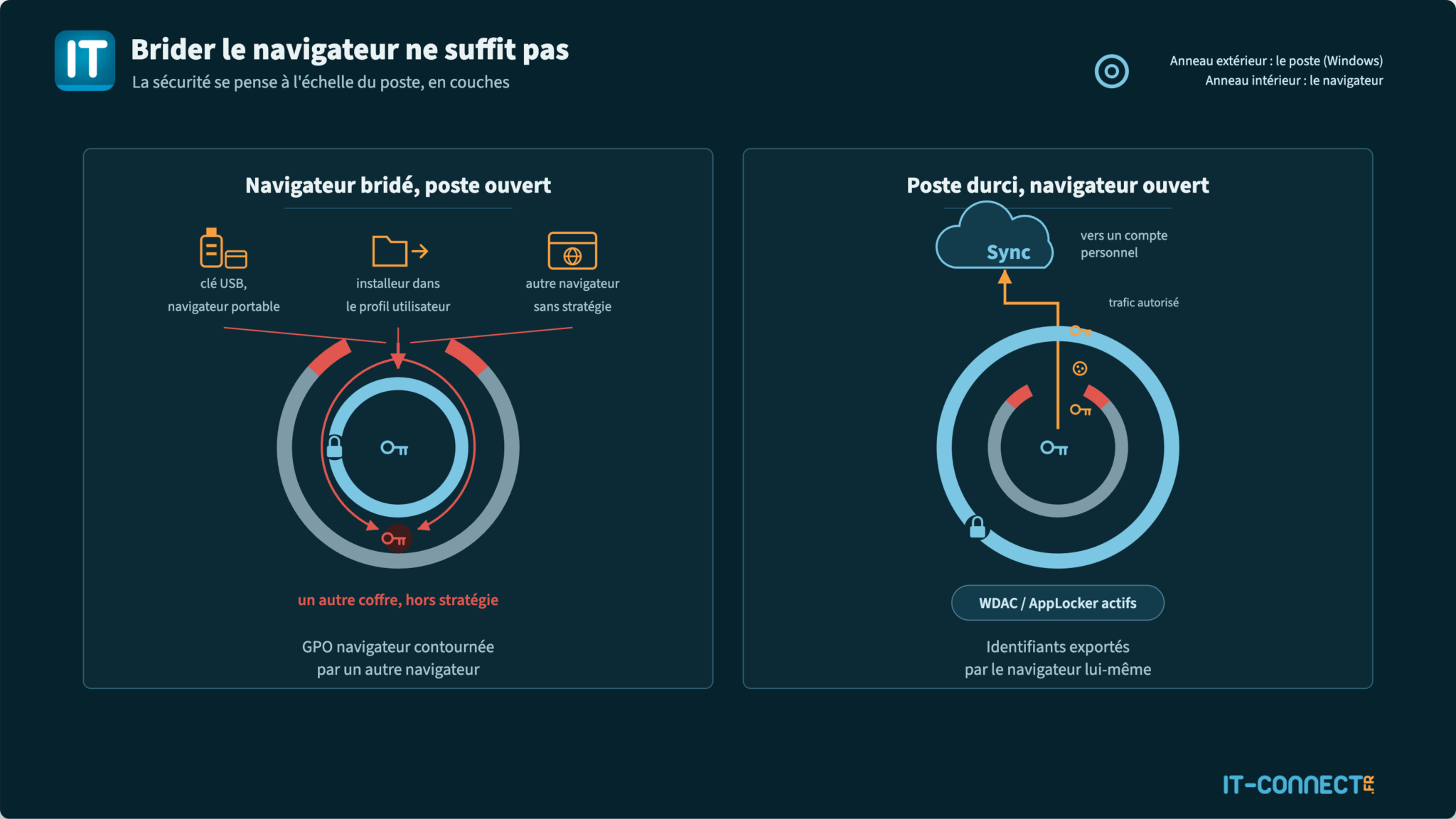
Your GPOs apply to Chrome, Edge, and Firefox because you deployed their ADMX templates and because those browsers read policies from the registry. They do not apply to what you did not plan for. And that is a risk you need to anticipate. In particular, this can include:
- A portable browser, launched from a USB drive or the Downloads folder. A portable Firefox or Chrome also reads registry policies, but a browser for which you have not deployed an ADMX template (Brave, Opera, Vivaldi, any random fork) escapes your control entirely.
- A user with local administrator rights, who can install whatever they want and modify the registry.
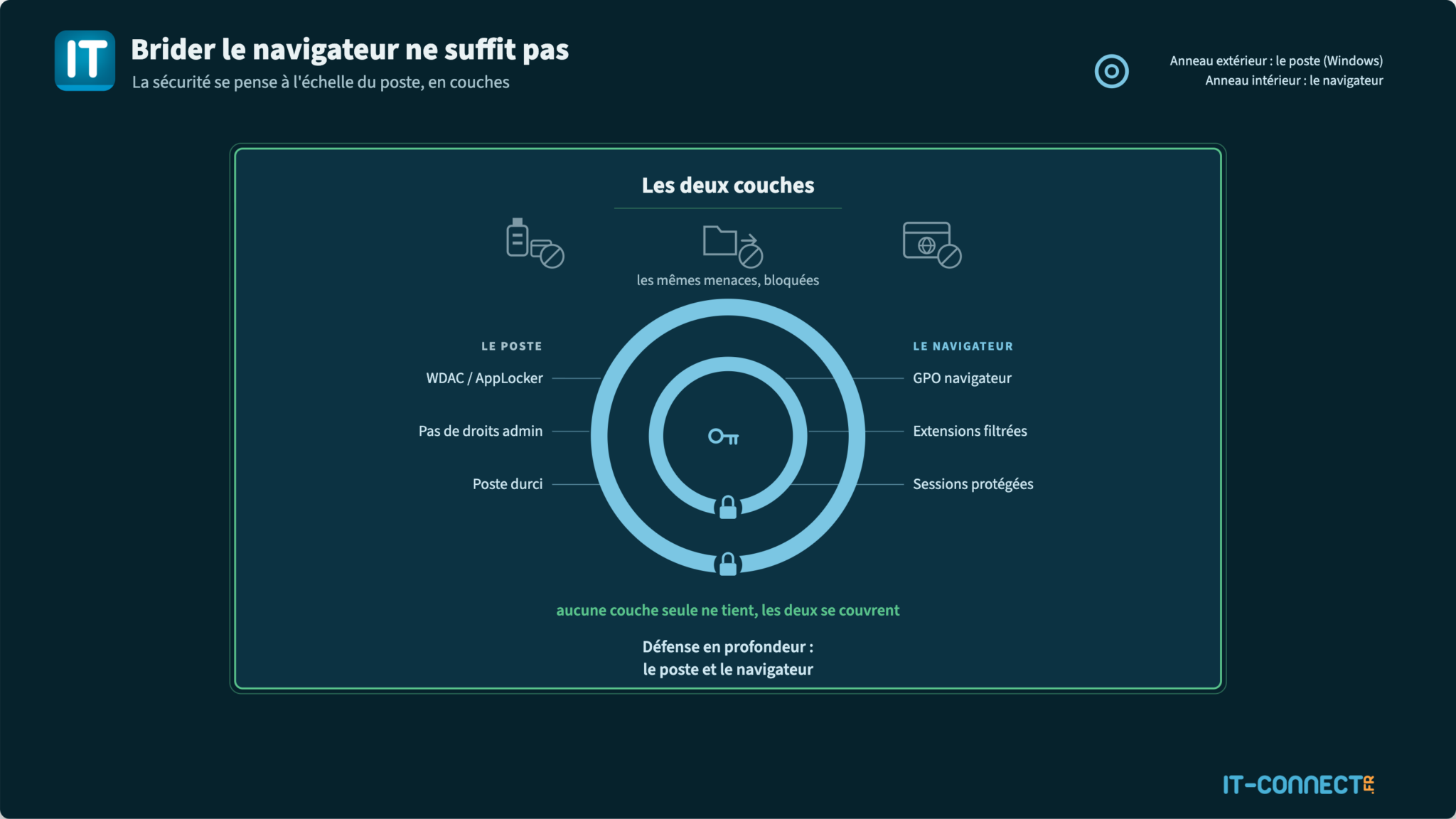
The answer comes down to three measures, to be implemented in order:
- Remove local administrator rights from users. That is the foundation.
- Restrict software execution with AppLocker, allowing only binaries located in
C:\Program FilesandC:\Windows, which effectively blocks any executable launched from the user profile or removable media. The tutorial how to configure AppLocker through GPO details the setup. - To go further, Windows Defender Application Control (WDAC) applies the same principle at kernel level, with policies based on publisher signatures, which are more robust than AppLocker path rules.
This logic works both ways. A locked-down browser on a machine where the user can run anything does not protect much. And a machine hardened with AppLocker or WDAC, but whose browser syncs passwords to a personal account, still leaks credentials through the front door. Security must be approached at the workstation level.
Conclusion
By putting a Group Policy in place to harden a web browser configuration, you can:
- Prevent new passwords from being saved in the built-in password manager and purge existing ones.
- Block synchronization and sign-in with a personal account, and therefore stop credentials from leaking outside your perimeter.
- Filter extensions, which have become a full-fledged infostealer vector.
- Reduce the value of a stolen session (device-bound cookies, clearing on exit).
And frankly, locking down browsers through GPO is a low-cost and quick-to-deploy measure that closes the tap and reduces the risk of credential leaks. With a dozen settings, you can build a solid baseline that you can refine over time. Disabling the built-in password manager and blocking synchronization with personal accounts should be your priority.
Have you already put this kind of configuration in place in your company? What do you think?