www.it-connect.fr

Pulse Makes Windows Event Logs Readable with Local AI
Blue screen, unexpected reboot, crashing service: Windows has almost always recorded the cause somewhere, if only you can read it in Event Viewer.
Whether you're troubleshooting a relative's PC, a user workstation, or your own machine, the reflex is often the same: open Event Viewer and scroll through thousands of lines in search of the right information about the error. That's where Pulse comes in, a free and open source tool for Windows 10 and Windows 11 that helps you make sense of Windows event logs.
What Is Pulse?
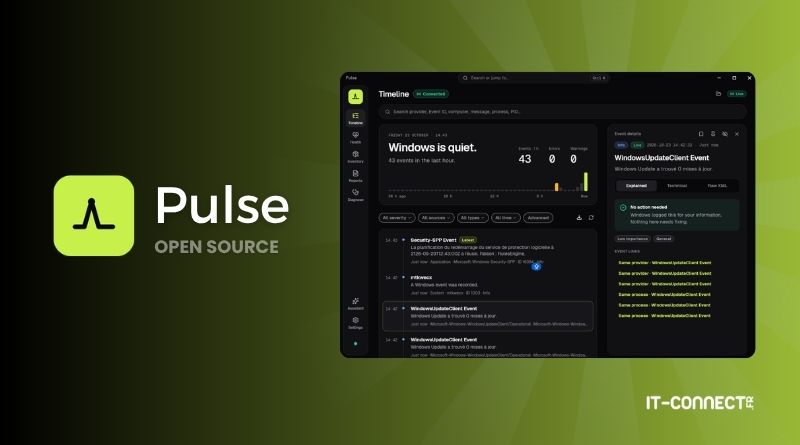
Pulse is a diagnostic application for Windows 10 and Windows 11, free and open source (MIT license), that reads Windows event logs and rewrites them into understandable sentences. It works in read-only mode, entirely locally, and can rely on an AI assistant running on the PC (Ollama or LM Studio) to answer questions asked in natural language.
Where Event Viewer shows a provider, an event ID, and an XML block, Pulse shows a sentence. The project repository provides a few telling examples:
| What Event Viewer displays | What Pulse says (translated) |
|---|---|
| Application Error, ID 1000 | Explorer closed unexpectedly. Windows restarted Explorer. |
| Kernel-Power, ID 41, BugcheckCode 159 | Windows restarted after a blue screen. Stop code: DRIVER_POWER_STATE_FAILURE. |
| Kernel-Power, ID 41, all values at 0 | The PC lost power or shut down abruptly. Check the power supply, temperatures, and overclocking. |
This relatively young application relies on a native Windows service written in C++20 (PulseService) that collects and interprets events, and on a desktop app built with Flutter (Dart) for the interface. There is no telemetry, no account, and no dependency on a cloud service.
Official project resources:
- Pulse official website
- Pulse GitHub repository (Regncreative/Pulse)
- Pulse Diagnostics on the Microsoft Store
Installing Pulse on Windows
Two installation methods are available: the installer published on GitHub and the Microsoft Store. There is nothing special to do to install it; a few clicks are enough... You can download the latest version from the GitHub Releases section. For example, download the file Pulse-Setup-1.5.0-windows-x64.exe.
Warning: because it is unsigned, Windows SmartScreen or your antivirus may show a warning when the installer launches. The developer has submitted an application to the free SignPath Foundation program to sign future versions (application under review at the time of writing).
Pulse is also available on the Microsoft Store under the name Pulse Diagnostics. In this case, the service is bundled with the application package, and updates are delivered through the Store.
Exploring the Pulse Interface
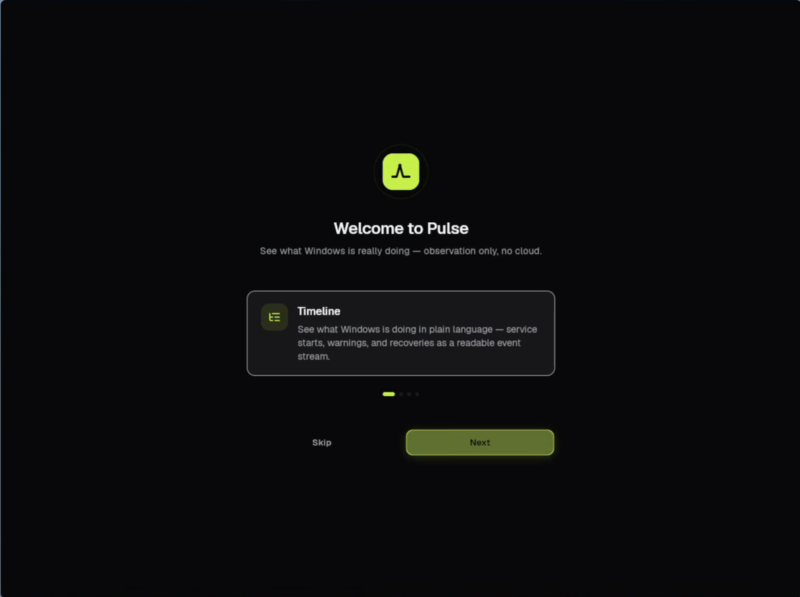
On first launch, Pulse presents its different sections: Timeline, System Health, Diagnostics, and the role of the PulseService service. The tagline sets the tone: “See what Windows is really doing”, with the note “observation only, no cloud”.
Note: Pulse's interface is only available in English, and the repository does not currently contain translation files. However, the event messages reported by Windows remain in the system language, so they appear in French on a French Windows installation.
Timeline: Windows Logs in Plain Language
Timeline is Pulse's main view. At the top, a sentence summarizes the last hour (“Windows is mostly quiet ”, or conversely “Windows reported a problem in the last hour”), along with three counters: the number of events, errors, and warnings over one hour. A 24-hour activity strip makes it easy to spot error spikes at a glance.
Below that, events stream live from newest to oldest. The “Live” badge indicates that the feed is updated in real time.
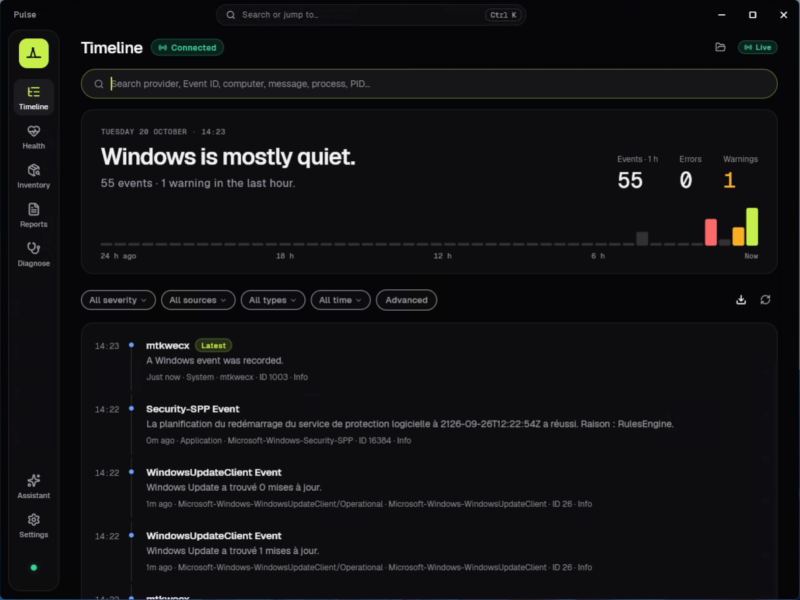
Explained, Technical, or Raw XML
Clicking an event opens the “Event details” panel, which offers three reading levels:
- Explained: a plain-language explanation, with guidance on what action to take. Here, “No action needed ”: Windows simply recorded information.
- Technical: the usual event fields (provider, event ID, log, computer, level, keywords, process ID, etc.).
- Raw XML: the raw XML for the event, identical to the “Details” tab in Event Viewer.
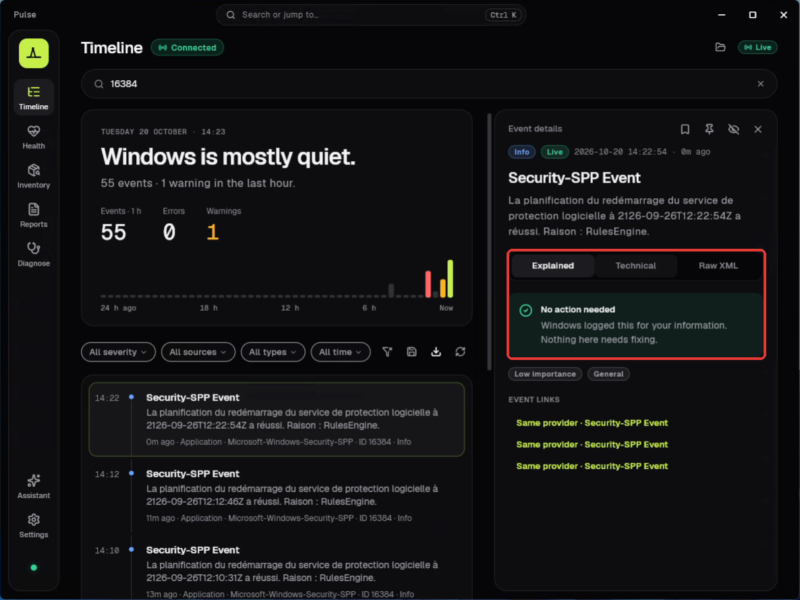
The “Technical” tab remains valuable for an administrator, especially for retrieving the event ID and provider to use in a deeper search.
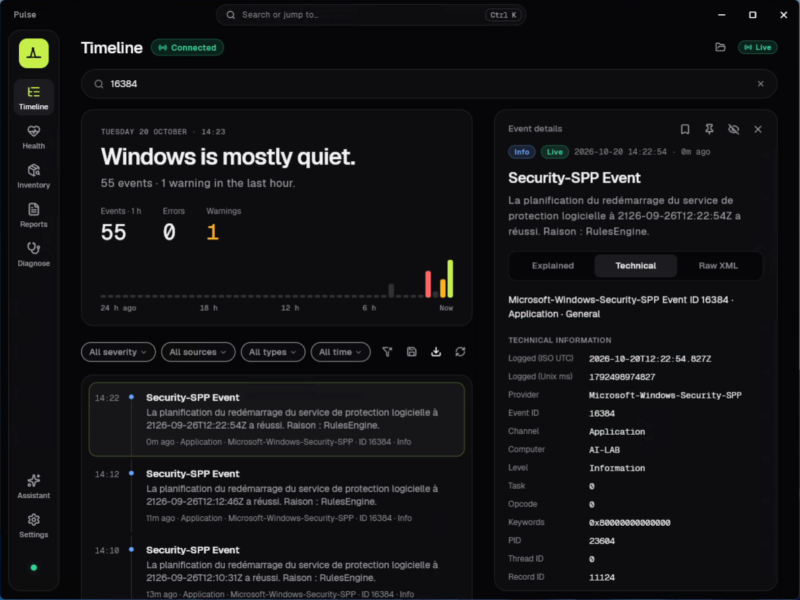
The panel also includes links to nearby events (“Same provider”, “Same process”), which makes it possible to trace the history of an incident. Pulse also tries to group related events into a single incident: an application crash with its error report, a blue screen with the reboot that follows, or a service crash with the recovery action triggered by Windows.
Filtering and Searching Events
The filter bar lets you sort events by:
- Severity: errors, warnings, or information.
- Source: the event provider.
- Type: crash, service, power, update, device, startup, security, storage.
- Period: 15 minutes, 1 hour, 24 hours, 7 days, or a custom range.
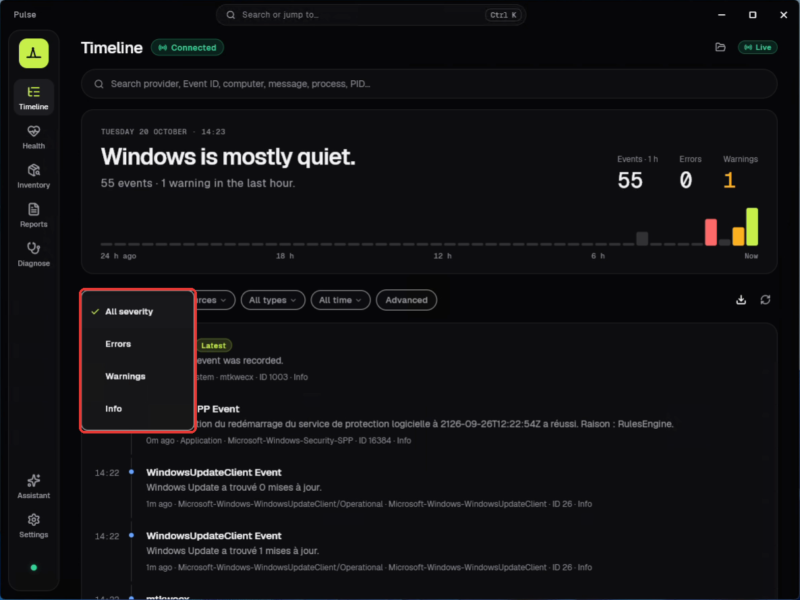
The search field accepts a provider, an event ID, a computer name, a message excerpt, a process name, or a PID. In the example below, the search targets event ID 16384.
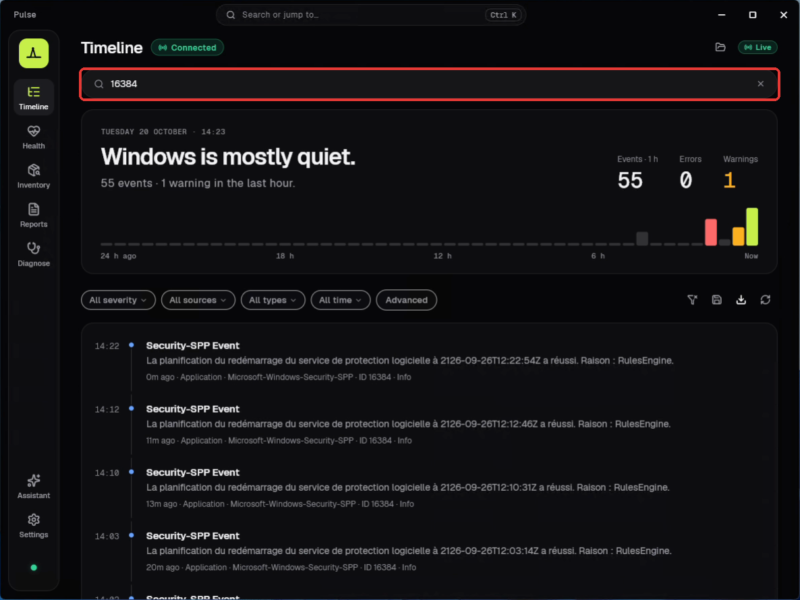
Searches can be saved, and events can be bookmarked or pinned. There is also an option called “Hide events like this” to hide all events with the same provider and ID in Timeline and in the counters. This is useful for silencing a recurring event that is not really important.
Pulse also reads event metadata in an attempt to explain the origin of a blue screen: the stop code name, what usually causes it, and what to check next. It can therefore distinguish between a forced shutdown, a power loss, and a hardware error.
Note: Pulse relies on event logs, not memory dump files. Minidump analysis is on the project roadmap, but it is not available yet.
System Health and Inventory
The “Health” section (System Health) displays a health score and live activity for the CPU, memory, GPU, disk, and network, with a 60-second history. GPU load is calculated the same way as in Task Manager, and a PC with two GPUs (integrated and dedicated) shows both.
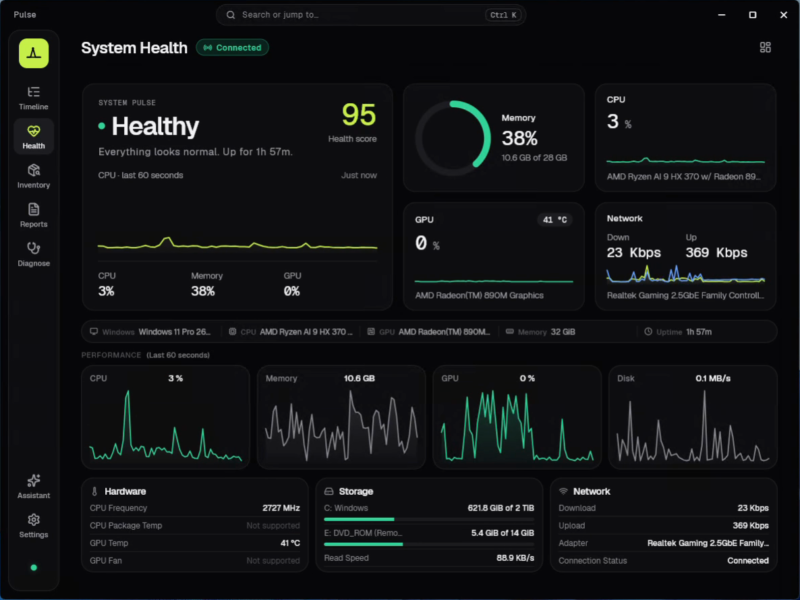
Resource usage is also broken down by process. In addition, alerts can be enabled in the background from the notification area if CPU or memory usage stays high for too long. The “Inventory” section lists hardware (motherboard, BIOS, CPU, memory sticks, storage, network cards), devices, and installed software, drivers, and services.
Using Pulse's Local AI Assistant with Ollama or LM Studio
Pulse includes an optional assistant that lets you ask natural-language questions about the PC's status: “Why is my PC slow?”, “What's using the most memory? ”, and so on. This assistant does not rely on any cloud service: it queries a language model running locally, via Ollama or LM Studio.
Preparing the Local AI Model
Pulse does not install either Ollama or LM Studio: you need to do that yourself, then download a model. For my tests, I used LM Studio with the google/gemma-4-e4b model, which is suggested on first launch in LM Studio.
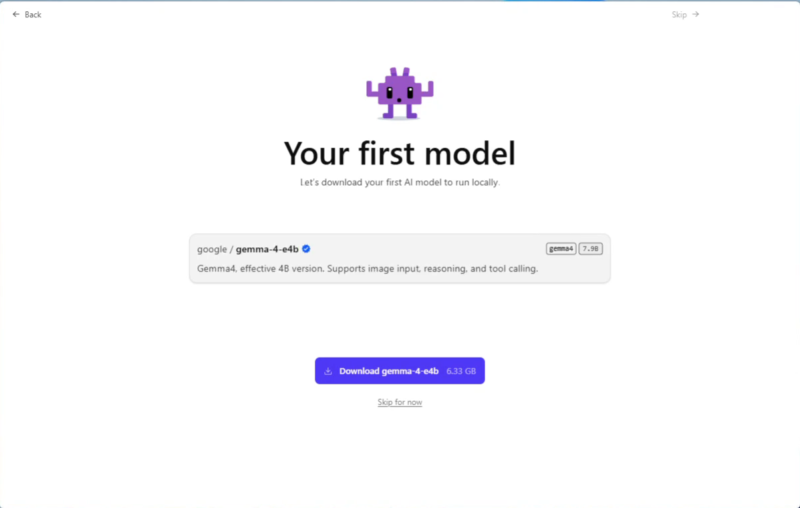
If you prefer Ollama, our tutorial on installing Ollama and Open WebUI on Windows 11 will guide you. To choose a model suited to your hardware, the article CanIRun.ai and LLMfit: find the right AI model for your PC may help.
By default, Pulse connects to Ollama on port 11434 and LM Studio on port 1234. You therefore need to configure LM Studio (or Ollama) so that it is listening on that port, and in any case LM Studio is not listening at all by default.
Querying Pulse's Assistant
In the “Assistant” section, choose the provider and the model. The note “Local AI · Your diagnostic data stays on this PC” is a reminder that the data never leaves the machine. Suggested questions are provided to get started.
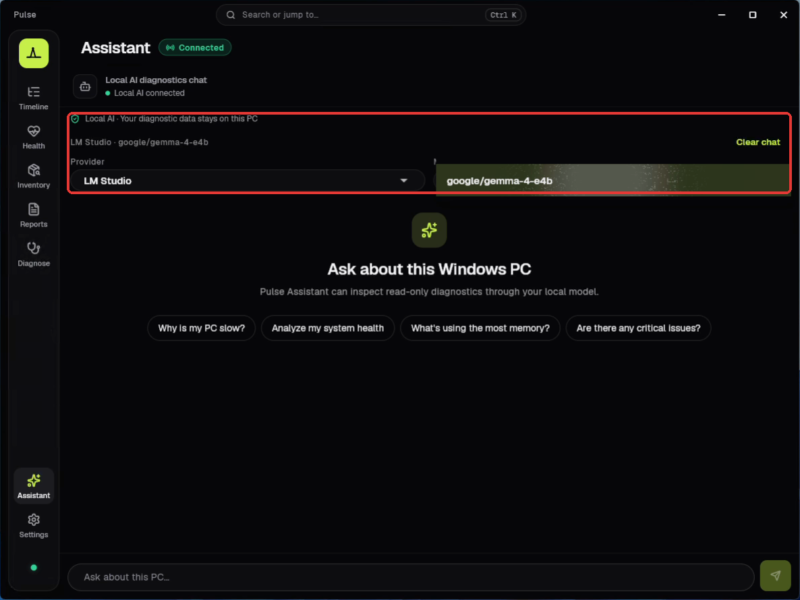
As a random example for this article, I asked the question “ Are there any critical issues?” suggested by Pulse. The assistant then queries Pulse through read-only tools (recent events, metrics, processes, services) and writes a summary: general observations, the most resource-hungry processes, Timeline events, and a conclusion.
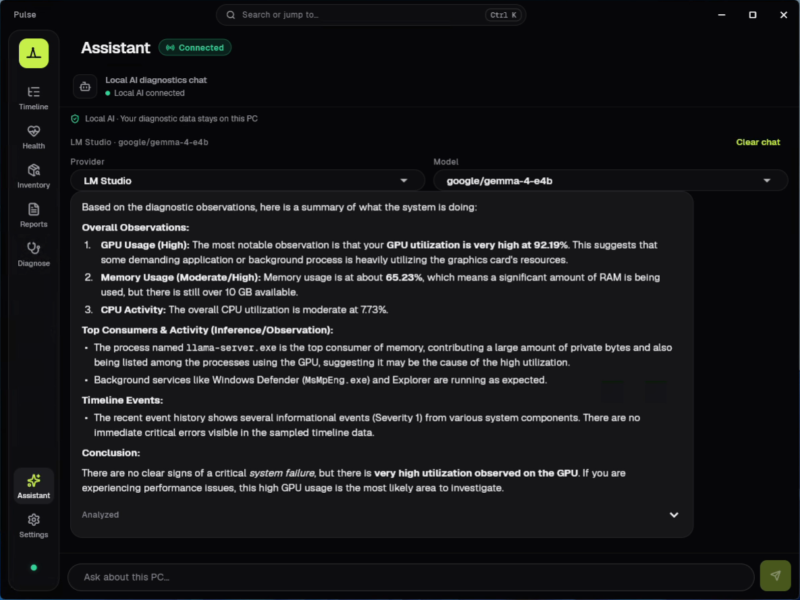
The answer is relevant, with a touch of irony: the most resource-hungry process reported by the assistant, llama-server.exe, is none other than the engine running the AI model itself. Also keep in mind that local generation takes time, especially if you do not have a dedicated GPU or if you are using a model that is too demanding.
Analyzing Logs from Another PC with an EVTX File
Pulse is not limited to the PC on which it is installed: it can open a .evtx file exported from another machine. This is very handy for analyzing the logs of a remote workstation without installing Pulse on it: some people will prefer to collect logs in a SIEM, but here we are in a different context (or at a different scale).
Exporting the Log on the PC to Be Analyzed
On the source machine, you can export a log from Event Viewer using the action Save All Events As..., or from the command line with wevtutil, from an elevated console:
wevtutil epl System C:\Temp\System.evtxA few details about this command:
epl: short forexport-log, the subcommand that exports a log to a file.System: the name of the log to export. You can also specifyApplication,Security, or the full name of an Applications and Services log.C:\Temp\System.evtx: the destination file path. The folder must already exist.
Opening the EVTX File in Pulse
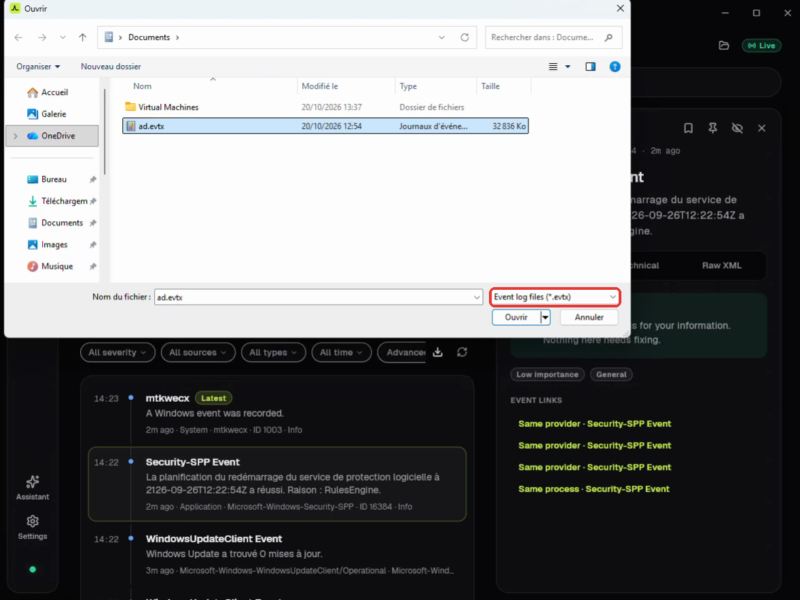
In Timeline, click the folder icon in the top right, then select the file. The dialog filters directly for EVTX files.
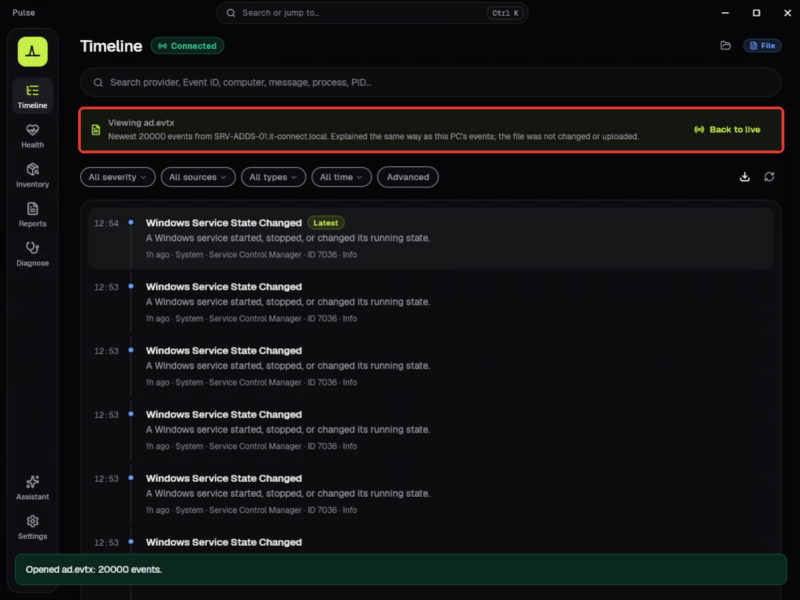
For this example, I opened the file ad.evtx, exported from the domain controller SRV-ADDS-01.it-connect.local. A banner confirms the source (“Viewing ad.evtx”) and indicates that the 20,000 most recent events in the file are explained in the same way as those from the local PC.
Note: Pulse is not a digital forensics tool. To analyze security logs for signs of an attack, use dedicated tools such as Zircolite: see our article How to perform a digital investigation on Windows event logs with Zircolite?.
Generating Reports with Pulse
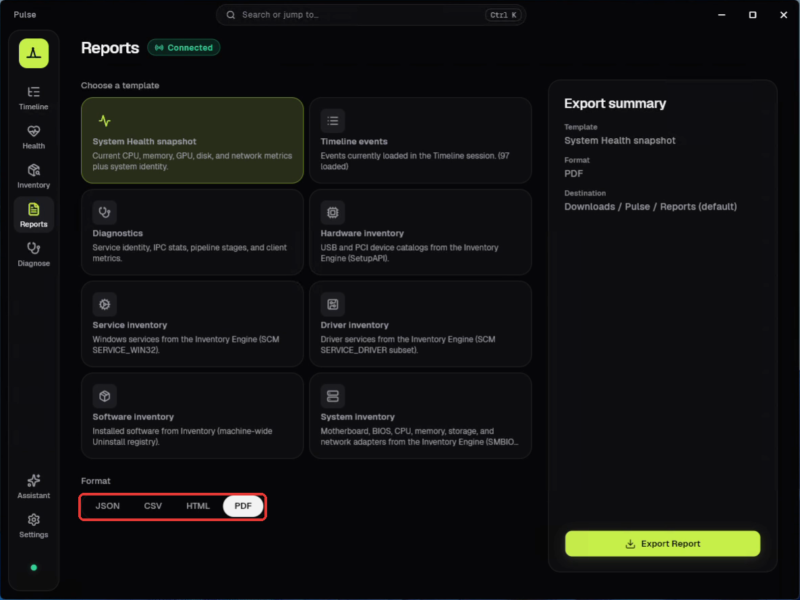
The “Reports” section lets you export a report from several templates:
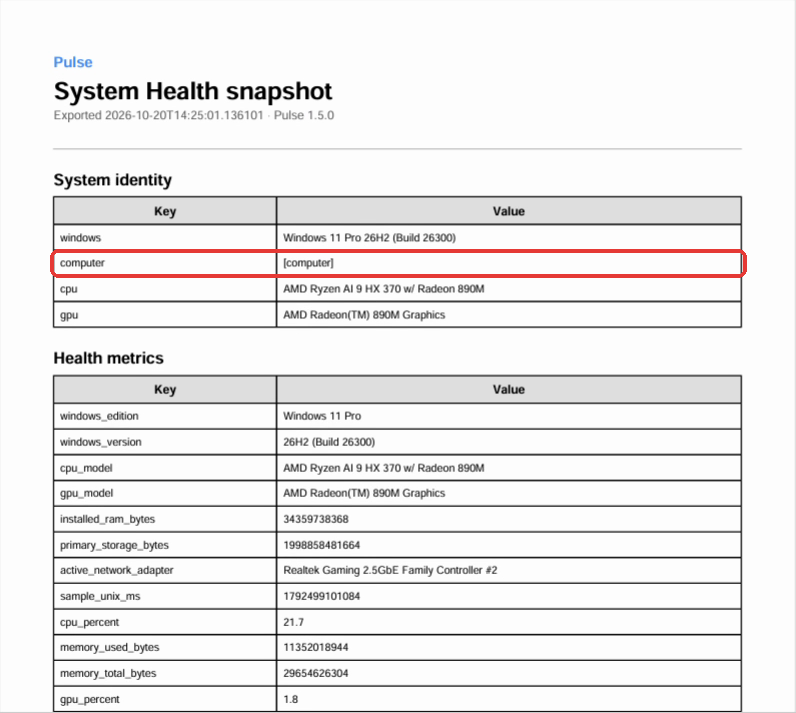
- System Health snapshot: CPU, memory, GPU, disk, and network metrics, along with system identity.
- Timeline events: the events loaded in Timeline.
- Diagnostics: the status of the service and the communication channel with the application.
- Hardware inventory, Service inventory, Driver inventory, Software inventory, and System inventory: the different inventory views.
Four formats are available: JSON, CSV, HTML, and PDF. Here is an overview of the available reports:
On the privacy side, Pulse can mask personal information in reports and exports. User and computer names, profile paths, SIDs, email addresses, IP and MAC addresses, and serial numbers are replaced with tokens (such as [computer] in the example below). This is a configurable option in Pulse's settings.
Conclusion
Pulse addresses a real need: making Windows logs easier to understand without having to decode event IDs and XML. The live Timeline, plain-language explanations, EVTX file reading, and anonymized reports make it a promising troubleshooting tool. The local AI assistant is a real plus, and I like the fully local approach. That said, there is nothing stopping you from using a remote LM Studio or Ollama instance.
The project is still young, but I wanted to highlight it because I think the idea is really good. I therefore recommend testing it first in a virtual machine to form an initial opinion. For enterprise use, Pulse does not replace a centralized log collection solution: it is a diagnostic tool for a single workstation.