www.it-connect.fr


Exchange Online EWS Apps Stopped Working? Here’s How to Restore Access
A line-of-business app that no longer connects, a broken Outlook add-in, repeated password prompts: since October 1, 2026, these symptoms often share the same root cause in Microsoft 365: EWS. Microsoft explains how to re-enable EWS in Exchange Online, but only for a few months. Here’s how it works.
For the record, Exchange Web Services (EWS) is an API that allows applications to access items in an Exchange mailbox: emails, meetings, contacts. It is still used by Outlook add-ins, older versions of Outlook for Windows, Apple Mail and Calendar on macOS, as well as third-party software.
The problem is that Microsoft has decided to retire EWS, and we have known this for quite some time. In fact, back in February, I published an article about the EWS retirement timeline for Exchange Online. At the time, the Redmond company mentioned a default block on October 1, 2026, and a final shutdown in April 2027.
To implement this change, the principle is as follows: tenants that had not configured the EWSEnabled setting themselves, with an allow list, before the end of August 2026 were automatically switched to EWSEnabled set to False. We are there now, and if you did not prepare in advance, the problems begin.
How do you re-enable EWS on your Microsoft 365 tenant?
Microsoft has likely heard about the issues faced by those who did not anticipate this change. An article published this week on the Exchange team blog is there to guide you if you need to re-enable EWS, but this will only be temporary anyway. Not all tenants have switched yet, as this change is being rolled out gradually worldwide.
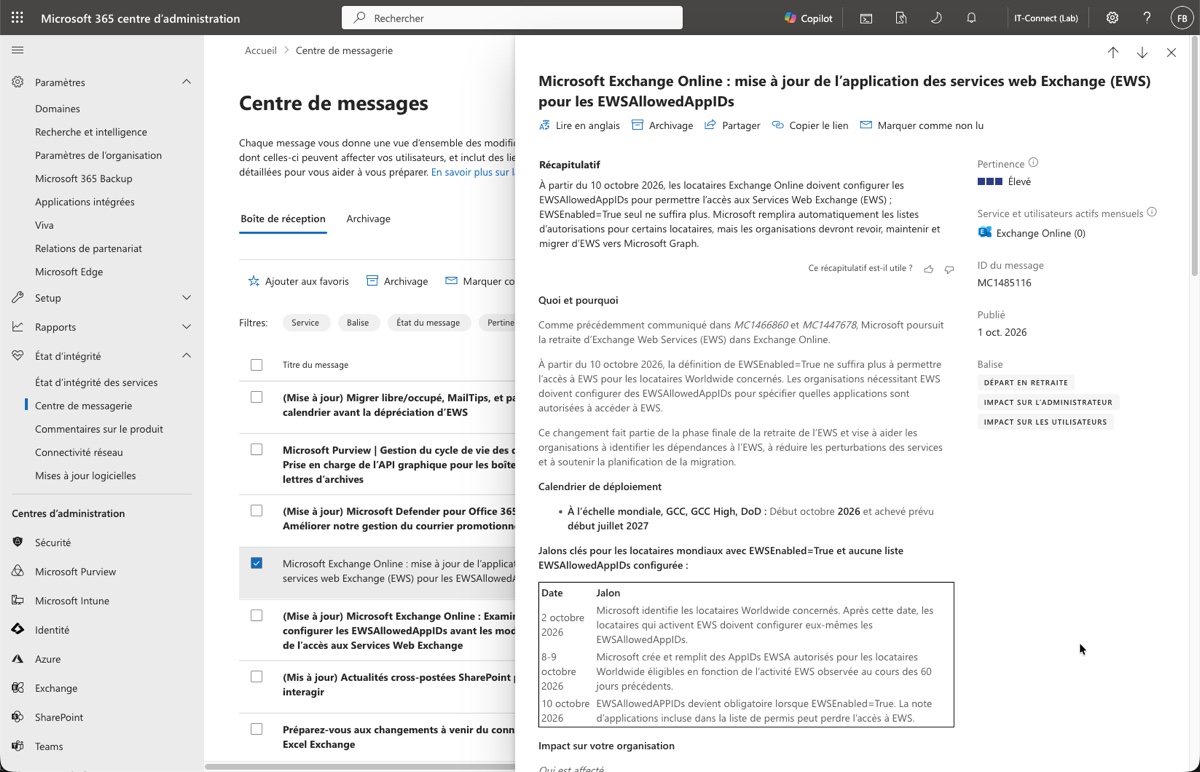
First, check the Message center in your tenant. You should see messages related to EWS. In particular, message MC1485116 published on October 1, 2026 is worth looking at and goes in the same direction as the article published by Microsoft. The Redmond company also mentions a tenant-specific message indicating when EWS will be disabled on your tenant, or a message confirming that it has already been done.
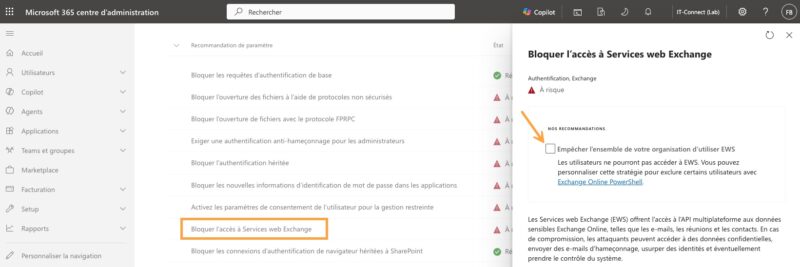
Next, for the configuration, you have two options: via the page used to edit Baseline security mode (Baseline security mode) or via PowerShell with the Exchange Online module.
The first method is misleading, and Microsoft did a Microsoft. Here is roughly what is explained: in the Microsoft 365 admin center, open the Baseline security mode page, then find the Block access to Exchange Web Services line. Uncheck Block your entire organization from using EWS and confirm with the Apply changes button. Then check that same box again and confirm once more. Microsoft explains that when the box is checked, the tenant actually ends up with EWSEnabled set to True through an allow list of authorized applications. This is probably related to the message shown in the image above: EWS is blocked except for the applications present in the allowed apps list.
The via Exchange Online PowerShell method seems more practical and "logical" to me. Start by checking the parameter status with the first command below. If it returns EwsEnabled : False, EWS is disabled, and the second command re-enables it.
# Vérifier l'état d'EWS au niveau de l'organisation
Get-OrganizationConfig | Fl EWSEnabled

# Réactiver EWS
Set-OrganizationConfig -EWSEnabled $true
Note that Microsoft says the change may take up to 4 hours to become effective (in the worst case).
But configuration does not stop there. You must identify and authorize the applications that use EWS on your tenant, and manage the list of authorized applications.
I’m talking about this list of applications because it influences the state of EWS on your tenant. This summary table will help you understand it (applicable since October 2026):
| EWSEnabled value | Allow list state (AppID) | Behavior |
|---|---|---|
| Null | Ignored | All EWS traffic is allowed (but Microsoft will eventually set EWSEnabled to False on the tenant as part of its gradual rollout). |
| True | Empty or Null | All EWS traffic is blocked. |
| True | Populated | Only the listed applications are allowed. |
| False | Does not matter | All EWS traffic is blocked. |
The second line is important: it shows that if EWS is set to True, the list of authorized applications must be populated, otherwise everything will be blocked. Yet this is the only way out to keep using EWS until it is fully retired.
How do you identify the applications to allow?
I recommend running the PowerShell command below, as it corresponds to a pre-filled list. This command returns the applications that Microsoft detected on your tenant over the last 60 days and placed in the allow list. In other words, Microsoft does the heavy lifting for you.
Get-OrganizationConfig -RetrieveEwsOperationAccessPolicy | Fl EwsAllowedAppIDsTo go further, you can also check the EWS usage report. In the Microsoft 365 admin center: Reports > Usage > Exchange, then the EWS usage tab. Look at the Application ID column; it contains the information you need.
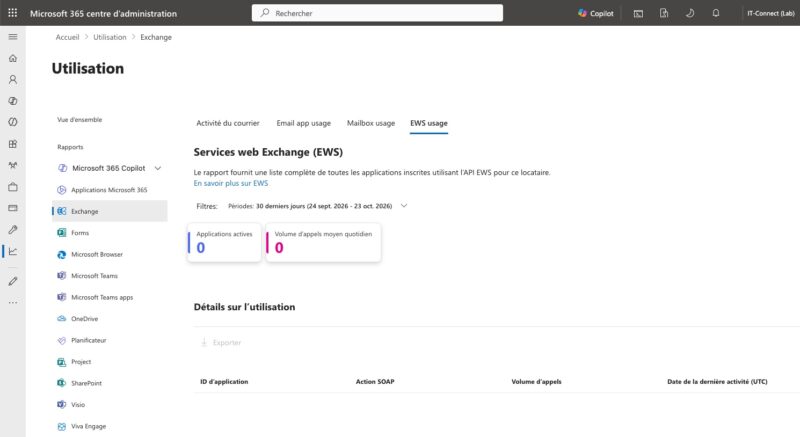
If you then want to add a new application to the allow list, you have two options:
- Via the Block access to Exchange Web Services setting in Baseline security mode, which includes a link to manage this list.
- Via PowerShell, with the Exchange Online module.
For the PowerShell method, the EwsAllowedAppIDs parameter expects a single string, with IDs separated by commas. Here is the Microsoft documentation example:
Set-OrganizationConfig -EwsEnabled $true -EwsAllowedAppIDs "aaaaaaaa-bbbb-cccc-dddd-eeeeeeeeeeee,11111111-2222-3333-4444-555555555555"Note: you must therefore take the current list and add the new ID, otherwise you will overwrite the values already in place. Another important point: a change to this list can take up to 24 hours to apply, according to message MC1447678.
A reprieve until April 2027, not a solution
"Re-enabling EWS will stop working in April 2027," Microsoft warns. The Redmond company says we are in the first phase of the shutdown, the one where customers still retain control. After that, there will be no way back.
The only long-term solution is to update applications to versions that no longer use EWS. In other words, you need to move to Microsoft Graph.