www.it-connect.fr

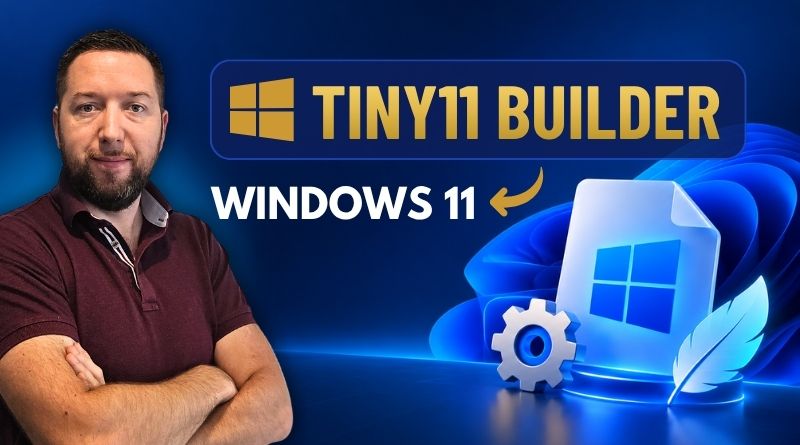
Tiny11 Builder: Create a Lightweight Windows 11 Easily Without PowerShell
Have you ever generated a Tiny11 ISO by running the PowerShell scripts manually? That step is no longer required: Tiny11 Builder now comes with a real desktop app.
As a reminder, Tiny11 Builder is NTDEV's open source project that lets you build a stripped-down Windows 11 image from an official Microsoft ISO. Until now, you had to mount the ISO, open PowerShell as administrator (and relax the execution policy), then run the tiny11maker.ps1 or tiny11Coremaker.ps1 script. Effective, but not exactly friendly for anyone intimidated by the command line.
NTDEV has been working on the Tiny11 project for several years and is always looking for ways to slim down Windows 11. By the way, a little over a year ago, I published an article about nano11, a version of Windows 11 that takes up barely 3 GB on disk. And before that, he had managed to run Windows 11 24H2 with only 184 MB of RAM.
In mid-October 2026, he published the first versions of Tiny11 Builder WinUI on GitHub. This is a WinUI 3 application that makes it easy to build a lightweight, customized Windows 11 image.
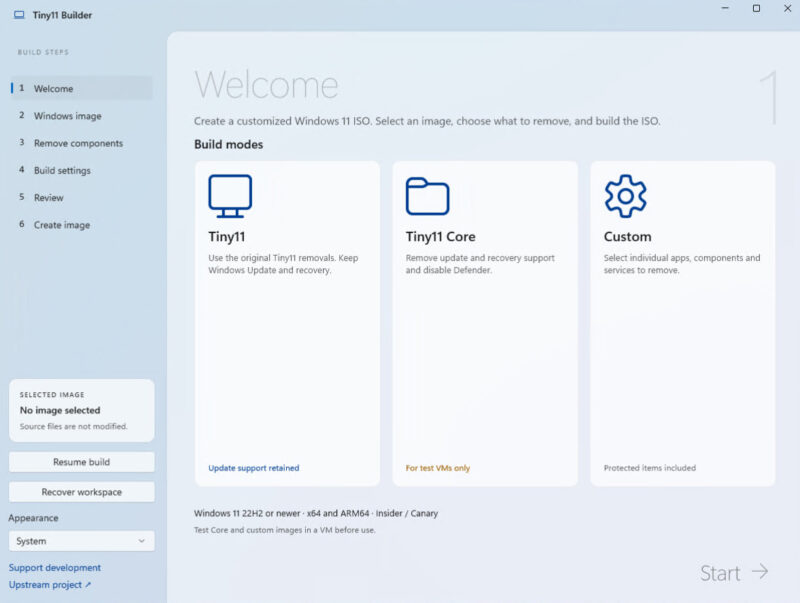
Before you begin, you need to download the Tiny11 Builder source files from GitHub. You will get a ZIP archive containing many files, including the executable to launch: Tiny11Builder.exe. The application is portable, although it will need to write to your disk when creating the ISO image.
How do you build a Tiny11 image?
To make it easier to create a custom ISO image, Tiny11 Builder provides a six-step wizard. It all starts with choosing the build mode:
- Tiny11 : removes the apps bundled with Windows as well as the Edge, WebView2, and OneDrive binaries. On the other hand, Windows Update, Defender, WinRE and the Store are kept, which notably allows updates to be received.
- Tiny11 Core : also removes most of the WinSxS and WinRE folders, and disables Windows Update and Defender. These changes are irreversible.
- Custom : starts from an empty selection and lets you choose which apps, features, services, or drivers to remove, with no dependency checks.
Here, I am going with the standard Tiny11 option.
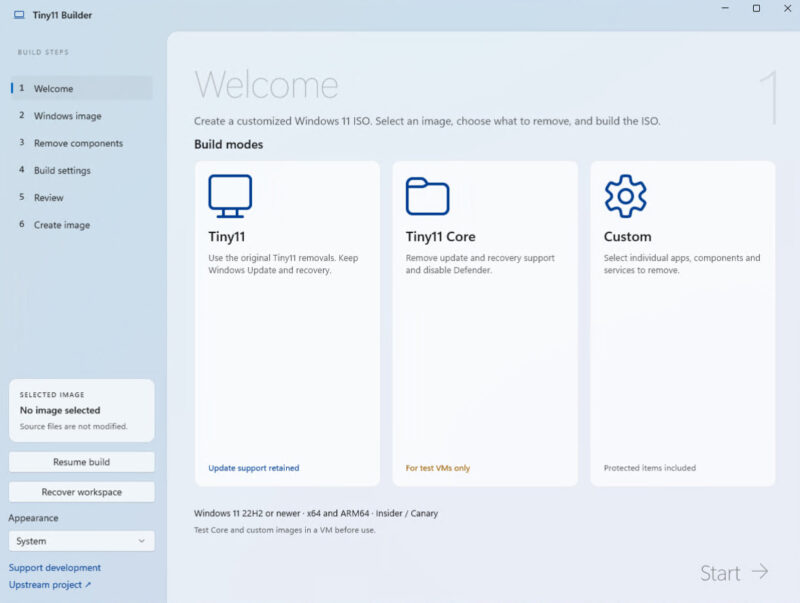
Next, you can either download the latest Windows 11 ISO published by Microsoft in one click (from official sources) or use an ISO image you already have as a starting point. If you do not have one, simply click the Download latest Windows 11 block.
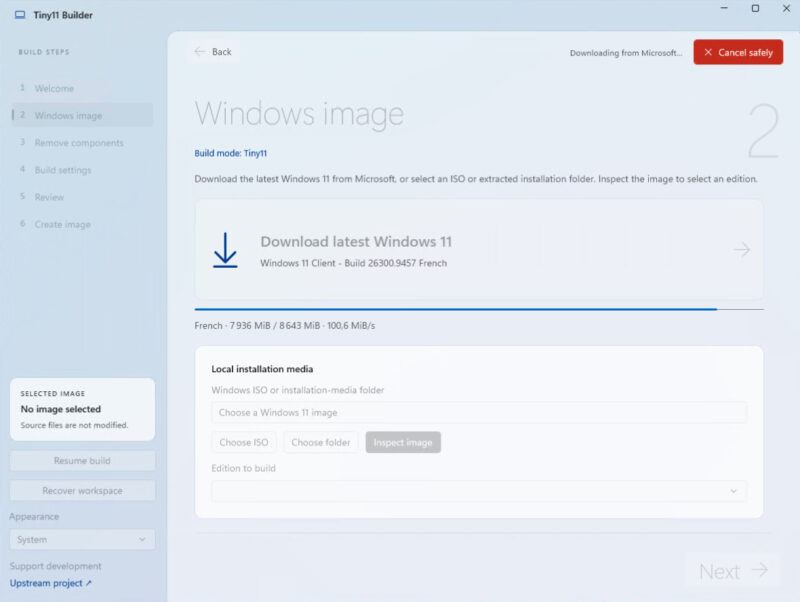
You then need to choose the mode again, this time for good. If you select Custom, this is where you can decide which items you want to remove. Here are a few examples: Copilot apps, the new Outlook, Microsoft Teams, Weather and Xbox apps, as well as Clipchamp and Phone Link.
Here, I am sticking with the original choice: Tiny11.
There are several options for customizing the image build. For example, there is a Turbo mode that saves time on the cleanup tasks performed by the builder during image creation. The default ESD-based format produces the smallest possible image, but it also takes longer because of this optimization work.
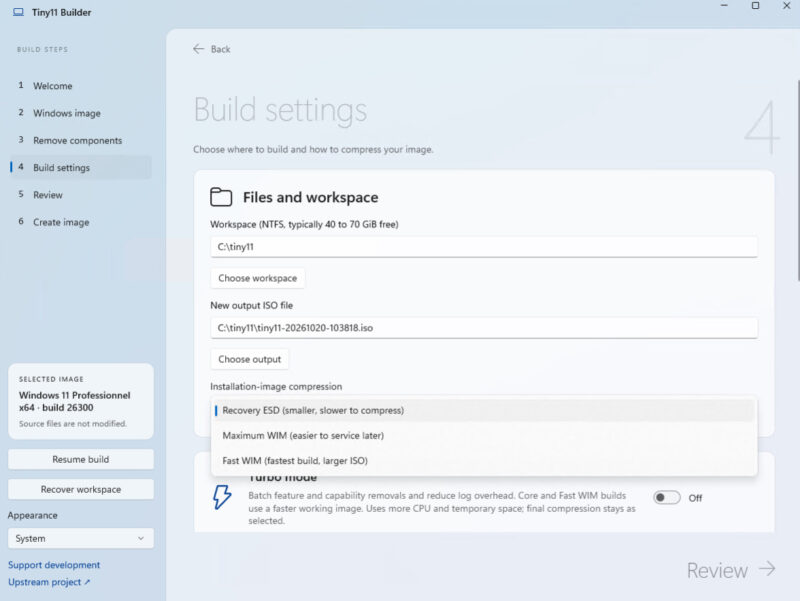
Then continue and start building your Tiny11 image. Once it is done, a complete summary of the steps can be reviewed.
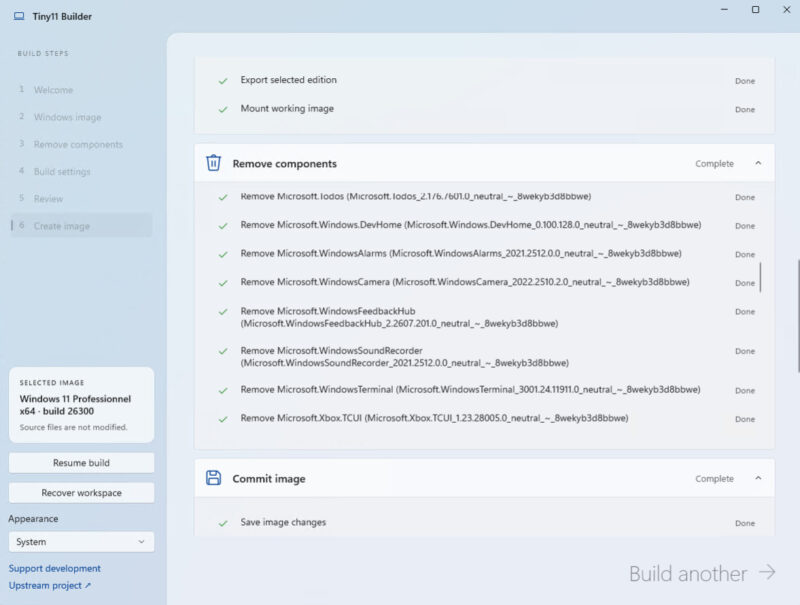
Most importantly, the Tiny11 ISO image is ready and available on your PC: tiny11-20261020-105340.iso. This is the file you should use to install a virtual machine or deploy Tiny11 on a PC.
Create the Tiny11 bootable USB drive
To create a Tiny11 bootable USB drive, it is the same as for standard Windows 11: you can use Rufus. All you need to do is download Rufus, select your USB drive and the Tiny11 ISO image, then start the operation. Your USB drive will be formatted, so be sure to back up your data beforehand if needed.
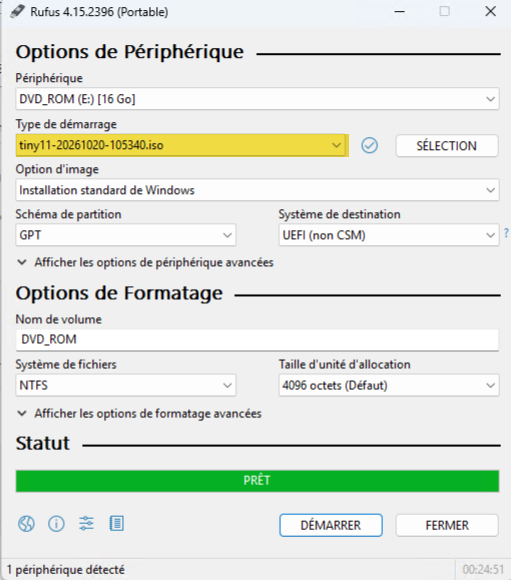
Once the bootable USB drive is ready, all you have to do is boot from it on your computer to start the installation!
Start the Tiny11 installation
In most cases, this means changing your machine's boot sequence. The boot sequence (or "boot order") is the order in which the computer looks for a device to start an operating system, such as the hard drive, a USB drive, or a DVD.
You need to change the boot sequence so the computer uses the Tiny11 bootable USB drive as the primary boot source instead of the internal hard drive. By default, most machines boot from the already installed operating system, which makes sense. By adjusting the boot order in BIOS or UEFI, you tell the computer to check the USB drive first: this allows Windows 11 installation to start from that external media.
Here is how to proceed:
1. Connect the USB drive to the PC
2. Start the machine by entering the BIOS/UEFI boot menu (key F2, F8, Delete, Esc, or another depending on the manufacturer)
3. Select the USB drive as the boot device
In the example below, the configuration is done through the "Boot" tab. It is necessary to set the "USB CD/DVD" option to position number 1. On some BIOS setups, the label may be different and the name of the USB drive may appear directly. Remember to save before exiting (often with the F10 key).
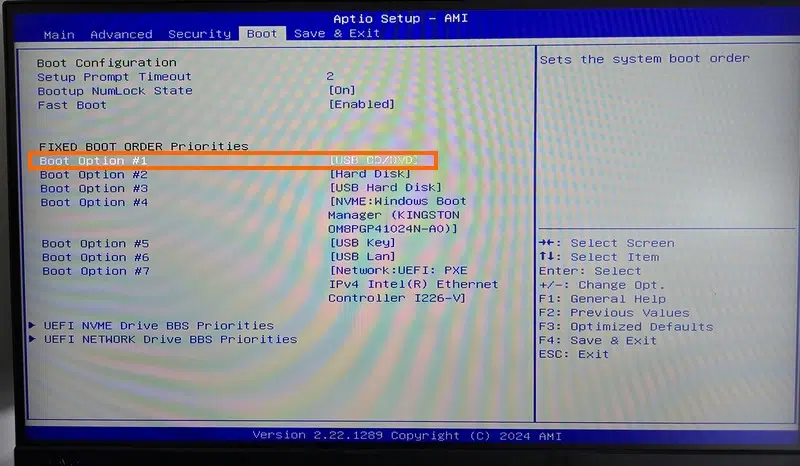
You will probably see the message "Press any key to boot from CD or DVD..." and then you need to press a key on your keyboard. Windows setup will start, and from there it is the usual process. Proceed with the installation of Tiny11 Windows 11: it is standard, just follow the prompts. You can also choose a local account afterward.
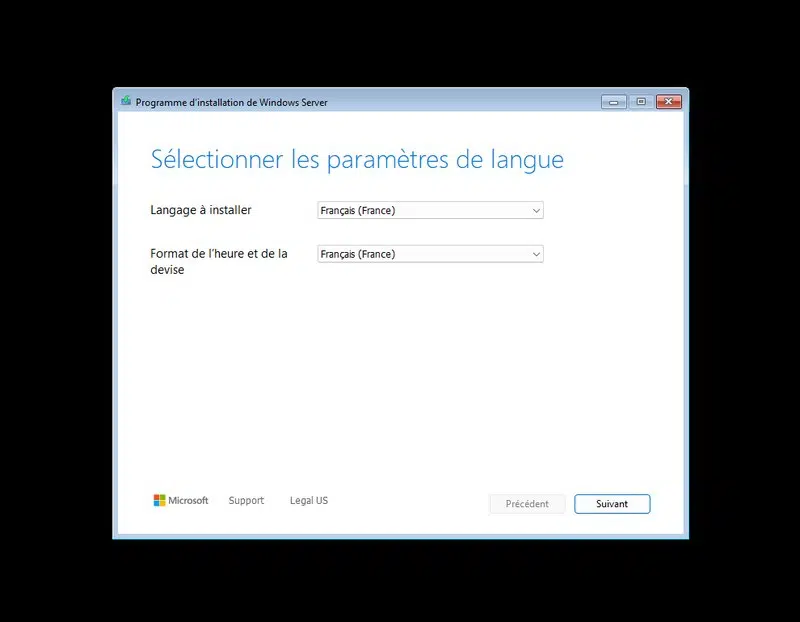
Once installation is complete, you can enjoy your lightweight version of Windows 11! Very little is preinstalled, but you still have the Microsoft Store to install your first apps. This can be especially useful for installing a browser, since Microsoft Edge is absent.
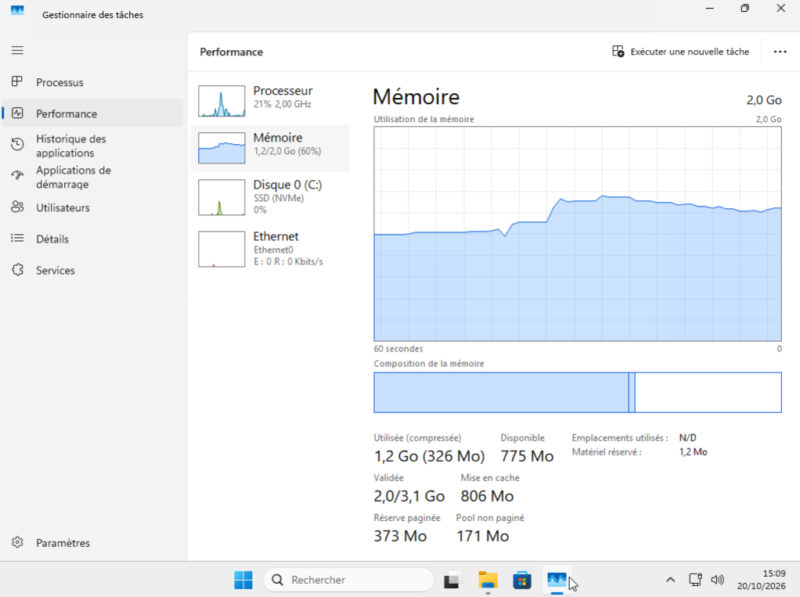
Here, we can see that on a machine with 2 GB of RAM, Windows 11 uses between 1.1 and 1.3 GB of RAM at idle, which is much lower than what you get with the official non-lightweight image. Tiny11 is indeed a stripped-down version and better suited to older, low-powered machines.
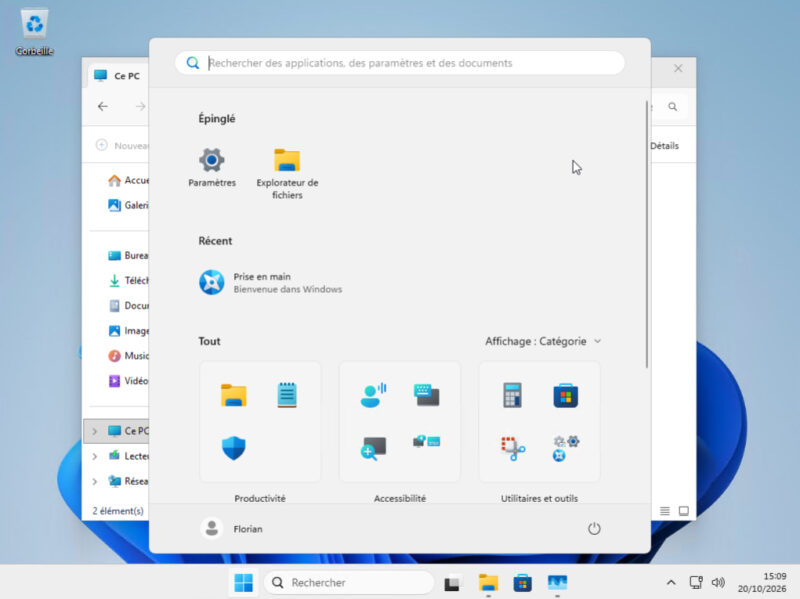
The Tiny11 Builder graphical application makes Tiny11 more accessible, because there is no need to deal with the command line. That is a good thing for those who want to use this version and are not very comfortable with technical operations!
What do you think? If you have a question, feel free to comment on this article.