www.it-connect.fr

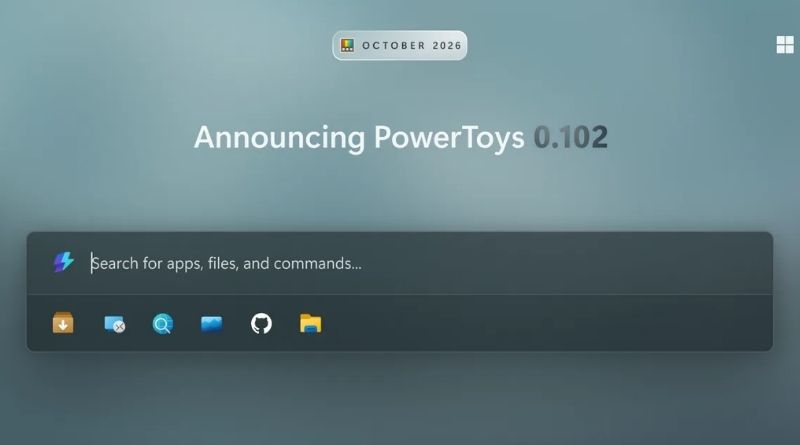
PowerToys 0.102 Adds Mouse Button Lock and CursorHide to Simplify Mouse Actions
Tired of holding down the mouse button during long drag-and-drop operations? PowerToys 0.102 introduces two new mouse utilities, Mouse Button Lock and CursorHide, along with a quick access bar for Command Palette. Here’s what you need to know.
Microsoft has released PowerToys 0.102 on GitHub, two months after the previous version, which notably added a new tool called Window Hopper. This time, the focus is on the mouse. Microsoft’s free and open source utility suite already included several tools in this area, such as Mouse Jump, Mouse Pointer Crosshairs, and CursorWrap. Two new additions are joining the PowerToys family. But as often happens, this update also improves Command Palette.
Mouse Button Lock and CursorHide: two new mouse tools
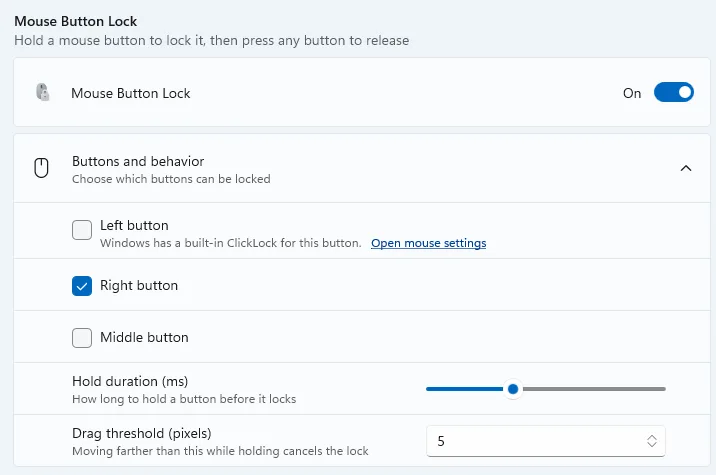
Let’s start with Mouse Button Lock, whose behavior is detailed in Microsoft’s announcement. "With Mouse Button Lock, hold a button down for a moment, then release it. Windows will continue to treat it as held down, so you can keep dragging or selecting until you click any button.", explains Niels Laute from Microsoft.
This feature is disabled by default and supports the left, right, and middle buttons. Microsoft highlights three use cases: gaming, professional apps that require frequent drag-and-drop and selection actions, and accessibility, for users who have trouble holding a button down for long periods.
The second tool, CursorHide, hides the pointer while you type, after a period of inactivity, or in both cases. It reappears as soon as you move the mouse. You know, that cursor that just sits in the middle of the text you’re writing... It should finally stay out of the way. This one also has to be enabled manually among the PowerToys mouse utilities.
These two tools won’t be useful to everyone (that’s rarely the case with PowerToys), but they will definitely please some of you!
Command Palette, terminal, and keyboard: other new features
In addition to these two new tools added to the PowerToys suite, here are the main changes:
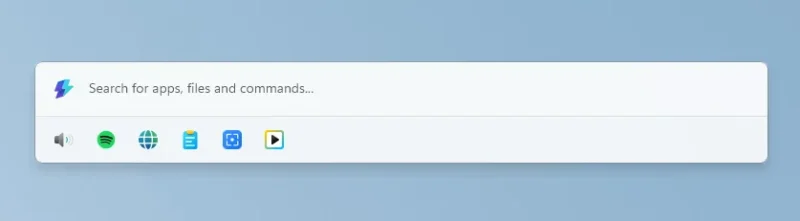
- Quick Access Bar: in compact mode, the reduced Command Palette can display your pinned commands below the search field. The option is enabled under Settings > Appearance > Compact Mode. Shortcuts Alt+1 through Alt+9 then launch a command, while Alt+Shift+number selects it without running it. If you’re new to this tool, my tutorial on PowerToys Run and Command Palette will help you get started.
- New command-line tools: Advanced Paste, Light Switch, Peek, and PowerToys settings can now be controlled from a terminal. The settings-specific tool makes it possible to see which utilities are enabled, and to enable or disable them even when PowerToys is not running. Could this help automate PowerToys configuration with a script?
- ZoomIt: the new Snip with dictation option lets you describe what you capture out loud by pressing Space during the selection. Transcription is performed locally on the device, and a single operation returns both the capture and the text.
Finally, Color Picker and Text Extractor move to WinUI 3, and the environment variables editor gains an action to remove duplicate PATH entries while preserving the order of the entries. To get PowerToys 0.102, use the built-in update checker in PowerToys or download it from GitHub.