www.it-connect.fr


Linux: How to Schedule Tasks with systemd Timers on Debian
On Linux, cron is not the only way to schedule a task: systemd includes its own scheduler, timers, and Debian already uses it for its own needs without you even noticing.
Whether you want to run a backup every night on a server, purge temporary files, or execute a synchronization script every 15 minutes, the question quickly comes up: should you keep using crontab or switch to systemd timers? Both approaches coexist on Debian, and each has its strengths.
In this article, I will show you how a systemd timer works, how to create a complete timer step by step on Debian (service, timer, activation, verification), then explore the syntax OnCalendar, the options that make the difference compared with cron (catching missed runs, random delay, logging), and the debugging side. This article will also be an opportunity to compare systemd timers and cron.
If you are new to task scheduling on Linux, I recommend reading my tutorial on task scheduling with cron and crontab first.
What Is a systemd Timer?
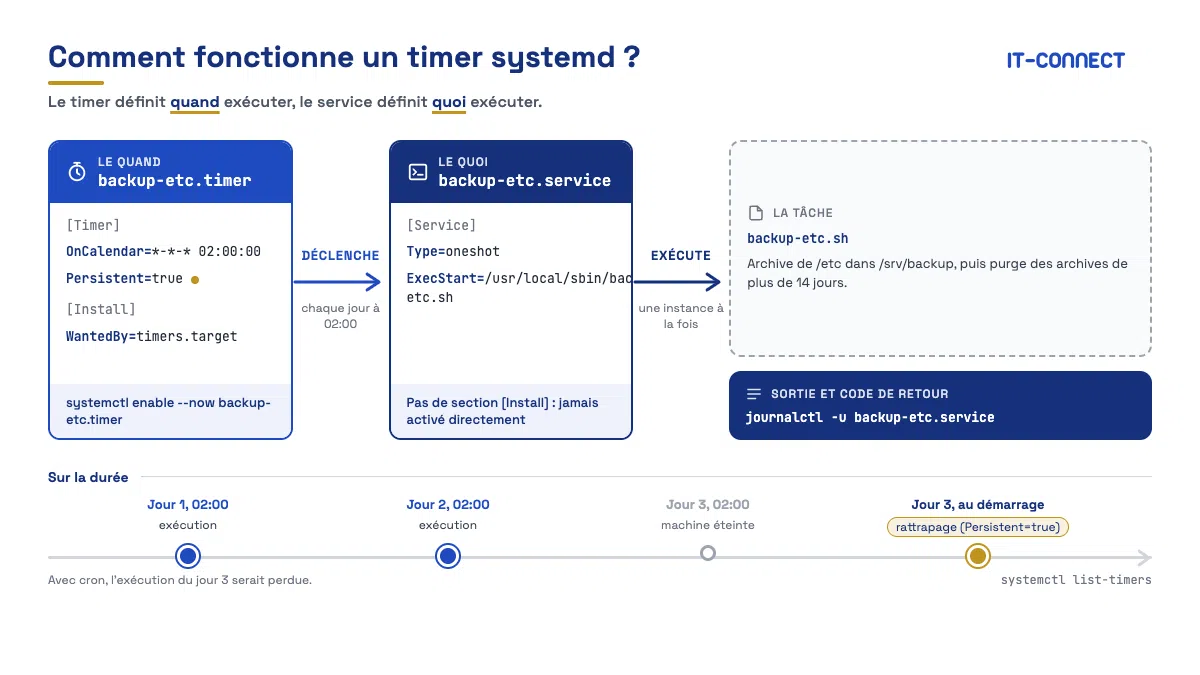
A systemd timer is an unit of type .timer that triggers the execution of another unit, usually a .service, at a specific time (calendar time) or following an event (machine boot, last execution). The timer defines when to run, and the service defines what to run. It is the modern equivalent of a crontab line, integrated into Linux's service manager (systemd, which some people do not like).
With crontab, a single line contains both the scheduling and the command, whereas here the roles are separated. It goes even further, because with systemd you need two files:
- The service (
name.service): describes the command or script to run, the user, the environment, and the dependencies - The timer (
name.timer): describes the execution schedule and scheduling options
By convention, the timer activates the service with the same name (except for the suffix). This behavior is the default, and it can be changed with the Unit= directive. However, follow best practices: use identical names.
A timer can be of two types:
- Real-time timer (directive
OnCalendar=): based on the system clock, with a calendar expression. This is the direct equivalent of a cron entry - Monotonic timer (directives
OnBootSec=,OnActiveSec=,OnUnitActiveSec=, etc.): based on a delay relative to an event, independent of system time and time zone. Cron has no real equivalent, except for@reboot
Timers Already Present on Debian
Before creating anything, let us look at what Debian already does with timers. This will be an opportunity to run a first command to list active timers, their next run, and their last run.
systemctl list-timersOn a standard Debian installation, you will see timers such as apt-daily.timer, apt-daily-upgrade.timer, logrotate.timer, man-db.timer, fstrim.timer, or e2scrub_all.timer. Here is an example taken from one of my Debian 13 machines:

This output is interesting: log rotation, which we covered in our logrotate tutorial, is handled by logrotate.timer on Debian, rather than by an entry in /etc/cron.daily/
The column names are fairly self-explanatory:
- NEXT: date of the next execution
- LEFT: time remaining before that execution
- LAST: date of the last execution
- PASSED: time elapsed since the last execution
- UNIT: the timer
- ACTIVATES: the service triggered by this timer
Reading the last two columns makes it easy to see the link between the timer and the service, which matches the relationship mentioned earlier.
To include inactive timers (loaded but not started), add --all. There may be none.
systemctl list-timers --allNote: cron is still installed by default on Debian, and the /etc/cron.daily/, /etc/cron.weekly/, and /etc/cron.hourly/ directories are still processed. The two schedulers coexist without conflict. However, on some Debian 13 images, especially on Cloud instances, this is not the case: cron is absent, while timers are present.
Create a systemd Timer Step by Step
Let us move on to a practical example: we will schedule a daily backup of the /etc directory as a compressed archive in /srv/backup, every night at 2:00 AM. This is a typical task that one would almost automatically assign to cron.
Create the Script to Run
Let us start with the backup script. I place it in /usr/local/sbin/ and make it executable.
# Créer le répertoire de destination
sudo mkdir -p /srv/backup

# Créer le script
sudo nano /usr/local/sbin/backup-etc.sh
Script content, as an example. Use whichever script you want; this is for illustration purposes in this scenario.
#!/bin/bash
# Sauvegarde compressée de /etc avec horodatage

set -euo pipefail

DEST="/srv/backup"
ARCHIVE="${DEST}/etc-$(date +%Y%m%d-%H%M%S).tar.gz"

# Création de l'archive
tar -czf "${ARCHIVE}" /etc

# Suppression des archives de plus de 14 jours
find "${DEST}" -name 'etc-*.tar.gz' -mtime +14 -delete

echo "Sauvegarde terminée : ${ARCHIVE}"
Save the script and make it executable. Then, once that is done, test the script.
sudo chmod +x /usr/local/sbin/backup-etc.sh
sudo /usr/local/sbin/backup-etc.sh
Always test your script manually before scheduling it: a timer will not make a broken script work. At least this way, we start with the certainty that our script is correct.
Create the Service
The service describes what must be executed. Units created by the administrator are placed in /etc/systemd/system/.
sudo nano /etc/systemd/system/backup-etc.serviceThis is where the approach may be surprising. The service file only needs to contain a command to run our script.
[Unit]
Description=Backup of the /etc directory

[Service]
Type=oneshot
ExecStart=/usr/local/sbin/backup-etc.sh
Let us detail these directives:
Description=: free text displayed bysystemctl statusand in the logs.Type=oneshot: indicates that the process performs a task and then exits. This is the appropriate type for scripts launched by a timer, unlikeType=simple, which is intended for a daemon that stays alive.ExecStart=: the command to run, with an absolute path required. Arguments can be added afterward.
You will notice the absence of an [Install] section. It is unnecessary here: this service is not meant to be enabled at boot, because the timer will trigger it.
Tip: a oneshot service can be started manually at any time with sudo systemctl start backup-etc.service. This is a practical way to test execution in the exact systemd context (user, environment, logging), without waiting for the timer's scheduled time.
Create the Timer
The service file needs its companion: the timer. It has the same name as the service, with the .timer extension.
sudo nano /etc/systemd/system/backup-etc.timerPut this in the file:
[Unit]
Description=Daily execution of the /etc backup

[Timer]
OnCalendar=*-*-* 02:00:00
Persistent=true

[Install]
WantedBy=timers.target
This file corresponds to what we established earlier, namely:
OnCalendar=*-*-* 02:00:00: run every day at 2:00 AM.Persistent=true: if the machine was powered off at 2:00 AM, the backup runs as soon as it boots again. This is one of the major advantages compared with cron.WantedBy=timers.target: attaches the timer to thetimers.targettarget, which allows it to be enabled at boot withsystemctl enable. This[Install]section is essential, unlike the service section.
Enable and Start the Timer
After creating or modifying unit files like the ones we just created, you need to ask systemd to reload its configuration. Then you enable the timer (automatic startup) and start it immediately in one command thanks to --now. If you are used to managing services on Linux with systemd, this should sound familiar.
# Reload systemd configuration
sudo systemctl daemon-reload

# Enable the timer at boot and start it now
sudo systemctl enable --now backup-etc.timer

Created symlink '/etc/systemd/system/timers.target.wants/backup-etc.timer' → '/etc/systemd/system/backup-etc.timer'.
Important point: it is indeed the timer that is enabled, never the service. And if you are wondering why a timer needs to be enabled, know that it is a systemd unit like any other. So it only does something when it is active. An active timer is a timer that systemd has loaded into memory, for which it has calculated the next deadline and armed an internal clock. An inactive timer is just a file on disk: no deadline is calculated, nothing will be triggered. In other words, this activates the scheduled task.
Verify the Timer
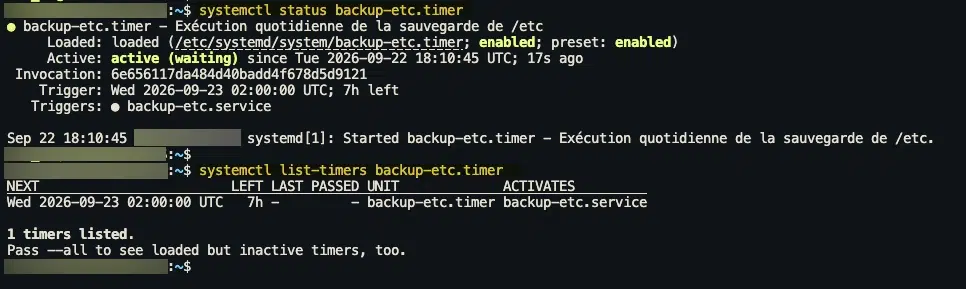
Let us verify that our timer is properly taken into account and see when it will run:
# Check the timer status
systemctl status backup-etc.timer

# See the next execution
systemctl list-timers backup-etc.timer
This gives:
To test without waiting until 2:00 AM, start the service directly:
sudo systemctl start backup-etc.serviceThen check the result:
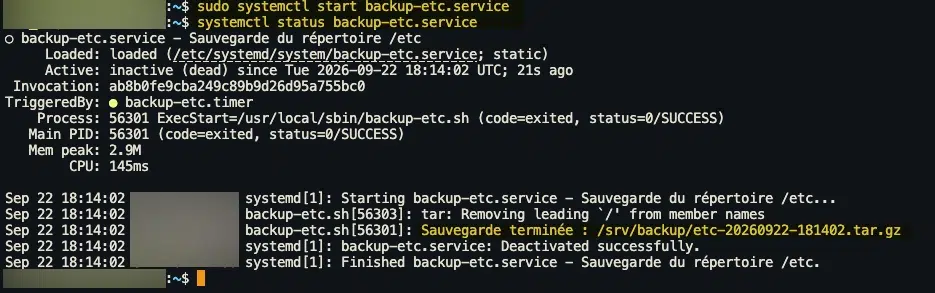
systemctl status backup-etc.serviceHere is the result obtained:
How should this be interpreted?
After a run, the service status shows inactive (dead) with (code=exited, status=0/SUCCESS) if everything went well. For a oneshot service, this is the normal state: it does not stay active between runs.
Mastering the OnCalendar Syntax
The OnCalendar= directive accepts calendar expressions whose format is described in the systemd.time manual. The full format is:
DayOfWeek Year-Month-Day Hour:Minute:SecondEach component can be replaced by * (any value), a comma-separated list (1,15), a range (Mon..Fri, 08..18), or a step with / (*/2 for every two units). The day of week is optional. If the date portion is omitted, *-*-* is implied, and if the time portion is omitted, 00:00:00 is implied.
Common Expressions and cron Equivalents
The following table gives the most useful mappings for translating a crontab line into an OnCalendar expression.
| Need | Crontab | OnCalendar |
|---|---|---|
| Every day at 2:00 AM | 0 2 * * * | *-*-* 02:00:00 |
| Every hour, on the hour | 0 * * * * | hourly or *-*-* *:00:00 |
| Every 15 minutes | */15 * * * * | *-*-* *:00/15:00 |
| Monday to Friday at 8:30 AM | 30 8 * * 1-5 | Mon..Fri *-*-* 08:30:00 |
| The 1st of every month at midnight | 0 0 1 * * | monthly or *-*-01 00:00:00 |
| Every Sunday at 4:00 AM | 0 4 * * 0 | Sun *-*-* 04:00:00 |
| The last day of the month at 11:00 PM | Impossible directly | *-*~01 23:00:00 |
| January 1st at midnight | 0 0 1 1 * | yearly |
| At boot | @reboot | OnBootSec= |
Two remarks about this table:
- The shortcuts
minutely,hourly,daily,weekly,monthly,quarterly,semiannually, andyearlyare accepted as-is. Note thatweeklycorresponds to Monday at midnight anddailyto midnight exactly - The
~notation indicates a count from the end of the month:*-*~01is the last day of the month,*-02~03the third day before the end of February. Cron has no equivalent,.
Validate an Expression with systemd-analyze
This is a concrete advantage over cron: you can verify an expression before using it, and systemd tells you the next occurrence. A good opportunity to get hands-on with Systemd scheduling syntax.
systemd-analyze calendar "Mon..Fri *-*-* 08:30:00"Here is the result. Handy, right?

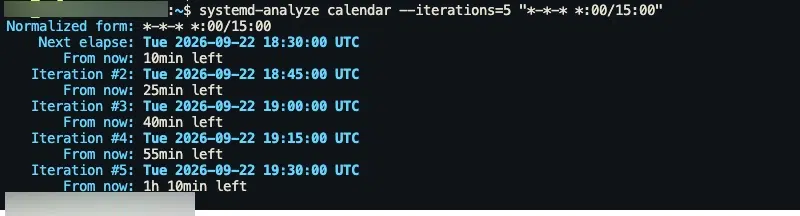
The --iterations option displays future occurrences, successive ones included, which gives a more precise idea of the upcoming schedule. Most importantly, if you are aiming for a run every 15 minutes, for example, this lets you make sure that is actually the case.
systemd-analyze calendar --iterations=5 "*-*-* *:00/15:00"With cron, a syntax error is often discovered the next day, when you notice that the task did not run. Here, the expression is validated immediately.
Time Zone
By default, the expression is interpreted in the machine's time zone. You can specify a time zone at the end of the expression, for example *-*-* 02:00:00 UTC or *-*-* 02:00:00 Europe/Paris. This is useful for a server configured in UTC whose task must run at a specific local time.
Monotonic Timers
In addition to calendar timers, systemd provides timers relative to an event, in the same style as the events offered by Windows Task Scheduler. They are independent of the system clock: a time change or time zone change does not affect them.
| Directive | Starting point of the delay |
|---|---|
OnActiveSec= | Activation of the timer itself |
OnBootSec= | Machine startup |
OnStartupSec= | Startup of the systemd manager (useful for user timers) |
OnUnitActiveSec= | Last activation of the triggered service |
OnUnitInactiveSec= | Last deactivation of the triggered service |
The classic use case combines OnBootSec= and OnUnitActiveSec= to get a periodic execution that starts shortly after boot:
[Timer]
# Première exécution 5 minutes après le démarrage
OnBootSec=5min
# Puis toutes les 30 minutes après la dernière exécution
OnUnitActiveSec=30min
Delays accept readable units: 30s, 5min, 2h, 1d, 1w.
One subtle point to know: with OnUnitActiveSec=, the interval is measured from the start of the last execution, not from its end. If your script runs for 10 minutes with OnUnitActiveSec=30min, the actual interval between the ends of two runs remains 30 minutes, which is the expected behavior. However, if the script lasts longer than the interval, the service will be restarted as soon as it finishes.
The Options That Make the Difference Compared with cron
Persistent: Catch a Missed Run
With cron, if the machine is off or reboots at the exact moment the task is due, the run is simply lost (unless you install anacron). With Persistent=true, systemd stores the last execution date on disk. At the next timer start, if an execution should have happened while it was inactive, the service runs immediately.
[Timer]
OnCalendar=daily
Persistent=true
This option only applies to OnCalendar= timers. It is especially suited to machines that are not running all the time: a Debian desktop PC, a home lab VM that is powered off at night, and so on. On a server that runs continuously, it remains useful to cover reboots during maintenance operations.
RandomizedDelaySec: Spread the Load
Across a fleet of machines running the same task (updates, backup to the same server, synchronization), triggering everything at exactly 2:00 AM creates a load spike on the network or target server. RandomizedDelaySec= adds a random delay, drawn between 0 and the specified value, to each trigger. That helps avoid all machines starting at the same time, especially if there is a server on the other side.
[Timer]
OnCalendar=*-*-* 02:00:00
# Déclenchement entre 2h00 et 2h30
RandomizedDelaySec=30min
This is exactly what Debian does with apt-daily.timer, which uses a random delay to avoid saturating mirrors. With cron, you would have to add a sleep $((RANDOM % 1800)) at the top of the script, which works but is still a hack.
Note : to keep the delay identical from one run to the next on the same machine (while still remaining different across machines), add FixedRandomDelay=true. The delay is then derived from the machine ID and the timer name.
AccuracySec: The Default Precision Is Not One Second
Here is a classic trap when migrating from cron. By default, systemd allows itself a one-minute window (AccuracySec=1min) to trigger a timer, in order to group CPU wakeups and save energy. A timer scheduled for 02:00:00 may therefore trigger at 02:00:47. So, potentially, you may think the task did not start if you are watching the screen while testing a new task.
If your task requires second-level accuracy, reduce this value:
[Timer]
OnCalendar=*-*-* 02:00:00
AccuracySec=1s
DeferReactivation: When the Task Lasts Longer Than the Interval
Default behavior: if a service triggered by OnCalendar= lasts longer than the interval between two occurrences, the timer restarts the service immediately when execution ends, because the next occurrence is already in the past (which is what I mentioned earlier). With DeferReactivation=true, the timer waits for the next real calendar occurrence after the service ends.
[Timer]
OnCalendar=*-*-* *:00/10:00
DeferReactivation=true
Be careful: this directive was introduced with systemd 257. It is available on Debian 13, but not on Debian 12.
Read the Logs and Debug a Timer
The following sentence should please you: everything produced by a service triggered by a timer (standard output, standard error, exit code) is captured by the systemd journal. This is useful for traceability. With cron, output goes to email via MAILTO if a mail agent is configured, or disappears into /dev/null if you redirected it there. Unless you include logging in the script or tool launched via cron.
journalctl -u backup-etc.serviceBelow is an example:
Sep 22 18:14:02 SRV systemd[1]: Starting backup-etc.service - Sauvegarde du répertoire /etc...
Sep 22 18:14:02 SRV backup-etc.sh[56303]: tar: Removing leading `/' from member names
Sep 22 18:14:02 SRV backup-etc.sh[56301]: Backup completed: /srv/backup/etc-20260922-181402.tar.gz
Sep 22 18:14:02 SRV systemd[1]: backup-etc.service: Deactivated successfully.
Sep 22 18:14:02 SRV systemd[1]: Finished backup-etc.service - Sauvegarde du répertoire /etc.
If something goes wrong, here are a few leads to help you troubleshoot:
- The timer does not appear in
list-timers: check that it is enabled and started (systemctl status backup-etc.timer). A timer that isenabled but notstarted only appears with--all. Forgettingdaemon-reloadafter editing is also a common cause. - The service does not run at the expected time: validate the expression with
systemd-analyze calendar, then check the NEXT column inlist-timers. - The service fails: start it manually with
systemctl startand readjournalctl -u.
Run the Service Under a Dedicated User
By default, a system service runs as root. For a task that does not need those privileges, specify a user and group in the [Service] section:
[Service]
Type=oneshot
User=backup
Group=backup
ExecStart=/usr/local/sbin/backup-etc.sh
This is the equivalent of a user's crontab or the user column in /etc/crontab, with one advantage: you can also apply systemd hardening directives (ProtectSystem=, PrivateTmp=, NoNewPrivileges=, etc.) to limit what the script can do. Cron offers nothing comparable.
User Timers
A user without sudo privileges can also create their own timers, just like a personal crontab. Each user can create units in ~/.config/systemd/user/ and manage them with systemctl --user.
# Créer le répertoire des unités utilisateur
mkdir -p ~/.config/systemd/user

# Créer le service et le timer (même format que pour le système)
nano ~/.config/systemd/user/sync-notes.service
nano ~/.config/systemd/user/sync-notes.timer

# Recharger, activer et démarrer
systemctl --user daemon-reload
systemctl --user enable --now sync-notes.timer

# Lister les timers de l'utilisateur
systemctl --user list-timers
The last command displays only the user's timers, not root's. So, in this example, there is only one task:
NEXT                           LEFT LAST PASSED UNIT             ACTIVATES
Tue 2026-09-22 18:36:00 UTC 1min 3s -         - sync-notes.timer sync-notes.service
One important difference compared with a user crontab: by default, a user's systemd manager starts only when their first session opens (console, SSH, or graphical) and stops shortly after the last session closes (10 seconds by default). Its timers therefore do not run when the user is not logged in. To make them run continuously, like cron, you need to enable lingering: the user manager is then started at boot and kept running after logouts.
sudo loginctl enable-linger nom_utilisateurSchedule a One-Off Task with systemd-run
Do you need to run a one-off task or a single execution at a very specific time? Too lazy to create a timer and a service file! There is a solution for this case. Indeed, for a one-time execution or a quick test, there is no need to create files: systemd-run creates a transient timer that disappears after execution.
# Exécuter un script dans 30 minutes
sudo systemd-run --on-active=30min /usr/local/sbin/backup-etc.sh

# Exécuter à une heure précise
sudo systemd-run --on-calendar="2026-10-01 03:00:00" /usr/local/sbin/backup-etc.sh

# Lancer une unité existante plutôt qu'une commande
sudo systemd-run --on-active=10min --unit=backup-etc-test backup-etc.service
systemd Timer or cron: Detailed Comparison
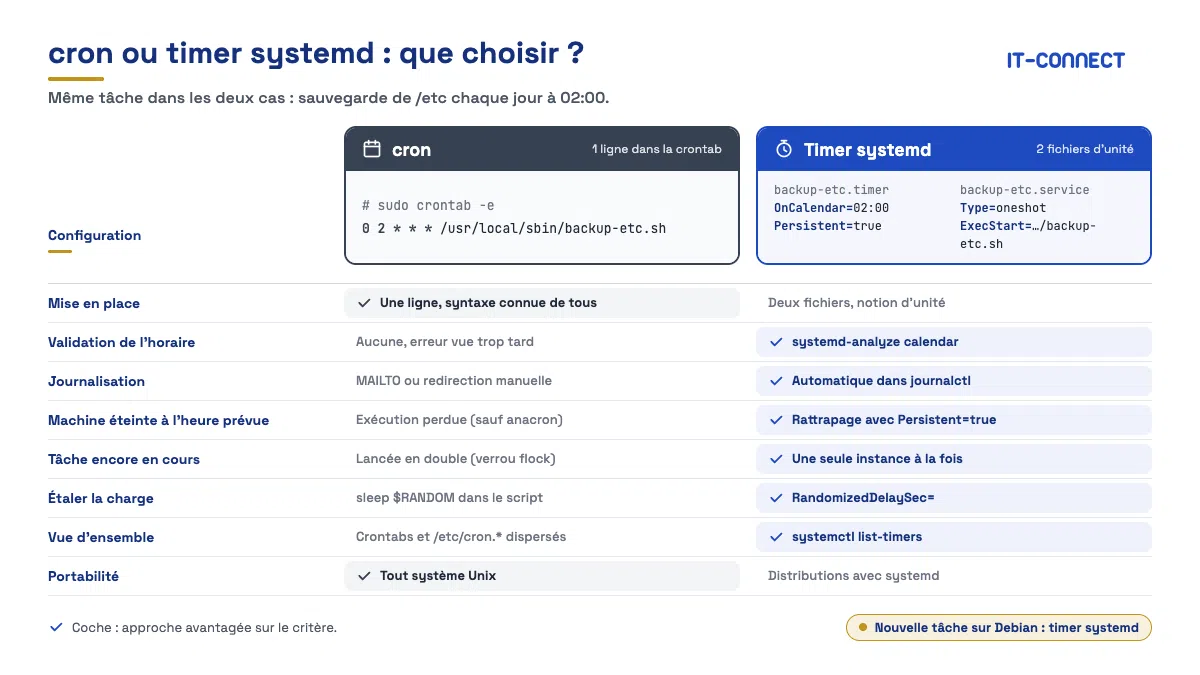
So, systemd timer or cron, which should you choose? Here is a comparison table to help make things clearer.
| Criterion | cron | systemd Timer |
|---|---|---|
| Configuration | One line per task in a crontab | Two files per task (.service + .timer) |
| Time syntax | 5 fields, compact, familiar to everyone | Readable calendar expression, more verbose |
| Syntax validation | None, errors discovered at runtime | systemd-analyze calendar |
| Overall view of tasks | Scattered (user crontabs, /etc/cron.d/, /etc/cron.*) | systemctl list-timers centralizes everything |
| Logging | Email via MAILTO or manual redirection | Automatic in journalctl |
| Missed run (machine off) | Lost (except anacron) | Recovered with Persistent=true |
| Random delay | sleep $RANDOM in the script | RandomizedDelaySec= |
| Concurrent executions | Possible, flock lock to manage | Impossible, one instance at a time |
| Delay relative to boot | @reboot only | OnBootSec=, OnUnitActiveSec=, etc. |
| Last day of the month | Test in the script | *-*~01 |
| Precision | To the minute (immediate, roughly) | One-minute window by default, adjustable (AccuracySec=) |
| Isolation and security | None | systemd hardening directives, cgroups |
| Dependencies | None | Scheduling with other units (After=, Requires=) |
| Manual test | Copy-paste the command | systemctl start in the exact context |
| Portability | All distributions, including those without systemd | Distributions with systemd only |
When Should You Prefer cron?
I will not tell you that cron is obsolete, that would be false. Proof: you are probably still using it today. Above all, it is faster to write a crontab line than to build a unit with two files.
- A trivial, disposable task: for a
curlevery 5 minutes on a test machine, a crontab line is faster to write than two unit files - Portability: an installation script that must work on Debian, Alpine, BSD, or an old distribution without systemd has no choice but cron
- Team habits: if your whole team reads a crontab at a glance like telling the time on a watch and nobody knows systemd, imposing timers has a cost
- Applications that ship their own
/etc/cron.d/: no need to rewrite them, Debian still honors them
When Should You Prefer systemd Timers?
Conversely, I recommend timers as soon as one of these criteria is met:
- The task matters: backups, rotation, synchronization. Catch-up with
Persistent=and centralized logs are a game changer when something goes wrong - The machine is not running all the time
- You manage multiple machines:
RandomizedDelaySec=spreads the load without hacks, especially if the action involves X machines connecting to the same server - The task may take a long time: less risk of parallel executions
- You want to restrict the script's privileges using systemd security directives
- The task depends on another service (network mount, database), because you can express it with
After=andRequires=in the service
Migrating a cron Task to a systemd Timer
To finish, let us see how we can convert an existing cron entry without using an online tool. Take this line from a root crontab:
30 3 * * 0 /usr/local/sbin/clamav-scan.sh >> /var/log/clamav-scan.log 2>&1This is a weekly antivirus scan, like the one we set up in our ClamAV guide on Linux. The conversion happens in four steps.
Step 1: Translate the schedule
In crontab syntax, 30 3 * * 0 means Sunday at 3:30 AM, or Sun *-*-* 03:30:00. In doubt? Check with systemd-analyze :
systemd-analyze calendar "Sun *-*-* 03:30:00"Step 2: Create the Service
The redirection to a log file becomes unnecessary, since the journal handles it.
# /etc/systemd/system/clamav-scan.service
[Unit]
Description=Weekly ClamAV antivirus scan

[Service]
Type=oneshot
ExecStart=/usr/local/sbin/clamav-scan.sh
Step 3: Create the Timer
I am taking the opportunity to add catch-up in case of a missed run and a random delay.
# /etc/systemd/system/clamav-scan.timer
[Unit]
Description=Weekly trigger for the ClamAV scan

[Timer]
OnCalendar=Sun *-*-* 03:30:00
Persistent=true
RandomizedDelaySec=15min

[Install]
WantedBy=timers.target
Step 4: Switch Over
Enable the timer, then only after that remove the line from crontab so the task does not run twice.
# Activer le timer
sudo systemctl daemon-reload
sudo systemctl enable --now clamav-scan.timer

# Vérifier
systemctl list-timers clamav-scan.timer

# Puis supprimer l'entrée cron (ligne à commenter, par exemple)
sudo crontab -e
If the script relied on environment variables defined in crontab (MAILTO, PATH, SHELL), move them into the [Service] section with Environment=. The case of MAILTO deserves a small clarification to conclude this article properly: systemd does not send email. If you need a notification in case of failure, the usual solution is to add OnFailure=notify-echec@%n.service in the [Unit] section of the service, pointing to an alert service you created (mail delivery, webhook message, and so on).
Conclusion
systemd timers are not just an alternative to cron; they fix its structural limits: no built-in logging, missed runs lost, concurrent executions, and no syntax validation. As we saw, you can go further: at the same time, one could almost say they were born in different eras. On the downside, they require a bit more rigor (two files, the concept of a unit) and a time syntax that is less compact but more readable once the format is understood.
Debian has already made its choice for its own needs: apt, logrotate, man-db, and fstrim are driven by timers. Nothing forces you to migrate your existing cron entries, but now you know that systemd timers are a real solution.
To go further:
- Linux: How to Schedule Tasks with cron and crontab?: our tutorial dedicated to cron
- Monitoring SystemD with systemd-cgtop: to track the resource usage of your services