www.it-connect.fr


How to Run Docker Containers on Proxmox VE
Running Docker containers on a Proxmox VE environment is something many of you are trying to do. What are the possible options for using Docker on Proxmox VE? What are the pros and cons of these methods? Here is the essential information you need to know on the subject.
To go further into the subject of containers in a Proxmox VE environment, I invite you to read my two previous articles about LXC containers:
- Proxmox VE : getting started with LXC containers
- Proxmox VE : running OCI images (Docker) natively in LXC
The option to avoid: Docker on the Proxmox VE host
Let's start with what is best avoided: installing Docker directly on the Proxmox VE host itself! That amounts to placing Docker at the same level as Proxmox VE, meaning directly on the host operating system (Debian).
I do not recommend using this method; I do not think it is clean. Docker should be placed at a higher layer than the hypervisor. In addition, Proxmox VE modifies Debian to turn it into a hypervisor, which could therefore create conflicts with Docker.
For example, Docker modifies the network configuration of the machine on which it is installed. This could therefore interfere with the network management handled by Proxmox VE.
Option #1: Install Docker in a virtual machine
Running Docker inside a Proxmox VE virtual machine is the most robust option and ensures full compatibility with all Docker features. The idea is as follows: you install a virtual machine, for example with Debian or Ubuntu, and then install the Docker packages (and Docker Compose).
The virtual machine is isolated from the Proxmox VE host, and each side has its own Linux kernel. On this virtual machine, you can install all the containers you need.
The downside of this method is that it increases resource consumption: more RAM, more CPU, because beyond the containers themselves, you need resources to run the guest OS. This is a notable difference compared with LXC containers, which are known for being lightweight.
You also need to maintain the guest operating system (the VM's OS), just like any other virtual machine.
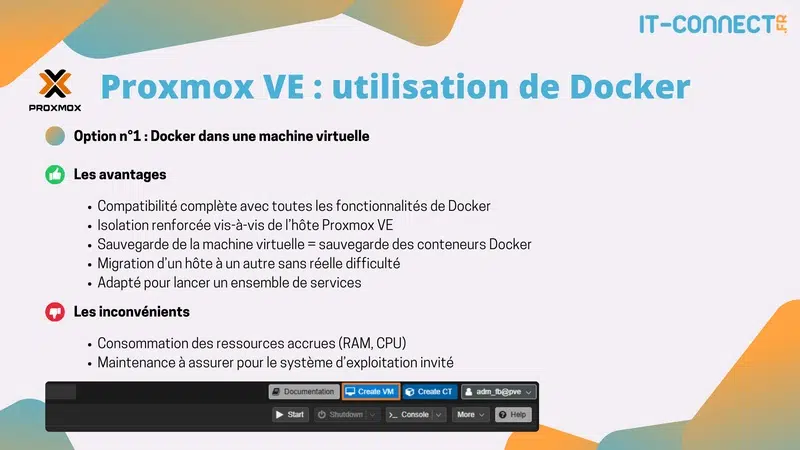
For production, this is the approach I prefer, and it is also similar to what you can do with any virtualization platform. This virtual machine with Docker can be easily backed up, restored, or even migrated to another Proxmox VE node.
When creating this virtual machine, make sure to:
- Enable the QEMU agent, knowing that it will be installed by default if you use a Debian 13 image
- Choose a VirtIO network adapter
- Although optional, you can add a second disk dedicated to storing Docker container data. You can mount it in
/opt, which then lets you store your project data under/opt/docker-compose/.
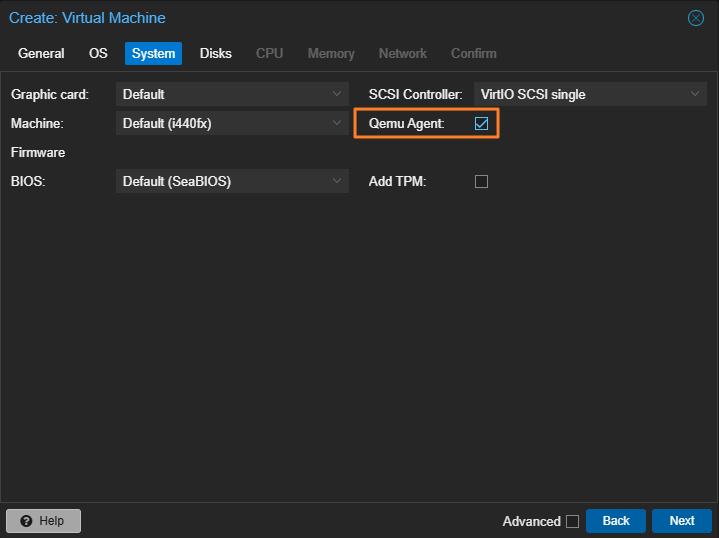
Once the VM has been created and the operating system installed, install Docker. You can use the manual method via the official repositories or run the installation script. For the first method, see my Docker installation on Debian tutorial. For the script-based method, simply run this:
apt update && install curl
curl -fsSL https://get.docker.com -o get-docker.sh
sh get-docker.sh
That's it, now all you have to do is create your first containers (but read the rest of this article before doing that).
Option #2: Run Docker in an LXC container
Deploying Docker inside an LXC container on Proxmox VE (via nesting) is a second option. It is a common practice with one major advantage: it uses far fewer resources than a virtual machine (VM).
The problem is that some containerized applications running through Docker will not work if Docker itself is running inside an LXC container. The explanation is this: unlike a VM, an LXC container uses the Linux kernel of the Proxmox host. Docker containers inside the LXC therefore share the same kernel, and the restrictions imposed by LXC may not suit every application...
For lightweight applications and what are essentially web applications, this will work well. Here are a few examples: Dozzle, Vaultwarden, IT-Tools, Traefik, or even Homer. On the other hand, there is a good chance of running into problems and limitations (or needing specific tuning) with applications that need to interact with hardware, such as networking with WireGuard, for example. Home Assistant is another example.
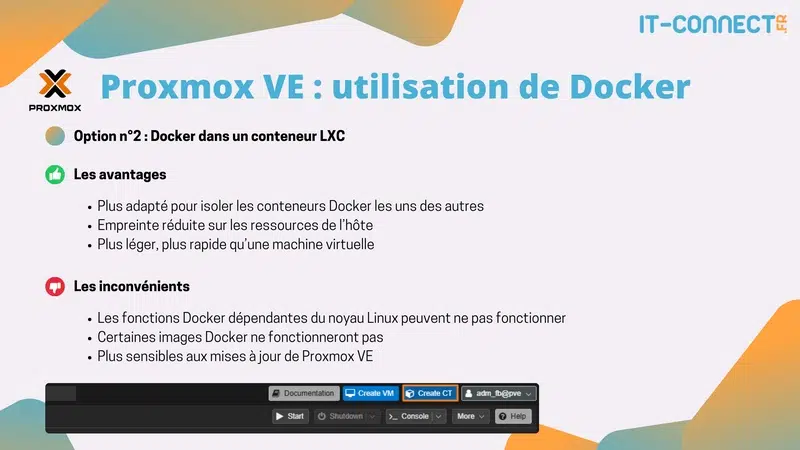
To work around certain limitations, you may be tempted to configure an LXC container in privileged mode. However, it is better to avoid this, because it means that the root user inside the container has permissions that extend to the Proxmox VE host level. Not great from a security standpoint.
If you run into difficulties, prefer using a virtual machine in which you install Docker. If you choose an LXC container with Docker, the clean approach is to remain Unprivileged and enable the Nesting and Keyctl features.
In a previous article, I explained how to create an LXC container from the command line using the pct command. We can use this technique to create an LXC container properly configured for Docker. It is important to enable the keyctl=1 and nesting=1 options (as noted above).
CTID=306
CTTEMPLATE="local:vztmpl/debian-13-standard_13.1-2_amd64.tar.zst"
CTHOSTNAME="lxc-docker"

pct create $CTID $CTTEMPLATE \
  --hostname $CTHOSTNAME \
  --unprivileged 1 \
  --cores 2 --memory 1024 --swap 512 \
  --net0 name=eth0,bridge=vmbr0,firewall=1,ip=dhcp,tag=10,type=veth \
  --rootfs local-lvm:8 \
  --features keyctl=1,nesting=1 \
  --password VotrePassword
This command creates a container with 2 CPU cores, 1 GB of RAM, and an 8 GB disk. That is more than enough to run some containerized applications. You can then create other LXC containers on the same principle, or with a bit more resources, depending on your needs.
Once the container is deployed, install Docker inside it, following the same principle as for the virtual machine.
Day-to-day management with Dockhand (or Portainer)
Proxmox VE does not include native tools for managing Docker containers. That is normal; it is not its role. As a result, you can deploy a solution such as Dockhand or Portainer to manage your containers on a daily basis. Since I prefer the former, let's see how to install it quickly.
The following should be done on the Docker virtual machine or the Docker LXC container.
Start by creating a folder named dockhand under /opt/docker-compose, in order to store the data for this project. Within this project-specific directory for Dockhand, you should also create a subfolder named data. It will be used to store the application's data persistently (including the SQLite database).
sudo mkdir -p /opt/docker-compose/dockhand/dataIn the /opt/docker-compose/dockhand/ folder, create the docker-compose.yml file.
Below is the code to insert into your Docker Compose file. By default, Dockhand uses a SQLite database. If you need better performance, you can configure the container to use a PostgreSQL database.
services:
  dockhand:
    image: fnsys/dockhand:latest
    container_name: dockhand
    restart: unless-stopped
    ports:
      - "3000:3000"
    volumes:
      - /var/run/docker.sock:/var/run/docker.sock
      - ./data:/app/data
Launch the project:
docker compose up -dYou can then connect to your Dockhand instance via the IP address of the VM/container where Docker is installed. Specify port 3000 since Dockhand is accessible on that port by default. The Dockhand interface will appear, and you will only need to add the local Docker environment to start managing it.
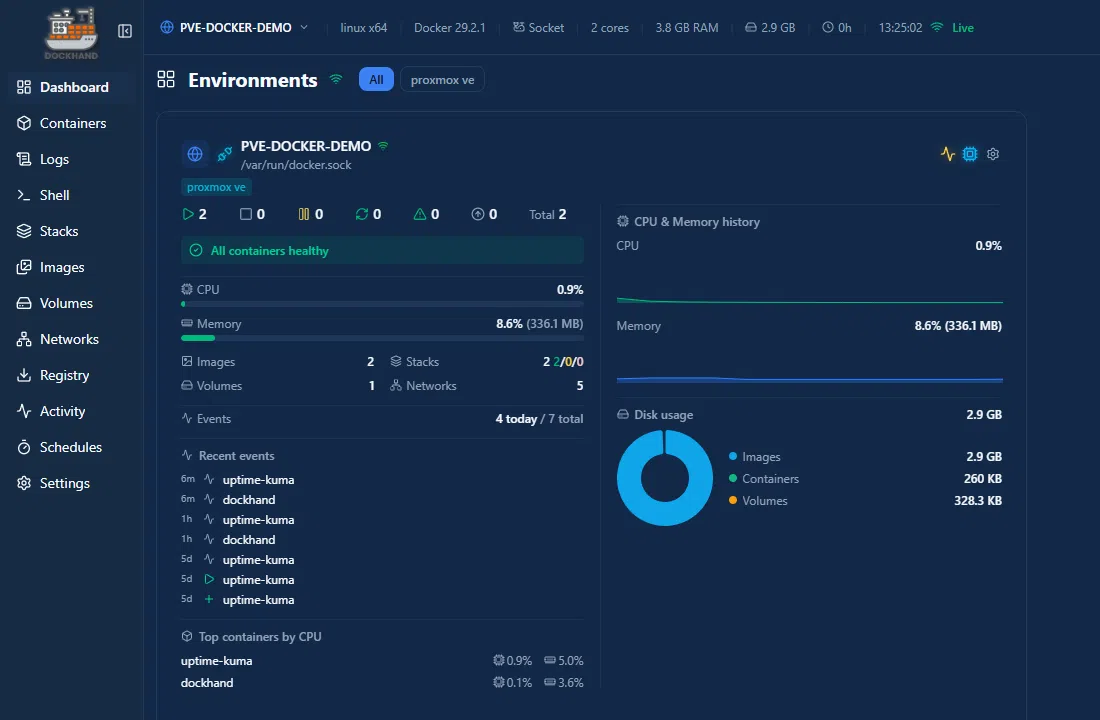
So, you have the Proxmox VE interface to manage your virtual machines, LXC containers, and the virtualization platform itself, plus Dockhand for administering Docker environments. A single Dockhand instance can connect to X Docker engines.
Docker on Proxmox VE: which method should you choose?
If you have the resources (RAM/CPU), choose the VM. It is the "no headaches" method, but it does not optimize resource usage. Otherwise, you can mix a virtual machine and LXC containers with Docker to match the needs of the applications you deploy.
In other words, you can use LXC containers (lighter, faster) as much as possible, while still having a virtual machine for some more demanding projects that are incompatible with this approach.
This can also be viewed as follows:
- Virtual machine recommended in enterprises for stability and security (stronger isolation),
- LXC container recommended for a Homelab or if you have a very large number of containers, to optimize resource usage, especially on modest hardware.
Conclusion
You can use one of these two methods or combine both to run Docker containers on Proxmox VE. You can also take a look at OCI images (also used by Docker), even though this approach is still not very mature at the moment (Proxmox VE 9.1) and does not yet offer the same flexibility as using Docker directly.
If you are used to running containerized applications through Docker on Proxmox VE, feel free to share your feedback in the comments. It will be helpful for other readers of this article.