www.it-connect.fr

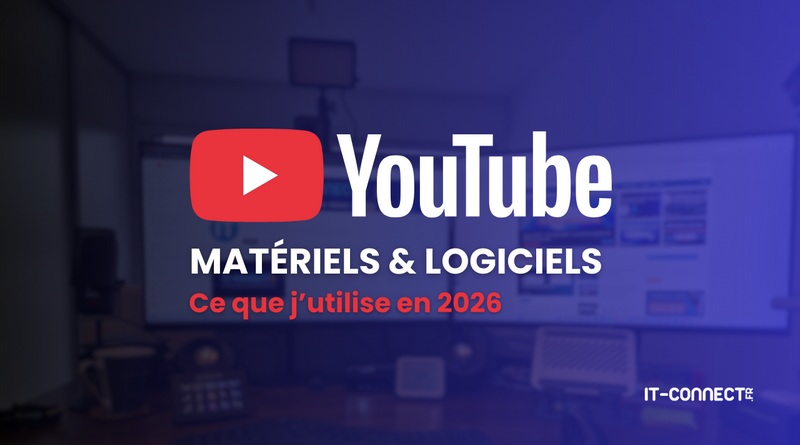
My 2026 Video Setup: The Gear and Software I Use for YouTube Videos
To record a video, whether it is intended for YouTube or for a company portal used for internal training, you need at least a minimum amount of hardware and software to do things properly. What should you get? Here is my experience on the subject.
This article follows an email I received from an IT-Connect reader who asked me what hardware and software I use for IT-Connect videos. I thought it would be cool to share this information with all of you. I have recorded more than 500 video tutorials, so I have a few things to tell you! This article is also a chance to take you behind the scenes!
Note : the peripherals and software mentioned in this article may not be the best on the market, but they meet my current needs.
Hardware for recording videos
I will start by talking about the hardware I use to record my videos, whether they are the ones you see on YouTube, TikTok, Facebook, or Instagram. Hardware has a major impact on the final result, so it deserves special attention. It also depends on the level of quality and refinement of the video production.
The microphone: the most important piece
For videos in the "computer tutorial" style, webcam image quality is secondary, since the main thing is to clearly see what is on the screen.
What I mean by that is that it is better to invest in a good microphone first than in a good webcam. There is nothing more unpleasant than watching a video with poor sound quality... The built-in microphones on laptops are not good enough.
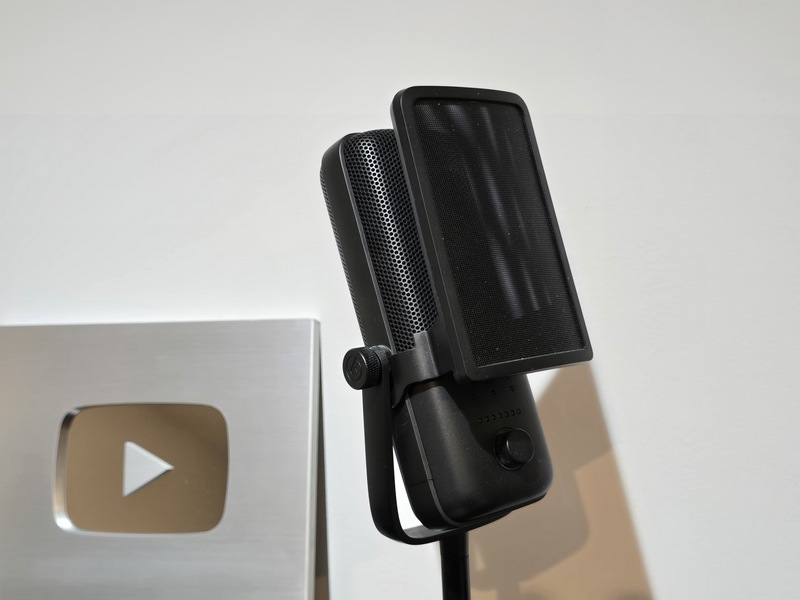
For several years, I used a Blue Yeti X microphone (a Logitech brand now), and when it failed, I switched to another model: the Elgato Wave:3, bought in October 2024 for 139.81 euros. I also added an important accessory: the pop filter, from the same brand (Elgato Pop Filter). I also bought a 10 cm extension (Elgato Wave Extension Rods) to position the microphone higher (the alternative would be to use a boom arm for the microphone).
The webcam: if you want to film yourself
I find it more pleasant to see the person speaking, in addition to the screen image. So you need a video capture device. There are two viable options: a webcam or a camera, if you set aside using a smartphone camera. Avoid the webcam built into a laptop, because the shooting angle is not good.
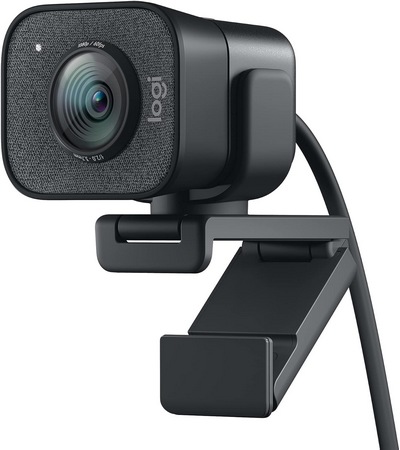
For the last 5 years, I have been using the same webcam: a Logitech StreamCam, bought for around 150 euros. An affordable piece of equipment capable of recording in Full HD (1080p) at 60 fps. I still use it today, even though I am considering switching to get better image quality for face-cam segments. Exposure handling can be a bit temperamental at times.
To use a camera (such as a DSLR) as a video source, it is not enough to connect the device to your computer. Well, there may be some devices that allow that, but most of the time you need a capture card. For example, the Elgato Cam Link 4K dongle meets this need.
For better video quality, replacing a webcam with a DSLR is probably the best option, even though there are high-end webcams.
Lighting: the key to the mood
I use 3 different LED panels for lighting, as well as a simple lamp with a vintage bulb (warm white lighting).
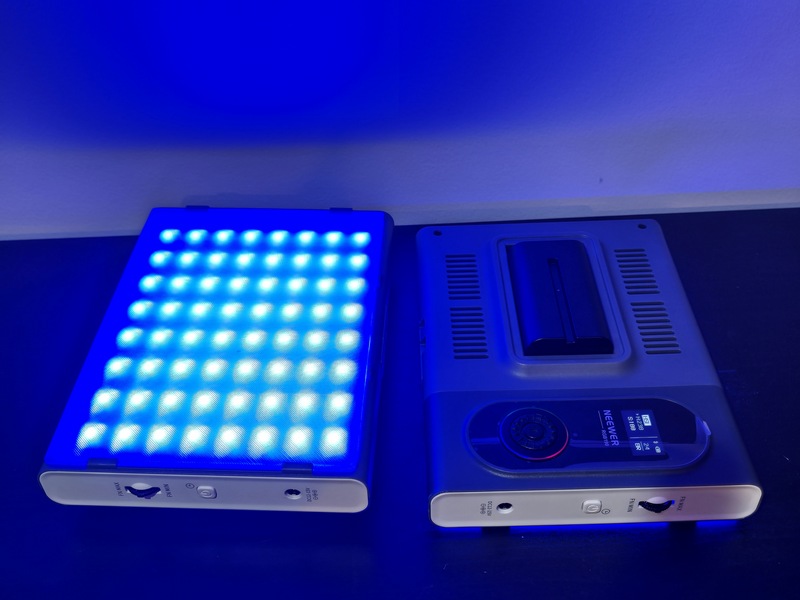
If you watch my videos, you have probably noticed a blue backlight. For that, I use 2 Neewer RGB 190 panels (bought in November 2022 for 82.39 euros), which run on batteries and have several hours of battery life. There is a smartphone app to interact with the lights via Bluetooth and choose any color you want from a full palette (including warm and cool whites). Philips Hue lights can also work well as ambient lighting.
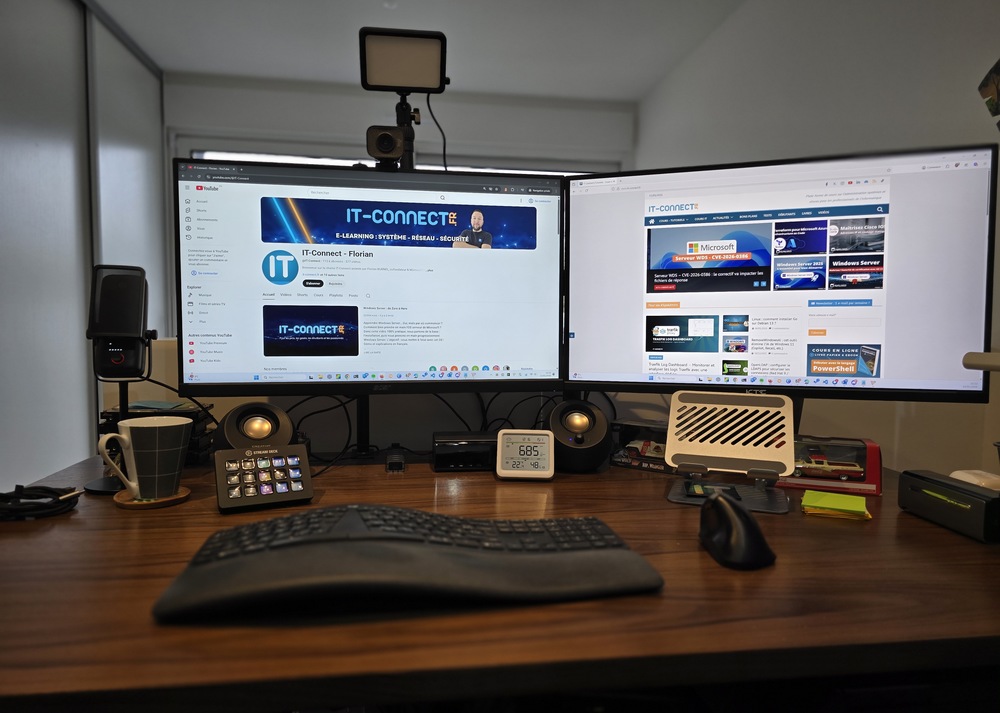
In addition, above my main monitor and next to my webcam, there is an Elgato Key Light Mini LED panel for front lighting. It is mounted on a boom arm to position it above the screen. I use an Elgato Master Mount (S) boom arm.
One lamp of this type seems sufficient to me, even though setups with two panels are often seen (one on the right, one on the left). Bought in February 2025 for 69.95 euros. The LED panel is connected via USB to my PC, which means it can be powered continuously. There is official software for the settings (which I will cover later).
Previously (from 2020 to February 2025), I used another LED panel without a specific brand, but I had several battery failures (and therefore lighting failures) during recordings, despite a constant USB connection. It was frustrating and unproductive, so I made the switch.
Here is a preview of this lighting setup (or watch a video such as on this page) :
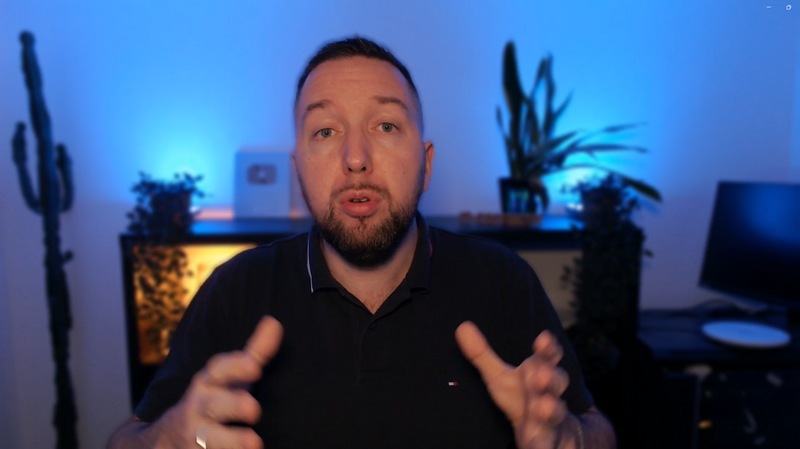
Lighting is the key to creating atmosphere, and beyond decoration, it is in my opinion the hardest thing to manage (it can be temperamental at times...) compared with the image and the audio. It also depends on the webcam and how it interprets the light projected in the foreground and background. And I think my webcam does not always help.
The control unit: far from a gimmick
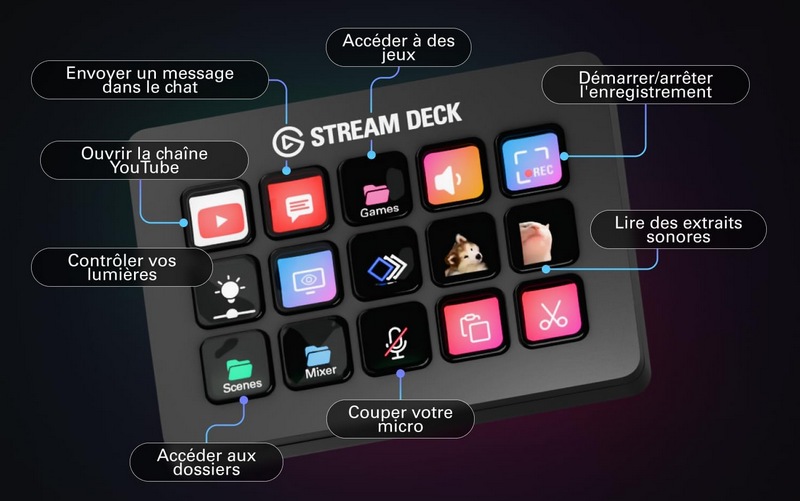
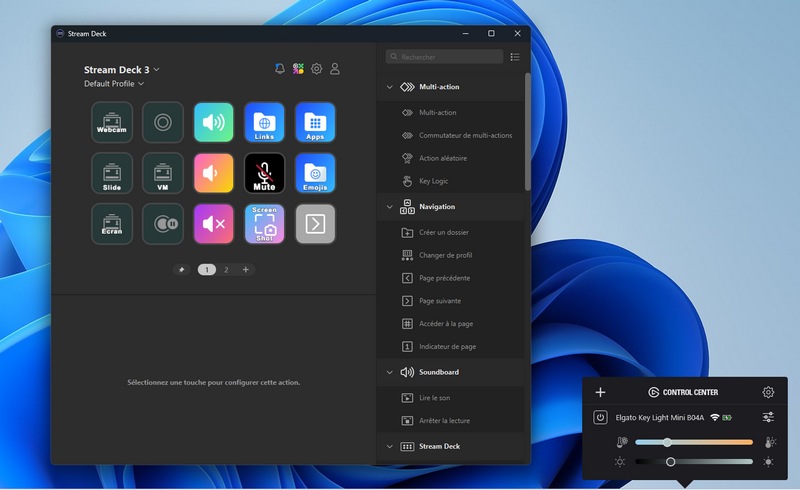
In November 2024, I bought an extra piece of equipment: an Elgato Stream Deck MK.2 control unit for 139.99 euros. Its customizable keys make it a daily ally that goes far beyond video recording. You can configure the keys to launch just about anything on your computer!
In the context of video recording, it is used to start/stop recording and to switch from one scene to another. For example, I use it to switch from a screen recording to a face-camera recording, or from a screen recording with a camera overlay to another scene. For live streaming, it would also be essential equipment for acting easily during the broadcast.
It has 15 keys and the shortcuts can also be organized into folders, so it is useful for other things too. For example: launch a specific website, take a screenshot, or even run a script!
Software for video production
The different software tools used can be divided into different categories:
- Global peripheral configuration
- Recording
- Production (editing)
Software for peripheral configuration
These days, every brand has its own software to configure its devices. That is true here as well. So, on my computer, several applications are installed for this purpose:
- Elgato Wave Link for adjusting the Elgato Wave:3 microphone,
- Elgato Control Center to control the Elgato Key Light Mini LED panel,
- Stream Deck to customize the buttons and configuration of the Elgato Stream Deck MK.2 unit,
- Logitech G Hub to adjust the image of the Logitech StreamCam webcam (I mainly use it to reset the exposure when it goes haywire),
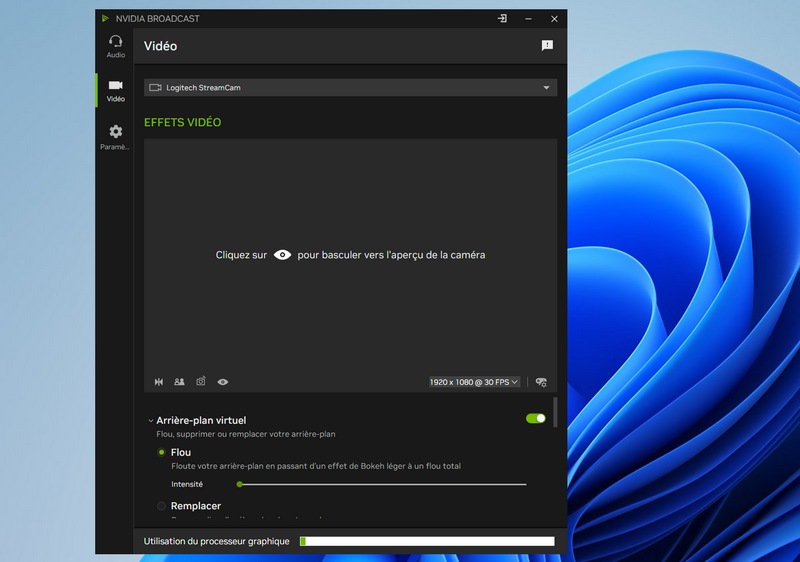
- NVIDIA Broadcast to add effects to the webcam image. In my case, it handles background blur. This software can also remove the background. It has several nice features, but you need a GPU that can keep up. On that note, I use an NVIDIA GeForce RTX 3060 Ti graphics card.
Software for recording
Video recording is done using OBS Studio, a free and open source application that is the benchmark in this area. It has a huge community and is just as suited to video recording as it is to live streaming (maybe even more so for the latter). At first, it can be a bit overwhelming because there are a lot of buttons and menus, but there are also plenty of tutorials on the web to help us.
I mainly control it through my Stream Deck, especially for scene switching. I also added a plugin to record directly in vertical format for social networks like TikTok.
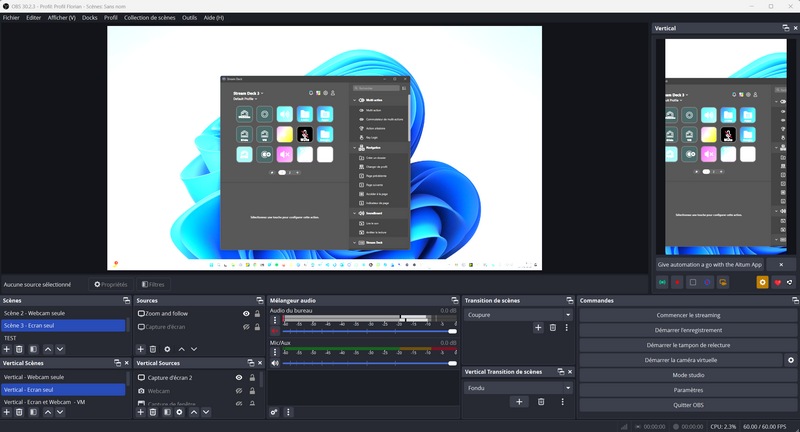
As output, you can get an MP4 or MKV file, depending on the settings. If needed, OBS Studio includes a video file converter that makes it easy to switch from one format to another. The downside is that there is only one recording with both images (screen and camera), so editing is less flexible.
With a plugin and some settings, it is possible to record each video source in separate files, but my computer struggles to keep up at that level. As a result, there can sometimes be a delay in the recordings. I have set aside this improvement for now.
Software for video editing
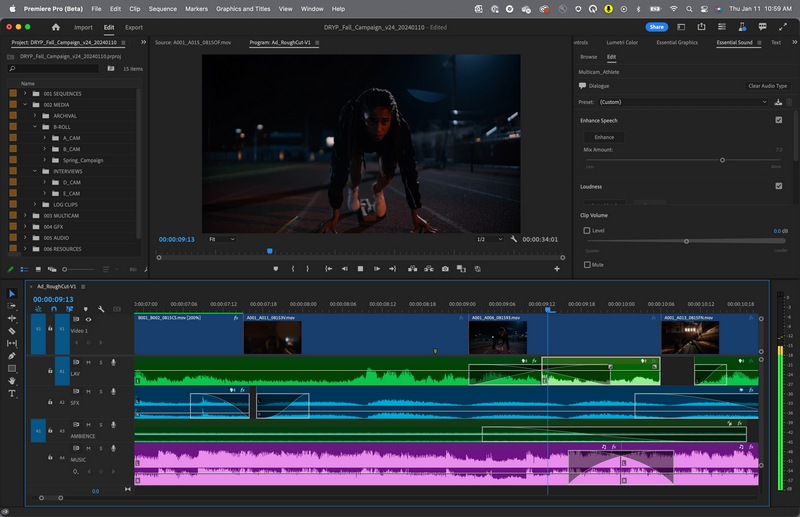
Since November 2024, my video edits have been done using Adobe Premiere Pro, a professional video editing application from the Adobe Creative Cloud suite. I do not edit the videos myself; I rely on my colleague Marion's skills. I prefer to spend more time on other topics where I add more value, rather than on editing, even though it is not an unpleasant task.
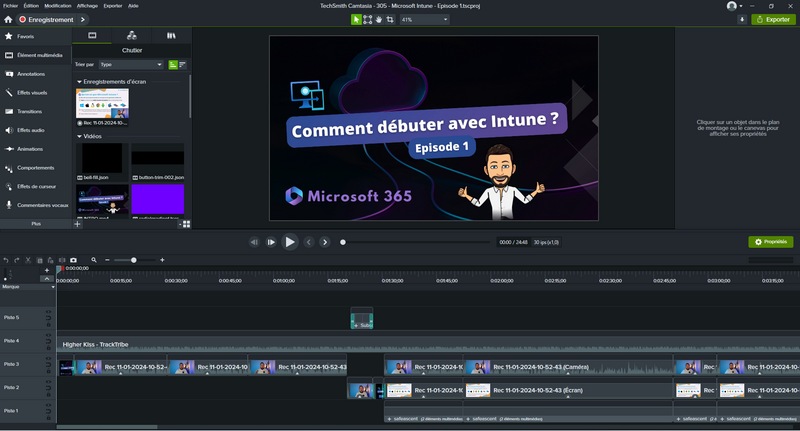
Before November 2024, I was not using Adobe Premiere Pro or OBS Studio. I used a single piece of software to handle both tasks: Camtasia. Inexpensive (especially compared with the Adobe suite), it includes all the features needed to produce video tutorials like the ones you see on the YouTube channel. It is more limited in terms of effects and the "creative" potential is much lower than Premiere Pro, but it can be enough to get started completely independently: it is very easy to learn.
Below is a preview of Camtasia 2024 that I used for my videos. It is not the latest version of the solution.
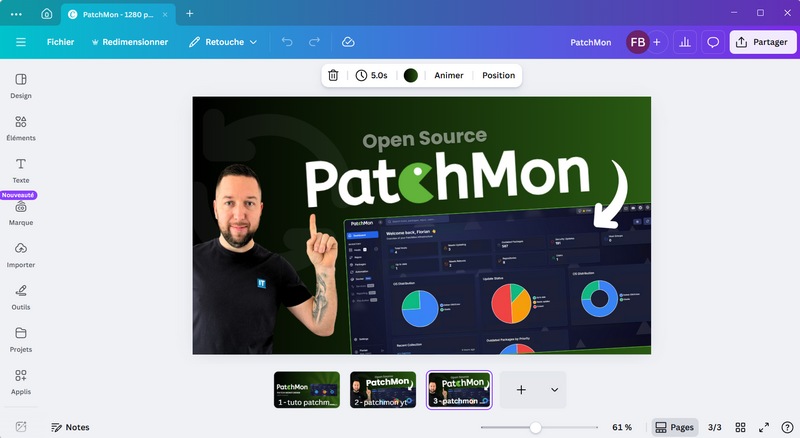
In addition, I could also mention Canva : the software used to create YouTube video thumbnails. I use this tool a lot every day, especially to create the illustration images for website articles, presentation materials for videos, or carousels for social media.
The cost of my equipment for creating YouTube videos
That wraps up the hardware and software I use (or have used) to create videos for the YouTube channel. As you can see, everything was not purchased at the same time: I have evolved my setup over time. Of course, you also need to add the computer used for recording and editing, but you do not need a very powerful configuration to edit Full HD content (4K will be more demanding).
To finish, here is a summary table with the hardware prices (based on my purchase price), just to give you a rough idea.
| Components | Type | Price |
|---|---|---|
| Elgato Wave:3 | Microphone | 139.81 euros |
| Elgato Pop Filter | Pop filter | 23.39 euros |
| Elgato Wave Extension Rods | Microphone mount extension | 9.99 euros |
| Elgato Master Mount (S) | Boom arm | 44.99 euros |
| Logitech StreamCam | Webcam | 150.00 euros |
| Elgato Stream Deck MK.2 | Control unit | 139.99 euros |
| Elgato Key Light Mini | Main LED panel | 69.95 euros |
| Neewer RGB 190 | Ambient LED panels | 82.39 euros |
👉 Total amount: 660.51 euros.
Not to mention the software costs, although there are only two paid programs: Adobe Premiere Pro (or Camtasia) and Canva. OBS Studio is completely free, as are the software tools provided by the various brands.
As for me, my next upgrade will probably be replacing my webcam. Either with a high-end webcam or by using a DSLR camera.
What do you think? Feel free to ask questions and share your own experience on this topic!