www.it-connect.fr

Windows Admin Center vMode Public Preview 2 Brings Major Hyper-V Management Upgrades
Version 2 of Windows Admin Center vMode has been available since April 20, 2026, in Public Preview. The “vMode” version of Windows Admin Center makes it possible to centrally manage Hyper-V virtualization environments through a web console. Let’s review the changes in this new release.
As a reminder, virtualization mode, aka vMode for Windows Admin Center was unveiled by Microsoft in November 2025.
Resource management evolves
Let’s start with the first improvements related to resource management:
- The add resource wizard now detects whether an agent is already installed on a node and blocks onboarding until the conflict is resolved. This prevents taking over a host already managed by another WAC vMode instance.
- When an added node belongs to a cluster, the wizard automatically identifies all cluster members and adds them to WAC vMode. This avoids omissions and ensures complete Hyper-V cluster onboarding.
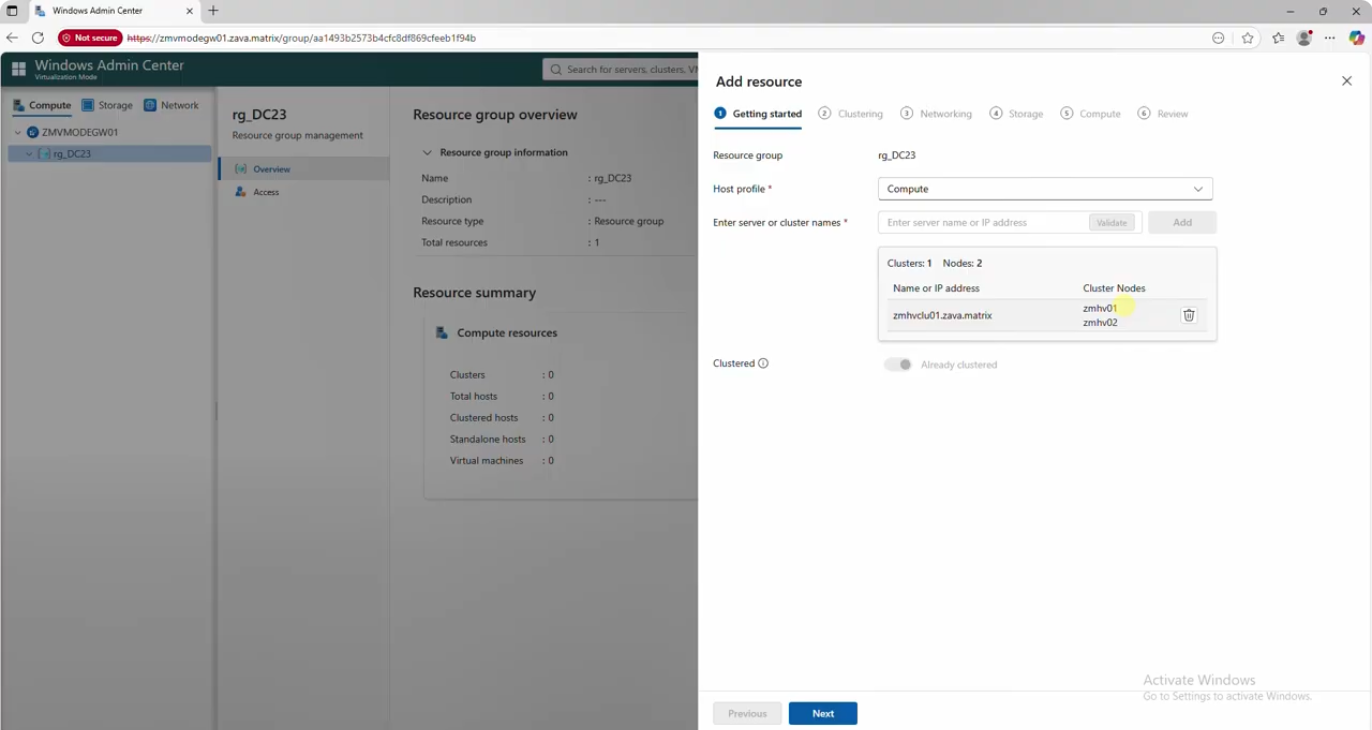
- For existing Hyper-V clusters, the wizard checks node consistency, installs the required updates, handles reboots, and moves running virtual machines to another node via Live Migration to avoid any interruption.
- It is now also possible to create a complete Hyper-V cluster directly from the wizard, starting from standalone nodes and automatically configuring the name, IP address, and required roles for the new cluster.
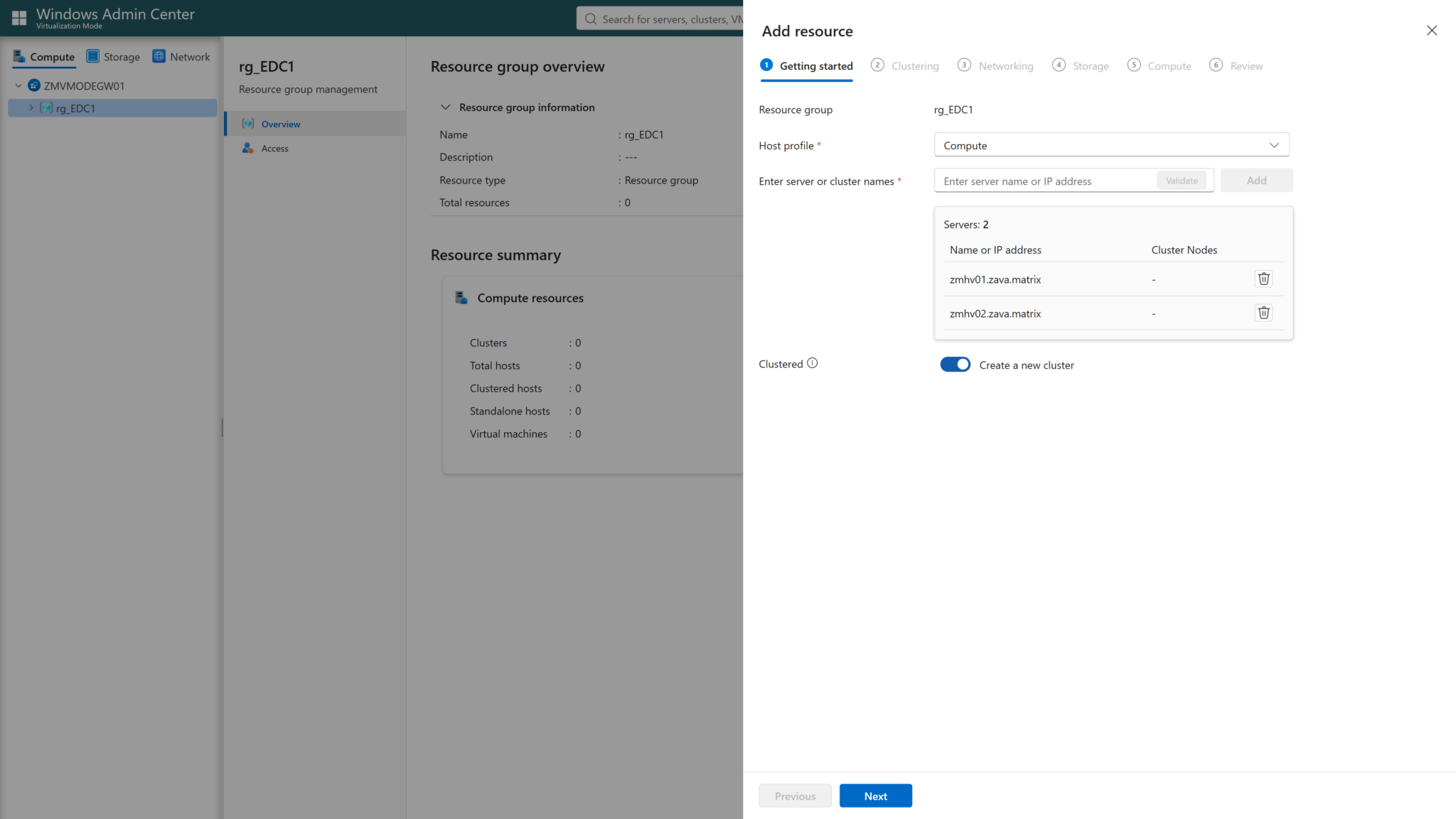
- Network ATC (Network Automated Traffic Control) intent templates are now reusable, and all Ethernet adapters, even disconnected ones, are visible to provide a complete hardware view. Default ATC parameter values are prefilled to clearly show what will be applied and reduce errors. It is no longer necessary to recreate the network configuration when adding resources to WAC vMode.
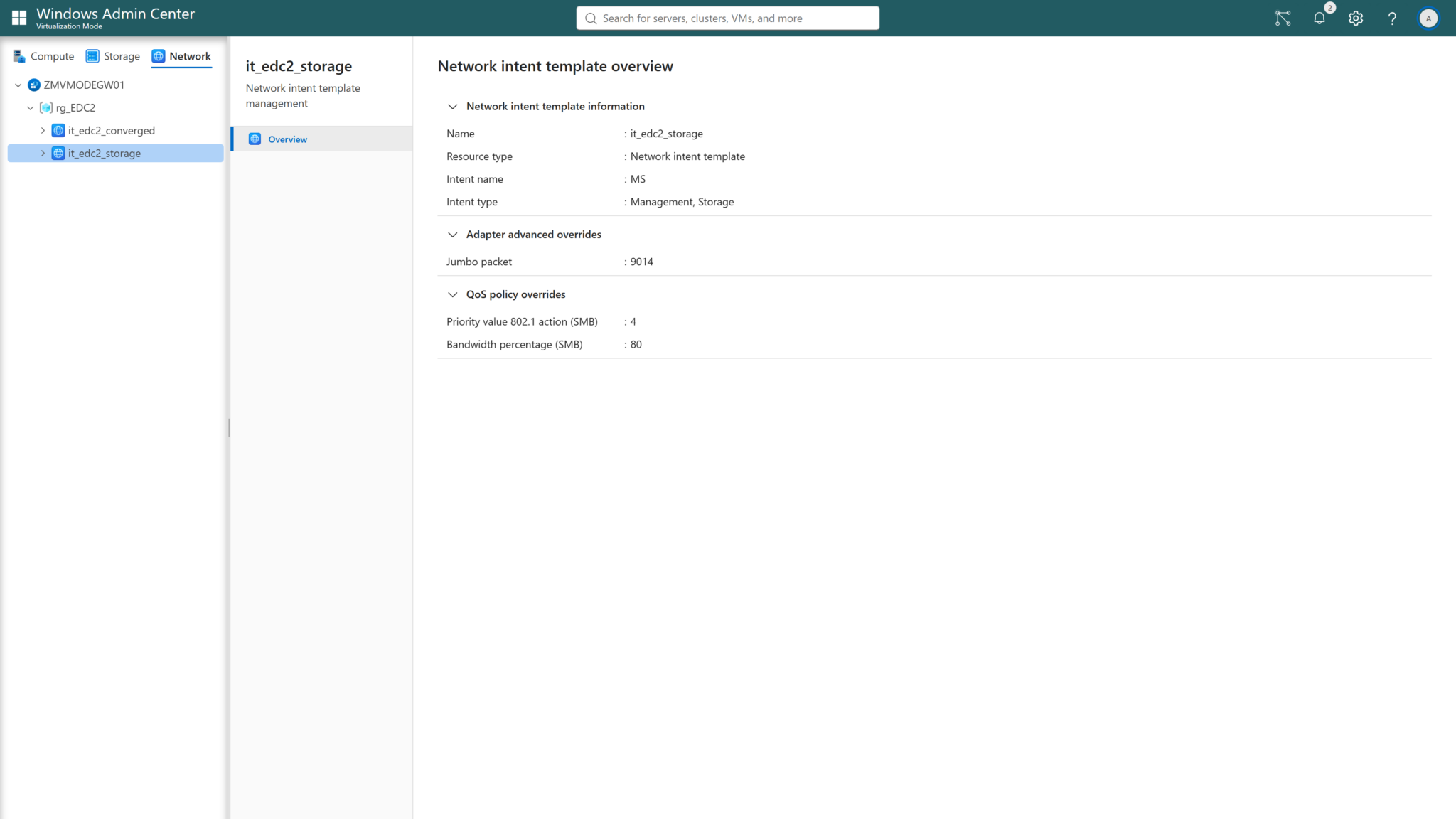
- In test environments based on virtual machines, the wizard automatically disables incompatible RDMA settings to simplify validation. The onboarding process now verifies that the network configuration is properly applied before continuing, making it possible to detect issues immediately.
- Administrators can automatically provision a SAN or NAS LUN from a CSV (Cluster Shared Volume), handling initialization, formatting, cluster joining, and cache configuration.
- It is possible to remove unnecessary roles, enable enhanced session mode, configure simultaneous migrations, and unify default paths.
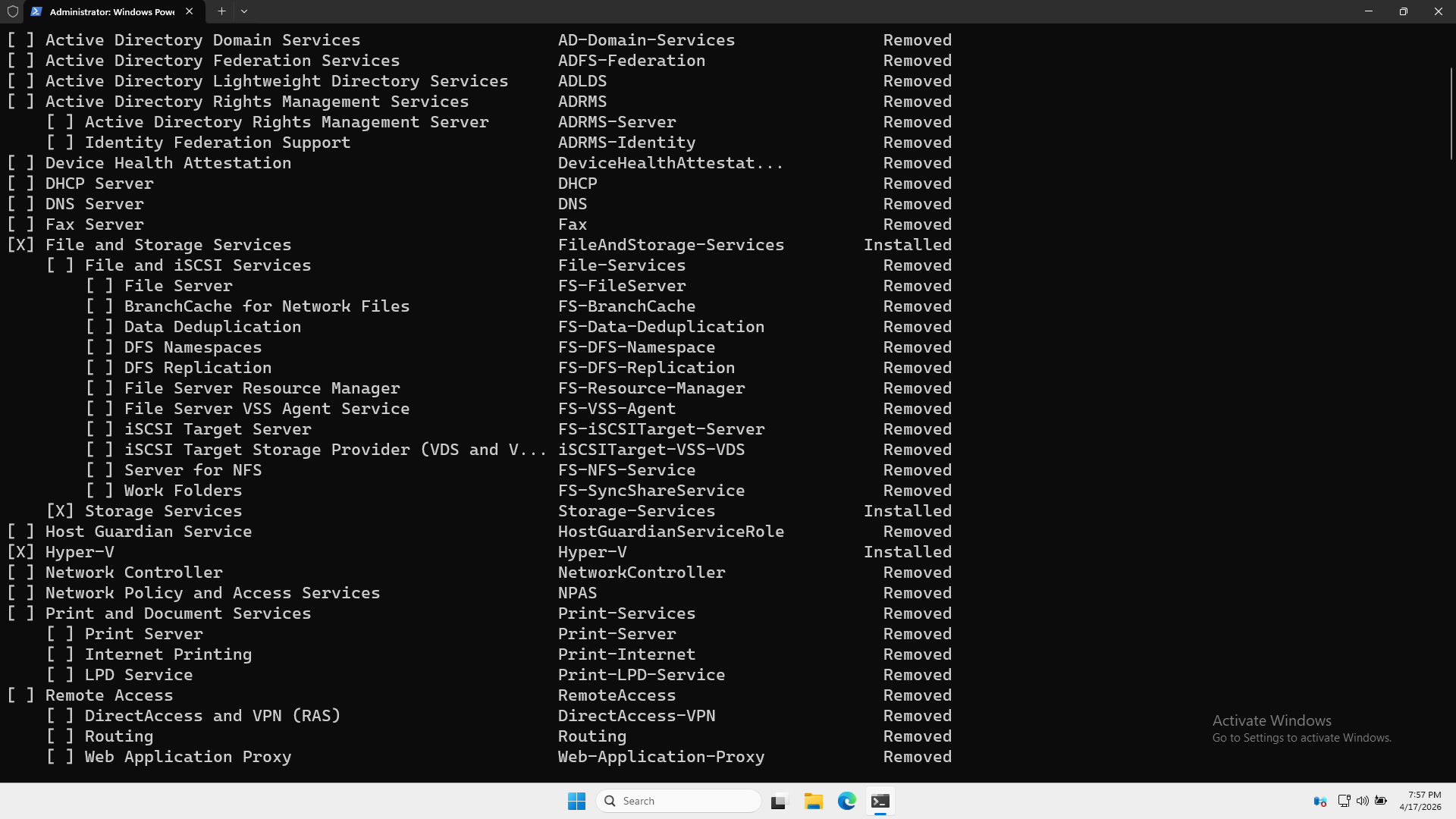
Finally, the wizard can create a Scale-Out File Server (SOFS) directly from the interface, with the associated share created automatically.
Improved views and global search
The Storage view has been enhanced to better represent the different types of storage objects, each with its own icons, making it easier to quickly identify Scale-Out File Servers or devices from third-party vendors. Microsoft also says this view will continue to evolve to make it easier to connect storage, virtual machines, and the resources it provides, especially through stronger collaboration with storage vendors.
The Network view now integrates the Network ATC templates mentioned earlier, allowing you to view, modify, and delete existing ones.
Global search has been redesigned to help administrators navigate environments with up to 1,000 hosts and 25,000 virtual machines. It can filter results by profile (Compute, Storage, or Network), target a specific object type such as a virtual machine or cluster, and perform hierarchical searches within a specific part of the tree, making it possible to locate an object quickly.
WAC vMode now displays the power state of virtual machines directly on their icon, helping identify powered-on and powered-off VMs.
Virtual machine templates
Hyper-V does not natively support creating virtual machine templates. With this new release, WAC vMode will let you convert a virtual machine into a template. Once converted, the VM becomes read-only and is identifiable by a dedicated icon. The VM name will automatically be prefixed with {Template}{Read-only}. Beforehand, you will need to prepare the VM and run sysprep on it.
Editing a virtual machine template will be possible by converting it back into a virtual machine. Once it has been modified and is ready to be templated, you only need to convert it back into a template. There is no copy to a library server, which makes the process simple and quick to implement.
Cluster and replication support
With this new version of WAC vMode, Microsoft is finally bringing a major modernization of replication management, especially for clustered environments. This is one of the most important improvements in this release.
Version 1 only supported standalone hosts, while version 2 introduces full support for the Replica Broker, allowing a Hyper-V cluster to expose a single identity to receive replication traffic, even when virtual machines move between nodes.
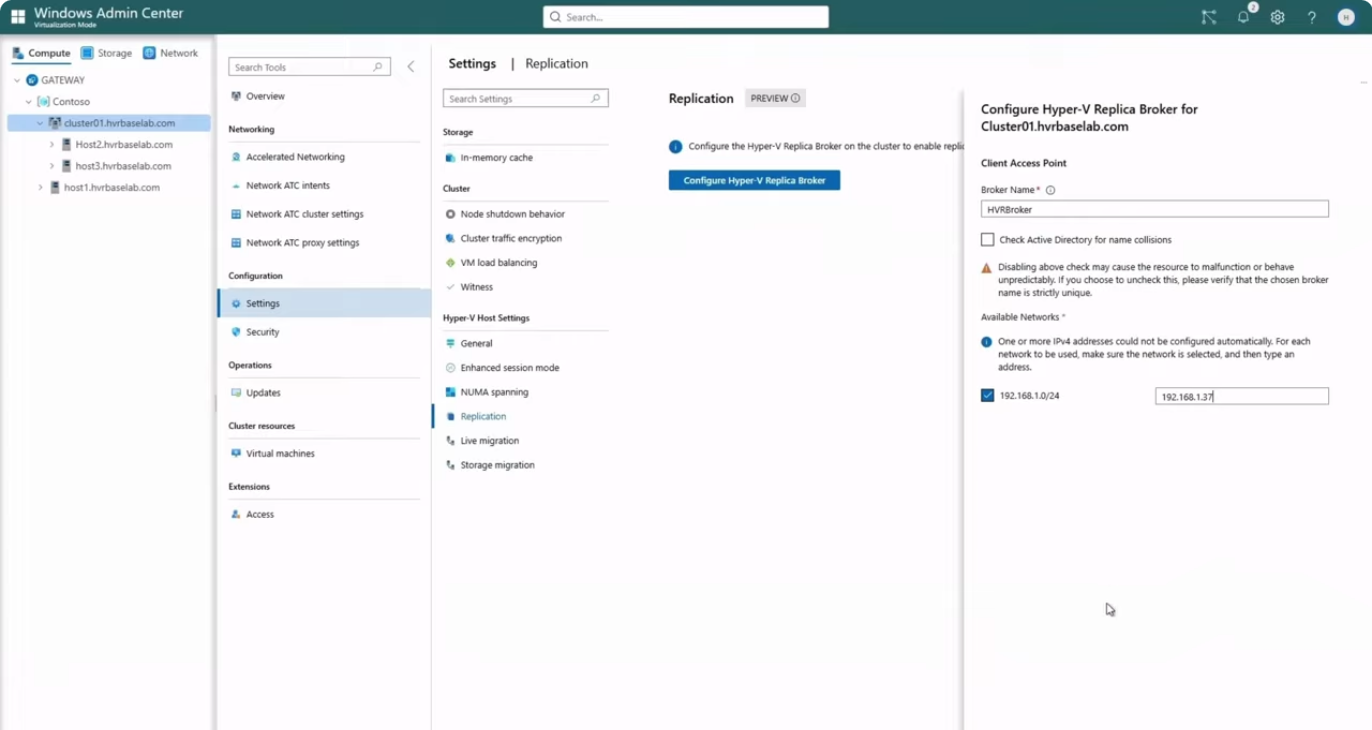
This native cluster support makes replication much more reliable and eliminates interruptions caused by internal migrations. Disaster recovery is also transformed thanks to several long-awaited features:
- Post-failover IP injection: lets you preconfigure the IP address that the VM will automatically receive when it fails over to another site with different subnets
- Extended replication: now allows a replication chain to a third site, including Azure, to protect against regional disasters
- Reverse replication: to restore production after a failover by simply reversing the replication direction
- Isolated failover test: to verify that a disaster recovery plan works without affecting production, by creating a temporary copy of the VM from a selected recovery point.
Upgrading or installing Windows Admin Center vMode
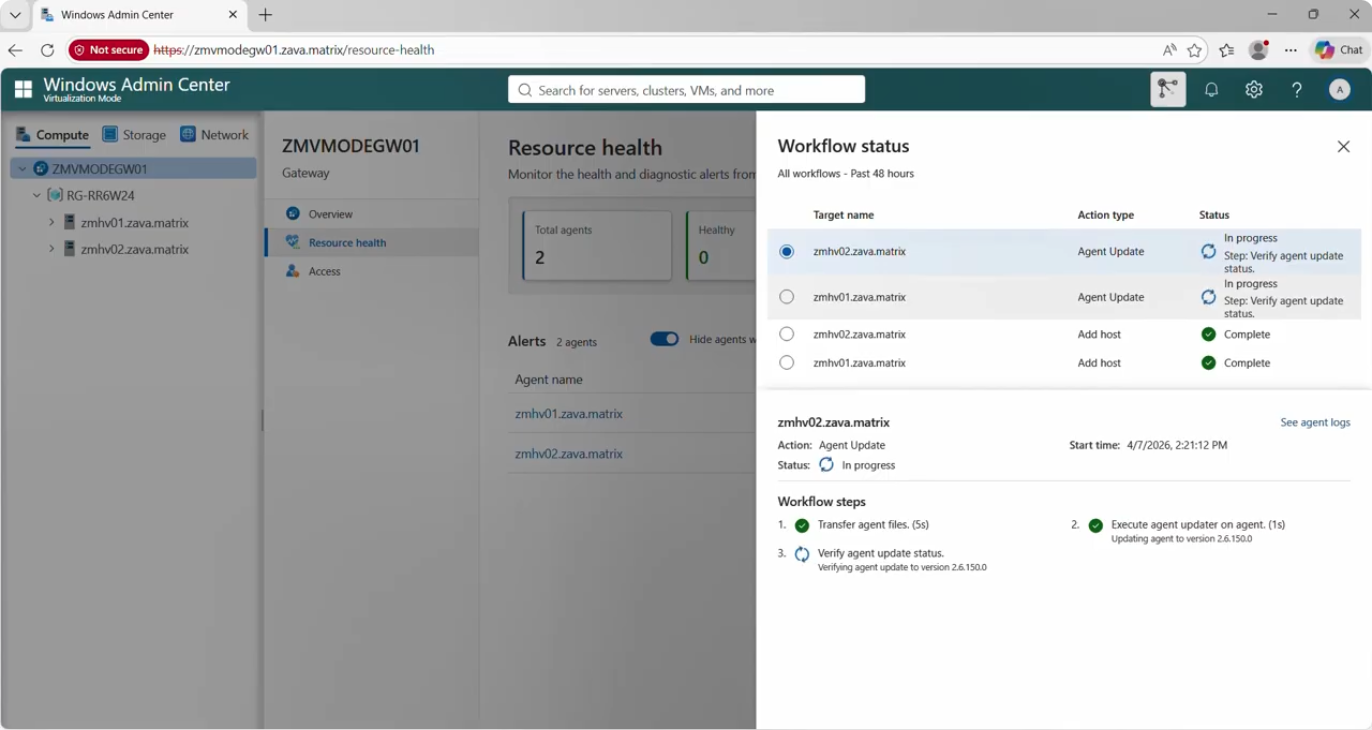
To upgrade your existing Windows Admin Center vMode instance to this new version, simply download the V2 Public Preview from Microsoft’s website. Then follow the wizard steps to upgrade your installation. No manual action is required on the database or IIS. Finally, once in the web console, you can track the WAC agent upgrade on your Hyper-V instances.
For a new installation, if you want to test the solution, here is a reminder of the required prerequisites:
- A dedicated server (physical or VM) with the following characteristics:
- 4 vCPU
- 8 GB of RAM
- 10 GB of available disk space for WACvMode
- OS: Windows Server 2025 or later, Standard or Datacenter edition
- It is not possible to install Windows Admin Center aMode and vMode on the same machine.
- The server must be joined to a DNS domain and resolvable through its fully qualified domain name (FQDN). For example: v
mode.itconnect.cloud. - Be a local administrator of the VM on which the installation will be performed, and of the Hyper-V hosts.
- Download and install the Microsoft Visual C++ Redistributable package.
Finally, you can download the WAC vMode Public Preview V2 installer from official Microsoft sources.
All the new features introduced in this Public Preview 2 of Windows Admin Center vMode meet market expectations. As many companies consider replacing VMware following the cost increase triggered by Broadcom’s acquisition, Hyper-V is once again becoming a complete platform capable of supporting modern virtualization scenarios.