www.it-connect.fr


How to Upgrade Debian 12 Bookworm to Debian 13 Trixie
In this tutorial, we will walk through how to upgrade Debian 12 Bookworm to Debian 13 Trixie, step by step, so you can carry out the process with confidence.
Debian is known for its stability and regular release cycle. In fact, approximately every two years, a new stable release replaces the previous one. Thus, on August 9, 2025, Debian 13 succeeded Debian 12 as the latest stable release, bringing thousands of updated packages and a set of new features, including the use of the Linux 6.12 LTS kernel.
This new version will be supported until June 30, 2030. This is a good opportunity to provide a summary table with information about the three Debian versions still under support today (see this page):
| Debian version | Release date | End of standard support | End of LTS support | Latest version |
|---|---|---|---|---|
| Debian 13 Trixie | August 9, 2025 | August 9, 2028 | June 30, 2030 | 13.0 |
| Debian 12 Bookworm | June 10, 2023 | June 10, 2026 | June 30, 2028 | 12.11 |
| Debian 11 Bullseye | August 14, 2021 | August 14, 2024 | August 31, 2026 | 11.11 |
If you are using Debian 11, you will not be able to upgrade directly to Debian 13. Only the migration from Debian 12 to Debian 13 is supported, so in that case, you will need to proceed in two stages.
Another important change introduced by Debian 13 is worth noting: users still on 32-bit systems will need to migrate to 64-bit or consider an alternative distribution, because Debian 13 has very limited 32-bit support.
You can learn more about what is new in Debian 13 by reading this article:
Before you begin: back up your data
Before any major update on a machine, backing up your data is essential. Depending on your scenario, you can carry out this preventive step in several ways:
- Virtual machine: take a backup of the virtual machine or a snapshot (sufficient for a quick rollback).
- Physical machine : create a full disk image of your system with a tool such as Clonezilla, UrBackup or another solution depending on your habits.
Another method is simply to use the tar command to create a tar.gz archive of sensitive files. We can then store in this archive the files located in /home, but also in /etc and /root, and why not /var/www if you have a website on your machine.
How do you make this backup? The example below is used to create a compressed archive in tar.gz format containing the system's essential directories, such as configurations, user data, scheduled tasks, and the package list, so that you have a backup before an upgrade.
It ignores errors related to potentially missing files and excludes temporary or cache directories to avoid unnecessarily bloating the archive. The generated file is stored in /root/ with a dated name, making it easy to identify the backup. Depending on your needs, you can add other directories to the backup (last line).
Start by running the following command to create the packages.list file in the current user's home directory. This makes it possible to obtain a complete inventory of installed or removed software. A useful operation for saving the package list before an upgrade (or a reinstallation). This file will be included in our global archive.
dpkg --get-selections > ~/packages.listNext, launch the data backup:
sudo tar --ignore-failed-read -czpvf /root/backup-before-upgrade-$(date +%F).tar.gz \
  --exclude='/home/*/.cache' \
  --exclude='/home/*/.local/share/Trash' \
  --exclude='/var/cache' \
  --exclude='/var/tmp' \
  --exclude='/tmp' \
  --exclude='/root/backup-before-upgrade-*.tar.gz' \
  /etc /home /root /var/spool/cron /var/lib/dpkg /var/lib/apt/extended_states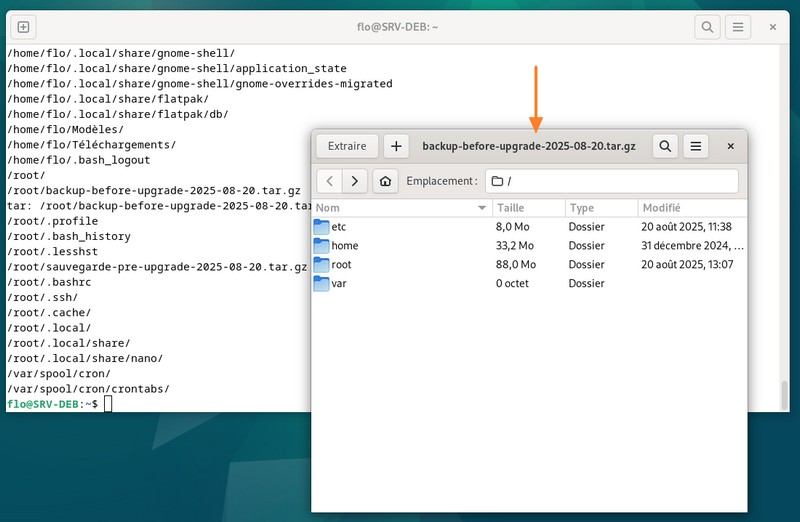
Then transfer the archive to external storage or to a location accessible over the network to keep your data safe. Once that is done, you can move on to the next step.
Steps to upgrade from Debian 12 to Debian 13
In the rest of this article, we will see how to move from Debian 12 to Debian 13. Make sure to follow the steps in the order presented here. The method described in this tutorial applies to Debian workstations and servers, with or without a graphical interface.
The upgrade operation involves service downtime since several reboots are expected. Also, make sure you have several gigabytes of free space on your disk so the operation can complete properly (many packages will be downloaded).
Is your machine running Debian 12?
This check may seem unnecessary, but if you have any doubt, verify that the machine you want to upgrade is indeed running Debian 12. Open a terminal and run the following command:
lsb_release -aYou should get a response similar to this:
No LSB modules are available.
Distributor ID:	Debian
Description:	Debian GNU/Linux 12 (bookworm)
Release:	12
Codename:	bookworm
To display the exact version, use:
cat /etc/debian_versionThis command returns the following information to me: 12.8.
Apply the latest updates
Before moving to Debian 13, make sure you have a fully up-to-date Debian 12 machine. In other words, update all packages and Debian 12 itself. Run the following two commands in sequence:
sudo apt-get update && sudo apt-get dist-upgrade --autoremove -yWait a few minutes while the operation runs, then reboot your server:
sudo rebootAfter the reboot, if you are curious, you should run cat /etc/debian_version again to see that this time you are on Debian 12.11. This is the latest release of Debian 12.
Are you using packages not provided by Debian?
On a Linux machine, whether it is Debian or another distribution, it is not uncommon to install packages from third-party repositories. Docker is a great example, as it is not in Debian's official repositories.
You can list packages installed outside the official Debian repositories with this command. It lists packages using the apt list command with filters (patterns).
sudo apt list '?narrow(?installed, ?not(?origin(Debian)))'This command lists all installed packages that do not come from the official Debian repositories. This includes for example:
- Packages installed manually with
dpkg -i(.debfiles downloaded elsewhere), - Packages from third-party repositories added in
/etc/apt/sources.list.d/, - Or locally compiled packages, although that is a bit rarer.
On the machine used for this demonstration, the command returns one package:
En train de lister... Fait
isc-stork-server/bookworm,now 2.2.0.250610122904 amd64  [installé]
It corresponds to Stork, the web interface for monitoring the KEA DHCP server. From here, you have two options:
- Remove the package and reinstall it on Debian 13
- Keep the package, assuming the repository is compatible with Debian 13
It is also possible to add a hold marker to packages that should not be upgraded, creating a lock. For example:
# Add the lock:
sudo apt-mark hold <package name>

# Remove the lock:
sudo apt-mark unhold <package name>
What matters here, to avoid an error during the upgrade, is checking the current list of packages that may be hold. It is quite possible that the list is empty (in which case, continue without worrying about it), but it is better to anticipate and check.
The official Debian documentation states: "It is desirable to remove all package locks before proceeding with the upgrade. If a package essential to the upgrade is locked, the upgrade will fail."
sudo apt-mark showholdThen you can continue!
Modify the APT repositories
At the moment, our machine points to the Debian 12 repositories, as well as any third-party repositories. We need to tell it to point to the Debian 13 Trixie repositories so it can retrieve the files for this new release. This involves modifying the locally configured package sources, namely the /etc/apt/sources.list file and the /etc/apt/sources.list.d/ directory for third-party repositories.
If you have not made a backup in a tar.gz archive, you can back up these files as a precaution. Otherwise, they are already included.
sudo cp /etc/apt/sources.list /etc/apt/sources.list.bkp
sudo cp -r /etc/apt/sources.list.d /etc/apt/sources.list.d.bkp
Then we will modify the repository names to replace occurrences of bookworm with trixie. No need to do this manually; the powerful sed command will help us carry out this action automatically. Here is the command to run:
sudo sed -i 's/bookworm/trixie/g' /etc/apt/sources.list /etc/apt/sources.list.d/*If you open the sources.list file, you will notice that trixie has been inserted everywhere. In addition to non-free for proprietary software (for NVIDIA packages, for example), the non-free-firmware repository is new since Debian 12, in order to group packages that do not comply with the Debian Free Software Guidelines and correspond to proprietary firmware.
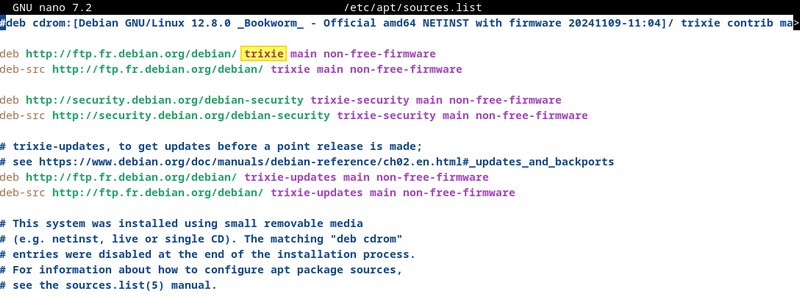
For comparison, here is the default sources.list file on a Debian 13 machine:
deb http://ftp.fr.debian.org/debian/ trixie main non-free-firmware
deb-src http://ftp.fr.debian.org/debian/ trixie main non-free-firmware

deb http://security.debian.org/debian-security trixie-security main non-free-firmware
deb-src http://security.debian.org/debian-security trixie-security main non-free-firmware

# trixie-updates, to get updates before a point release is made;
# see https://www.debian.org/doc/manuals/debian-reference/ch02.en.html#_updates_and_backports
deb http://ftp.fr.debian.org/debian/ trixie-updates main non-free-firmware
deb-src http://ftp.fr.debian.org/debian/ trixie-updates main non-free-firmware

# This system was installed using small removable media
# (e.g. netinst, live or single CD). The matching "deb cdrom"
# entries were disabled at the end of the installation process.
# For information about how to configure apt package sources,
# see the sources.list(5) manual.
Upgrade to Debian 13
Your machine is ready to be upgraded from Debian 12 to Debian 13! If you are ready, run the command sequence below to refresh the package cache and then upgrade your Debian distribution.
sudo apt-get update && sudo apt-get dist-upgrade --autoremove -yWait a few minutes while the operation runs.
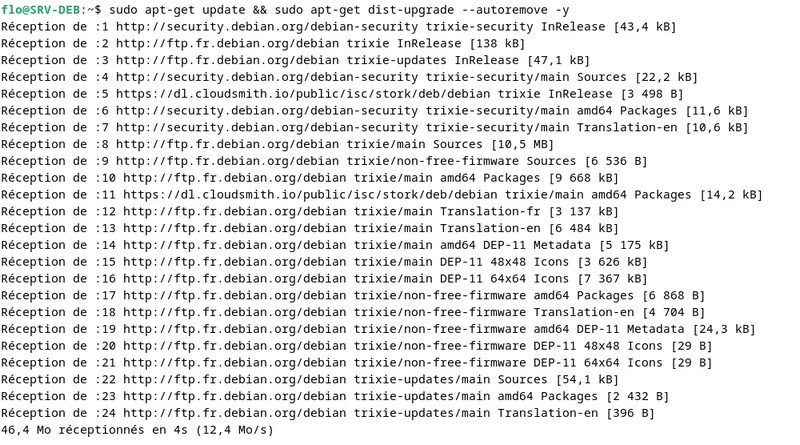
Once the upgrade is complete, reboot:
sudo rebootIs your machine running Debian 13?
Then verify that you are indeed on Debian 13, just to be certain.
lsb_release -aThis time, we get the following output:
Distributor ID:	Debian
Description:	Debian GNU/Linux 13 (trixie)
Release:	13
Codename:	trixie
The operation was successful!
Post-migration cleanup
Once the upgrade from Debian 12 to Debian 13 is complete, it is recommended that you clean up the system to remove now-unnecessary packages and free disk space. This also helps prevent obsolete libraries or leftover configuration files from accumulating over time.
The following command removes dependencies that were installed for other packages but are no longer used. The --purge option also deletes their configuration files:
sudo apt autoremove --purgeAfter an upgrade, some packages may no longer exist in the Debian 13 repositories. To identify and remove these obsolete packages, use the following command.
sudo apt purge '~o'Warning: always check the proposed list before confirming, because some third-party software may appear obsolete until its repository has been updated.
Finally, to free up disk space, you can remove old .deb archives that are no longer downloadable from the official repositories. This last action is safe.
sudo apt autocleanThese three commands help finalize the upgrade by performing a cleanup. However, at first, it is recommended to run the first two commands with the simulation option (-s) to check the proposed removals before applying them for real.
Use the new format for sources
Finally, we will run a new command available in Debian 13 (thanks to the APT update) to convert the repository files to the new deb822 format:
sudo apt modernize-sourcesConfirm with O and press Enter.
[sudo] Mot de passe de flo :
The following files need modernizing:
  - /etc/apt/sources.list
  - /etc/apt/sources.list.d/isc-stork.list

Modernizing will replace .list files with the new .sources format,
add Signed-By values where they can be determined automatically,
and save the old files into .list.bak files.

This command supports the 'signed-by' and 'trusted' options. If you
have specified other options inside [] brackets, please transfer them
manually to the output files; see sources.list(5) for a mapping.

For a simulation, respond N in the following prompt.
Rewrite sources 2 ? [O/n] O
Modernizing /etc/apt/sources.list...
- Writing /etc/apt/sources.list.d/debian.sources

Modernizing /etc/apt/sources.list.d/isc-stork.list...
- Writing /etc/apt/sources.list.d/isc-stork.sources
From now on, with this key/value-style format, the sources.list file is no longer used. Instead, there are .sources files directly in the sources.list.d directory. Here, for example, is the debian.sources file:
# Modernized from /etc/apt/sources.list
Types: deb deb-src
URIs: http://ftp.fr.debian.org/debian/
Suites: trixie
Components: main non-free-firmware
Signed-By: /usr/share/keyrings/debian-archive-keyring.gpg

# Modernized from /etc/apt/sources.list
Types: deb deb-src
URIs: http://security.debian.org/debian-security/
Suites: trixie-security
Components: main non-free-firmware
Signed-By: /usr/share/keyrings/debian-archive-keyring.gpg

# Modernized from /etc/apt/sources.list
Types: deb deb-src
URIs: http://ftp.fr.debian.org/debian/
Suites: trixie-updates
Components: main non-free-firmware
Signed-By: /usr/share/keyrings/debian-archive-keyring.gpg
Conclusion
By following this tutorial, you should be able to successfully migrate from Debian 12 Bookworm to Debian 13 Trixie. Thanks to this upgrade, you benefit from the latest Debian release for the next few years! Be careful, however: this version is still quite recent, so it is not impossible that there may still be some bugs or compatibility issues. After the migration, make sure to test the critical services hosted on your machine.