www.it-connect.fr

Repadmin: The Essential Tool for Checking Active Directory Replication Health
To check the health of Active Directory replication, Windows Server includes a built-in tool that can provide valuable information: repadmin. If you manage an Active Directory directory, it is essential to know how to use this tool. This article explains exactly how to use repadmin to verify the health of AD replication.
The Importance of Active Directory Replication
Before discussing how to use the repadmin tool, let's talk about Active Directory replication itself. It comes into play as soon as you have at least 2 Active Directory domain controllers. In principle, this is the case, since it is a basic best practice that you must follow to keep your directory sustainable.
Replication is a mechanism designed to keep Active Directory directory data up to date across all domain controllers. In other words, it ensures that each domain controller has the same data, and above all, up-to-date data. Replication includes several components such as the AD directory database itself, Group Policy, and even DNS records.
This mechanism relies in particular on USNs (Update Sequence Number), that is, update sequence numbers, present on each object and attribute.
This concept was covered in more detail in this article:
The Role of repadmin
If everything is running smoothly in your Active Directory domain, you will not need to use repadmin. This tool is especially useful when you need to diagnose an Active Directory replication problem. It is also useful for checking the health of Active Directory replication before carrying out a sensitive operation, such as a migration, so you can be sure you are working in a healthy environment.
When the Active Directory replication mechanism encounters errors, the consequences may be visible in your infrastructure. For example, authentication failures and inconsistencies in the directory database can occur (a user visible on one domain controller, but not on another).
Getting Started with repadmin
The repadmin tool is accessible directly from the command line, through a PowerShell console or a Command Prompt. It is available on a Windows Server machine as soon as the AD DS role has been installed (or the AD LDS role). It is part of the administration tools, so you can use it on a domain controller.
The idea is to call the command with one or more options.
repadmin <option>Here are several examples of how to use repadmin.
Overall Replication Health with /replsummary
The first option to know is /replsummary. It provides a high-level overview of the Active Directory replication state across all domain controllers in your environment. To determine whether everything is OK or there is a replication problem, it is very handy.
This gives:
repadmin /replsummary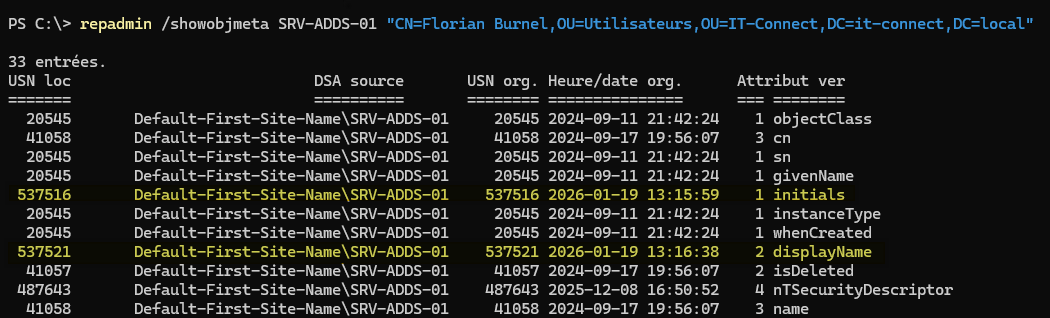
How do you interpret the output of this command?
- DSA Source : the name of the domain controller sending the information, meaning an outbound synchronization flow.
- Largest delta : how long a replication link associated with this domain controller has remained unused. Since replication occurs at different intervals, it is not surprising to see
27m: 48shere. If you see a delta of several hours on replication between two DCs in the same site, it deserves close attention. - Failures: the number of failed replication attempts compared to the total number of attempts. Here, 0 errors out of 5 attempts, which is a good sign.
- %% (percentage): a percentage corresponding to the previous field, which amounts to calculating
0 / 5 * 100in this example. This means the ideal value is 0 in a healthy AD replication environment. - error : returns a possible error code, which can highlight an AD replication issue.
This is the simplest use of repadmin, but this is usually where the analysis begins.
Note : the replication interval is customizable and it is not the same depending on whether it is inter-site replication (180 minutes by default) or intra-site replication. Keep this in mind during your analysis.
Getting Additional Details with /showrepl
After running the previous command, I encourage you to run repadmin with /showrepl to get additional details. As you will see below, repadmin is more verbose. In fact, it provides replication information with replication partners for a specific domain controller (local by default).
repadmin /showrepl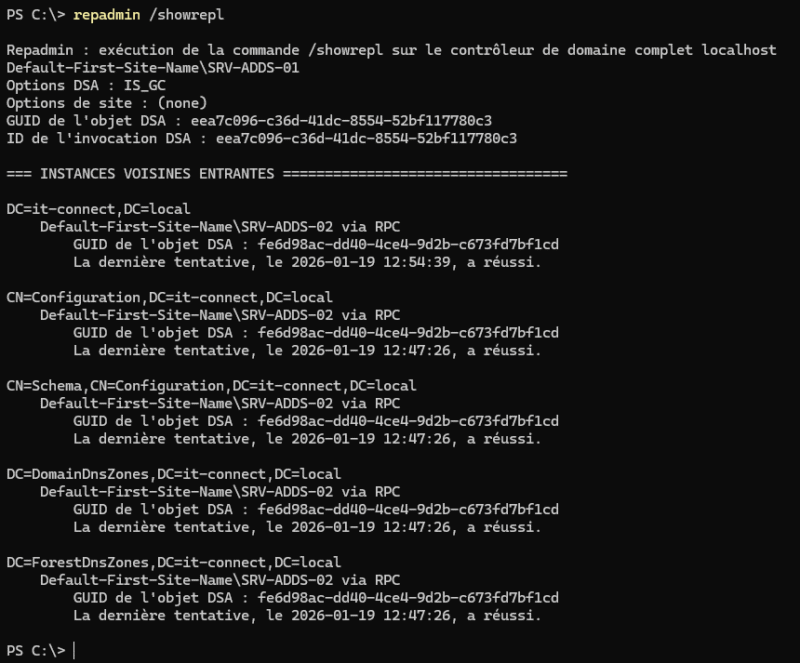
The header of the output provides information about the local environment in relation to the domain controller you are on, here SRV-ADDS-01. It includes the site to which the domain controller belongs (here, the default site: Default-First-Site-Name) and specifies that it is a global catalog (DSA Options: IS_GC). The GUID corresponding to this domain controller is also specified (DSA object GUID).
Then, under the === INBOUND NEIGHBORS === section, there is the result of the latest synchronizations with the second domain controller (this environment has only 2 DCs), namely with SRV-ADDS-02 and the protocol used (RPC). You should check the synchronization result for each partition; ideally, you should see a result like this: The last attempt, on 2026-01-19 12:47:26, was successful..
To change the context of this command, for example by viewing the results as SRV-ADDS-02, you must specify the domain controller name:
repadmin /showrepl SRV-ADDS-02Inspecting Replication of an Object's Attributes
If you want to know more about the replication of a specific object, you must use the /showobjmeta option of the repadmin command. It lets you view replication metadata in detail on a domain controller.
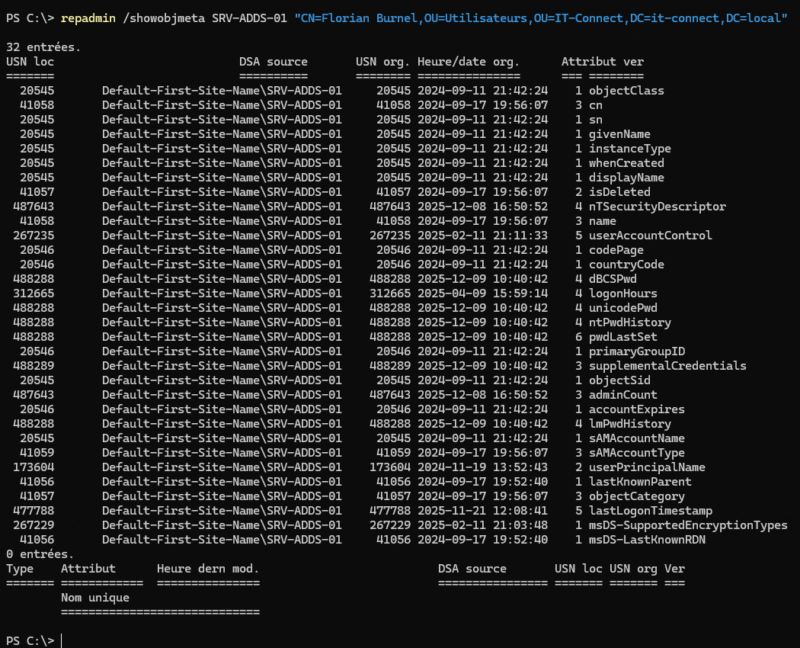
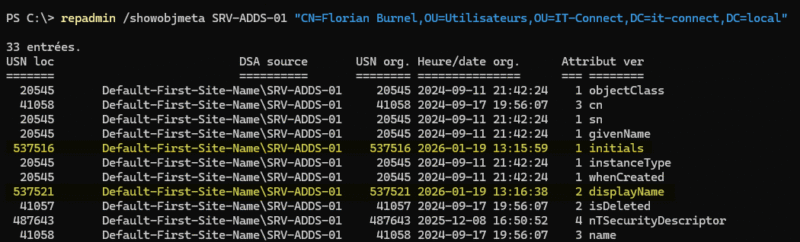
Here is an example to analyze the account of "Florian Burnel" (targeted through its DistinguishedName) on the SRV-ADDS-01 domain controller.
repadmin /showobjmeta SRV-ADDS-01 "CN=Florian Burnel,OU=Utilisateurs,OU=IT-Connect,DC=it-connect,DC=local"This command returns a set of lines, where each line corresponds to a specific attribute of the targeted object. There are several interesting columns:
- USN loc (local USN): this is the USN number that the domain controller where you run the command generated when it received and recorded this change in its own database.
- DSA source: this answers the question "Who made the change?". This field identifies the domain controller where the modification was made, so it is the original source of the information.
- USN org. : the USN number assigned by the domain controller that originated the change (database write).
- Org. date/time : date and time of the modification.
- Attribute : the AD attribute modified on this object (note that the command output inverts the order).
- Ver: the version of this attribute, knowing that each time it is modified, this number is incremented.
This command makes it possible to track the evolution of objects very precisely. I added initials to the "Florian Burnel" object and changed the display name. As a result, a new line for the initials attribute (previously empty) appeared, and for the displayName attribute, the version number was incremented and the local USN changed.
Forcing Active Directory Replication with repadmin
To trigger immediate, forced synchronization from one domain controller to the others, you can also use repadmin. This action can be useful in several cases, including:
- You have just made a change and want to replicate it immediately.
- You have just troubleshot AD replication and want to verify that replication is working properly.
Be careful, the syntax of repadmin is case-sensitive, so you must respect the uppercase and lowercase letters shown in the command below.
repadmin /syncall /AdePHere are the explanations you need to properly understand what this command does:
/syncall: starts the synchronization process between the local domain controller and all of its replication partners./A: forces replication of all naming contexts (Configuration, Schema, Domain, and DNS zone partitions), not just the default domain partition./d: changes the console output to identify servers by their distinguished name (DN), because it is easier to understand./e: extends replication to all sites in the forest. Without this option, synchronization is limited to controllers in the local site (intra-site)./P: this is the option that changes everything, because by default AD works in "Pull" mode (a DC pulls changes from its partners). The/Poption forces the local DC to push its changes to all its partners (Push mode). It is ideal for propagating a change without waiting for the next synchronization.
Running this command generates immediate network traffic toward all domain controllers in the company. The duration of the operation therefore depends on the number of DCs, the number of sites, and the available bandwidth.
Recalculating the Replication Topology with repadmin
In an Active Directory domain, the replication topology is defined by a mechanism called the Knowledge Consistency Checker (KCC). It plays an essential role in multi-site environments, because it determines the best replication topology for your AD directory based on the sites, the domain controllers in each site, and the links.
If you want to force the KCC mechanism to recalculate the replication topology (following an important change, for example), you can do so using the repadmin command. This is useful if you have multiple sites.
repadmin /kcc
repadmin /kcc srv-adds-01

# Result
Default-First-Site-Name
Current : Site Options : (none)
The consistency check of srv-adds-01 succeeded.
Conclusion
Repadmin, like other tools such as DCDiag, is essential for Active Directory domain administrators. In addition, PowerShell also provides ready-to-use cmdlets that let you diagnose an AD replication issue.
If you have a problem with AD replication, I also recommend checking the Event Viewer logs. If the replication issue is focused on SYSVOL shared files, look at DFSR, because this mechanism handles the synchronization of that data. Even though it is increasingly rare today, FRS can be used instead of DFSR depending on the age of your domain and whether the upgrade was performed.