www.it-connect.fr


How to Automatically Disable Wi‑Fi When Ethernet Is Connected with GPO
In this tutorial, we will learn how to configure a Group Policy Object (GPO) to automatically disable Wi‑Fi when a machine is connected via Ethernet. Why use this setting? Which policy should be configured?
In a business environment, mobile users (and some managers) often work with laptops. These machines typically come with both a Wi‑Fi adapter and an Ethernet port (or the latter may be available through a docking station). They can therefore connect to the company network either over wired or wireless links. By default in Windows, these two network interfaces can work simultaneously.
This situation can have several side effects, notably disrupting the machine's network connectivity and generating two DNS records in the company DNS (each adapter having its own IP address).
To avoid these issues, it is recommended to automatically disable Wi‑Fi as soon as the computer detects a wired network connection. The good news is that there is a GPO setting that can do this. This is a great opportunity to apply the configuration consistently across a set of computers.
Let's go, dear sysadmin!
Configuring the GPO step by step
Log on to your domain controller or a machine with the administrative tools installed, then open the Group Policy Management console.
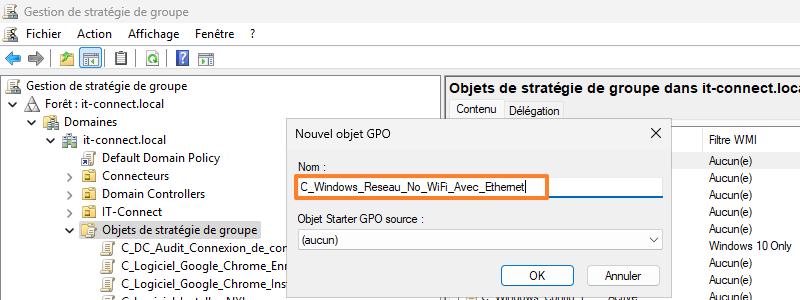
Create a new Group Policy Object, which you can name however you like. For example: C_Windows_Reseau_No_WiFi_Avec_Ethernet. I usually add the prefix C_ for GPOs that target computers (Computers).
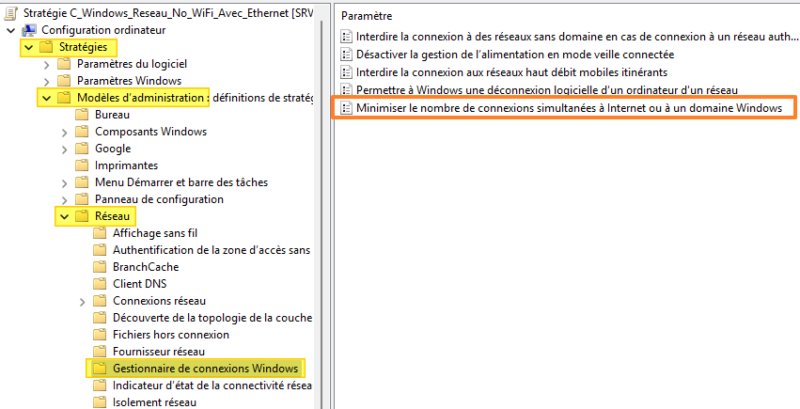
Next, right-click the newly created GPO and choose Edit. Navigate to the following path:
- Computer Configuration > Policies > Administrative Templates > Network > Windows Connection Manager
Here, you will find the following setting: Minimize the number of simultaneous connections to the Internet or a Windows domain. This is the one we need to configure.
Double-click the policy in question, set it to "Enabled", and in the options select "3 = prohibit Wi‑Fi on Ethernet". This choice will produce the expected result, namely preventing Wi‑Fi connections if an Ethernet (wired) connection is active.
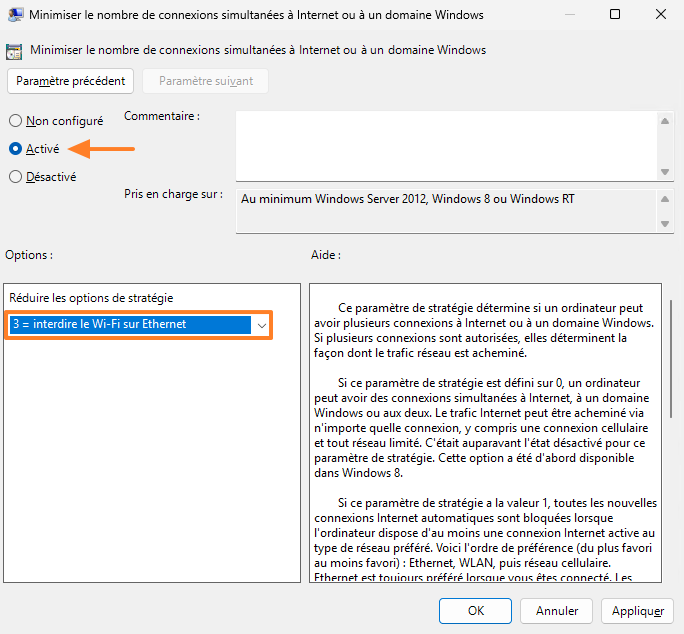
Note : whether automatically or manually, Windows will not be able to connect via Wi‑Fi if a wired connection is active.
Click OK to confirm. At this stage, the GPO is ready. But it still needs to be linked... For the policy to apply to the target computers, it must be linked to an organizational unit.
Right-click the OU that contains the relevant computers. You can target all computers in an organizational unit or narrow it down using a security group. Select the option "Link an Existing GPO" and choose the GPO we just created.
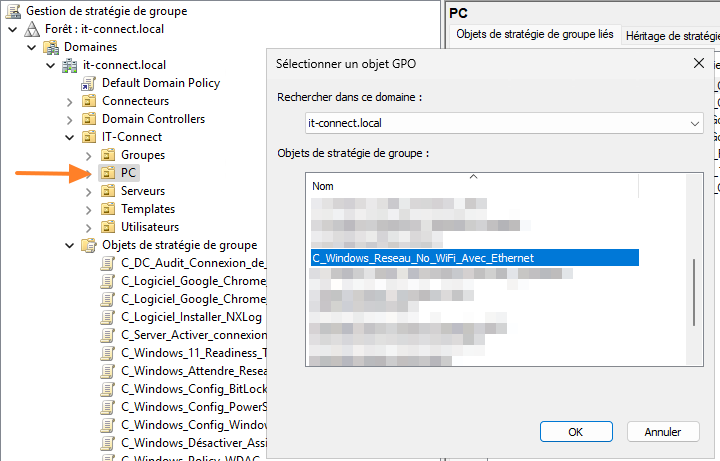
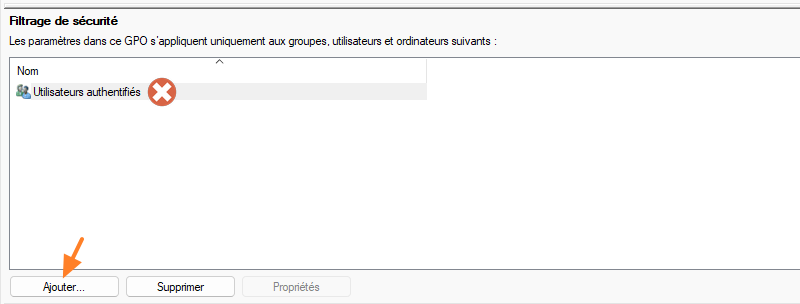
If you want to target a security group, you can link the GPO to the OU, then refine it by adjusting the "Security Filtering" section. You will need to remove the "Authenticated Users" group and add your own group. If you are not familiar with this method, refer to this tutorial:
All you have to do now is test it on a workstation by manually running the usual command: gpupdate /force
After the policy is applied, a computer will no longer be able to maintain wired and Wi‑Fi connections simultaneously: if the Ethernet cable is plugged in, the Wi‑Fi connection will be disabled automatically.
Conclusion
This setting is recommended for machines that may connect via either Wi‑Fi or wired networking. It can help prevent certain issues, as mentioned in the introduction. Deploying it through a GPO makes it easy to apply the configuration across a set of computers.