www.it-connect.fr


Windows 11 Recovery Tools: Which One Fits Which Failure Scenario? Microsoft Weighs In
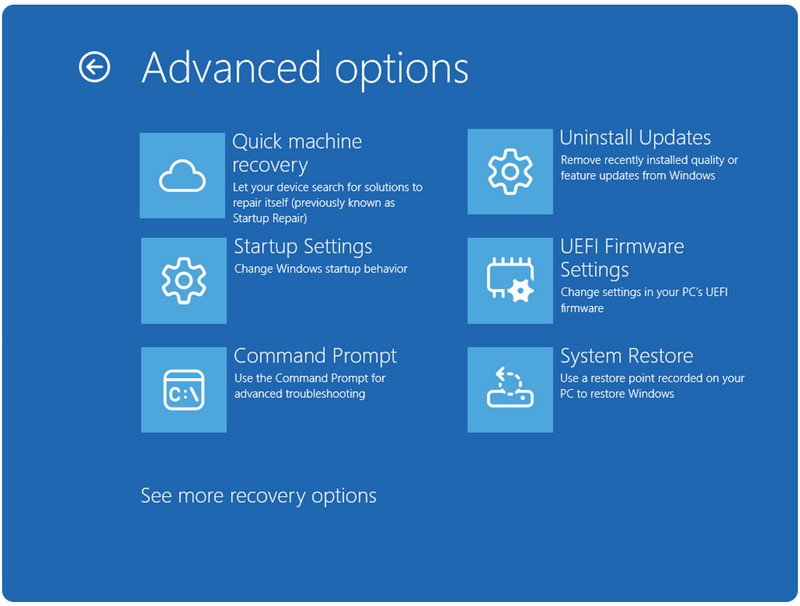
A PC that won’t boot, a driver that breaks everything, a dead drive, or a stolen laptop: four failures, four different answers. Microsoft has published a guide that ranks Windows 11’s built-in recovery tools by scenario. It could help point you in the right direction the next time something goes wrong.
For a long time, and well before Windows 11, the Windows operating system already included recovery tools. But Microsoft has chosen to keep adding more of them in recent years. This accumulation is far from random. Since the global outage in July 2024 caused by a faulty CrowdStrike update, Microsoft has launched its Windows Resiliency Initiative. That led to new tools designed to ensure that what happened in July 2024 can never happen again.
The problem is that having more tools can also create confusion: which one should you use first depending on the type of failure? That is exactly the question Microsoft’s recently published article answers. At the very least, it gives you the vendor’s point of view and a broad overview of the tools currently available in Windows 11.
Each tool addresses a specific scenario
The added value of Microsoft’s article, and what I wanted to share with you, is a summary table. On each line, it maps a failure scenario to a solution and the tools to use. It includes unfortunately common cases, such as an update issue, as well as rarer but critical cases, such as a large-scale outage affecting a set of machines.
Here is the summary table, where it is important to distinguish between an issue on a single workstation and an issue affecting multiple machines. That distinction determines the choice of tool, and Microsoft’s breakdown is fairly consistent.
| Scenario | Solution | Suitable tools |
|---|---|---|
| Issue on a single workstation after an update | The user reinstalls the current version of Windows (or rolls back to the previous version if needed) when the PC boots. They uninstall the update if the PC does not boot or if the problems persist beyond 10 days. For some known issues, Microsoft may invite users (and admins) to use the Known Issue Rollback (KIR) mechanism. | Reinstall the current version of Windows, Uninstall a Windows update, Deploy a Known Issue Rollback through Group Policy (when Microsoft offers it). |
| A single failing component (audio, network, printing, etc.) | The user runs a targeted diagnosis and repair for the affected components. | "Get Help" troubleshooting tool |
| Recent isolated incident, or widespread malfunction | The user restores the system to its exact state at a previous point in time. Requires a recent restore point. | Point-in-time restore for Windows (recently added) |
| Persistent problems after targeted repair attempts (unknown cause) | The user reinstalls Windows while removing apps and settings. Personal files can be kept. | Reset this PC |
| Irreparable system corruption | The user launches a clean install that downloads a Windows image and the device drivers, then applies them to start over from scratch. | Cloud rebuild (preview), a cloud-based new feature, Create a recovery drive, Use a manufacturer-provided recovery medium. |
| Hardware failure or unavailable device (lost, stolen, or isolated during a security investigation) | IT provisions a temporary Cloud PC. Settings, documents, and managed apps are restored onto a new device. Recommended to get the user productive immediately. | Windows 365 Reserve (new since December 2025), provided you use (or at least know) Windows 365. |
| Mass outage affecting boot (as in the CrowdStrike case) | When a device repeatedly fails to boot and enters the recovery environment (WinRE). It automatically searches for and applies a fix provided by Microsoft through Windows Update. No user action is required. | Quick Machine Recovery (fairly recent addition) |
"Windows recovery is no longer a single tool or a last resort, it is a complete framework designed to match the right solution to each scenario," Microsoft concludes.
What Microsoft recommends preparing right now
In this article, Microsoft also highlights recommendations in the form of a checklist for IT teams. Above all, these recommendations lead to the following thought: these tools are of little use if data and settings are not already in the cloud. We know that Microsoft likes us to put our data in its cloud, especially OneDrive. That is why Microsoft recommends enabling Known Folder Move in OneDrive, which lets you sync your documents to the cloud. Everyone can make up their own mind on that point, depending on their needs and beliefs.
The Redmond company also mentions the following recommendations:
- Apply a policy to preconfigure the various features, whether Quick Machine Recovery or Point-in-time Restore (which is a good idea if you want to keep control over the state of these features that can save the day),
- Back up Windows settings to the cloud,
- Configure Microsoft 365 Backup to protect the content of OneDrive accounts, Exchange mailboxes, or SharePoint sites. Whether with this tool or a third-party tool, it is indeed essential to back up the data in your tenant.
- Deploy Windows Autopilot to simplify the provisioning of your devices, including in zero-touch mode.
The article is available on this page. What’s cool is that it also includes links to Microsoft documentation for each item mentioned. You’ll also find a few tutorials and articles already available on IT-Connect (I added a few links in the article).
What do you think?