www.it-connect.fr

Windows 11: Microsoft’s Cloud Rebuild Can Restore a PC Even If It Won’t Boot
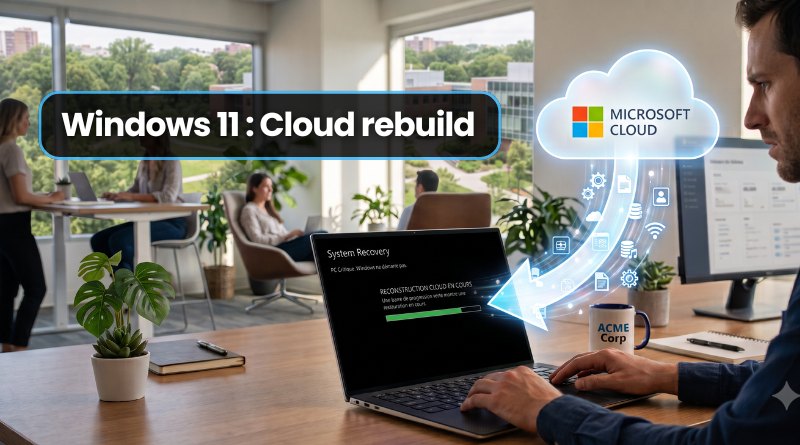
A PC that refuses to boot, no USB key at hand, and no system image available. What can you do? On July 6, 2026, Microsoft unveiled a new recovery option dubbed Cloud rebuild. The goal: fully reinstall the system and its drivers by downloading them from Windows Update, directly from the recovery environment.
Cloud rebuild: reinstall Windows 11 without a USB key, even when it won’t boot
According to Microsoft, Cloud rebuild brings a Windows 11 PC back to a clean and working state by performing a full system reinstallation, even when Windows no longer starts.
The real difference compared with the "Reset this PC" feature you probably already know lies in how it works:
- First, Cloud rebuild downloads the targeted Windows image, as well as the device drivers, from Windows Update. The machine comes back up and running, without requiring any installation media
- Second, the operation does not depend on the state of the system: whether Windows is still partially working or completely dead, the recovery can still be performed.
This method looks convenient on paper, but be careful: it is a full reinstallation, not a simple reset that preserves your files (as you can do from Windows Settings). If you restore your Windows PC this way, your data and applications will be removed. If instead you want to start fresh while keeping your documents, the classic method is still to reset Windows 11 without losing your files. But sometimes, that is no longer possible...
How it works, step by step
For now, Cloud rebuild is only available to members of the Windows Insider program, in the Experimental channel. The feature is included in build 26300.8772, based on Windows 11 version 26H2. As usual, Microsoft is rolling it out gradually, which means not all Insiders will see it at the same time. No general availability date has been announced at this stage.
The Cloud rebuild feature is launched from the Windows Recovery Environment (WinRE). According to Microsoft’s published documentation, the process takes three steps:
- Open the option from WinRE, via the Troubleshoot > Recovery and uninstall > Cloud rebuild menu (the French label is likely to be different).
- Establish a network connection from WinRE, either over wired Ethernet or Wi-Fi. This is essential, since everything is downloaded from Microsoft’s servers.
- Verify the version, edition, and language of Windows you want to use, then confirm.

What happens once the reinstallation is complete? Here is Microsoft’s answer: "For unmanaged devices, the user completes the initial setup (OOBE) as they would on a new PC. For Microsoft Entra-joined and Intune-managed devices enrolled in Windows Autopilot, the device automatically reconnects to Microsoft Intune; Intune redeploys the applications and policies assigned to the user or device; Backup for Organizations restores the user’s settings; and the user’s files are available through OneDrive as soon as they sign in."
This approach is reminiscent of a mechanism already well known at Apple: Internet-based recovery for Macs (Internet Recovery). According to Apple’s macOS reinstallation documentation, a Mac can download the operating system directly from Apple’s servers.
Microsoft had already started moving in this direction on the recovery side with Quick Machine Recovery, introduced in a Windows 11 update in 2025. Cloud rebuild pushes the idea further by aiming for a full reinstallation rather than a simple automated repair. More and more resilience for Windows is what Microsoft wants.