 www.it-connect.fr

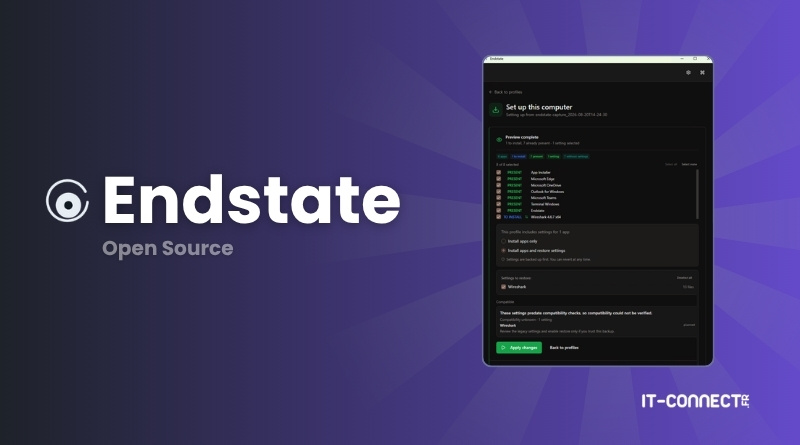
Endstate: How to Back Up and Restore Windows Apps and Their Settings on a New PC
Endstate is an open source tool designed to automate the reinstallation and reconfiguration of applications on Windows after a reinstall. Whether you're setting up a new machine or performing a fresh install, the same issue comes up: app lists are easy to export, but their configurations are not. Endstate aims to solve that problem.
In this article, I'll introduce you to Endstate GUI, the version with a graphical interface. This is a chance to see how to back up a Windows computer into a single file, then apply that backup to another machine.
What is Endstate?
The Endstate project is made up of two components. First, there is the main engine, a command-line tool written in Go. This is what does all the work. It is accompanied by Endstate GUI, the official desktop application, built with Tauri (React and Rust), which simply controls the engine through its public CLI interface. Both are released under the Apache 2.0 license and are developed by Hugo Ander Kivi, from Estonia.
The advantage of Endstate GUI is that it makes the tool accessible to everyone, without requiring any specific knowledge. It is currently available only for Windows, unlike the CLI tool, which is also compatible with Linux and macOS.
In its free version, this tool runs locally: no account to create, no telemetry, and both analysis and backup work offline. The free version is fully featured, since the paid offering additionally lets you encrypt backups and store them in the Cloud (Endstate Cloud, 4 euros per month).
To back up the applications on your machine, Endstate won't generate a huge file. It will be a lightweight file, because it actually relies on winget as its main package manager. At this level, it does what you can already do with other tools, including UniGetUI. But it goes further, because it also tries to back up application settings. Endstate currently supports more than 300 applications (the list is public).
Here are a few useful links before we move on to the demo:
- Official website: substratesystems.io/endstate
- GUI GitHub repository: Artexis10/endstate-gui
- Engine GitHub repository: Artexis10/endstate
Installing Endstate
From the GitHub releases page, download the x64 installer in .exe or .msi format, then run it. The graphical application includes the Endstate engine, so you do not need to install both. However, winget must be available on the machine, but that is the default on Windows 11 and on recent versions of Windows 10. If you want to learn more about this, our WinGet tutorial will help you.
On first launch, the interface gets straight to the point with just two entries: back up this computer, or set up this computer.
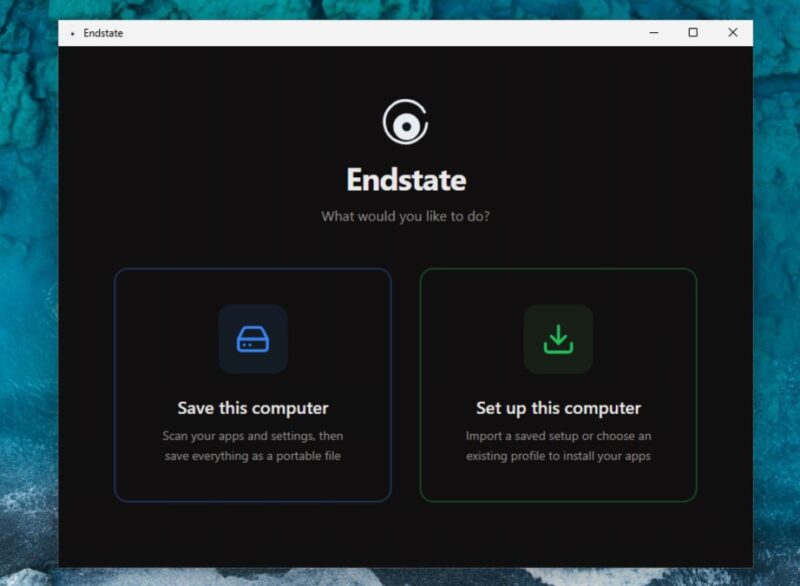
Back up the applications and settings of a computer
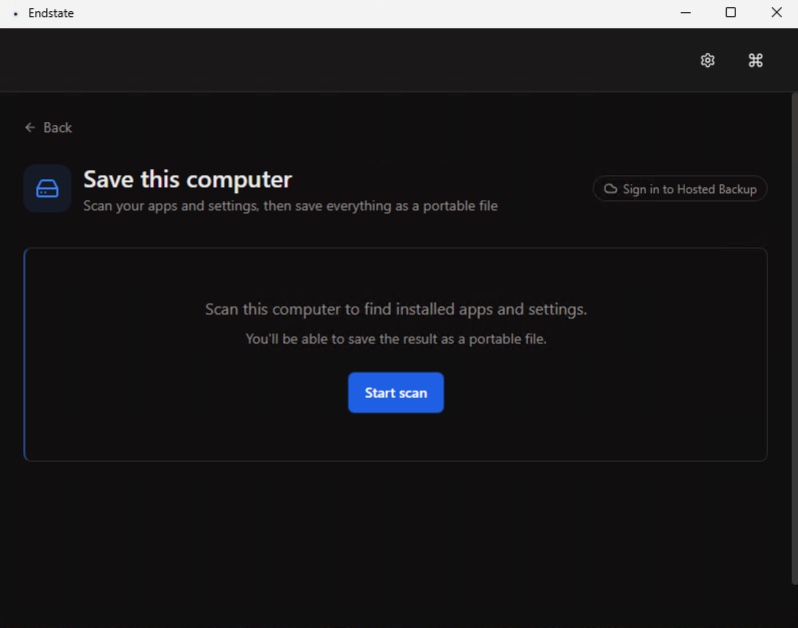
The Save this computer button opens a new screen with a Start scan button. The scan queries winget and the Microsoft Store to inventory installed applications, then checks whether settings can be backed up for certain apps. I ran it on a Windows 11 machine with only a few applications, but Wireshark was installed.
The result lists each detected application and shows, app by app, whether settings could be captured (Settings included) or whether only the installation will be restored on the target machine (App install only). On my test machine, the scan found 10 applications but only 2 sets of captured settings.
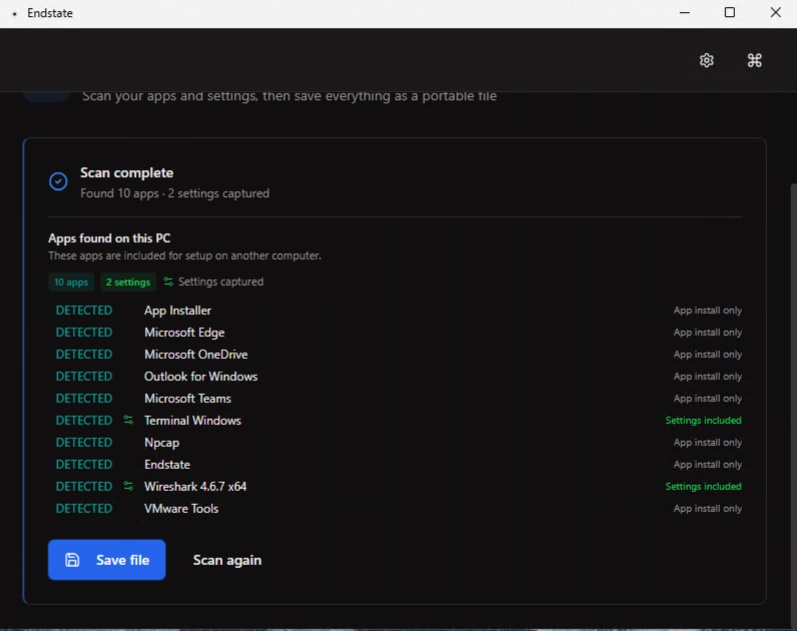
The Save file button then produces a .endstate capture file, stored in your Documents folder. It is a simple file that you need to keep safe and then move to the machine where you want to restore the apps.
Restore on a freshly installed machine
Now, I am going to use a second Windows 11 machine. I install Endstate GUI on this machine and place the endstate file there. This time, on the new PC, I select Set up this computer and choose the .endstate file previously created by the backup. The imported profile appears in the list. If you click the What's inside link, you can see what is in this backup. You can also click the green Review setup button.
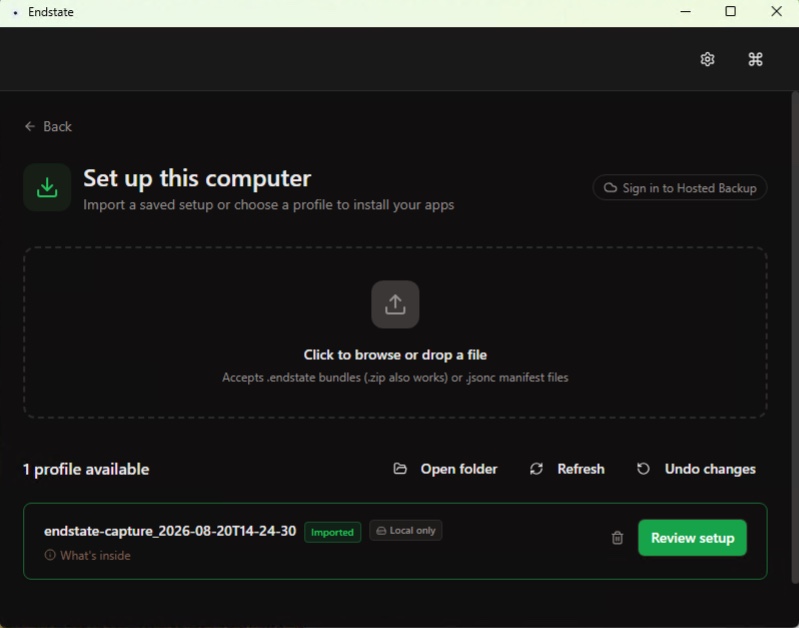
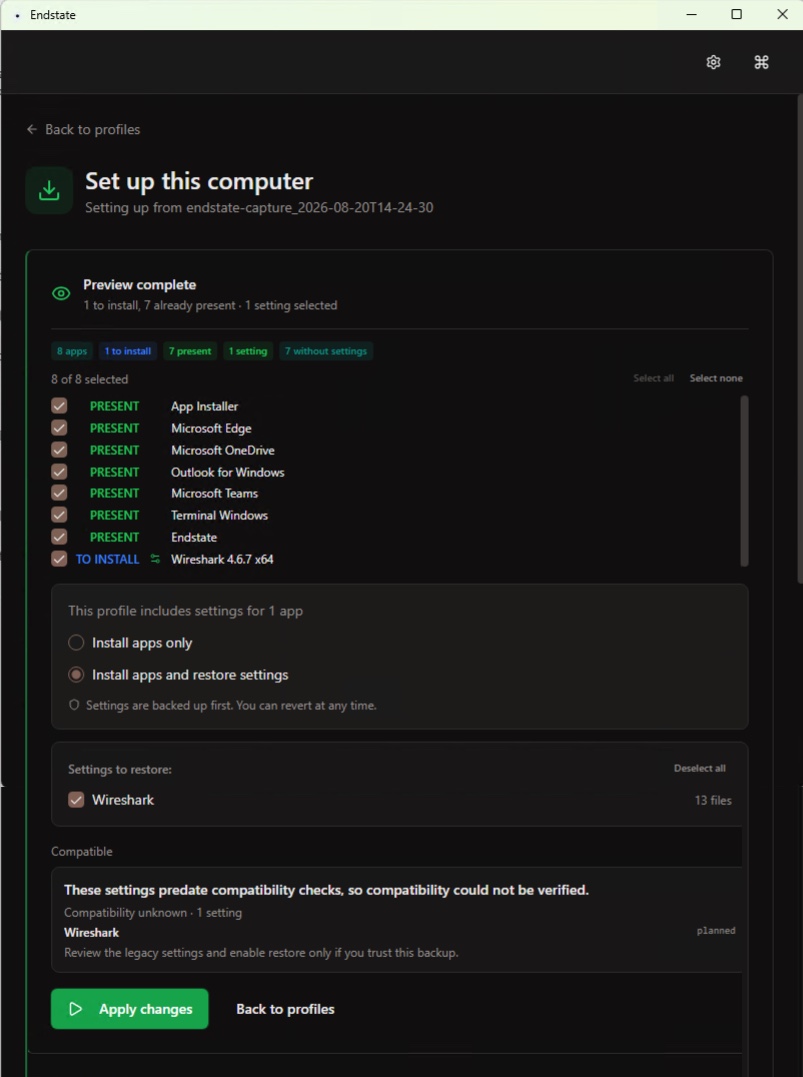
Endstate compares the backup with the current state of the PC. Each application is marked PRESENT or TO INSTALL, and you can choose whether to install only the applications or install the applications and restore the settings. Selection is granular, app by app. For now, nothing will happen because nothing is applied until you explicitly confirm it with the button at the bottom of the page.
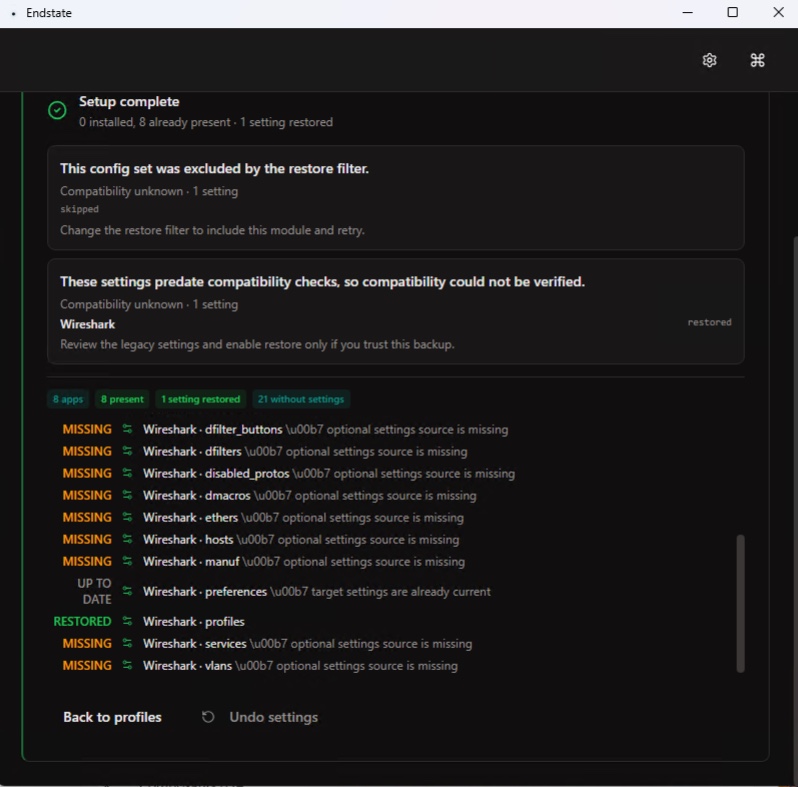
After Apply changes, the final report shows what was installed, what was already present, and the details of settings that were restored, skipped, or already up to date. The Undo settings button lets you roll back. Here, you can see that the restore shows a MISSING status for several files. In reality, those files did not exist in the source, so they cannot be restored... I think Endstate scans a certain number of files for each supported application. Depending on how an application is used, not all settings files are necessarily present. In any case, Endstate did its job correctly here.
Endstate is neither a disk image nor a full migration tool: it does not carry over your personal files, licenses, or secrets. Portable applications that are not registered in Windows escape detection, restoration requires an Internet connection, and Windows asks for confirmation for each installation.
Conclusion
Endstate's approach is interesting because it includes application settings in its backup mechanism, whereas the winget export command only retrieves a list of packages. The GUI version is very easy to use, with a minimalist interface that gets straight to the point. This tool should be useful to some of you! And with Endstate, there are no unpleasant surprises: the application clearly tells you when it cannot capture a software's settings.
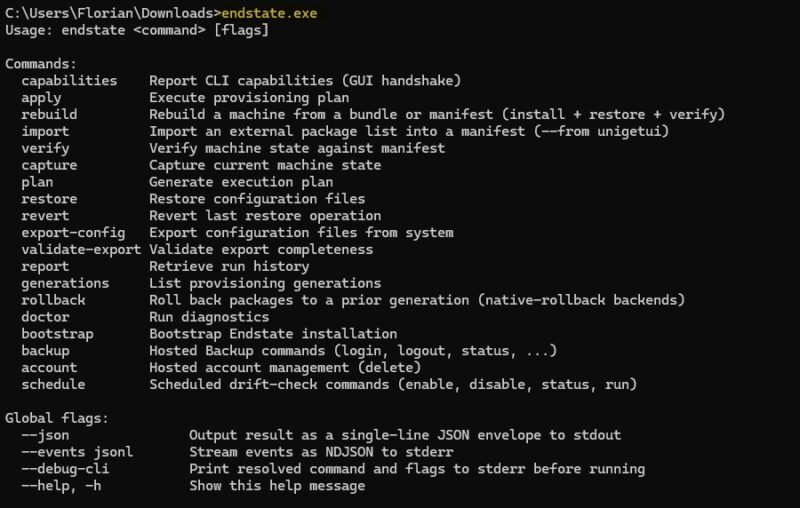
For those who want to go further with Endstate, take a look at the command-line version.
Related reading:
- How to use WinGet to manage Windows applications
- UniGetUI to easily install and update your applications
- Prepare a Windows machine with WinGet DSC
- How to create a disk image of your PC with Clonezilla?











Thank you, Florian. I really appreciate you putting Endstate through a proper two-machine test. I also noticed the MISSING reporting around optional settings files in your results; that’s useful feedback and something I want to make clearer. Glad to see the Wireshark settings restore worked correctly. 🙂