 www.it-connect.fr

How to Use Point-in-time Restore to Roll Back Windows 11 in Minutes
Point-in-time Restore is the new Windows 11 recovery feature that lets you roll a PC back to an earlier state in just a few minutes after a bad patch, an unstable driver, or a mistaken change. Introduced at Ignite 2025, it has now reached a new milestone: Microsoft announced general availability on June 23, 2026.
This scenario is all too familiar: a cumulative update goes into production, and after the reboot several workstations become unstable. Rather than reinstalling everything (which can be quick if you have the right tools) or spending hours troubleshooting, you roll the machine back to its state from the day before in just a few minutes. That is exactly what this new feature was designed for, whether on a company fleet or a personal PC.
We first covered this feature when it was announced at Ignite 2025. In this article, I’ll walk you through a complete guide: what Point-in-time Restore actually does, how to enable and configure it, how to launch a restore from the recovery environment, and most importantly, what its limitations are (because there are some, and it is better to know them upfront).
What is Point-in-time Restore in Windows 11?
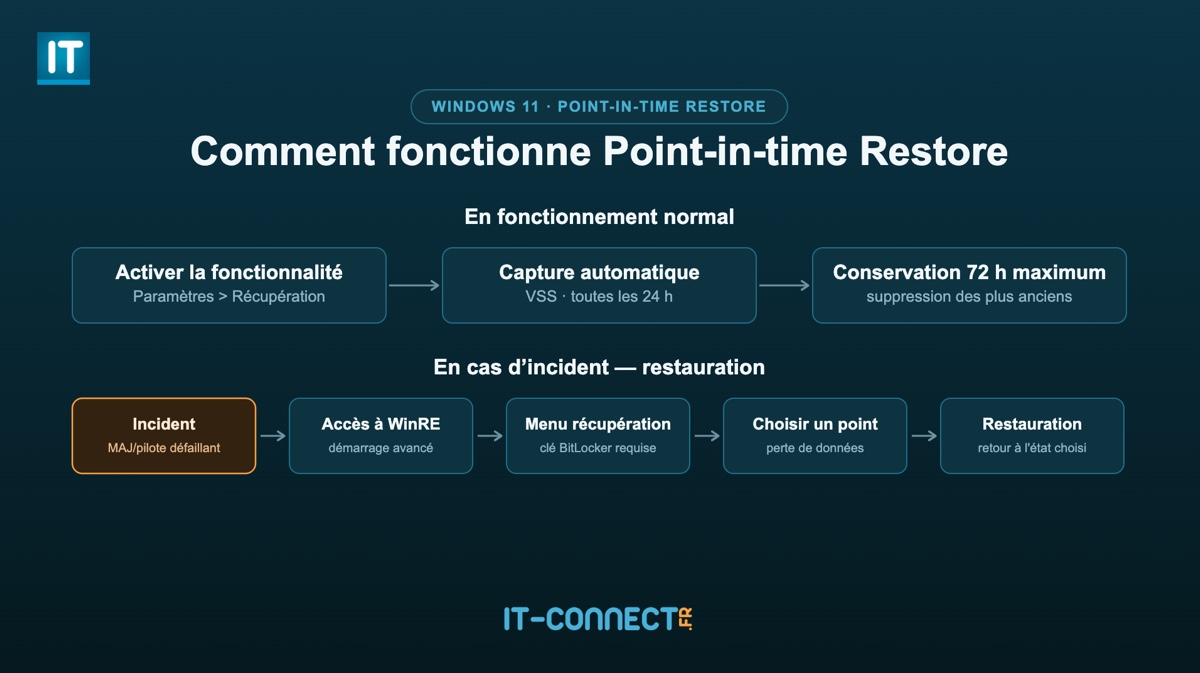
Point-in-time Restore is a built-in recovery feature in Windows 11 version 24H2 and later, available on the Home, Pro, and Enterprise editions. It automatically captures full system snapshots on a configurable schedule (by default, every 24 hours) and lets you restore the PC to an earlier state in just a few minutes from the Windows Recovery Environment (the famous WinRE). Unlike classic System Restore, it includes user files and keeps each snapshot for up to 72 hours.
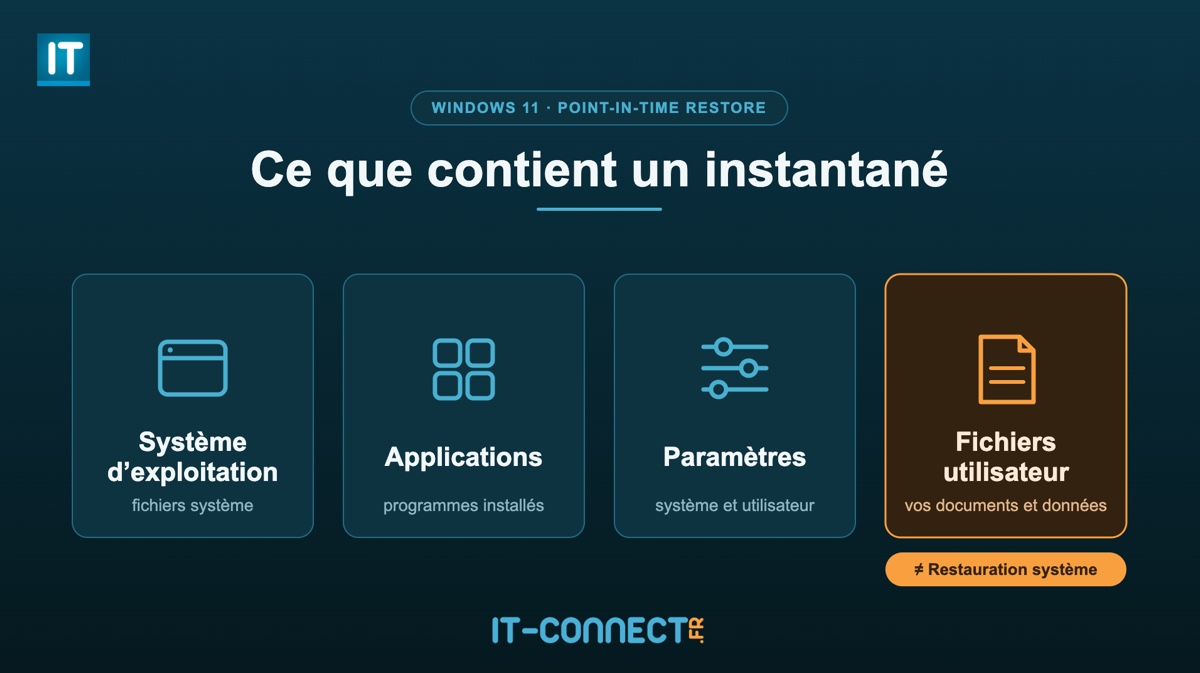
The system snapshot captured by Point-in-time Restore includes: the operating system, applications, settings, and local files. Everything, in short.
With this new feature, Microsoft wants to offer a recovery option that reduces downtime and simplifies remediation without spending half a day on it. Above all, this feature is meant to be easy to use. This article is also a reminder that the feature is part of the Windows Resiliency Initiative, alongside Quick Machine Recovery, which remotely repairs PCs stuck at boot.
Note: snapshots are stored locally only, on the machine’s disk. This feature does not rely on Microsoft Cloud.
To work, Point-in-time Restore relies on an existing Windows service, since it uses the VSS (Volume Shadow Copy Service), which is also used by System Restore. There is nothing new in this service itself because it has been part of Windows since Windows XP. Using VSS makes it possible to create a read-only copy of a volume at a given moment without interrupting disk activity.
The difference compared to System Restore is in the scope and management: the snapshot covers the entire system state (OS, applications, configuration, local files, but also passwords, secrets, certificates, and keys), it is created automatically at a specific interval, and it is subject to retention and cleanup policies.
Here is a diagram to clarify how Point-in-time Restore works:
Point-in-time Restore vs. System Restore
Windows has offered a restore feature for more than twenty years. If you want to master classic restore points, I recommend our dedicated tutorial: creating, restoring, and deleting a restore point on Windows 11. This article is an opportunity to compare the two approaches:
| Criterion | Point-in-time Restore | System Restore |
|---|---|---|
| Trigger | Automatic, scheduled, and configurable cadence | Manual or event-triggered |
| Scope | Full system state, including user files | System files and settings; user files excluded |
| Retention | 72 hours maximum per snapshot | Indefinite (depending on disk space and cleanup) |
| Remote management | Controllable via Intune (Recovery CSP) | Limited capabilities |
Requirements and availability
Before relying on this feature, make sure your environment meets the following conditions:
- Windows version: Windows 11 24H2 or later. Install the latest updates, especially the June 2026 optional update (KB5095093), or a later update, to get this feature. Note that Microsoft is rolling it out gradually.
- Editions: Home, Pro, and Enterprise.
- Managed devices: on enterprise-managed systems, Point-in-time Restore is disabled by default, but this should change when Windows 11 version 26H2 is released (to be confirmed later).
Note: there is also Point-in-time Restore for Windows 365 Enterprise, intended for Cloud PCs managed through Microsoft Intune. The principle is similar, but the implementation differs: Cloud PC restore points are stored in the Cloud, with retention of up to one month, long-term and manual restore points, and possible sharing to Azure.
How to enable and configure Point-in-time Restore
Configuration is done in Windows Settings, by following this path: Settings > System > Recovery > Restore to a point in the past. That appears to be the translation of Point-in-time Restore.
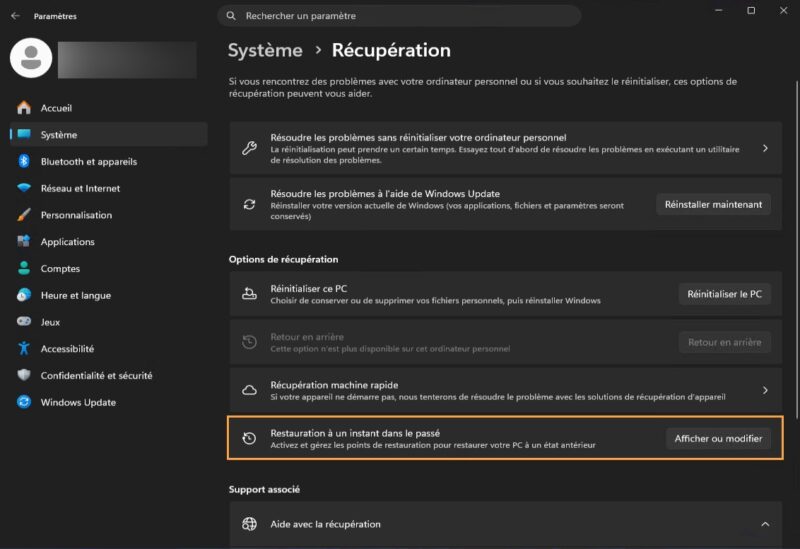
From this page, you can enable or disable the feature and adjust three settings. Here are the default values and available options:
| Setting | Default value | Options |
|---|---|---|
| Feature enablement | Enabled | Enabled / Disabled |
| Restore point creation frequency | Every 24 hours | 4, 6, 12, 16, 24 hours |
| Restore point retention | 72 hours | 6, 12, 16, 24, 72 hours |
| Maximum usage limit | 2% of disk | Disk percentage (min. 2 GB, max. 50 GB) |
Be careful, there is a small nuance regarding the default state of this feature: if the machine has a system volume smaller than 200 GB, it will not be enabled by default. However, you can enable it manually.
Important clarification: frequency and retention can only be configured on the Enterprise edition. Enablement and disk usage limit, however, apply to Home, Pro, and Enterprise.
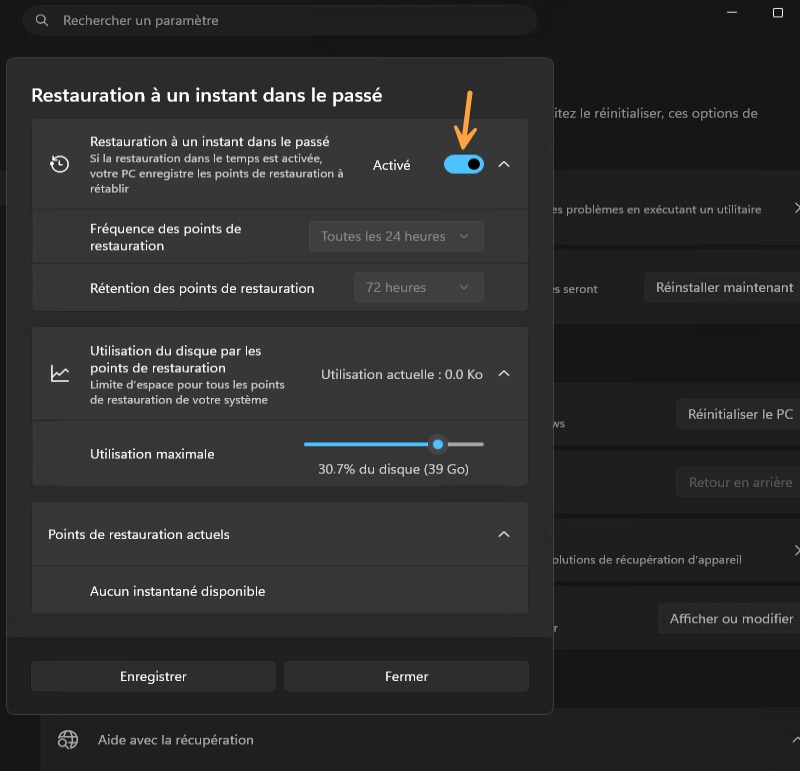
Note: the VSS storage space is shared with other tools that use it (System Restore, third-party rollback software). Point-in-time Restore does not reserve this storage space for its own use, so the limit applies to all snapshots captured by VSS.
Force an on-demand restore point creation
Officially, Point-in-time Restore provides no button to create a restore point on demand: the capture is automatic. However, there is a way to trigger it manually.
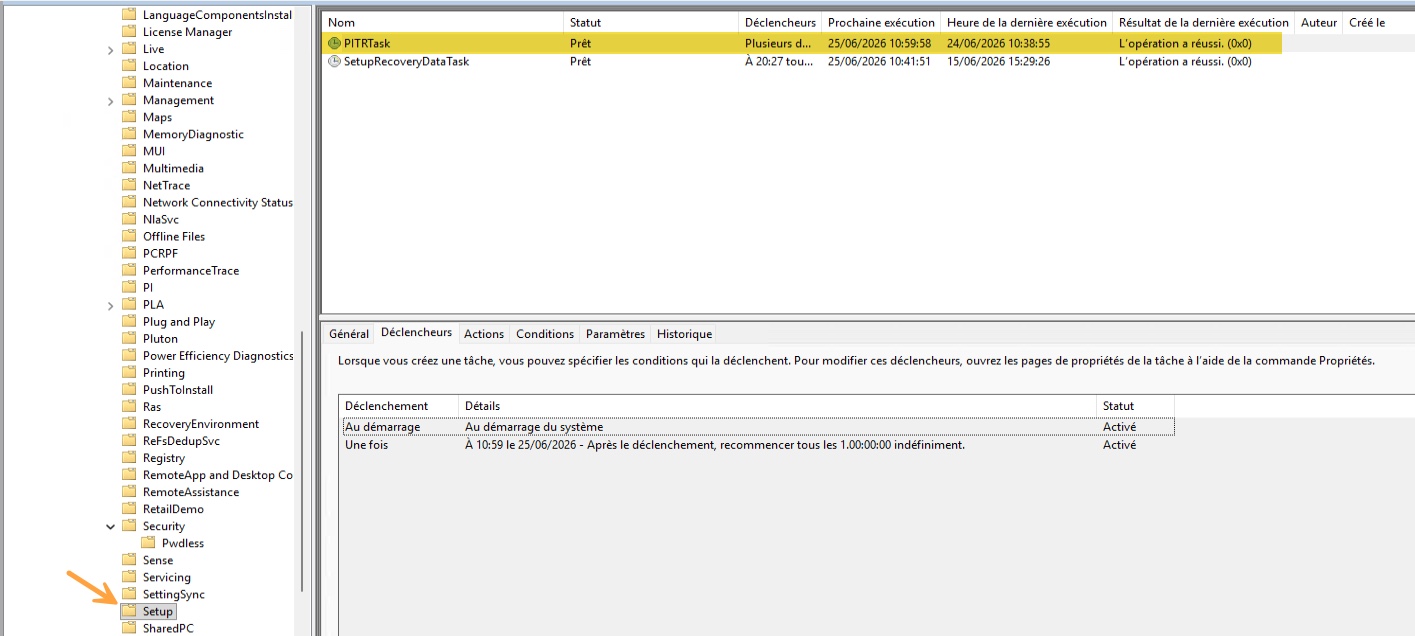
Behind the scenes, a scheduled task orchestrates snapshot capture. This task is called PITRTask and is located in Task Scheduler under Task Scheduler Library > Microsoft > Windows > Setup. Its triggers confirm its role: it runs at system startup, then repeats every 24 hours, which is the cadence defined in the feature settings.
You just need to run this task manually to generate a new restore point without waiting for the next cycle.
From the interface: open Task Scheduler (taskschd.msc), navigate to Microsoft > Windows > Setup, right-click PITRTask, then choose Run. If you look at Task Manager, you will see a VSS process start.
From the command line, in an elevated prompt or terminal running as administrator:
schtasks /Run /TN "\Microsoft\Windows\Setup\PITRTask"Warning: this method is not documented by Microsoft, which presents the feature as automatic only. I find it useful for quickly testing the feature (without waiting), but do not make it the cornerstone of a production process.
To verify that the point was created, go back to Windows Settings. The new snapshot appears in the list!

You can also list existing VSS snapshots with the vssadmin tool:
# List the shadow copies present on the machine
vssadmin list shadows

# Display the allocated and used space for VSS storage
vssadmin list shadowstorage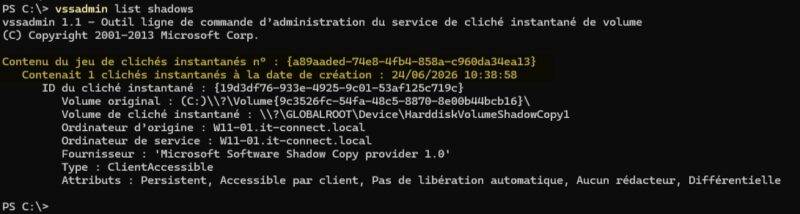
How to restore Windows 11 with Point-in-time Restore
Restoration is performed from the WinRE recovery environment, which provides a reliable recovery path even when Windows no longer boots. If you need a refresher on accessing advanced startup, check our guide to restart Windows 11 in Safe Mode and access Advanced Startup.
Here are the steps to launch a restore:
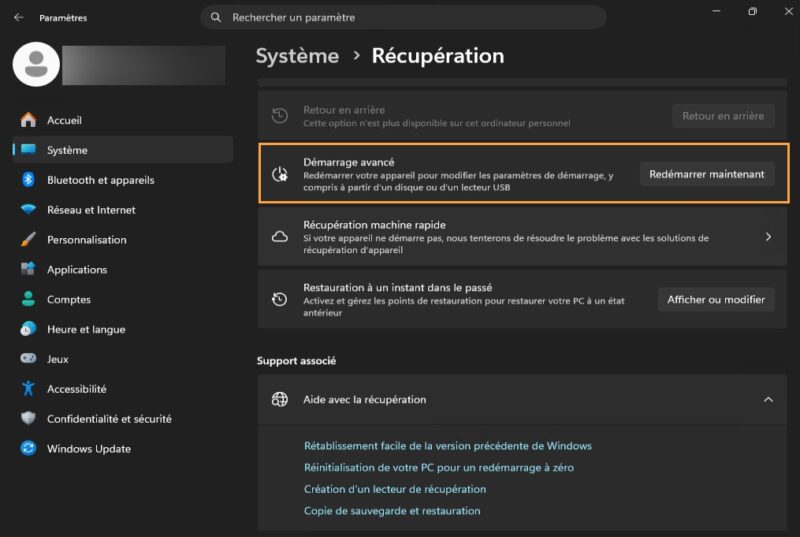
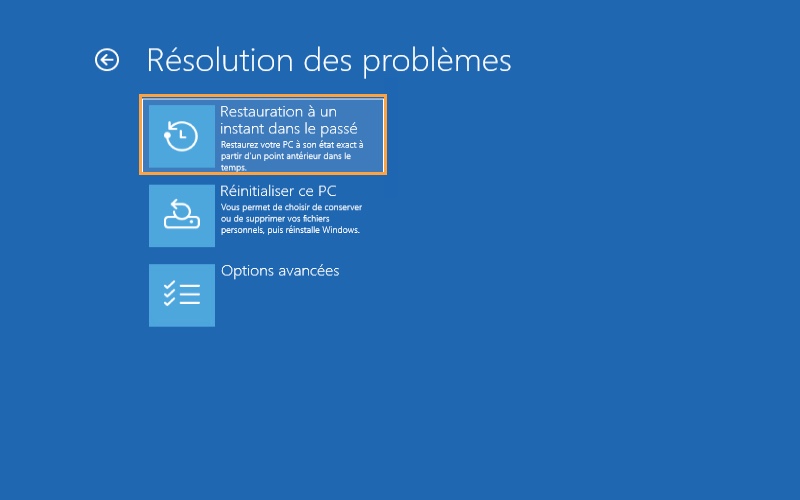
- Access WinRE, for example via Settings > System > Recovery > Advanced startup (or if you are already in trouble, this will happen automatically after several consecutive boot failures).
- Select Troubleshoot > Restore to a point in the past.
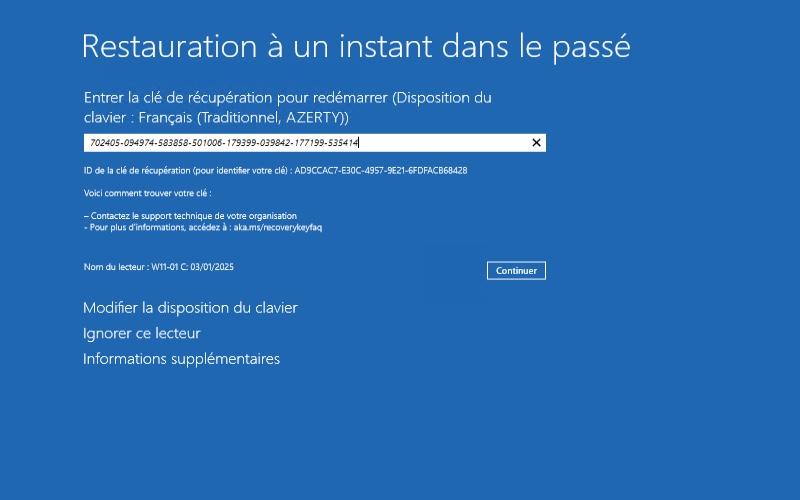
- Enter the BitLocker recovery key if the system volume is encrypted.
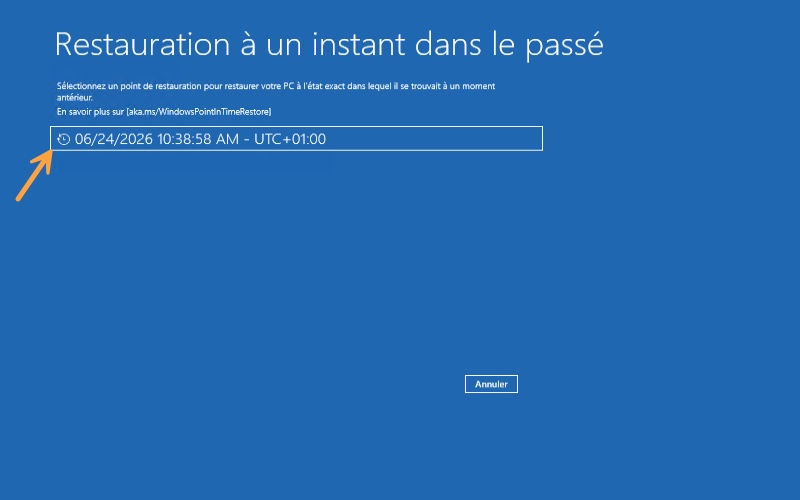
- Choose the restore point corresponding to the state you want.
- Confirm by selecting Continue.
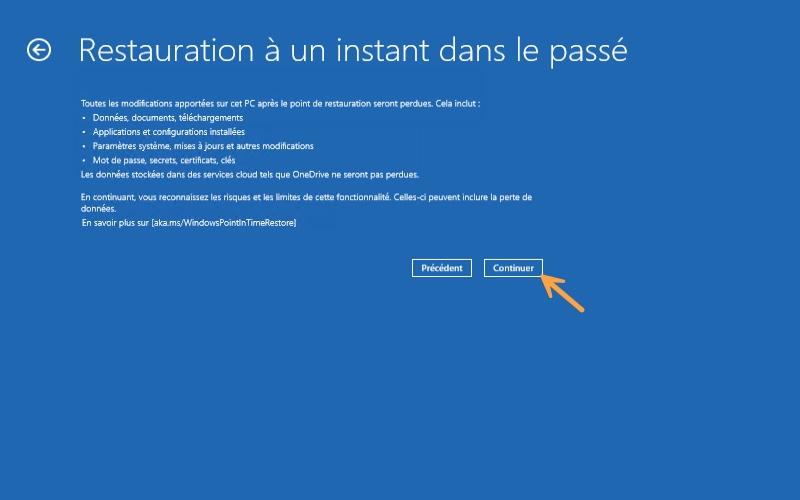
- Review the selected restore point, then start the restore by clicking Restore.
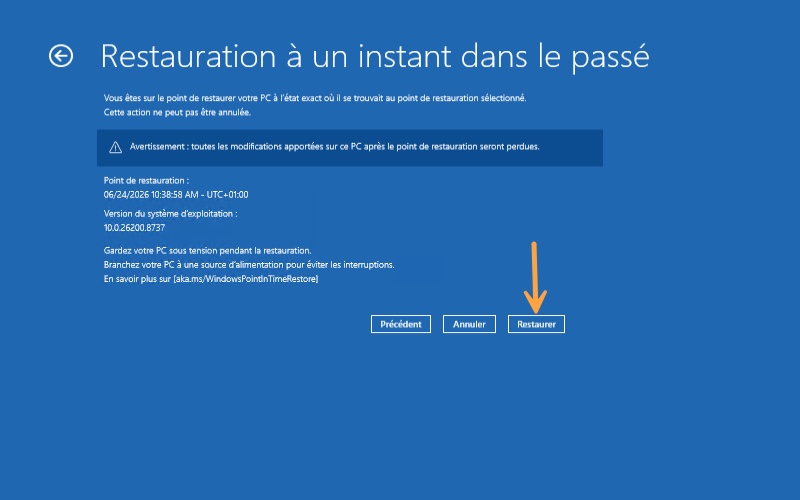
- The restore begins... Once complete, the device reboots to the main system.

Warning: never power off the device during the restore, and keep it plugged in. A power loss in the middle of the operation can leave the system in a corrupted state.
Enterprise deployment: configuration via Intune (Recovery CSP)
In a fleet, Point-in-time Restore is not configured through GPO: for now, there is no dedicated ADMX template. However, you can rely on the Recovery CSP (the PointInTimeRestore node), which can be configured through an MDM solution such as Microsoft Intune, including on Active Directory-joined devices, provided they are enrolled in Intune (for example through hybrid join).
In Intune, you can create a custom OMA-URI profile (or use the settings catalog) with the following values:
| OMA-URI | Type | Details |
|---|---|---|
./Device/Vendor/MSFT/Recovery/PointInTimeRestore/EnablePointInTimeRestore | Boolean | True enables the feature |
./Device/Vendor/MSFT/Recovery/PointInTimeRestore/SetMaxDiskUsage | Integer | Maximum disk space in MB (2048 to 51200) |
./Device/Vendor/MSFT/Recovery/PointInTimeRestore/SetRestorePointFrequency | Integer | Creation frequency, in minutes |
./Device/Vendor/MSFT/Recovery/PointInTimeRestore/SetRestorePointRetention | Integer | Retention, in minutes |
If you want to configure an Intune configuration profile for Point-in-time Restore, do it this way:
- In the Intune admin center: Devices > Manage devices > Configuration > Create > New policy.
- Select the Windows 10 and later platform and the Templates profile type. This will then let you create a profile using the custom template.
- From there, name the profile and configure the various settings (at minimum, you must enable or disable the configuration according to your preference).
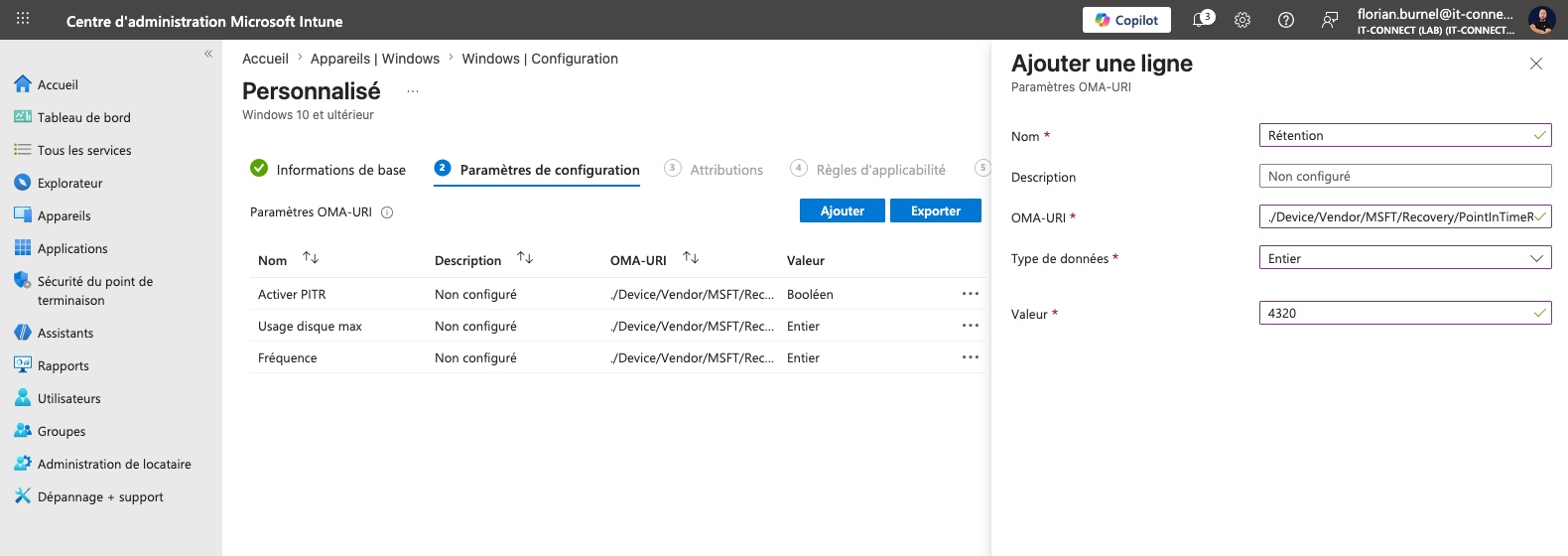
Reminder: even through Intune (Recovery CSP), the SetRestorePointFrequency and SetRestorePointRetention nodes are only taken into account on Windows 11 Enterprise.
Limitations and risks to know
This is the part to read carefully. Point-in-time Restore is effective, but it is neither magic nor without trade-offs.
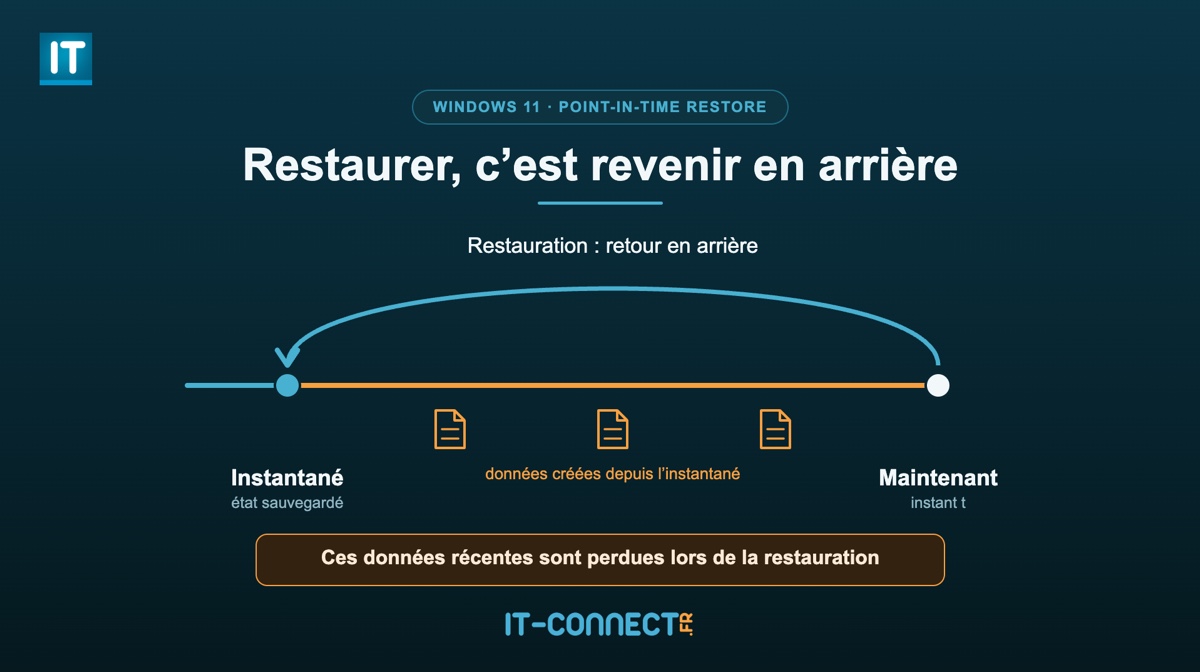
- Data loss: the restore brings the entire system back to the selected point, including user files. Any later changes (documents, downloads, installed applications, settings, passwords, certificates) are lost. Data already synced to a Cloud service such as OneDrive is not affected, but resynchronization may be required.
- Local restore only: at this stage, restoration can only be launched locally from WinRE. Remote triggering from full Windows is announced as a future enhancement.
- BitLocker key required: on an encrypted volume, you cannot restore without the BitLocker recovery key. In an enterprise, this requires careful key management. On that topic, you can read our guide to centralizing BitLocker recovery keys in Active Directory.
- No capture guarantee: if the device is powered off, asleep (or in modern standby), has just rebooted, or the disk is full at the scheduled time, the snapshot may not be created.
- EFS-encrypted files: using files encrypted with EFS may affect restore reliability.
- Multiple volumes: on a machine with multiple volumes, only the system volume is restored.
There are also a few known issues documented by Microsoft: possible drift in the Outlook data file (.ost) after a restore (which is fixed by deleting the .ost file in %LOCALAPPDATA%\Microsoft\Outlook to force it to rebuild), Recall being disabled and requiring confirmation again, and Point-in-time Restore settings being reset after a feature update (requiring reconfiguration if needed).
Conclusion
Point-in-time Restore rounds out Windows’ recovery toolkit and could save a lot of people from trouble. It provides a fast, complete, and automatic rollback path, even when the system no longer boots: that is the main benefit. It is a valuable safety net, with disk space consumed for storing snapshots being the only real constraint.
It is a shame that Microsoft limits configuration on machines that are not running Enterprise. This is not the first time Microsoft has made that kind of trade-off between editions, but it is still frustrating.
For further reading:
- The official general availability announcement on the Windows IT Pro Blog
- The reference documentation for Point-in-time restore for Windows on Microsoft Learn
- Our tutorial on classic Windows 11 restore points
FAQ
What is Point-in-time Restore in Windows 11?
Point-in-time Restore is a recovery feature built into Windows 11 (version 24H2 and later) that automatically captures full system snapshots: OS, applications, settings, and local files. It lets you restore the PC to an earlier state in just a few minutes from the WinRE recovery environment.
What is the difference between Point-in-time Restore and System Restore?
Both rely on the VSS service, but Point-in-time Restore includes user files, creates points automatically on a scheduled cadence, is configured in Windows Settings, and applies a strict 72-hour retention policy. System Restore is older, limited to system files and settings, and is triggered manually or by an event.
On which Windows 11 versions and editions is Point-in-time Restore available?
The feature is available on Windows 11 version 24H2 and later, on the Home, Pro, and Enterprise editions. On Home and Pro, only enablement and disk usage limits are configurable: frequency and retention are reserved for Enterprise.
Does a restore delete my files?
Yes. Point-in-time Restore rolls the entire system back to the selected point: any later changes (files, applications, settings, passwords) are lost. It is a full rollback, not a partial undo. Data already synced to OneDrive or another external location is not affected, but you should keep a separate backup of your files.
How long are restore points kept?
Each restore point is kept for a maximum of 72 hours and then deleted automatically. Early deletion can happen if disk space runs low. That is why Point-in-time Restore is a short-term recovery tool, not a backup solution.
How do you start a restore with Point-in-time Restore?
Restoration starts from the WinRE environment: go to Advanced startup and the Troubleshoot section. Enter the BitLocker recovery key if the volume is encrypted, select a restore point, then confirm. The PC then reboots into the restored system.
Can you manually create a Point-in-time Restore point?
Officially no: there is no dedicated button or command, because capture is automatic. However, you can force a snapshot by running the scheduled task PITRTask (Task Scheduler, under Microsoft > Windows > Setup). This method is not documented by Microsoft.












I just made a small free tool which allows configuration of all parameters also in Windows 11 Home and Professional:
https://github.com/henmedia/windows-pitr-config