 www.it-connect.fr

Windows GDID: Impossible to Delete, But You Can Block It
1.6 billion is the number of Windows PCs that include an identifier called GDID, a number assigned to each Windows installation. It has been making headlines for the past few days: the FBI used this information to trace a suspected member of the Scattered Spider hacker group. Can the GDID identifier be removed? The answer is no, and I’ll explain why.
I recently covered the role played by the GDID in the FBI investigation targeting Peter Stokes, a 19-year-old American-Estonian citizen presented as a member of Scattered Spider. Since then, the publication of the 39-page federal complaint has fueled a broader debate about Windows user privacy (once again). The case documents, in black and white, a little-known identifier about which Microsoft communicates almost nothing: GDID (Global Device Identifier).
This identifier has the particularity of being tied to a physical device: it is stored locally on the computer and on Microsoft’s servers. It does not depend on your network connection, it is not renewed every X time, and it remains the same when Windows is upgraded. It literally follows the Windows machine throughout its lifecycle. That also means a VPN is in no way useful for hiding the GDID: if Windows decides to share this information with a third party, it will do so whether a VPN is active or not.
So what does this GDID look like? How can you display it? Can you erase it? Can you stop Windows from sharing it with Microsoft? Let’s try to answer these questions.
What does Windows GDID look like?
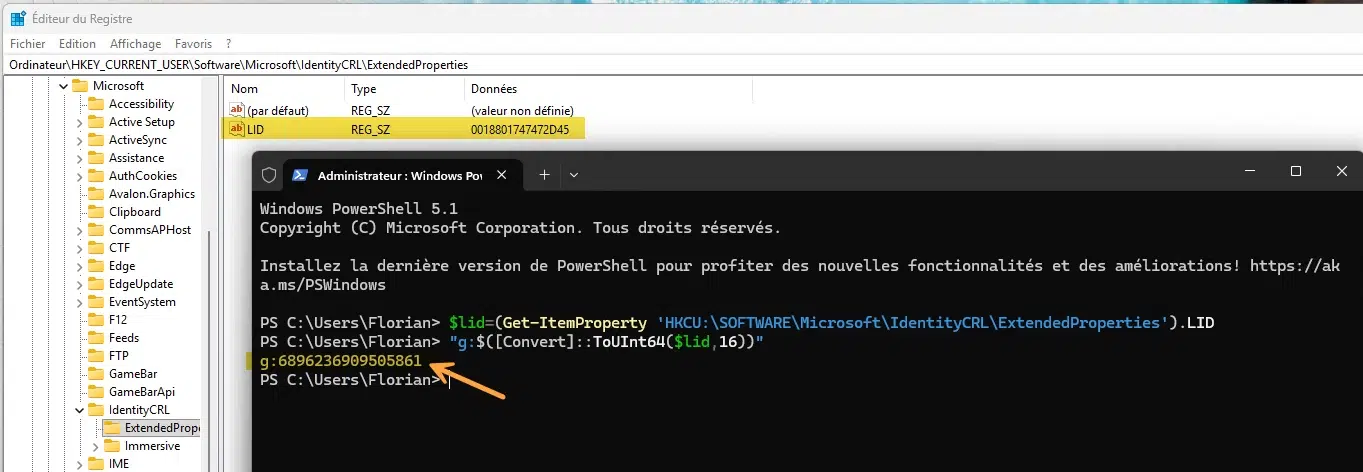
The GDID identifier is stored on each Windows machine in the registry, at the following location:
HKCU\SOFTWARE\Microsoft\IdentityCRL\ExtendedProperties\lidIf you check this value using the Registry Editor (regedit.exe), you will see that it appears as a LID in hexadecimal format. In reality, the expected format for the GDID is this: g:<number>. Peter Stokes’ one, tracked by the FBI, was this: g:6755467234350028. It is not generated from your IP address, but from your hardware: two machines with the same hardware will not have the same GDID. It is a unique identifier.
To obtain the value directly, run these two PowerShell command lines:
$lid=(Get-ItemProperty 'HKCU:\SOFTWARE\Microsoft\IdentityCRL\ExtendedProperties').LID
"g:$([Convert]::ToUInt64($lid,16))"
Here is an example on a Windows 11 virtual machine:
I also carried out a second test: displaying the GDID on a freshly installed Windows 11 machine, disconnected from the Internet, and therefore using a local user account session. The GDID is not generated! It does not exist.
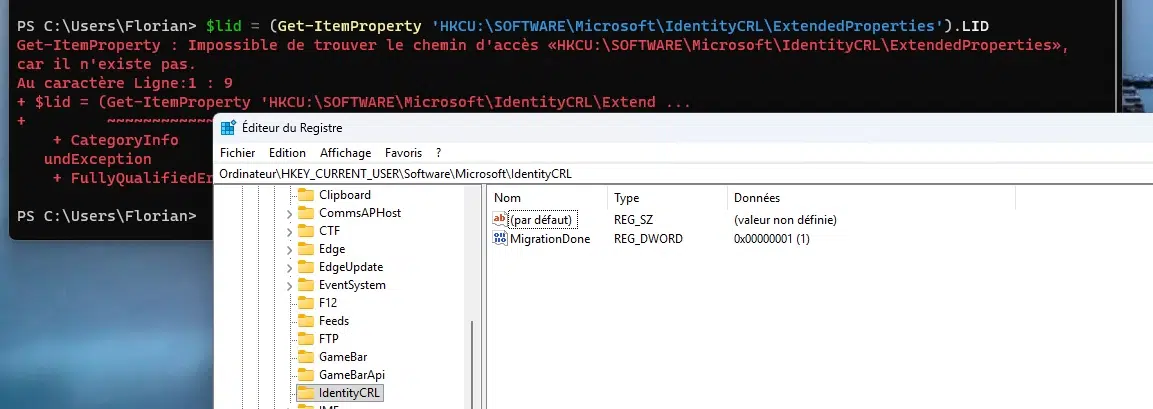
I then wondered what would happen if I connected the machine to the Internet. The result is clear-cut: less than 10 seconds later, the GDID had been added on the local machine. Using a local account or a Microsoft account changes nothing: the GDID is created and registered with Microsoft’s servers. Simply connecting the machine to the Internet (and therefore giving it access to Microsoft’s servers) is enough.
Having run a Wireshark capture started just before connecting the machine to the network, here is an overview of the sequence of events:
| Time | Network event | Role in the chain |
|---|---|---|
| t+0 s | Cable connected, DHCP obtained, and ARP resolution | Machine brought onto the network |
| t+1.1 s | First DNS queries (wpad) | Automatic proxy discovery |
| t+3.0 s | NCSI connectivity test (connecttest.txt to www.msftconnecttest.com) | Windows validates Internet access |
| t+3.1 s | TLS telemetry and settings connections (settings-win.data.microsoft.com, events.data.microsoft.com) | Diagnostics and settings |
| t+3.6 s | TLS connection to login.live.com | Identity service, GDID provisioning |
| t+8.8 s | TLS connection to client.wns.windows.com | Windows push notifications |
| t+9.2 s | TLS connections to Delivery Optimization servers (geo.prod.do.dsp.mp.microsoft.com, kv601.prod.do.dsp.mp.microsoft.com) | Layer that reports UCDOStatus.GlobalDeviceId |
| t+9.6 s | mDNS request _dosvc._tcp.local | Discovery of Delivery Optimization peers on the local network |
| t+10.0 s | TLS connection to licensing.mp.microsoft.com | Activation and licensing |
Windows is designed to perform this registration on Microsoft’s servers as soon as it gets the chance. I would even say it tries to carry out this registration as a priority, without giving us a choice.
Can you erase Windows GDID?
Since we know where the GDID is stored in the Windows Registry, one might think it is easy to delete. The answer is no. Nothing prevents you from deleting this value, but do not forget one thing: it is also recorded on Microsoft’s servers. So, at the next connection to those servers, your Windows 11 PC will retrieve the GDID again and put it back into the Registry.
It is difficult to permanently remove the GDID from Windows because this operating system does everything it can to retrieve this information. Where you do have a say is at the network traffic level.
Can you stop Windows from sharing the GDID with Microsoft?
Since the lever is on the network side, the good news is that you can act upstream, before the machine even reaches Microsoft’s servers. But you need to distinguish between two goals, because they do not cost the user the same thing at all.
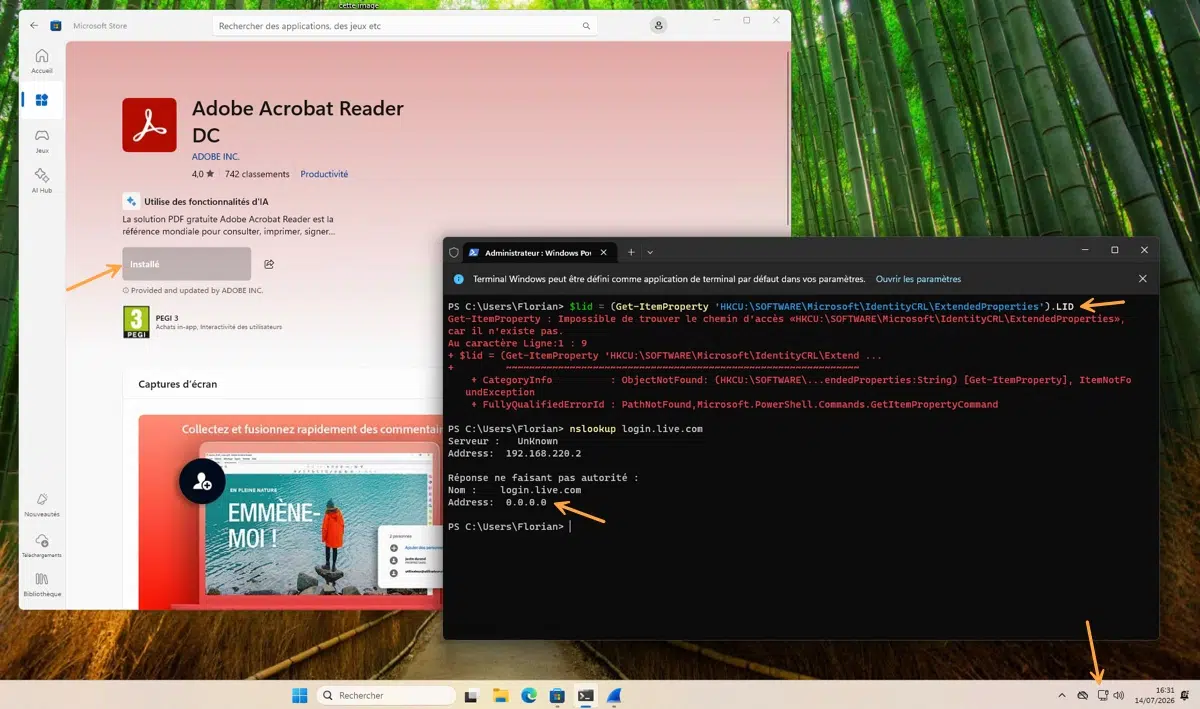
The first goal : prevent the creation of the GDID. To do that, you must block login.live.com, the identity service that provisions the identifier. My test confirms this: by blocking this domain at the DNS level before connecting the machine, the GDID does not appear. The problem is that login.live.com is also the entry point for Microsoft accounts. Blocking it therefore breaks sign-in to a Microsoft account, the Microsoft Store, OneDrive, Microsoft 365, and UWP applications that require Microsoft authentication. In other words, you cannot prevent GDID creation without giving up the Microsoft account ecosystem. That is not necessarily a problem; it depends on what you want to do with your Windows machine. You can use Windows without using Microsoft services.
The second goal is more measured: let the GDID be created, but disrupt its reporting back to Microsoft. You then block only the registration and reporting layer (the Connected Devices Platform to the Device Directory Service, and Delivery Optimization), while keeping login.live.com intact. In principle, Microsoft account access continues to work, but the GDID still exists locally and on the server side.
Blocking through AdGuard Home (or an alternative)
For full DNS blocking, a DNS resolver such as AdGuard Home, Pi-hole or Technitium can help. The advantage is that it handles wildcards and therefore covers subdomains. Otherwise, you can use local configuration via the hosts file (C:\Windows\System32\drivers\etc\hosts), but this is trickier because wildcards are not supported (*).
In AdGuard Home, under Filters then Custom filtering rules, here are the rules I added:
||login.live.com^$dnsrewrite=0.0.0.0
||dds.microsoft.com^$dnsrewrite=0.0.0.0
||cdpcs.access.microsoft.com^$dnsrewrite=0.0.0.0
||do.dsp.mp.microsoft.com^$dnsrewrite=0.0.0.0
||activity.windows.com^$dnsrewrite=0.0.0.0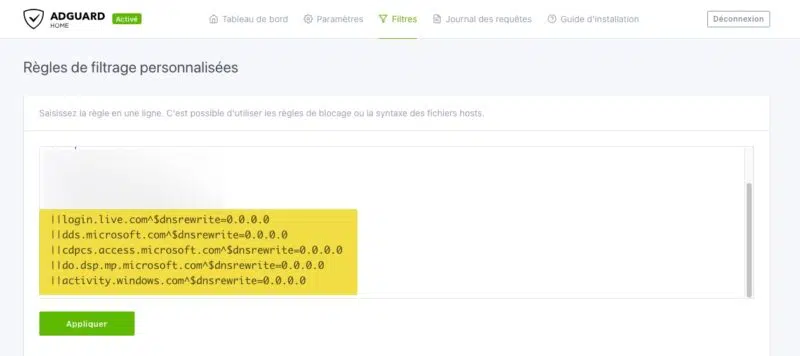
The rule ||do.dsp.mp.microsoft.com^ alone covers the entire Delivery Optimization layer, including regional subdomains, something the hosts file cannot do. On a freshly installed machine connected to the network, where this filtering is applied, the GDID is not present: this machine does not exist in Microsoft’s eyes.
Finally, for administrators who want to automate the second approach, the open source project no-gdid (MIT licensed) provides scripts that disable the registration and reporting services (CDPSvc, CDPUserSvc, DoSvc) and redirect their endpoints, while leaving login.live.com intact to preserve the Microsoft account. It provides a read-only audit script and a rollback script. Test it first on a virtual machine with a snapshot, because it disables system services.
Which Windows services are affected?
As I mentioned earlier, blocking these flows is not neutral. Each blocked domain has a more or less significant impact on the Windows machine. Here is a summary.
| Blocked domain | Role in GDID | What you lose |
|---|---|---|
login.live.com | GDID provisioning and access for Microsoft accounts | Microsoft account, Store, OneDrive, Microsoft 365, account-linked UWP apps. This is the heaviest block. |
dds.microsoft.com, cdpcs.access.microsoft.com | Registration in the device graph (Device Directory Service) | Phone Link, Continue on PC, cloud clipboard, nearby sharing. Convenience features. |
do.dsp.mp.microsoft.com (and subdomains) | Delivery Optimization reporting | Peer-to-peer distribution of updates and Store content. Note that this does not block Windows Update, which falls back to a direct download. |
activity.windows.com | Activity history | Low impact on Windows 11, since Timeline has been removed. |
In short, only blocking login.live.com has a notable impact, since it neutralizes Microsoft account usage (and prevents the initial creation of the GDID). The other domains only cost you secondary features. As for the Microsoft Store, the behavior is somewhat erratic: installing an application fails at first (an error is returned), but if you keep trying, the installation eventually goes through.
No consent screen, no switch
What is frustrating about this GDID is that there is no simple, documented way to disable it. In addition, there is no consent screen and Microsoft is being very (too) discreet about it.
Most systems maintain some form of persistent identity for licensing, identification, or security purposes. Apple manages a hardware UUID and a DSID, Linux has a machine-id. The difference lies in visibility and control: Windows exposes neither to the user, who also cannot view their own GDID through a standard interface. To date, Microsoft has announced neither public documentation, nor user control, nor any change in how the identifier is generated, stored, or transmitted.
You can still try to limit diagnostic data being sent through Windows settings, but I doubt that will have any real impact.
Conclusion
To try to control the use of the GDID on Windows, there are not many solutions. To prevent the GDID from being created, the machine must never be able to communicate with login.live.com, otherwise it is game over. The middle ground is to let Windows create the GDID, then control future connections (through network blocking and/or service restrictions). Keep in mind that the slightest misstep can lead to the creation of the GDID: Windows is just waiting for it.
For further reading, you can take a look at the no-gdid scripts created by Korben. These are PowerShell scripts designed to disable the services associated with GDID activity (connections between your PC and Microsoft servers). This article published on GitHub is also very interesting and is probably the most complete resource to date about GDID. There are similarities between what I observed on my machines and what is documented on that page.
What do you think?











Great article
That’s why people are move from Windows to Linux, I guess.
No worries, they are planning longterm and without of you noticing until it is too late. Microsoft and its overlords Black Rock and Vanguard (which are also the overlords of IBM/Red Hat/GNOME) are sitting in the Linux Foundation. Poettering at MS and now together with other MS people in Amutable (turning Linux into another Android where you have no control over the basic system) is no coincidence.
Yes but you can always use older linux versions and refuse to update