www.it-connect.fr

Proxmox VE: Enroll Microsoft 2023 Secure Boot Certificates on Your VMs
Since Proxmox VE 9.2, a Secure Boot warning may appear when your virtual machines boot, and you should not ignore it. This message means that the VM's EFI disk does not yet contain the new UEFI certificates issued by Microsoft in 2023, while the older 2011 certificates started expiring in June 2026.
This scenario is common both in a homelab, where you run a few Windows or Linux VMs on a Proxmox server, and in production, where long-running Windows Server VMs end up with an aging EFI disk. In both cases, as long as nothing is done, the VM continues to boot normally, which creates a false sense of security. More importantly, as I just mentioned, this change affects both Windows and Linux VMs, even though Microsoft certificates are involved.
In this article, I will show you how to enroll the 2023 Secure Boot certificates on your Proxmox VMs. If you are not yet familiar with the Secure Boot certificate expiration issue, I recommend starting with this dedicated article: anticipating the Secure Boot certificate update in 2026.
Why enroll the 2023 Secure Boot certificates on Proxmox
Secure Boot is a UEFI firmware feature that checks the digital signature of components loaded during boot, to prevent a bootkit or rootkit from running before the operating system. To validate these signatures, UEFI relies on a trusted certificate store. The problem is that several certificates issued by Microsoft in 2011 expire in 2026, on staggered dates. They are being replaced by new certificates issued in 2023, valid until 2035 and beyond.
- Microsoft Corporation KEK CA 2011 : expired since June 24, 2026.
- Microsoft Corporation UEFI CA 2011 : expired since June 27, 2026.
- Microsoft Windows Production PCA 2011 : expires on October 19, 2026.
On a recent physical machine, the motherboard firmware already includes these new certificates, or receives them via Windows Update. On Proxmox VE, the situation is different: the firmware of a VM (OVMF) and its EFI variable store are frozen inside a dedicated EFI disk, created when the virtual machine is configured. If this EFI disk was generated before the 2023 certificates were integrated, it only contains the 2011 certificates.
The warning displayed by Proxmox VE 9.2
Proxmox VE 9.2, available since May 21, 2026, introduced a checking mechanism that verifies certificate status at every boot of a VM with an EFI disk and pre-enrolled keys. When the 2023 certificates are missing, a message like this appears.
WARN: EFI disk without 'ms-cert=2023k' option, suggesting that not all
UEFI 2023 certificates from Microsoft are enrolled yet.
This means Proxmox is now monitoring this small detail for you, and it is prompting you to act. That is a good thing, but you do need to act.
What the ms-cert=2023k marker means
Proxmox adds a marker to the EFI disk line in the VM configuration to indicate which certificate set is enrolled. Three values are possible, and it is useful to distinguish them carefully.
- ms-cert=2023k : enrollment is complete. The EFI disk contains the Microsoft and Windows UEFI CA 2023 certificates in the signature database (DB), as well as the Microsoft KEK 2023 key. This is the desired state.
- ms-cert=2023w or ms-cert=2023 : enrollment is partial. The 2023 certification authorities are present, but the 2023 KEK key is still missing. Re-enrollment is required to reach the complete state.
- No marker : only the 2011 certificate set is present.
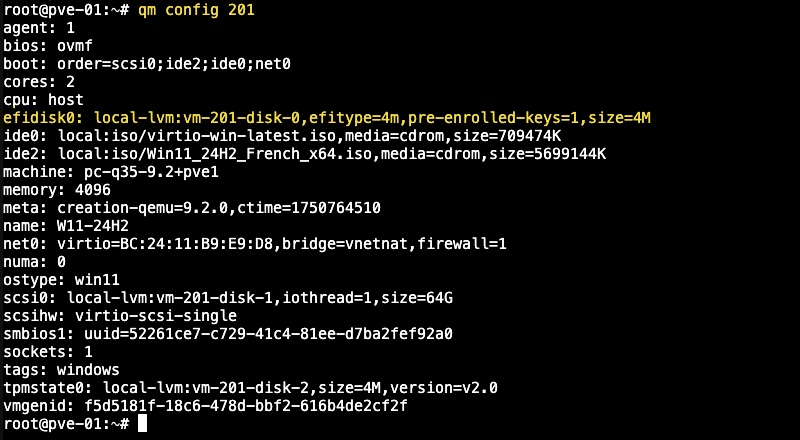
The ms-cert=2023k marker appeared with Proxmox VE 9.2 precisely to distinguish full enrollment, including the KEK, from earlier partial states. To check a VM's status, simply display its configuration.
qm config <vmid>Here, we can clearly see that an EFI disk is in use because the efidisk0 entry is present.
Prerequisites
Before getting started, make sure you meet the following prerequisites:
- An up-to-date Proxmox VE server, version 9.2 or later, so you can use the enrollment action in the web interface and enroll the 2023 KEK.
- A VM configured with an EFI disk and Secure Boot. If your VM does not use an EFI disk with pre-enrolled keys, there is nothing to enroll and this warning does not apply to you.
- Administrator access to the Proxmox host (web interface or root shell on the node) and to the Windows guest system.
- A backup or snapshot of the VM before making any changes to the EFI disk. This is a simple precaution that lets you roll back if something goes wrong.
If you are new to this solution, our guide to getting started with Proxmox VE lays the groundwork for installation and creating your first VM. For the Windows guest side, our tutorial on creating a Windows 11 VM on Proxmox VE covers the OVMF, TPM, and UEFI configuration.
How to enroll the 2023 Secure Boot certificates on Proxmox
The first part of the operation is to inject the 2023 certificates into the VM's EFI disk from the Proxmox host. Two methods are available, the web interface and the command line, with identical results. In both cases, the VM must be shut down, because the EFI disk cannot be modified while the machine is running.
Via the web interface
On the Proxmox host side, shut down the VM concerned, then perform this action: Hardware > EFI Disk > Disk Action > Enroll Updated Certificates.
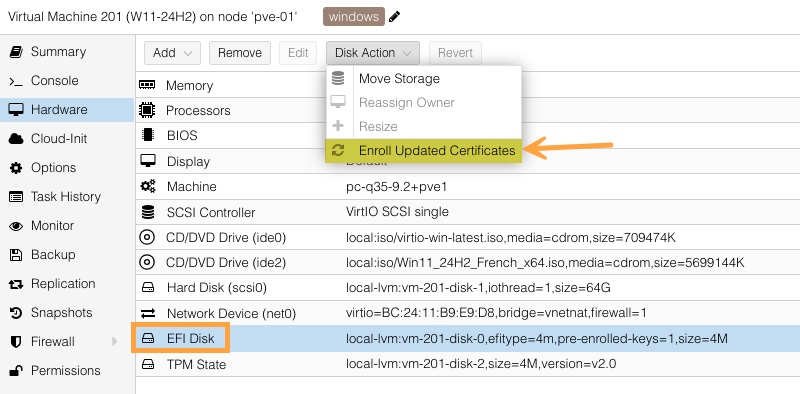
Confirm the operation. If this is a Windows machine and BitLocker is enabled, read the warning carefully. And above all, make sure you have the BitLocker recovery key before continuing.
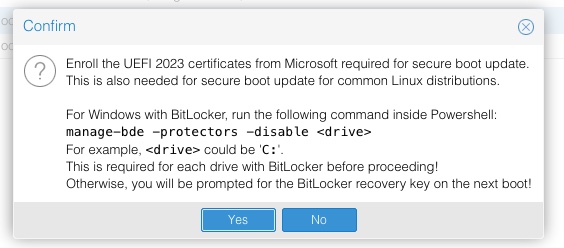
You can clearly see that Proxmox VE made a change to the disk (orange line in the image below). If that is not very readable, here is the before/after line:
local-lvm:vm-201-disk-0,efitype=4m,pre-enrolled-keys=1,size=4M
local-lvm:vm-201-disk-0,efitype=4m,ms-cert=2023k,pre-enrolled-keys=1,size=4M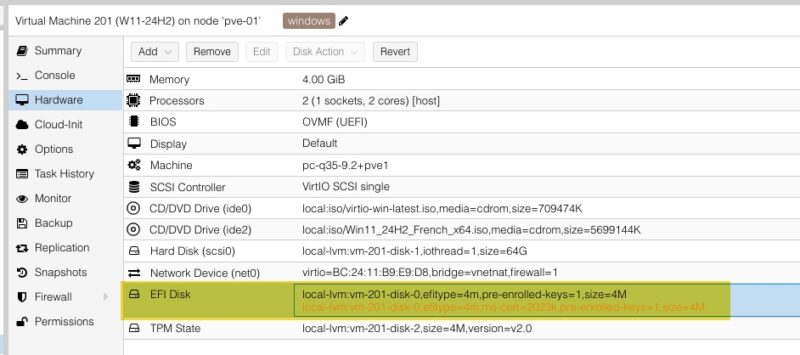
Proxmox then updates the EFI disk and adds the ms-cert=2023k marker to the configuration. You can then restart the VM.
Via the command line
For those who prefer the shell, or to script the operation across several VMs, the qm enroll-efi-keys command does exactly the same thing. Connect via SSH to the node, or open the node console from the web interface.
Here is the command built into Proxmox VE 9.2 to enroll the UEFI CA 2023 certificates in the VM's EFI disk. Simply replace the vmid placeholder with the ID of the target VM.
qm enroll-efi-keys <vmid>Once that is done, start the VM.
This step is limited to preparing the virtual firmware. For a Linux guest, it is usually enough, because the 2023 certificate is now present in the UEFI trust store. For Windows, however, a second phase is required inside the operating system, as we will see next.
Completing the update on the Windows side
Windows also needs to apply the update in its active UEFI environment, through a dedicated servicing mechanism.
The AvailableUpdates registry value and the Secure-Boot-Update task
Windows relies on a registry value named AvailableUpdates, located under the following key:
HKEY_LOCAL_MACHINE\SYSTEM\CurrentControlSet\Control\SecureBootThis value tells Windows which Secure Boot update actions to apply. It is completed by a scheduled task responsible for running those actions. You can find it in Task Scheduler at this location: \Microsoft\Windows\PI\Secure-Boot-Update.
To trigger the full deployment of the 2023 certificates and the switch to the 2023-signed boot manager, Microsoft indicates that you must use the value 0x5944. I wrote about this in my article dedicated to this change.
If you want to audit the status of your machine before starting, you can open the Windows Security app. It now includes a section that shows the certificate update status precisely. You can also run the two commands below; they list the certificates, which makes it possible to see whether the 2023 ones are present.
# Certificates in the DB store with their validity dates
Get-SecureBootUEFI -Name db -Decoded | Select-Object Subject, ValidFrom, ValidTo | Format-Table -AutoSize

# Key exchange keys
Get-SecureBootUEFI -Name KEK -Decoded | Select-Object Subject, ValidFrom, ValidTo | Format-Table -AutoSize
Note : the -Decoded parameter was added by the cumulative update of April 14, 2026. On an older machine, the command returns a parameter error. You can then use Get-SecureBootUEFI -Name db alone, which returns the raw data.
For example:
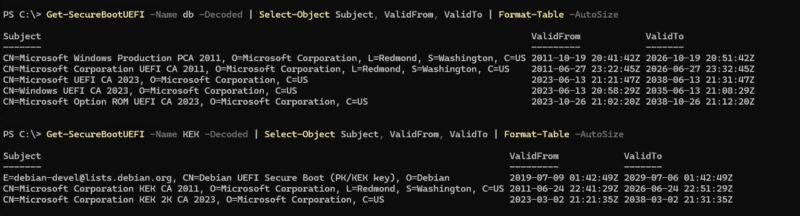
Open an elevated PowerShell console and run the following commands.
The first command to run requests the full deployment of the 2023 certificates and the 2023-signed Boot Loader.
Set-ItemProperty -Path "HKLM:\SYSTEM\CurrentControlSet\Control\SecureBoot" -Name "AvailableUpdates" -Value 0x5944The second command runs the update task immediately (otherwise it runs every 12 hours).
Start-ScheduledTask -TaskName "\Microsoft\Windows\PI\Secure-Boot-Update"You then need to reboot the VM, often twice, for the certificates to be actually written into the firmware. The rest of the article details each step and explains how to verify the result.
Tracking the update progress
The update does not finish in a single pass. After the task is run, the AvailableUpdates value changes over the reboots, which makes it possible to track progress.
- The value first changes from
0x5944to0x4100. At this stage, a reboot is required. - After the reboot, run the
Secure-Boot-Updatetask again. The boot manager is then updated and the value becomes0x4000. - Once the value is stabilized at
0x4000, the update is complete.
You can also monitor the status using tracking registry keys introduced with late-2025 Windows updates, under HKLM:\SYSTEM\CurrentControlSet\Control\SecureBoot\Servicing\.
The command below is intended to display the progress status of applying the UEFI CA 2023 certificate.
Get-ItemProperty -Path "HKLM:\SYSTEM\CurrentControlSet\Control\SecureBoot\Servicing\" -Name UEFICA2023Status | Select-Object UEFICA2023Status

UEFICA2023Status
----------------
Updated
Special case: BitLocker
If BitLocker encryption is enabled on the Windows VM's system disk, changing Secure Boot may trigger a recovery key prompt at startup. To avoid this, temporarily disable the BitLocker protectors before starting the procedure.
manage-bde -protectors -disable C:The protectors are automatically re-enabled at the next reboot. Still keep your BitLocker recovery key handy, just in case. This precaution applies to both a Windows 11 workstation and a Windows Server machine where BitLocker protects the system volume.
What about Linux VMs?
Linux VMs are not spared by this transition, but the procedure is simpler. Distributions that use Secure Boot rely on a component called shim, signed by Microsoft. When that shim is signed only with the UEFI CA 2023 certificate, a VM whose EFI disk knows only the 2011 certificates will refuse to boot with Secure Boot enabled.
The good news is that the enrollment performed on the Proxmox host, with qm enroll-efi-keys or the equivalent web interface action, is enough to add the Microsoft UEFI CA 2023 certificate to the trust store of the Linux VM. There is no equivalent Windows registry manipulation to perform inside the guest system. After host-side enrollment and a reboot, the VM is ready to boot a shim signed in 2023.
Conclusion
Managing Secure Boot certificates is something you should do now if you have not already. It is important to check the status of your virtual machines so you do not undermine Secure Boot security because of a certificate issue. The good news is that Proxmox VE is already ready for this transition, as we have seen in this article.
In fact, the Proxmox host provides the Windows and Microsoft UEFI CA 2023 authorities as well as the 2023 KEK key, which is summarized by the ms-cert=2023k marker. Windows then adds the UEFI CA 2023 Option ROM certificate and replaces the boot manager. Neither phase is sufficient on its own on a Windows VM.
Further reading:
- Official Proxmox VE documentation on Secure Boot certificate expiration
- Microsoft: registry keys for Secure Boot updates
- Microsoft: list of DB and DBX variable update events
FAQ
Why does Proxmox display a Secure Boot warning when a VM boots?
Since Proxmox VE 9.2, the host checks at every boot whether a VM's EFI disk contains the Microsoft 2023 UEFI certificates. If only the 2011 certificates are present, a warning indicates that the ms-cert=2023k marker is missing. It prompts you to enroll the new certificates before the old ones expire in 2026 (which is already the case since they expired in June 2026).
What does the ms-cert=2023k marker mean in a Proxmox VM configuration?
This marker, added to the EFI disk line, indicates that enrollment of the 2023 certificates is complete. The EFI disk then contains the Microsoft and Windows UEFI CA 2023 authorities in the DB store, as well as the 2023 KEK key. The ms-cert=2023w or ms-cert=2023 values correspond to partial enrollment, without the KEK.
Will my VMs stop booting if I do not enroll the 2023 certificates?
Not immediately. A VM whose EFI disk only knows the 2011 certificates will keep booting as long as its bootloader remains signed with those certificates. The block happens the day the bootloader is signed only with the 2023 certificate, for example after a major Windows update or a Linux shim update. Planning ahead avoids this blockage.
Does the qm enroll-efi-keys command require the VM to be shut down?
Yes. A virtual machine's EFI disk cannot be modified while it is running. You must therefore shut down the VM before running qm enroll-efi-keys, or before using the Enroll Updated Certificates action in the web interface. The VM can be restarted once enrollment is complete.
Is host-side enrollment on Proxmox enough for Windows?
No. Host-side enrollment injects the certificates into the EFI disk, but Windows must then apply the update in its active UEFI environment. This is done by setting the AvailableUpdates registry value to 0x5944 and running the Secure-Boot-Update scheduled task, followed by several reboots.
How can I verify that the 2023 certificates have been applied in Windows?
Check the Windows Security app, which includes a dedicated section for displaying Secure Boot status. Otherwise, use the Registry and look at the UEFICA2023Status key under HKLM\SYSTEM\CurrentControlSet\Control\SecureBoot\Servicing, and verify that the AvailableUpdates value is set to 0x4000. In the system event log, the disappearance of event 1801 confirms that the updated certificates have been applied to the firmware.
What should I do if BitLocker is enabled on the Windows VM?
Temporarily disable the BitLocker protectors before starting the procedure, using the manage-bde -protectors -disable C: command, adjusting the drive letter as needed. This avoids a recovery key prompt caused by the Secure Boot change. The protectors are re-enabled at the next reboot.
Are Linux VMs affected by this update?
Yes, as soon as they use Secure Boot with a Microsoft-signed shim. When that shim is signed only with the UEFI CA 2023 certificate, a VM that only knows the 2011 certificates will refuse to boot. In most cases, the enrollment performed on the Proxmox host is enough, with no changes required inside the guest system.
Should I disable Secure Boot to avoid this issue?
That is not recommended. Secure Boot protects the VM against bootkits and rootkits that load before the operating system. Disabling it to bypass enrollment would remove an important low-level protection. It is better to enroll the 2023 certificates, which solves the problem sustainably while preserving security.
Does this procedure work for Windows Server on Proxmox?
Yes. The process is the same for a Windows Server VM with an EFI disk and Secure Boot. You enroll the certificates on the Proxmox host, then apply the update in the system using AvailableUpdates and the Secure-Boot-Update task. Remember to handle BitLocker if the system volume is encrypted.