www.it-connect.fr

Specops Verified ID: Turn Real Identity into an Authentication Factor
When a user calls the help desk to reset their password, how do you know it is really them on the line? That question, which every IT department has wrestled with for years, has become much harder to answer now that attackers have access to voice-cloning tools and video deepfakes. A familiar voice or a known face on a video call no longer proves much. Specops Verified ID is designed to solve exactly that problem. Behind the name is an identity verification method built on two elements that are difficult to fake at the same time: an official ID document scanned from a smartphone, and a liveness check that confirms the person in front of the camera is real and matches the photo on the document.
In this article, I will introduce Specops Verified ID, explain how it works, what makes it more resilient than classic verification methods against social engineering attacks, and how it integrates with the vendor’s other solutions: Specops Secure Service Desk, Specops uReset, and the First Day Password module. We will then look at the administrator-side configuration, followed by a live demo of a verification flow triggered from Secure Service Desk. I will finish with the privacy question, because I know that is a critical concern.
This article includes promotional content for Specops Software.
Specops Verified ID at a Glance
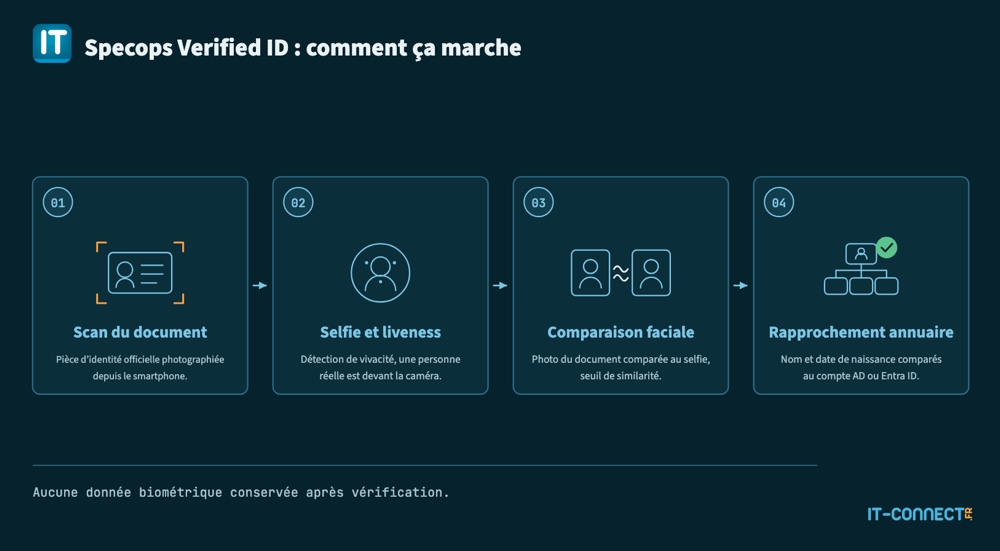
Specops Verified ID is an identity service in the Specops Authentication platform that verifies a user’s identity in four steps: the user scans an official ID document (passport, national ID card, driver’s license) with their smartphone, performs a live selfie subject to liveness detection, the system compares the document photo with the selfie, and then matches the name (and optionally the date of birth) extracted from the document with the user account in Active Directory or Microsoft Entra ID. No new identity data is created: the solution simply confirms that the person matches the existing account. The service can be used from Specops Secure Service Desk, Specops uReset, and First Day Password.
The Problem: Identity Impersonation
High-Risk Scenarios
Two moments in a user account’s lifecycle are particularly attractive to attackers, because access is granted or restored based on human verification:
- Calling the IT help desk: an attacker impersonates an employee and requests a password reset. This is the vishing (voice phishing) scenario that has helped groups like Scattered Spider compromise major organizations, simply by calling the service desk with a few personal details gathered from the Web (or the Dark Web).
- A new employee’s first day: the first-day password is handed to someone the IT team often has never met, especially in a remote-work context. The KnowBe4 case, where the company hired a fake software engineer who was actually working for North Korea despite four video interviews, shows that ordinary checks are no longer enough (especially in a targeted attack scenario).
In both cases, verification relies on what the user knows (secret question, employee ID, manager’s name), what they possess (access to their mailbox or mobile number), or what an agent believes they recognize (their voice, their face).
What Deepfakes Changed
Asking someone to jump on a quick video call to prove who they are used to be a reasonable and often sufficient method. That is no longer true.
In 2024, an employee at engineering firm Arup in Hong Kong approved 15 transfers totaling HK$200 million (about €22 million) after a video meeting in which the CFO and several colleagues were actually deepfakes, as the company confirmed to CNN. According to Hong Kong police, the employee had initially done the right thing: he suspected a phishing email because it mentioned a confidential transaction. He dropped his doubts after the video call because the participants looked and sounded like his colleagues.
In other words, a human recognizing a voice or face is no longer proof. Secret questions and personal information are exposed in data breaches. SMS codes rely on a registered phone number, which can be targeted through SIM swapping. What is missing is a method that ties verification to something an attacker cannot obtain simply by collecting information: the physical person themselves, together with their identity document.
What Is Specops Verified ID?
Specops Verified ID is developed by Specops Software, a Swedish vendor specializing in password security and Active Directory identity security. If you follow my content regularly, you have already heard about their solutions. This one is new, launched in April 2026, first for Active Directory environments (on-premises and hybrid), and then extended in August 2026 to Microsoft Entra ID users (cloud-only).
The Principle: Document + Liveness + Directory Matching
The solution is designed to verify a user’s identity through the following workflow:
- ID document scan: the user photographs their identity document with their smartphone camera. Specops says it supports more than 16,000 official document types across more than 200 countries and territories.
- Selfie with liveness detection: the user records a short selfie video. Liveness detection ensures that a real person is in front of the camera, not a photo, replayed video, or screen.
- Face comparison: the photo extracted from the document is compared with the selfie, using an administrator-configurable similarity threshold.
- Account matching: the name read from the document is compared with the account name in Active Directory or Entra ID, with configurable tolerance. A date-of-birth comparison can also be enabled if desired (though this information is rarely populated in enterprise directories).
If any of these steps fails, the verification fails. The user is then considered not to be who they claim to be.
Two Access Methods for Users
Users can complete the verification in two ways:
- Via the Specops:ID mobile app (iOS and Android), which also allows document-based enrollment and protects that enrollment with the phone’s biometric authentication or PIN.
- Via a standard web browser, with no app to install. That is the mode I used for the demo in this article. The advantage is that a user on a personal device can complete the process without installing anything.
In both cases, capture must be performed on a mobile device. If the user starts the flow from a browser on a PC, a QR code is displayed so they can switch to their smartphone.
Why It Is Harder to Bypass
The goal of this article is not to claim this method is foolproof, but it makes an attacker’s job much harder, especially compared with common approaches:
- Against a secret question or personal information: this data is already out there in leaks. Here, an attacker needs the physical ID card, or a counterfeit that can pass document authentication.
- Against an SMS or email code: the attacker must control the channel. Here, the channel is the person.
- Against video verification by an agent: a convincing deepfake for the human eye is not enough; the attacker must also defeat liveness detection, facial comparison with the document photo, and the consistency check between the document and the account. These three checks are automated, applied systematically, and do not depend on the agent’s vigilance (which may be lower after 50 emails at the end of the day).
In short, I would say this combination of constraints makes the attack significantly more expensive, without making it theoretically impossible.
- Product page: Specops Verified ID
- Documentation: Specops Verified ID on the Specops support portal
Verified ID: Integration into the Specops Ecosystem
Specops Verified ID is not a standalone product: it is an additional identity service in the Specops Authentication platform, just like Microsoft Authenticator, passkeys, Duo, or secret questions. It therefore adds to the existing methods in the authentication policies you have already defined.
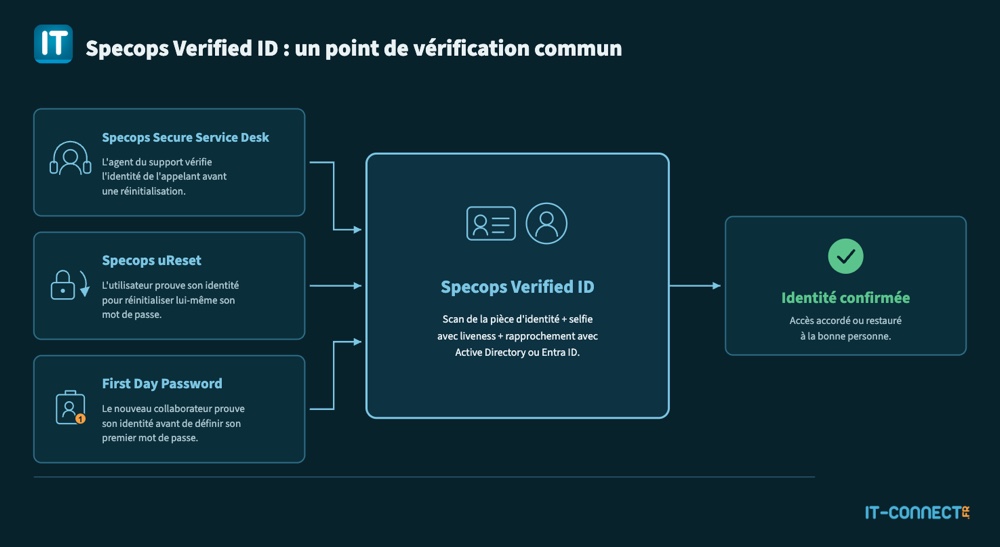
At the moment, three Specops Software products can make use of it.
- Specops Secure Service Desk
Specops Secure Service Desk requires the support agent to verify the user’s identity before any sensitive action (password reset, account unlock, etc.). The agent launches the verification from the console, the user completes it on their smartphone, and the agent receives the result without having to decide it themselves. Until now, and without Verified ID, the usual methods were available: SMS code, TOTP code, passkeys, and so on.
Read my overview article: Specops Secure Service Desk: Verifying User Identity at the Help Desk
- Specops uReset
Specops uReset lets users reset their own Active Directory password after authenticating with one or more additional factors. Here too, the traditional methods were available until now. Specops Verified ID can now be added as a high-assurance factor, for example for sensitive accounts or when the user has lost access to their other factors.
Read my overview article: Specops uReset: Self-Service Password Reset
- First Day Password
First Day Password, a uReset module, allows a new employee to set their first password themselves, without an initial password being sent by email or phone. With Specops Verified ID, that employee proves their identity with their ID document before getting their first access. It is a response to the problem of fake remote employees: the person setting the password is indeed the one whose name appears on the document and in the directory.
Read my overview article: First Day Password: Securing the First-Day Password
Configuring Specops Verified ID
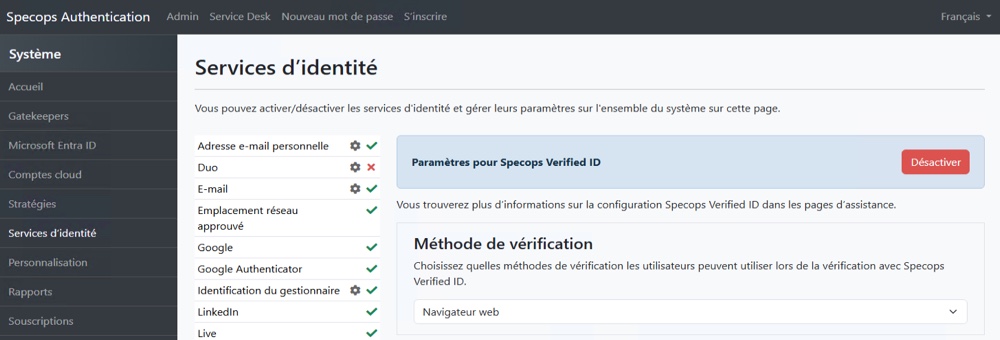
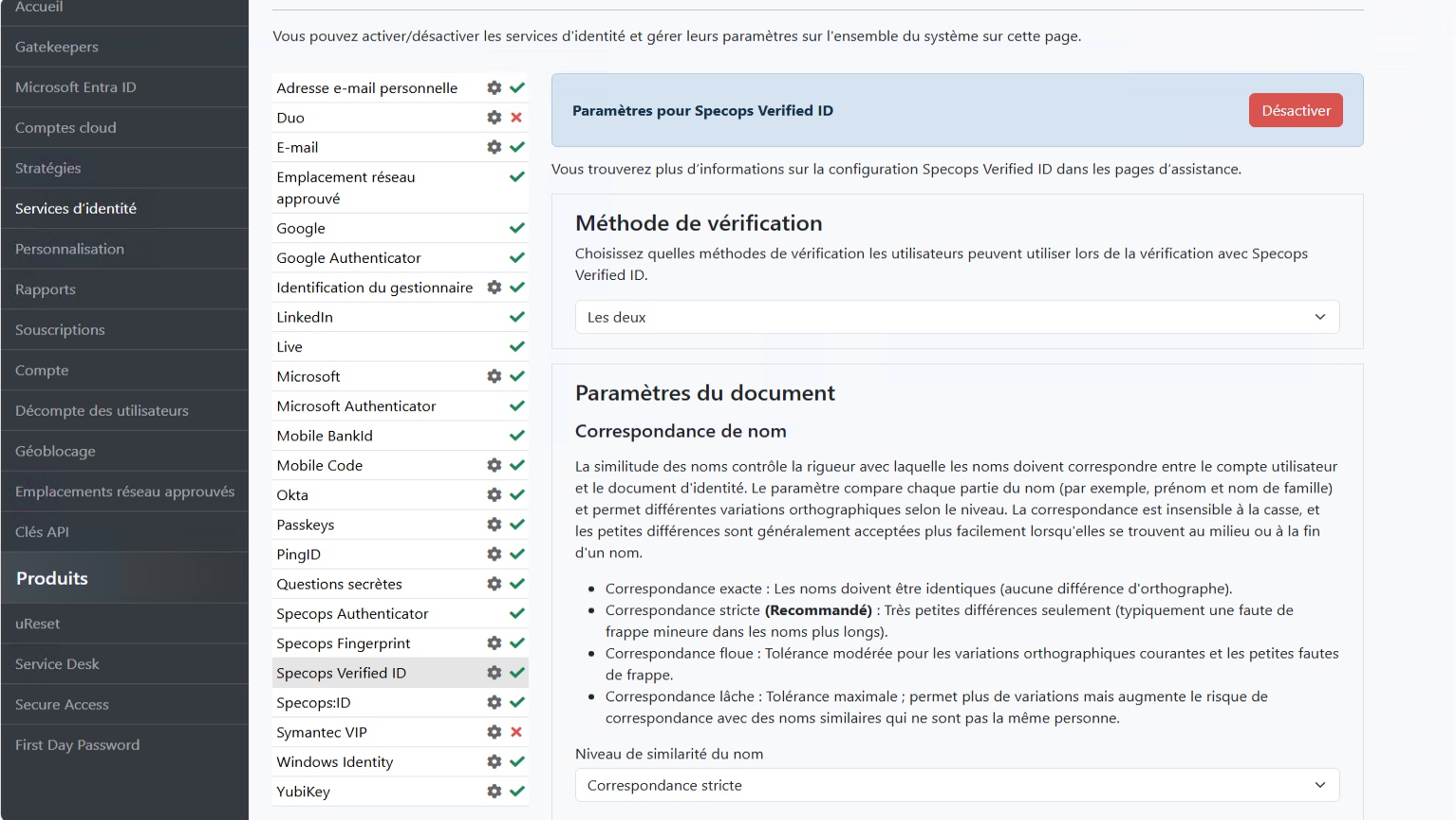
The previous part of this article should make one thing clear: Specops Verified ID is not a standalone solution, but an additional module for Specops Software’s existing and proven solutions. Configuration is done from the Specops console, under Identity Services, then Specops Verified ID. It fits on a single page, with a set of settings that are easy for the administrator to manage.
Let’s take a look.
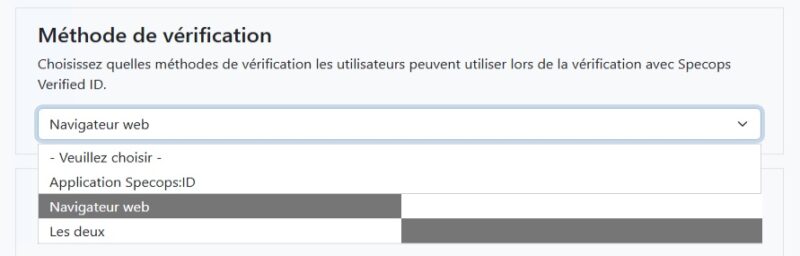
Verification Method
The first choice is the access mode offered to users: Specops:ID app, Web browser, or Both. The browser mode has the advantage of requiring nothing on the user’s phone, which matters if your employees do not have a company smartphone. They may be more willing to use it because there is no app to install. But you do not get the convenience of the Specops:ID app with protected information stored behind biometric authentication.
Name Matching
This setting defines how strictly the name read from the document must match the account name in the directory. The comparison checks each part of the name (first name, last name), is case-insensitive, and is more forgiving of small differences in the middle or end of a name. Four levels are available:
- Exact match: no differences allowed.
- Strict match (vendor recommendation): only very small differences are tolerated, typically a typo in a long name.
- Fuzzy match: moderate tolerance for common spelling variations.
- Loose match: maximum tolerance, with the risk of validating someone whose name is similar but not identical.
This setting matters more than it may seem. Ask yourself: is the name in Active Directory the user’s full legal name? In France, that should usually be fine, but in some countries where compound names are common, that may not be the case. In any event, there are many possible discrepancies: preferred name, truncated compound first name, married name, accents removed when the account was created.... If the gap is too large, the document scan step will fail.
Date of Birth Matching
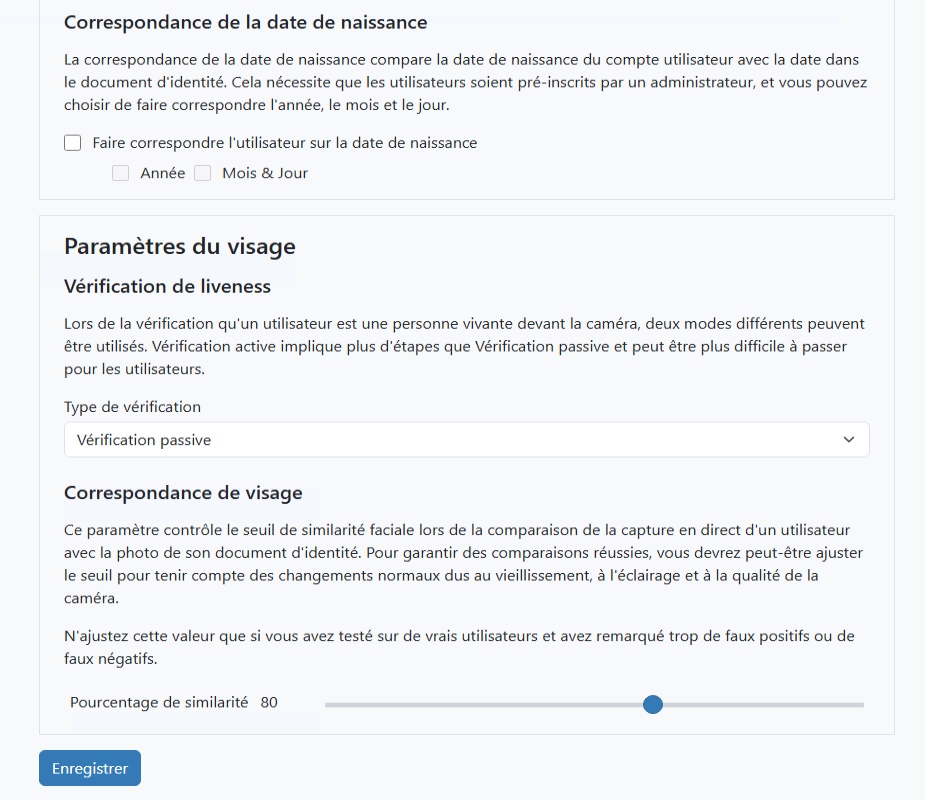
In addition to the name, you can require the document’s date of birth to match the account’s date of birth, either by year and/or by month and day. This check is optional and requires the date of birth to have been pre-registered for each user.
Liveness Detection
Two modes are available to verify that a real physical person is in front of the camera:
- Active verification: the user must perform actions requested on screen. In practice, the user will need to move, such as turning their head left and then right.
- Passive verification: the analysis is performed without any special action from the user, which is easier for them but potentially less effective.
The last setting is the similarity percentage required between the selfie and the document photo. A higher threshold improves security at the cost of false positives, while a lower threshold makes the experience smoother but reduces accuracy. The ideal approach is to test with a group of users to find the right balance. A threshold around 80/100 is probably realistic. You also need to consider the age of some ID documents: can a photo taken 10 years ago still identify someone easily? The system must be able to do that. Beyond that, lighting and camera quality can affect the score.
Demo: Verification Triggered from Secure Service Desk
Here is the full verification flow in my test environment, for the following scenario: a user contacts the help desk, and the agent must verify their identity before resetting their password.
Agent Side
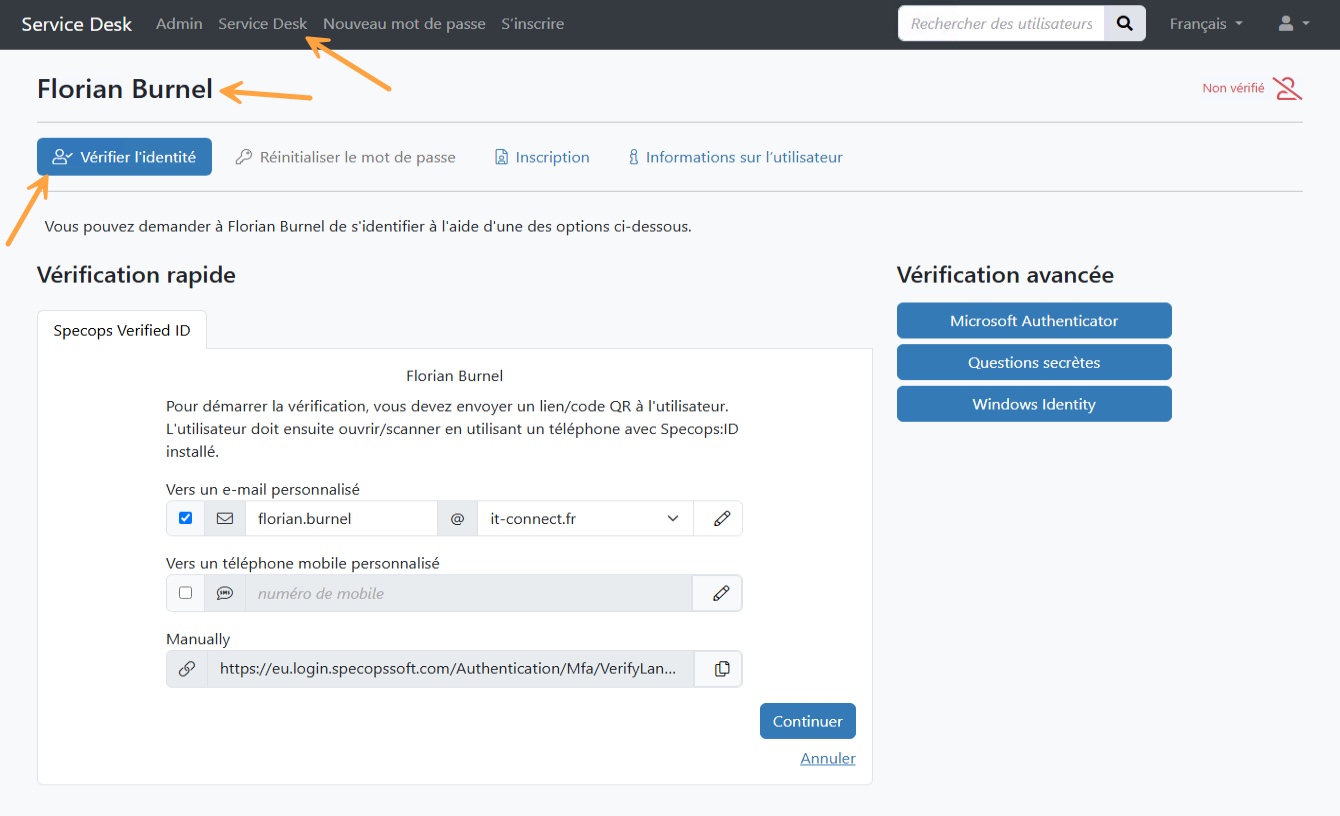
In the Secure Service Desk console, the agent searches for the user, opens the Verify Identity tab, and selects Specops Verified ID from the available identity services. The user then receives a notification inviting them to start the verification. The agent keeps this tab open: they will receive confirmation as soon as the user is finished.
User Side
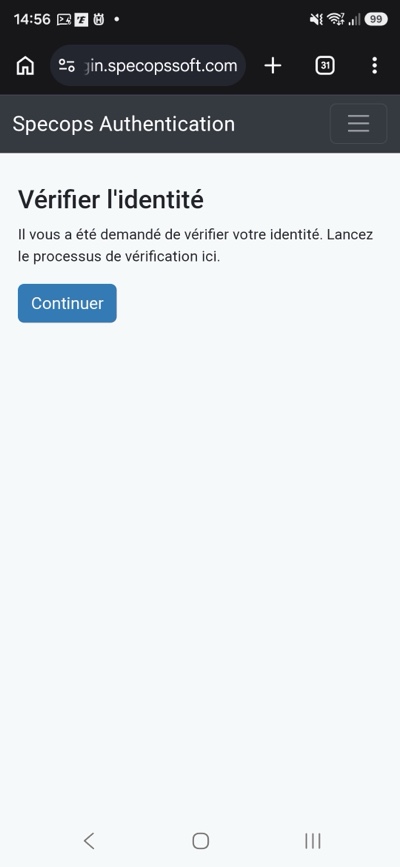
On their smartphone, the user opens the link they received in their browser. The Specops Authentication page tells them that an identity verification has been requested. Here, the browser-based mode (no installation required) is shown.
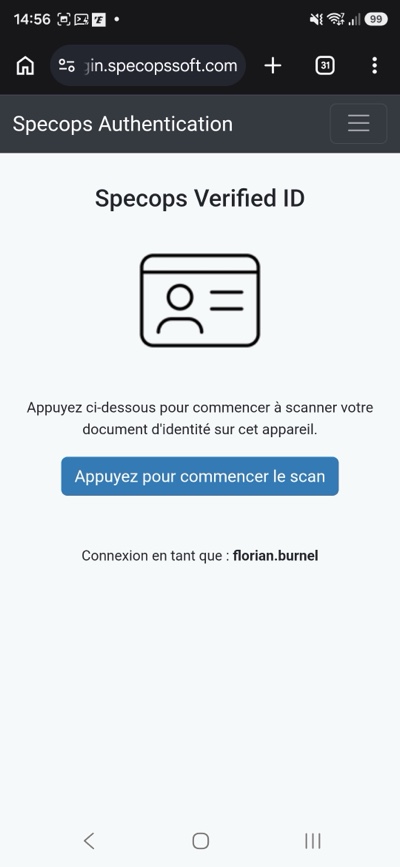
After clicking Continue, the Specops Verified ID screen appears with a reminder of the account involved and a button to start the document scan.
The user frames their ID document with the camera.
Next comes the selfie. Before capture starts, the interface checks conditions and displays a checklist: proper lighting, no accessories (glasses, mask, hat, cap), camera at eye level. Once the user is ready, they start the verification.
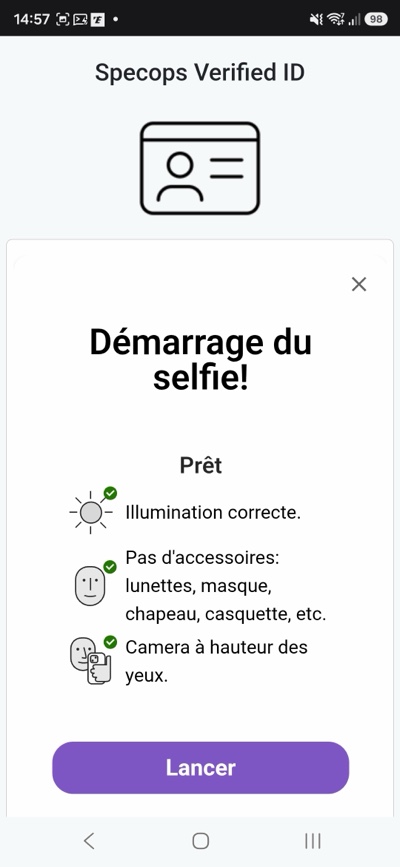
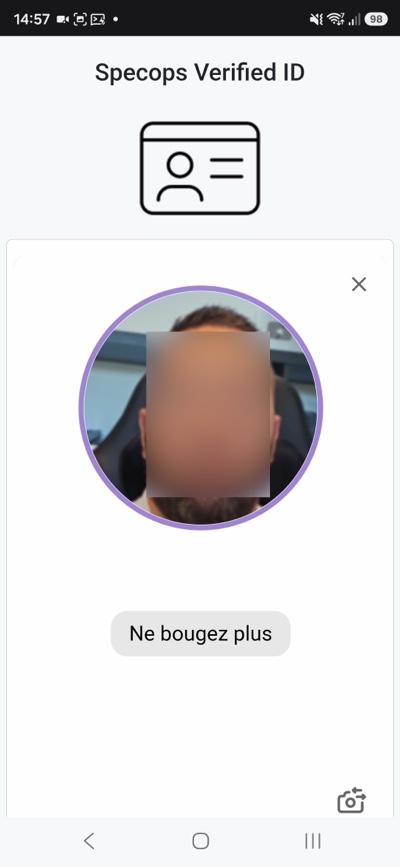
In passive mode, the user only needs to remain still for a few moments while the analysis runs. In active mode, additional prompts appear.
Once all three checks are passed (document, liveness and face comparison, account matching), the user is informed of the result, and the agent sees the verification confirmed in the console. They can then proceed with the reset, and the action is logged in the session report.
What About Data Privacy?
You are probably finding this identity verification method compelling compared with today’s threats. But what about data privacy? Scanning identity documents and employees’ faces naturally raises questions.
Here is what Specops says about it:
- Temporary processing: document data (name, photo, date of birth, number) is used only for verification and sent to Specops Cloud, in the European Union or the United States depending on your tenant’s location. So in Europe, if you are in France.
- Fast deletion: the data, including the photo, is deleted after verification, usually in less than a minute and no later than 60 minutes.
- No retention on success: no personal data from the document or selfie is kept.
- Limited retention on failure: only the name and date of birth may be retained for up to 35 days, for troubleshooting purposes, in the same datacenter as the tenant.
- No model training: the AI models used are pre-trained and do not use customer documents.
- Third-party providers: the providers of the underlying technologies do not have access to identity documents or photos, only to non-identifying license data.
- Encryption: images are encrypted in transit and stored only temporarily (as noted above).
These are the vendor’s commitments; I am not in a position to audit them myself. But Specops Software is a serious vendor, and they want to be transparent on this point.
Limitations and Points to Watch
After testing this, here is what I consider the main caution points to evaluate before planning an enterprise deployment:
- A smartphone with a camera is mandatory. PC webcams are not supported. For employees without a smartphone, or those who refuse to use a personal device, you need a fallback method in the authentication strategy (that is possible).
- Directory data quality determines success. A directory with preferred names, names without accents, or hastily created accounts will generate failures at the matching stage. Plan for cleanup and alignment work.
- Threshold tuning requires a pilot group. Run a PoC with a small user group for one to two weeks to measure success and failure rates (and their causes). This makes it possible to adjust thresholds gradually and find the right balance.
- Capture conditions matter. Lighting, no glasses, proper framing: a user traveling in a poorly lit environment may fail, and the help desk needs to know how to assist them.
- This is not an everyday authentication method. Scanning an ID on every login would make no sense. Specops Verified ID is designed for the moments most likely to lead to account compromise: password resets, onboarding, and similar workflows.
Conclusion
Specops Verified ID addresses a concrete and timely problem: verifying a person’s identity at the exact moment access is granted or restored, in a world where voice and face are no longer proof of anything. The chosen approach, an official ID document combined with liveness detection and directory matching, moves the problem into terrain that is much riskier for an attacker than SMS codes or a video call.
Its main strength is integration: it is another identity service within a platform that Specops customers already use, without prior biometric enrollment and without a separate tool. For a service desk, it is a way to apply strong verification consistently, without relying on the agent’s judgment (which was already the case with Secure Service Desk, but here in a stronger form).
To go further:
- Official Specops Verified ID documentation
- Specops Secure Service Desk: Verifying User Identity at the Help Desk
- Specops uReset: Self-Service Password Reset
- First Day Password: Securing the First-Day Password
- Specops Device Trust: Linking Each Login to a Trusted Device
FAQ
What is Specops Verified ID?
Specops Verified ID is an identity service in the Specops Authentication platform that verifies a user’s identity using an official ID document scanned with a smartphone and a selfie subject to liveness detection. The document photo is compared with the selfie, then the name (and optionally the date of birth) is matched against the account in Active Directory or Microsoft Entra ID. It can be used through Specops Secure Service Desk, Specops uReset, and First Day Password.
Does Specops Verified ID protect against deepfakes?
Specops Verified ID does not rely on a human recognizing a face or voice, which is exactly what deepfakes are designed to deceive. It combines three automated checks: authenticating an official ID document, liveness detection to confirm that a real person is present, and facial comparison against the document photo. An attacker therefore has to bypass all three controls at once, which is much harder than impersonating someone on a video call.
Which identity documents are accepted by Specops Verified ID?
Specops Verified ID accepts official identity documents such as passports, national ID cards, and driver’s licenses. The vendor says it supports more than 16,000 document types across more than 200 countries and territories, with the same privacy and data-deletion rules regardless of the issuing country.
Are biometric data retained by Specops?
According to Specops, document data and the selfie are used only for the duration of the verification, then deleted in less than a minute in most cases and no later than 60 minutes. If verification succeeds, no personal data from the document or selfie is retained. If verification fails, only the name and date of birth (if compared) may be kept for up to 35 days for diagnostic purposes. The data is not used to train AI models, and third-party providers do not have access to it.
Do you need to install an app to use Specops Verified ID?
No, that is not mandatory. The administrator can allow verification through the Specops:ID mobile app (iOS and Android), through a standard smartphone web browser, or let the user choose. In all cases, the document capture and selfie must be completed on a mobile device, since PC webcams are not supported for image-quality reasons.