www.it-connect.fr


How to Manage UFW on Linux with Gufw’s Graphical Interface
Have you configured UFW to secure your Linux server, but find the command line intimidating or tedious? Or do you manage several machines and want a more visual way to handle your firewall rules? In this tutorial, we’ll take a look at Gufw (Graphical Uncomplicated Firewall), a solution to that problem. It is a full graphical interface for UFW, eliminating the need to memorize commands.
We’ll see that Gufw allows both beginners and experienced users to configure and manage their firewall without using the command line. This tutorial explains how to install Gufw, use its interface, and manage your firewall rules with this tool. As a reminder, there is also a guide to configuring ufw on IT-Connect.
Context: graphical interface vs command line
For a system administrator used to Linux, using UFW from the command line is fast and efficient. However, this approach has drawbacks in some situations: novice administrators may make syntax errors, the lack of immediate visual feedback makes testing less intuitive, managing multiple servers with different configurations becomes cumbersome, and users coming from Windows environments are less accustomed to the command line.
Gufw is not an alternative to UFW, it is an interface for UFW. In the background, Gufw generates exactly the same iptables rules as UFW on the command line. The advantage is mainly in accessibility and convenience, for example:
- The interface is intuitive, and you add a rule through simple forms without having to memorize syntax,
- You can see all rules at a glance, grouped by type,
- Drop-down fields and built-in validation help prevent mistakes,
- The application provides help that explains each option.
Gufw runs in graphical mode and therefore requires an X11 server (desktop environment). On a headless server (without a graphical interface), you must stick with UFW on the command line.
Installing Gufw
Before installing and using Gufw, the prerequisites are as follows:
- An Ubuntu, Linux Mint, or Debian-based distribution with a desktop environment (GNOME, KDE, XFCE, etc.),
- sudo or root access,
- UFW installed (usually already present; otherwise install it with
sudo apt install ufw).
The easiest method is to install Gufw through the package manager:
sudo apt update
sudo apt install -y gufw
Wait for the installation to finish. The application will then be available from your desktop environment’s menu:
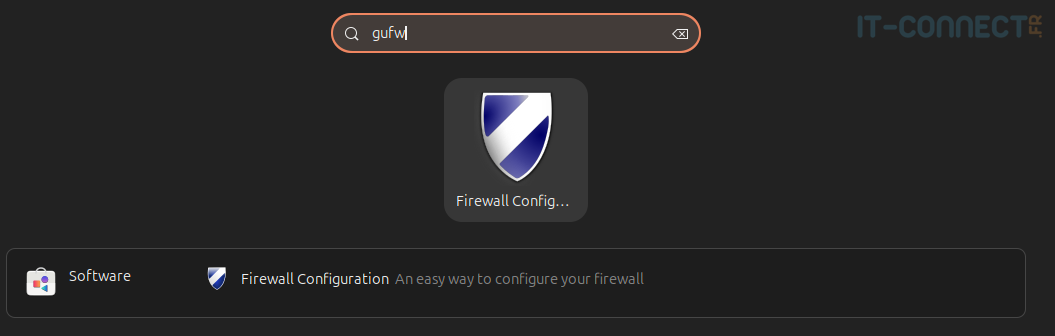
You can also launch it from the terminal:
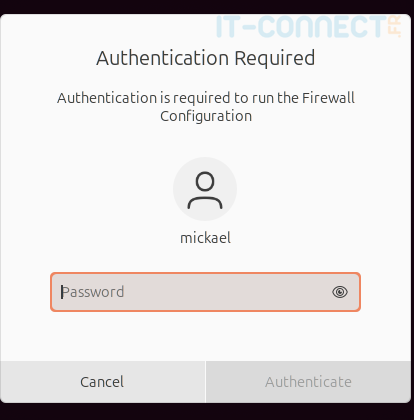
gufwThe first time, Gufw asks you to authenticate the application so it can access system settings. root permissions are required because firewall rules affect system security (make sure your user has sudo permissions):
Discovering the Gufw interface
The Gufw interface is divided into three main areas:
Zone 1: Main controls (top of the window) :
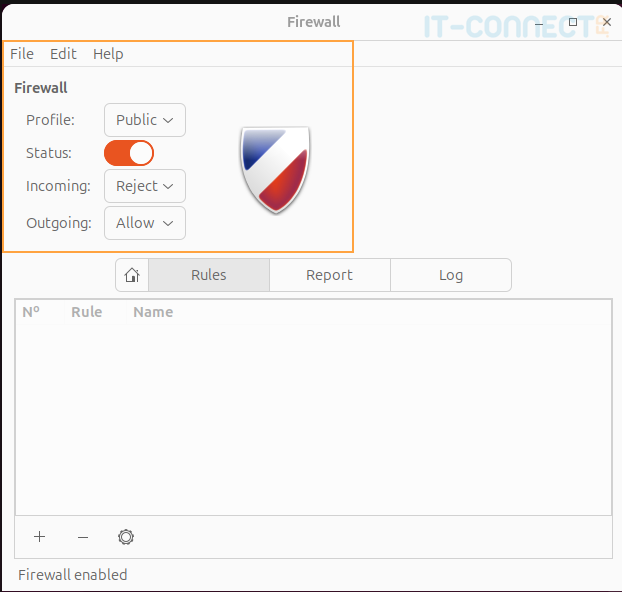
This area is always visible and includes:
- Profile selection
- An
On/Offswitch to enable or disable the firewall - Default rules for inbound and outbound traffic
- A
Edit > Preferencesbutton to access advanced settings - The ability to import/export a filtering configuration (
File)
Zone 2: Rules tab
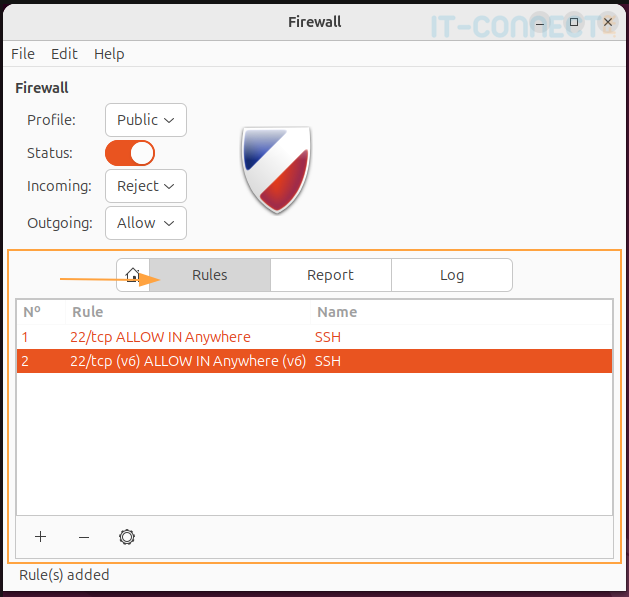
This is where you’ll find the firewall rules applied by the current profile. Here, you can add and remove them (we’ll see how in a moment). In the example above, I have two filtering rules for TCP/22 on IPv4 and IPv6, and I allow incoming communications. Since the default rule is set to Reject, all other ports are unreachable from the network.
Zone 3: Report
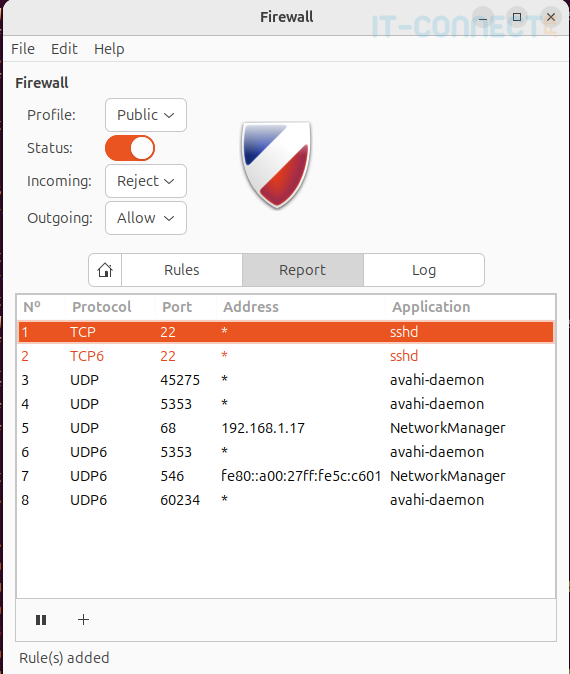
This tab makes it easy to view the services and ports listening on your system, helping you better control exposure and configure your filtering rules accordingly.
Finally, the Report tab provides a history of firewall activity, profile selection, and rule management, which you can also find in the /var/log/gufw.log file.
Initial configuration with Gufw
Enable Gufw for the first time
Once Gufw is open, you can select a profile (or create your own), then click the On button to enable the firewall if it is not already active:
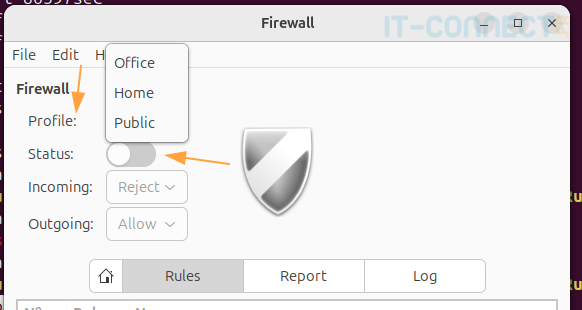
By default, Gufw automatically sets the following default policies:
- Inbound traffic: Blocked by default,
- Outbound traffic : Allowed by default.
This configuration follows the principle of least privilege, which is ideal for security. It helps prevent any unwanted requests from the network.
Adding filtering rules
Then it’s up to us to:
- Modify the default filtering rules for inbound and outbound traffic if necessary, using the drop-down list in the upper area
- Add our exceptions, whether inbound or outbound, to allow the necessary and legitimate traffic through.
Let’s see how to add a filtering rule to, for example, allow incoming communications on the SSH service, which is needed for remote administration. In the Rules tab, look for the + icon at the bottom of the window (the - icon removes a rule and the gear icon edits the selected rule):
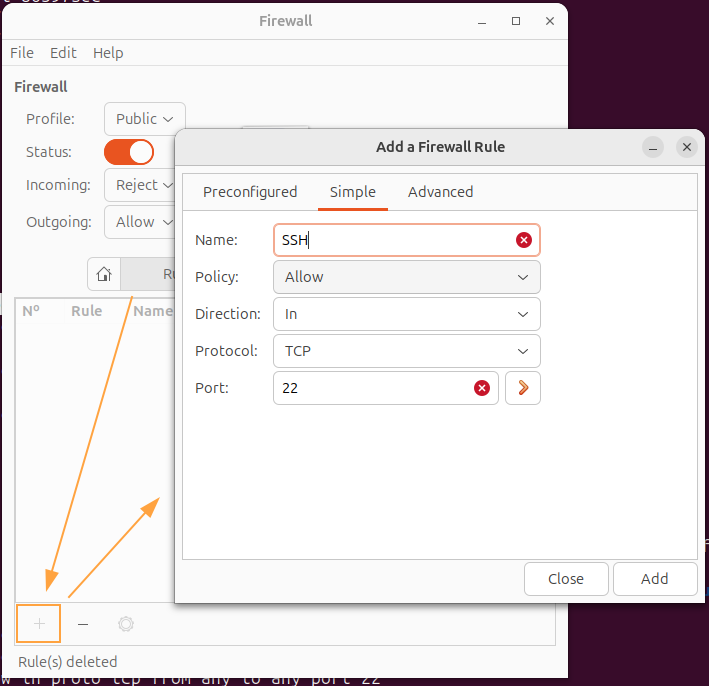
Among the 3 tabs in this new window:
- Preconfigured applies prebuilt rules for different use cases, making it easy to select firewall rules that fit your needs. You do not have to use them.
- Simple: lets you add filtering rules easily using the essential parameters (protocol, port, direction, port),
- Advanced: lets you select advanced parameters such as the position of the filtering rule (which matters in
iptables), the application interface if you have several, the desired logging, and so on. This brings you closer to the precision of command-line rules, but it is not useful if you are using the firewall in a "simple" way.
Once our rule has been added, you will find it in the Rules tab and can edit or delete it:
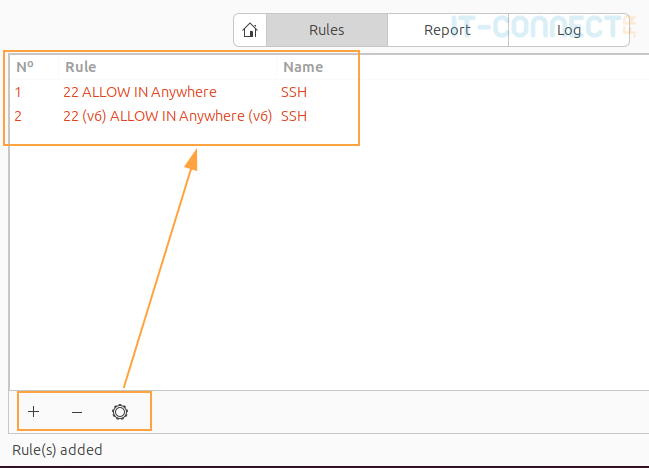
Finally, you can naturally find your firewall rules configured via the ufw command:
$ sudo ufw status

Status: active

To                         Action      From
--                         ------      ----
22                         ALLOW       Anywhere
22 (v6)                    ALLOW       Anywhere (v6)
And also directly via iptables:
$ sudo iptables -L ufw-user-input

Chain ufw-user-input (1 references)
target     prot opt source               destination
ACCEPT     tcp  --  anywhere             anywhere             tcp dpt:ssh
ACCEPT     udp  --  anywhere             anywhere             udp dpt:22
Finally, for better management of your rules, don’t forget to export them to files so you can return to a clean configuration in case of an error:
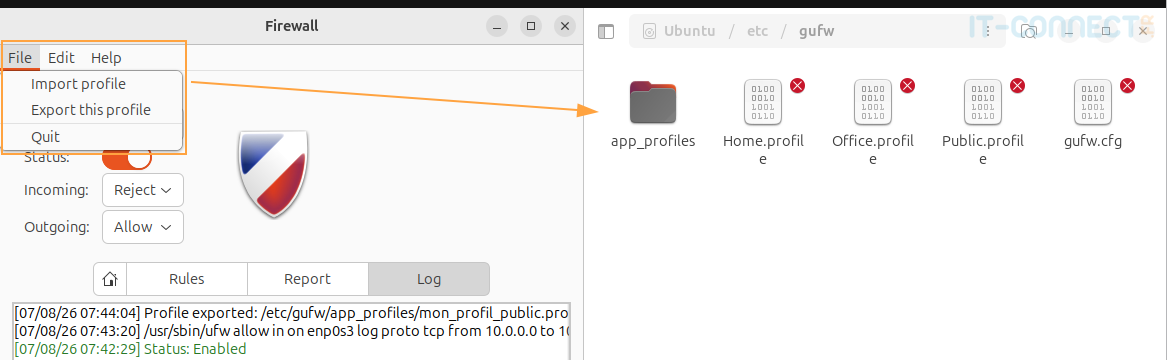
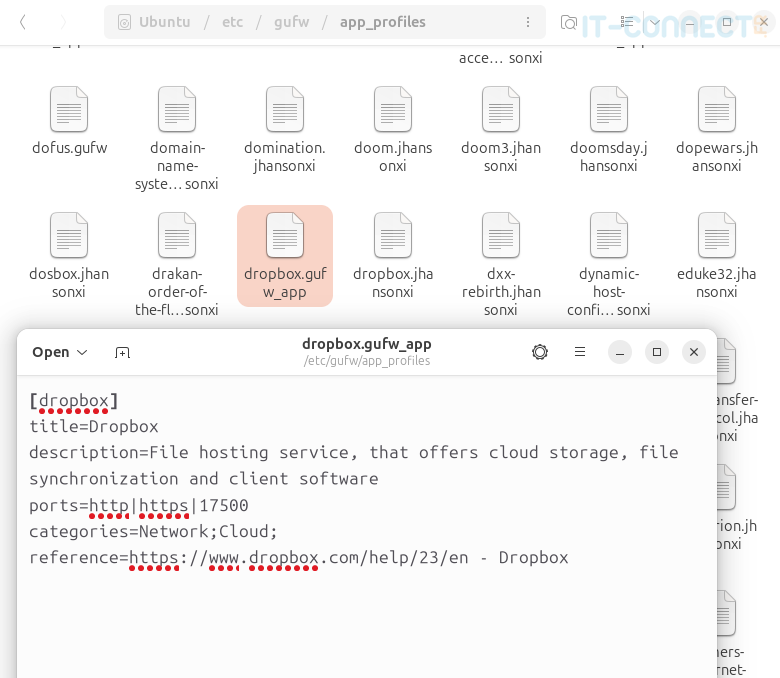
By the way, in the /etc/gufw/app_profils folder, you’ll find your saved profiles, as well as a large set of rules already prepared for certain services or applications; these are notably used by the preconfigured GUFW rules mentioned above:
Of course, this is only one example of what can be done to illustrate GUFW usage. You will need to adapt your rules to your security context, and do not hesitate to create multiple profiles (business, school, home, work, etc.).
Conclusion
Gufw offers an accessible alternative to command-line ufw and ipables, without sacrificing any functionality. Whether you are getting started with Linux firewalls or simply prefer a visual way to manage your rules, this tool lets you secure your system in just a few clicks. Its only prerequisite is having a desktop environment, which makes it suitable for workstations and graphical servers, and understanding how a local firewall works.
Feel free to try it if the command line still puts you off; you can always check your rules with ufw status to keep your bearings.
FAQ
What is the difference between Gufw and UFW?
Gufw is not a firewall in its own right; it is the graphical interface for UFW. UFW (Uncomplicated Firewall) manages filtering rules from the command line, while Gufw provides a window with forms to create and remove those same rules without having to memorize commands. One is simply an interface for the other.
How do I install Gufw on Ubuntu or Debian?
Gufw is installed from the official repositories with the sudo apt install gufw command on Ubuntu, Linux Mint, or any Debian-based distribution with a desktop environment. Once installed, the tool is available from the applications menu or by running the gufw command in a terminal. On first launch, sudo password authentication is required to apply the rules.
Are rules created with Gufw compatible with the ufw command?
Yes, rules added through Gufw are handled by UFW and appear identically from the command line. You can check them at any time with sudo ufw status, or inspect the underlying iptables rules with sudo iptables -L. This lets you move between the graphical interface and the terminal without configuration conflicts.
What firewall rules does Gufw apply by default?
By default, Gufw blocks all incoming traffic and allows all outgoing traffic, in line with the principle of least privilege. This policy protects the machine from unwanted network requests without interfering with connections initiated by the local system. You then need to add exceptions for services you want to expose, such as SSH on the port of your choice.