www.it-connect.fr


How to Connect AI to Thunderbird with This MCP Server for Managing Your Emails
What if your AI assistant could read, sort, and draft your emails directly from Thunderbird, helping you save time without ever leaving your usual email client? That’s possible with thunderbird-mcp, an open source project.
The open source thunderbird-mcp project exposes Thunderbird through the MCP (Model Context Protocol), allowing an AI to interact with your email locally. This opens the door to several use cases: automatically sorting an overloaded inbox, asking for a contextual reply draft from a conversation thread, or even searching for information in your inbox.
In this tutorial, we’ll look at how to install this MCP server, configure it, and use it from an AI. Here, Claude Desktop will be used, but you can use the AI of your choice, including a local AI (which is even better for data privacy).
The MCP Protocol and Why This Module Matters
As a reminder, MCP, or Model Context Protocol, is an open standard that serves as an interface between a language model and a data source or external tools. Instead of manually copy-pasting the content of an email into a chat window, MCP allows the assistant to fetch the information itself and act on it through a set of predefined tools. It’s much more practical and intuitive.
The thunderbird-mcp project, developed by Tomasz Kasperczyk, is made up of two parts. On one side, a Thunderbird extension that includes a local HTTP server. On the other, a Node.js bridge that translates exchanges between the stdio protocol expected by MCP clients and the HTTP requests handled by the server. The module provides 35 tools organized into several categories: mail management (search, read, move, delete), message composition (new emails, replies, forwards), filter management, address book, and calendar.
One important point should be highlighted right away: by default, no message is sent without your approval. In practice, the AI opens a Thunderbird window with the email already drafted, allowing you to review it, and even edit it directly in Thunderbird before anything is sent. This is a useful safeguard when delegating actions to an AI, and it can be disabled in the options.
Prerequisites and Security Considerations
Before getting started, there are a few things you’ll need. You need Thunderbird version 102 or later, Node.js to run the bridge, and an MCP-compatible client. As mentioned earlier, we’ll use Claude Desktop as the example.
Regarding security, this open source tool was designed to work only locally. The HTTP server listens on the localhost interface of your machine and uses an authentication token generated for each session, written to a connection file with restricted permissions. The port is dynamically assigned within a range from 8765 to 8774 to avoid conflicts (it won’t take over port 80, don’t worry).
However, keep in mind that when you give an AI access to your email, you may also be giving it access to sensitive information: professional correspondence, personal data, attachments.
Installing the MCP Extension in Thunderbird
The first step is to download the project from the thunderbird-mcp GitHub repository. There you will find a precompiled XPI file. You can download it to your machine:
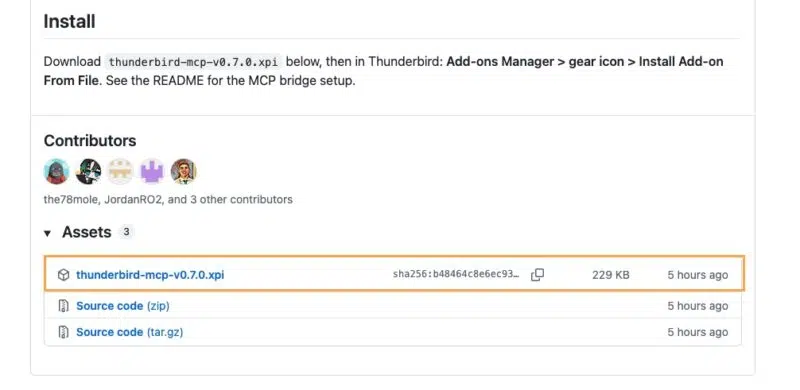
Next, open Thunderbird, then go to the Tools > Add-ons and Themes menu. Then click the gear icon and choose Install Add-on From File. Select the thunderbird-mcp.xpi file you downloaded earlier.
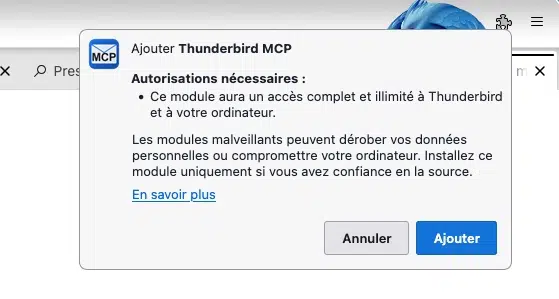
Thunderbird will then display a window listing the permissions requested by the module. As indicated, the extension will gain full access to Thunderbird, which allows it to access your messages. Click "Add" to confirm the installation, then restart Thunderbird so the extension becomes fully operational.
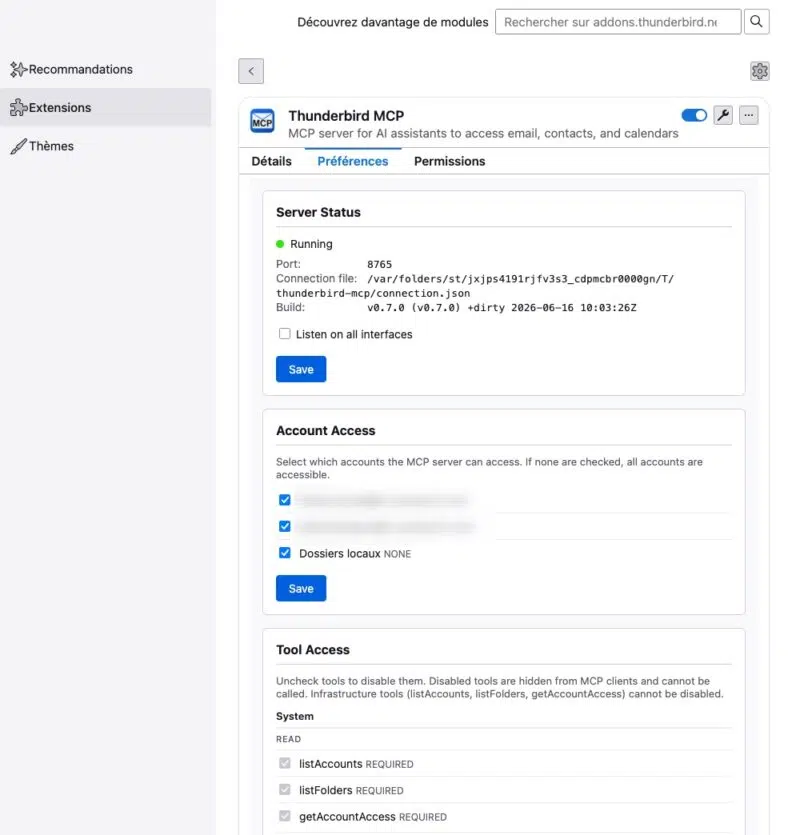
In the extensions list, open the options for the Thunderbird MCP module. The Preferences tab contains the full configuration.
The first section, Server Status, confirms that the server is running. You’ll see the port in use (for example 8765), the automatically generated connection file path (connection.json), and the build version number. If the status shows "Running" with a green indicator, the local HTTP server is active and ready to receive bridge requests. The "Listen on all interfaces" option is disabled by default, and that’s a good thing: leaving it off ensures the server is reachable only from the local machine.
The "Account Access" section lets you choose which email accounts are accessible to the MCP server. This is where data control really matters. If you manage multiple accounts in Thunderbird, you can easily authorize only the one used for non-sensitive purposes and keep the others out of the AI’s reach.
Finally, the "Tool Access" section lets you control which tools are exposed through MCP and, therefore, which actions you want to allow. Each tool exposed by the module can be disabled individually. A disabled tool becomes invisible to the MCP client and can no longer be called. A few infrastructure tools, such as listAccounts, listFolders, and getAccountAccess, are marked as required and cannot be disabled because they are needed for basic operation. If, for example, you want to allow reading but prevent any message deletion, this is where you would uncheck the corresponding tools.
Configuring the Thunderbird MCP Client
Once the extension is installed, you still need to tell your assistant how to reach the bridge and communicate with Thunderbird. From GitHub, you must download the extension source code and store it on your machine (another option is to clone the repository).
The configuration is done in your MCP client’s configuration file. For Claude Desktop, this is the claude_desktop_config.json file. You need to declare the server there by pointing to the project’s mcp-bridge.cjs script in thunderbird-mcp (adjust the path depending on where you store it).
{
  "mcpServers": {
    "thunderbird-mail": {
      "command": "node",
      "args": ["/chemin/absolu/vers/thunderbird-mcp/mcp-bridge.cjs"]
    }
  }
}
Make sure to specify the path to the mcp-bridge.cjs file, otherwise it won’t work. Once the configuration file is saved, restart your MCP client so it takes this change into account. If everything is correct, the client will detect the bridge and the Thunderbird tool list will become available!
Using the Assistant Day to Day
Everything is now in place, so it’s time to get practical! The first time you use a tool, your AI client will ask for confirmation. For example, when the AI wants to reply to a message, a window appears showing the name of the tool involved, here ReplyToMessage, and asks you to allow it. This explicit runtime confirmation adds another layer of control, on top of the access settings mentioned earlier.

Here are some concrete prompts you can give your assistant:
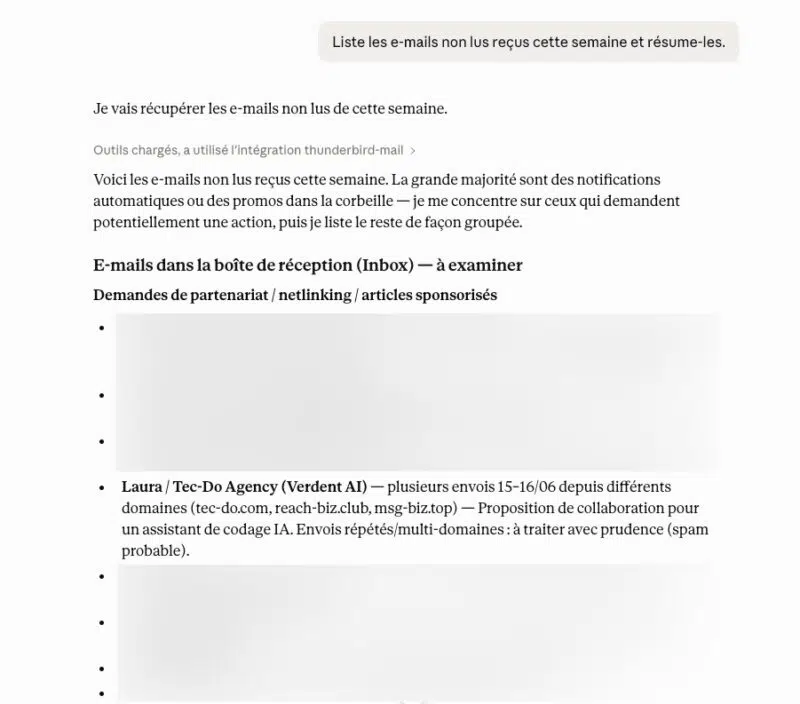
- List the unread emails received this week and summarize them. : the AI will then use the search and read tools to go through your inbox. If you do not specify a particular account, it will produce a global summary across all your accounts.
- Draft a reply to this message proposing a meeting next week. : the assistant prepares the reply and opens the review window, leaving you the final word before sending. Asking for a reply is important so that it is truly a reply with the original thread preserved.
- Create a filter that automatically moves newsletters into a dedicated folder. : the module acts directly on Thunderbird’s filtering rules.
- Send an email to Marion asking whether the editing of the next video is finished. : the module will prepare the email and search your contacts for the recipient. It may also ask which address to send from and which one to send to if the contact has multiple email addresses.
The advantage of this approach is that you keep your usual working environment. The AI’s actions appear in Thunderbird, with the same compose and review windows you already know. In addition, you can create a Markdown file with instructions so the AI knows what to answer based on the requests (if it’s a request that comes up often, for example).
Conclusion
The thunderbird-mcp module clearly shows how the MCP protocol brings AI assistants closer to our local tools without forcing us to switch to a fully hosted solution. In just a few steps, the AI is connected to the mailbox! What makes this even more interesting is that AI models capable of running locally are perfectly able to draft emails without requiring a powerhouse machine. That will be the next step for me.
What do you think?