www.it-connect.fr

Portmaster: The Open Source App Firewall for Windows and Linux
Once installed on a computer, Portmaster displays every connection in real time, linked to the process that initiated it, and then lets you decide application by application whether to block or allow the connection. In this tutorial, I invite you to discover Portmaster, an open source firewall compatible with Windows and Linux. What features does it offer? How do you use it? Find out in this article.
Portmaster in a nutshell
What servers does your computer connect to? Which applications are the noisiest? How can you block Windows or Linux telemetry? Portmaster answers all of these questions on its own. This open source application firewall intercepts all network traffic on the machine, associates each connection with the process behind it, and applies rules defined globally or per application. It also includes a DNS resolver and blocklists for ads, telemetry, and malicious domains.
The firewall, monitoring, and DNS features are completely free. Only network history, bandwidth statistics, and the SPN anonymization network are part of the paid plans offered by Safing.io.
What is Portmaster?
An application firewall
An application firewall often refers to a WAF, that is, a firewall designed to protect an exposed web application (and more importantly, one that works at the application layer). Portmaster is not that kind of firewall. That said, Portmaster is an application firewall at the endpoint level (in the same vein as Little Snitch on macOS). Its logic is not "which port should be allowed?" but rather "which application is allowed to talk, and to whom?". This is an interesting distinction, because the rule no longer applies to an IP/port pair, but to a set of three elements: an executable, a destination, and a decision.
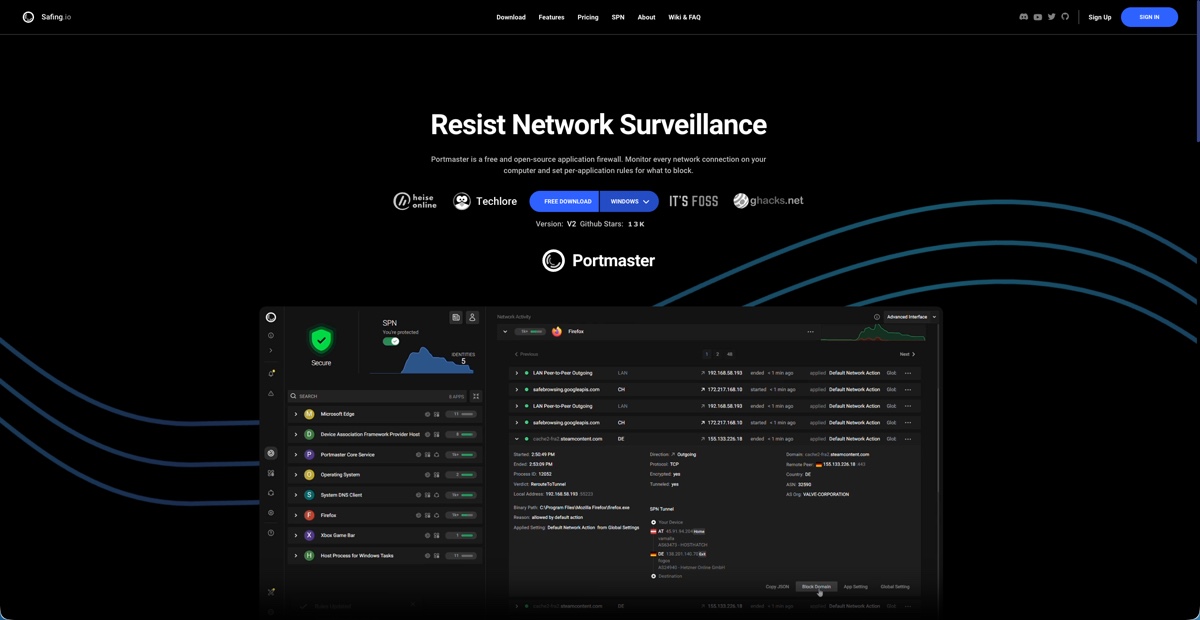
With Portmaster, you get a continuous view where each row already shows the binary name, the resolved domain, the destination country, the recipient ASN, and, above all, the applied verdict (used, blocked, etc.).
What is an ASN? The Autonomous System Number identifies the entity that operates a block of IP addresses on the Internet, typically a hosting provider, an operator, or a major platform. It is what makes it possible to know whether a connection is going to Amazon, Microsoft, or another provider.
The publisher behind Portmaster
Portmaster was created by Safing, an Austrian company founded by privacy enthusiasts. The project was made public in 2020, version 1.0 was released at the end of 2022, and version 2 arrived in July 2025. It is an active, maintained project, notably because there is a business model behind the tool, with premium versions that include more features.
In December 2024, Safing was acquired by IVPN, a VPN provider. This acquisition seems fairly healthy, since Safing first noticed contributions arriving in its repository before discovering they came from IVPN. Safing’s two founders have since taken on an advisory role, and the IVPN team now handles maintenance, fixes, and new development. The open source model has been preserved, so the code is available on GitHub (under the GPL 3.0 license).
The three functional building blocks
Portmaster’s main service is split into modules, including:
- Privacy Filter: the decision engine that evaluates each connection and each DNS request.
- Secure DNS: the local resolver that encrypts requests and applies filtering before resolution.
- SPN (Safing Privacy Network): the optional paid anonymization network, unavailable in the free version.
The first two are free and more than enough for the use case we are interested in here.
How does Portmaster integrate with the system?
Portmaster is available for Windows and Linux, but not for macOS. On a workstation where it is installed, how does it integrate with the system to analyze network flows?
- On Windows:
Portmaster installs a kernel-mode driver that fits into the network stack, between layers 2 and 3 of the OSI model, via the Windows filtering platform. The driver therefore sees the IP layer and everything above it.
- On Linux:
Here, there is no proprietary kernel module. Portmaster uses iptables combined with nfqueue to intercept packets, then eBPF and the /proc filesystem to identify the process that owns each socket. Portmaster accepts all packets, but marks the entire connection as allowed or denied. Once a connection’s fate is sealed, the kernel no longer needs to pass anything back to user space, which remains far more efficient than inspecting every packet.
Installing Portmaster on a computer
Whether on Windows or Linux, installing Portmaster is relatively straightforward. Go to the Portmaster download page and get the Windows or Linux installer, depending on your system. You can then install it from the downloaded package.
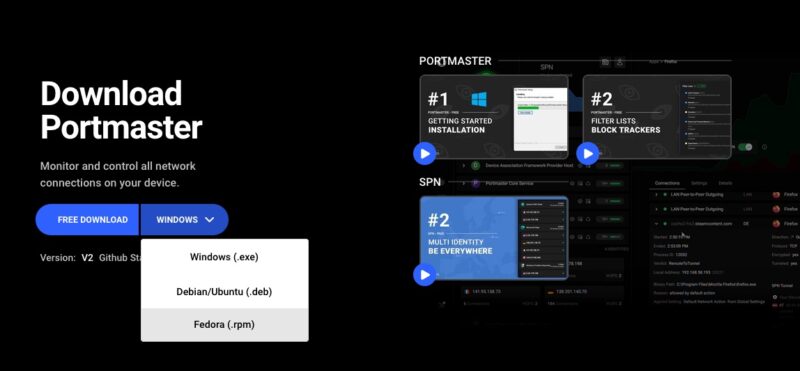
On Windows, simply launch the executable you downloaded earlier. On Linux, you can use the command line directly to download and install the package. For example, on Debian/Ubuntu, it would look like this:
# Télécharger le paquet .deb depuis la page officielle (dernière version en date)
wget https://updates.safing.io/latest/linux_amd64/packages/Portmaster_2.2.1_amd64.deb

# Installer le paquet et ses dépendances
sudo apt install ./Portmaster_2.2.1_amd64.deb
Discovering Portmaster
On first launch, a wizard offers to enable filtering lists and secure DNS. You then land directly on the Network Activity view, which is the heart of the tool. I suggest taking a quick look at Portmaster’s interface, while keeping in mind that my video provides a more detailed overview.
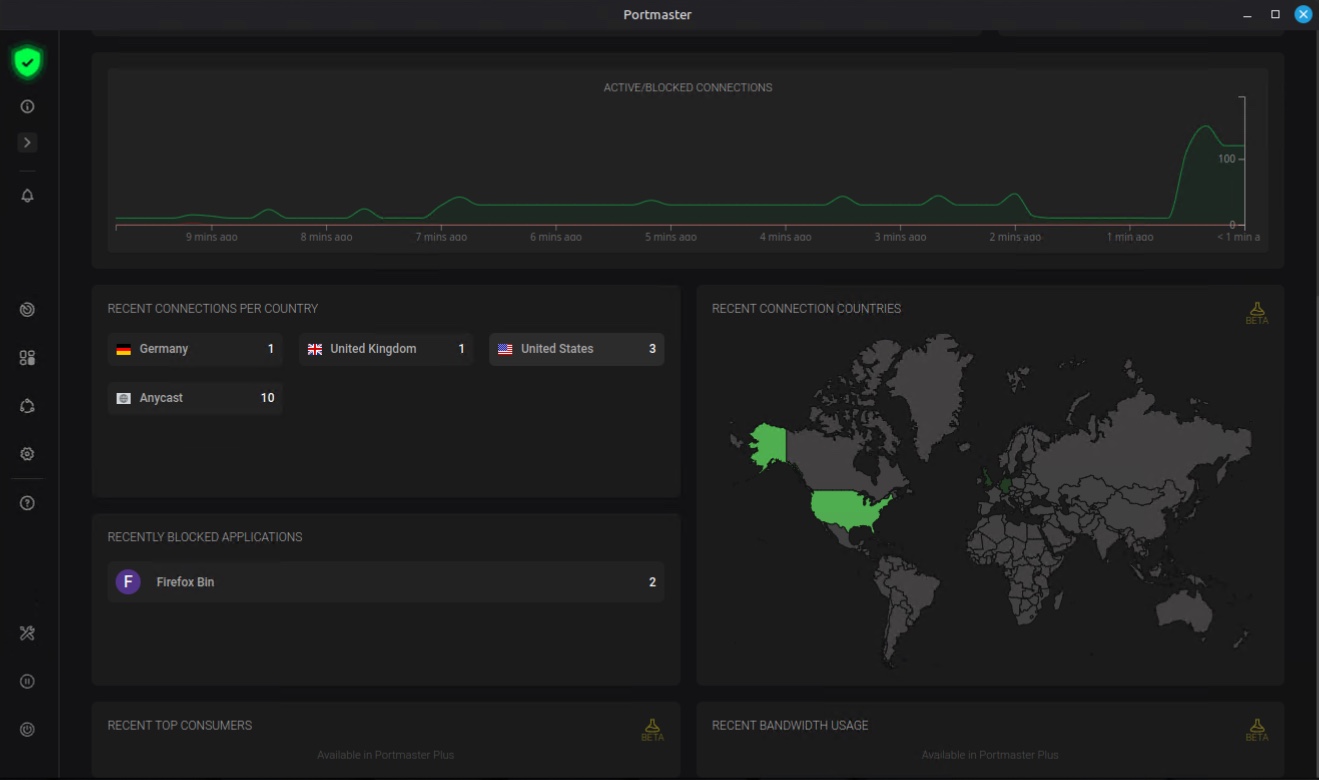
Network activity
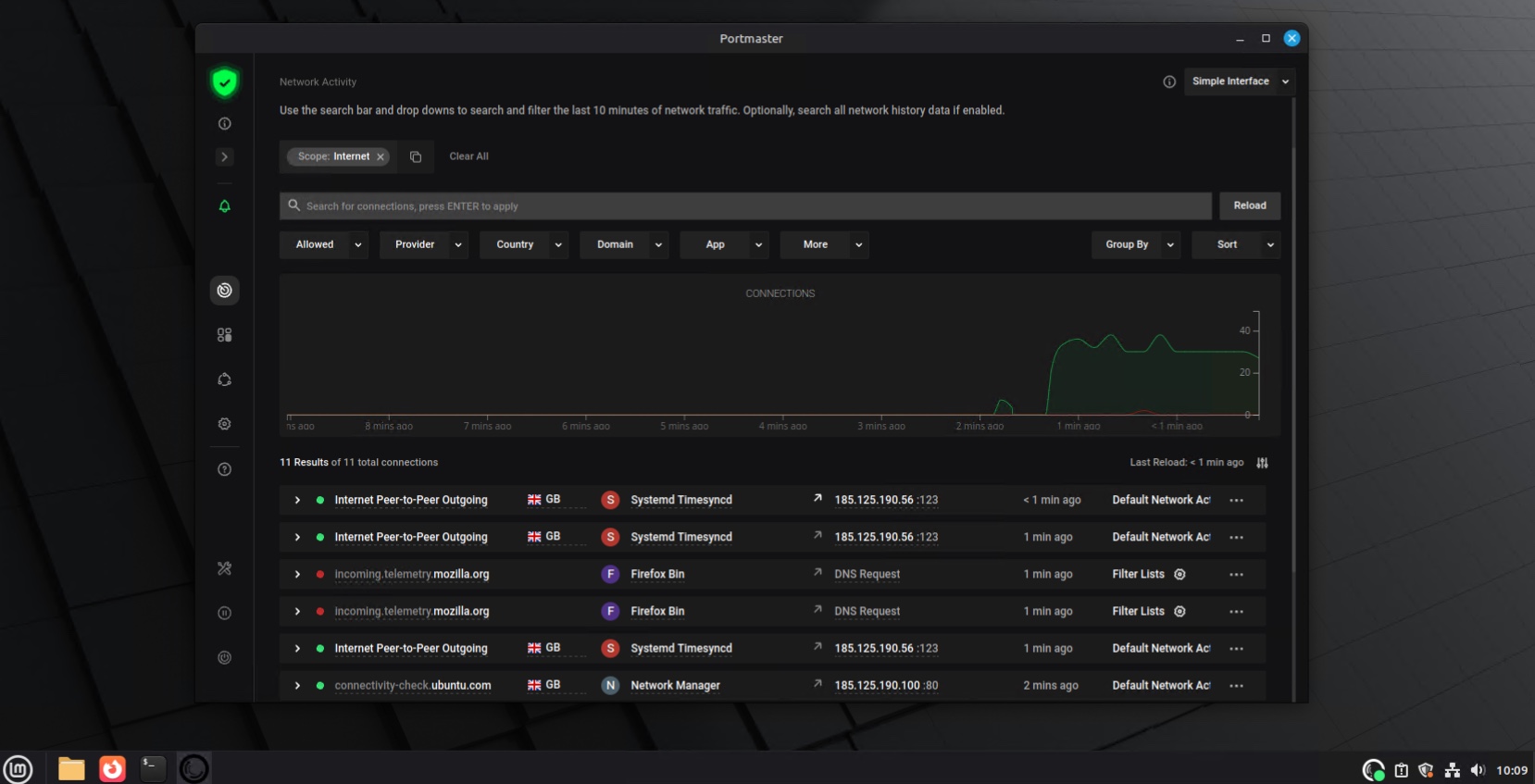
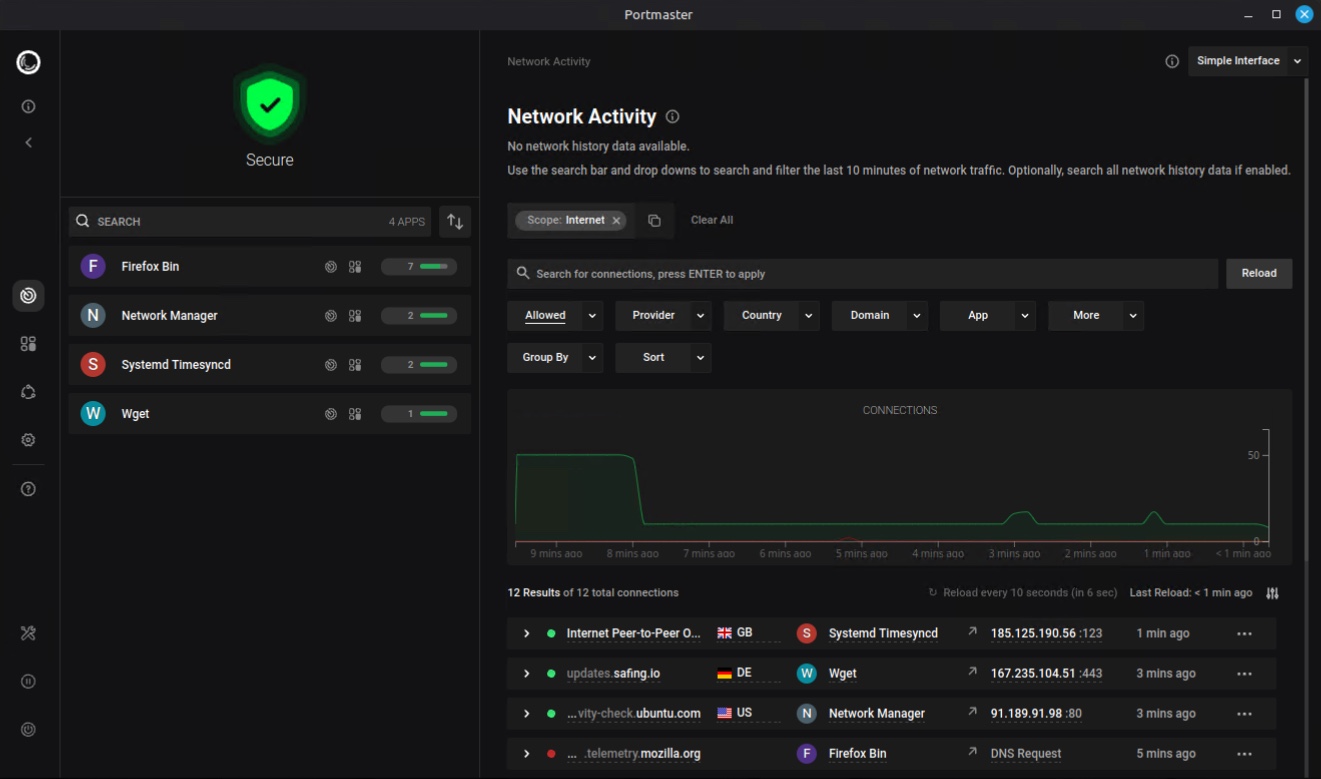
The Network Activity view continuously displays all of the machine’s network connections, each tied to the application that generated it. Rather than a simple list of IP addresses, you get an immediate readout of what the workstation is doing: which application is connecting, to which domain, and in which country. A search bar and drop-down menus let you filter this stream by many criteria (application, country, domain, provider, or network scope) and group connections together. It is well designed and makes it easy to understand what the machine is doing at a given moment, and above all, every outbound exchange becomes visible and actionable.
The two images below illustrate this section of the application well. The left sidebar lists active applications (here: Firefox, Network Manager, Systemd Timesyncd, Wget), along with their number of recent connections and a green bar indicating the share of allowed connections. The chart shows the volume of connections over time. Below that, the stream lists real-time connections with a dot indicating the applied decision: green for an allowed connection, red for a blocked one, as shown here for Firefox’s DNS request to telemetry.mozilla.org.
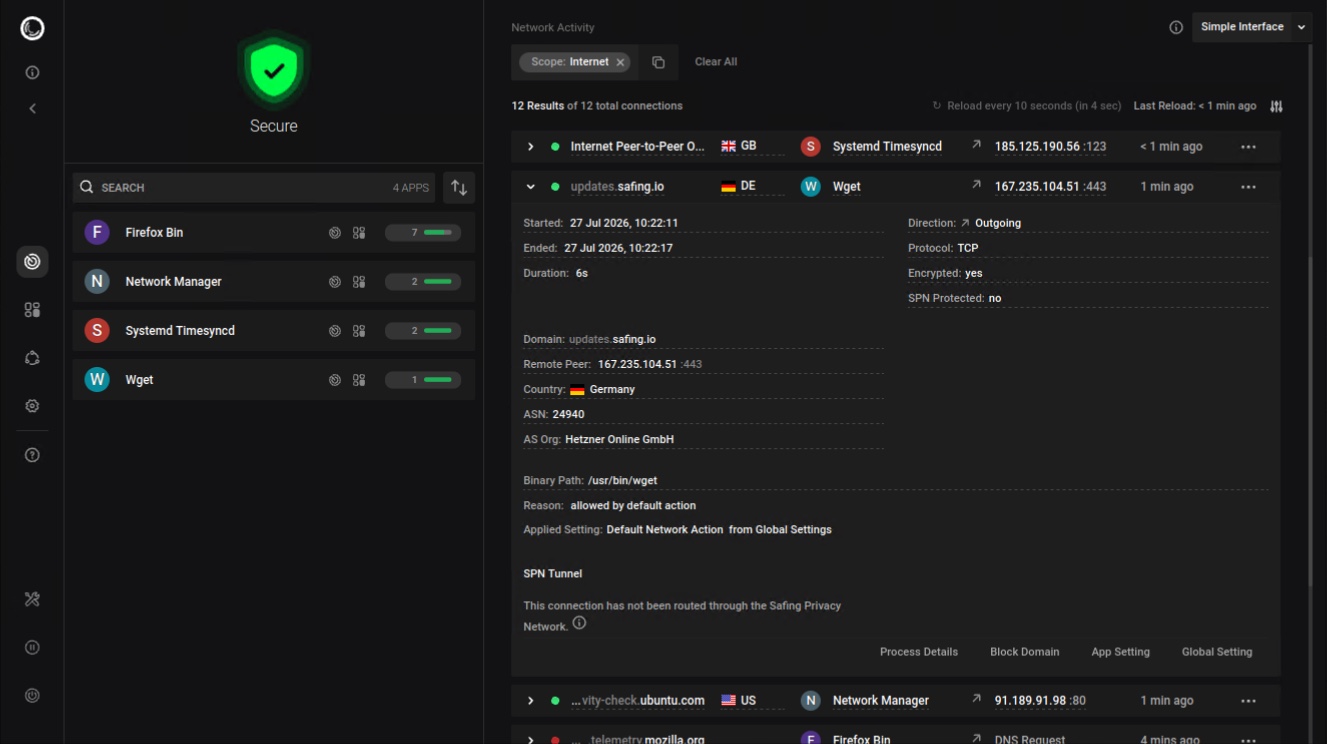
If you expand a connection, you get a real level of detail to understand what it corresponds to. Here, it is an outgoing connection from wget to updates.safing.io: you can see the destination, the country, the ASN and its organization (AS24940, Hetzner Online GmbH), the protocol, the path to the executable, and the applied decision. This example represents the connection visible when the machine connected to the Safing.io site so that I could download the Portmaster application’s .deb file.
Per-application settings
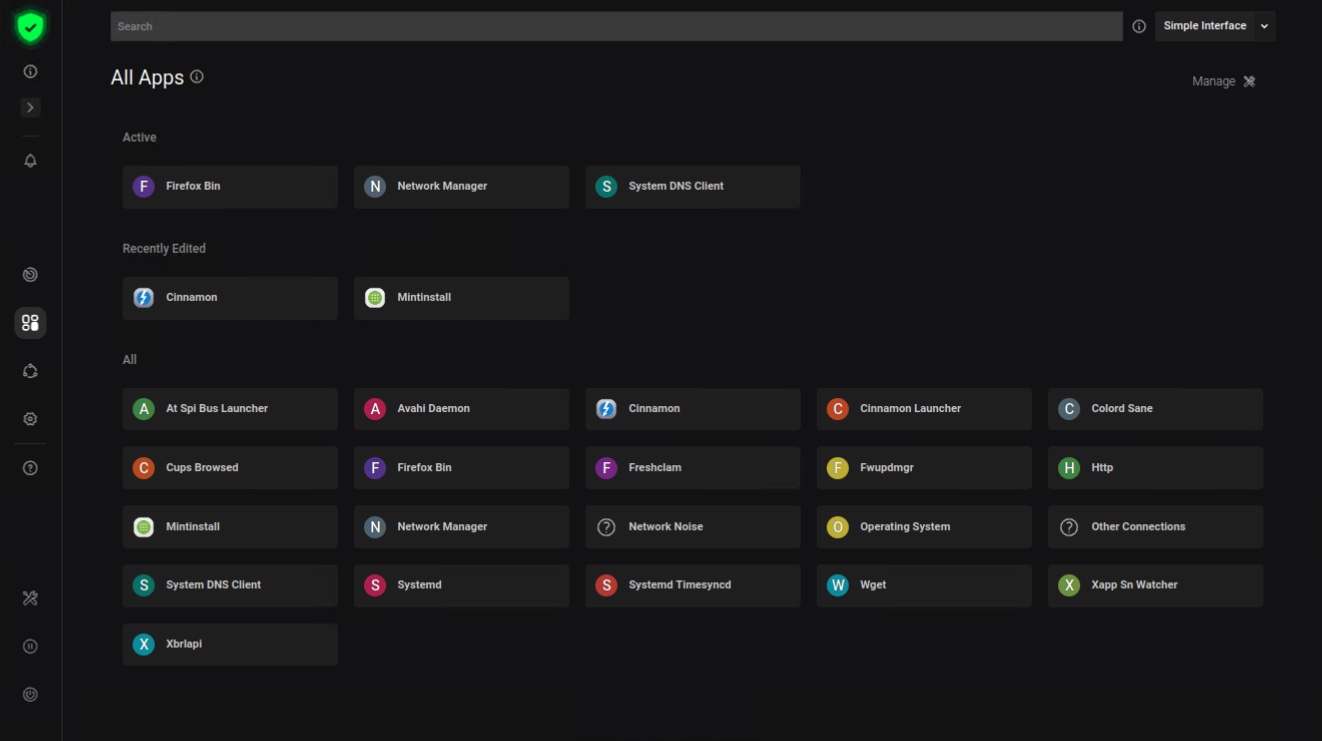
The All Apps section lists all the applications that Portmaster has seen generate network traffic since it was installed. This is the entry point for moving from a global view to fine-grained settings, application by application. Each application has its own profile, meaning a space that groups its network activity, settings, and details. Any rule or lock you define there overrides the global default value for that single application, making it possible, for example, to broadly allow the system while restricting a specific piece of software.
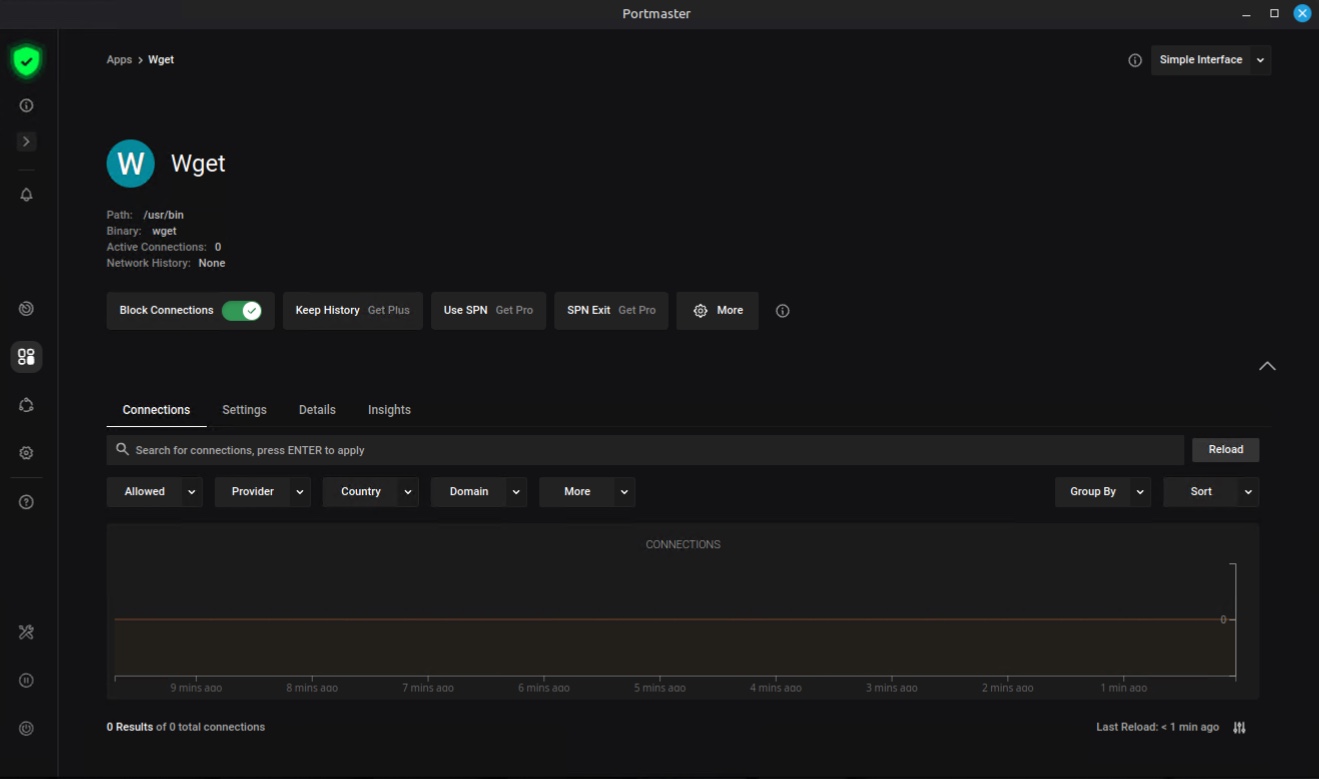
Below, the first image shows the page with all applications, organized into three sections: applications currently active on the network, recently modified applications, and the full list of applications known to Portmaster. The second image shows the profile for the wget application: at the top, its identifying information (path /usr/bin, binary wget, number of active connections, network history), followed by settings. With a single click, you can enable the Block Connections option, which cuts off all traffic for that application. Below that, the Connections, Settings, Details, and Insights tabs provide access to the application’s network activity and configuration, with the same filters and chart as the Network Activity view, but limited to that application.
In each application’s settings, you will find several options to more or less restrict an application’s network activity:
- Force Block Incoming Connections prevents the application from acting as a server. This option is enabled by default and blocks incoming connections.
- Force Block Internet Access cuts off Internet access while still allowing access to the local network.
- Force Block LAN does the opposite and isolates the application from the local network.
- Force Block P2P/Direct Connections blocks connections established directly to an IP address without prior DNS resolution. Safing recommends enabling it globally and then allowing exceptions.
- Force Block Device-Local Connections forbids communication over the loopback interface.
The Safing Privacy Network (SPN)
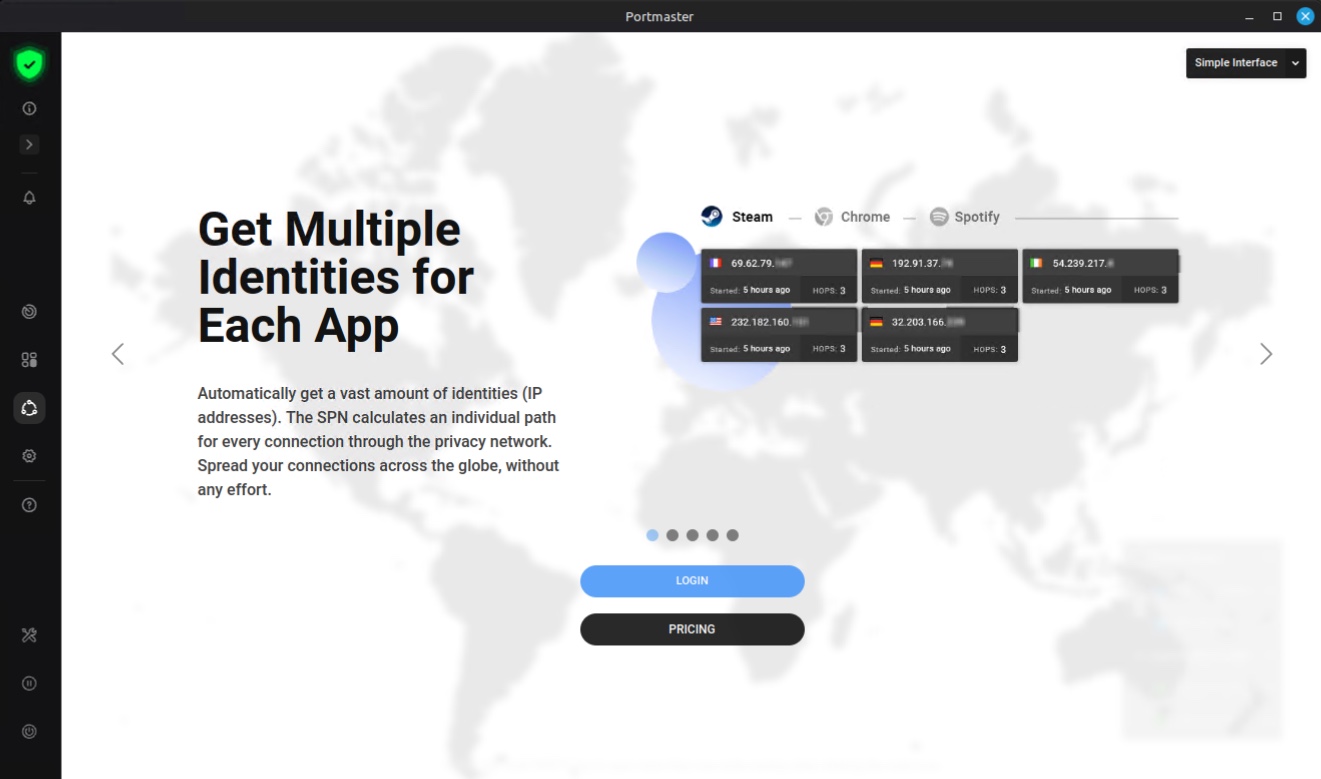
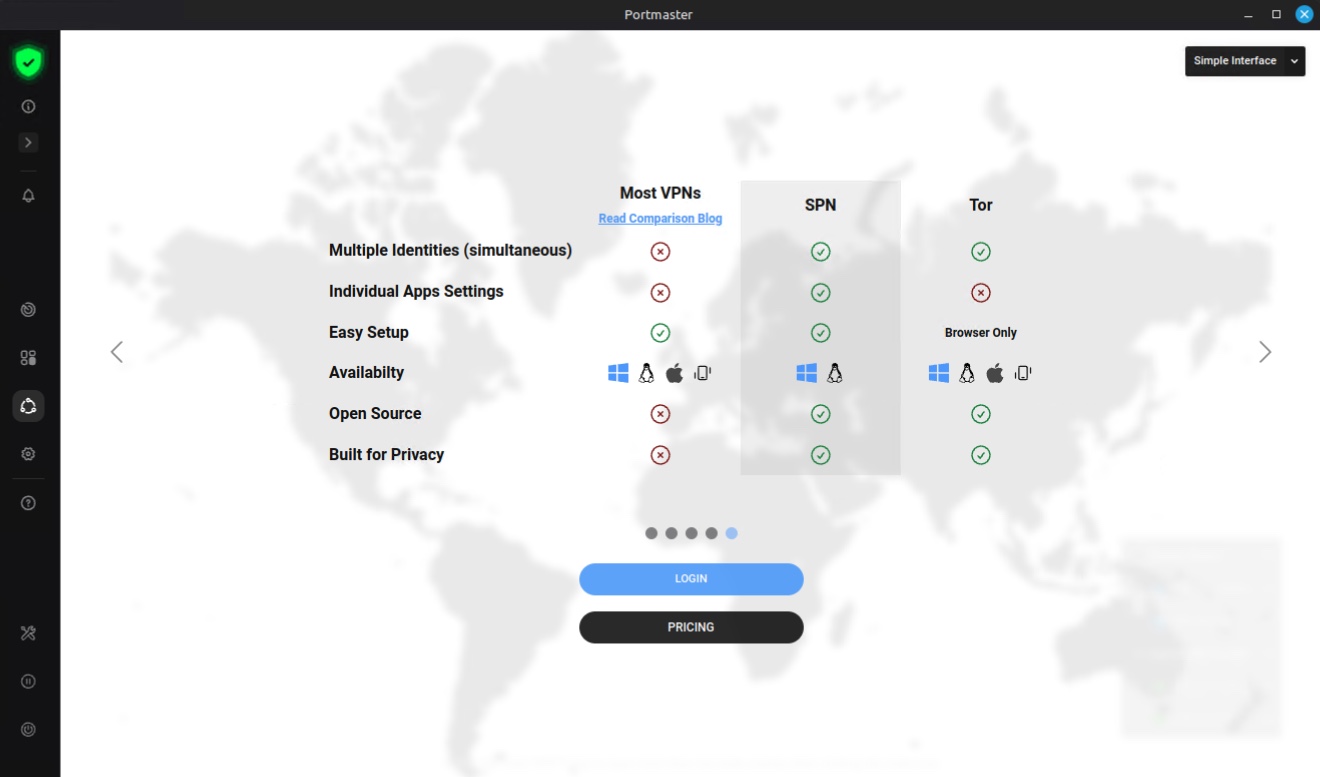
The SPN page presents the Safing Privacy Network, Portmaster’s optional paid anonymization network, included in the Pro plan. Positioned between a traditional VPN and Tor, SPN applies layered encryption across multiple relays, but with a twist: it routes each connection individually and chooses an exit node close to the destination. This means your different applications, and even your different browser tabs, go out onto the Internet with distinct IP addresses distributed around the world. This is not available in the free version.
Global settings
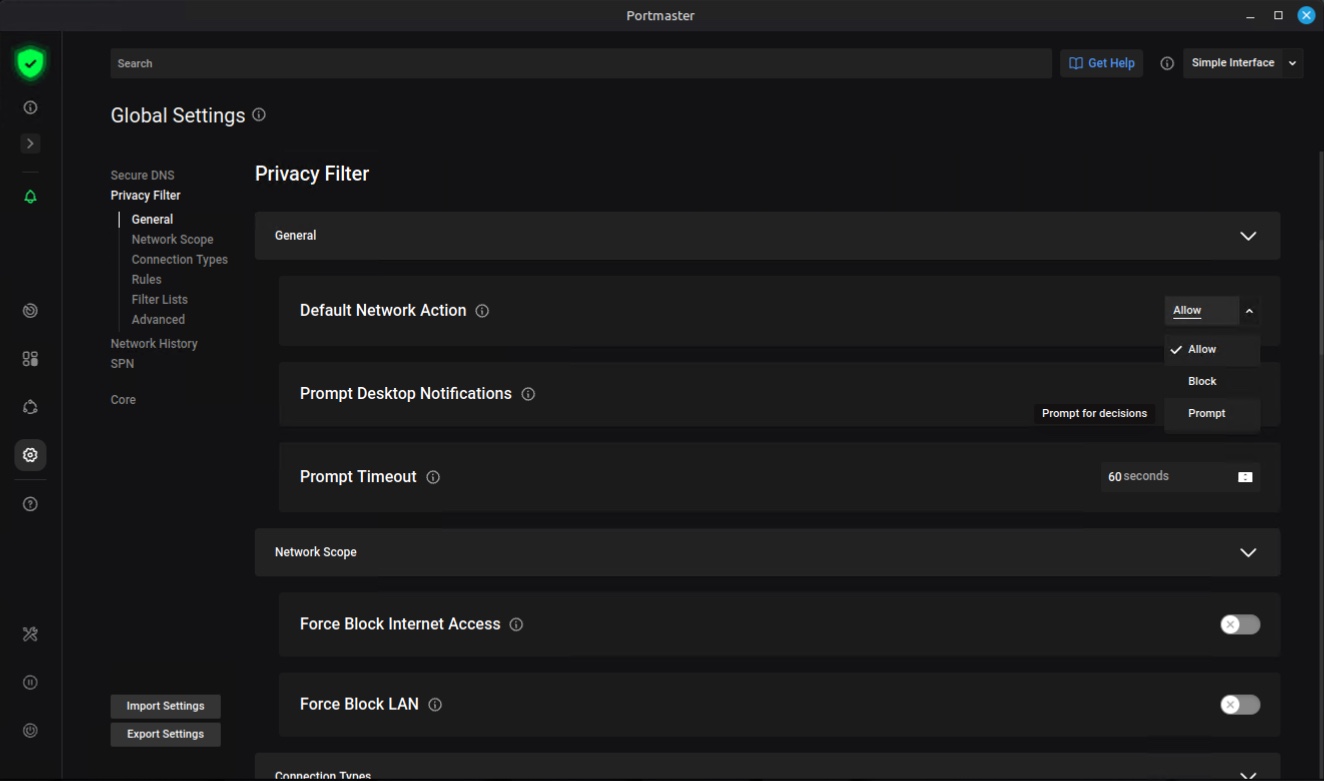
A dedicated section gathers all of Portmaster’s settings, organized by category: Secure DNS, Privacy Filter, Network History, SPN, and Core. Some of these settings configure Portmaster itself, while others define the default behavior applied to all applications unless they are configured differently in their own profile. There is also a Prompt mode: Portmaster will ask you, for each network connection, whether it should be allowed. This gives you complete control, but on Windows it is a nightmare: there are a huge number of requests (so a lot of management work at the beginning). Requests can come from the system itself, but also from installed applications (telemetry, automatic update checks, etc.).
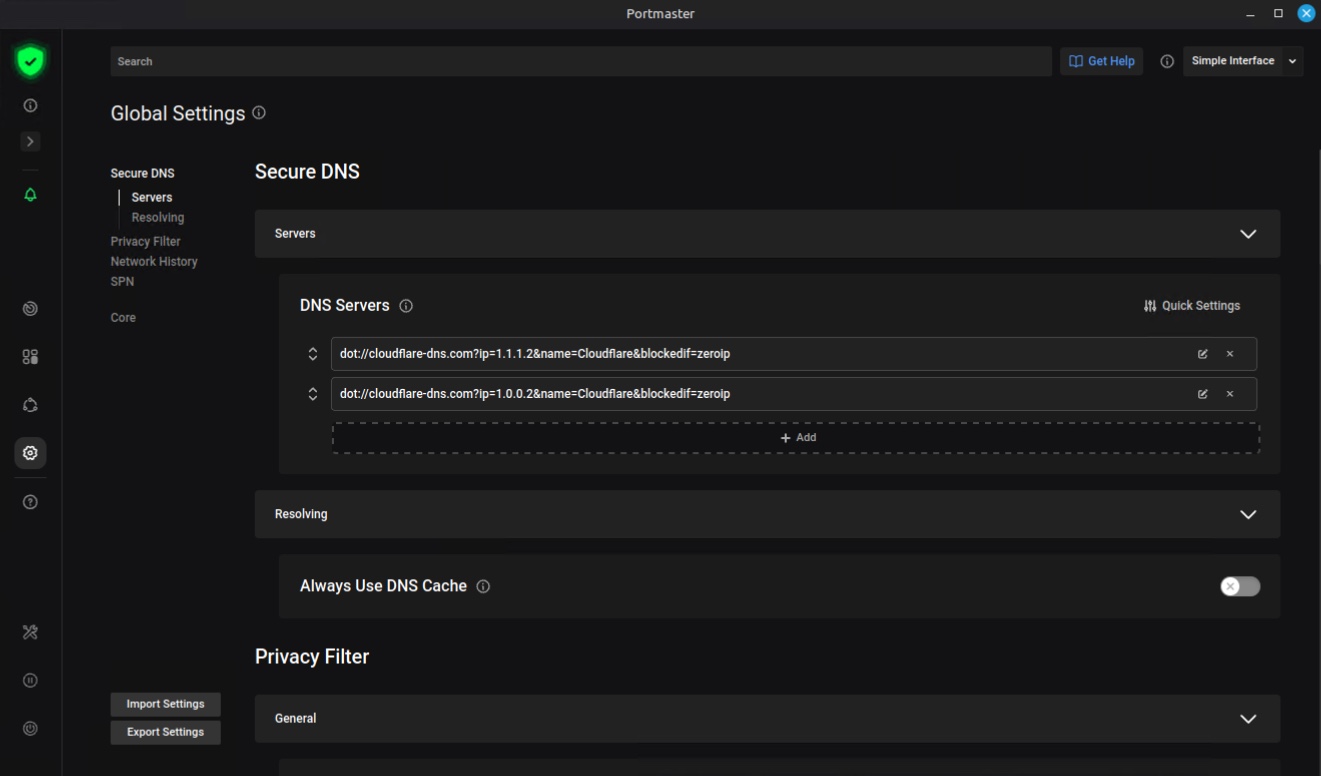
For DNS resolution, the two preconfigured servers are visible in the Secure DNS section, namely Cloudflare over DNS over TLS with the 1.1.1.2 and 1.0.0.2 addresses, which is the variant that already filters malicious domains. You are free to use the DNS server of your choice.
Blocking ads and trackers
In the settings, you will also find filtering lists organized by category: Ads and Trackers with its subcategories (Ads, Analytics, Telemetry, Other), Malware, Deception, and mixed lists, each with a short description of what it blocks. These lists are what let you block malicious sites, ads, and more directly at the local level on your machine.
Portmaster includes a list-based filtering system that operates at the DNS level, before the request even leaves the machine. The principle is the same as a Pi-hole or AdGuard Home, except that the protection is local and therefore follows the device, even when you are on the move on a public Wi-Fi network.
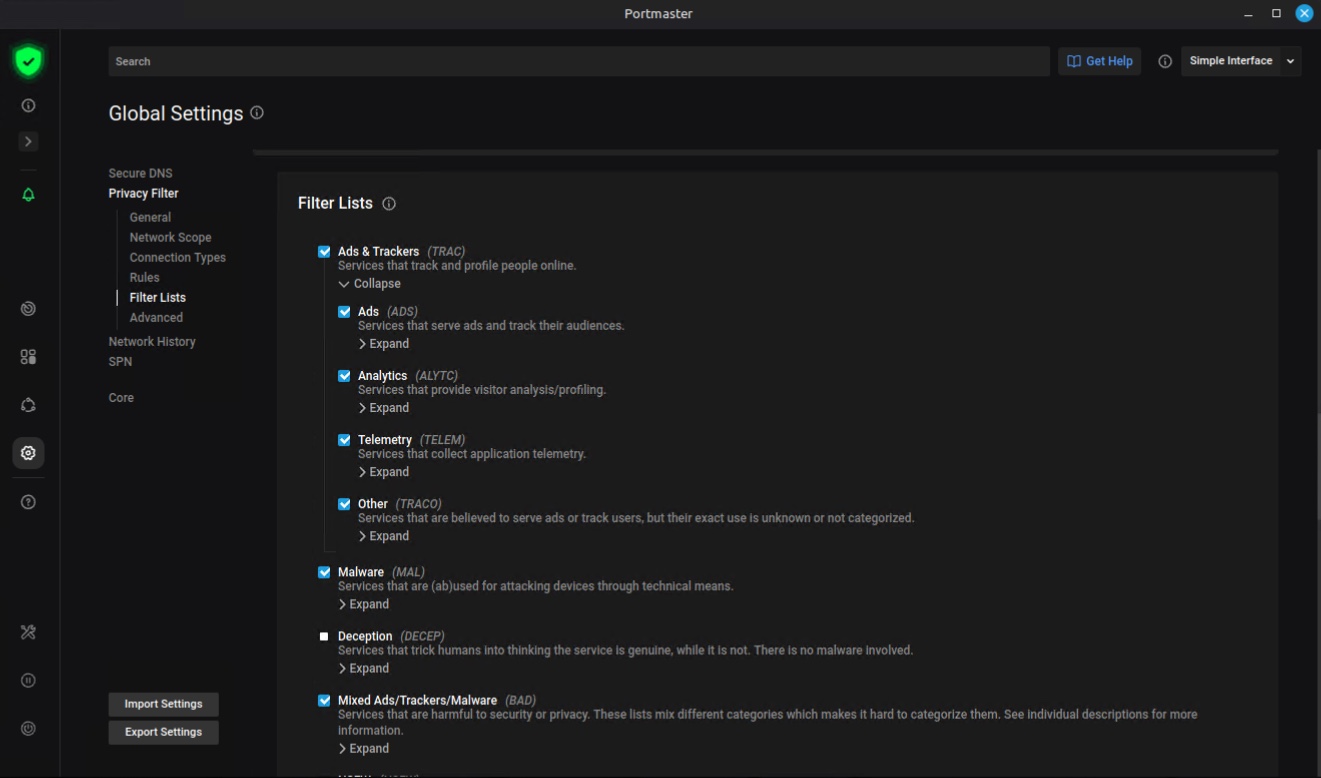
The lists can be selected by category or individually in the settings. They are aggregated and republished by Safing as incremental updates, which keeps them up to date and maintained. The source list is public: intel-data repository.
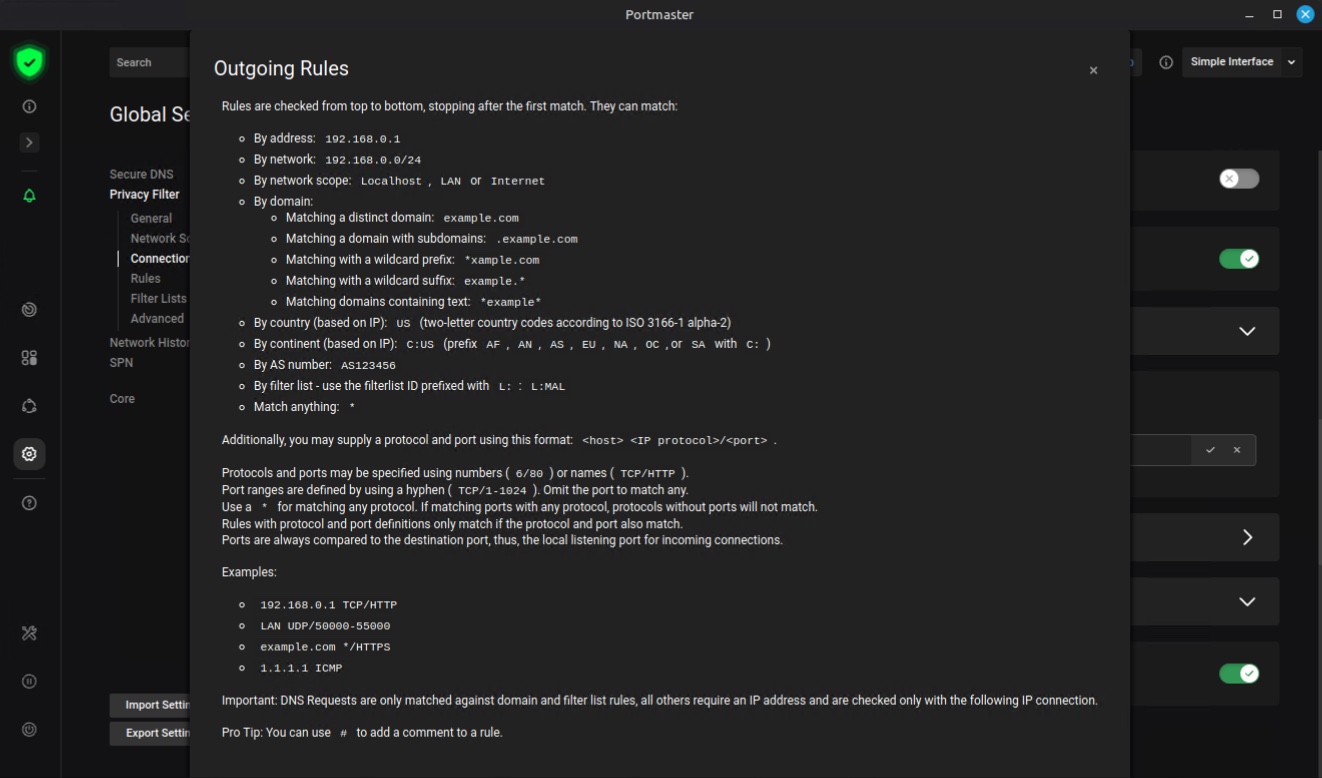
You can also add your own blocking directives, and more broadly create custom blocking rules within your Portmaster firewall. These outbound filtering rules are added on top of Portmaster’s own rules. Several criteria can be used in rules: by address, by network, by scope (localhost, LAN, Internet), by domain with its variants (exact domain, subdomains, generic prefix or suffix, contained text), by country using a two-letter ISO code, by ASN number, and by filtering list.
Conclusion
Neither Windows nor Linux natively provides a readable view of what each application sends over the network. The combination of real-time monitoring, reliable process association, and the ability to apply a decision to each flow makes Portmaster a very interesting tool. After installing it, I also noticed that some applications stopped working because they could no longer contact their servers. This is the case, for example, with DeepL once the local application is installed, because translation is performed via the cloud. I also noticed that some applications, such as Malwarebytes, are chattier than you might think. And telemetry is not just a Windows thing: it also exists on Linux, especially with certain applications and certain distributions (such as Ubuntu). Even if Windows is undoubtedly the champion in this area, it is really interesting to see what Portmaster can detect on a machine.
Finally, Portmaster is a good tool for strengthening workstation security and improving privacy, but it does not replace an antivirus. It blocks communication, not execution. It complements an antivirus, it does not replace one. It is also a good illustration of the principle of defense in depth, and on Linux it pairs well with a ClamAV antivirus.
To go further:
- The official Portmaster website and its GitHub repository.
- The settings manual, which documents each setting along with its default value.
FAQ
What is Portmaster?
Portmaster is a free and open source application firewall, available for Windows and Linux under the GPL-3.0 license. It displays all network connections on the machine in real time, links each one to the process that initiated it, and allows you to define global or per-application blocking rules. It also includes a DNS resolver and blocklists for ads, trackers, and malicious domains.
Is Portmaster free?
Yes, in its Free plan. The firewall, network monitoring, ad and tracker filtering, and encrypted DNS are free and unlimited. Two paid plans are available: Portmaster Plus at 40 euros per year adds network history, bandwidth visibility, and weekly reports. Portmaster Pro at 80 euros per year adds access to the SPN anonymization network.
Is Portmaster really open source?
Yes. The code for the main service, the interface, the Windows kernel driver, and SPN is published on GitHub under the GPL-3.0 license in the safing/portmaster repository.
Is Portmaster available on macOS?
No. Portmaster is only available for 64-bit Windows and 64-bit Linux. There is no macOS version, not even in beta. Safing cites Apple’s deprecation of classic kernel extensions and the constraints of the Network Extension framework. A mobile version is not available either. On macOS, the closest alternatives are Little Snitch and LuLu.
What is the difference between Portmaster and Windows Firewall?
Windows Defender Firewall can filter outbound traffic by application, but it does not provide any real-time visualization of connections and does not tell you which process is contacting which domain. Portmaster displays this stream continuously, indicates the destination domain, country, and ASN, specifies the reason for each verdict, and adds list-based filtering. The two therefore address different needs and can coexist.
What is Portmaster’s SPN?
The Safing Privacy Network is a paid anonymization network included in the Portmaster Pro plan. It applies layered encryption across multiple relays, similar to Tor, but routes each connection individually and chooses an exit node close to the destination. The result is several simultaneous public IP addresses depending on the applications and destinations, with application-level routing algorithm selection.
How do you block Internet access for an application with Portmaster?
Open the Apps page, select the application you want, then enable the Force Block Internet Access lock in its settings. The application will still be able to use the local network, but it will lose all access to the Internet. This lock is stronger than filtering rules: no rule can bypass it.
Can you block connections to a country with Portmaster?
Yes. Filtering rules accept a two-letter country code in ISO 3166-1 alpha-2 format, for example CN, as well as a continent code prefixed with C:, for example C:AS for Asia. Matching is based on the IP geolocation database built by Safing, which also provides the country, ASN, and owning organization for each address.