www.it-connect.fr

BYOD and Contractors: How Can You Trust a Device You Don’t Manage?
At the end of September 2026, ANSSI published its incident report on the cyberattacks that targeted the DGFiP. At the root of these incidents were several dozen agent credentials stolen by infostealers from computers not managed by the DGFiP. They were then reused on portals accessible without any strong authentication. Among its recommendations, ANSSI advises banning the use of personal devices to access business resources. But what should you do when that is necessary?
Multifactor authentication is designed to strengthen account security: it tells you who is signing in, but nothing about the computer the user is signing in from. It may seem like a detail, but it changes everything, especially when that device is a coworker’s family PC, a consultant’s laptop managed by their service provider, or a partner’s machine brought in for a few weeks for a project. These three cases have one thing in common: the IT team has no visibility into the machine’s condition. Which raises questions: is the system up to date? Is the disk encrypted? Is a security solution active on the device?
When in doubt, some CIOs and CISOs make a decision: block these devices. On paper, it is the safest option to avoid exposing the company’s information system. In reality, though, the situation on the ground is different. A consultant on assignment may not be provided with a device by your company, and some employees check their email from their personal PC, with or without authorization.
Securing BYOD and contractor access therefore comes down to answering a simple question to ask, but a harder one to handle: how do you trust a device you do not manage, without enrolling it in an MDM? In this article, I’ll revisit what the Zero Trust model really expects from a device, then review the available options (blocking, MDM, application protection, isolation, Entra ID native protections) and their respective limits. Then we will see how a device trust approach, with Specops Device Trust, makes it possible to verify device posture and condition access accordingly, at sign-in and throughout the session.
This article includes sponsored content for Specops Software.
How Do You Trust an Unmanaged Device?
To trust a device that IT does not manage, the right approach is to assess its state at every access. Above all, the assumption is that it has everything to prove, and that it is considered untrusted: it must prove otherwise. There are 6 key points to highlight:
- Assume nothing: a personal or third-party device is considered untrusted until it has proven otherwise.
- Identify the device: it is recognized and tied to a specific user (with a limited number of devices per person).
- Verify posture at sign-in: operating system and applications up to date, disk encryption, antivirus and firewall enabled, and so on.
- Reassess posture during the session: a workstation that was compliant at logon may no longer be compliant two hours later.
- Adapt access: grant, restrict, or deny based on the level of trust, while allowing the user to fix the issue themselves.
- Log every decision: every allowed or denied access must be explainable afterward.
The challenge lies in the approach used to determine the device’s state: you must verify the device without managing it. And those are two very different things.
Unmanaged Devices: What Are We Talking About?
An unmanaged device is an endpoint that accesses company resources without being administered by IT: no enrollment in a device management tool (MDM), no configuration policies, no enforced security agent. In other words, it is a device used to access resources but about which nothing is known. Several different situations fall under this definition.
BYOD, Contractors, Third-Party Devices: Three Cases, Three Constraints
| Situation | Who owns the device? | Who manages it? | Main constraint |
|---|---|---|---|
| Employee using a personal device (BYOD) | The employee | No one, or the employee themselves | Privacy and acceptability of a management tool |
| Contractor or consultant | Their employer (MSP, consulting firm) | Their employer’s IT department | Device already managed by a third party, no authority from your side |
| Occasional third-party device (partner, freelancer, contributor) | The third party | Unknown | Short relationship, no visibility |
BYOD (Bring Your Own Device, translated by CNIL as AVEC for “Apportez Votre Équipement personnel de Communication”) refers to the use of personal equipment in a professional context. It is an employer choice, which can be allowed under conditions or prohibited. In practice, it is often tolerated long before it is formally governed: one employee checks Outlook on their personal computer in the evening, another installs Teams on their smartphone so they do not miss a meeting.
The contractor case is an interesting one. The consultant arrives on assignment with a laptop provided and managed by their employer. You cannot enroll it in your MDM because it is already managed by another organization. And you have, in principle, no guarantee about how that workstation is maintained. Yet it still accesses some of your resources.
Why MFA Is Not Enough
MFA verifies the user’s identity at authentication time. Once the session is open, the service relies on a session token or cookie. If the device hosts an infostealer, that cookie can be exfiltrated and replayed from the attacker’s machine, without a password or second factor: MFA has already been satisfied, so it is not requested again. I covered this scenario in more detail in my presentation of Specops Device Trust against session theft, as well as in the tutorial on securing Chrome, Edge, and Firefox against infostealers.
A personal device is a fertile ground for this type of attack: a computer shared with family, software installed without oversight, dubious browser extensions, delayed updates. In addition, a compromised device does not even need to leak a cookie to cause trouble: the legitimate user works, with a perfectly valid session, from a machine that can log keystrokes or copy the documents they open.
In other words, MFA protects identity, but not the endpoint. A second signal, specific to the device, is needed to determine whether access should be allowed.
What Zero Trust Expects from a Device
Zero Trust is often summarized by the phrase “never trust, always verify.” Applied to devices, what does that mean?
The NIST reference publication, SP 800-207 Zero Trust Architecture, addresses exactly this scenario. It states that no implicit trust should be granted based solely on network location or device ownership (company or personal), and that authentication as well as authorization apply to both the user and the device. The document also cites BYOD as one of the developments that gave rise to the model.
Three of its principles directly concern our topic today:
- Access decisions are dynamic: they take into account the observable state of the identity, application, and device making the request (installed software versions, location, observed behavior, and so on).
- The enterprise measures the posture of all its assets, including those only associated with it: no device is inherently trusted. Unmanaged devices can be treated differently, up to and including refusing any connection, and a personal device may be allowed to access some resources but not others.
- Authentication and authorization are continuously reevaluated: trust is not granted for the entire duration of the session.
For its part, ANSSI states in its guide on the Zero Trust model (June 2025) that the main goal of this model is to reduce the implicit trust granted to a subject seeking access to the information system. The French agency also stresses gradual adoption, use case by use case, and the fact that Zero Trust complements defense in depth rather than replacing it. Access from unmanaged devices is precisely a well-defined use case to start with.
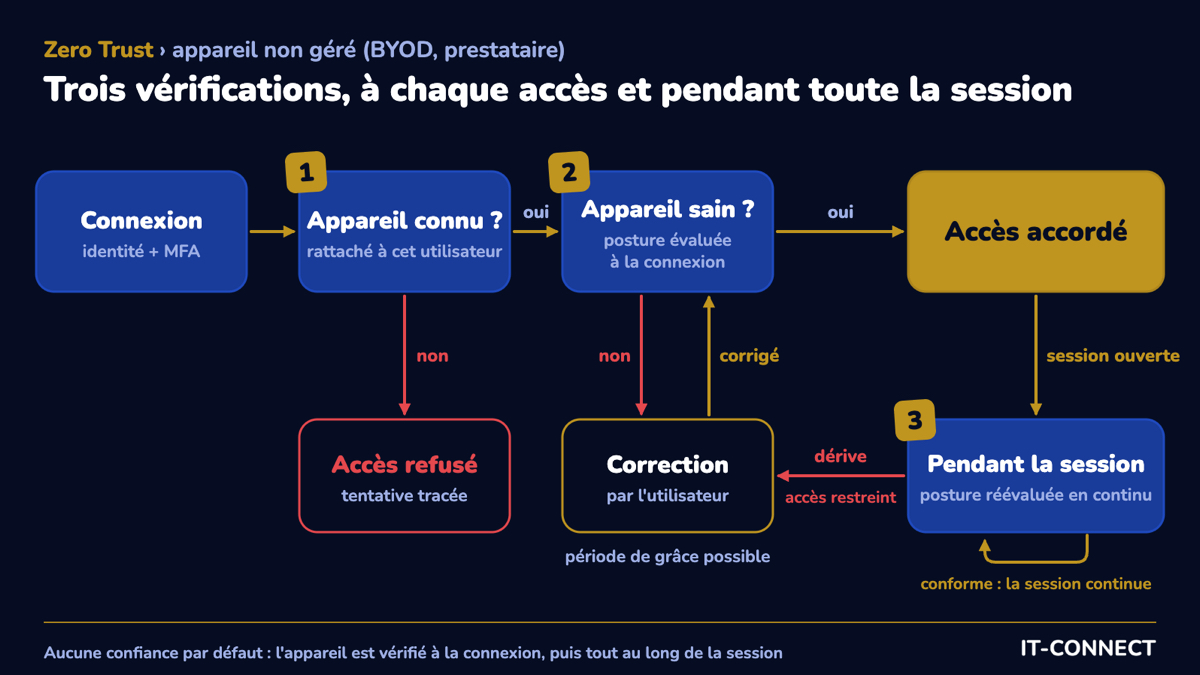
Translated into operational questions, this gives three tests to apply at every access:
- Is this device known and tied to this user?
- Is it healthy at sign-in time?
- Does it remain healthy throughout the session?
The Classic Options and Their Limits
When dealing with unmanaged devices, organizations have several levers available. None of them is useless, but none answers the three questions above on its own.
Blocking Unmanaged Devices
This is the most radical option, and in a way the simplest: only company devices that are compliant can access resources. From a security standpoint, it is consistent. From an operational standpoint, it is more complicated: every contractor and occasional contributor must be equipped, and employees must accept that they can no longer check email from a personal device. The risk is that workarounds appear (forwarding documents to a personal mailbox, sharing files through unauthorized services), in other words shadow IT.
This is nonetheless ANSSI’s position in its incident report on the DGFiP: ban personal devices from accessing business resources. This is a recommendation made following an incident and addressed to the DGFiP, not a requirement imposed on every organization. For agents accessing tax data, it is a legitimate decision.
But the same report also highlights the limits of this approach, as mentioned earlier: the land registry server was used by notaries and surveyors, external professionals whose equipment is not managed by the DGFiP. You cannot provide a PC to every notary in France. It is precisely for these accesses, which cannot be blocked or managed, that device verification makes perfect sense.
Enrolling Devices in an MDM
Registering personal devices in Microsoft Intune or another device management solution makes it possible to enforce configuration and measure compliance. It is the right approach for company-owned devices, but it quickly reaches its limits outside that scope:
- Acceptability: many users refuse to give their employer administrative control over their personal device.
- The legal framework: CNIL reminds us that employers cannot access personal-life data stored on the personal device, and cannot claim the right to remotely wipe all data on the endpoint (only the part dedicated to access to company resources).
- Contractors: their workstation is already managed by their employer, which in practice rules out enrollment in your own MDM.
- Exposure surface: an MDM grants broad control over enrolled devices. The attack suffered by Stryker in March 2026 illustrated this: after compromising a Microsoft 365 administrator account, attackers used Intune’s wipe function to reset nearly 80,000 devices, including personal equipment enrolled by some employees.
Protecting Applications Rather Than the Device
Mobile Application Management (MAM) applies protection policies to applications and their data without taking control of the device: restrictions on copy/paste, downloads, or printing, for example. This is the classic approach for personal iOS and Android smartphones. Microsoft extended it to Windows with the Microsoft Edge work profile: a conditional access policy requires an application protection policy, steering the user toward a protected Edge profile.
This is a useful building block for protecting data, but it does not solve the question of the device itself. On Windows, it is limited to the Edge browser, with desktop applications remaining out of scope. It is also specific to the Microsoft ecosystem (Entra ID and Intune), and does not apply to macOS or Linux workstations. Finally, a compromised personal device remains compromised, even when application data is protected.
Isolating Access: VDI and Secure Browser
Another approach is to never let the data reach the device: virtual desktop (Azure Virtual Desktop, Windows 365, Citrix, and so on) or an enterprise browser with isolation. NIST describes this “portal” model in SP 800-207: it avoids installing software on every device and works well for BYOD, but the organization then has very little information about the connecting device and cannot monitor it continuously.
In practice, the source device remains a black box. A keylogger or screenshot tool on the personal PC can see everything the user displays in their virtual desktop. Add to that the infrastructure cost and a user experience that is sometimes degraded.
Entra ID Native Protections Against Token Theft
Microsoft offers its own defenses against token replay. The main one is token protection, a conditional access session control that only accepts tokens cryptographically bound to the device. On Windows, it works with joined, hybrid, or simply Entra ID registered devices, which can include a personal PC (see our tutorial on registering machines in Microsoft Entra ID).
Its limitations are significant in our context:
- Native applications only: applications used in a browser are not supported, even though this is precisely the most common access mode from a personal device.
- Limited resources: Exchange Online, SharePoint Online, and Microsoft Teams (as well as Azure Virtual Desktop and Windows 365 on Windows).
- Apple: on macOS and iOS, only devices managed by an MDM are supported.
- No security posture assessment: the token is tied to the device, but the health of that device is not assessed.
Continuous access evaluation, for its part, makes it possible to quickly revoke a session when an identity-related event occurs (account disabled, password changed, elevated risk detected). It does not react to a workstation state change, such as antivirus being disabled.
Summary of the Approaches
| Approach | What is checked | Without MDM enrollment? | Main limitation for BYOD and contractors |
|---|---|---|---|
| Blocking unmanaged devices | Nothing, the device is denied | Yes | Productivity and workarounds (shadow IT) |
| MDM (Intune, Jamf, Workspace ONE…) | Compliance of the entire device | No | Intrusive, poorly accepted, not applicable to a workstation already managed by a third party |
| MAM (application protection) | Data inside the application | Yes | On Windows, limited to Edge; the device itself is not deeply assessed |
| VDI or isolated browser | Little or no assessment of the source device | Yes | Cost, user experience, unknown source device |
| Token Protection (Entra ID) | Token binding to the device | Yes on Windows, no on macOS and iOS | Native apps only, no posture verification |
| Device trust | Device identity and posture, continuously | Yes, but with an agent | Need to get the agent installed and accepted |
Device Trust: Verify the Device Without Managing It
Let’s start by talking about the principle itself: what is device trust? Device trust refers to the set of mechanisms that bring the device into the access decision: the device must be identified, tied to a user, and deemed healthy against a security policy. Unlike an MDM, it does not configure the device: it observes the state of the device and decides access based on what it finds.
In practice, a device trust solution is inserted directly into the authentication journey. When the user signs in, it checks that the device is known, that it is allowed for that user, and that it meets the defined security requirements. Verification then continues during the session. If the device stops being compliant, access is restricted and the user is prompted to fix the problem.
This approach answers the three operational Zero Trust questions mentioned earlier.
What Specops Device Trust Brings to Unmanaged Devices
Specops Device Trust is a SaaS solution from Specops (Outpost24). It is based on Infinipoint technology, a vendor acquired by Outpost24 in late 2025. I already presented the console in detail in a dedicated article on Specops Device Trust, which I encourage you to read for more details.
Here are the main features of this solution:
- Identity provider integration: with Microsoft Entra ID, Specops Device Trust is declared as an external authentication method (External MFA), a feature generally available since March 24, 2026. Other identity providers are supported, such as Okta, Google, Citrix, PingOne, or Keycloak, as well as OpenID Connect more broadly.

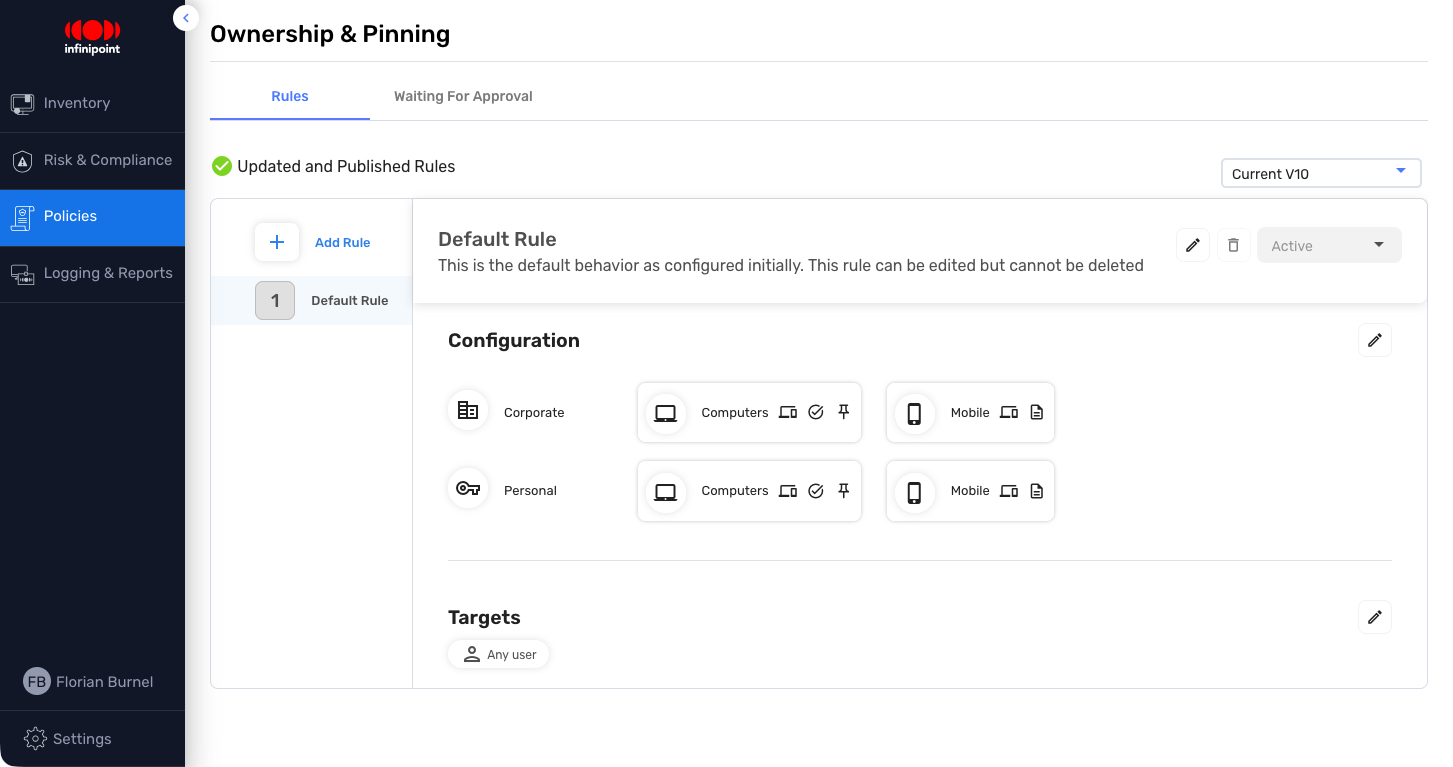
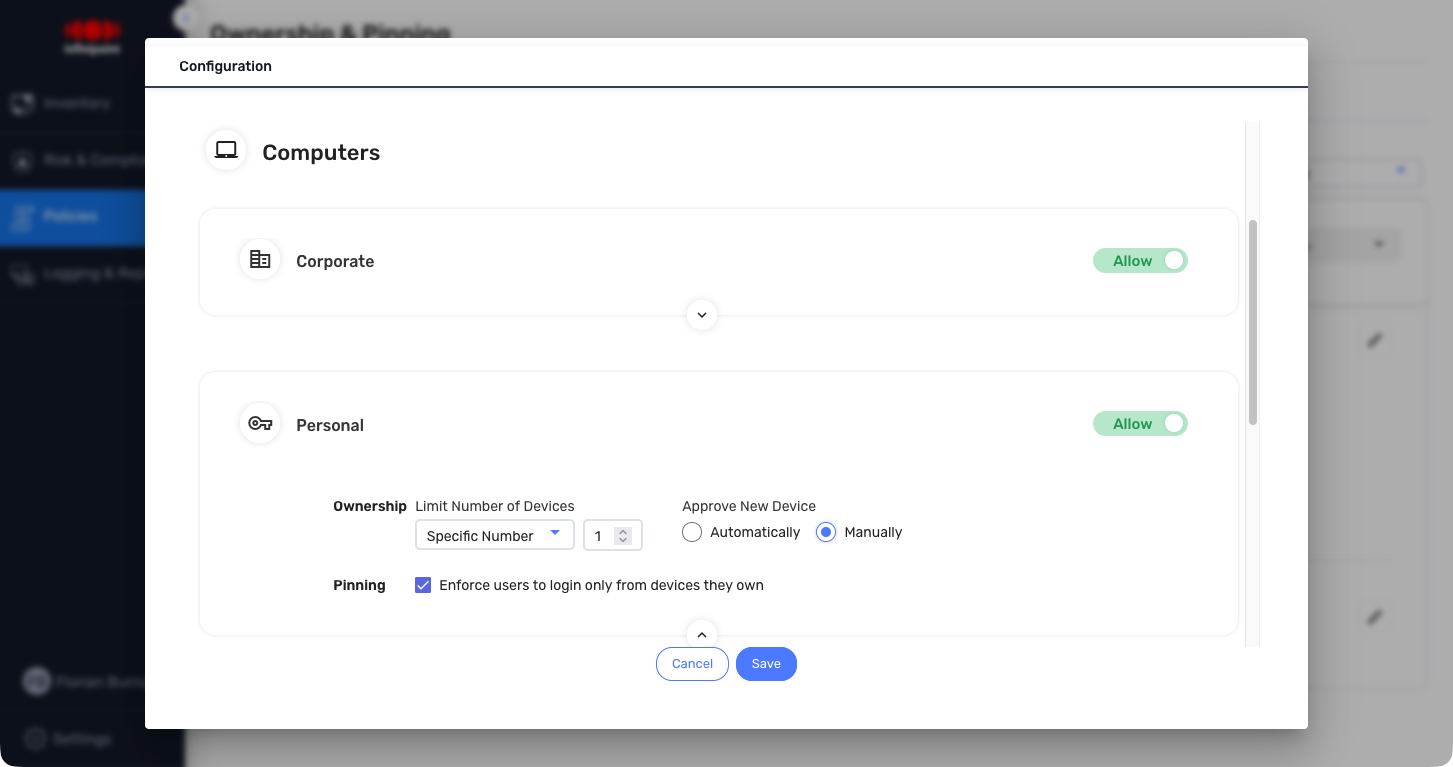
- Device classification: each device is classified by type (computer or mobile) and category (company-owned or personal). Rules and limits apply independently to each category, making it possible to be stricter on a personal device than on a company workstation, or the other way around.
- Ownership and pinning: the first user to authenticate on a device becomes its owner. You can limit the number of devices per person, require manual approval for each new device, and pin a user to their devices. A stolen identifier or session cookie then becomes unusable from another machine because there is no association between the user and the device (the attacker’s device being unknown / unapproved).
- Verified posture without MDM: Windows, macOS, Linux, iOS, and Android are supported, with several hundred checks available: operating system and third-party application updates, encryption, antivirus, firewall, or the presence of a specific vulnerability (CVE). Some rules are reserved for company devices, while others apply to personal devices.
- Continuous verification: posture is assessed at sign-in, then regularly throughout the session (as often as every 10 minutes).
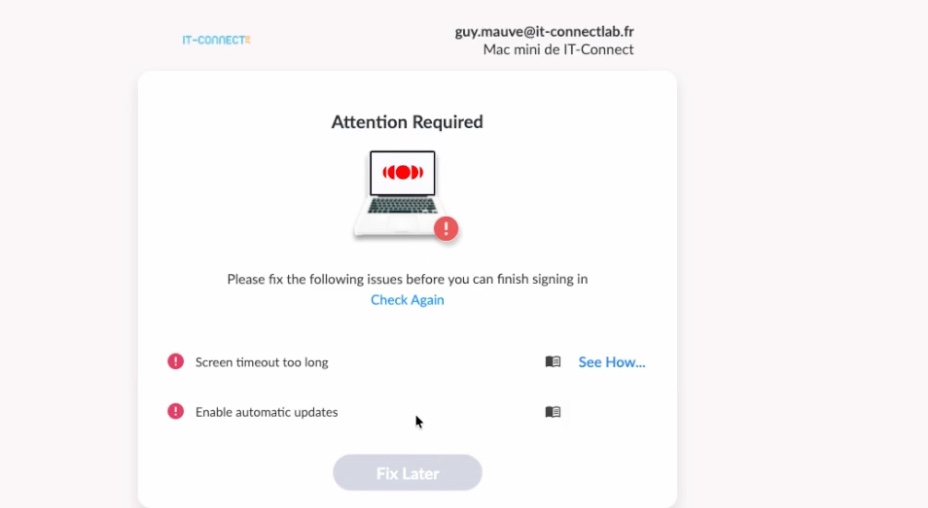
- User remediation: in case of drift, the user can fix the configuration themselves, with a configurable grace period (immediate correction, fixed deadline, or sliding window of a few days).
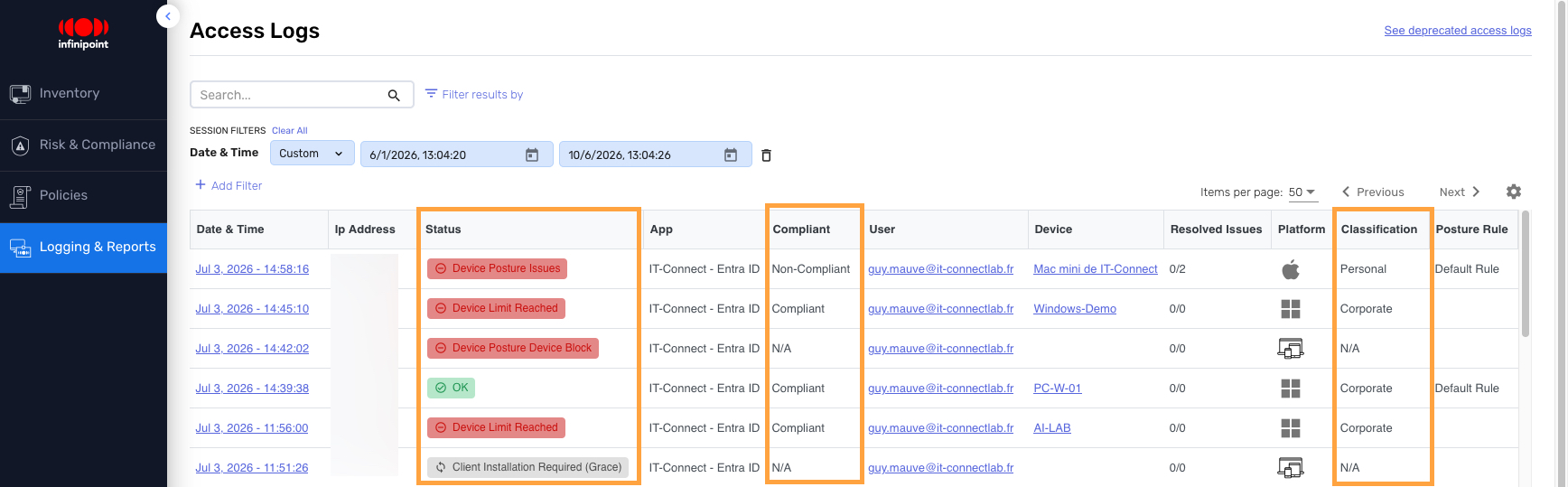
- Traceability: access logs show, for each attempt, the user, the application, the device, its classification (company or personal), compliance status, and the rule applied.
One thing to keep in mind: the solution does not require MDM enrollment, but installing the Specops Device Trust client on the device is still necessary to benefit from the full feature set, especially security posture verification. This agent is used to verify the computer, not to manage it (it is important to understand the difference).
Two Real-World Scenarios with Specops Device Trust
A Consultant on Assignment with Their MSP Laptop
Julien is a consultant for an MSP. He is starting a four-month assignment at your company and needs access to Microsoft 365 as well as a business application federated with Entra ID. His laptop is provided and managed by his employer.
Here is how his access works with Specops Device Trust:
- Account creation: his account is created in Entra ID and added to a dedicated contractor group targeted by Specops Device Trust policies.
- First sign-in: after the first factor, authentication is handed over to Specops Device Trust. The device is unknown, and Julien is prompted to install the client.
- Device enrollment: the laptop is tied to his account, classified as a personal device (not managed by your company), and pinning limits his access to that single machine.
- Posture check: the posture profile defined for contractors verifies that the system is up to date, the disk is encrypted, and antivirus and firewall are active. Missing an update? Julien sees the issue, applies it, and, if needed, benefits from the configured grace period.
- During the session: if antivirus is disabled during the day, the drift is detected at the next check and access is restricted until the issue is fixed.
- End of assignment: you disable the account and remove the device from the console. There is no MDM profile to remove and no data to wipe from a device that does not belong to you.
One organizational point to anticipate: installing a client on the consultant’s laptop must be accepted by their employer.
An Employee Checking Email from Their Personal PC
Claire works in accounting. In the evening, she sometimes checks her email from the family computer, a machine that IT does not manage. Your BYOD policy allows this, but under conditions.
In Specops Device Trust, the policy applied to personal devices limits each employee to one personal computer and one personal mobile device. The associated security posture profile requires an up-to-date system, active antivirus, and an up-to-date browser. On her first sign-in from this PC, Claire installs the client, the device is tied to her account and classified as a personal device (BYOD).
Now imagine that this PC is infected with an infostealer and that its Microsoft 365 session cookie is exfiltrated by the malware. The attacker now has sensitive information in hand. However, if they try to replay it from their own machine, it will not work: the device is not Claire’s, so access is denied and the failed access attempt is visible in the access logs. If the infection also disabled antivirus, Claire’s own PC will lose access because it is no longer compliant with policy. This is often one of the first signs of a compromise, since disabling protections is a common action before deploying malware.
Points to Watch
The device trust approach addresses a real need, but as with all solutions, there are pros and cons. So far, I have mainly discussed the benefits of this approach and the response it can provide for connections from unmanaged devices. But there are still some points to watch that can sometimes become blockers.
- The verification agent
Full security posture verification requires a client to be installed on the device. This is not mandatory depending on how the solution is configured, but to address the issue discussed in this article, it is. For an employee, it is much less intrusive than an MDM, but it is still a third-party piece of software installed on a personal computer. For a contractor, it is a contractual matter. In both cases, it must be anticipated.
- Transparency toward users
In the 2024 edition of its guide to personal data security, CNIL recommends assessing the risks associated with the use of personal equipment and only allowing them based on those risks, limiting the data and applications accessible on these unmanaged devices according to their criticality, and formalizing responsibilities and precautions in the IT policy. A device trust solution makes it possible to technically enforce these requirements.
What remains is to inform employees about the checks being performed and to include the device in the IT policy. I also think it is wise to specify the exact list of information reported by the client, so you can answer the following question clearly: “What does the company see on my PC?”
- The covered scope
Only applications whose authentication goes through the integrated identity provider (or through a service connected to the solution) benefit from the control. An application that authenticates its users outside this path escapes verification.
- This is not an MDM
Device trust does not deploy applications, does not push configuration, and does not protect data once it has been downloaded. It performs an analysis of the machine’s state by reading its configuration. In a company environment, it complements Intune or another MDM (the solution can also integrate with Intune, Jamf, Workspace ONE, or CrowdStrike).
- Dependence on the decision point
In a Zero Trust architecture, the service that makes the access decision becomes a mandatory checkpoint, and NIST cites its unavailability among the model’s risks. Plan emergency access accounts excluded from conditional access policies, as Microsoft recommends. Also start with an observation phase, in non-blocking mode, so you can tune the rules before enforcing them.
Conclusion
ANSSI’s report on the DGFiP reminds us of the order of priorities: first, strong authentication everywhere; then, banning personal devices whenever possible. Device trust comes into play where such a ban is not sustainable, for contractors, partners, or BYOD use cases the organization has chosen to allow. More importantly, it shows that suitable technical solutions exist today to combine flexibility and security.
Trusting a device you do not manage is not a contradiction, as long as you replace default trust with measured trust. Verification performed at every access and throughout the session meets that need while staying aligned with the Zero Trust approach.
As we have seen, Specops Device Trust adds the device to the access decision, binds the user to the device, and most importantly, continuously verifies security posture. This applies to BYOD employees as well as contractors, without MDM enrollment. But be careful: the main constraint remains installing the client on the device, which must be accepted and governed.
Want to learn more? Request a Specops Device Trust demo.