www.it-connect.fr


Windows 11: This Hidden File Can Devour Your Entire Disk
A disk that fills up on its own, with no clear explanation. Surprising, and yet that’s exactly what happened to some Windows 11 users. The culprit? A little-known Windows 11 system file called CapabilityAccessManager.db-wal, which can grow beyond 500 GB and eventually fill your disk. Here’s what we know, how to check whether your PC is affected, and how to recover the lost space.
A log file that never gets purged
Spotted by Windows Latest, this bug affects machines running Windows 11 24H2 and 25H2. When it appears on a computer, here’s what happens: a log file that is supposed to stay very small grows endlessly until it consumes all available free space.
This log file is tied to the Capability Access Manager (service camsvc), a service that manages the permissions you grant apps to access the camera, microphone, location, or screen capture. In Windows, every access request is recorded in a SQLite database.
The file that keeps growing is called CapabilityAccessManager.db-wal. It is not the SQLite database itself. It is its write-ahead log, the well-known WAL (write-ahead log). This type of file can grow temporarily, then shrink once its data has been merged into the main database.
According to Windows Latest, on an unaffected PC, the entire CapabilityAccessManager folder used less than 4 MB, and the .db-wal file about 1.6 MB. In other words, practically nothing.
But as you might expect, on some machines things do not go as planned. In reality, on certain systems, this log would apparently never be merged properly into the database. Windows would then keep piling access events into it, especially those related to location, and the file would slowly balloon....
Up to 500 GB of wasted disk space
How much space can it actually take? There is really no limit other than your disk capacity. The Windows Latest article mentions a case reported in Microsoft’s Feedback Hub where the file reached about 200 GB. In a Reddit thread (r/techsupport), one user says TreeSize showed around 513 GB for this single file. Other reports mention 70 GB, 110 GB, or 200 GB.
If you scan your storage via Settings > System > Storage, the space used appears under the “System files” category. That does not make it obvious that this file is the reason your disk is being overused.
What is Microsoft saying? What are the fixes? Let’s talk about that in the rest of this article.
How to check whether you are affected and recover the space
First reflex: open Settings > System > Storage > Show more categories > System and reserved, then look at the size of “System files.” If it is measured in hundreds of gigabytes, there is a very good chance you are affected.
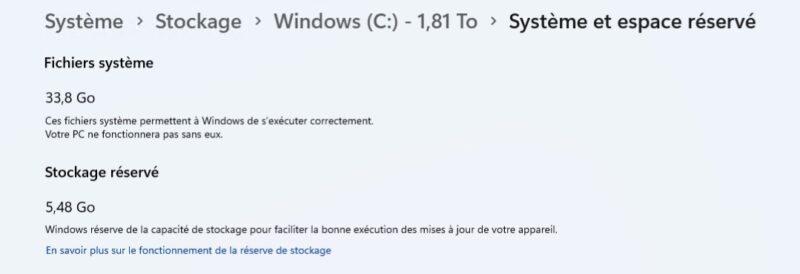
To go further without touching permissions, Windows Latest recommends a read-only robocopy command, run in an elevated Command Prompt:
robocopy "C:\ProgramData\Microsoft\Windows\CapabilityAccessManager" "%TEMP%\CAMCheck" /L /B /R:0 /W:0 /BYTES /NPThe /L option lists the files without copying anything, and backup mode /B lets you read the protected file without changing permissions. You can also use an analysis tool such as WizTree, TreeSize, or WinDirStat, sorting files by size. These utilities, which we presented in our guide to freeing up disk space on Windows, make it easy to isolate the offending file quickly.
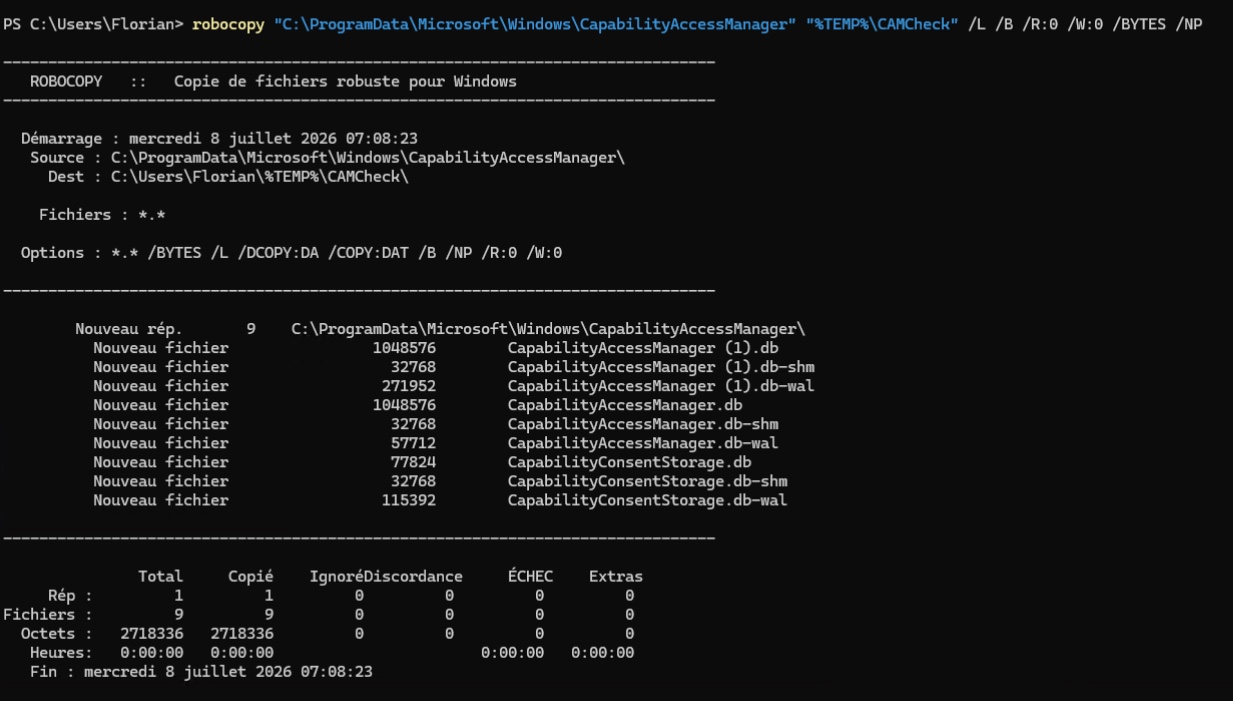
In the example below, taken from one of my virtual machines, the CapabilityAccessManager.db-wal file weighs just a few dozen kilobytes (56 KB), and the entire folder stays below 3 MB. If you get numbers like that, you’re in the clear.
As for the root cause of this issue, Microsoft has not published anything. But the good news is that a fix exists! Microsoft included a fix in the optional June 2026 update, KB5095093. Its release notes, updated on June 29, 2026, state that the update "improves disk usage for the CapabilityAccessManager.db-wal file", which is proof that Microsoft was aware of something.
The same fix is expected to ship in the July 2026 Patch Tuesday update, due on July 14, 2026.
Note: avoid deleting this file manually. The .db-wal file is not just a simple cache. It contains writes that have not yet been merged into the main database. Deleting it while the camsvc service is running can desynchronize, or even corrupt, the CapabilityAccessManager.db database. Several users have seen their Wi-Fi connection disappear (no networks detected anymore) or their camera and microphone access permissions become stuck. Install Microsoft’s update instead, or stop the service before touching the file.