www.it-connect.fr

Wi-Fi 7 in Real Life: What’s Really Capping Your Speed
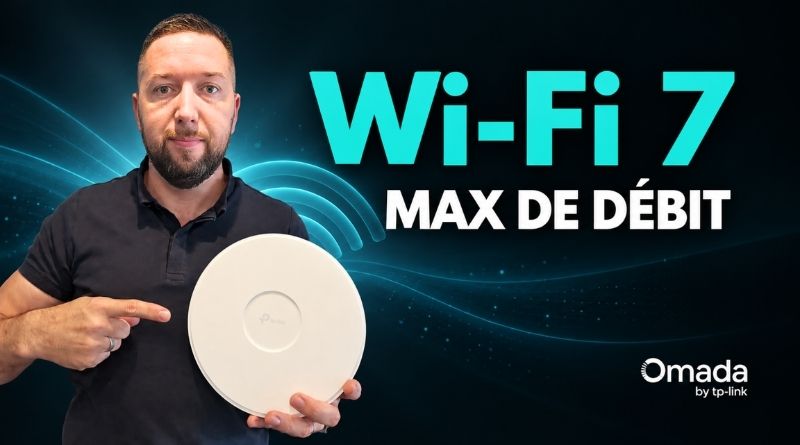
Upgrading to Wi-Fi 7 and still hitting a throughput ceiling? The problem may not be Wi-Fi at all. With a TP-Link Omada access point, a laptop, and a Wi-Fi 7 smartphone, I went from around 900 Mbit/s to more than 2 Gbit/s on my local network, without changing the access point. In this video, I show you the pitfalls that throttle performance and the Wi-Fi 7 features that really make a difference.
My entire network is managed by the TP-Link Omada solution. It centralizes the configuration of the local network (LAN), Wi-Fi (WLAN) and security functions, and provides an overview of the status of devices and clients. Thanks to deep packet inspection (DPI), it also displays traffic statistics by device and by application, while allowing unwanted traffic to be blocked.
For these tests, I used the following hardware:
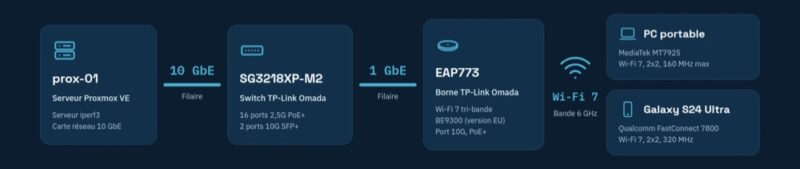
- A TP-Link Omada EAP773 Wi-Fi 7 access point (European version), equipped with a 10 Gbit/s PoE-powered port
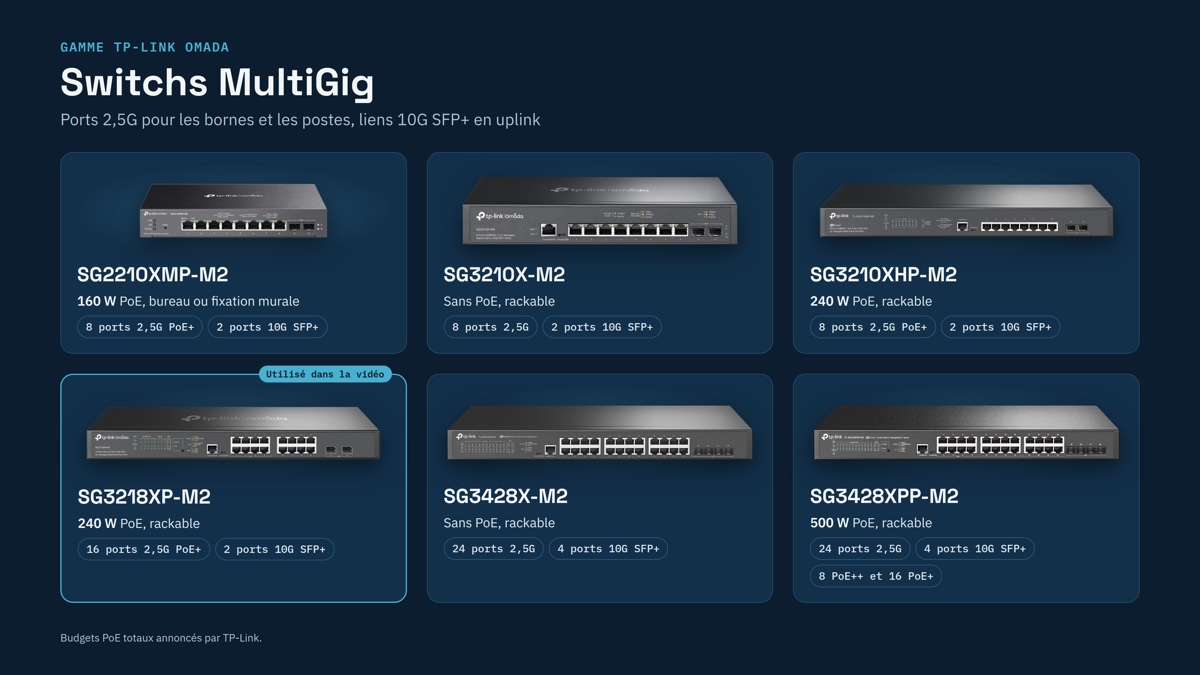
- A TP-Link SG3218XP-M2 PoE switch, with 16 2.5 Gbit/s ports and 2 10 Gbit/s SFP+ ports
- A Proxmox VE server connected to the switch at 10 Gbit/s, used as an iperf3 server
- Two Wi-Fi 7 clients: a laptop and a Samsung Galaxy S24 Ultra smartphone (my two iperf clients)
First pitfall: the link between the switch and the access point
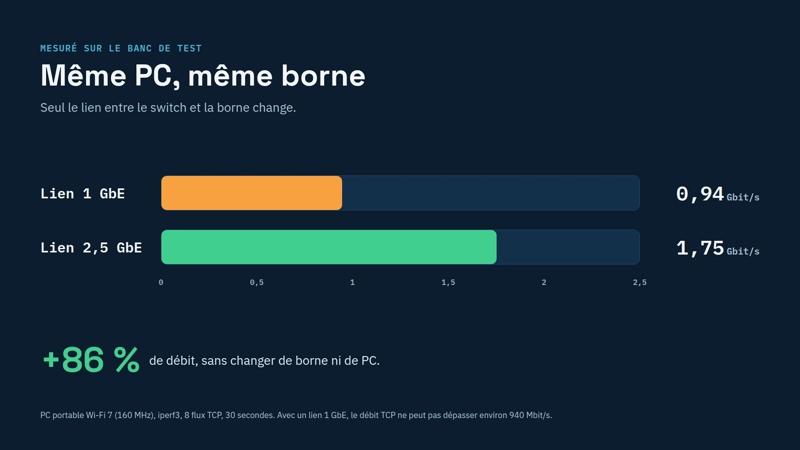
During my first test, the laptop was topping out at around 900 Mbit/s. That is a long way from what you would expect from Wi-Fi 7, and the cause had nothing to do with wireless performance: the access point was connected to the switch via a 1 Gbit/s link. This wired link immediately becomes a bottleneck, and no access point can do better than the connection that ties it to the network.
In this example, I should admit that I deliberately forced the switch port to 1 Gbit/s to recreate this situation. It is a real-world case you still encounter in business environments, because many local networks rely on 1 Gbit/s switches (this speed was the standard for a very long time). Once the port was switched back to 2.5 Gbit/s from Omada, the same PC climbed to between 1,700 and 1,800 Mbit/s. In other words, investing in Wi-Fi 7 access points without upgrading the switches, or at least the underlying network, risks leading you to wrongly conclude that Wi-Fi 7 does not live up to its promises.
Channel width: 160 or 320 MHz, depending on the device
Wi-Fi 7 doubles the maximum channel width, from 160 to 320 MHz, but only on the 6 GHz band. To borrow the highway analogy, that means the number of lanes doubles. But the device still has to be able to use them.
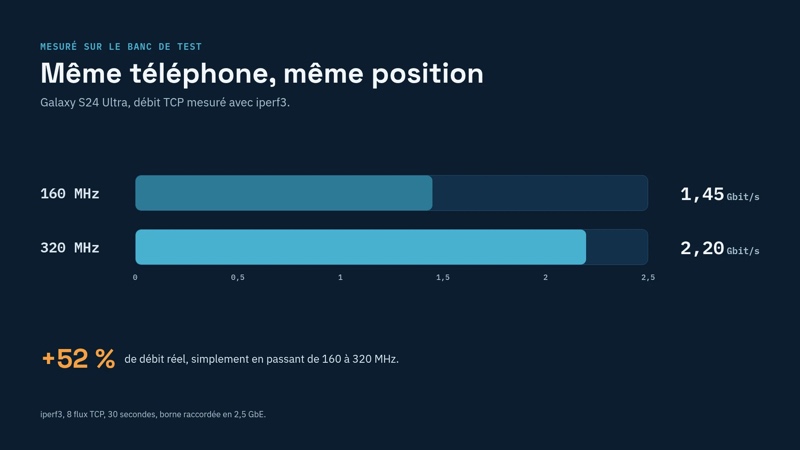
My laptop, although recent and fully Wi-Fi 7 compatible, is limited to 160 MHz by its chipset. The Galaxy S24 Ultra, on the other hand, supports 320 MHz. With the same phone, in the same location, I went from 1.45 Gbit/s at 160 MHz to 2.2 Gbit/s at 320 MHz, or roughly 50% more throughput. To measure this difference, I adjusted my access point settings to limit it to 160 MHz in one of the two cases.
One important note for France and Europe: the 6 GHz band is narrower there than in the United States. There is only one non-overlapping 320 MHz channel available, and transmit power is limited. As a result, 320 MHz delivers its best performance when you are close to the access point.
MLO: more reliability, with trade-offs
MLO (Multi-Link Operation) is one of the main new features in Wi-Fi 7. Without MLO, a device uses only one band at a time (5 GHz or 6 GHz) and must disconnect to switch bands. With MLO, it stays associated with multiple bands within a single connection and can move from one to another without interruption.
The benefits are very real:
- Better reliability: if one band is disrupted, traffic keeps flowing over another
- More stable latency, because data uses the most available path
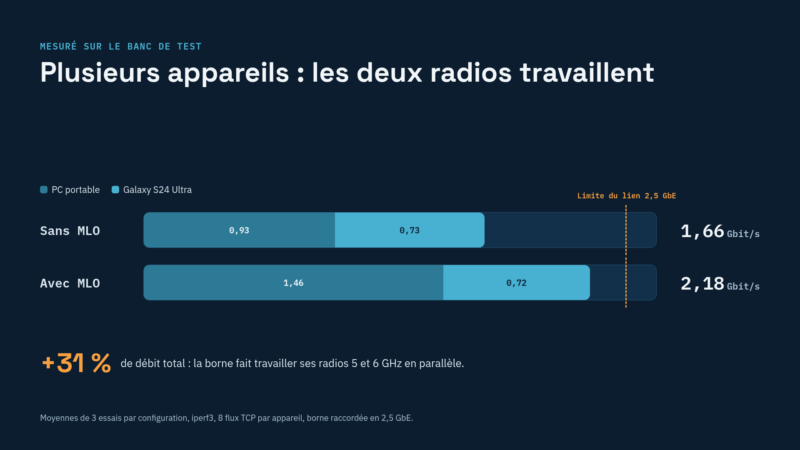
- Better distribution when multiple devices are active: by testing the PC and the smartphone at the same time, I went from 1.66 Gbit/s combined without MLO to 2.18 Gbit/s with MLO, or about 30% more. I also achieved 2.3 Gbit/s from my smartphone, which gets very close to the theoretical limit of a 2.5 GbE link.
MLO is not magic, though. With a single device, throughput does not double, because most PCs and smartphones only transmit on one band at a time, and the AP’s 2.5 Gbit/s link remains a limit. That is also why the EAP773 includes a 10 Gbit/s port. Another trade-off: in Omada, a Wi-Fi network using MLO no longer supports load balancing between access points or fast roaming. That is not an issue with a single access point, but it is worth considering in enterprise environments with several nearby access points. Wi-Fi 8, still being standardized, is expected to improve roaming with seamless roaming.
What to remember before moving to Wi-Fi 7
Moving to Wi-Fi 7 should be thought of as a whole, not just as a simple access point replacement:
- Multigigabit links: 2.5 Gbit/s is now a minimum, and 5 or 10 Gbit/s is preferable if you have many Wi-Fi 7 clients. TP-Link also offers a complete range of Omada MultiGig switches.
- Truly compatible devices: a device labeled “Wi-Fi 7” does not necessarily support 320 MHz, so check the chipset specifications.
- Security: WPA3 is mandatory in Wi-Fi 7, which may be an issue for some older clients.
- Backward compatibility: your Wi-Fi 6 devices will continue to connect without problems.
In my view, Wi-Fi 7 is more about reliability and latency than raw throughput alone, even though the gains are very real. A Wi-Fi 7 access point is something you keep for several years, while PCs and smartphones are replaced more often: it makes sense to plan now for the infrastructure that will let you take full advantage of it.
Watch the video
In the video, I show you all the measurements on screen, the switch port configuration in Omada, the negotiation differences between the PC and the smartphone, as well as the options for a Wi-Fi 7 SSID (WPA3, MLO, VLAN). If you are planning to move to Wi-Fi 7, at home or in the office, it will help you avoid a few nasty surprises.
If you have a Wi-Fi project or simply want additional information, contact TP-Link via this link: learn more about Wi-Fi 7.
And you, have you already made the move to Wi-Fi 7? Let me know in the comments.
This article and the associated video were produced in partnership with TP-Link.