www.it-connect.fr

How to Rewind Claude Code Sessions with Checkpoints and /rewind
In this article, we’ll see how Claude Code lets you roll back at any time thanks to its automatic checkpoints system and the /rewind command. We’ll also look at why it’s important to understand exactly how these checkpoints work so you can avoid unpleasant surprises.
Letting an AI modify files on your workstation requires a certain amount of trust. Claude Code can chain together changes across multiple files quickly, improve a function, remove obsolete code, or reorganize a directory tree. Most of the time, the result is impressive, but it only takes one poorly phrased request, incomplete context, or an exploration that goes in the wrong direction to end up with a project in a hard-to-unravel state.
That’s why I use the checkpoint system in ClaudeCode. It does not replace Git, but it is a safety net, useful for in-session (interactive) work: going back to an earlier point takes just a few keystrokes, without having to juggle branches or git commands.
We’ll also see in this article that /rewind is not limited to restoring files: it also provides options to summarize a conversation that has become too long and free up space in the context window.
What are checkpoints?
An automatic snapshot before every exchange
Every time you send a message to Claude Code and it starts working, a checkpoint is created automatically. No action is required from you. This mechanism records the state of your files before Claude modifies them, which later allows you to return exactly to how they were at that moment.
In practical terms: you send a prompt, Claude Code backs up the current state, then performs its changes. If the result doesn’t suit you, you can restore the state from before that specific prompt.
Claude Code keeps the last 100 checkpoints from a session. Beyond that, the oldest ones are deleted as new ones are created. The snapshots are also saved with the conversation: you can therefore use /rewind even after resuming an interrupted session with claude --continue.
By default, file snapshots are deleted during the automatic cleanup of the ~/.claude/ directory, about 30 days after the session’s last activity. If you work on long sessions or want to keep your restore points longer, you can adjust this delay with the cleanupPeriodDays setting in your Claude Code preferences.
What is tracked and what isn’t
You should know that checkpoints do not capture every file change indiscriminately, and that’s the important part: only edits performed by Claude Code’s built-in file tools are recorded: the Edit, Write, MultiEdit, etc. tools.
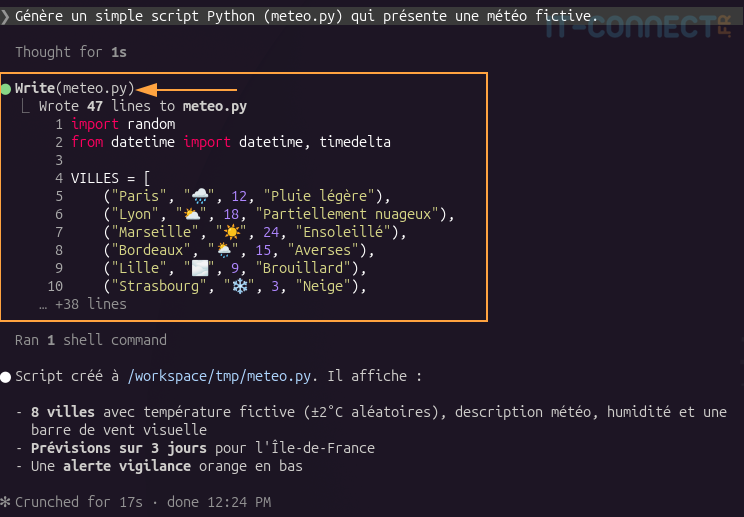
In this example, you can see that Claude created my file using the Write command and not through a Bash command.
On the other hand, changes made through Bash commands are not tracked, because at that point we leave the Claude Code context and move to the OS itself. If Claude Code runs an rm, mv, or cp in a terminal, those operations fall outside the scope of checkpointing. This is an important limitation to keep in mind.
You have two ways to access the rollback menu. The first is the /rewind command, typed directly into the Claude Code prompt:
# Open the rollback menu from the prompt
/rewind
The second is a keyboard shortcut: press Esc twice, provided the input field is empty. If your prompt contains text, double Esc first clears the text (it is saved in the history, and you can recall it with the up arrow key). Once the input is empty, a second double Esc opens the menu.
The rollback menu displays the list of prompts you sent during the session, from newest to oldest. Each entry corresponds to a checkpoint. You navigate the list with the up/down arrow keys, select a point, then choose an action from the options provided.
The /rewind menu lists sent messages, each one being a potential restore point.
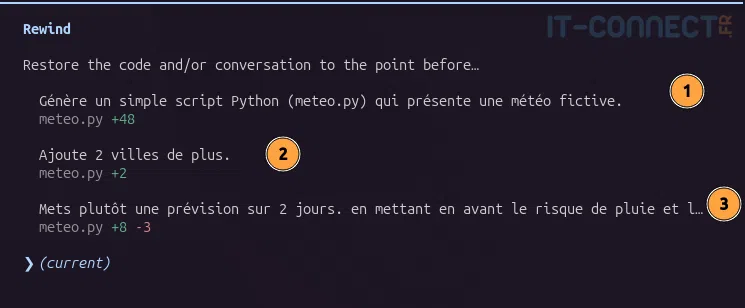
Here, I’ve numbered the 3 prompts that precede my current state; I just need to choose one. Once the checkpoint you want to return to is selected, let’s see what you can do from this menu.
The five available actions
Here’s what you see after selecting a checkpoint:
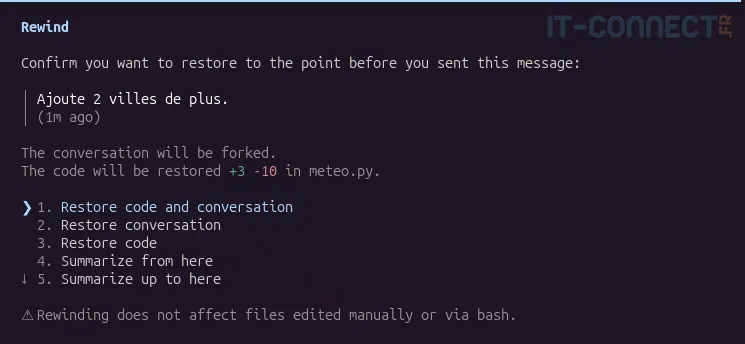
Restore code and conversation : This is the most complete action. It restores both the files on disk and the conversation up to the selected point. You return exactly to the previous state, as if the following exchanges had never happened. The original prompt from the selected message is automatically placed back into the input field so you can reword it and send it again.
Typical use case: you asked Claude Code to refactor a module, the result doesn’t suit you, and you want to wipe everything and take a different approach.
Restore conversation : This option rewinds the conversation to the chosen point, but leaves the files intact in their current state. Use this, for example, when the code changes suit you, but the conversation has drifted and you want to start again from a clearer baseline.
Restore code: This is the opposite: the files are restored to the state of the checkpoint, but the conversation remains unchanged. You keep the thread of the discussion while undoing the problematic edits.
For example, use this if Claude introduced a regression in a file during the last turn, but the ongoing conversation is useful for continuing the debugging session. You restore only the code to get back to a healthy baseline.
Summarize from here : This option restores nothing. It compresses the conversation from the selected point onward, replacing the following messages with a summary. It’s especially useful after a long debugging session: the dozens of intermediate exchanges are summarized, which frees up space in the context window without losing the initial instructions.
Summarize up to here : This is the opposite; the conversation is compressed up to the selected point, while keeping recent messages intact. Useful when the recent exchanges are important to preserve, but the initial history takes up too much space.
With the two summary options, you can guide the synthesis produced by Claude. Select the option, then enter your instructions in the add context (optional) field before validating. For example: "Summarize while emphasizing the architecture decisions that were made." The original messages remain in the transcript file and can be accessed if needed.
Rolling back after a /clear
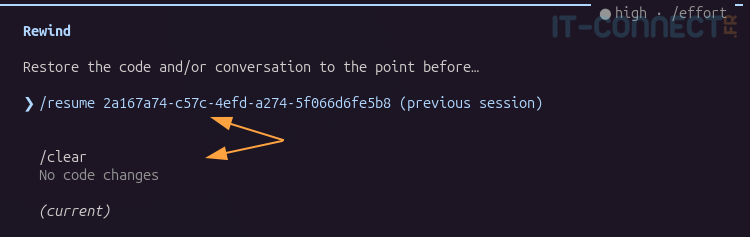
One special case is worth mentioning. If you cleared the conversation with /clear during the session, the /rewind menu shows an extra entry at the top of the list, called /resume <session-id> (previous session). By selecting it, you resume the conversation that was active before /clear. This option disappears as soon as you leave Claude Code or start another session.
What checkpoints do not do
Bash commands fly under the radar
We mentioned this above, but it’s worth repeating because it can easily come as a surprise. Imagine Claude Code runs the following sequence in a terminal:
# Example of Bash commands whose effects are NOT captured by checkpoints
rm -rf dossier/
mv /home/mickael/dossier1/fichier.html /home/mickael/dossier2/fichier.html
cp config.example config
These three operations are invisible to the checkpointing system. If you do a /rewind after that, the deleted or moved files will not be restored. In that case, your Git history or your recycle bin are the only safety nets.
In practice, Claude Code often prefers to use its built-in file tools, which is what allows it to show the diff in the interface and track its changes. But some operations, especially bulk deletions and renames, go through Bash.
Sub-agents and parallel sessions
Changes made by a sub-agent are generally not captured in the checkpoints of your main session. The only exception is skills configured with context: fork that run in the foreground: their edits are included in your current turn and are therefore restorable.
For any other sub-agent configuration, including parallel sessions and background agents, you need to use Git to undo their changes.
The same logic applies to changes you make yourself in your files outside Claude Code: they are not captured, unless they happen to touch files already modified by the session.
A complement to Git, not a replacement
One thing must be clear: checkpoints are designed for quick recovery during a session, not for long-term history. They disappear after 30 days, do not cover Bash operations, and offer no collaboration capabilities. For everything related to version history, branches, and team work, Git remains the tool to use.
A good habit, by the way, is to create a Git commit before delegating an important task to Claude Code. That gives you a reliable fallback point, independent of the session’s checkpoints system.
Conclusion
In this article, we saw how Claude Code’s checkpointing system automatically records the state of your files before each turn, and how the /rewind command (Esc + Esc) lets you navigate these restore points to recover the code, the conversation, or both at once.
Feel free to share your thoughts in the comments or come chat with our community on our Discord server!