www.it-connect.fr

How to Access the Dark Web with Tor and Tails, and Publish a .onion Site
Every time there’s a data breach, you read the same line: the data is for sale on the Dark Web. But behind this scary term is first and foremost a network, with a history, a precise operating model, and perfectly legitimate uses. In this guide, we will look at how the Tor network works, how to access the Dark Web in an isolated way with Tails, and then how to publish our own .onion site. Finally, we will try to answer the following question: how much is an identity really worth on the stolen data market?
This tutorial accompanies the video published on the IT-Connect YouTube channel.
Before You Start: Legal Context and Three Rules
This article is purely educational. To access the Dark Web, you need to use the Tor network, and using Tor is not illegal in France. However, some of what you find on the Dark Web is illegal, so you need to be careful where you step.
In any case, follow these three rules:
- Never reveal your identity: no real name, no nickname you use elsewhere, and of course no photo.
- Do not make any payments: between scams, illegal products, and more, you must be fully suspicious.
- Do not use your usual email address, or any account tied to your real identity.
Surface Web, Deep Web, and Dark Web: What Are the Differences?
When people talk about the Web, they often mix together three concepts that do not mean the same thing at all.
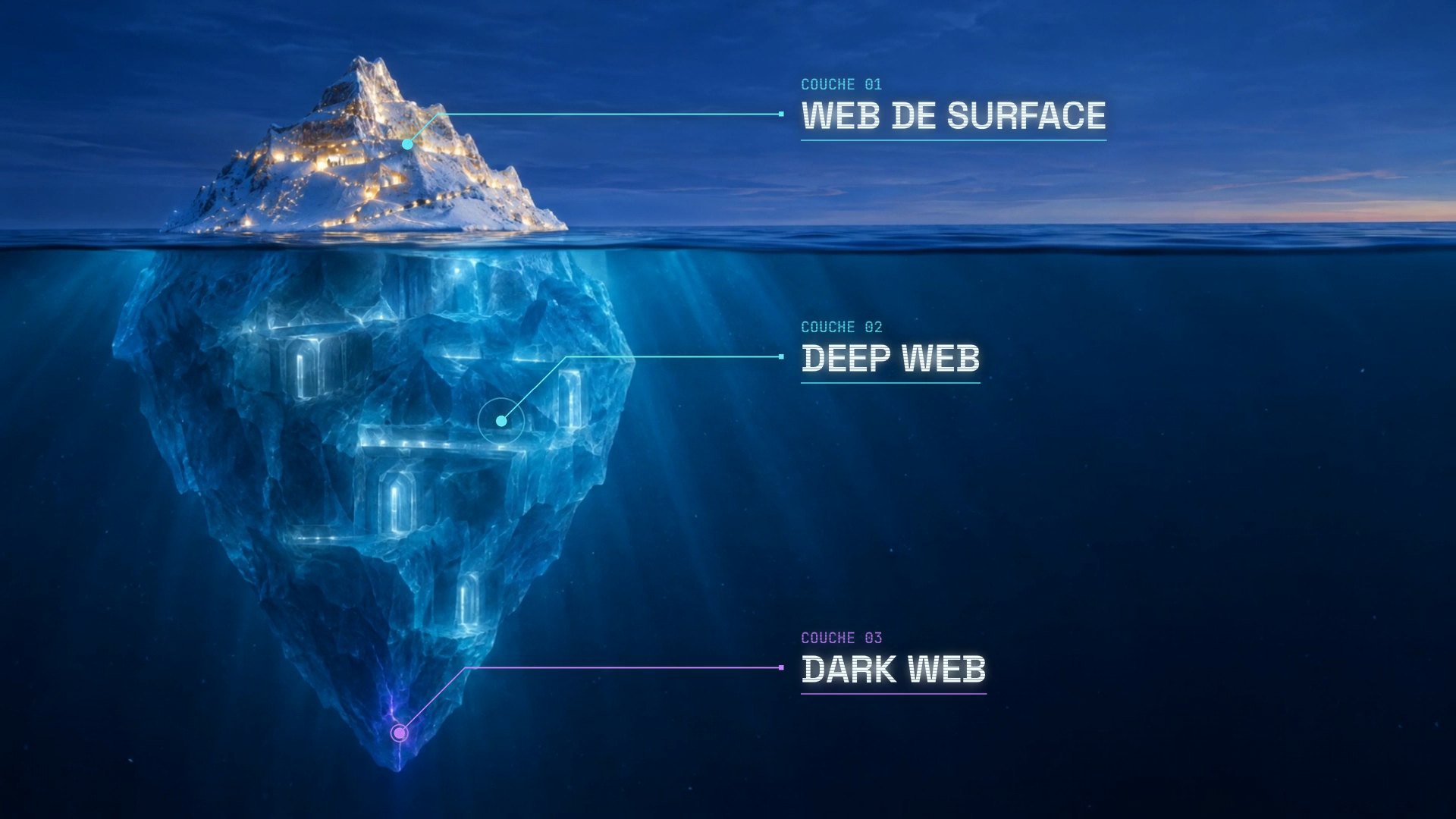
- The surface web refers to what search engines like Google index: IT-Connect, Wikipedia, news sites, and social networks.
- The deep web covers everything that is not indexed: your mailbox, your banking portal, your company intranet. These are not shady spaces, and the deep web actually represents most of the Web.
- The dark web is a small part of that deep web, accessible only through overlay networks on top of the Internet that require specific software. The best known is Tor.
There are other networks of this kind, such as I2P, but Tor is by far the most widely used. That is what we will focus on for the rest of this article.
What Is the Dark Web Used For?
The Dark Web was first designed to protect anonymity: that of the internet user, but also that of the site itself, whose server location is unknown. This double anonymity is valuable in many perfectly legitimate situations:
- A journalist who needs to protect sources.
- A whistleblower who wants to send documents without being identified.
- A political dissident in a country where the Internet is closely monitored.
- An internet user who wants to bypass censorship to access free information.
That is why very serious media outlets have their own .onion address, such as the BBC or The New York Times. Yes, the Dark Web also hosts illegal markets, weapons sales, and even worse content (everything you can imagine at its worst is probably there). But reducing the Dark Web to a criminal den is to miss its core purpose: freedom of expression and privacy protection.
Tor: The Origins of the Network That Gives Access to the Dark Web
Tor stands for The Onion Router, and this idea came from the U.S. Navy. In 1995, three researchers at the Naval Research Laboratory were working on Internet connections that would not reveal who was talking to whom, even to someone monitoring the network. The goal was to protect U.S. intelligence communications.
The project was named Tor in the early 2000s, and the network was deployed in 2002 with code released under an open-source license. The Tor Browser, which we will use later, has been developed since 2008.
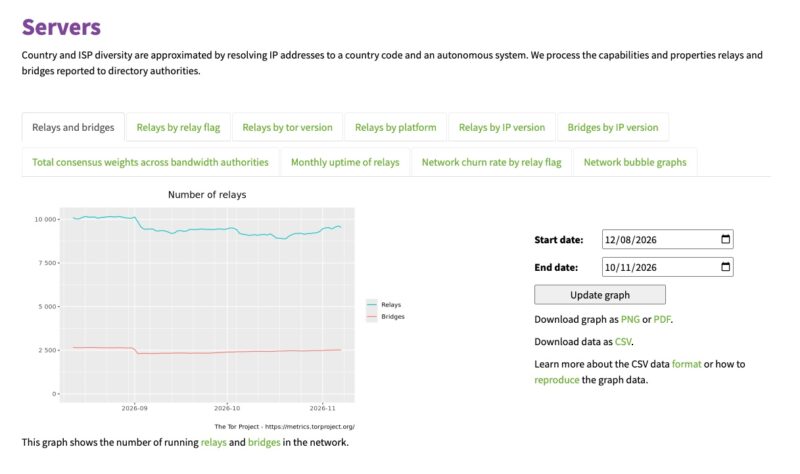
Why was this network opened to the public? Because an anonymity network used only by military users hides nothing: everyone would know that every Tor connection came from the Navy. To blend into the crowd, you need a crowd. Today, Tor has millions of users per day and nearly 10,000 relay servers, mostly operated by volunteers. You can check Tor metrics on this page.
How Does Onion Routing Work?
A Three-Relay Circuit
With Tor, your traffic never goes directly from your computer to the site you want to visit. It goes through a circuit of three relays, chosen from among the network’s thousands of servers:
- The entry node (or guard node) knows your IP address, but not the site you are visiting.
- The middle node knows neither you nor the destination. It simply forwards traffic.
- The exit node sees the site being contacted, but not who you are.
Before sending the data, your browser encrypts it three times, using a different key for each relay. Each relay removes one layer of encryption, like peeling an onion, and only discovers the address of the next relay. As a result, no relay knows both the sender and the destination. That mechanism is what gave onion routing its name.
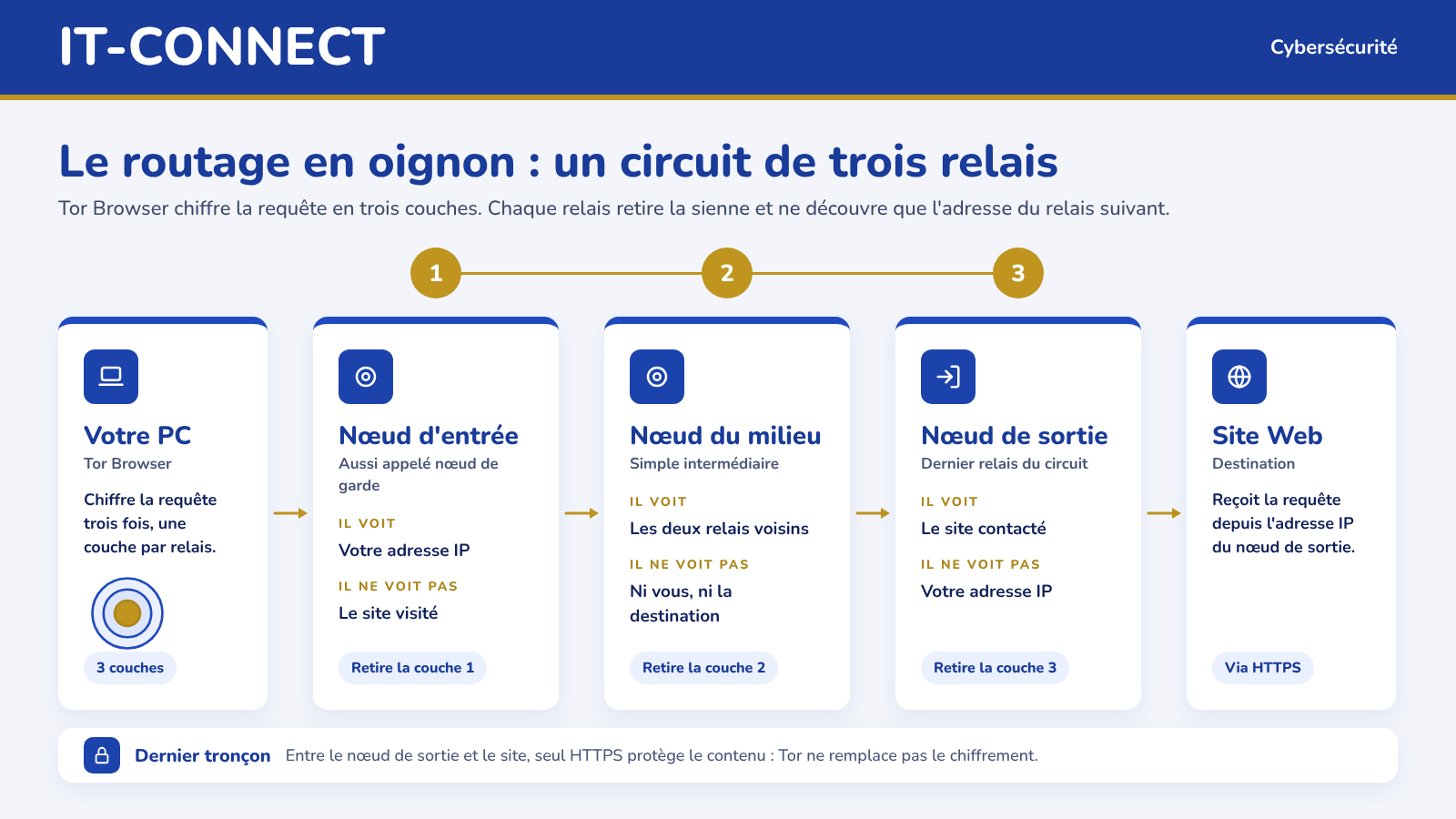
The exit node sees the traffic as it leaves for the site. If that site does not use HTTPS, the content therefore travels in clear text on that last leg. Tor does not replace encryption.
Be careful not to confuse privacy and anonymity. Tor is a decentralized, free network that strengthens your online privacy. Anonymity is more delicate, because it depends on your behavior. If you use Tor to log in to an online account, you are not anonymous to that service, especially if you have already used that account outside Tor.
Onion Services: Where the Dark Web Begins
With Tor, you can visit the regular Web by exiting through an exit node. But you can also reach services that exist only inside the Tor network: these are onion services, with an address ending in .onion.
In this case, there is no exit node anymore. Your browser and the server each build a three-relay circuit to a rendezvous point, for a total of six relays. The server remains anonymous too, and that is exactly what the Dark Web is.
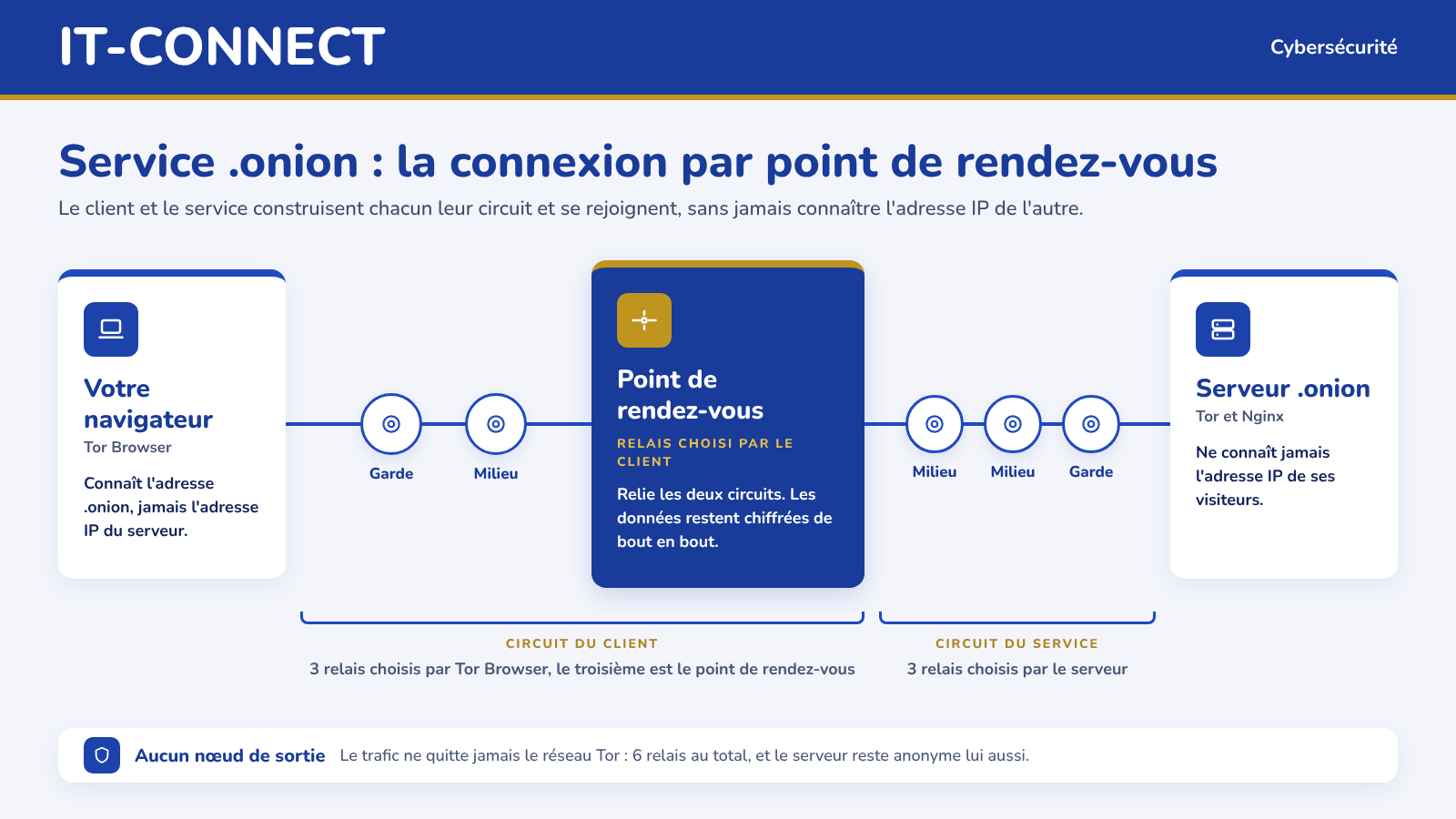
A .onion address does not look like a readable domain name. It is 56 characters long, made up of letters and numbers. What you need to understand is that there is no DNS, no registry, and no Google to search for .onion sites. To visit a site, you need to know its exact address or use a directory that lists .onion sites (the closest alternative to search engines in this context).
Also keep in mind that browsing with Tor is slower than with a standard connection or a VPN, since every request passes through multiple relays.
Should You Use a VPN with Tor?
This is a question that comes up often, and opinions differ. The main argument in favor of a VPN is that your Internet service provider no longer sees that you are using Tor: it simply sees a VPN connection. And the Tor entry node sees the VPN’s IP address, not yours.
The downside is that you move the trust elsewhere. The VPN provider sees your real IP address, your connection times, and the fact that you are using Tor. Its no-log policy therefore becomes critical, and there is a real difference between providers that enforce it and those that mainly use it as a marketing claim. Two documented cases illustrate this:
- In 2017, PureVPN provided connection logs to the FBI in a cyberstalking case, even though the service claimed to have a no-logging policy.
- In April 2023, Swedish police showed up at Mullvad VPN with a warrant and left without any customer data.
And what is the Tor Project’s official position? Its FAQ states that it does not recommend using a VPN with Tor, except for advanced users who know how to configure both correctly, because a bad configuration can reduce anonymity. To discover Tor, you do not need a VPN. You can think about it later.
Monitoring the Dark Web Without Exposing Yourself: The Flare Example
This section is brought to you in partnership with Flare, sponsor of the video published on YouTube.
A question you may ask yourself: do you really need to go onto the Dark Web yourself to know whether your company’s data is circulating there? For a business, the answer is no.
Flare is an identity-focused threat intelligence platform designed to help companies manage their exposure to cyber threats. It continuously monitors Dark Web forums and markets (including on Tor), thousands of Telegram channels used by cybercriminals, and surface web sources such as Pastebin-style sites. When a domain credential or a mention of your company appears on a monitored source, you receive an alert.
Thanks to its integrations with Microsoft Entra ID and Okta, Flare can also automatically revoke access when exposed credentials or active sessions are detected. An alert may, for example, follow the infection of an employee’s personal computer by an infostealer. The benefit is twofold: your teams do not have to expose themselves directly on the Dark Web, and they do not spend hours digging through it without knowing where to look.
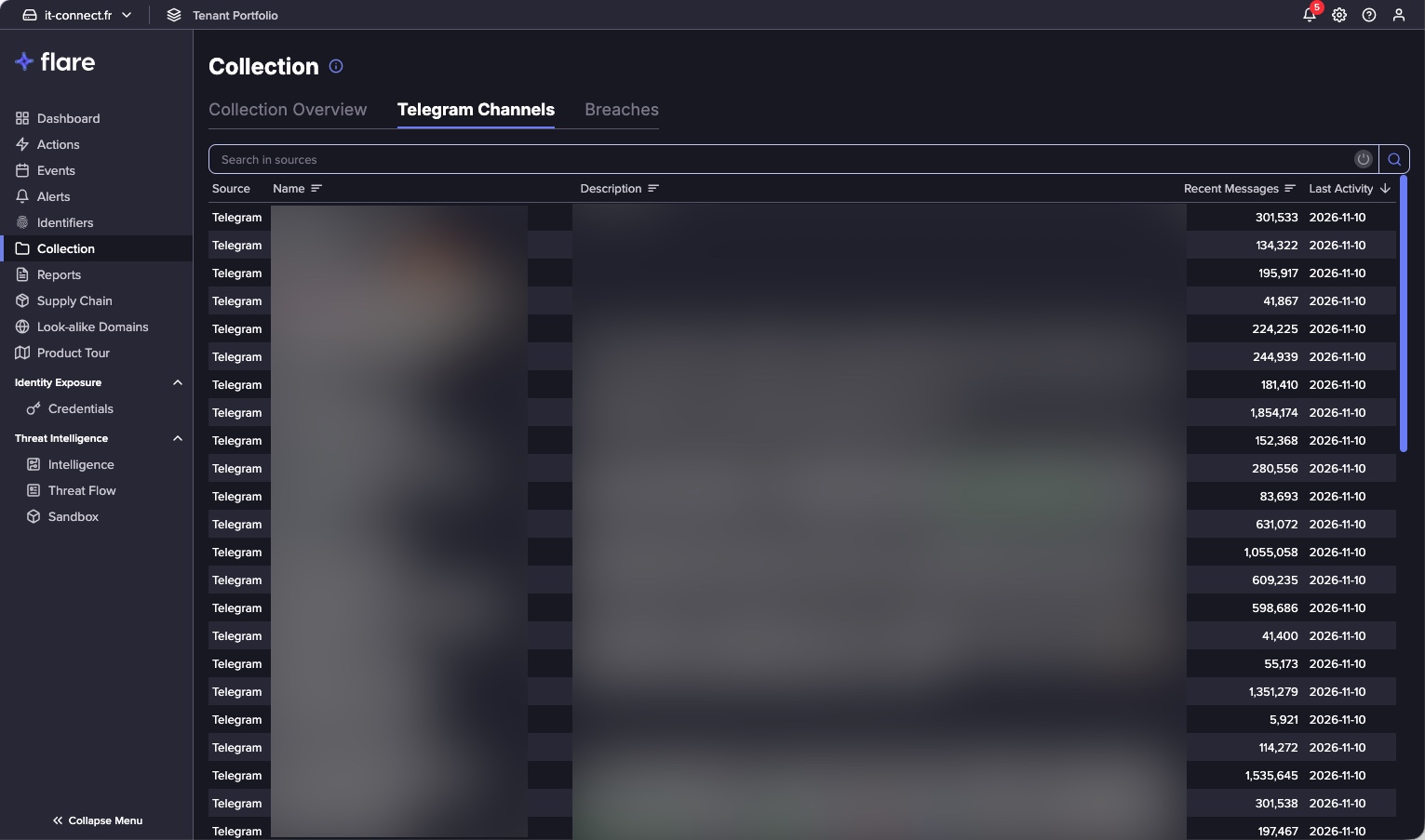
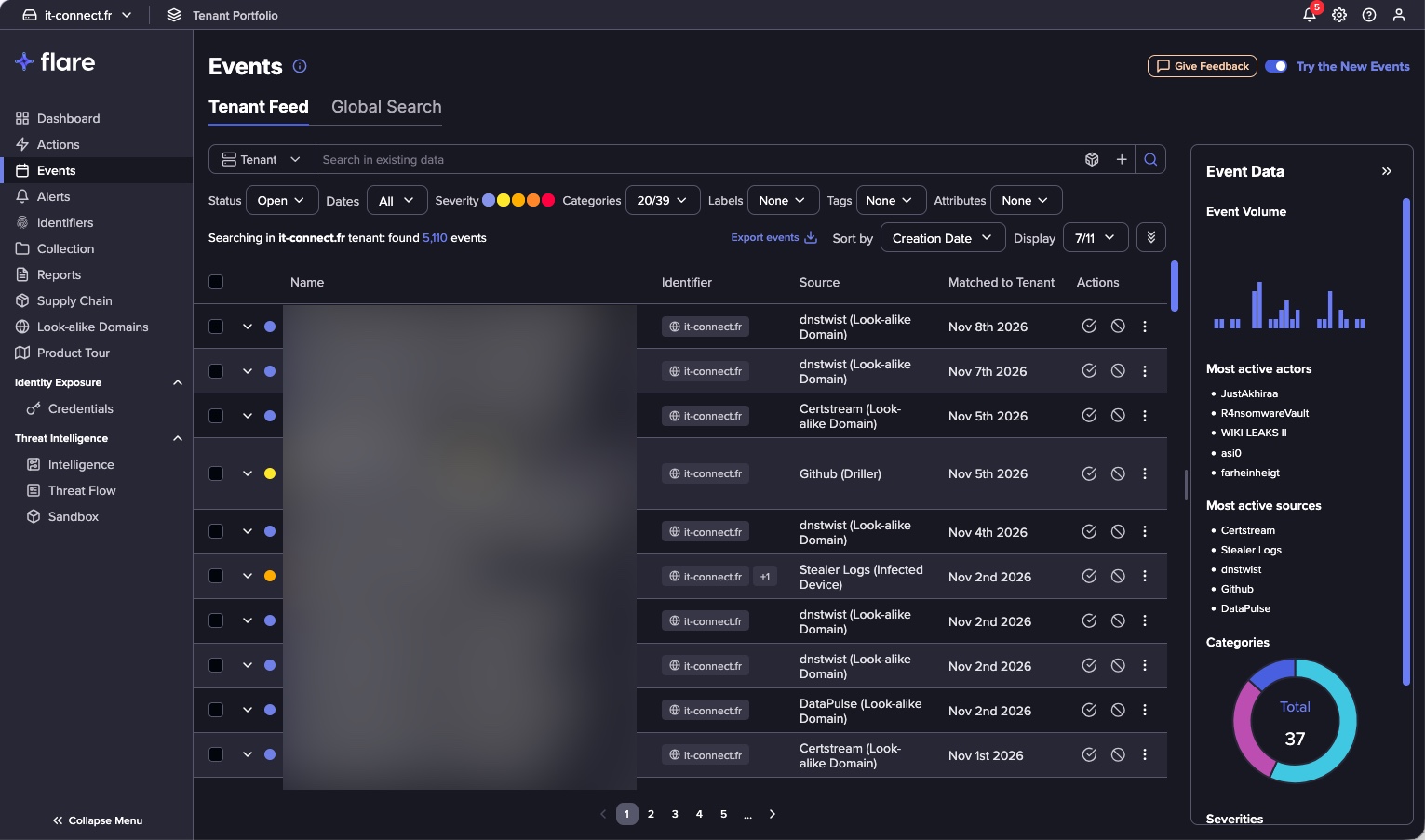
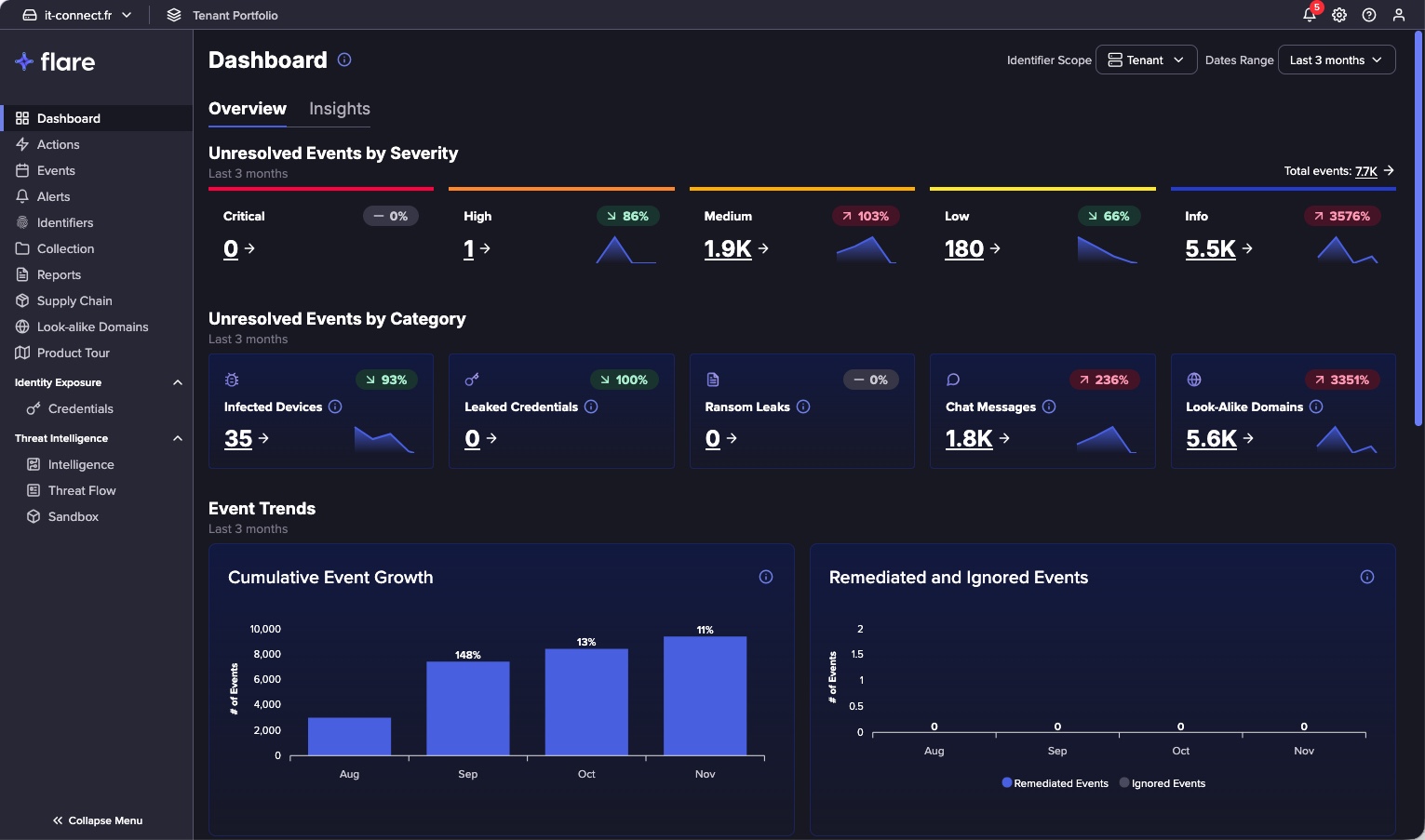
This solution makes it possible to anticipate the use of compromised credentials by a third party: access is revoked before the attacker can even use it. That is exactly what can help you avoid the worst-case scenario: an intrusion into your information system.
Tor Browser or Tails: Which Method Should You Choose?
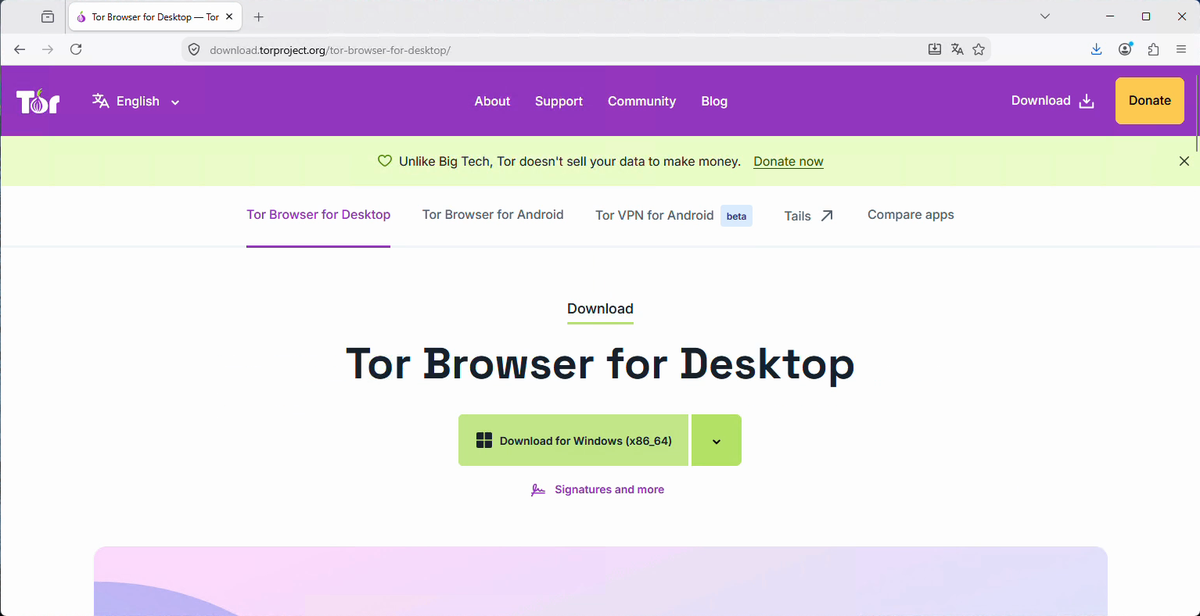
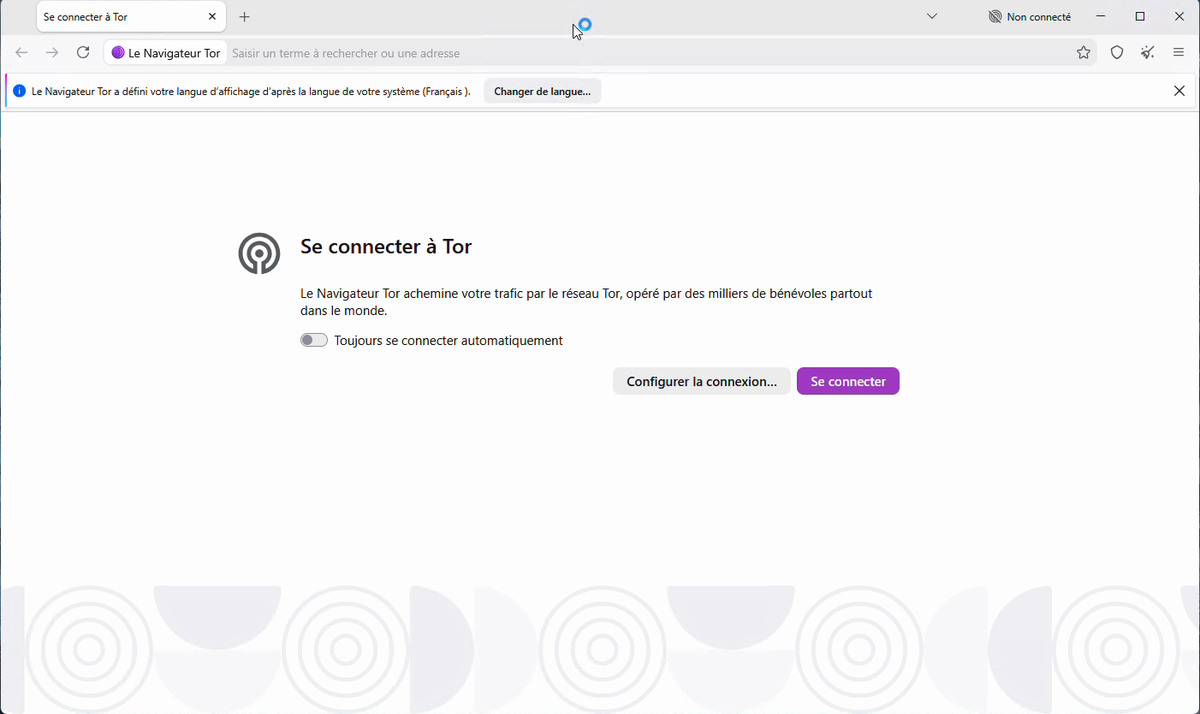
The easiest way to access the Dark Web is to install Tor Browser on your PC, whether you are using Windows, Linux, or macOS. Just download it from the official website torproject.org, install it, and click “Connect.”
But keep in mind that your system remains your system. Your browsing history, your files, and software that communicates outside Tor are still there. The solution I recommend is Tails. It is a Debian-based Linux system that boots from a USB drive without touching your PC’s disk. Tails has several advantages:
- It is ephemeral: it leaves no traces, and everything is wiped at shutdown (as long as persistent storage is not enabled).
- All traffic goes through Tor: connections that try to bypass Tor are blocked.
- It provides a neutral, isolated environment from your usual system.
However, be careful: Tails is not magic. It will not protect you if you identify yourself on a service.
Create a Tails USB Drive with Rufus
Prerequisites
To follow this step, you need:
- A USB drive of at least 8 GB that you are ready to erase.
- A Windows PC to create the USB drive (Tails also provides procedures for macOS and Linux).
Download the Tails Image
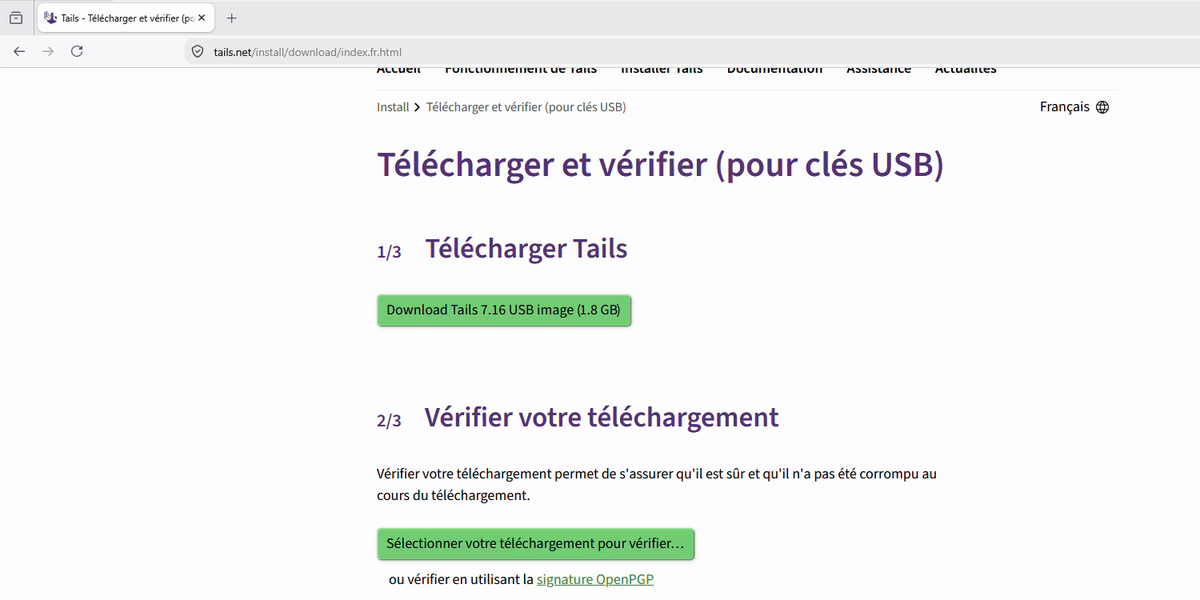
Go to the official website tails.net, click “Install Tails” in the menu, then click the “Download Only Tails (for USB drives)” link.
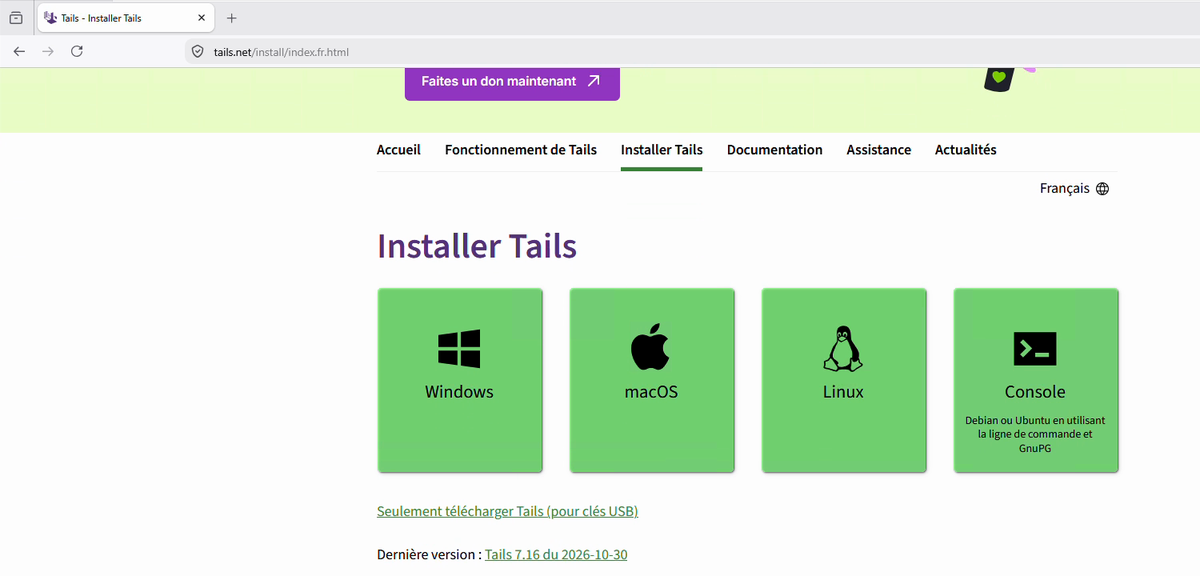
Then click the download button. Your PC will download a .img file of about 2 GB (Tails 7.16, the version available when this article was written, is 1.8 GB). The page also offers to verify your download, which helps ensure the file has not been corrupted or altered.
Download Rufus
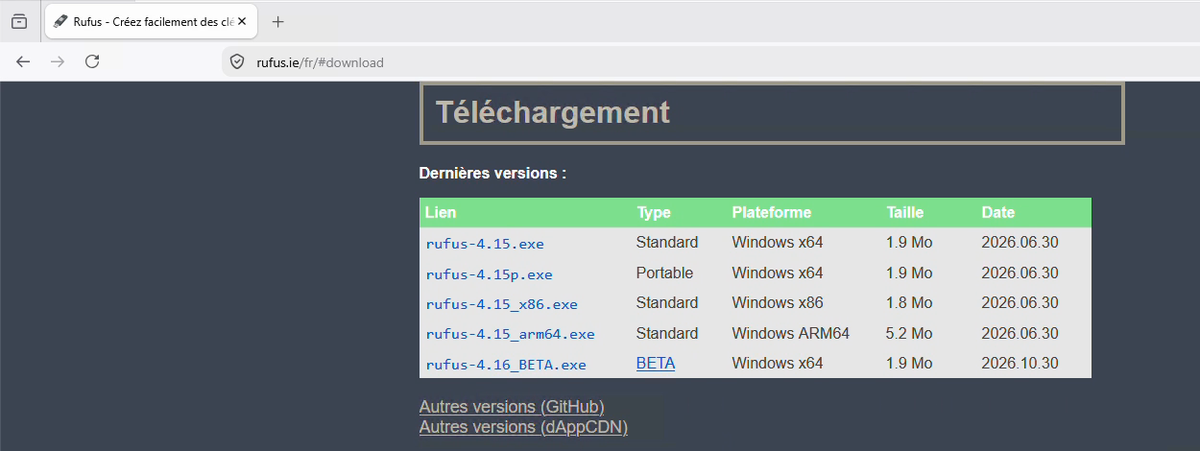
The next step is to write this image to the USB drive. On Windows, Tails now recommends Rufus. A small anecdote here: in February 2025, Tails stopped recommending balenaEtcher because that tool transmitted information to its publisher that could identify who was installing Tails.
Go to rufus.ie, click “Download”, and get the portable version (file rufus-4.15p.exe at the time of writing). It does not require installation.
Write the Tails Image to the USB Drive
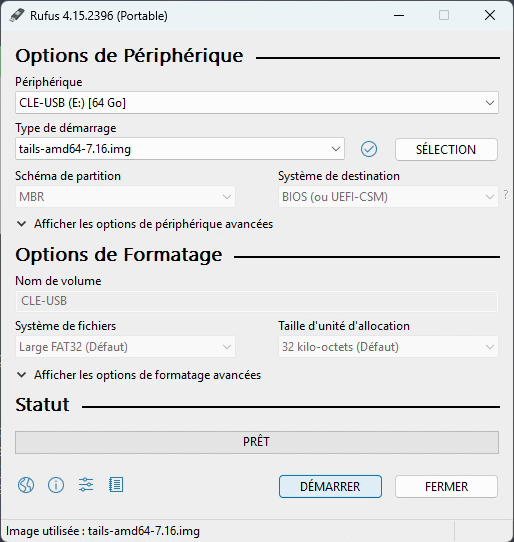
Launch Rufus. At first start, the tool may offer to check for updates: you can decline, it is not necessary here. Then:
- Select your USB drive in the “Device” list.
- Click “SELECT” and choose the Tails file in
.imgformat. - Leave the other options at their default values.
- Click “START” and confirm that the drive should be erased.
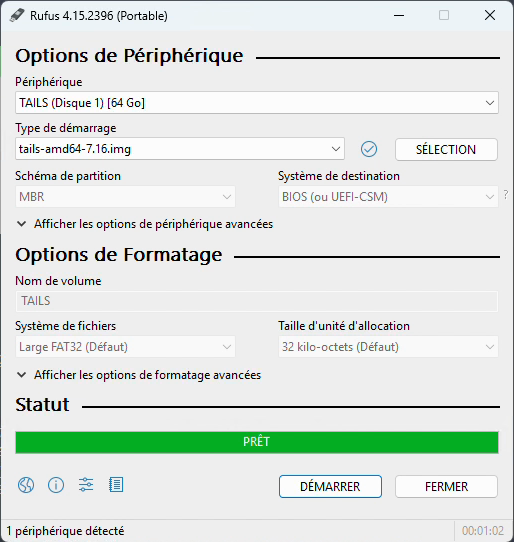
A few minutes later, the status bar turns green and shows “READY”: your Tails USB drive is ready.
Boot Tails and Connect to Tor
Boot the Computer from the USB Drive
Nothing will be erased on your PC, since we are only working on the USB drive. Shut down the computer, plug in the drive, then open the boot menu (or BIOS/UEFI) during startup. The key depends on the manufacturer: F2, F8, F12, or Esc are the most common. Select the USB drive, and the Tails loader will start automatically after a few seconds.
Configure the Tails Welcome Screen
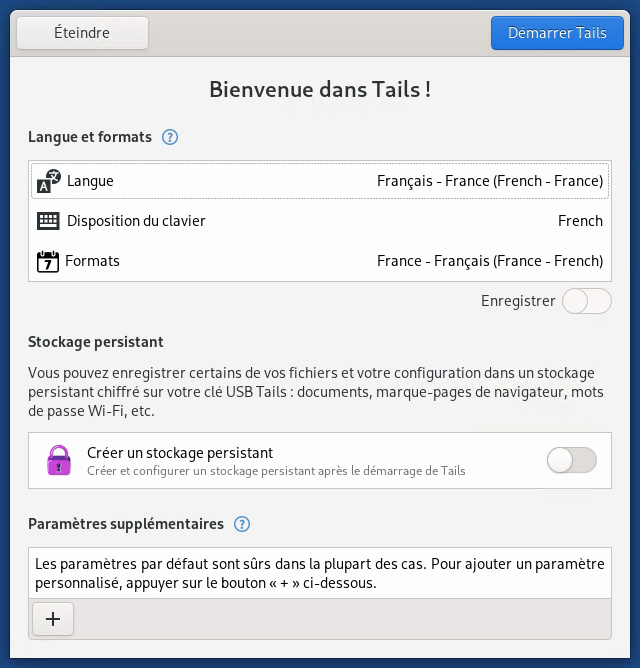
On the “Welcome to Tails!” screen, choose the language and keyboard layout. Most importantly, do not enable persistent storage. Without persistence, the system remains ephemeral and leaves no traces, not even on the USB drive. Then click “Start Tails.”
Connect to the Tor Network
The desktop appears and, once the network connection is established, the “Connect to Tor” assistant opens. It offers two ways to connect to the Tor network.
- Automatic Tor connection: this is the recommended option in most cases. Tails first synchronizes the computer clock, because Tor needs an accurate time to work. It then tries to connect directly to the public relays in the Tor network. If that connection is blocked, for example on a network that filters Tor, it automatically tries the default bridges built into Tails.
- Hide to my local network that I am connecting to Tor: this option is intended for situations where simply using Tor may cause problems, for example on a monitored network or in a country that censors Tor. Tails then connects only through a bridge that you configure yourself.
What is a bridge? It is a Tor relay whose address is not published in the relay list. Since that list is public, an ISP can easily spot, or even block, connections to standard relays. With a bridge, your entry point into the Tor network does not appear in that list, and the transport used (obfs4 or WebTunnel) disguises the traffic so that it does not look like a Tor connection.
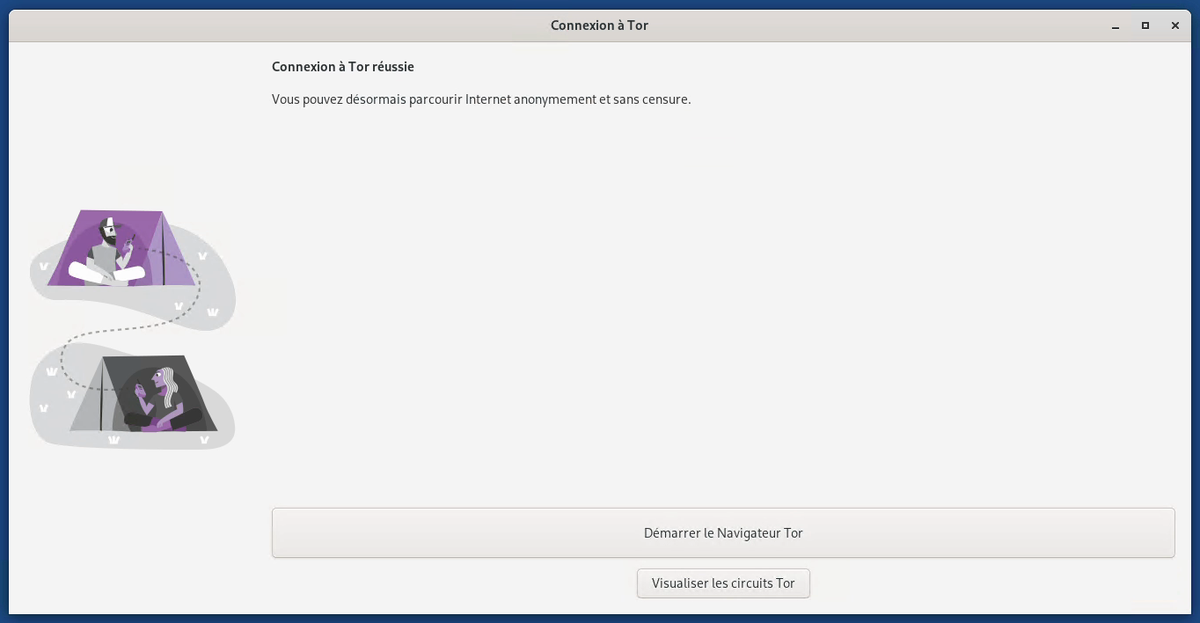
For a first try, choose “Automatic Tor connection”, then click “Connect to Tor.” A few seconds later, the connection is established.
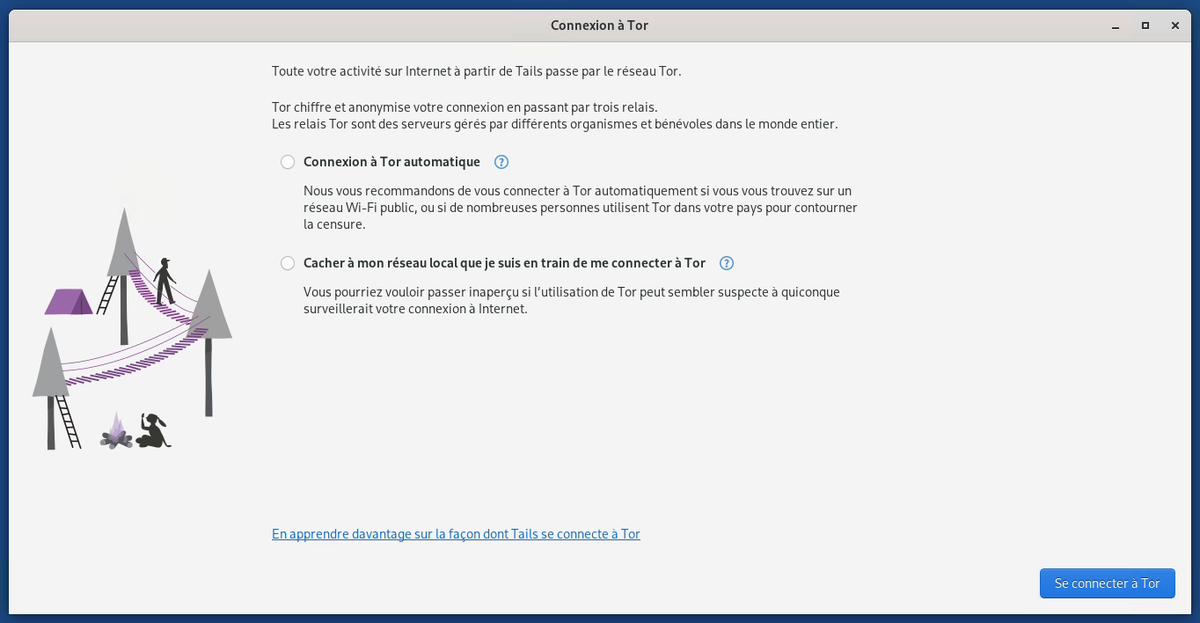
The “Hide to my local network that I am connecting to Tor” option lets you use a bridge, which is useful if Tor usage could seem suspicious on your network. For a first discovery, automatic connection is enough. A few seconds later, the connection is established.
Browse the Dark Web with Tor Browser
Adjust the Security Level
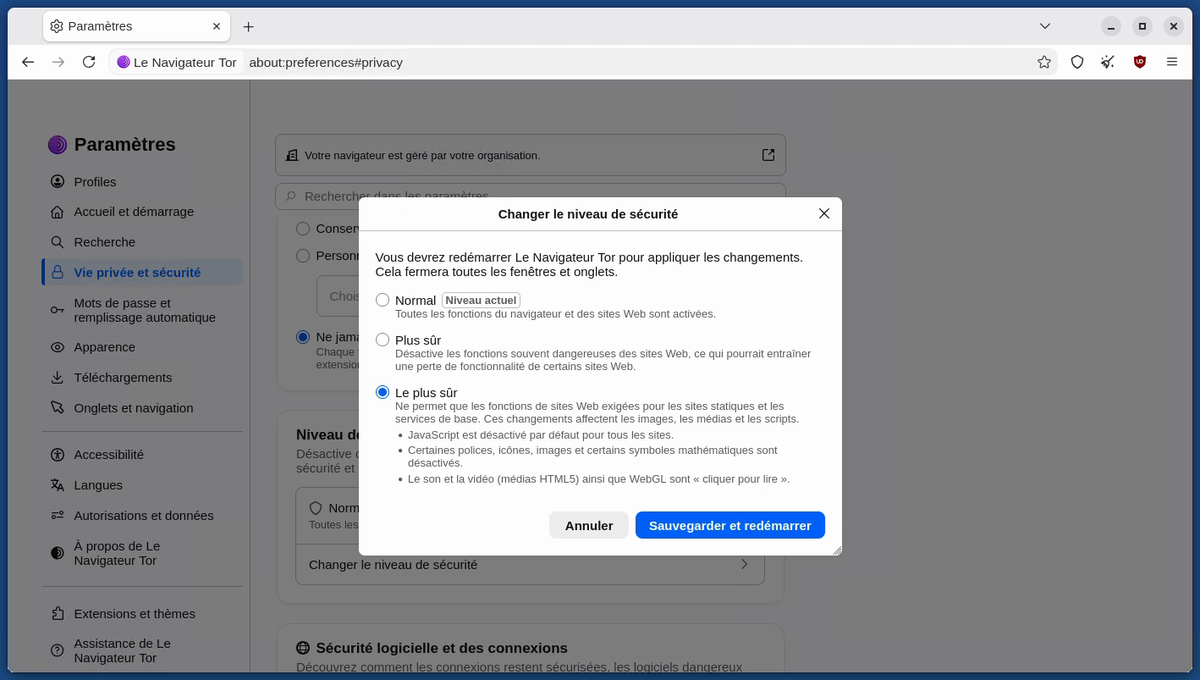
Open Tor Browser. Instead of diving in headfirst, take the time to review its settings. The shield icon lets you adjust the security level. The “Safest” level adds extra protection:
- JavaScript is disabled by default on all sites.
- Some fonts, icons, and images are disabled.
- Audio and video only play after a click.
Some sites will work less well, or not at all. That is the case with Google, but then again, you do not launch Tor to go to Google. This setting is an effective way to limit the loading of scripts, including malicious ones, when you visit sites you are not sure about. Click “Save and Restart” to apply the change.
Search with DuckDuckGo and the Onionize Option
Tor Browser uses DuckDuckGo as its default search engine. The home page shows an Onionize option: when enabled, your searches go through the .onion version of DuckDuckGo rather than its regular web version. DuckDuckGo is fully integrated into Tor Browser and the Tor network.
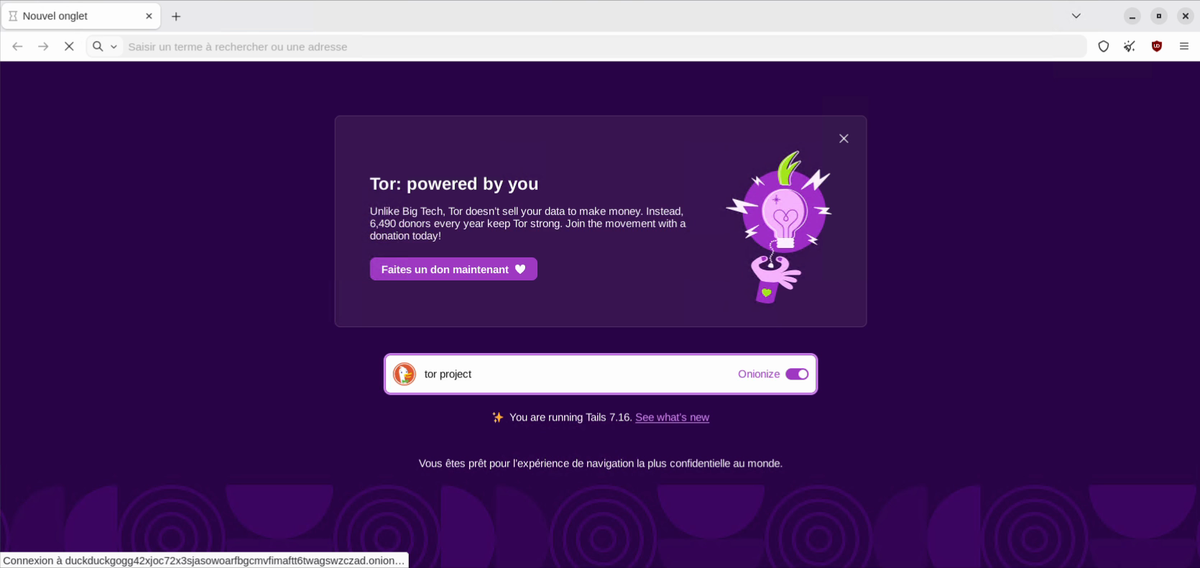
Switch to a Site’s .onion Version
Let’s do a simple search: “Tor Project.” When you open the official site, Tor Browser displays the “A .onion is available” badge in the address bar. The site has indeed returned an HTTP header in its response (Onion-Location) indicating that a .onion version exists. Click “Follow Onion” to switch to it. You may see this badge on all sites you visit that also have a .onion address.
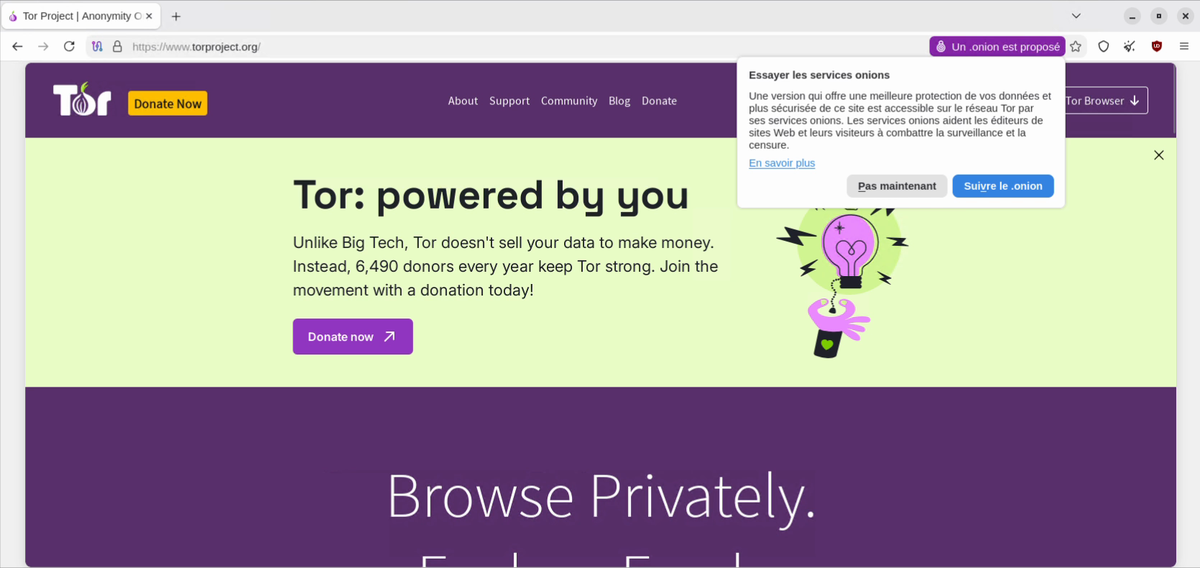
Look at the length of the .onion address: 56 characters. That is the format used by version 3 onion services.
View the Tor Circuit
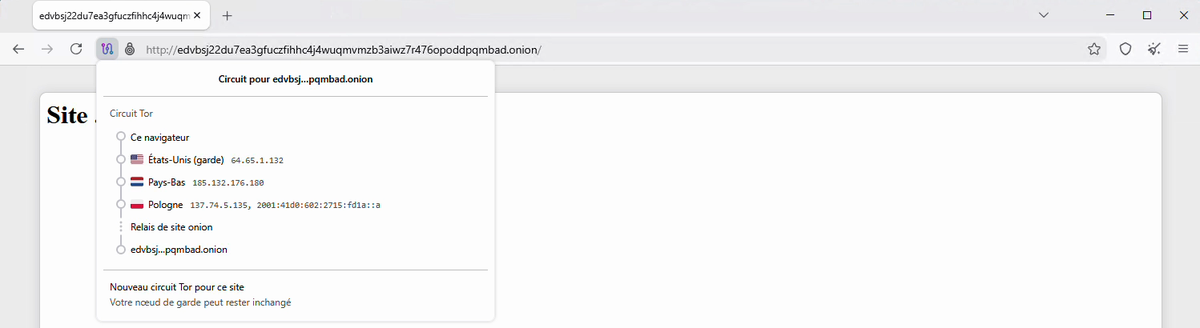
By clicking the icon to the left of the address, you can view the circuit in use. For a regular site, you will see three relays, with the country of each one. For a .onion site, you will see the relays up to the rendezvous point (“Onion Site Relay”).
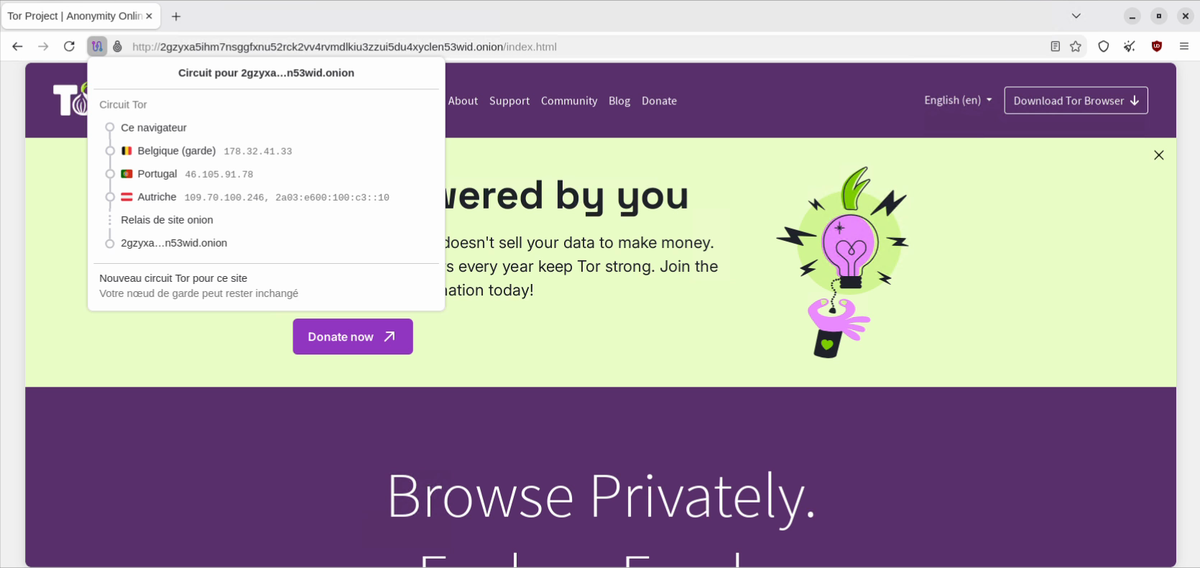
The “New Circuit for this Site” button lets you change routes: traffic will then go through other relays (the guard node may remain the same). To explore other .onion sites, you can then use directories, while keeping in mind the three rules from the beginning of this article.
Publish Your Own .onion Site
Now let’s move to the other side. We are going to publish a .onion site for educational purposes, to show how simple it is.
Prerequisites
For this demonstration, I am using a disposable Debian 13 server, which is deleted after testing. I recommend doing the same: do not host an onion service on a server that already hosts a public website, because a configuration mistake could link the two and reveal the server’s location.
Start by installing the two required packages: Tor and the Nginx web server.
sudo apt update && sudo apt install -y nginx torConfigure Nginx to Listen Locally Only
Disable Nginx’s default site, which listens on all interfaces, then create the site directory with a simple HTML page:
sudo unlink /etc/nginx/sites-enabled/default
sudo mkdir -p /var/www/onion
echo '<h1>Site .onion de demonstration IT-Connect</h1>' | sudo tee /var/www/onion/index.html
Then create the site configuration file:
sudo nano /etc/nginx/sites-available/onionWith the following content:
# /etc/nginx/sites-available/onion
server {
    listen 127.0.0.1:8080;
    server_name _;
    root /var/www/onion;
    index index.html;
    server_tokens off;
}
The key difference compared with a standard web server is the listen 127.0.0.1:8080 directive: Nginx listens only on the loopback address. The site must not be reachable from the network, only through Tor. The server_tokens off directive also prevents the Nginx version from being displayed.
Enable the site, check the syntax, and reload Nginx:
sudo ln -s /etc/nginx/sites-available/onion /etc/nginx/sites-enabled/onion
sudo nginx -t && sudo systemctl reload nginx
Declare the Onion Service in Tor
The onion service is configured in the /etc/tor/torrc file:
sudo nano /etc/tor/torrcOnly two lines need to be added:
HiddenServiceDir /var/lib/tor/itc-demo/
HiddenServicePort 80 127.0.0.1:8080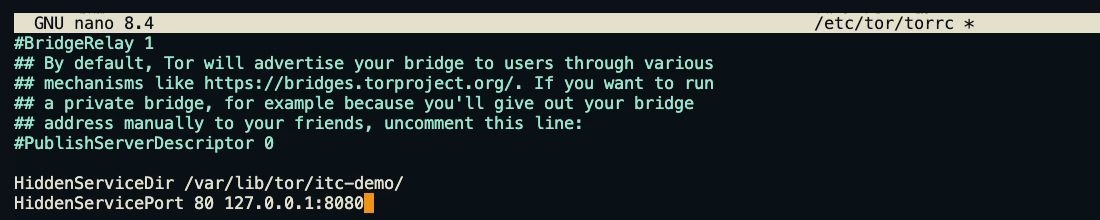
Here is what these two lines do:
- HiddenServiceDir specifies the folder where Tor will store the keys and the service address.
- HiddenServicePort forwards everything that arrives on port 80 of the .onion address to the local Nginx service on port 8080.
Restart Tor and Retrieve the .onion Address
Restart Tor, then display the generated address:
sudo systemctl restart tor
sudo cat /var/lib/tor/itc-demo/hostname
The displayed value is the .onion address of our site, made up of 56 characters. At startup, Tor triggered an entire mechanism: the creation of a key pair, then the publication of a signed descriptor on the network, which allows visitors to find the service.
Test Access from Tor Browser
All that is left is to paste this address into Tor Browser. The page appears.

By viewing the circuit, you can see the relays up to the rendezvous point. Most importantly, the visitor does not know where the server being consulted is located.
Protect the Service’s Private Key
This .onion site is now accessible to anyone who knows its address. On the server, the service folder contains several files:
sudo ls -l /var/lib/tor/itc-demo
The hs_ed25519_secret_key file is the identity of your site. It must never leak: anyone who gets it can impersonate your service on the Tor network. By default, these files belong to the debian-tor user and are readable only by that user. Keep these permissions, and if you plan to keep your address, back up this file in a secure location. Without it, it is impossible to recover the same .onion address.
The Cybercrime Market on the Dark Web
Beyond our harmless demonstration page, the Dark Web also hosts markets for illegal goods, cybercriminal forums, and ransomware gang sites where data from companies that refuse to pay the ransom is published. The Dark Web is a kind of hostile zone, but in any case, you remain in control: you decide your boundaries.
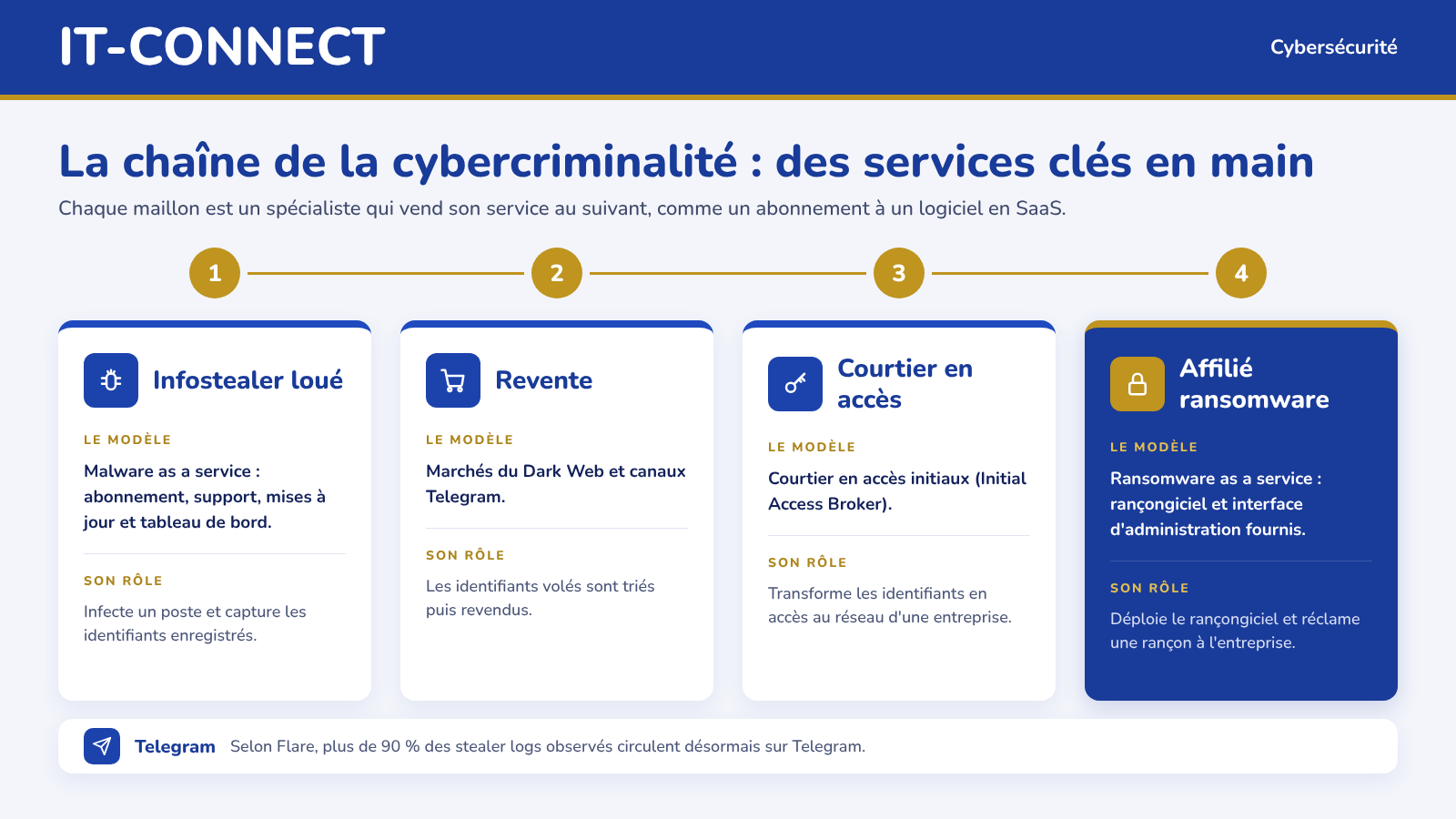
If data is for sale, it means there is a market, and that market has become industrialized. A cybercriminal no longer needs to know how to do everything: they can buy services, just as a company subscribes to software in SaaS.
- Malware as a service: cybercriminals rent an infostealer by subscription, with support, updates, and a dashboard included. Lumma is one example among others.
- Initial access brokers: they steal credentials, sort them, and then resell access to enterprise networks.
- Ransomware as a service: operators provide the ransomware and an administration interface to affiliates, in exchange for a subscription fee or a share of the ransoms.
Taken together, these services form a formidable chain: a rented infostealer infects a workstation, credentials are captured and resold, a broker turns them into access, and an affiliate deploys ransomware. Each link is a specialist in its own field. Authorities such as the FBI and Europol are constantly fighting these groups, but part of the activity has moved to Telegram. According to Flare, more than 90% of the stealer logs they observe circulate there.
How Much Is Your Identity Worth on the Dark Web?
Flare analyzed 348 data breach listings published between 2008 and 2026 to estimate the price of each data type, per person. Below are the results of that study.
| Type of data | Estimated price per person |
|---|---|
| Email address | Less than $1 |
| Phone number | Less than $1 |
| Bank card number | About $17 |
| Passport number | About $33 |
| Health data | About $300 |
Health data ranks at the top because it cannot be revoked as easily as a bank card: it is permanently tied to a person. By contrast, an email address has low value because it appears in so many breaches. That is what makes it the raw material for many attacks, starting with phishing campaigns.
Flare’s analysis also reveals another striking figure: out of 18.7 million stealer logs collected in 2025, more than 2 million contained enterprise single sign-on (SSO) credentials. In other words, more than one infection in ten could potentially open the door to a company’s information system. To reduce this risk on the endpoint side, you can read our article on securing Chrome, Edge, and Firefox in the enterprise against infostealers.
Conclusion
Behind the words “Dark Web” there is neither magic nor mystery: a network of relays, layered encryption, and addresses derived from cryptographic keys. That also makes security highly dependent on the user. Tor hides your IP address, Tails isolates your system, but neither will protect you if you identify yourself, open a booby-trapped file, and so on. There is still a sense of mystery around the Dark Web, because we do not know exactly everything that can be found there, or how to find it.
As a professional, the value of exploring the Dark Web lies elsewhere: understanding how stolen credentials circulate, even if there are tools that do this very well. Enabling multi-factor authentication, limiting password storage in browsers, and monitoring domain exposure are much more useful measures than digging through cybercriminal forums yourself.
And you, have you ever used Tor or Tails, and for what purpose? Let us know in the comments!
FAQ
What is the Dark Web?
The Dark Web is a small part of the unindexed Web, accessible only through overlay networks on top of the Internet that require specific software. The best known is the Tor network, which gives access to sites ending in .onion.
What is the difference between the deep web and the dark web?
The deep web includes everything that is not indexed by search engines, such as email or a banking portal. The dark web is only a small part of it, accessible only with specific software such as Tor.
Is it illegal to go on the Dark Web?
No, using Tor to access the Dark Web is not illegal in France. However, much of the content found there is illegal, and viewing some of it is already a criminal offense.
How can you safely go on the Dark Web?
The safest method is to boot from a Tails USB drive, an ephemeral system that sends all traffic through Tor. You should also never reveal your identity, make any payments, or use any account linked to your real identity.
What is Tor?
Tor (The Onion Router) is a decentralized, free network that routes your traffic through a circuit of three encrypted relays. No relay knows both the sender and the destination of the connection.
Who created the Tor network?
The idea came from three researchers at the U.S. Naval Research Laboratory in 1995. The Tor network was deployed in 2002 with open-source code, and Tor Browser has been developed since 2008.
What is a .onion address?
It is the address of a service accessible only inside the Tor network. It is 56 characters long and derived from the service’s public key. There is no DNS or registry for these addresses.
How do you find .onion sites?
There is no Google-like search engine for .onion sites. You need to know the exact address, use a directory, or take advantage of Tor Browser’s “A .onion is available” badge for sites that publish a .onion version.
Should you use a VPN with Tor?
It is not necessary when you are starting out. The Tor Project does not recommend adding a VPN except for advanced users, because a bad configuration can reduce anonymity. A VPN also shifts trust to its provider.
Does Tor Browser make you anonymous?
Tor Browser improves your privacy, but anonymity depends on your behavior. If you log in to a personal account through Tor, the service knows who you are.
What is Tails?
Tails is a Debian-based Linux operating system that boots from a USB drive. It sends all traffic through Tor, blocks connections that try to bypass it, and wipes everything on shutdown.
Why use Rufus instead of balenaEtcher for Tails?
Since February 2025, Tails has recommended Rufus on Windows because balenaEtcher transmitted information to its publisher that could identify the people installing Tails.
Should you enable Tails persistent storage?
Not for accessing the Dark Web. Without persistent storage, Tails remains fully ephemeral and leaves no traces, not even on the USB drive.
How do you create your own .onion site?
Simply install Tor and a web server such as Nginx, make the site listen on 127.0.0.1, then add the HiddenServiceDir and HiddenServicePort directives in /etc/tor/torrc. After restarting Tor, the address is found in the hostname file.