www.it-connect.fr


Kudu: The Free, Open Source Alternative to CCleaner for Windows, macOS and Linux
Looking for a CCleaner alternative to clean up your PC, without ads or a subscription? Kudu, a free and open source tool that appeared in 2026, aims to take its place.
Kudu brings together more than 25 tools in a single interface: system cleaning, disk space analysis, privacy settings, antimalware scanning, and performance monitoring. It can be useful on a family PC whose drive is full, on a relative's machine you're troubleshooting, or on your own workstation. This is even more true since it supports Windows, Linux, and macOS!
Kudu: what is it?
Kudu is a free and open source application for Windows, macOS and Linux. It can remove junk files (duplicate files, application cache, system cache, etc.), analyze disk usage, adjust system privacy settings, and monitor machine performance, all locally and without creating an account.
The project is developed by Advent Development, Inc. and its source code is published under the MIT license. The application is built on Electron, React, and TypeScript, which explains its availability on all three operating systems. The interface has been translated into several languages, including French. Even though the application includes a lot of tools, it is still new: its first versions date back to March 2026. This tool is developed with the help of AI, which may explain how quickly it has been moving.
On the business model side, the "Desktop" version is free and includes all local tools. The publisher makes money through an optional Kudu Cloud offering, designed for remote monitoring of multiple machines: $5 per device per month for the Basic plan, $9 for the Pro plan. In the application, the relevant features are marked with a badge.
For cleaning, Kudu uses cleanup rules stored in simple JSON files, which can be viewed in the project's GitHub repository. So you can check what the tool targets for each application if you feel like it.
Here are the useful resources:
Installing Kudu on Windows
Download and installation
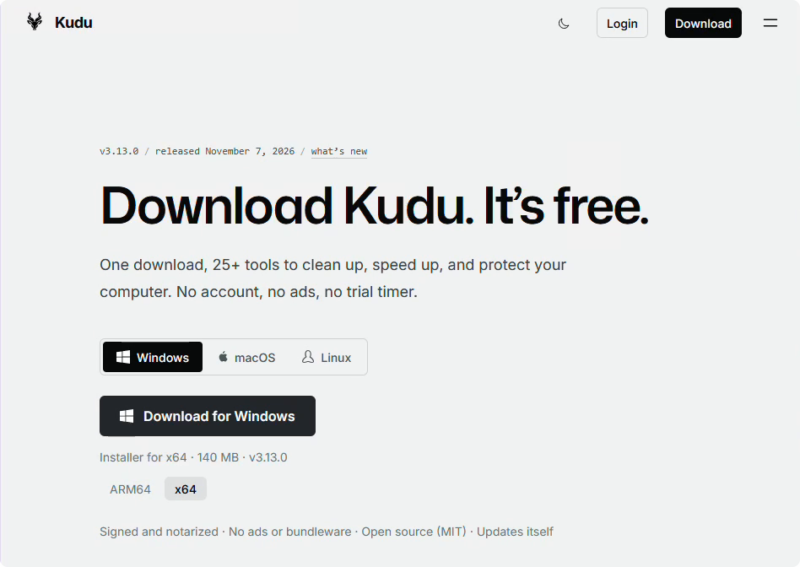
Kudu runs on Windows 10 and Windows 11. Go to the download page on the official website to get the installer, which weighs about 140 MB for the x64 version. A portable version is also available, along with packages for macOS (.dmg) and Linux (.AppImage and .deb).
If you use WinGet, Windows' package manager, the official website provides the following command:
# Installer Kudu avec WinGet
winget install AdventDevelopmentInc.Kudu
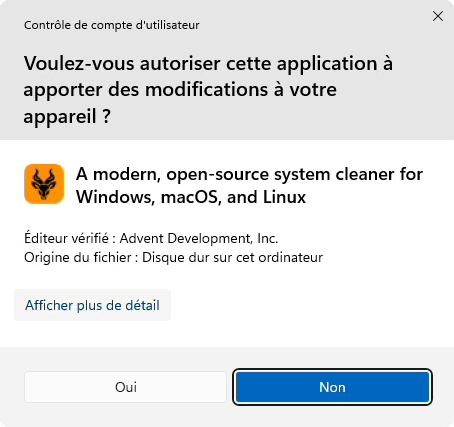
When the installer starts, the User Account Control window displays a verified publisher, a sign that the executable is digitally signed. That's a nice touch, and above all, it avoids triggering SmartScreen on Windows.
First launch: the recommended configuration
At first startup, Kudu asks you to choose a language, then displays a "Recommended Configuration" screen. Three options are enabled by default, as shown in the image below. This gives us an interesting first clue: Kudu can schedule automatic cleaning.

I recommend disabling automatic cleaning, at least at first. It's better to see what the tool proposes to remove before delegating that task to it.
The home screen then offers three entry points ("I need more space", "It seems a bit slow", "I want more peace of mind"), which corresponds to the simplified mode. The interface is streamlined to guide you, while advanced mode provides more information.

A tour of Kudu's features
The system cleaner
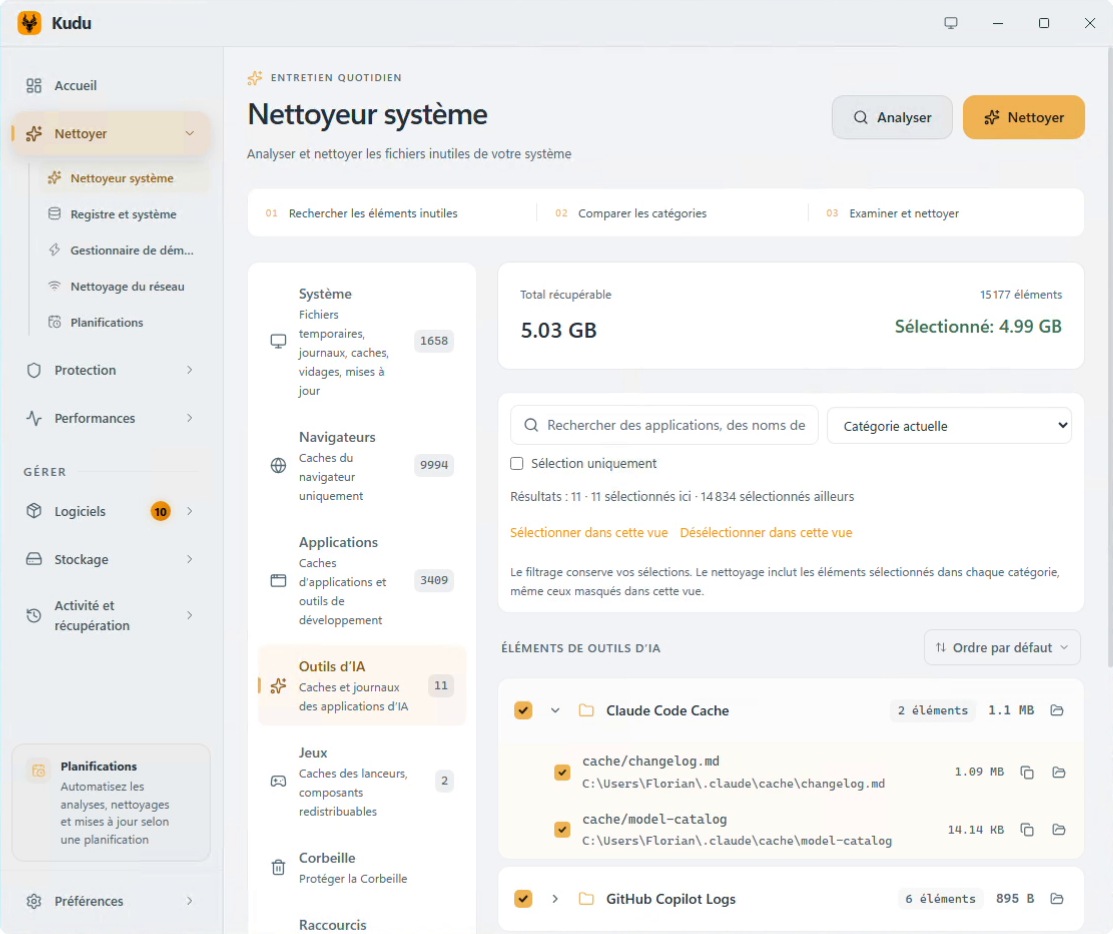
This is Kudu's core tool. Clicking "Analyze" starts a search for junk files, grouped by category: system (temporary files, logs, memory dumps), browsers, applications, AI tools, games, recycle bin, broken shortcuts, SQLite databases, and privacy traces. On my test machine, the scan identified 49,538 items, for a total of 53.37 GB that could be recovered.
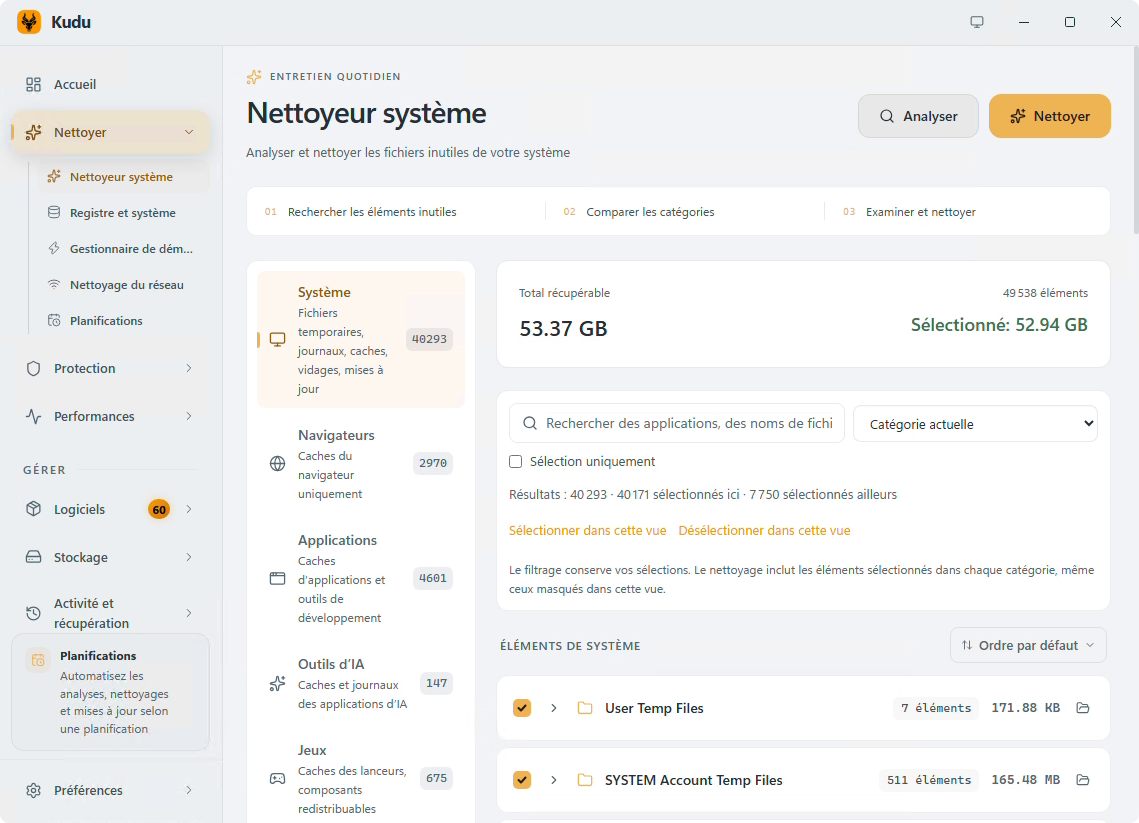
Each item can be expanded to view the list of files and their paths, then unchecked. Take the time to read the details. In my case, 37.46 GB of the 53.37 GB came from the "Previous Windows Installation" item, which is the Windows.old folder, checked by default. This folder contains the old Windows installation after an upgrade: if you delete it, rolling back to the previous version is no longer possible. That's not a problem if your system is stable, but it is a decision that should be made with full knowledge of the consequences.
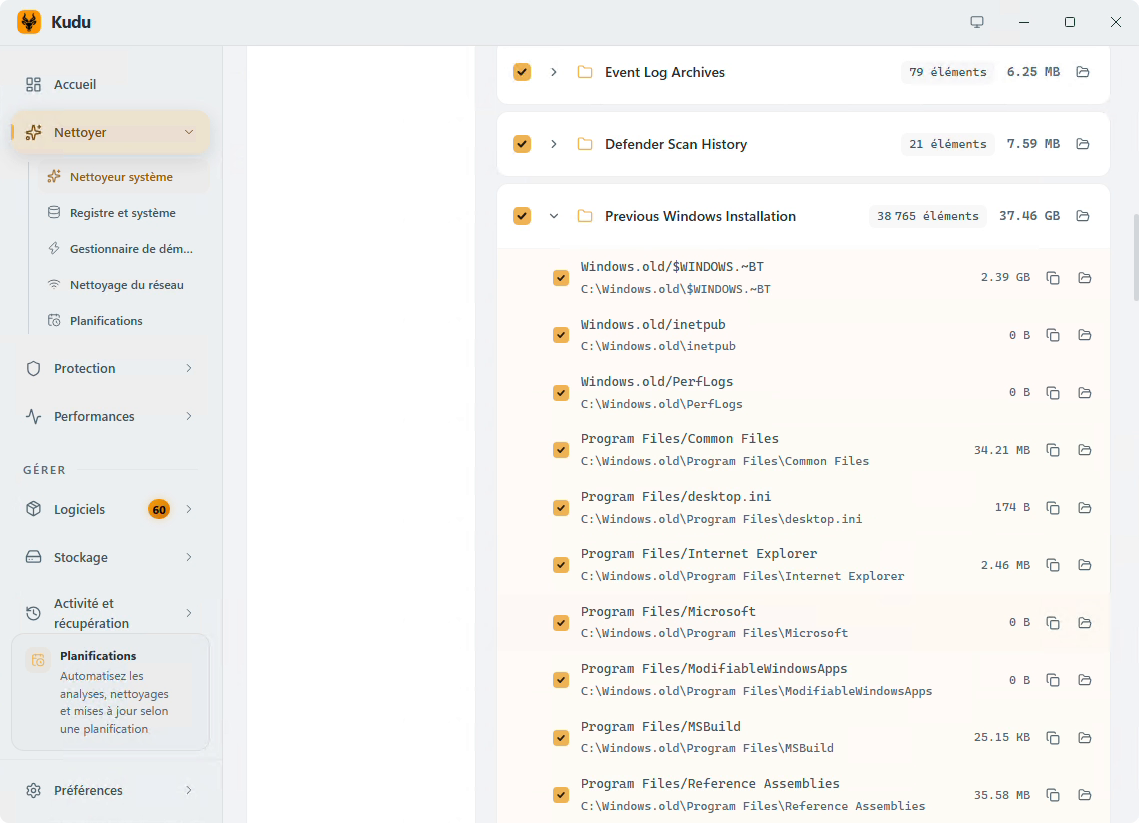
As a general rule, Kudu's default selections are fairly conservative. For example, caches whose removal can slow down the next boot (Prefetch, DirectX shader cache) and Windows component cleanup are unchecked by default.
Proof that the tool is modern, the "AI Tools" category targets caches and logs from Claude Code, GitHub Copilot, and LM Studio. There is also an "Applications" category, which covers many applications, including some specific ones such as VS Code and pip.
Registry and system hardening
The "Registry and System" module brings together two different functions. The first is a registry cleaner, presented as an "advanced feature", with a .reg backup created before any change. On my PC, it reports 3,035 issues, including many references to missing shared DLLs and outdated file associations. But be careful with the Registry: a bad cleanup can break an application.
In addition, Kudu checks security settings (UAC, Microsoft Defender, firewall, RDP, SMBv1) and warns if LLMNR and WPAD protocols are enabled. These are real hardening topics, which we covered in our article on the security risks of WPAD in Windows. It's smart to have included that.

Warning: the "Fix" button applies to all selected issues (2,954 on my machine). Check the boxes in each category before validating.
Disk analysis and file shredding
In the "Storage" section, the disk analyzer represents a volume's usage as a proportional map, by folder or by file type. At a glance, you can identify the largest folders: here, Users with 206.08 GB. The same section also gives you access to duplicate search, large file search, and empty folder cleanup. That said, it is far from being as effective as a tool like WinDirStat, which will remain my favorite for this kind of task.

If disk space is your main concern, you can also complement this reading with our guide to freeing up disk space on Windows 11.
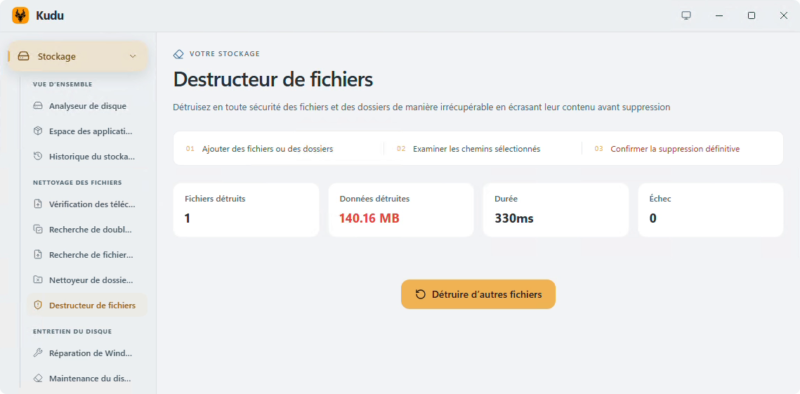
The file shredder, meanwhile, deletes a file or folder after overwriting its contents with random data, then zeros. This does not replace a full disk wipe with the proper tools before recycling a PC or reselling it.
Protection: malware scanner and privacy shield
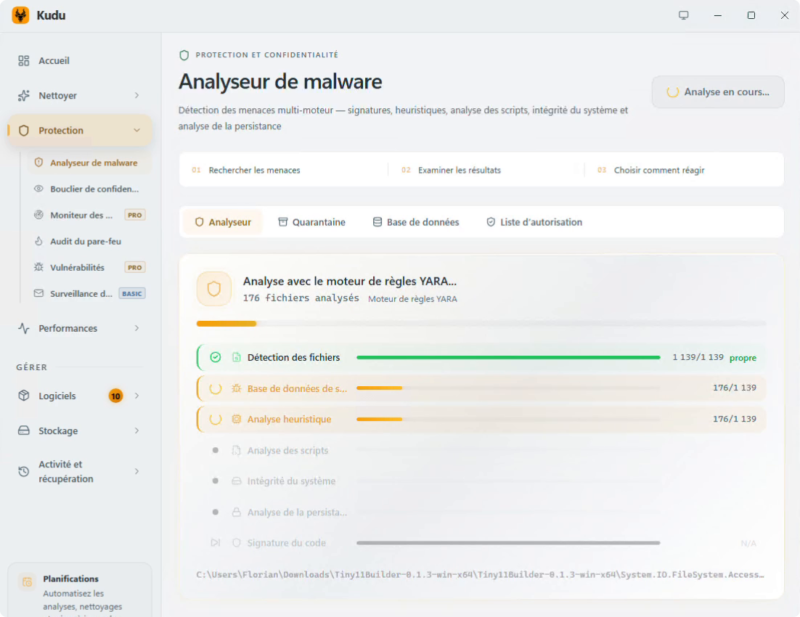
The malware scanner combines multiple engines: signatures, YARA rules (yes, really), heuristic analysis, script analysis, system integrity checks, and persistence mechanism detection.
The privacy shield reviews Windows settings related to telemetry, ads, search, sync, AI features (Copilot, Recall, Click To Do), and browser telemetry. It then assigns a score: 14 out of 100 for my Windows 11 test machine with no specific configuration. Here, Kudu can help you improve the situation in just a few clicks.
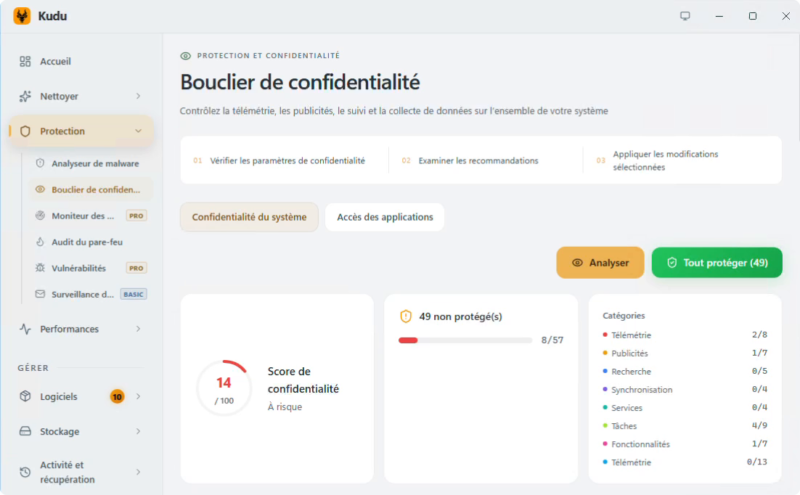
That harsh score should not tempt you to click "Protect All". That button targets all 49 settings, including features you may use every day, such as clipboard history or settings sync. Everyone should act according to their own needs.
Performance: monitor and game mode
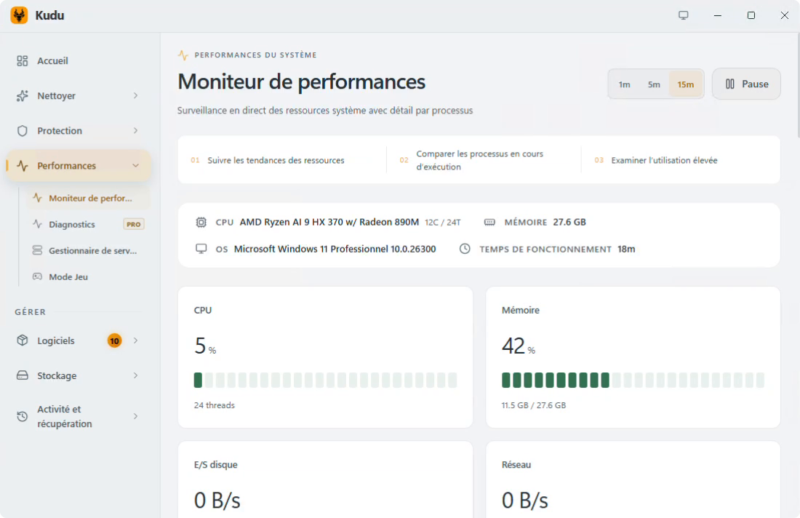
The performance monitor shows live CPU, memory, disk, and network usage, drive S.M.A.R.T. status, and per-application consumption. CPU temperatures remain unavailable until Libre Hardware Monitor or Open Hardware Monitor is running, as the interface indicates.
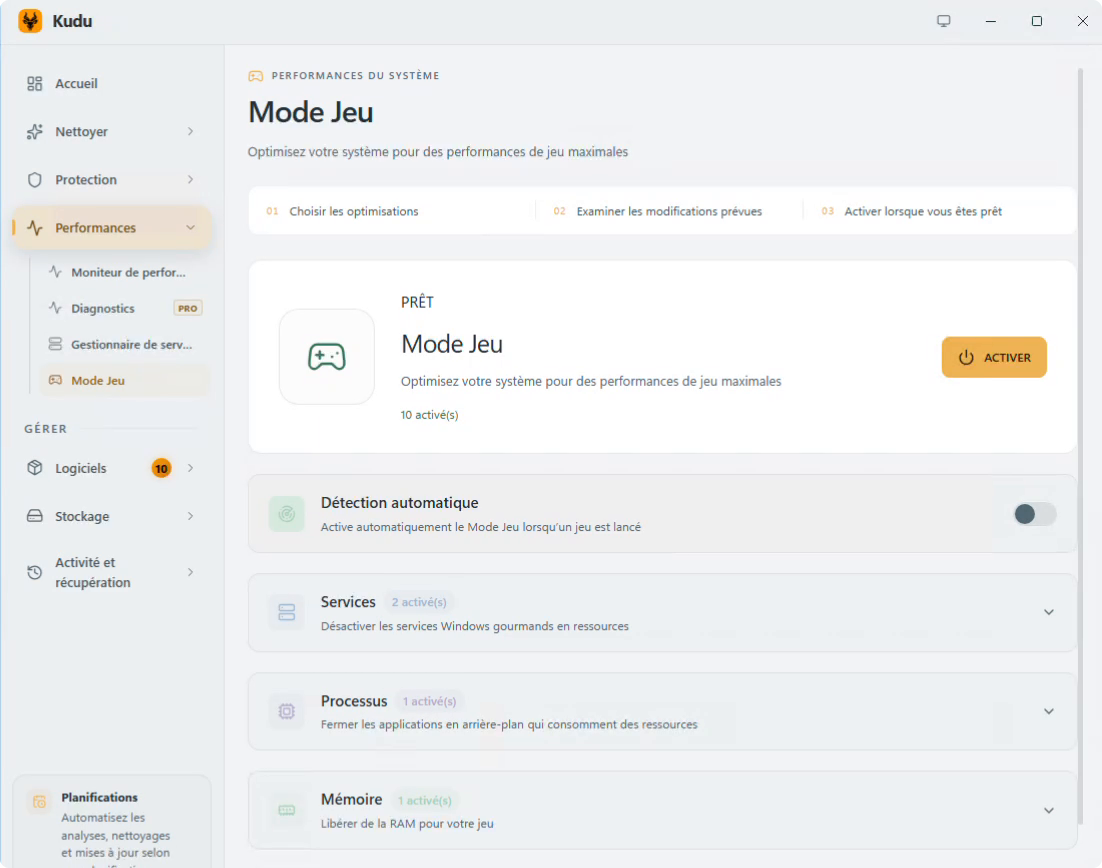
Game mode applies a series of temporary optimizations: stopping Windows Search indexing and SysMain, closing background update programs, switching to the "High performance" power plan, disabling Game Bar, and more. Ten settings are enabled by default and can each be adjusted. The goal is to free up as many resources as possible for gaming.
Kudu includes other tools that I did not detail here: startup manager, service manager, software updater (via WinGet, somewhat like UniGetUI), network cleaning, firewall audit (currently a somewhat unclear section, in my opinion), and task scheduling. A command-line interface (kudu --cli) is available for task automation.
Conclusion
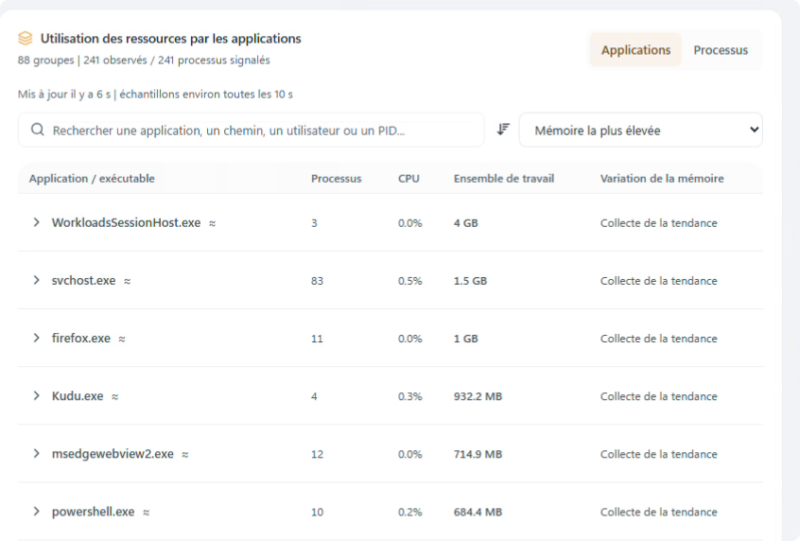
Kudu is a credible alternative to CCleaner for cleaning up a PC: it is free, open source, ad-free, and transparent about what it deletes (which is far from being the case with CCleaner, which has gone a bit off the rails). On the downside, Kudu seems fairly resource-hungry, and its resource monitor shows it using 932 MB of RAM (Kudu.exe). Well, at the same time, it is Electron... so that is not really surprising. Finally, let's remember that Windows 11 already includes its own cleanup features, and that Microsoft also offers PC Manager, its CCleaner alternative.